PureNeko | Visual JEI Category Editor
Create your game server with 

Description
Visual JEI Category Editor
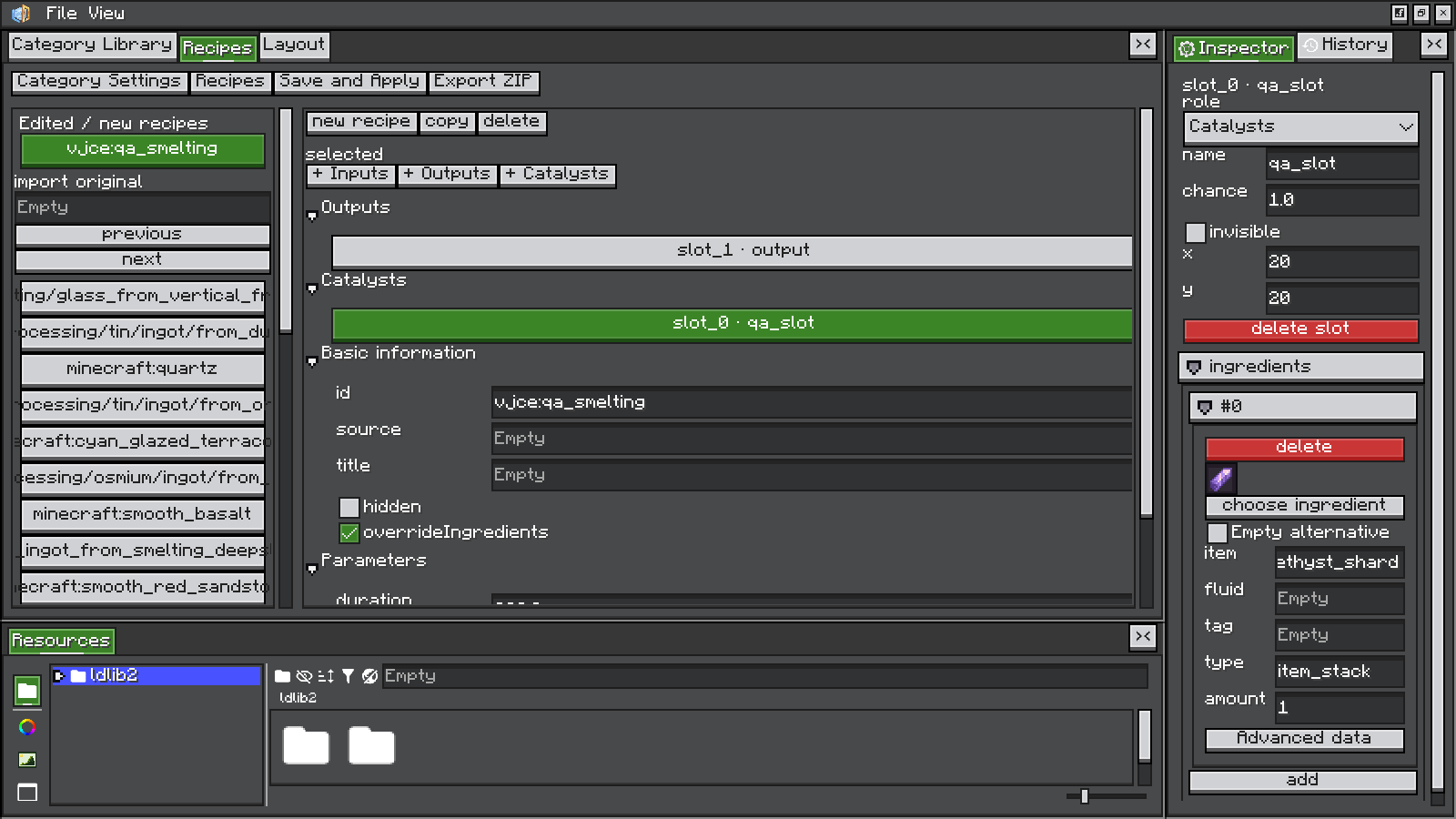
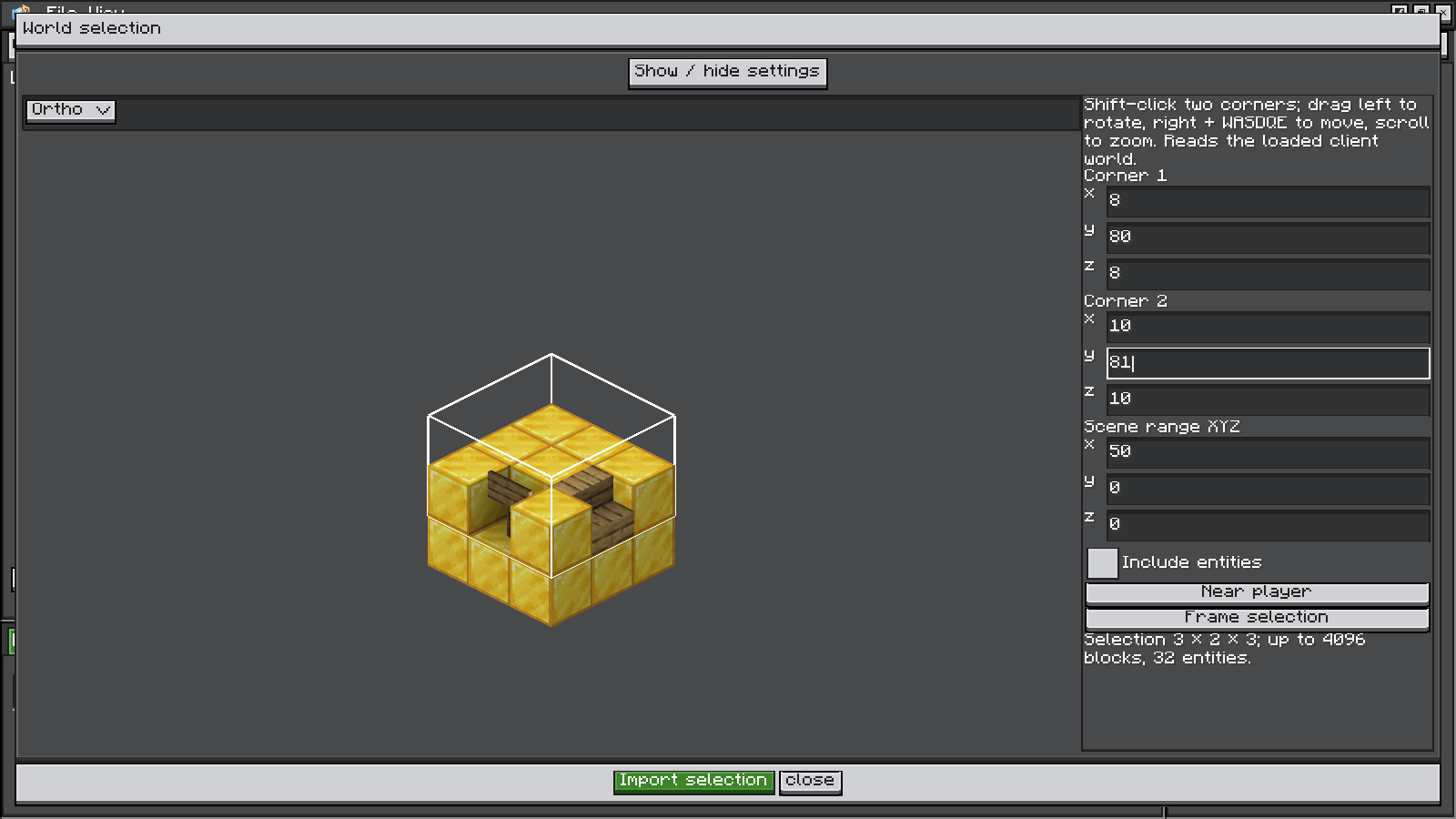
VJCE is an in-game visual JEI category and display recipe editor built with LDLib2. Create categories, redesign existing recipe pages, add blocks, entities and world snapshots, then export your projects and resources for a modpack.
Display and processing: edits affect client-side JEI presentation. Actual crafting, machine processing and server recipes remain controlled by the original mod or your recipe scripts. VJCE is not required on the server.
Features
| Feature | What you can do |
|---|---|
| Categories and recipes | Browse JEI categories, create your own or override pages; configure titles, icons, catalysts and display data. |
| Visual canvas | Select, move, resize, rotate and group elements with alignment guides, an inspector, and undo/redo. |
| Ingredients and slots | Drag ingredients from JEI and edit roles, alternatives, amounts and chances; use items, fluids and other registered types. |
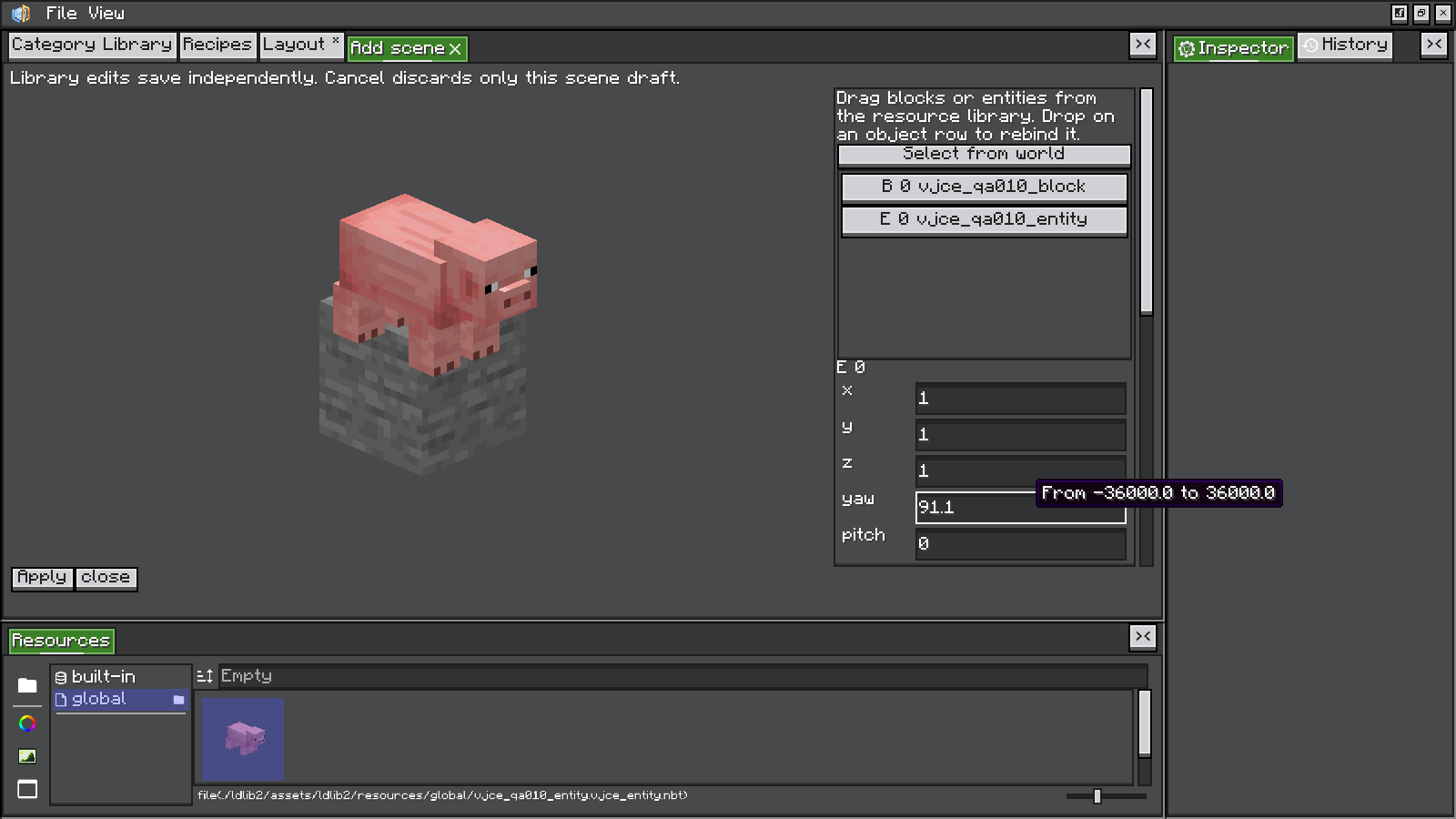
| 3D scenes | Arrange blocks and entities or capture world snapshots, including block entities, equipment, poses and native animations. |
| Data bindings | Drive text, progress, color and visibility with custom fields and expressions for energy, temperature and other values. |
| Projects and resources | Save editable .vjce projects, manage shared block/entity resources and export a modpack ZIP. |
Quick start
- Open the editor: enter a world and run
/vjce editorin chat. - Choose a category: create one in Category Library, or search for an existing JEI category and create an override project.
- Edit data: set the category ID, title, icon and page size. In Recipes, select a slot and use the right-hand inspector to edit its ingredients and properties.
- Design the page: open Layout to arrange slots, text and decoration. Use Add scene to include 3D content.
- Preview and apply: use the play button, then Save and Apply. Leave and re-enter the world for JEI to apply the saved configuration.
- Keep your project: use
File → Saveto save an editable.vjcefile. Export a modpack ZIP when ready to share.
To try the included category, copy the config/ folder from examples/
into your instance root before entering a world.
The example provides JEI display data; it does not register a crafting recipe.
Controls
| Action | Result |
|---|---|
| Left-click | Select an element or the recipe background |
Alt + click |
Cycle through overlapping elements and native layers |
Shift + left-drag |
Move an element |
| Drag completely empty space | Pan the canvas |
Ctrl + click |
Enter green transform mode; it stays active after releasing Ctrl |
| Drag a green edge / corner | Resize; hold Ctrl while dragging a corner to preserve proportions |
Alt + left-drag inside the green frame |
Rotate around the center; add Shift for 15° snapping |
Esc |
Cancel the current drag, or leave transform mode when idle |
Visual JEI Category Editor Team