ToolGuard
- By
A client-side Fabric mod that protects valuable tools and items from breaking or being dropped accidentally with durability limits, item locks and hotbar slot protection.
Dashboard.png
HUD.png
Locks.png
Description
# 🛡️ ToolGuard
**Protect your tools before one wrong click turns them into a memory.**
ToolGuard is a client-side Fabric mod designed to protect valuable tools and items from accidental destruction or dropping.
Set a durability threshold, choose which tool categories should be protected, lock individual items or entire hotbar slots and let ToolGuard stop dangerous actions before they happen.
No server-side installation is required.
---
## ✨ Features
ToolGuard includes:
- 🛡️ Tool break protection
- 📉 Configurable durability threshold
- ⛏️ Protection by tool category
- 🔒 Individual item locks
- 🎒 Persistent hotbar slot locks
- 🚫 Accidental drop protection
- 🖱️ Quick locking with ALT + Right Click
- 🔐 Visual lock indicators
- ⚠️ Warning HUD
- ↔️ Movable HUD
- 🔎 Adjustable HUD size
- 💾 Persistent settings and protected items
- 🎮 In-game configuration menu
- 🧩 Mod Menu integration
- 💻 Fully client-side operation
---
## 🛡️ Tool Break Protection
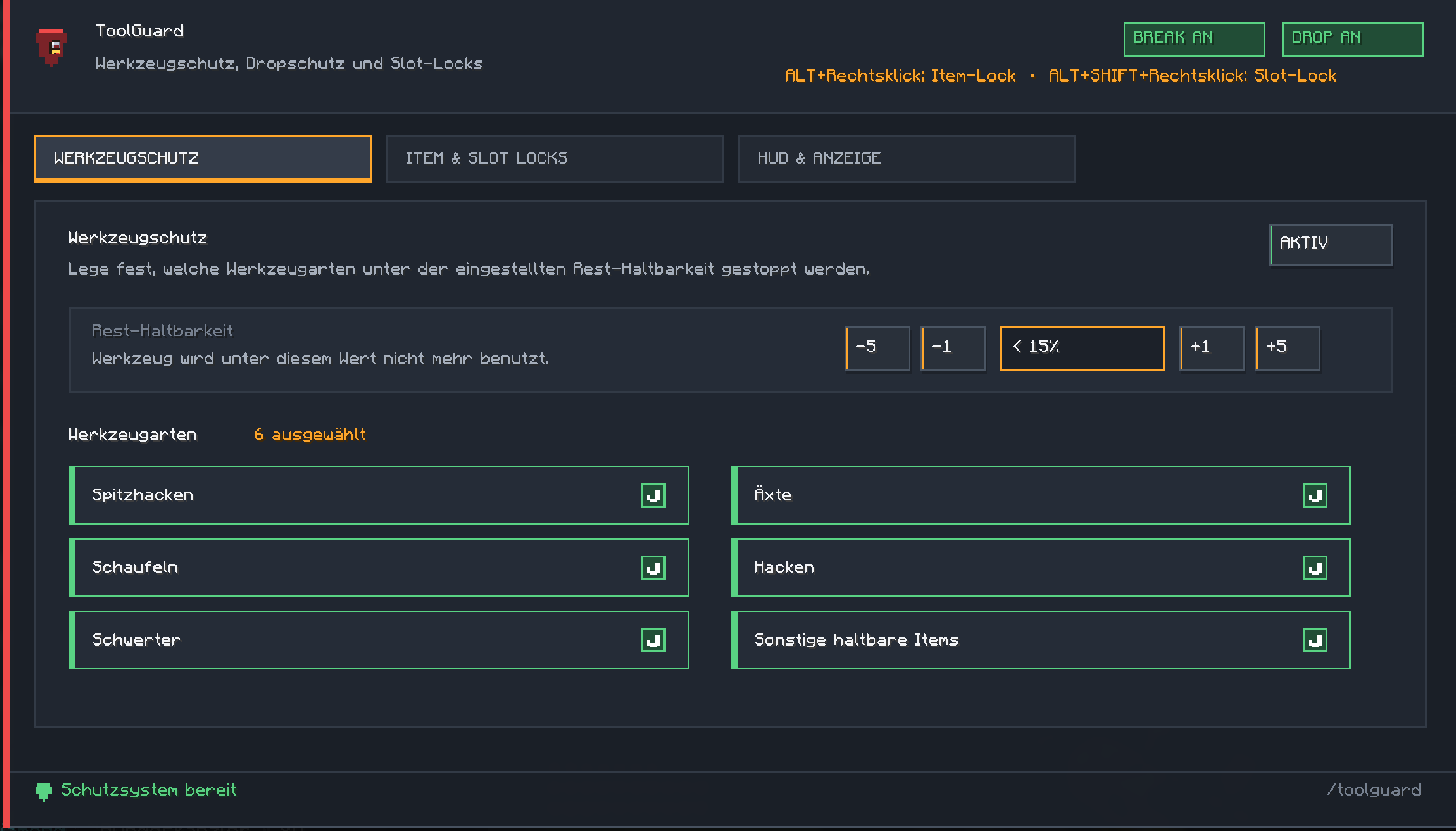
ToolGuard can prevent protected tools from being used once their remaining durability falls below a configurable percentage.
This helps prevent important tools from accidentally breaking during mining, combat or general use.
You decide how much durability should remain before ToolGuard intervenes.
---
## 📉 Configurable Durability Threshold
Choose the remaining durability percentage at which ToolGuard should stop protecting actions.
For example, if your threshold is set to 10%, ToolGuard can stop protected tools from being used once they fall below that level.
---
## ⛏️ Tool Categories
Protection can be enabled independently for different types of tools.
Supported categories include:
- Pickaxes
- Axes
- Shovels
- Hoes
- Swords
- Other damageable items
This allows you to protect exactly the equipment that matters to you.
---
## 🔒 Item Locks
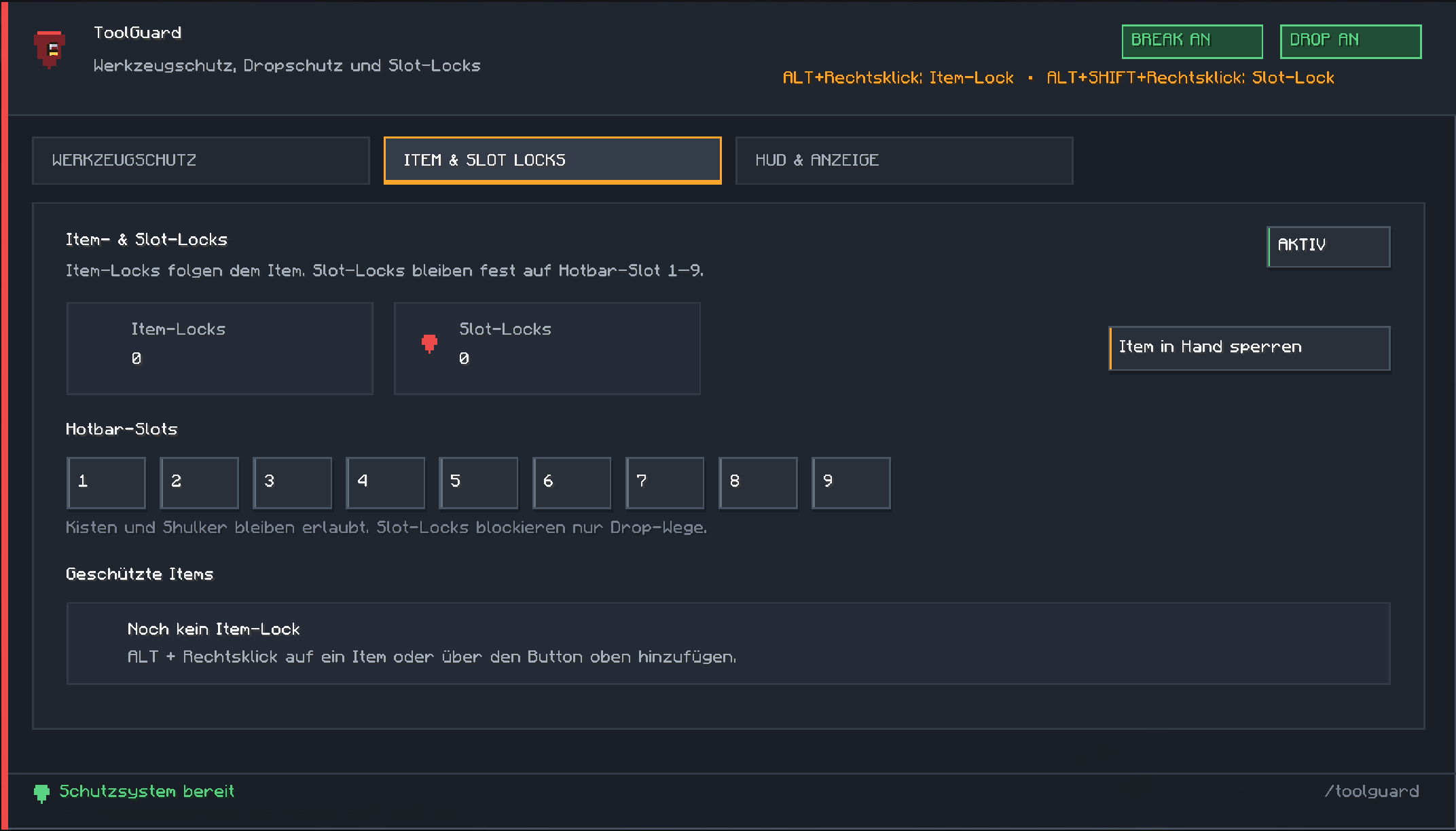
Individual items can be permanently protected.
An item lock follows the protected item rather than simply protecting one fixed inventory position.
This is useful for rare tools, valuable equipment or other items you never want to drop accidentally.
### Quick Lock
Use:
- **ALT + Right Click** to toggle an item lock
Locked items are visually marked with a lock indicator.
---
## 🎒 Hotbar Slot Locks
ToolGuard can also protect specific hotbar slots.
Unlike an item lock, a slot lock stays attached to the selected hotbar position.
Use:
- **ALT + SHIFT + Right Click** to toggle a hotbar slot lock
This allows you to reserve important slots and protect whatever is currently stored there.
---
## 🚫 Drop Protection
Protected items and locked hotbar slots are guarded against accidental drop actions.
ToolGuard hooks into several common drop paths, including normal item dropping, inventory interactions and creative-mode dropping.
The goal is simple: if an item is protected, an accidental key press or mouse action should not throw it away.
---
## 📦 Containers Still Work
ToolGuard is designed so that normal container usage remains possible.
✅ Chests can still be opened
✅ Shulker boxes can still be used
✅ Container interaction itself is not blocked
Slot locks focus on dangerous drop actions rather than preventing normal gameplay.
---
## 🔐 Visual Lock Indicators
Protected inventory items and hotbar slots can display small lock indicators.
This makes it easy to see which equipment is currently protected without opening the ToolGuard settings.
---
## ⚠️ Warning HUD
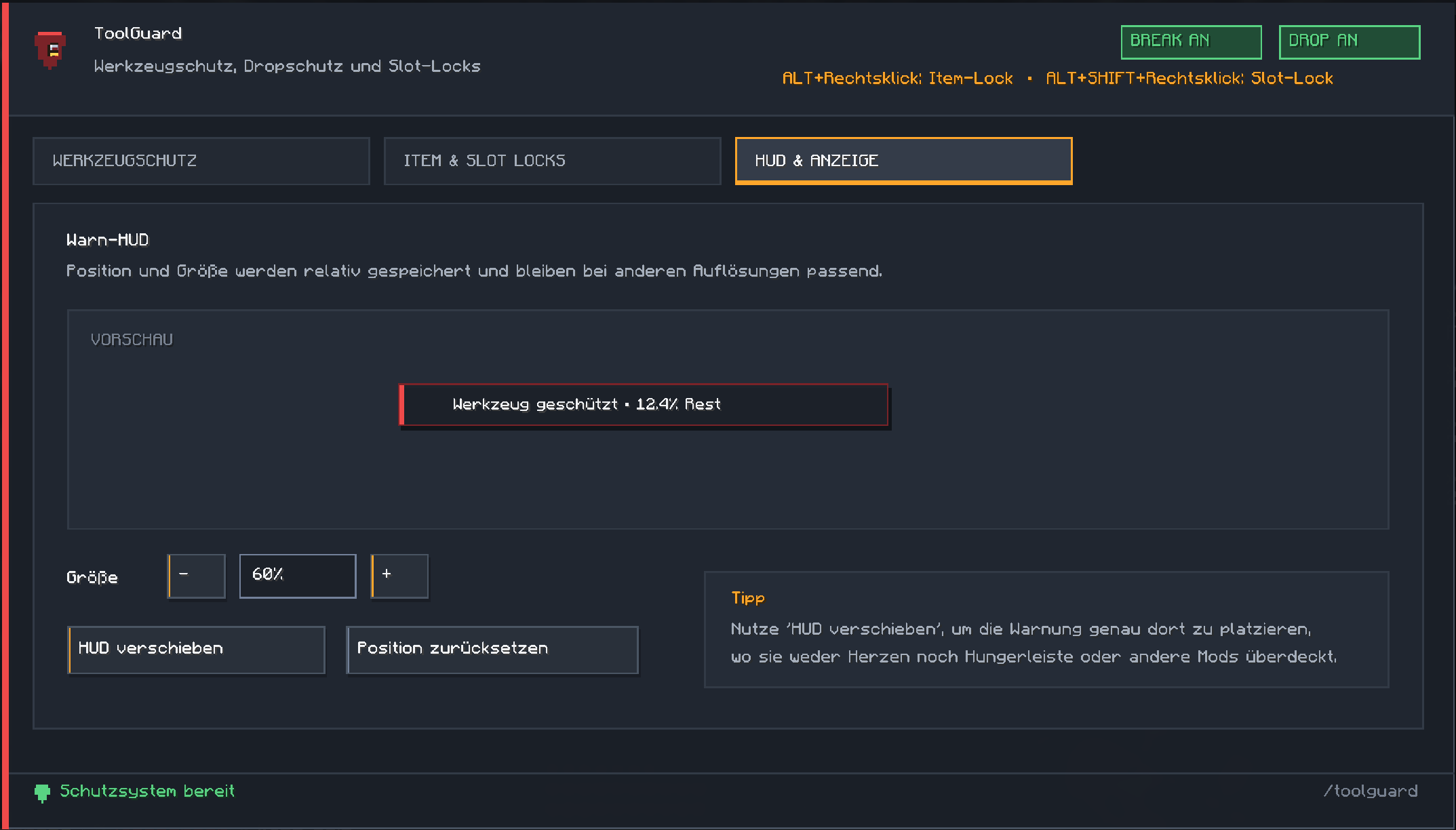
When ToolGuard blocks an action or protects an item, it can display a warning directly on screen.
The HUD can show information such as:
- ToolGuard protection status
- Protected item warning
- Remaining durability
---
## ↔️ Movable HUD
The warning HUD can be positioned directly in-game.
You can:
- Move the HUD with the mouse
- Change its size
- Reset it to the default position
- Preview the HUD while positioning it
The position is stored relatively so it remains suitable across different screen resolutions.
---
## 🎮 In-Game Configuration
Open ToolGuard with:
- /toolguard
The menu contains dedicated sections for:
- Tool protection
- Item and slot locks
- HUD and display settings
You can manage your protection settings without editing configuration files manually.
---
## 💾 Persistent Settings
ToolGuard stores its configuration locally.
Saved data includes:
- Durability threshold
- Tool protection state
- Enabled tool categories
- Drop protection
- Protected items
- Locked hotbar slots
- HUD position
- HUD size
Your protection setup remains available after restarting Minecraft.
---
## 🧩 Mod Menu Support
If Mod Menu is installed, ToolGuard can also be opened directly through Mod Menu.
Mod Menu is optional.
---
## 💻 Client-Side Only
ToolGuard runs completely on your Minecraft client.
✅ No server-side installation required
✅ Works on multiplayer servers
✅ No server permissions required
✅ Does not change server-side gameplay
✅ Protection is handled locally on your client
---
## 📦 Requirements
- Minecraft 1.21.11
- Fabric
- Fabric Loader 0.17.2+
- Fabric API
- Java 21+
---
## 🔧 Optional
- Mod Menu
---
## 📜 License
All Rights Reserved
---
Developed by **ClipCraftStudios**
---
# 🇩🇪 Deutsch
# 🛡️ ToolGuard
**Schütze deine Werkzeuge, bevor ein falscher Klick teuer wird.**
ToolGuard ist eine clientseitige Fabric-Mod zum Schutz wertvoller Werkzeuge und Items vor versehentlichem Zerbrechen oder Wegwerfen.
Lege eine Haltbarkeitsgrenze fest, wähle geschützte Werkzeugarten aus, sperre einzelne Items oder komplette Hotbar-Slots und lass ToolGuard gefährliche Aktionen stoppen, bevor etwas verloren geht.
Keine Serverinstallation erforderlich.
---
## ✨ Funktionen
ToolGuard bietet:
- 🛡️ Schutz vor Werkzeugbruch
- 📉 Einstellbare Haltbarkeitsgrenze
- ⛏️ Schutz nach Werkzeugkategorie
- 🔒 Item-Locks
- 🎒 Feste Hotbar-Slot-Locks
- 🚫 Dropschutz
- 🖱️ Schnelles Sperren mit ALT + Rechtsklick
- 🔐 Sichtbare Schloss-Markierungen
- ⚠️ Warn-HUD
- ↔️ Verschiebbares HUD
- 🔎 Einstellbare HUD-Größe
- 💾 Dauerhafte Speicherung
- 🎮 Eigenes Einstellungsmenü
- 🧩 Mod-Menu-Unterstützung
- 💻 Vollständig clientseitig
---
## 🛡️ Werkzeugschutz
ToolGuard kann verhindern, dass geschützte Werkzeuge weiter benutzt werden, sobald ihre verbleibende Haltbarkeit unter eine von dir festgelegte Grenze fällt.
Dadurch können wertvolle Werkzeuge nicht mehr so leicht versehentlich beim Abbauen oder Kämpfen zerbrechen.
---
## 📉 Einstellbare Haltbarkeitsgrenze
Du bestimmst selbst, ab welchem Restwert ToolGuard eingreifen soll.
Beispiel:
Stellst du die Grenze auf 10%, kann ToolGuard geschützte Werkzeuge stoppen, sobald weniger als 10% Haltbarkeit übrig sind.
---
## ⛏️ Werkzeugkategorien
Der Schutz kann für unterschiedliche Werkzeugarten einzeln aktiviert werden.
Unterstützt werden:
- Spitzhacken
- Äxte
- Schaufeln
- Hacken
- Schwerter
- Sonstige haltbare Items
So kannst du genau festlegen, welche Ausrüstung ToolGuard schützen soll.
---
## 🔒 Item-Locks
Einzelne Items können dauerhaft gesperrt werden.
Ein Item-Lock folgt dem Item und ist nicht einfach nur an einen bestimmten Inventarplatz gebunden.
Das eignet sich besonders für seltene Werkzeuge oder andere wertvolle Gegenstände.
### Schnell sperren
Nutze:
- **ALT + Rechtsklick** zum Ein- oder Ausschalten eines Item-Locks
Geschützte Items werden mit einem Schloss markiert.
---
## 🎒 Hotbar-Slot-Locks
Zusätzlich können einzelne Hotbar-Slots geschützt werden.
Ein Slot-Lock bleibt fest an seinem Hotbar-Platz, unabhängig davon, welches Item sich dort befindet.
Nutze:
- **ALT + SHIFT + Rechtsklick** zum Sperren oder Entsperren eines Hotbar-Slots
Damit kannst du wichtige Plätze dauerhaft absichern.
---
## 🚫 Dropschutz
Geschützte Items und gesperrte Hotbar-Slots werden gegen versehentliches Wegwerfen geschützt.
ToolGuard greift dabei in verschiedene Drop-Wege ein, beispielsweise:
- Normales Droppen
- Inventaraktionen
- Creative-Drops
- Hotbar-Drops
So soll ein geschütztes Item nicht durch einen falschen Tastendruck oder Mausklick verloren gehen.
---
## 📦 Kisten und Shulker bleiben benutzbar
ToolGuard soll normale Container-Nutzung nicht blockieren.
✅ Kisten können weiterhin geöffnet werden
✅ Shulkerboxen können weiterhin benutzt werden
✅ Normale Containerinteraktion bleibt möglich
Slot-Locks schützen hauptsächlich vor gefährlichen Drop-Aktionen.
---
## 🔐 Sichtbare Schloss-Markierungen
Geschützte Items und Slots können mit kleinen Schloss-Symbolen angezeigt werden.
Dadurch erkennst du direkt, welche Gegenstände aktuell gesichert sind.
---
## ⚠️ Warn-HUD
Wenn ToolGuard eine Aktion verhindert oder ein Werkzeug schützt, kann eine Warnung direkt im Spiel angezeigt werden.
Das HUD kann beispielsweise anzeigen:
- Schutzstatus
- Geschütztes Item
- Verbleibende Haltbarkeit
---
## ↔️ Verschiebbares HUD
Das Warn-HUD lässt sich direkt im Spiel positionieren.
Du kannst:
- Das HUD mit der Maus verschieben
- Die Größe ändern
- Die Position zurücksetzen
- Eine Vorschau anzeigen
Die Position wird relativ gespeichert, damit sie auch bei anderen Bildschirmauflösungen sinnvoll erhalten bleibt.
---
## 🎮 Einstellungen im Spiel
Öffne ToolGuard mit:
- /toolguard
Das Menü besitzt eigene Bereiche für:
- Werkzeugschutz
- Item- und Slot-Locks
- HUD und Anzeige
Alle wichtigen Einstellungen können direkt im Spiel vorgenommen werden.
---
## 💾 Dauerhafte Speicherung
ToolGuard speichert seine Konfiguration lokal.
Gespeichert werden unter anderem:
- Haltbarkeitsgrenze
- Werkzeugschutz
- Geschützte Werkzeugarten
- Dropschutz
- Item-Locks
- Hotbar-Slot-Locks
- HUD-Position
- HUD-Größe
Deine Einstellungen bleiben nach einem Minecraft-Neustart erhalten.
---
## 🧩 Mod Menu
Wenn Mod Menu installiert ist, kann ToolGuard auch direkt darüber geöffnet werden.
Mod Menu ist optional.
---
## 💻 Nur clientseitig
ToolGuard läuft vollständig auf deinem Minecraft-Client.
✅ Keine Serverinstallation erforderlich
✅ Funktioniert auf Multiplayer-Servern
✅ Keine Serverrechte erforderlich
✅ Verändert keine serverseitigen Spielmechaniken
✅ Schutzlogik läuft lokal auf deinem Client
---
## 📦 Voraussetzungen
- Minecraft 1.21.11
- Fabric
- Fabric Loader 0.17.2+
- Fabric API
- Java 21+
---
## 🔧 Optional
- Mod Menu
---
## 📜 Lizenz
All Rights Reserved
---
Entwickelt von **ClipCraftStudios**
The ToolGuard Team