Simple Proximity Music
- By
Add configurable music player blocks that play custom local tracks when players are nearby. Each block supports its own playlist, range, priority, volume, resume position, and camouflage appearance for seamless integration into builds.
Benthedaddy | Simple Proximity Music
Create your game server with 

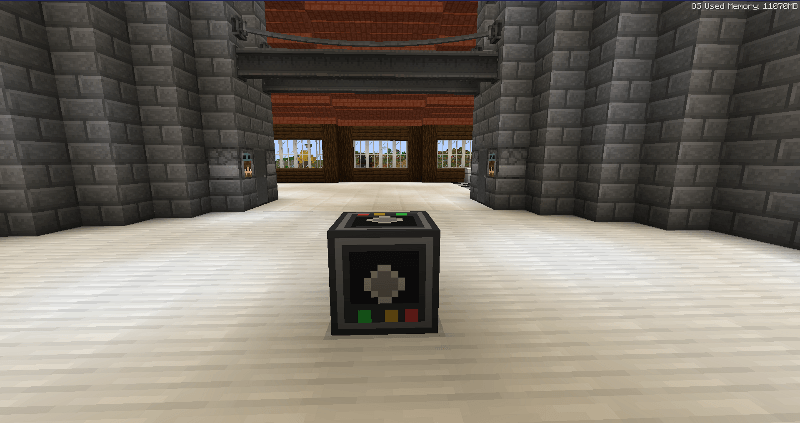
Simple Proximity Music adds a configurable music player block that plays custom local music whenever you are nearby.
Each placed Music Player has its own playlist, playback range, priority and volume settings, making it useful for inns, taverns, towns, dungeons, bases, shops, themed areas, or anywhere else you want location-based music.
Features
- Play custom local music files
- Supports
.mp3,.oggand.wav - Per-block playlists
- Configurable hearing range
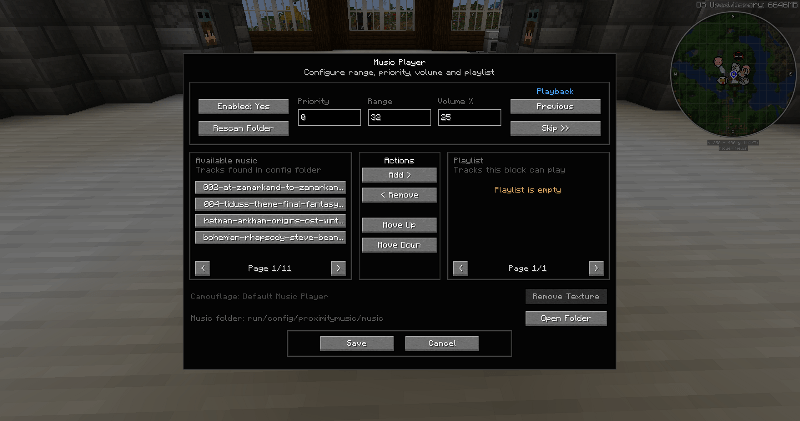
- Configurable priority for overlapping Music Players
- Per-block volume control
- Previous and skip controls
- Remembers playback position when you leave the area
- Each Music Player keeps its own independent resume position
- Responsive configuration UI
- Open the music folder directly from the UI
- Music Players can be camouflaged as other blocks
- Camouflage supports vanilla and many modded block models
- Remove camouflage at any time to restore the original Music Player appearance
- Compatible with standard recipe viewers such as JEI, REI and EMI
- Designed for Minecraft 1.21.1 and NeoForge
Using Custom Music
Music files are loaded from:
config/proximitymusic/music
You can also open this folder directly from the Music Player interface.
Add your music files to the folder, press Rescan Folder, then add the tracks you want to that Music Player's playlist.
Priority
If multiple Music Players overlap, the player with the highest priority takes control.
This makes it possible to create layered areas, for example:
- Town music with priority
1 - Tavern music with priority
10 - Special room music with priority
20
When you leave the higher-priority area, the previous Music Player resumes from where it left off.
Camouflage
Hold a block and right-click a Music Player to apply that block's appearance as camouflage.
This is useful for hiding Music Players inside floors, walls or ceilings without affecting their functionality.
For example, a Music Player hidden inside an oak floor can be made to look like an Oak Planks block while still playing music normally.
Notes
Music files are loaded locally from the player's own Minecraft installation and are not distributed through the world save or server.
You are responsible for ensuring that you have permission to use any music files you add.
Simple Proximity Music Team