ShulkerViewer
- By
A small client-side Fabric mod that makes shulker boxes and ender chests easier to manage, without changing anything on the server.
enderchest-preview.png
hotbar.png
settings.png
shulker-preview.png
Description
VanillaEnhancements
A small client-side Fabric mod that makes shulker boxes and ender chests easier to manage, without changing anything on the server.
- Detects what a shulker box contains and names and tints it accordingly
- Previews the contents of shulker boxes and ender chests without placing or opening them
- Everything is configurable in an in-game settings screen
Works on vanilla servers, because nothing is sent to or changed on the server.
Features
Content-based naming
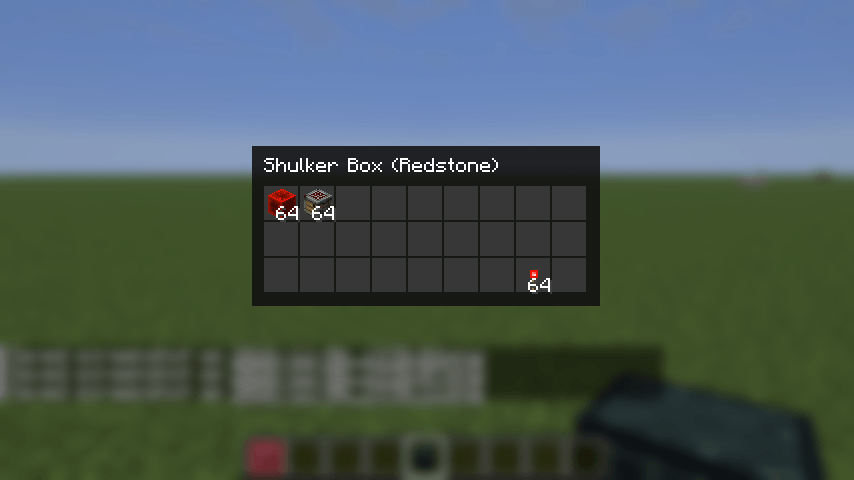
If one category makes up at least a configurable share of a shulker box's non-empty slots (default 60 %), the box is renamed client-side, e.g. Shulker Box (Redstone). Boxes with a custom name (anvil) keep it.
Categories: Redstone, Food, Potions, Ores, Armor, Tools and Blocks.
Tint
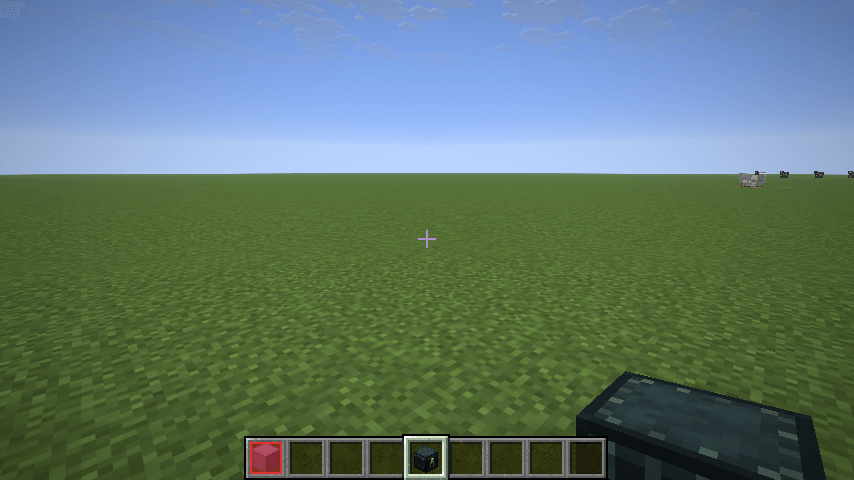
Boxes are tinted in the color of their category, in all inventory screens and in the hotbar. Opacity and the colored outline are adjustable.
Contents preview
Hover a shulker box in any inventory screen and right-click (with an empty cursor) or press V to see what is inside, without placing it.
The preview closes with Esc, the inventory key, V, a right-click, or a click outside of it.
Right-click no longer picks up a shulker box in inventories; use left-click for that.
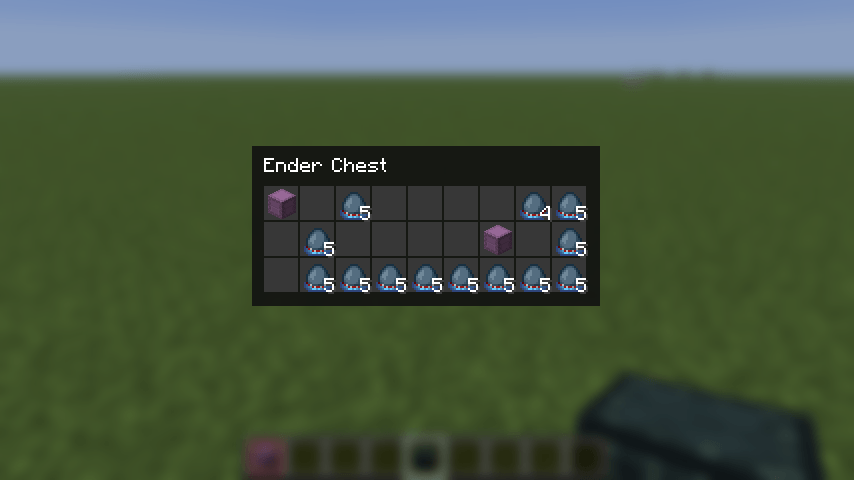
Ender chest preview
The same works for ender chest items. The client only learns the contents while the ender chest is open, so the preview shows what you saw last. Open the ender chest once per session to load it.
Settings
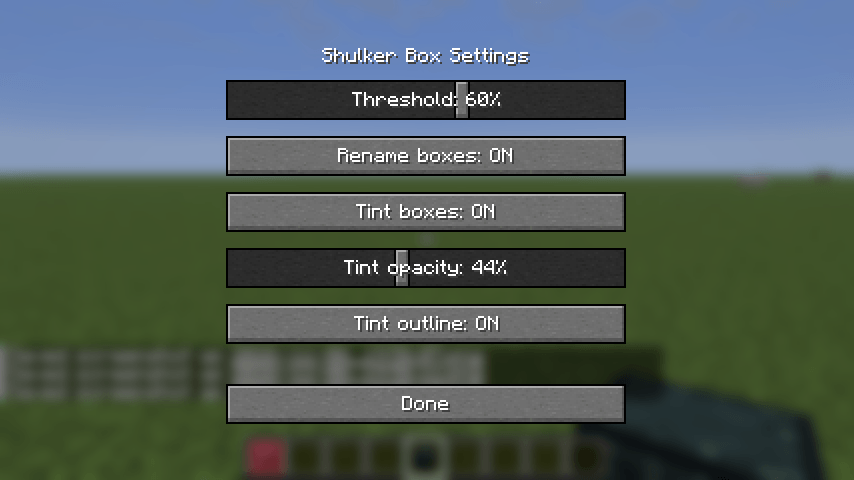
Press K to open the settings screen (rebindable in the controls menu).
| Setting | Default | Description |
|---|---|---|
| Threshold | 60 % | Share of non-empty slots a category needs to label the box |
| Rename boxes | on | Append the category to the box name |
| Tint boxes | on | Tint boxes in the category color |
| Tint opacity | 44 % | Opacity of the tint |
| Tint outline | on | Draw a colored outline around the slot |
Settings are stored in config/vanillaenhancements.json.
Controls
| Key | Action |
|---|---|
| Right-click on a box / ender chest item | Open the preview |
V while hovering |
Open the preview |
K |
Open the settings screen |
ShulkerViewer Team