RS Grid Filtering | Refined Storage Filter Cards
- By
Create reusable Filter Cards for Refined Storage and instantly filter your Grid by items, tags, mods, and custom categories.
LuminaCherry | Bisect Hosting
Create a server, get 25% off your first month

Description
RS Grid Filtering
REFINED STORAGE FILTER CARDS
A little more organization for your storage network.
Create your own filters, switch between them, and find what you need without digging through everything.
By LuminaCherry
About RS Grid Filtering
Ever opened your Refined Storage Grid and spent way too long looking for a specific item buried somewhere between thousands of other things?
RS Grid Filtering adds reusable Filter Cards that let you organize how items appear in your Refined Storage Grid.
You can create filters for ores, food, building blocks, tools, specific mods, or pretty much whatever category you want.
Instead of searching for the same things over and over again, you can simply switch between your saved filters.
And don't worry, filtering doesn't actually move or rearrange anything in your network. It only changes which items are currently visible.
Filtering Directly From Your Grid
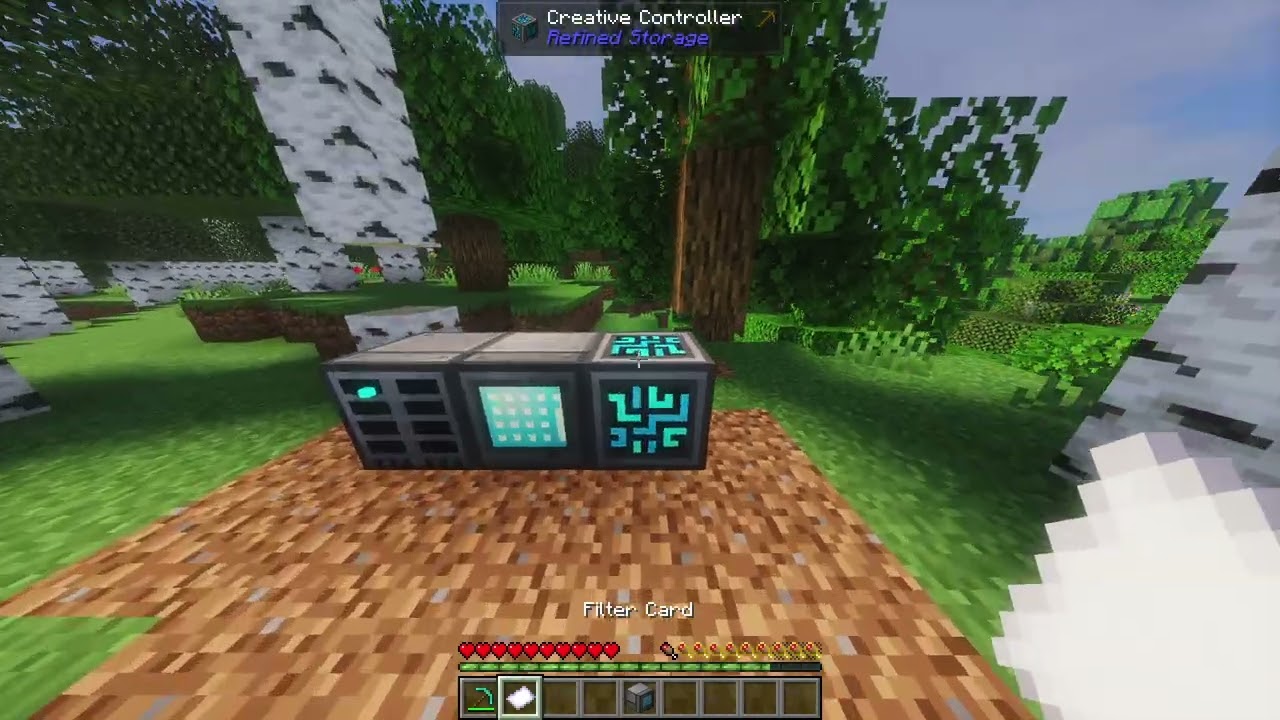
Filter Cards can be attached directly to your Refined Storage Grid, where they'll appear inside their own dedicated Filters menu.
Once you've added a few cards, switching between different item categories is as simple as selecting the filter you want.
- Quick Switching — Move between saved filters without reopening the editor.
- Multiple Filters — Keep different cards attached to your Grid.
- All Items — Select "All" to return to the normal, unfiltered Grid.
- Non-Destructive — Your actual storage network remains completely unchanged.
Filter Selection Menu
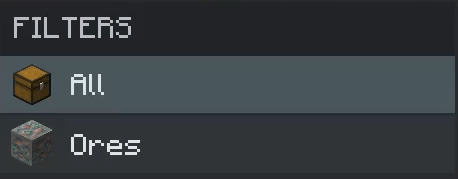
Your saved filters, accessible directly from the Grid.
Creating Filter Cards
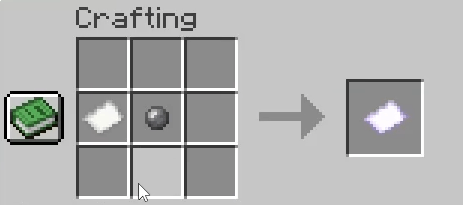
Filter Cards are actual items that you can craft and use throughout your Refined Storage setup.
They aren't permanently tied to one Grid either. You can rename them, store them in chests, move them between Grids, or give them to someone else.
Each card keeps its own filter settings, so you don't need to recreate everything whenever you move it.
Crafting Recipe
Customize Your Filters
Right-click a Filter Card to open its editor.
The interface is made to fit in with Refined Storage's existing design, so it shouldn't feel like you're opening something from a completely different mod.
Every card can have its own settings, including:
- Custom Names — Name your cards so you know exactly what they're for.
- Custom Icons — Give each filter an item icon to make it easier to recognize.
- Whitelist & Blacklist — Choose whether matching items should be shown or hidden.
- Specific Items — Add individual items that the filter should match.
- Item Tags — Filter entire groups of items using Minecraft's tag system.
- Mod Filters — Show items belonging to specific installed mods.
You can also add items directly from your inventory or search for items and tags inside the editor, rather than manually finding everything in your storage.
Filter Card Editor
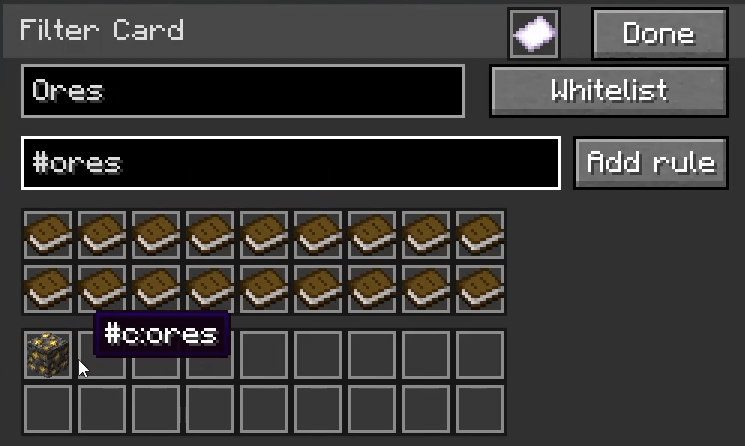
Create and edit your own filtering rules.
Custom Filter Icons
Having a bunch of cards with identical icons would get confusing pretty quickly, so you can give each one its own icon.
Inside the Filter Card editor, simply right-click an item to use it as the card's icon.
For example, an ores filter could use a diamond ore block, a food filter could use bread, and a Create filter could use a cogwheel.
It's a small feature, but it makes navigating between lots of different filters much nicer.
Item Tags & Previews
If you're playing with a larger modpack, filtering every item individually would be a pain.
That's where item tags come in.
Filter Cards support tags such as:
#c:ores
#minecraft:logs
#forge:ores
Instead of manually selecting every type of ore or log, you can use a matching tag to include the whole group.
Tag entries can also cycle through matching items, giving you a quick preview of what the tag contains.
Especially useful when multiple mods add their own versions of the same materials.
Filtering by Mod
Sometimes you don't need a complicated filter. You just want to see everything from one particular mod.
Filter Cards can do that too.
You can create dedicated filters for mods like Create, Mekanism, Applied Energistics 2, Farmer's Delight, or any other mod you've installed.
This can be particularly helpful in large modpacks where hundreds of different mods contribute items to the same storage network.
Reusable Across Your Storage Setup
One of the nicer things about Filter Cards is that you don't have to set them up all over again every time you want to use them somewhere else.
Each card remembers its own configuration.
You could have a few cards dedicated to:
- Ores and raw materials
- Food and farming
- Tools and armor
- Building blocks
- Mob drops
- Machines and automation
- Items from specific mods
- Pretty much any other category you can think of
Keep them inside your storage, carry them around, or share them with other players. The filters stay with the cards.
Just Filtering, Nothing Else
RS Grid Filtering doesn't try to replace Refined Storage's existing storage system.
It doesn't move your items around, create separate storage networks, or change how your disks and drives work.
It simply gives you another way to browse the items you already have.
Whether you're managing a small storage setup or a massive modded network, having a few saved filters can make finding things a whole lot easier.
RS Grid Filtering
REFINED STORAGE FILTER CARDS
Your storage, just a little easier to navigate.
Made by LuminaCherry
RS Grid Filtering | Refined Storage Filter Cards Team

Owner