Description
Prohibit's Armor Hub
Your armor, always visible.
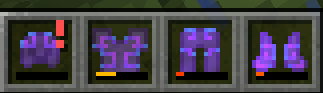
Prohibit's Armor Hub is a lightweight, client-side armor HUD for Minecraft Fabric. It shows your equipped armor in vanilla-style slots right beside your hotbar — so you always know what you're wearing and how close it is to breaking, without opening your inventory.
Built with a focus on looking and feeling like a natural part of the vanilla HUD: real hotbar textures, real item rendering, real durability bars — plus a classic pixel-art low-durability alert that blinks faster as your armor wears out.
Features
Armor Slots HUD
- All four armor slots (helmet, chestplate, leggings, boots) displayed in vanilla-style slots
- Hotbar style — rendered as a genuine slice of the real hotbar texture, with the real bevels and translucent cells. It reads like a natural extension of your hotbar, exactly like the off-hand slot
- Inventory style — the classic light-gray inventory slot look (with configurable slot size and spacing)
- Fixed mode — always shows all four slots, or Dynamic mode — shows only the slots you're actually using, and hides the entire HUD when you're not wearing armor
- Empty slots can show vanilla's own armor silhouettes (helmet/chestplate/leggings/boots outline icons)
- Vertical or horizontal strip, head-first or feet-first order
- Configurable HUD scale (50–200%), slot opacity, and compact mode
Real Item Rendering
- Items are rendered by Minecraft's actual item renderer — enchantment glints, leather dye colors, armor trims, and resource packs all just work
- Enchantment glint can be toggled off if you find it distracting
Durability Display
- Vanilla-style durability bar (toggleable)
- Durability numbers on top of each slot — choose between remaining uses, remaining/max, or percent:
- Auto-scales to fit the slot, so it can never run off the screen or overlap
- Subtle backing plate keeps the number readable even on light armor sprites
- Colored to match the vanilla durability bar color
- Optionally only shown when the piece is actually damaged
- Low-durability "!" warning — a tiny pixel-art exclamation mark in the corner of the slot, in the style of classic HUD alert mods:
- Starts blinking the moment a piece drops below your configured threshold (5% / 10% / 15% / 20% / 30% / 40% / 50%)
- Blinks faster and faster the closer the armor is to breaking — from a calm pulse down to a frantic flicker
- Never overlaps the durability number — the number automatically makes room
- Optional one-time warning chime when a piece first crosses the threshold (with built-in hysteresis so a piece hovering at the threshold — or flip-flopping with Mending — can't spam the sound)
Smart Positioning
- Beside the hotbar (left or right side) — keeps exactly the same gap the off-hand slot keeps, and automatically steps out of the way of your off-hand item on either main-hand side. It will never cover the off-hand slot
- Above the hotbar, or free placement on any of 9 screen-edge/center anchors with pixel X/Y offsets
- Auto-flip: on narrow screens, the strip automatically moves to whichever side of the hotbar actually has room
- Everything positioned relative to the hotbar, so it stays correct at any GUI scale and window size
Animations & Effects
- Equip "pop" animation — new armor scales up into place, using the same technique the vanilla hotbar uses for the selected-slot pop
- Damage flash — a slot briefly flashes red when that piece takes durability damage
- Blinking low-durability alert with speed ramp (see above)
Visibility Control
- Hide while the debug overlay (F3) is open
- Hide while any screen (inventory, chat, pause menu) is open
- Separate options to hide in the inventory specifically, or in chat specifically
- Vanilla item tooltips when you hover a slot while a screen is open
- Two keybinds (unbound by default): toggle the HUD, and open the settings
In-Game Config Screen
- No config library needed — built entirely from vanilla widgets
- Live preview with a mock hotbar and off-hand slot, showing exactly how the strip will look in-game — including the blinking warning and durability numbers on a sample armor set (empty, damaged, enchanted, and dyed pieces)
- Mini screen-position map showing where the HUD sits relative to your screen
- Five organized tabs (Position, Visibility, Appearance, Armor Display, Effects) with tooltips on every option
- Reset Position and Reset All buttons; changes apply live and save on close
- Opens from ModMenu's Configure button or the settings keybind
Requirements
- Minecraft 1.21 – 26.3 (see the file list below)
- Fabric Loader + Fabric API (both required)
- ModMenu (optional — adds the Configure button)
- Java 21 for the 1.21.x line, Java 25 for the 26.x line (this is what those Minecraft versions themselves require)
Files — pick the one for your Minecraft version
Each file is labeled with the exact versions it supports:
|
File
|
For Minecraft
|
|---|---|
…+mc1.21-1.21.1-fabric.jar |
1.21, 1.21.1 |
…+mc1.21.2-1.21.4-fabric.jar |
1.21.2, 1.21.3, 1.21.4 |
…+mc1.21.5-fabric.jar |
1.21.5 |
…+mc1.21.6-1.21.8-fabric.jar |
1.21.6, 1.21.7, 1.21.8 |
…+mc1.21.9-1.21.10-fabric.jar |
1.21.9, 1.21.10 |
…+mc1.21.11-fabric.jar |
1.21.11 |
…+mc26.1-fabric.jar |
26.1 |
…+mc26.2-fabric.jar |
26.2 |
…+mc26.3-fabric.jar |
26.3 |
Notes for older versions (1.21 – 1.21.5): Minecraft itself skips HUD rendering while a screen (inventory, chat, pause) is open on those versions, so the "hide in screens/chat/inventory" options and in-game HUD tooltips have no visible effect there — those options fully apply from 1.21.6 upward. Everything else works identically on all versions.
Installation
- Install the Fabric Loader for your Minecraft version
- Download Fabric API for your version and put it in your
modsfolder - Download the Prohibit's Armor Hub file matching your Minecraft version and put it in your
modsfolder - (Optional) Install ModMenu for a convenient Configure button
The mod is client-side only — it works in single-player and on any server, and does not need to be installed on the server.
Frequently Asked Questions
Can I use it with my resource pack? Yes. Items are rendered by Minecraft's own renderer, and the hotbar-style background uses the real hotbar texture, so texture packs that restyle the HUD or items are respected.
Where is the config file? .minecraft/config/armorslots.json — but you should never need to touch it; everything is configurable in-game.
Does it work with sulfur/phosphor/sodium? The HUD only uses vanilla GUI rendering paths plus Fabric's HUD registration API, so it is compatible with rendering optimization mods.
Is there a Forge version? No, Fabric only.
License
All rights reserved. You may use the mod freely, include it in modpacks with attribution, and share unmodified copies via the official project pages; any other redistribution or derivative work requires permission.
Credits
Created by Prohibit.
Prohibit's Armor Hub Team