PicassoPlus
- By
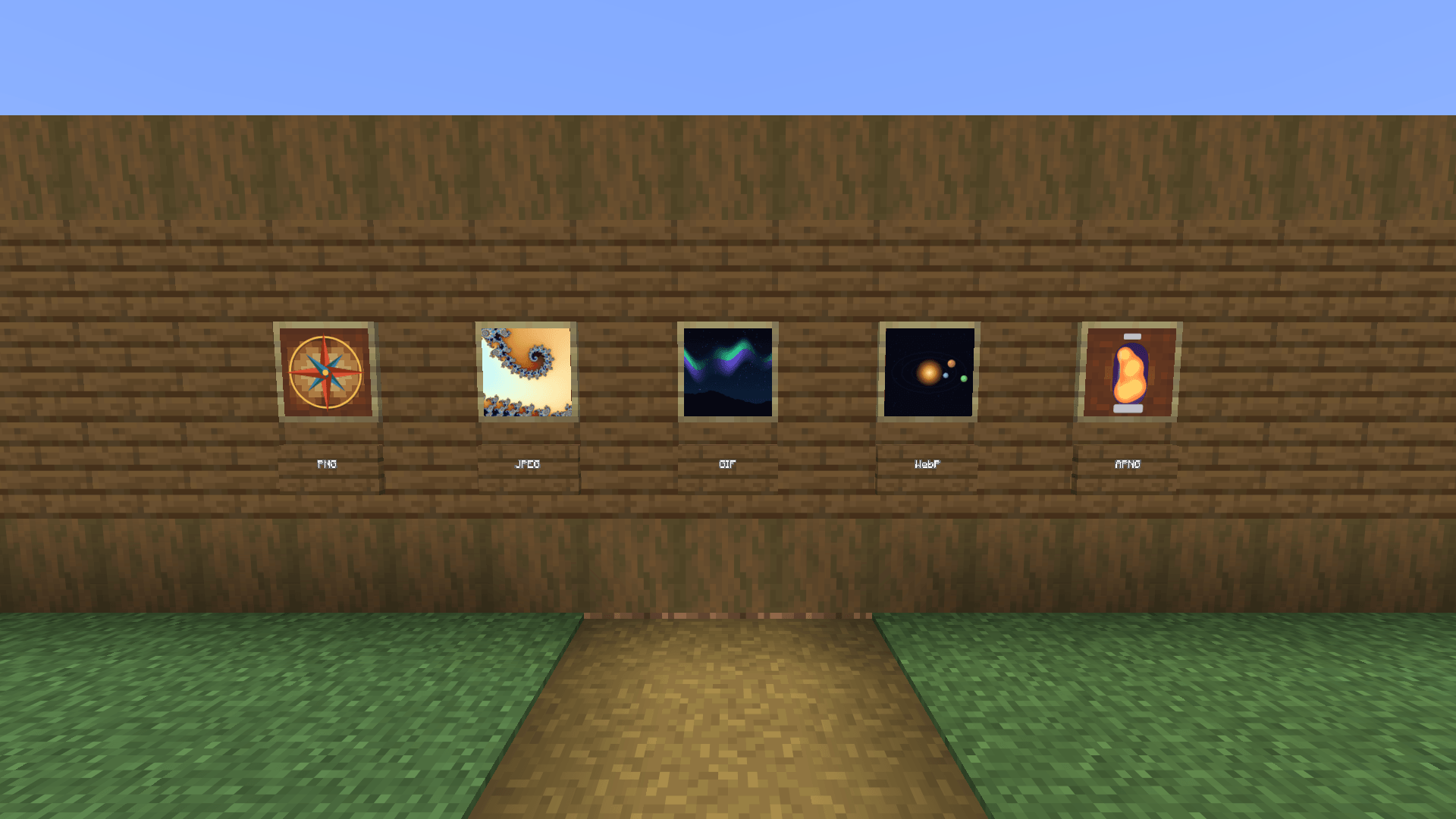
Show your own PNG, JPEG, GIF, WebP and animated PNG images in ordinary vanilla item frames and glow item frames
04b-picture-editor-image-tab.png
03-supported-formats.png
02-large-picture-wall.png
Description
Picasso+
by Jodka22
Show your own PNG, JPEG, GIF, WebP and animated PNG images in ordinary vanilla item frames and glow item frames – one picture per frame, or one picture spread over a whole picture wall of many frames.
Installation
- Install Fabric Loader for Minecraft 26.3 (for example in Prism Launcher: Edit instance > Version > Install Fabric).
- Put Fabric API for 26.3 into the instance's
modsfolder. - Put
picassoplus-26.3-1.1.0.jarinto the samemodsfolder (remove an olderpicassoplus-*.jar). - Start the game.
A picture in one frame
- Place a normal item frame or glow item frame.
- Look at the frame and press
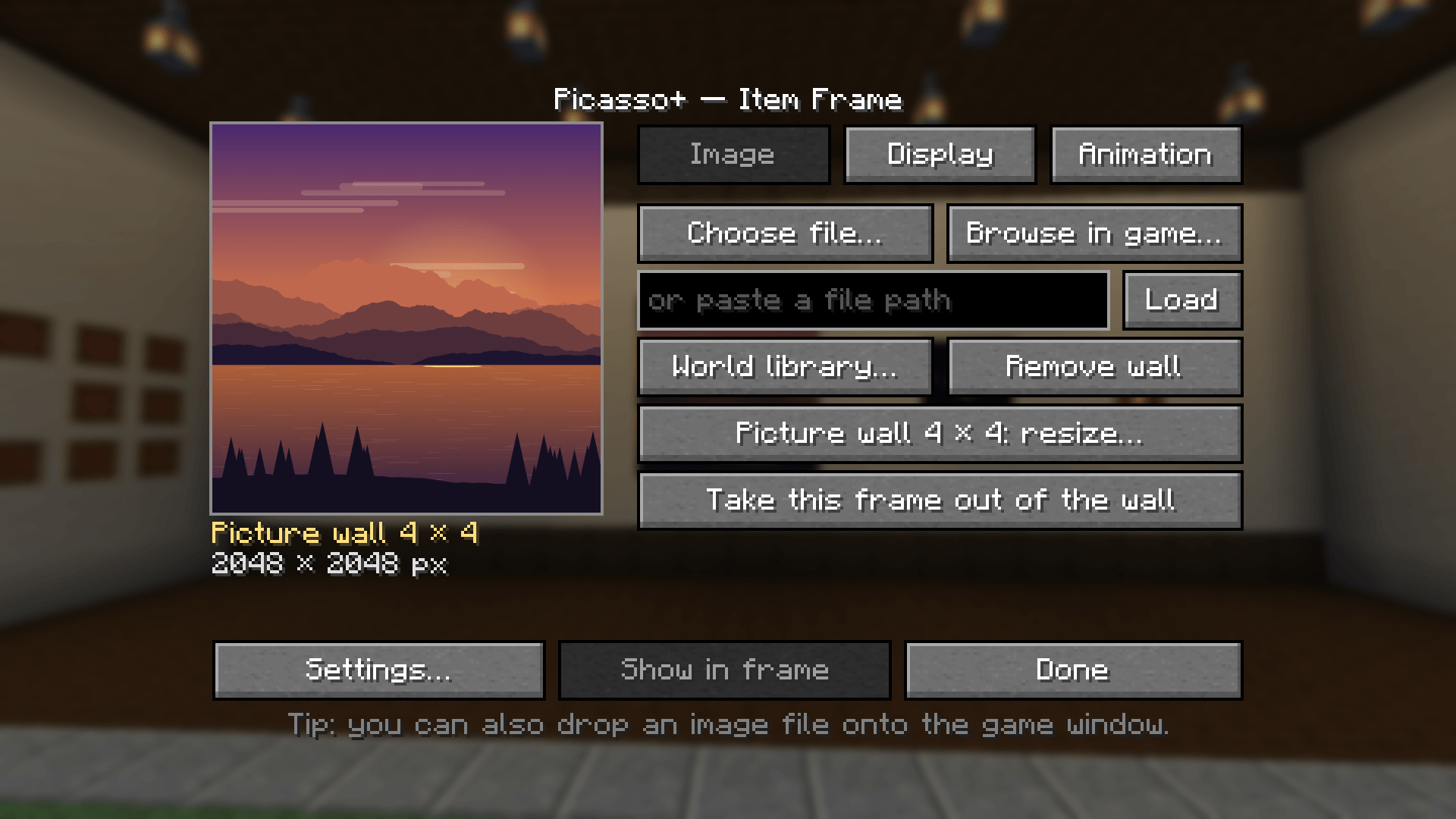
N(rebind it in Options > Controls > Key Binds > Picasso+). - On the Image tab, choose an image:
- Choose file… – the Windows "Open" dialog (in exclusive fullscreen the game switches to windowed mode while the dialog is open and back afterwards),
- Browse in game… – a built-in file browser,
- paste a path into the text field and press Enter or Load,
- drag and drop an image file onto the game window,
- World library… – an image already imported into this world.
- Check the preview (size, frames, duration) and press Show in frame.
| In the world | Effect |
|---|---|
| Right-click a picture | turns it by 90° (on a wall: the whole wall picture) |
| Hit (left-click) a picture | takes the picture out, the frame stays (on a wall: only this frame leaves the wall) |
N on the frame |
opens Picasso+ again |
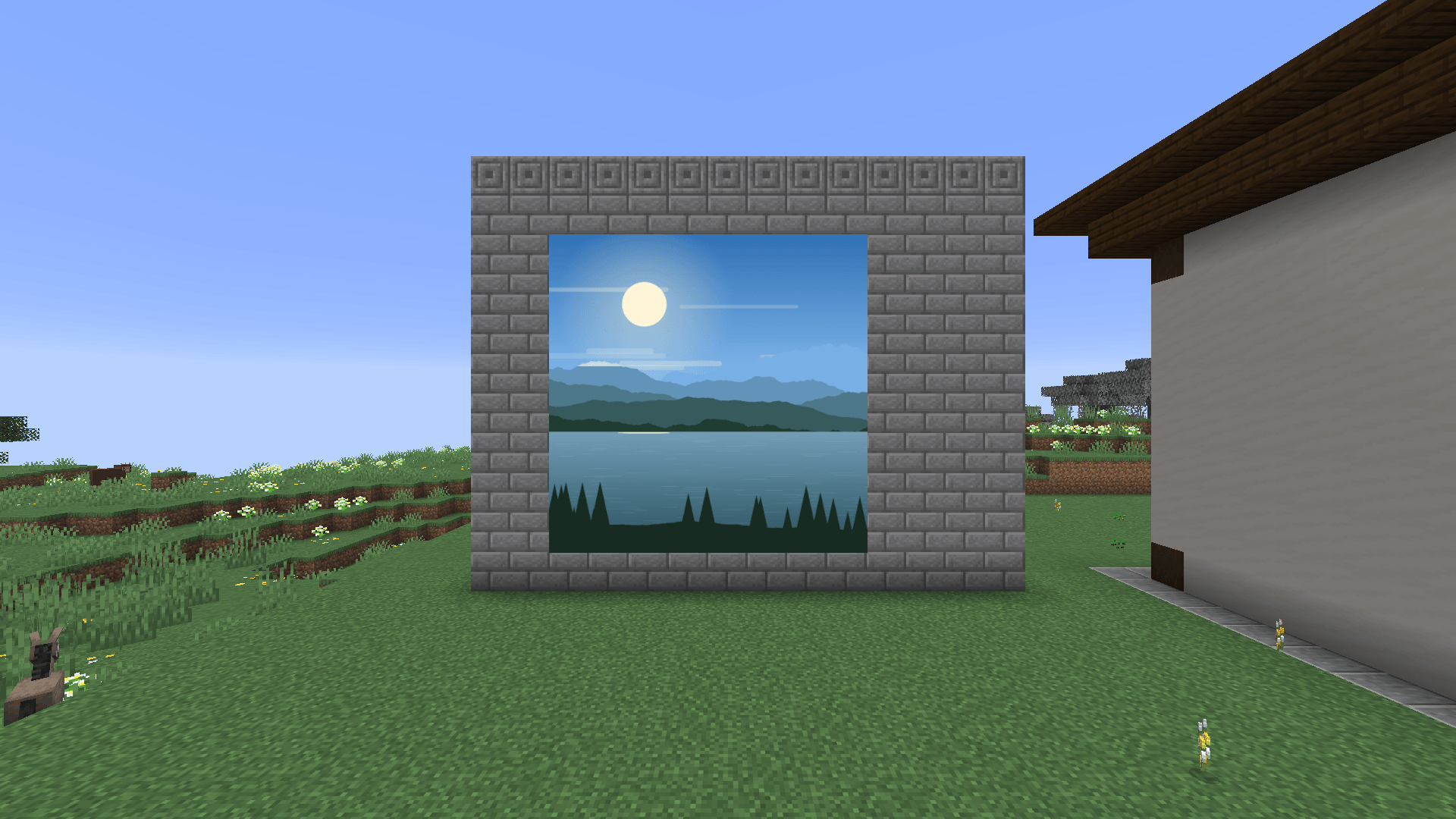
Picture walls (one image across many frames)
- Hang item frames side by side on a wall, floor or ceiling (gaps are fine).
- Open Picasso+ on any of them, choose the image, then press Make picture wall….
- The wall editor shows the selection directly in the world: green = frame present, red = frame missing, yellow = the frame you opened it on. Connected frames are detected automatically.
- Adjust width/height (+/−) and move the rectangle with the arrows. With Add missing frames on, gaps are filled automatically (free in creative, taken from your inventory in survival).
- Press Create wall.
The whole wall is one logical picture: one texture, one animation clock, one set of settings. It shows a single continuous image without seams, lit evenly as one surface (no brightness steps between frames next to torches or lanterns); with Border: Frame only the outer edge gets a wooden border, with Border: None the wall is completely seamless. To resize later, open Picasso+ on any tile and press Picture wall W × H: resize… – the image stays. Remove wall turns all tiles back into plain frames.
Walls can be up to 64 blocks on a side and 1024 blocks in total (the editor offers 32 by default; change it in Settings). Larger walls automatically get higher-resolution textures, up to Wall texture (4096 px default).
Display options (Display tab, applied immediately)
| Option | Values |
|---|---|
| Scale | Fit (whole image, aspect kept), Fill (crop), Stretch |
| Filter | Auto (pixelated up to 128 px, smooth above), Smooth (linear + mipmaps), Pixelated |
| Rotation | 0°, 90°, 180°, 270° |
| Light | World or Always bright (glow frames are always bright) |
| Border | Frame (wooden border and backing) or None |
| Brightness | 10 – 100 % |
| Zoom | 100 – 400 % |
| Left/right, up/down | moves the image inside the frame or wall; Reset position centres it |
Animation tab: Play/Pause, Restart, loop (file / always / once), speed 0.25× – 4×.
Formats
| Format | Support |
|---|---|
| PNG | yes, including transparency; animated PNG (APNG) with all disposal and blend modes |
| JPEG | yes (RGB, greyscale, CMYK and YCCK – e.g. print/Photoshop exports), EXIF rotation applied |
| GIF | full compositing: transparency, local palettes, interlacing, all disposal methods, loop count |
| WebP | lossy and lossless, alpha channel, animated WebP with blending, disposal, timing and loop count |
Licenses
Picasso+ © 2026 Jodka22, MIT License.
Bundled: TwelveMonkeys ImageIO 3.15.2 © Harald Kuhr, BSD-3-Clause (https://github.com/haraldk/TwelveMonkeys)
PicassoPlus Team