Pepsi's Subtitles Visualizer
- By
See sounds where they happen with in-world subtitles and edge cues.
Description
Subtitles Visualizer
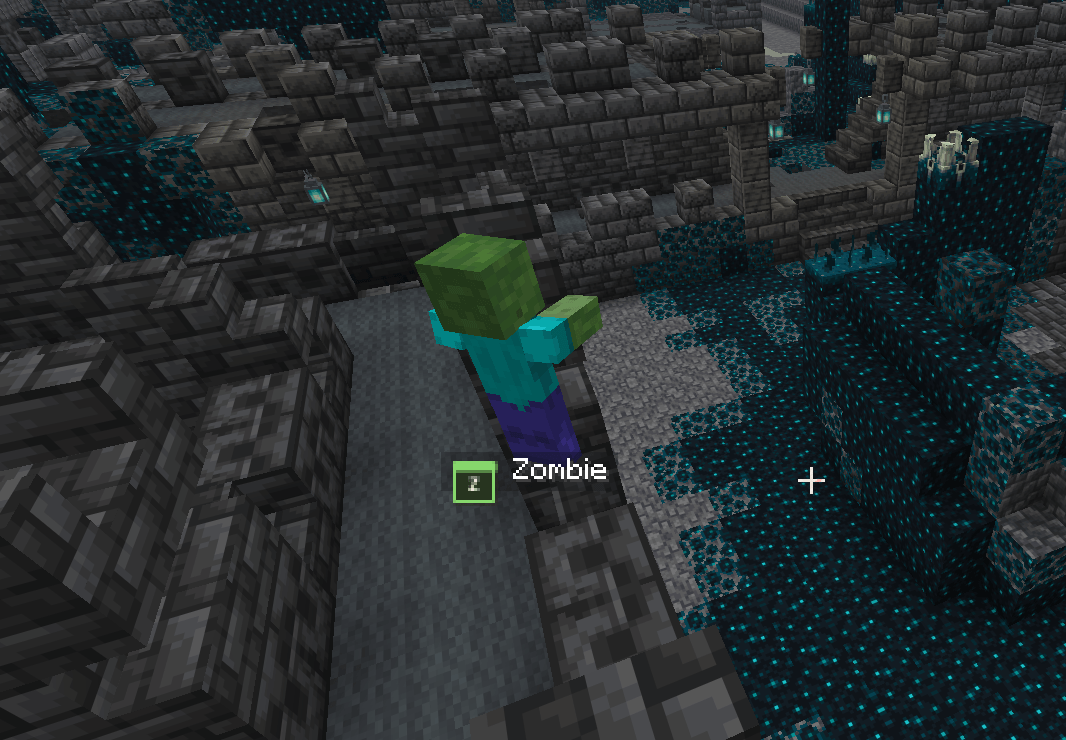
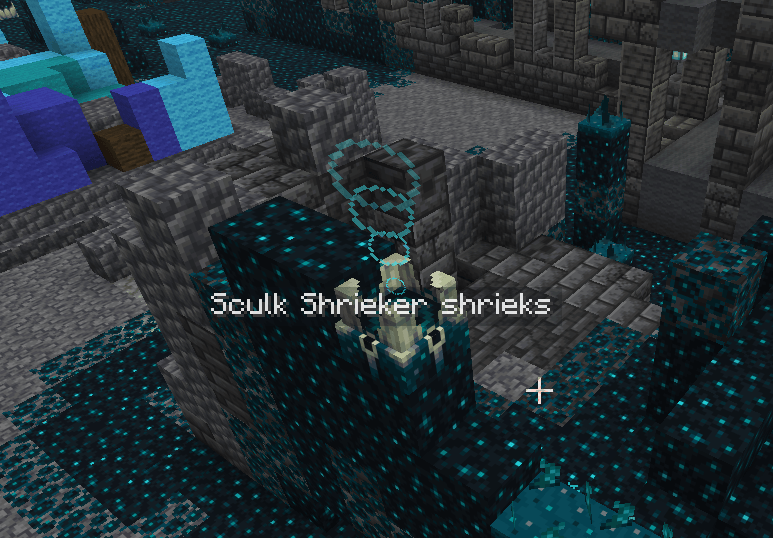
Subtitles Visualizer turns Minecraft's soundscape into a readable, directional HUD. Instead of leaving every sound as a flat subtitle line, it places compact markers near where sounds are happening and moves off-screen sounds to the edge of your view, helping you tell whether that villager, skeleton, splash, glass break, footstep, or distant danger came from behind you, above you, below you, or just out of sight.
It is built for players who rely on subtitles, play with low volume, stream, listen to music while playing, or simply want stronger spatial awareness in caves, villages, farms, raids, bases, and busy multiplayer worlds.
Highlights
- In-world sound markers that point toward the sound's location.
- Edge cues for sounds outside your current view.
- Smart labels, icons, and readable fallback names.
- Filters for noisy sound categories, specific sounds, entities, block groups, and subtitle entries.
- Controls for local-player sounds and player footsteps.
- HUD safe areas for chat, hotbar, scoreboard, minimaps, and vanilla subtitles.
- Performance-minded marker limits, merging, and cleanup for busy scenes.
- A detailed in-game configuration screen for shaping the experience around how you play.
Feature Details
In-world sound markers
Sound markers appear around your view in the direction the sound came from, giving Minecraft subtitles a sense of space. A marker can show the sound name, an icon, and optional direction information, then fade away once the sound is no longer relevant.
- See where sound events are happening instead of only reading that they happened.
- Follow nearby activity during mining, exploring, farming, building, or fighting.
- Keep track of repeated sounds without the screen filling with duplicates.
- Let important sounds remain visible long enough to react, while old markers clean themselves up.
Directional edge cues
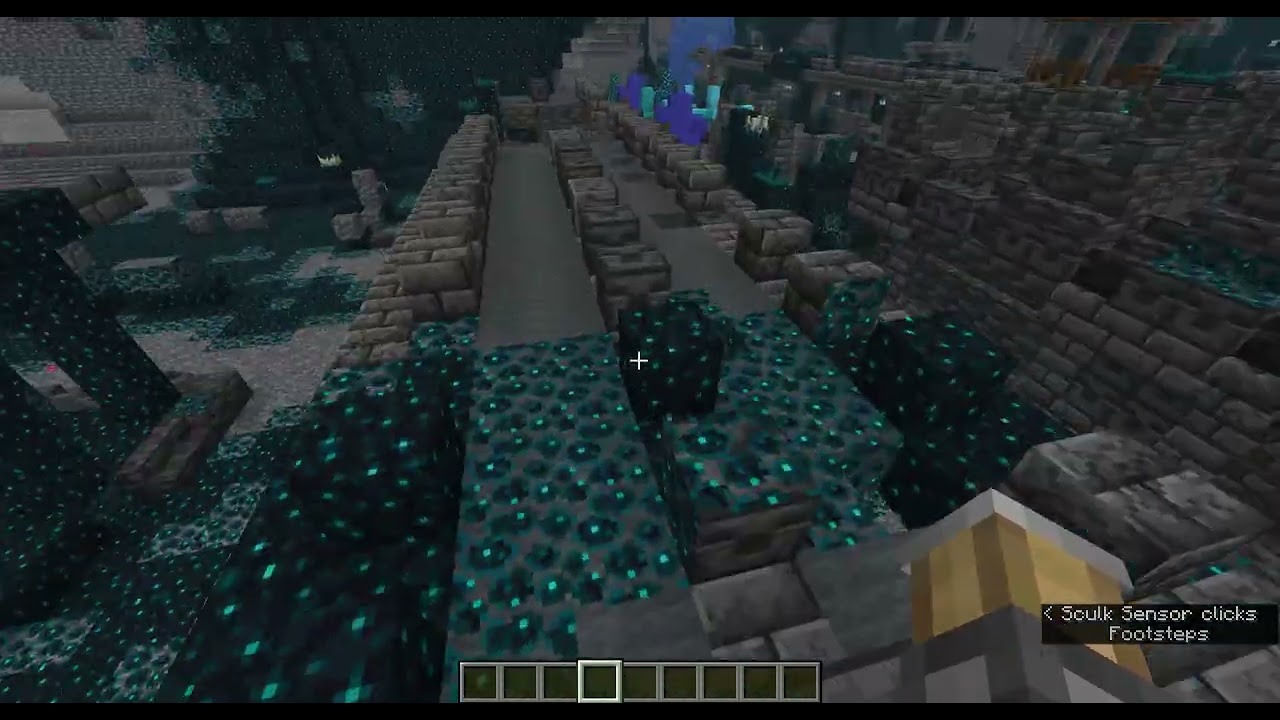
When a sound happens outside your current view, Subtitles Visualizer can pin the marker to the screen edge so you still know where to turn. This is especially useful for caves, dense forests, underwater areas, raids, and crowded bases.
- Off-screen sounds stay readable instead of disappearing from awareness.
- Optional arrows and direction tokens help show whether a sound came from the north, south, east, west, or a diagonal direction.
- Edge cues can be used for every sound, only certain sounds, or only certain categories.
- Helpful for quickly finding mobs, villagers, water movement, block activity, and other nearby events.
Smart labels, icons, and fallback names
The mod tries to show sounds in a way that feels readable at a glance. When a clean label is available, it uses it. When a sound does not have a perfect display name, it can fall back to a readable placeholder or a cleaned-up subtitle-style name.
- Recognizable labels for many common Minecraft sounds.
- Icons for many sound origins, entities, blocks, and general sound types.
- Optional placeholder text for unknown or unusual sounds.
- Humanized fallback names so technical-looking subtitle entries can still be understandable.
- Text-only display options when you prefer labels over icon-heavy markers.
Entity and block attribution
Subtitles Visualizer can connect sounds to nearby entities and block groups, making markers feel more specific. Instead of only seeing a generic sound, you can get clearer context such as a villager sound, a glass sound, a wooden block sound, or another recognizable origin.
- Helps identify what made the sound when multiple things are nearby.
- Supports entity-focused markers for mobs, villagers, players, and other sound-making creatures.
- Supports block-group markers for materials such as stone, wood, gravel, glass, wool, metal, sand, slime, snow, and vegetation.
- Makes busy scenes easier to read by turning raw sound events into player-friendly context.
Local-player and footstep controls
Your own sounds can be useful sometimes and distracting other times. Subtitles Visualizer includes controls for keeping your personal movement and footsteps from overpowering the sounds you actually want to notice.
- Ignore sounds made by the local player.
- Show all player footsteps when you want full awareness.
- Hide only your own footsteps while still seeing other players' footsteps.
- Hide all player footsteps when movement markers are too noisy.
- Useful for multiplayer, parkour, combat, building sessions, and long travel.
Powerful filters and allow lists
Not every sound deserves space on your screen. The filtering system lets you quiet down noisy areas of the game while keeping the sounds that matter to you.
- Block or allow individual sound entries.
- Block or allow subtitle entries.
- Filter by sound category, such as ambient or weather sounds.
- Filter by entity type, block group, or sound origin.
- Keep noisy background sounds from crowding out important gameplay cues.
- Tune the display for survival, creative building, multiplayer, accessibility, or focused exploration.
Flexible display modes
Different players read visual information differently, so the mod includes several ways to present sound markers.
- Automatic mode shows in-world markers when possible and edge cues when sounds move off-screen.
- Edge-only mode keeps cues around the edge of the display for a cleaner central view.
- Text-only mode favors readable labels when icons are less useful.
- Specific sounds, categories, and origins can be pushed into edge-only or text-only behavior.
- Distance text and directional arrows can be enabled or disabled to match your preferred level of detail.
HUD safe areas and layout control
Subtitles Visualizer is designed to share the screen with the rest of Minecraft's interface. Markers can avoid common HUD regions so they stay useful without constantly sitting on top of other information.
- Reserve space around the chat.
- Reserve space around the hotbar.
- Reserve space around the scoreboard.
- Reserve space around vanilla subtitles.
- Reserve screen corners for minimaps or other overlay elements.
- Adjust margins and marker placement so the HUD fits your setup.
- Spread clustered markers so several nearby sounds remain readable.
Optional occlusion awareness
Occlusion checks can dim sounds that are blocked by terrain, helping separate direct nearby sounds from sounds coming through walls or around obstacles. This option is off by default so the experience starts light and responsive, but it is available for players who want extra visual nuance.
- Dim blocked sounds instead of treating every cue the same.
- Keep a configurable minimum visibility so occluded markers do not vanish completely.
- Useful in caves, strongholds, mineshafts, dense builds, and underground bases.
- Optional, so players can choose clarity, performance, or extra spatial detail.
Performance-minded marker handling
Busy places can produce a lot of sound: farms, villages, mob grinders, rainstorms, redstone contraptions, multiplayer bases, and combat all add up quickly. Subtitles Visualizer keeps that in mind by merging repeated sounds, limiting active markers, and cleaning up old cues.
- Repeated nearby sounds can refresh an existing marker instead of creating a new one every time.
- Active marker limits help prevent the HUD from being flooded.
- Short-lived, stale, and looping sounds are cleaned up automatically.
- Noisy categories can be filtered or moved into quieter display styles.
- Designed to stay readable when the world gets loud.
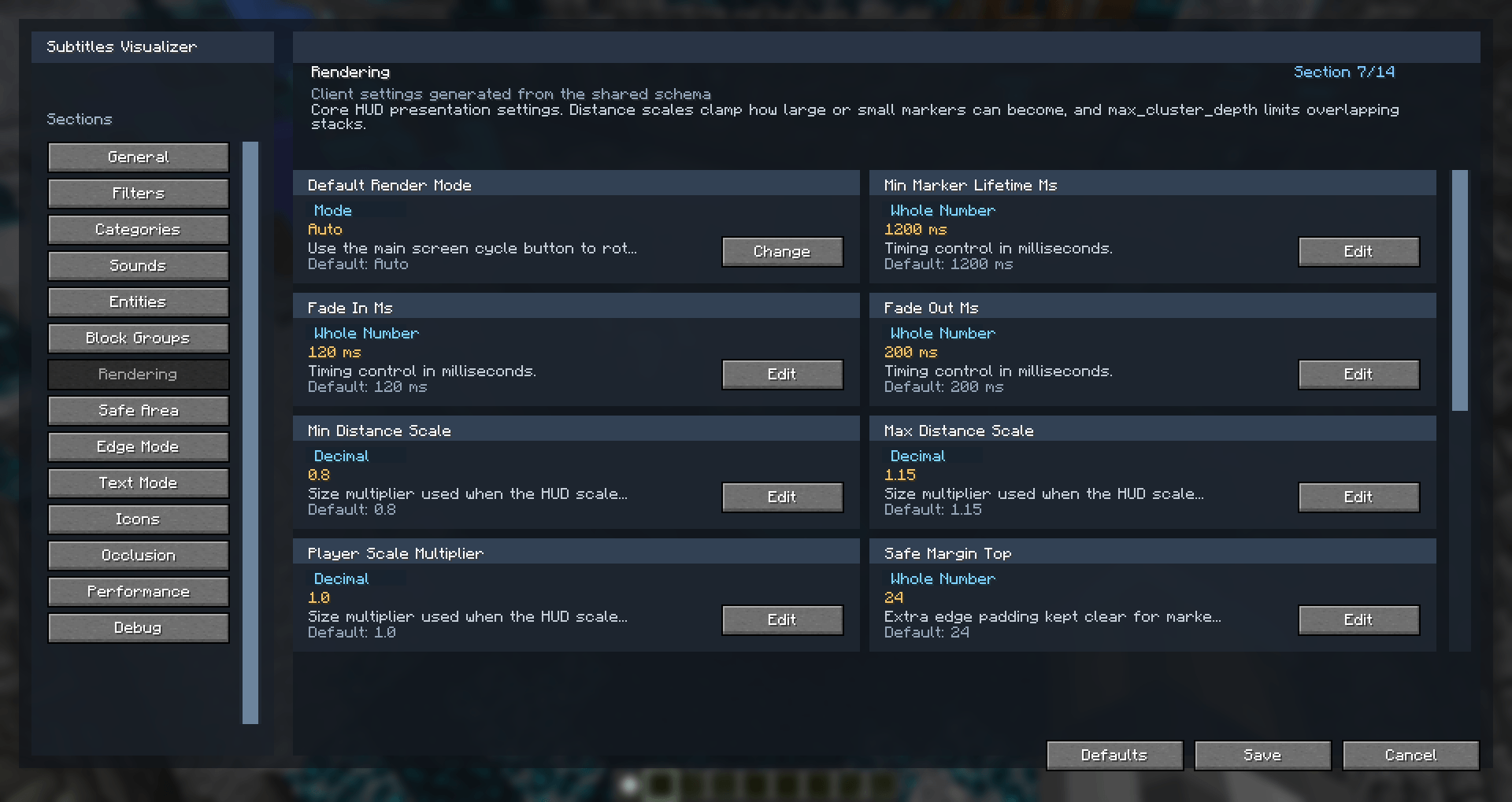
Detailed in-game customization
The configuration screen gives you control over how much information the mod shows and where it appears. You can keep the default experience simple or fine-tune nearly every part of the overlay.
- General controls for enabling the overlay and choosing fallback behavior.
- Filter controls for sounds, subtitles, categories, entities, and block groups.
- Rendering controls for labels, icons, scaling, arrows, and distance text.
- Safe-area controls for common HUD elements and overlay corners.
- Edge-mode and text-mode controls for sounds that need special treatment.
- Occlusion and performance controls for balancing detail, clarity, and responsiveness.
Great For
- Players who use subtitles for accessibility.
- Players who keep game audio low or muted.
- Streamers and video creators who want viewers to understand where sounds are coming from.
- Survival players tracking mobs, villagers, water, blocks, and other nearby activity.
- Builders and redstone players working around repeated or overlapping sounds.
- Multiplayer players who want better awareness without relying only on audio direction.
Subtitles Visualizer keeps Minecraft's familiar subtitle idea, then gives it direction, priority, and context. The result is a cleaner way to read the world around you without taking your eyes away from the game.
The Pepsi's Subtitles Visualizer Team


Owner