Panorama Maker - Scenic Titles
- By
Take Panoramic shots in game and change the title screen panoramas using the 'Panoramas....' button. and custom menu. All for 1.7.10
This mod is only for version 1.7.10. It allows you to take panoramic shots in game, and adds a custom menu on the title screen to easily manage and change your panoramas for the title screen.
Please be aware that this mod may conflict with other mods that modify panoramas or UI elements of the title Screen. It should also only be ran on the Client Side.
*Check out my other Mods here:
Alan's Bees - https://www.curseforge.com/minecraft/mc-mods/alans-bees
Back in Slime and Honey - https://www.curseforge.com/minecraft/mc-mods/back-in-slime-honey
youtube channel - www.youtube.com/@AlansGameLab
How to use:
- While in game, I recommend positioning your player a bit above the ground so you can get an aerieal view. If possible, position your element of focus south of the player as the south side will always be where the title screen panorama begins. (It will do a 360 degree turn completely).
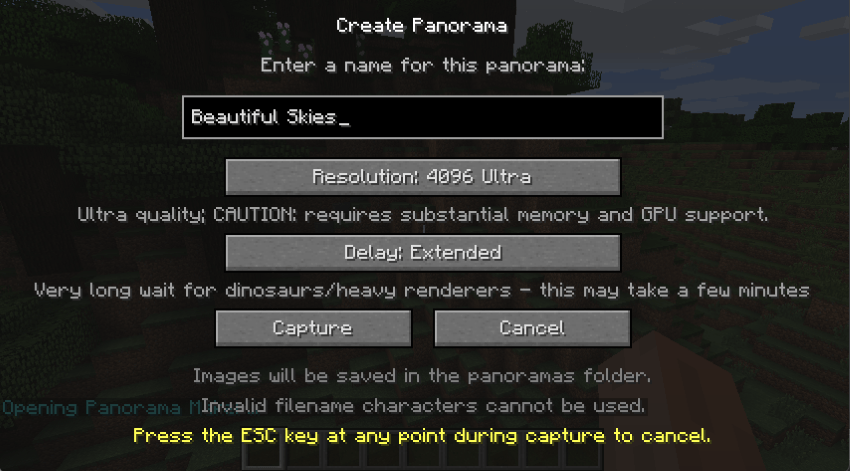
Use the in game chat command "/panorama" to bring up the naming menu for your panorama. Once you hit capture sit tight as the mod will resize your window and change the view of your player to take the panorama photos. Please increase the delay by using the "Delay" button if you find that your chunks aren't rendering fast enough before the panorama shots are being taken. Options are (Fast, Normal, Slow, Extended). Additionally, use the resolution button to take higher detailer panoramas. Please note that the higher the resolution the higher the memory and GPU you will need to display it on your title screen.
/panorama
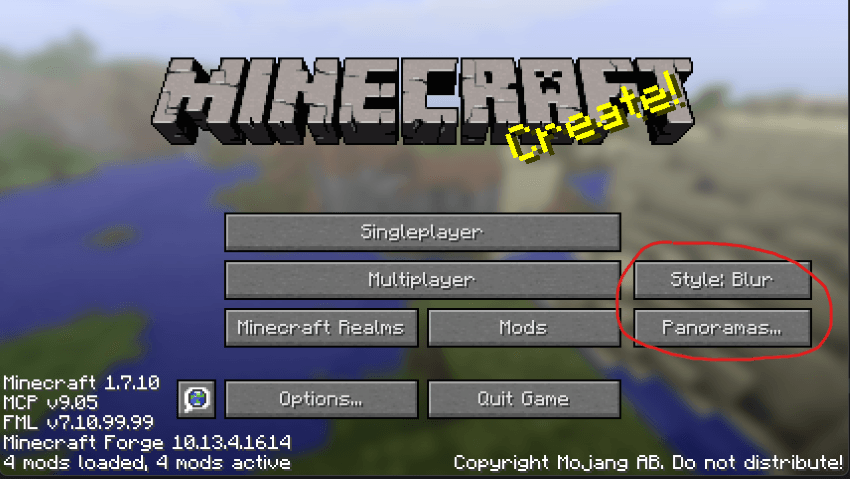
2. Save and quit to the main menu. Here you'll notice two new buttons, the "Style:" button and the "Panoramas..." button. Click the Style button to change the blur filter over the image, either Blur, Light Blur, or Sharp.
Selecting the "Panoramas..." button will open up a menu where you can manage your panoramas and select one to use on the title screen.
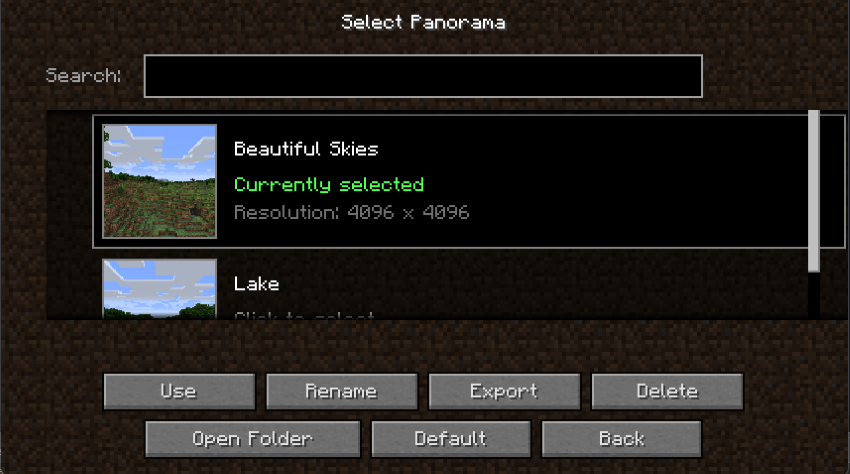
3. click the panorama you wish to use in the scroll menu or search using the search bar. Select "Use" to change the active panorama, the game will turn black for a few seconds as the title screen reloads. Additionally, on this screen you can rename or delete your panoramas, open the panoramas folder in your file directory, click default to revert to minecraft's vanilla panorama, and export your panorama to a zip file to share with other.
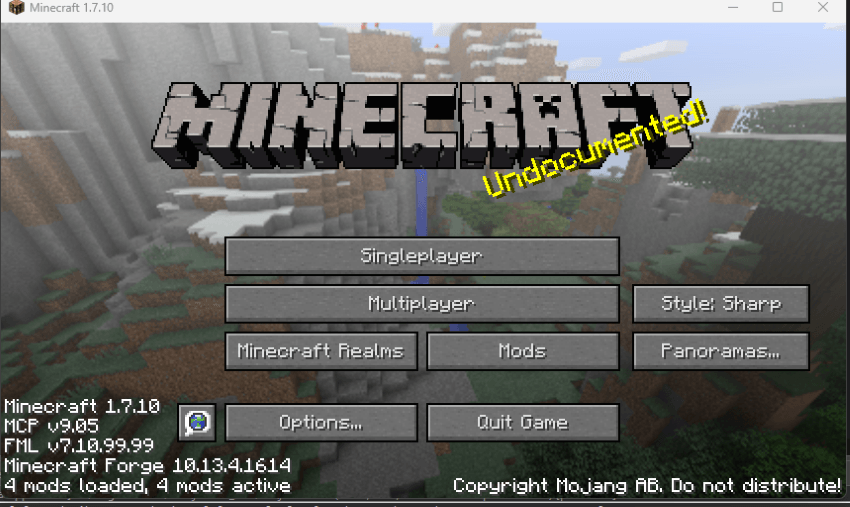
4. Lastly, after clicking "Use" or "Back" you will be returned to the title screen where you will see your active panorama. The active panorama will persist between play sessions,\
Disclaimer: Do not modify or distribute this mod without receiving my permission first.
The Panorama Maker - Scenic Titles Team