Obscura's Simple Storage
- By
Vanilla-style storage network: terminals, cables, filters and wireless access, no power or channels. A maintained fork of Tom's Simple Storage for Fabric, NeoForge and Forge.
2026-03-02_16.50.png
block_level_emitter.png
frames_configurator.png
block_inventory_cable.png
locator_scene.png
Description
Obscura's Simple Storage
Connect the chests, barrels and other inventories you already have into one network and reach all of it from a single terminal. No power, no channels, no storage cells.

Your items stay in normal containers. The mod only gives you a better way to get at them: one searchable list, wireless access, filters, hoppers and a few redstone tools, all built in the vanilla style.
Available for Fabric and NeoForge on Minecraft 1.21.1, and for Fabric and Forge on Minecraft 1.20.1. The Forge 1.20.1 file also runs on NeoForge 1.20.1.
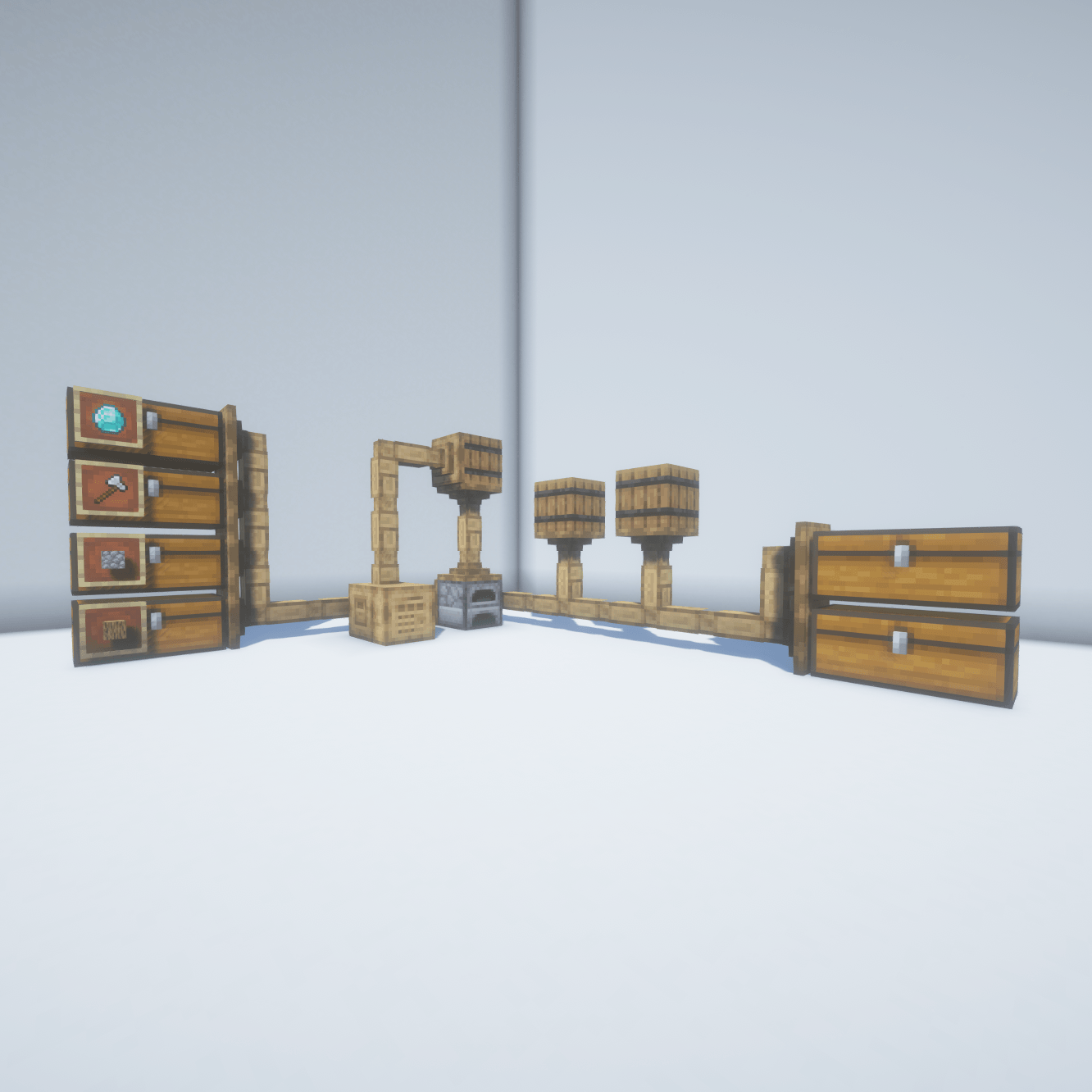
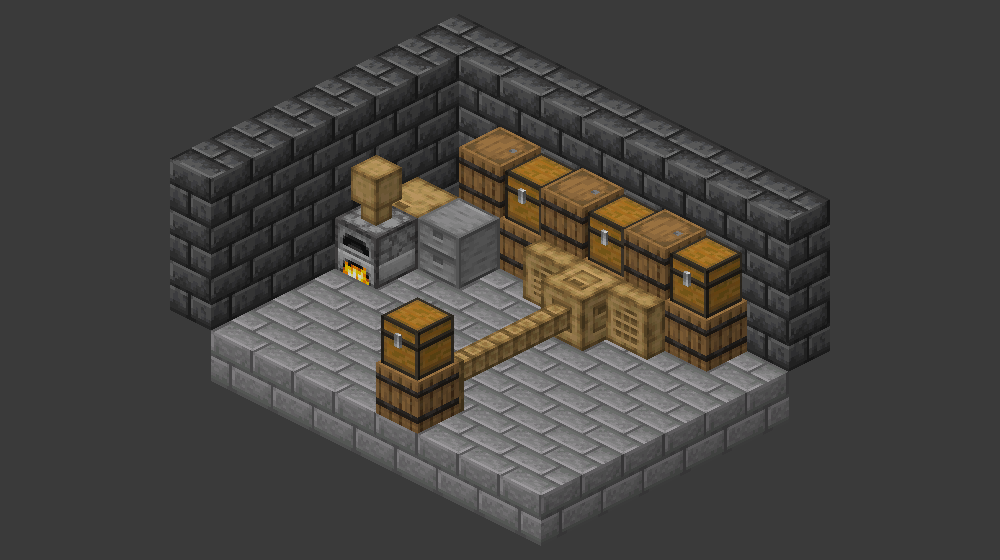 A small storage room: a wall of chests and barrels, an Inventory Connector with a Storage Terminal and a Crafting Terminal, a cable run to a second group, a Filing Cabinet and an Open Crate.
New in v5.1.0
- Ejector. Takes matching items out of the storage and drops them in front of it, like a dropper. It works while it is powered by redstone, either all the time or one batch per redstone pulse.
- Disposal. Takes matching items out of the storage and destroys them for good. It starts paused, and its screen counts what it destroyed.
- Exporter. Moves matching items from the storage into the chest, barrel, Shulker Dock or other inventory in front of it. A redstone signal stops it.
- Highlight Connected Inventories. A button in every terminal, and the key H, outline every inventory of a network through walls in green for 10 seconds.
- Fixed a small memory leak in the Frame Labels overlay after leaving a world.
- Update the server and the clients together. Worlds from 5.0.0 load unchanged, there is nothing to migrate.
New in v5.0.0
- Shulker Dock. Holds one shulker box. The network, hoppers and comparators see its 27 slots.
- Tidy button. One click in the terminal defragments the whole network over a few seconds.
- Frame Labels. A glow item frame with an item on a network chest makes that chest take only that item, and take it first.
- Comparator output for the Inventory Connector, Inventory Interface, Filing Cabinet, Open Crate and Shulker Dock, and an analog mode (signal 0 to 15) for the Level Emitter.
- Network Doctor for server admins and modpack developers: which network costs how much server time, and why a block does or does not join a network.
- New mod id
obscuras_storage. Worlds and configs from 4.x are migrated automatically (see "Updating from 4.x"). - Upgrade a world from 1.20.1 to 1.21.1. The mod converts its own data (see "Updating from 4.x").
- Bug fixes from 4.0.1 are included.
Why this mod
- It stays vanilla-ish. Chests, barrels, furnaces and modded inventories keep working as they are. Remove the mod and your items are still in those containers (items in a Filing Cabinet and filters in the Inventory Configurator excepted).
- No power, no channels, no storage cells, no autocrafting. You build a network with blocks that touch each other, or with cables.
- Cheap to start. A connector, a terminal and a few chests are enough. Every recipe uses common materials plus a comparator, a diamond or an ender pearl here and there.
- Fast. Terminals only send what changed, large item lists stay smooth, and networks only rescan when something actually changes. The Network Doctor shows you the cost if something ever does not.
- Runs everywhere. Fabric and NeoForge on 1.21.1, Fabric and Forge (or NeoForge) on 1.20.1, with the same features on all four.
Quick start: your first network
- Put chests next to each other. Any inventory works: chests, barrels, furnaces, hoppers, inventories from other mods.
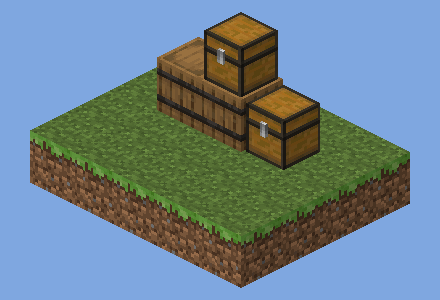 Step 1: a few chests and barrels.
- Place an Inventory Connector touching them. Every inventory that touches the connector, or touches another connected inventory, joins the network (up to 16 blocks away by default). Use Inventory Trim to bridge gaps.
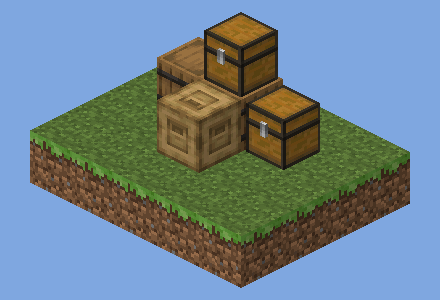 Step 2: the Inventory Connector joins the chests.
- Place a Storage Terminal on the connector (or on any connected inventory) and right-click it. Everything in the network shows up in one list.
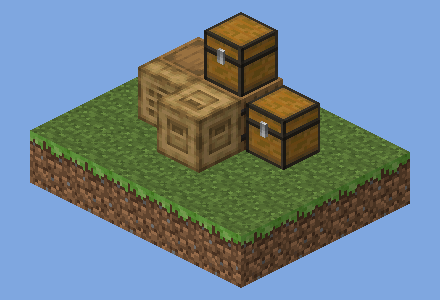 Step 3: a Storage Terminal on the network.
For inventories further away, run Inventory Cable from the connector and attach each inventory with an Inventory Cable Connector. Upgrade to a Crafting Terminal to craft straight from storage. All recipes are shown in JEI, REI or EMI, and summarised below.
Blocks and items
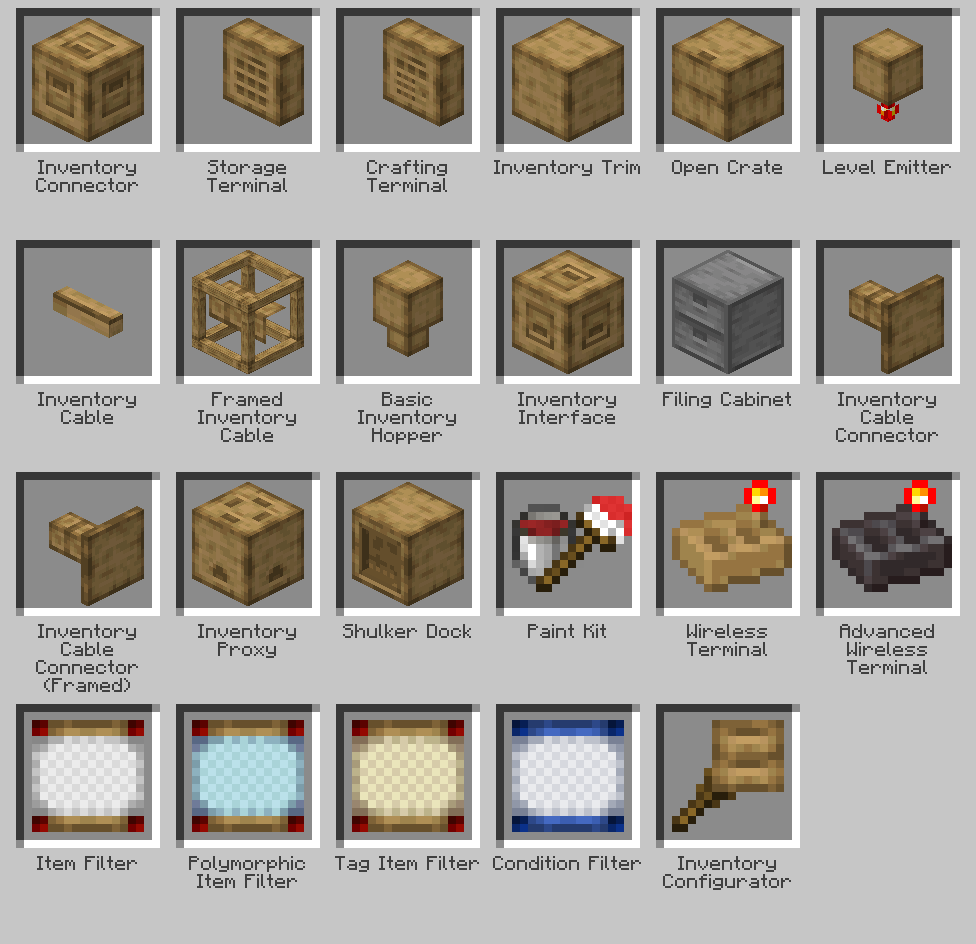 Every block and item of the mod.
Inventory Connector
The heart of a network. It joins all touching inventories into one, including inventories that touch those inventories, up to the connector range (16 blocks by default). One network needs one connector.
- Put a terminal, an Inventory Interface or a Level Emitter next to the network.
- Use an Inventory Trim to connect inventories that do not touch.
- Left-click a connector with the Inventory Configurator to outline every connected block. The player who clicks also gets a one-line summary in chat (see "Network Doctor").
- Blocks and mods can be excluded in the config (
blockedBlocks,blockedMods), and with Skip in the Configurator.
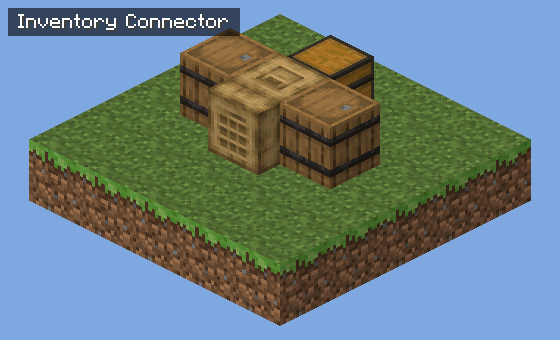 An Inventory Connector joining a barrel, a chest and a second barrel, with a Storage Terminal on it.
Recipe: 4 planks, a comparator, 2 chests, a diamond, an ender pearl.
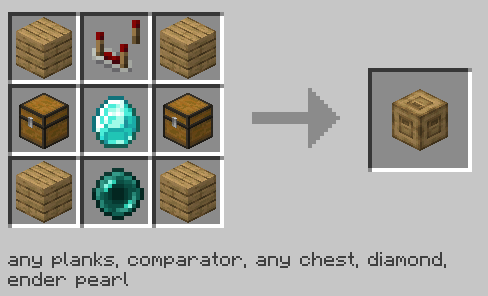 Inventory Connector recipe.
Storage Terminal
Shows and gives access to every item in the network in one list. Place it on the connector or on any connected inventory and right-click. Search, sorting, statistics and the control schemes are described in "Terminals" below.
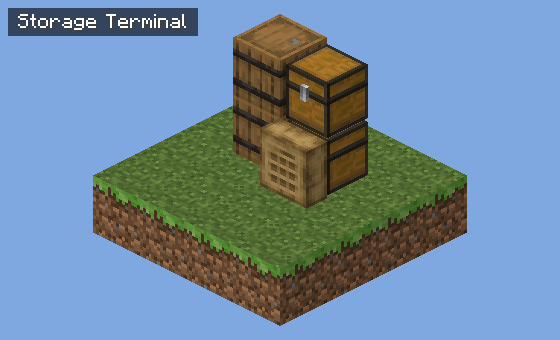 A Storage Terminal on a chest.
Recipe: 4 planks, 2 comparators, a chest, glowstone dust, a glass block.
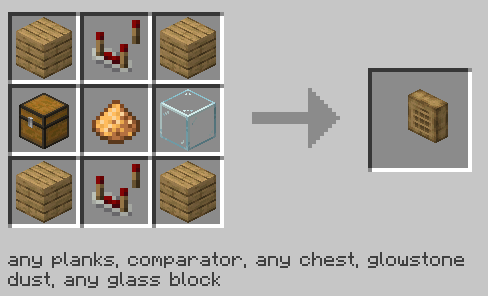 Storage Terminal recipe.
Crafting Terminal
A Storage Terminal with a 3x3 crafting grid and a recipe book. It can pull missing ingredients from your own inventory (toggle on the left side), and recipes can be transferred from JEI, REI or EMI. Missing ingredients come from the network.
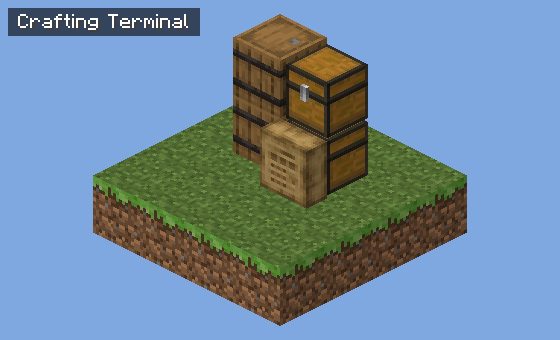 A Crafting Terminal on a chest.
Recipe: a Storage Terminal, 4 diamonds and 4 crafting tables.
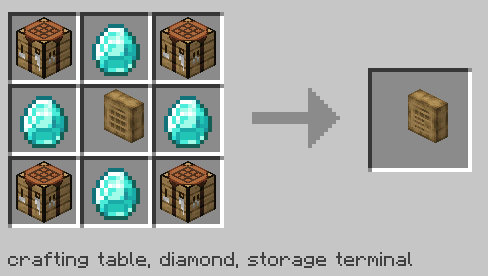 Crafting Terminal recipe.
Inventory Trim
A filler block that connects inventories to the Inventory Connector over a gap. It can be painted with the Paint Kit and washed clean with a water bucket. With onlyTrims on, only trims connect inventories to a connector.
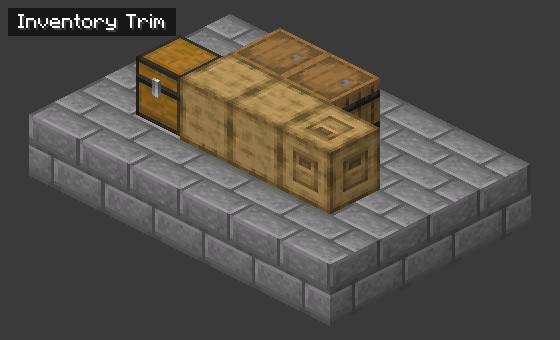 Two Inventory Trims bridging the gap between a connector and a chest.
Recipe: makes 2: 4 planks, 4 sticks, a chest.
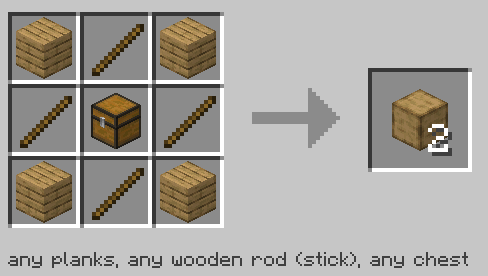 Inventory Trim recipe.
Inventory Cable and Inventory Cable Connector
Cables carry the network over long distances. Inventory Cable Connectors attach an inventory to a cable. A network can have up to 2048 cables by default. A cable network still needs one Inventory Connector.
- The Framed versions of the cable and the connector can be painted to match your walls (Paint Kit), and washed with a water bucket.
- A cable connector applies two filters: its own and the filter of the block it points at. An item has to pass both. Set filters with the Inventory Configurator.
- A cable connector is also the end point of an Inventory Link.
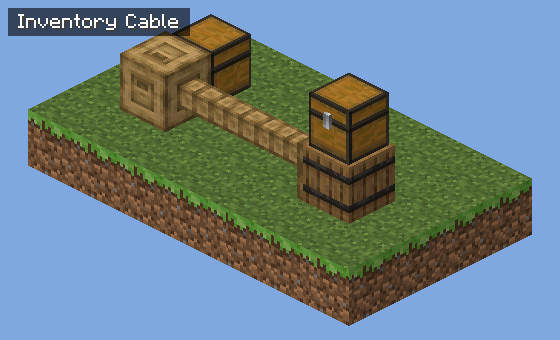
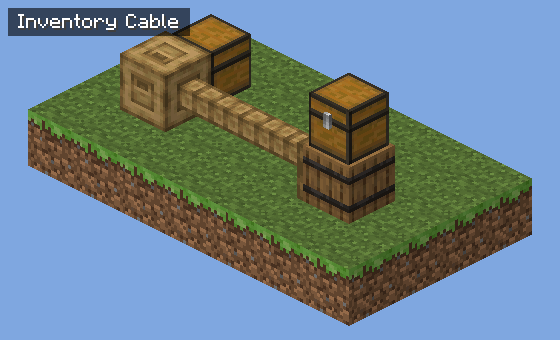 A cable run from the connector to a barrel stack.
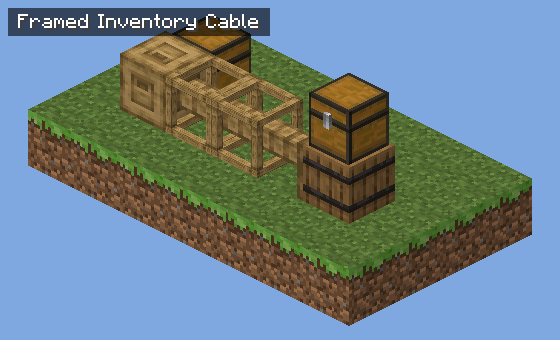 The framed cable (paintable).
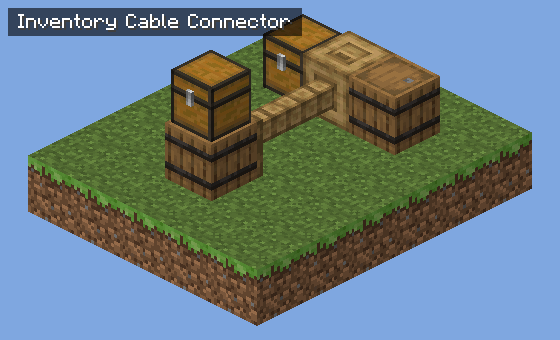 An Inventory Cable Connector attached to a barrel with a chest on top.
Recipes:
- Inventory Cable (makes 6): 4 sticks, 2 planks, 2 trapdoors, a chest.
- Framed Inventory Cable: a cable and 4 sticks.
- Inventory Cable Connector: quartz, 2 planks, a cable, a chest, ender pearl, diamond.
- Framed Inventory Cable Connector: a cable connector and 4 sticks.
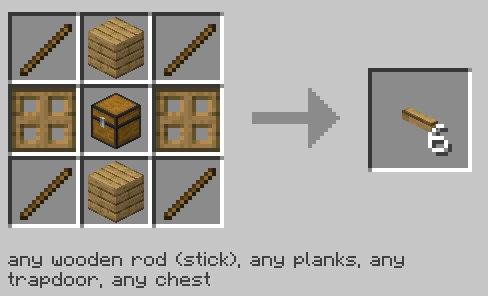 Inventory Cable recipe (makes 6).
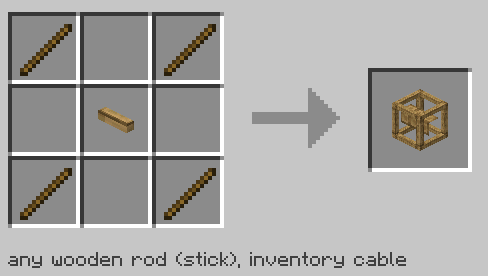 Framed Inventory Cable recipe.
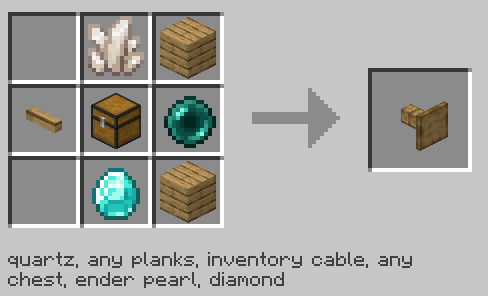 Inventory Cable Connector recipe.
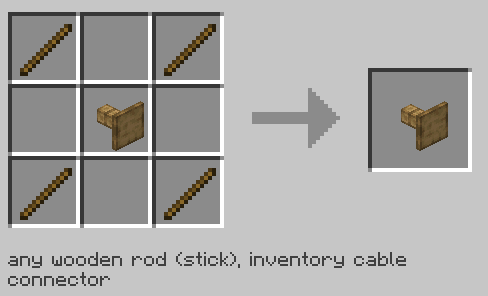 Framed Inventory Cable Connector recipe.
Inventory Interface
Lets hoppers, pipes and other mods insert into and extract from the whole network. Place it next to the connector. Comparators can read its fill level (see "Comparator output").
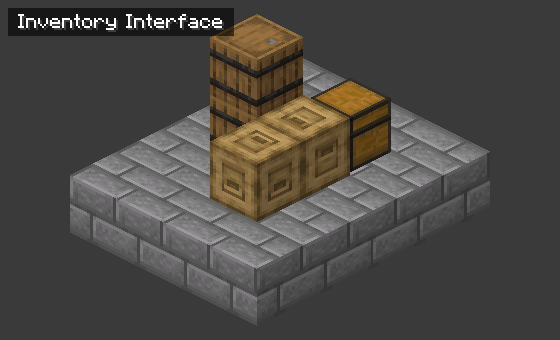 An Inventory Interface next to a connector.
Recipe: 4 planks, 3 trapdoors, a chest, an ender pearl.
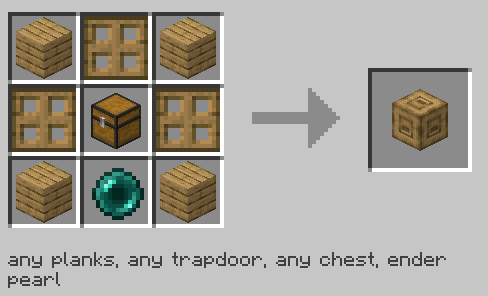 Inventory Interface recipe.
Inventory Proxy
Extends the face of the block it points at, so you can reach an inventory from another side. It can be painted.
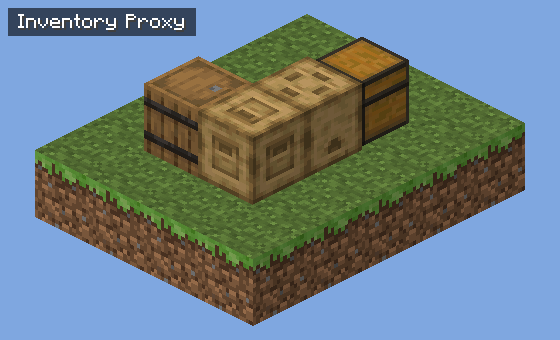 A Proxy between a chest and a connector.
Recipe: 5 planks, 3 trapdoors, a chest.
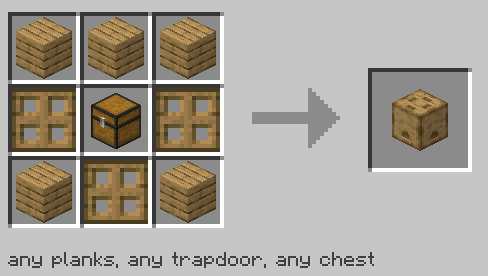 Inventory Proxy recipe.
Basic Inventory Hopper
Moves items between the network and the block it points at (a furnace, a dropper, a crafter, another inventory). It has an optional filter and three modes. Details are in "Hoppers" below.
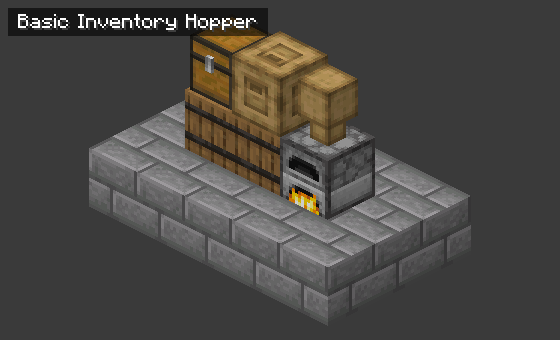 A Basic Inventory Hopper feeding a furnace from the network.
Recipe: 2 planks, an Inventory Cable, a hopper.
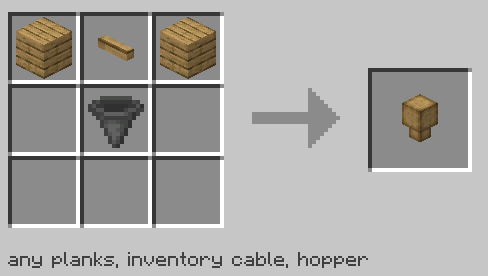 Basic Inventory Hopper recipe.
Level Emitter
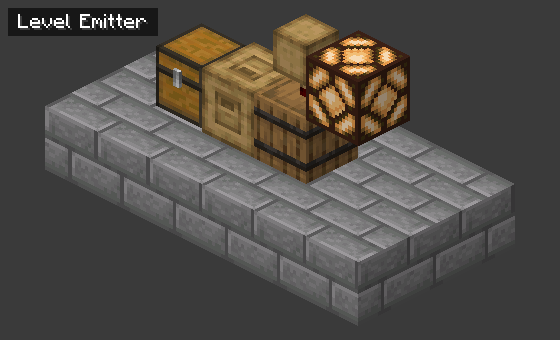
Emits a redstone signal when the stored amount of an item is above or below a number you set. In v5 it also has an analog mode. Details are in "Level Emitter" below.
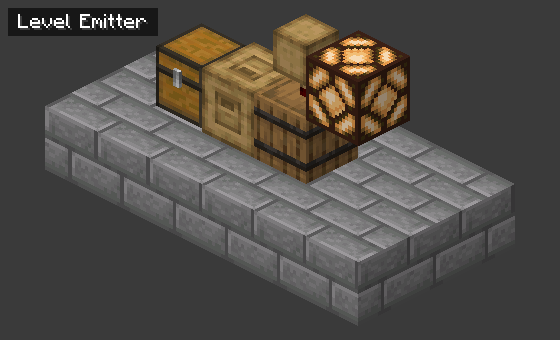 A Level Emitter on a barrel, powering a redstone lamp.
Recipe: redstone torch, 2 planks, an Inventory Cable, a comparator.
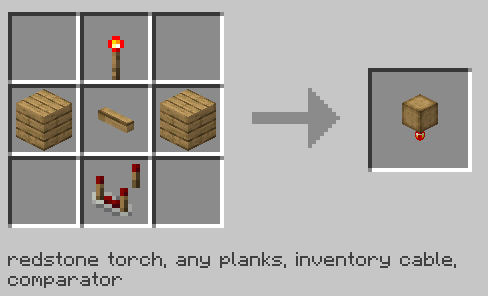 Level Emitter recipe.
Open Crate
Turns the space in front of it into an inventory. Items put into it are dropped as item entities in that space, and items lying there can be pulled out.
Beware: it creates item entities.
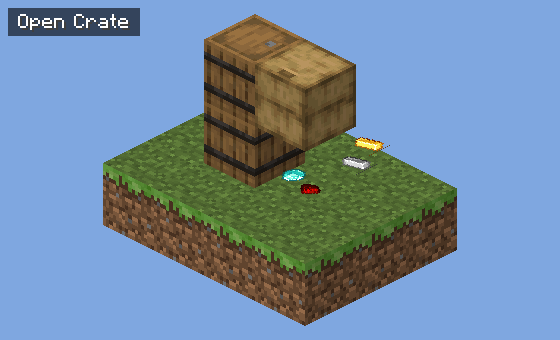 An Open Crate with items lying in front of it.
Recipe: 6 planks, a stick, a chest, a trapdoor.
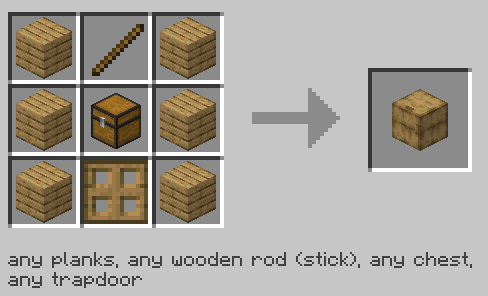 Open Crate recipe.
Filing Cabinet
Holds up to 512 unstackable items (tools, armor, enchanted books and so on) in one block. It refuses shulker boxes, bundles and other containers (a Shulker Dock holds a shulker box).
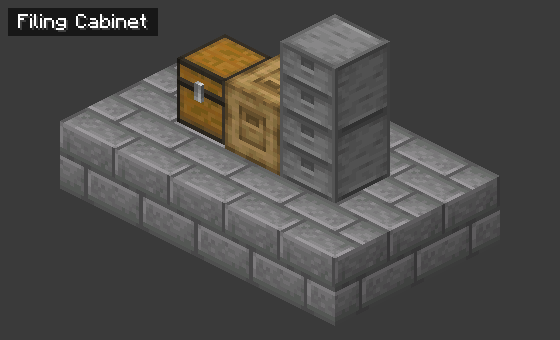 A Filing Cabinet stacked on a Filing Cabinet, with a connector.
Recipe: 4 smooth stone, 3 chests, 2 iron ingots.
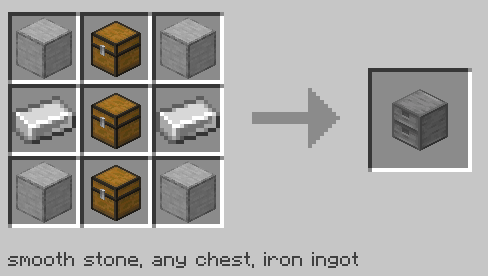 Filing Cabinet recipe.
Shulker Dock (new in v5)
A wooden block with a window on the front. It holds one shulker box, and the network treats the box's 27 slots as an ordinary inventory. Connectors, hoppers and comparators all see the contents, and the window shows the box's real colour (all 16 dyes, and the default look for an undyed box).
- Right-click with a shulker box to dock it. If a box is already docked, the two swap: the old box goes into the hand you used, or into your inventory if that hand is still holding something.
- Right-click with an empty hand to take the box out.
- In creative mode the box is moved, not copied: the dock takes the box out of your hand and gives it back when you take it out.
- Sneak + right-click with a box in your hand places the box as a block, like with any block.
- There is no GUI. To look into a docked box, take it out, or use a terminal.
- A dock without a box has no slots, so the network ignores it.
- The dock behaves like a chest for the Inventory Configurator (filters, priority and side apply) and for Frame Labels.
- Shulker boxes keep the usual rule: shulker boxes and bundles cannot be put inside a docked box. A box that still has an unopened loot table (for example one that came out of a dungeon chest and was never opened) is refused, because it would roll its loot again.
- Breaking the dock, or blowing it up, drops the dock and the box as items, with the contents and custom name intact. Nothing is spilled as 27 stacks on the ground.
- The Tidy button never rearranges a docked box by default (see "Tidy button").
- A comparator reads the fill level of the docked box like a container. An empty box, and an empty dock, read 0.
The item tag obscuras_storage:dockable decides which boxes can be docked. It holds the 17 vanilla shulker boxes by default, and modpacks can add boxes from other mods that store their contents the vanilla way (a box holding more than 27 stacks cannot be docked).
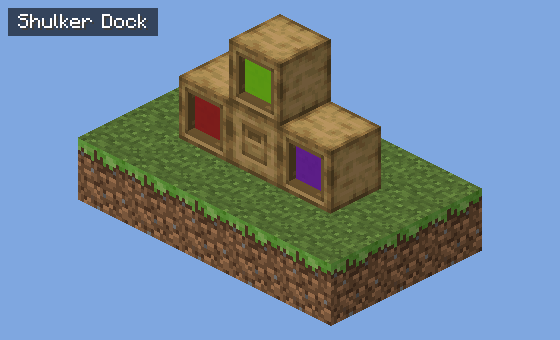 Three Shulker Docks holding a purple, a red and a lime shulker box, next to a connector.
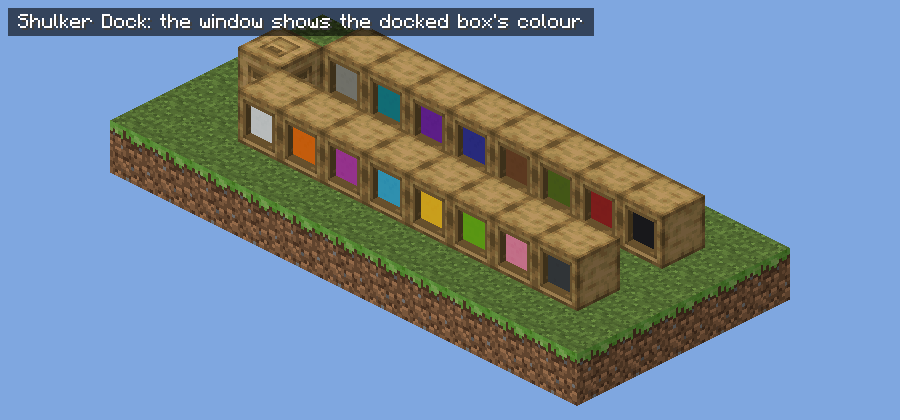 The dock shows the colour of the docked box: all 16 dyes.
Recipe: a Barrel, an Inventory Cable and 2 iron ingots (shapeless).
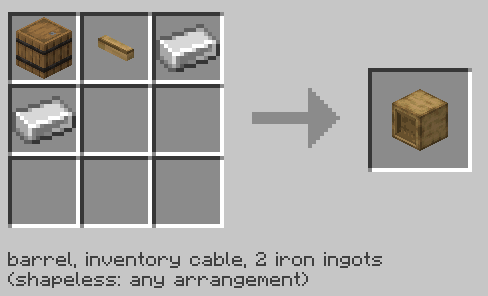 Shulker Dock recipe.
Ejector (new in v5.1)
Takes matching items out of the storage and drops them in front of it, like a dropper (same sound and smoke). It only works while it is powered by redstone. The back plugs into a cable, an Inventory Connector, an Inventory Interface or an inventory, the front is where the items come out. Details are in "Filter blocks" below.
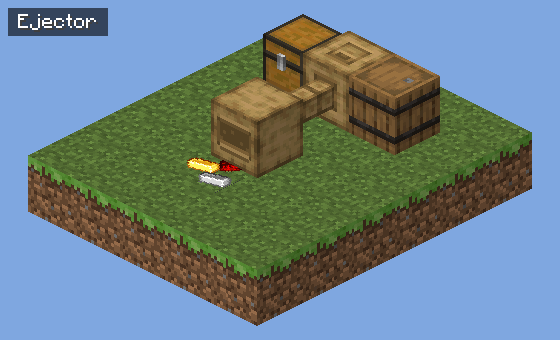 An Ejector plugged into an Inventory Cable that leads to a connector, with dropped items in front of it.
Recipe: 2 planks, an Inventory Cable, 2 redstone dust, a dropper.
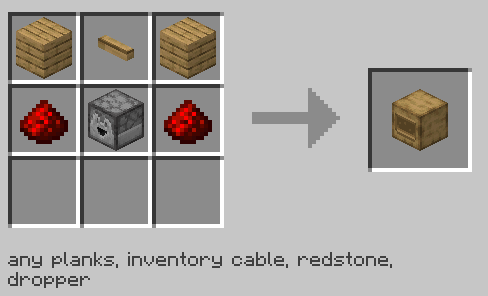 Ejector recipe.
Disposal (new in v5.1)
Takes matching items out of the storage and destroys them for good. A new Disposal is paused until you start it in its screen, and a redstone signal stops it. It counts what it destroyed. Details are in "Filter blocks" below.
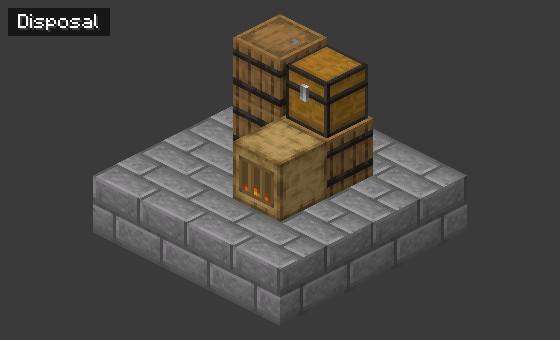 A Disposal plugged onto a barrel.
Recipe: 2 planks, an Inventory Cable, 2 cacti, a cauldron.
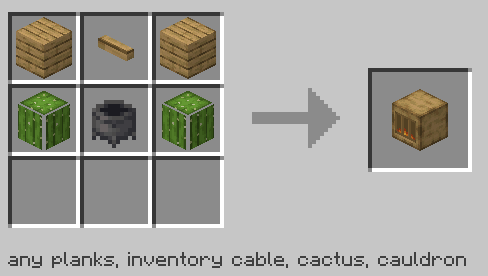 Disposal recipe.
Exporter (new in v5.1)
Moves matching items from the storage into the inventory in front of it: a chest, a barrel, a Shulker Dock or an inventory from another mod. It runs on its own, and a redstone signal stops it. Details are in "Filter blocks" below.
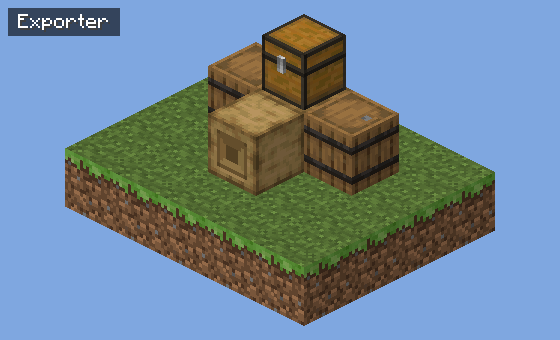 An Exporter plugged onto an Inventory Connector.
Recipe: 2 planks, an Inventory Cable, 2 redstone dust, a hopper.
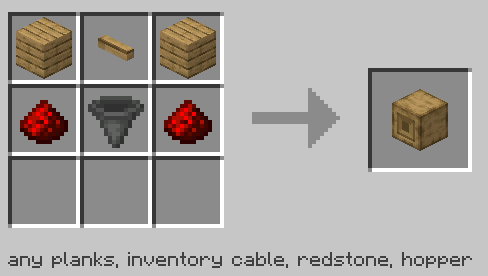 Exporter recipe.
Paint Kit
Sneak + right-click a full block to copy its look, then right-click a paintable block (Inventory Trim, framed cable, framed connector, Inventory Proxy) to paint it. It has 100 uses.
Recipe: red, green and blue dye, black dye, water bucket, bucket, wool, stick.
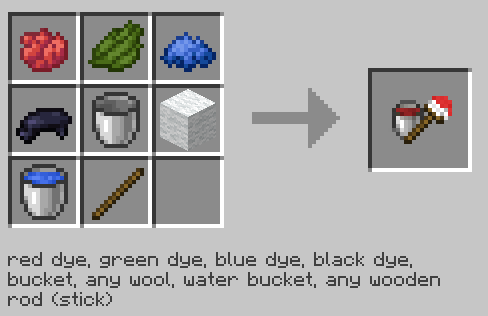 Paint Kit recipe.
Terminals
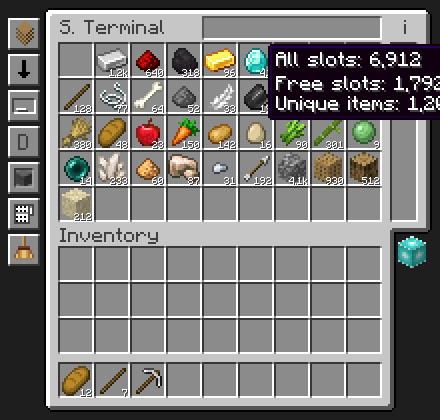 The Storage Terminal: the statistics tooltip (top right), the beacon icon and the side buttons.
Search
Type in the search bar to filter the list. Right-click the search bar to clear it.
| You type | It finds |
|---|---|
iron |
items with "iron" in the name or tooltip |
iron ore |
items that match both words |
iron | gold |
items that match either side |
@create |
items from mods whose id contains "create" |
#logs |
items with a tag that contains "logs" |
$sharpness |
items whose stored data contains "sharpness" (item components on 1.21.1, NBT on 1.20.1) |
@minecraft #logs | @create |
combinations of the above |
The search options button sets auto-focus, keeping the search between visits, and syncing the search with JEI, REI or EMI.
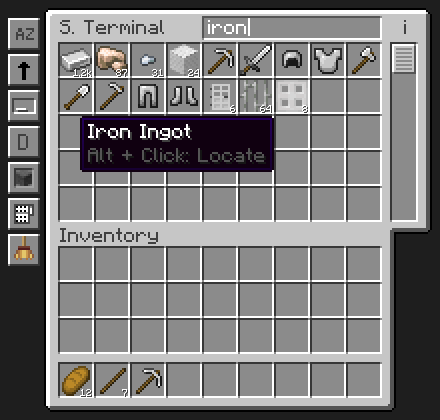 Searching "iron": the result list and the Item Locator hint on an item.
Sorting and the side buttons
Sort by amount, name, mod, rarity, registry id, durability or item group, in either direction. The buttons to the left of the terminal also set the control scheme, ghost mode and the terminal height. Tall mode makes the terminal fill the screen.
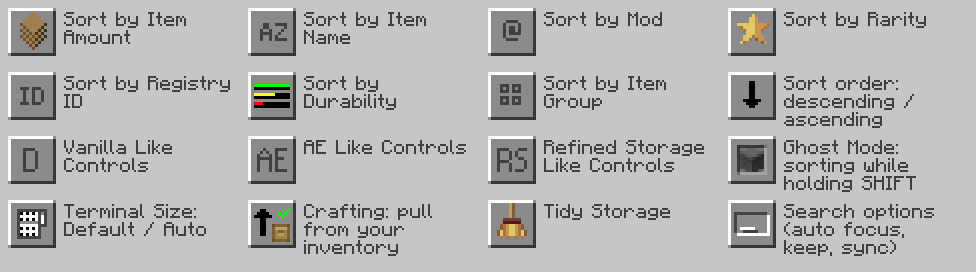 The terminal's side buttons.
Statistics, beacon and details
- Statistics. Hover the top-right corner of the terminal to see all slots, free slots (with percentage) and the number of unique items.
- Beacon. When a beacon is near the terminal, a beacon icon shows its level and what it unlocks for the Advanced Wireless Terminal.
- The terminal screen has your offhand slot.
- Items you just used up stay in the list as ghost entries with a yellow 0, so you can pull them back in later.
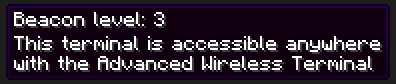 The beacon tooltip of a terminal.
Crafting Terminal screen
The Crafting Terminal adds the 3x3 grid, the recipe book, a Clear Grid button and the pull from inventory toggle.
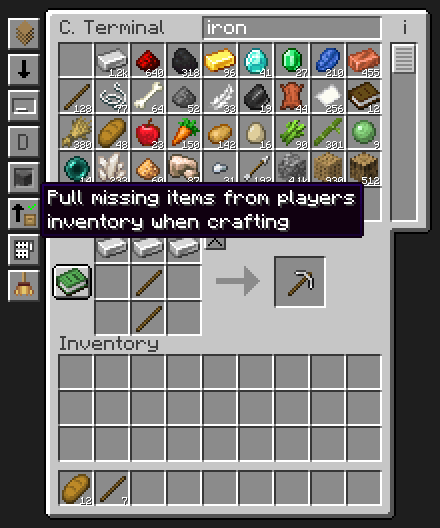 The Crafting Terminal screen with the recipe book button and the side buttons, including the Tidy broom at the bottom.
Controls
| Action | Input |
|---|---|
| Take a stack | Left-click an item in the terminal |
| Move a stack to your inventory | Shift + left-click |
| Take half / a quarter | Right-click / Ctrl + right-click |
| Put the carried stack into storage | Left-click anywhere in the item list |
| Put your whole main inventory into storage | Hold Space and click in the terminal, outside the item list (the hotbar is kept) |
| Clear the search | Right-click the search bar |
| Locate an item | Alt + left-click the item in a terminal |
| Highlight every inventory of the network | H (key "Highlight Connected Inventories") in a terminal with no text field focused (not with an Auto Search mode, use the button), or while looking at a terminal, cable, connector, cable connector, Ejector, Disposal or Exporter, or holding a bound wireless terminal |
| Search for a recipe book ingredient (Crafting Terminal) | Hover the ghost ingredient and press S |
| Bind a wireless terminal | Sneak + right-click a terminal |
| Open the bound wireless terminal | B (key "Open Terminal") |
| Toggle Restock | unbound by default (key "Toggle Restock") |
| Pick a block from storage | Middle-click a block you don't carry |
| Configure an inventory | Right-click it with the Inventory Configurator |
| Hopper mode / amount | Right-click / Sneak + right-click the hopper with the Inventory Configurator |
Pull or transfer one item depends on the control scheme you pick in the terminal (button on the left):
| Scheme | Pull one item | Transfer one item |
|---|---|---|
| Vanilla-like | Right-click | Shift + right-click |
| AE-like | Shift + right-click | Ctrl + Shift + right-click |
| Refined Storage-like | Middle-click | Shift + middle-click |
Tidy button (new in v5)
A broom button below the terminal's side buttons. On the Storage Terminal and on wireless terminals it sits under the Tall mode button. On the Crafting Terminal it comes after Tall mode, so existing buttons do not move. Hover it for a rough estimate of the work ("About 120 moves, 6 seconds").
Click it and the network is defragmented over a few seconds:
- For each item, the mod picks a home: a chest labelled with a glow item frame for that item (see "Frame Labels"), else a chest whose Inventory Configurator filter lets that item in (highest priority first, then the one holding the most), or else the chest that already holds the most of it.
- Partial stacks of the same item are merged inside each inventory, which frees slots.
- Stray items in other inventories move to the home until it is full. Leftovers stay where they are, so items are not scattered over several chests.
Safety rules:
- At most 8 stack moves per tick and network (
tidyMovesPerTick), at most 30 seconds per run (tidyMaxSeconds, planning included), then a 30 second cooldown (tidyCooldownSeconds). - Every move is checked against the live slot and goes through the same inventory paths the network uses, so filters are respected. Nothing is dropped or voided. If a run is cut short, the moves already made stay.
- An inventory set to Keep last item is never emptied by Tidy.
- Tidy never moves an item from a higher-priority chest into a lower-priority one, unless the target is labelled or filtered for that item.
- It leaves alone Filing Cabinets, Open Crates, Inventory Proxies and Interfaces, machines (furnaces, brewing stands, hoppers, dispensers, droppers, crafters on 1.21.1, jukeboxes, lecterns, chiseled bookshelves, decorated pots), anything in the block tag
obscuras_storage:tidy_skip, and anything marked Skip in the Configurator. - Docked shulker boxes are not touched by default.
tidyIncludeDocksallows it. - One run per network, shared by everyone who has a terminal open on it. The button shows a progress bar, and clicking it again stops the run; moves already made stay.
- When it ends, an action bar message shows the moves made and the slots freed, plus how many items had no room. The player who started it and everyone with a terminal of that network open see it.
The button tells you why it is disabled: "Nothing to tidy" (until the network changes), "Cooling down (N s)", "Disabled by server", "Another tidy is running" (an overlapping network), "No storage network".
Server owners can switch Tidy off (tidyEnabled), limit it to operators (tidyOpsOnly), and change the speed, run time and cooldown. Tidy's work counts towards the network's cost in the Network Doctor, and doctor at shows a run in progress.
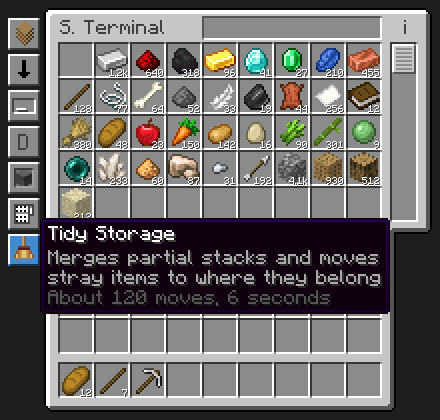 The Tidy Storage button with its tooltip.
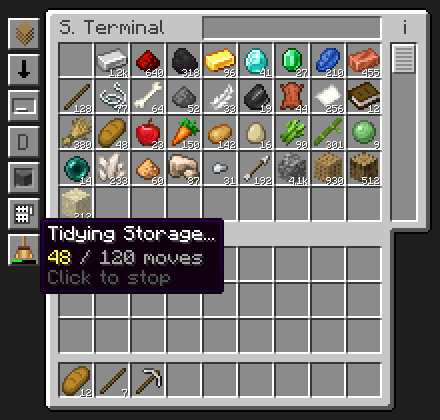 While tidying: a progress bar on the button.
 The action bar message when a run ends.
Wireless access and beacons
Wireless Terminal
- Right-click in the air while looking at a terminal up to 32 blocks away to open it.
- Sneak + right-click a terminal to bind the Wireless Terminal to it. After that, right-click anywhere within 32 blocks of that terminal. It only works in the same dimension.
Advanced Wireless Terminal
- Made in a smithing table from a Wireless Terminal, a netherite ingot and a netherite upgrade template. It is fire resistant.
- Sneak + right-click a terminal to bind it.
- Right-click, or press the Open Terminal key (default B), to open the bound terminal from up to 128 blocks away. The terminal's chunk has to be loaded.
- With Trinkets (Fabric) or Curios (NeoForge/Forge) it fits into the belt slot.
Beacons. A beacon within 8 blocks of the Storage or Crafting Terminal extends the Advanced Wireless Terminal's range:
| Beacon level near the terminal | Advanced Wireless Terminal range |
|---|---|
| none | 128 blocks, same dimension |
| 1 or higher | anywhere in the same dimension |
| 3 or higher | anywhere, in any dimension |
The level is the number of pyramid tiers under the beacon. All four builds use the same rule, and server owners can change the levels in the config.
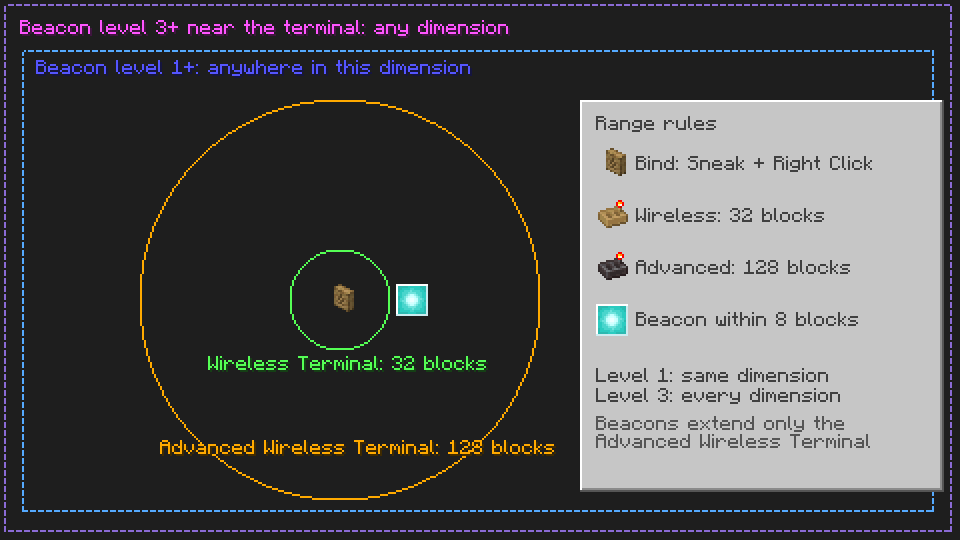 Wireless ranges and the beacon rules.
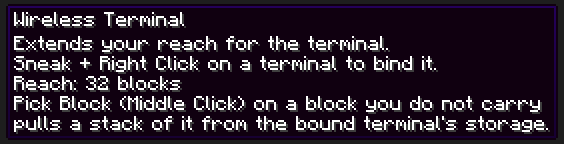 The Wireless Terminal's tooltip.
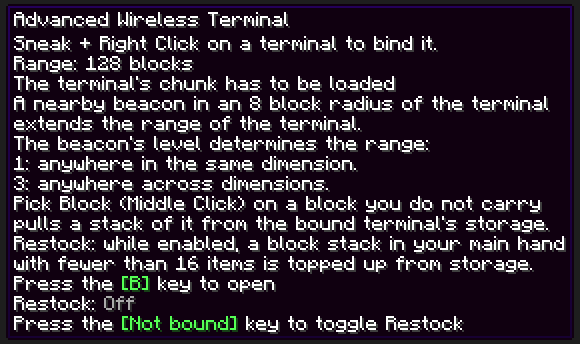 The Advanced Wireless Terminal's tooltip.
Recipes
- Wireless Terminal: 4 planks, comparator, spyglass, glowstone dust, glass block, ender pearl.
- Advanced Wireless Terminal: smithing table with a Wireless Terminal, a netherite ingot and a netherite upgrade template.
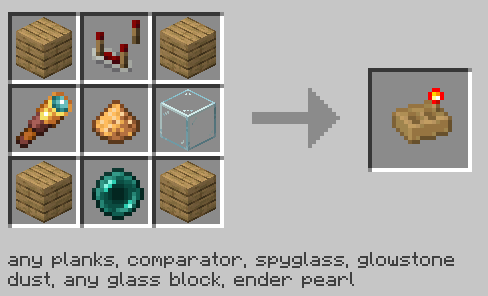 Wireless Terminal recipe.
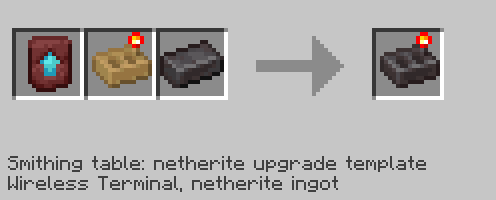 Advanced Wireless Terminal recipe (smithing table).
Inventory Link
Inventory Link connects two networks through a named channel, without cables in between.
- Right-click an Inventory Cable Connector with an empty hand to open the Inventory Link screen.
- Create a channel (public or private) or pick an existing one.
- Do the same on a cable connector of the other network and select the same channel.
| Setup | Range |
|---|---|
| No beacons | up to 4096 blocks, same dimension |
| A beacon in front of the connector on both ends, stronger one level 1+ | anywhere in the same dimension |
| A beacon on both ends, stronger one level 3+ | anywhere, across dimensions |
Both ends have to be in loaded chunks. Channels show their owner and whether they are public or private.
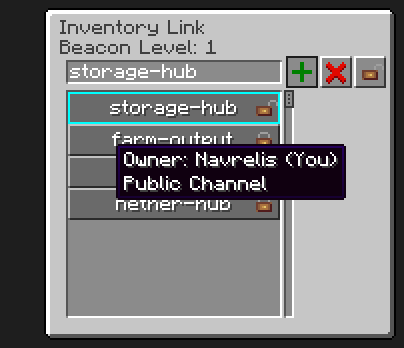 The Inventory Link screen: channel name, create / delete / public toggles and the channel list with owner tooltip.
Filters and the Inventory Configurator
Inventory Configurator
The Inventory Configurator works on any inventory: this mod's blocks, vanilla chests and barrels, and inventories from other mods.
- Right-click an inventory to open its configuration:
- Filter slot: put an Item, Tag, Polymorphic or Condition Filter in it. Only matching items go in.
- Priority: Lowest to Highest. Items go into higher priority inventories first.
- Side: which face of the block the network uses.
- Skip: exclude this inventory from Inventory Connectors.
- Keep last item: leaves one item in each slot, so a slot stays reserved for that item.
- Add connected blocks: groups a multiblock inventory so one setting covers all its blocks.
- Clear configuration: the red X at the top right.
- Left-click an Inventory Connector to see which blocks are connected to it.
- Right-click to add or remove a single inventory to a selection, left-click to start an area select.
Recipe: an Inventory Trim on top of a stick.
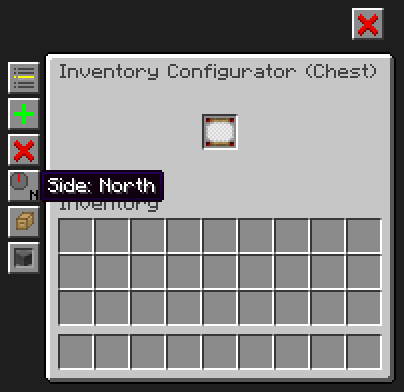 The Inventory Configurator screen.
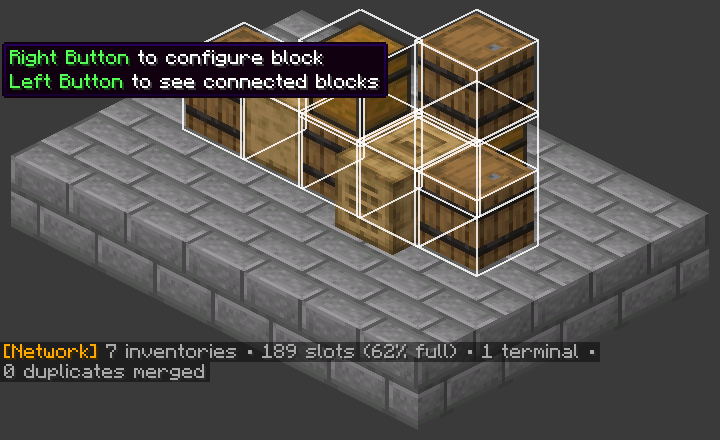 Left-click on a connector: the connected blocks are outlined and a one-line network summary appears in chat.
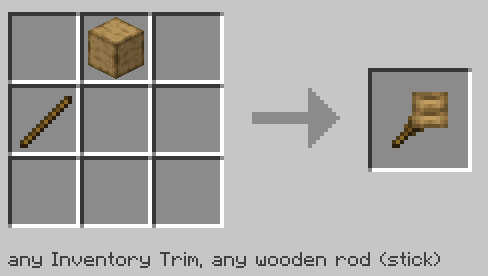 Inventory Configurator recipe.
The four filters
Right-click a filter in the air to open its screen. Hold Ctrl while hovering a filter to see its contents and whether it allows or denies.
| Filter | What it does | Example |
|---|---|---|
| Item Filter | A list of items, as allow list or deny list, optionally matching item data (components on 1.21.1, NBT on 1.20.1) | A chest that only takes iron, gold and copper ingots |
| Tag Item Filter | Filters by item tags | Put a log in the slot and pick #logs |
| Polymorphic Item Filter | Only accepts items that are already in that inventory | A "sorting" chest that only takes what it already has |
| Condition Filter | Nine traits: damaged, enchanted, renamed, stackable, food, fuel, smeltable, block, has contents. Click a trait to cycle Ignore, Required, Excluded | "Damaged and not enchanted" tools go to the repair chest |
For the Condition Filter, every Required trait must match and no Excluded one may. A Condition Filter with every trait on Ignore matches nothing, like other empty filters (an empty allow list blocks all items).
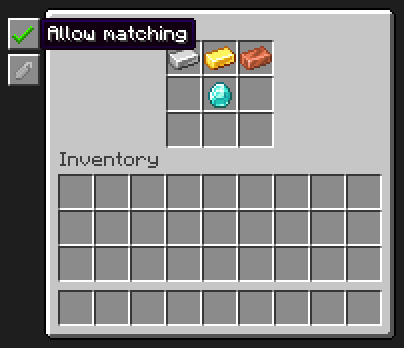 The Item Filter: allow list, component matching and a 3x3 item list.
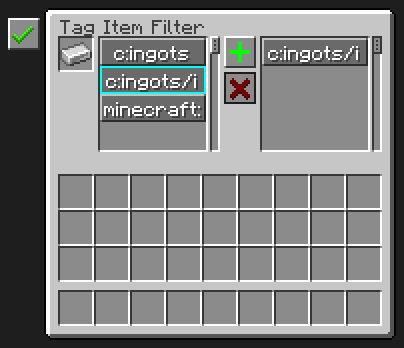 The Tag Item Filter: tags of the item in the slot (left) and the tags in the filter (right).
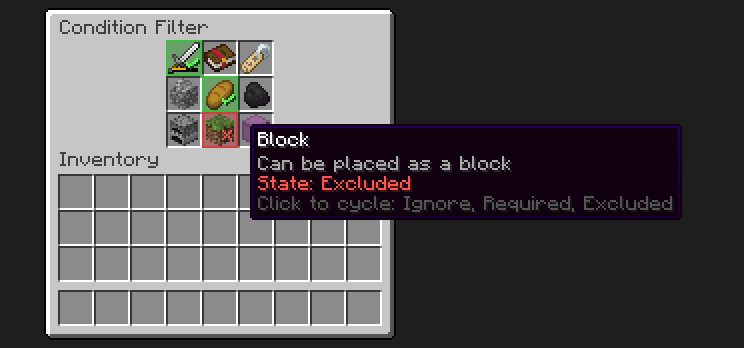 The Condition Filter: green = Required, red = Excluded, with a tooltip for the Block trait.
Recipes
- Item Filter: 4 redstone dust, 4 sticks, wool.
- Polymorphic Item Filter: an Item Filter, a comparator, a diamond.
- Tag Item Filter: an Item Filter, a comparator, a name tag.
- Condition Filter: an Item Filter, a comparator, lapis lazuli.
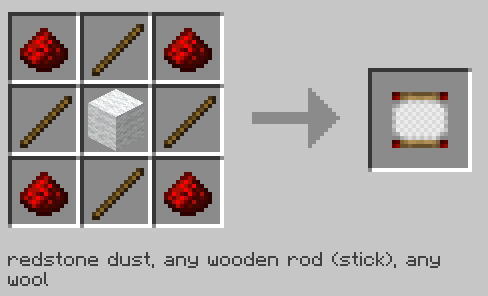 Item Filter recipe.
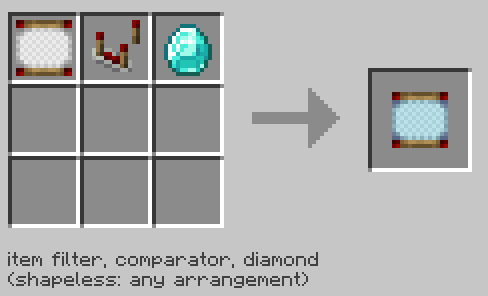 Polymorphic Item Filter recipe.
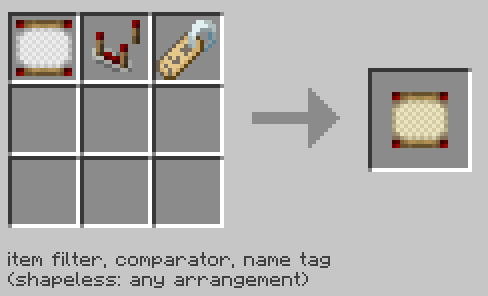 Tag Item Filter recipe.
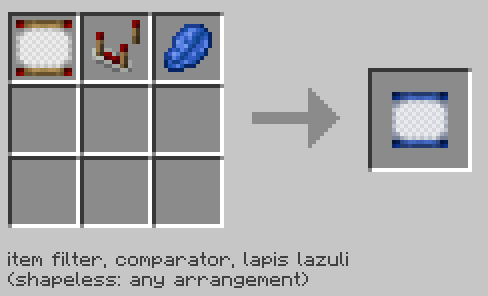 Condition Filter recipe.
Frame Labels (new in v5)
Label a chest with a glow item frame. Put a glow item frame on any face of an inventory that is part of a network, and put an item in the frame:
- That inventory takes only that item from the network, and it is filled first. Because a labelled inventory counts as top priority, it is also the first one the network takes that item from. Everything already in the chest stays visible and can be taken out.
- Several frames on one inventory label it with all of their items (the union).
- On a double chest, a frame on either half labels the whole chest.
- Matching is by item type and ignores item data (components on 1.21.1, NBT on 1.20.1), so a named or enchanted item in the frame still labels its base item.
- A filter in the frame works as that filter. Put an Item, Tag, Polymorphic or Condition Filter in the frame, and the chest follows that filter. This is the way to do exact matching.
- If the block also has a filter set with the Inventory Configurator, the Configurator's filter wins and the label is ignored.
- A label only controls what the network puts in (terminals, and hoppers or pipes that insert through an Inventory Connector or Interface). A hopper pointing straight at the chest is not checked. A filter on an Inventory Cable Connector still applies on top.
- Only glow item frames count. Normal item frames stay decoration.
- Tidy uses labels as homes when it sorts the network.
- Server owners can switch it off with
frameLabelsEnabled.
Feedback, without new textures:
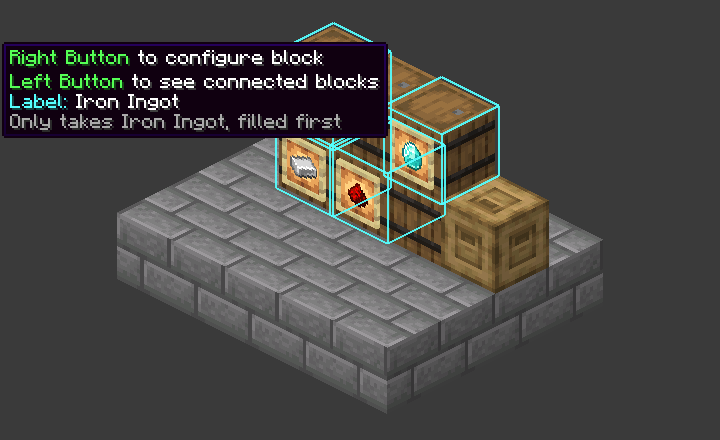
- While you hold the Inventory Configurator, every labelled inventory within 16 blocks gets an aqua outline.
- Looking at a labelled inventory adds
Label: <item>andOnly takes <item>, filled firstto the Configurator overlay. If a Configurator filter overrides the label it says(overridden by filter), and a frame on a block that is not on a network says(not connected). - When you put an item into a glow frame on a network inventory, or take it out, the action bar shows
Label set: <item>orLabel removed. Nothing goes to chat.
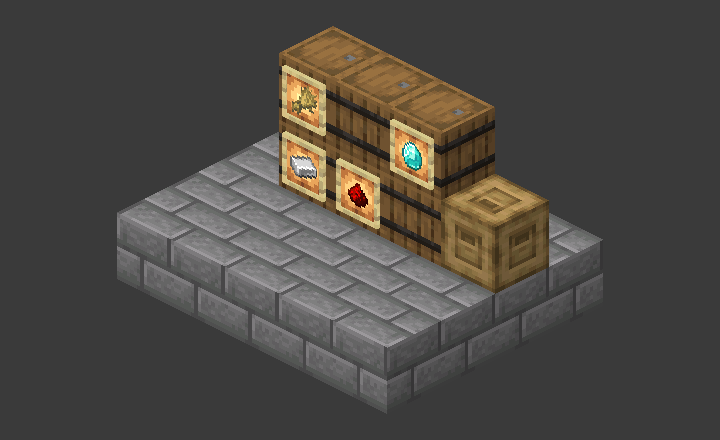 A sorting wall: six barrels, four labelled with glow item frames (iron, redstone, wheat, diamond).
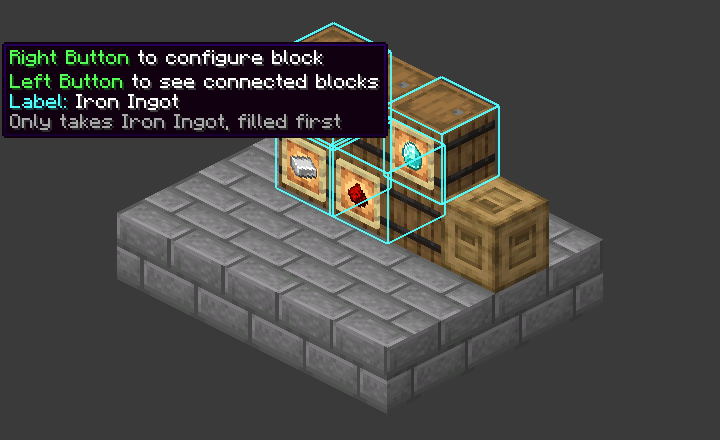 Holding the Inventory Configurator: aqua outlines and the label line in the overlay.
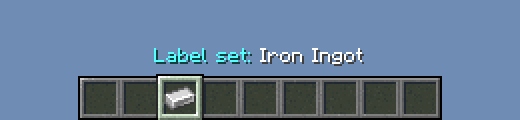 The action bar message when a label is set.
Hoppers
The Basic Inventory Hopper moves items between the network and the block it points at.
- Right-click it with an item to set that item as the filter. The stack size you hold becomes the amount for Pulse and Keep Stock.
- Sneak + right-click with an empty hand to clear the filter. Right-click with an empty hand to see filter, mode and amount.
- Right-click it with the Inventory Configurator to cycle the mode: Normal, Pulse, Keep Stock.
- Sneak + right-click it with the Inventory Configurator to cycle the amount: 1, 2, 4, 8, 9, 16, 32, 64.
| Mode | What it does |
|---|---|
| Normal | Moves one item every 8 ticks, the speed of a vanilla hopper (configurable). |
| Pulse | Each redstone pulse moves exactly the set amount, one item at a time. A vanilla Crafter (1.21.1) gets one item per slot, so amount 9 fills a 3x3 recipe. |
| Keep Stock | Only moves items while the target holds fewer than the set amount, for example 16 coal in a furnace. |
Existing hoppers stay in Normal mode. The mode also shows in the item tooltip and, on 1.21.1, in Jade.
Filter blocks: Ejector, Disposal and Exporter (new in v5.1)
Three wooden blocks that work on the items of a storage network, or of a single inventory, through a 3x3 ghost filter. The Ejector drops the items in front of it, the Disposal destroys them, the Exporter moves them into the inventory in front of it. They are mined with an axe, and each has its own screen (right-click).
| Ejector | Disposal | Exporter | |
|---|---|---|---|
| What it does | Drops matching items in front of it, like a dropper | Destroys matching items for good | Moves matching items into the inventory in front of it |
| Redstone | Works only while powered | A signal stops it | A signal stops it |
| Starts | When powered | Paused, start it in the screen | By itself |
| Per operation | 1 item (default) or 1 stack of one item | Up to 1 stack | 1 stack (default) or 1 item |
| Buttons | Exact, Mode, Amount | Exact, Pause / Start, Reset counter | Exact, Amount |
Back and front. The back plugs into the storage: an Inventory Cable, an Inventory Connector or an Inventory Interface (that is the whole network), or directly onto a single inventory such as a chest. The front is the output.
Placing. Against a cable or connector, the back plugs in. Against a chest (any block with a block entity, such as a barrel or a Shulker Dock), the front faces it. Otherwise the back turns to an adjacent cable or connector, and if there is none the front faces you, like a dropper. A terminal counts as a cable on 1.21.1 only: on 1.20.1 a block placed against a terminal turns its front to it, on 1.21.1 its back.
The filter.
- Nine ghost slots. They hold a reference and no item is used up. Drag items in from JEI, REI or EMI, or Shift-click an item in your inventory to add it.
- A plain item matches by item only: durability, enchantments, names and other data are ignored. The Exact toggle makes a plain entry match only the same item with the same data.
- Put an Item Filter, Tag Item Filter, Condition Filter or Polymorphic Item Filter in a slot and that slot works as the filter.
- A stack matches when any entry matches. An empty filter does nothing, on all three blocks.
They are not inventories. Connectors never treat them as storage, and the Inventory Configurator skips them. The Network Doctor lists them as "filter blocks".
Speed. One operation every filterBlockCooldown ticks (default 8, see "Configuration"). Between two operations a block only counts down, and when there is nothing to do it stays idle until the storage, the target or the filter changes. So an idle block costs next to nothing.
Status. Running, Paused, Stopped by redstone, Needs redstone, No source (the back is not plugged into storage), No target (the Exporter's front does not face an inventory) or Filter is empty. The Disposal shows it in its screen. With Jade (1.21.1) it shows when you look at any of the three.
What each block does
- Ejector. Drops matching items in front of it with the dropper's sound and smoke. Continuous (default): one batch every cooldown while powered. Pulse: exactly one batch per redstone pulse (rising edge), on the next tick, not limited by the cooldown. Amount: 1 item (default) or 1 stack, up to 64 or the item's stack size, of one item type.
- Disposal. Destroys up to one stack per operation, and never before you start it: a newly placed Disposal is paused, and a redstone signal stops a running one. The screen shows a red warning, the status, the total destroyed and the three most destroyed items. Hover a plain filter entry to see "Destroyed: N" for it. The reset button needs Shift, so a stray click does not wipe the counter. It counts up to 256 different items individually (beyond that only the total grows). The counts are saved with the block and are lost when the block is broken.
- Exporter. Moves matching items into the chest, double chest, barrel, Shulker Dock (it fills the docked box) or other mod's inventory in front of it. Amount: 1 stack per operation (default) or 1 item. When the target is full nothing is lost: the items stay in the storage and the Exporter tries again (a full target is asked again every 100 ticks). The target may be connected to the same storage, the Exporter never pulls from the inventory it fills.
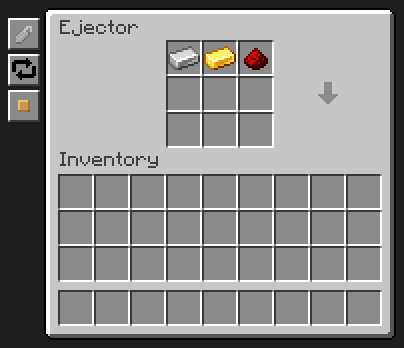 The Ejector screen: the 3x3 ghost filter, and the Exact, Mode and Amount buttons on the left.
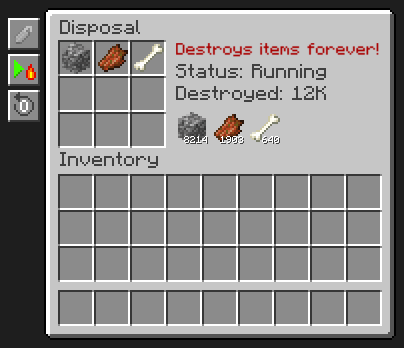 The Disposal screen: warning, status, total and the three most destroyed items. The numbers are an example. Buttons on the left: Exact, Pause / Start, Reset.
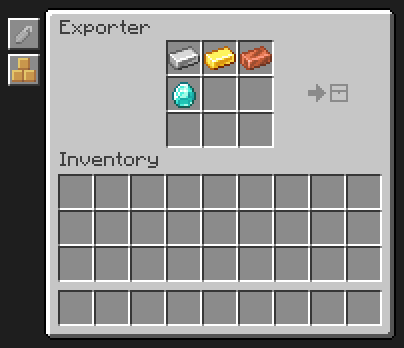 The Exporter screen: the 3x3 ghost filter, and the Exact and Amount buttons on the left.
Level Emitter
The Level Emitter reads the network and emits a redstone signal on all sides. Put it next to the network, set the item (put it in the ghost slot), a number, and whether it emits when the stored amount is more than or less than that number (the toggle at the top left).
On/Off output (default, as in all earlier versions). Signal 15 while the condition is met, 0 otherwise.
Analog output (new in v5). Click the second toggle under the "more than / less than" toggle. The icon shows the current mode, and its tooltip spells out the signal for your current setting.
| Condition | Signal |
|---|---|
| more than, analog | 0 when none is stored, 1 as soon as any is stored, rising in steps to 15 at the threshold or more. 1 + floor(14 x stored / threshold) |
| less than, analog | 15 when none is stored, falling in steps to 1 just below the threshold, 0 at the threshold or more. 15 - floor(15 x stored / threshold) |
The "more than" curve is the vanilla container formula, so a chest with one item reads 1, not 0. The "less than" signal is above 0 exactly while the On/Off "less than" condition is met. With a threshold of 0, "more than" reads 15 for any amount above 0, and "less than" reads 0. Old worlds load with On/Off output, unchanged.
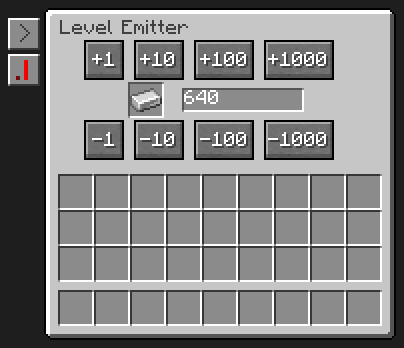 The Level Emitter screen in On/Off mode.
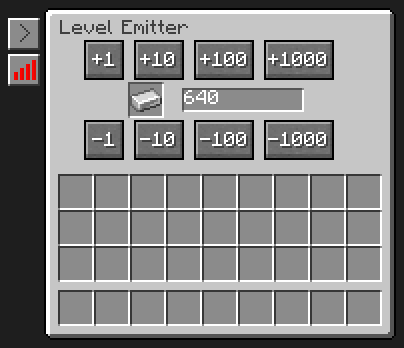 The same screen in Analog mode.
 The output toggle at 8x: On/Off idle and hovered, then Analog idle and hovered.
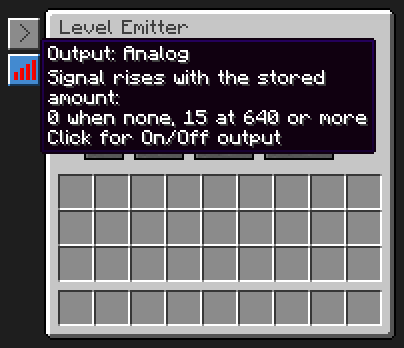 The analog toggle (red signal bars) and its tooltip.
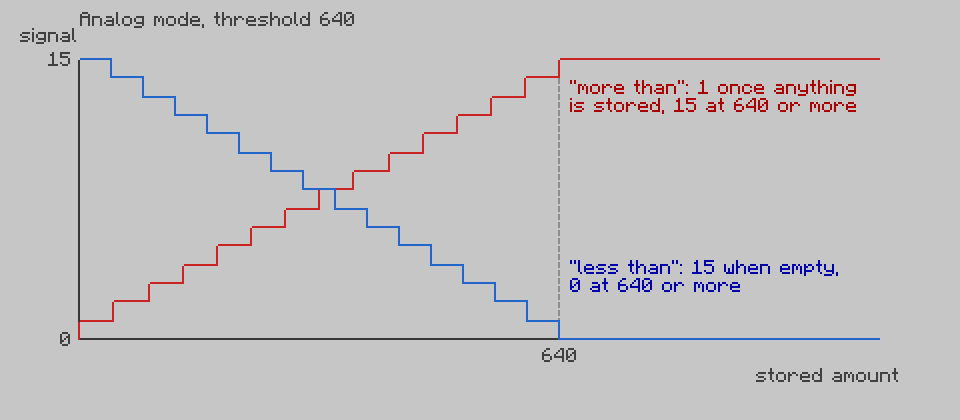 Signal against stored amount for a threshold of 640.
Comparator output (new in v5)
Vanilla comparators can read the fill level of:
- the Inventory Connector (the whole network),
- the Inventory Interface (the network behind it),
- the Filing Cabinet (its 512 slots),
- the Open Crate (the dropped items in front of it: each item entity counts as one of 27 slots, like a chest, so 27 stacks read 15),
- the Shulker Dock (the docked box).
The signal follows the vanilla container formula: 0 when empty, 1 for a single item, 15 when full. A comparator next to a Connector or Interface is updated at most every 5 ticks, and nothing is computed while no comparator is there. So a lamp, a counter or a furnace array can react to "how full is my storage" without a Level Emitter.
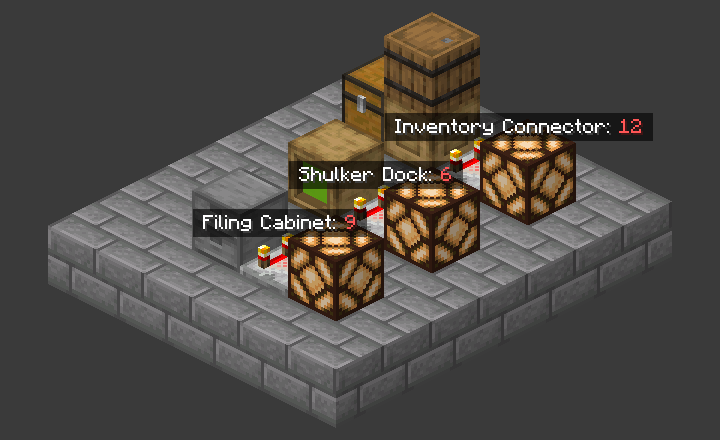 Comparators reading a Filing Cabinet, a Shulker Dock and an Inventory Connector, each powering a lamp.
Item Locator
- Open a Storage or Crafting Terminal.
- Hold Alt and left-click an item (with nothing on your cursor).
- The terminal closes and every inventory holding that item is outlined through walls for 10 seconds (the nearest 64).
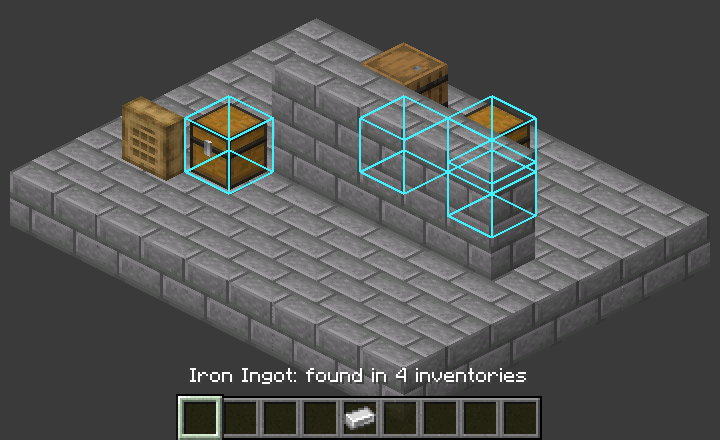
A message above the hotbar tells you how many inventories hold the item, including ones in other dimensions and storage without a known position (for example over an Inventory Link).
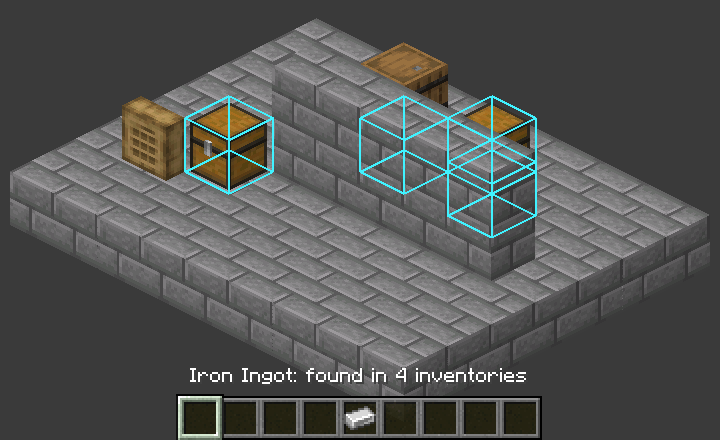 Every chest holding iron ingots is outlined, even behind a wall.
Highlight connected inventories (new in v5.1)
Shows you where every inventory of a network is, not only the ones that hold one item.
- Open a Storage or Crafting Terminal (or a wireless terminal).
- Click the Highlight Connected Inventories button below the Tidy button, or press H while no text field is focused. With an Auto Search mode on the search button the search bar always has the focus, so the key does nothing there: use the button.
- The terminal closes and every inventory that is part of that network is outlined through walls in green for 10 seconds (the nearest 256 in the current dimension).
Without opening a terminal: press H (key "Highlight Connected Inventories") while you look at a terminal, cable, connector, cable connector, Ejector, Disposal or Exporter within 8 blocks, or while you hold a bound wireless terminal (its normal range rules apply).
A message tells you how many inventories were found, how many of those are in other dimensions (they are not outlined), and how many more have no known position. Each player can make one request per second. The Item Locator above is a separate tool and works as before (cyan outlines, 64 positions).
Server owners can switch it off with itemLocatorEnabled, the same option as the Item Locator. It only reveals positions and is not checked against claim or protection mods.
Builder's Reach and Restock
Pick block from storage. Carry a bound Wireless or Advanced Wireless Terminal and middle-click a block you don't have in your inventory. A stack of it is pulled from the bound terminal's network and put into your hand (into an empty hotbar slot, or swapped in like creative pick-block when the hotbar is full). It works when that terminal could be opened from where you stand, so the same range, beacon and dimension rules apply. A terminal in a Trinkets or Curios slot counts too. It uses the exact spot you aim at, so multipart blocks give the right item.
Restock (Advanced Wireless Terminal). Set a key for Toggle Restock in Controls (it has no default key). Press it while carrying a bound Advanced Wireless Terminal to switch Restock on or off. While it is on, a block stack in your main hand is topped up from storage when it drops below 16.
Server owners can turn off pick-block, Restock and the Item Locator in the config.
Network Doctor (for server admins and modpack developers)
The Doctor shows which storage networks cost server time and why. It needs permission level 2 (or the console), and everyone else gets the vanilla "unknown command" message.
| Command | What it shows |
|---|---|
/obscuras_storage doctor top [count] |
The heaviest networks by average time per tick (default 5, up to 100) |
/obscuras_storage doctor at [pos] [dimension] |
One network. pos defaults to the block you look at; any block of the network works (connector, cable, terminal or connected inventory) |
/obscuras_storage doctor reset |
Clears the timing windows |
/obscuras_storage doctor config |
The effective server config: every option (changed ones in yellow, with the default), how many blocks blockedBlocks resolves to, and the block tags that decide connectivity |
/obscuras_storage doctor block [id] |
Whether a block type can join a network, and why. Without an id it takes the block you look at |
/obscuras_storage doctor block at <pos> [dimension] |
The same for a placed block, which also checks what its inventory exposes and which network it is on |
/obscuras_storage doctor export |
Writes the collected data to a JSON and a CSV file |
How it measures. Each network is identified by its Inventory Connector. The server keeps a rolling 30 second window (600 ticks) around the network's tick work and stores the average, the peak, the rescans per minute and the member list rebuilds per minute. That is two nanoTime calls per network per tick, so it is always on and needs no start command. Unloaded networks drop out. Counted: Inventory Connector and cable connector checks (scans, rebuilds), the change scan over all inventories, terminal list rebuilds and sync, hoppers, Level Emitters, Ejectors, Disposals and Exporters working on the network, and Tidy runs. Not counted: player clicks in terminals, wireless terminals and Builder's Reach, item moves by other mods' pipes and hoppers, and work on other threads (the output says so in its footer).
Reading the output. Positions are aqua and clickable (the click suggests a teleport rather than teleporting, shift-click inserts the doctor at command). Time per tick is green below 0.5 ms, yellow below 2 ms and red at 2 ms or more. top ends with the total and its share of the 50 ms tick.
doctor at lists: inventories (with duplicates removed and why, and how many are labelled by glow frames), slots used and unique items, cables, cable connectors, interfaces and proxies, skipped blocks (with the reason: blacklisted by blockedBlocks or blockedMods, skip tag, excluded by the Configurator, not an inventory, over the cap, unloaded), attached terminals, hoppers, Level Emitters and filter blocks (Ejectors, Disposals and Exporters), the timing, the sync cost (players watching, packets and KB per second), the cap, and a Tidy run in progress. A hint names a likely cause when it sees one: many rescans per minute (a hopper chain or other block updates next to the connector), a member list that keeps changing (moving blocks, block breakers, chunk borders), many sync packets, inventories over the cap, unloaded chunks, blacklisted blocks, a cable scan that stopped at invConnectorMaxCables.
doctor block answers the question "why is my machine not showing up in the network?": it reports the block's tag and config exclusions, whether it exposes an inventory (a block type with a block entity is "unknown until placed", so use doctor block at <pos> or look at one), multiblock handling, the Configurator's filter, the connector range, and ends with a verdict.
Export. doctor export writes doctor-<date>-<time>.json and a .csv with the same name to <world>/obscuras_storage/doctor/ and prints both paths. The JSON holds the format version, the time, the window, the top list and every network with the details of doctor at. The CSV has one row per network (rank, dimension, x, y, z, inventories, slots, slots used, average and peak ms, rescans and rebuilds per minute, players watching, packets per second, KB per second).
Warnings and limits. A warning goes to the server log (at most once per network every 10 minutes) when a network averages at least doctorWarnMs ms per tick (default 5, 0 = off) or has more than doctorWarnInventories inventories (default 0 = off). An optional per-network inventory cap, doctorMaxInventories (default 0 = off), stops networks from growing without bound: the lowest-priority inventories over the cap are listed as skipped ("over cap").
For everyone. A left-click on an Inventory Connector with the Inventory Configurator sends the player one chat line, without timings: how many inventories, slots, how full, terminals and how many duplicates were merged.
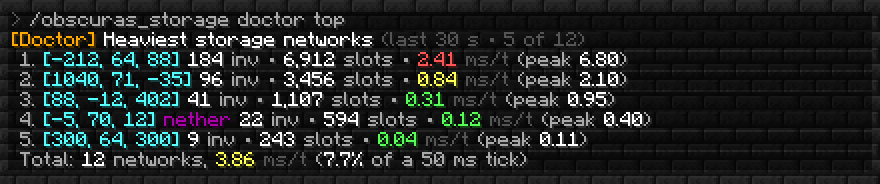 /obscuras_storage doctor top.
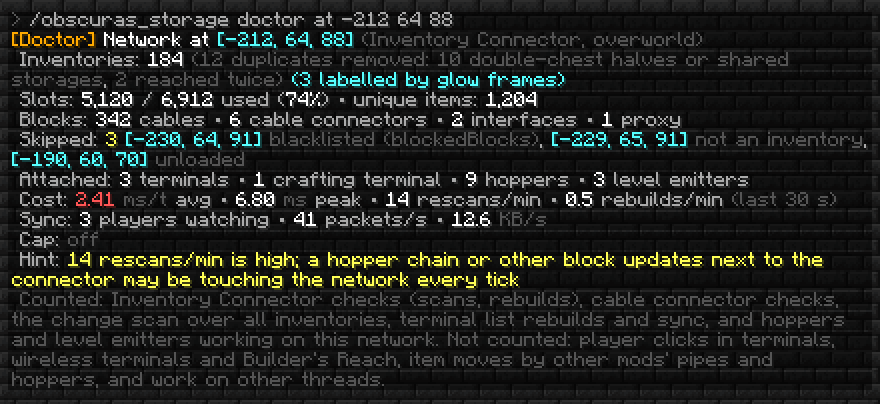 /obscuras_storage doctor at: one network in detail.
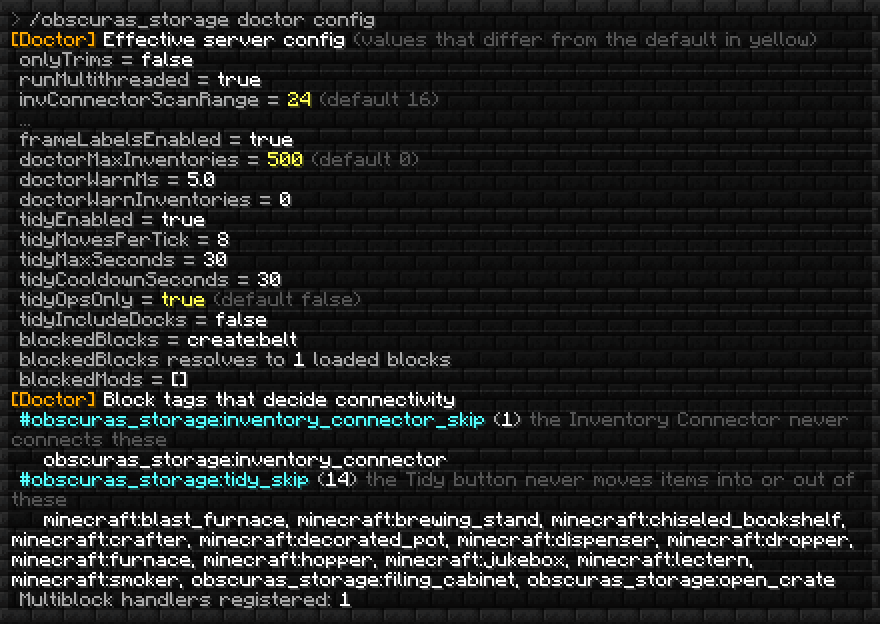 /obscuras_storage doctor config (an excerpt: unchanged options in the middle and most tag contents are left out).
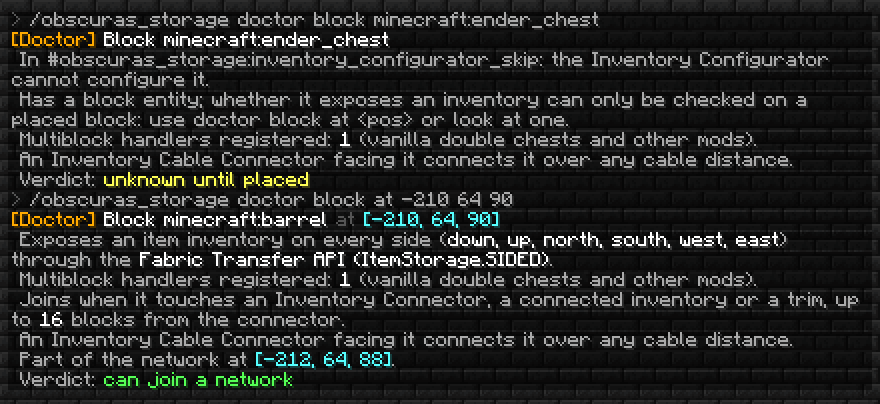 /obscuras_storage doctor block: a block type by id, then a placed barrel that is part of a network.
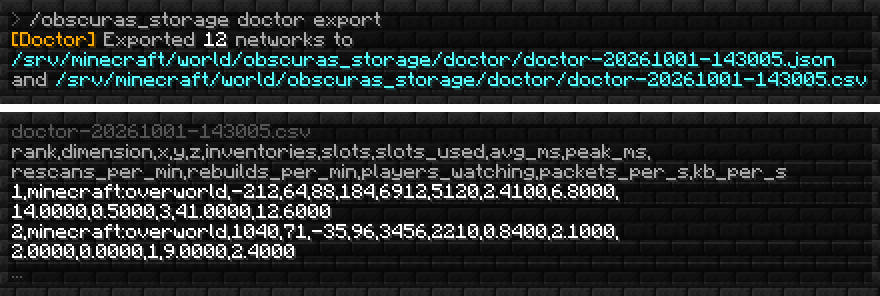 /obscuras_storage doctor export and the CSV file it writes (wrapped here).
 The one-line network summary every player gets from the Configurator.
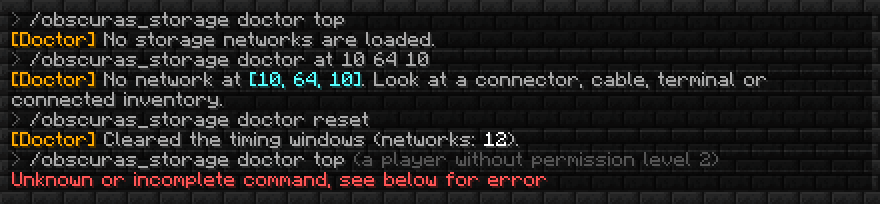 Edge cases: no networks, no network at the position, reset, no permission.
Integrations
None of these are required or bundled. Install them if you want what they add.
| Mod | Fabric 1.21.1 | NeoForge 1.21.1 | Fabric 1.20.1 | Forge 1.20.1 | What it adds |
|---|---|---|---|---|---|
| JEI | yes | yes | yes | yes | Recipe transfer into the Crafting Terminal, search sync |
| REI | yes | yes | yes | yes | Recipe transfer into the Crafting Terminal, search sync |
| EMI | yes | yes | yes | yes | Recipe transfer into the Crafting Terminal, search sync |
| Jade | yes | yes | - | - | Connector, configurator and hopper info, and the status of the Ejector, Disposal and Exporter, when you look at a block |
| Polymorph | yes | yes | - | - | Recipe choice in the Crafting Terminal |
| Trinkets | yes | - | yes | - | Advanced Wireless Terminal in the belt slot |
| Curios | - | yes | - | yes | Advanced Wireless Terminal in the belt slot |
| Mod Menu | yes | - | yes | - | Config screen in the mod list |
Cloth Config (for the Fabric config) and Cardinal Components (Fabric 1.21.1) are bundled inside the jar.
Configuration
Where the config lives
- Fabric:
config/obscuras_storage.json. With Mod Menu installed, you can also edit it in game. - NeoForge 1.21.1:
config/obscuras_storage-server.toml(gameplay options; a copy insaves/<world>/serverconfig/overrides it for that world) andconfig/obscuras_storage-common.toml(connector block lists). It can also be edited in game through the mod list. - Forge 1.20.1:
saves/<world>/serverconfig/obscuras_storage-server.toml(one per world; put a copy intodefaultconfigs/to use it for new worlds) andconfig/obscuras_storage-common.toml.
The server's gameplay settings are sent to players when they join. Each option is commented in the file.
| Setting (Fabric key) | Default | Range | What it does |
|---|---|---|---|
wirelessRange |
32 | 4 - 256 | Reach of the Wireless Terminal, in blocks |
advWirelessRange |
128 | 16 - 1024 | Reach of the Advanced Wireless Terminal, in blocks |
wirelessTermBeaconLvl |
1 | -1 - 4 | Beacon level near a terminal for unlimited range in the same dimension. 0 = any beacon, -1 = off |
wirelessTermBeaconLvlCrossDim |
3 | -1 - 4 | Beacon level near a terminal for access from any dimension. -1 = off |
invLinkBeaconLvl |
0 | -1 - 4 | -1 turns Inventory Link off completely. Other values have no effect |
invLinkBeaconRange |
4096 | 1 - 65536 | Inventory Link range without beacons, same dimension |
invLinkBeaconLvlSameDim |
1 | -1 - 4 | Beacon level (stronger end) for unlimited Inventory Link range in the same dimension. -1 = off |
invLinkBeaconLvlCrossDim |
3 | -1 - 4 | Beacon level (stronger end) for Inventory Link across dimensions. -1 = off |
basicHopperCooldown |
8 | 1 - 200 | Ticks between two items moved by a Basic Inventory Hopper in Normal mode |
filterBlockCooldown |
8 | 1 - 200 | Ticks between two operations of an Ejector, Disposal or Exporter. An Ejector in Pulse mode drops on every redstone pulse instead |
invConnectorScanRange |
16 | 1 - 64 | How far an Inventory Connector searches for connected inventories |
invConnectorMaxCables |
2048 | 1 - 16384 | Maximum number of cables in one network |
onlyTrims |
false | true / false | Only Inventory Trim connects inventories to the Inventory Connector |
buildersReachEnabled |
true | true / false | Allows pick-block from storage |
restockEnabled |
true | true / false | Allows Restock on the Advanced Wireless Terminal |
itemLocatorEnabled |
true | true / false | Allows the Item Locator and Highlight Connected Inventories |
frameLabelsEnabled |
true | true / false | Allows Frame Labels (glow item frames on network inventories) |
tidyEnabled |
true | true / false | Allows the Tidy button |
tidyOpsOnly |
false | true / false | Only operators (permission level 2) may use the Tidy button |
tidyMovesPerTick |
8 | 1 - 64 | Stack moves per tick and network while Tidy runs |
tidyMaxSeconds |
30 | 5 - 600 | A Tidy run stops after this many seconds, planning included. The moves made stay |
tidyCooldownSeconds |
30 | 0 - 3600 | Seconds before the same network can be tidied again |
tidyIncludeDocks |
false | true / false | Tidy also rearranges the boxes in Shulker Docks |
doctorMaxInventories |
0 | 0 - 1000000 | Per-network inventory cap of the Network Doctor. 0 = no cap |
doctorWarnMs |
5.0 | 0 - 1000 | Log a warning when a network averages at least this many ms per tick. 0 = off |
doctorWarnInventories |
0 | 0 - 1000000 | Log a warning when a network has more inventories than this. 0 = off |
blockedBlocks |
create:belt |
list of block ids | Blocks the Inventory Connector ignores |
blockedMods |
empty | list of mod ids | Mods whose blocks the Inventory Connector ignores |
runMultithreaded (1.21.1) |
true | true / false | Scans large networks on several threads |
multiblockInv (1.20.1) |
empty | list of block ids | Blocks treated as one multiblock inventory |
The Frame Labels, Tidy and Network Doctor options (new in v5) and filterBlockCooldown (new in v5.1) are in the same config files, under the same names, on all four builds. doctor config lists every option with its current value.
In the NeoForge and Forge TOML files, a few options keep older key names so that existing files keep working: inventoryConnectorRange, invCableConnectorMaxScanSize, wirelessReach, onlyTrimsConnect and wirelessTermBeaconLvlDim (cross-dimension level). The Inventory Link cross-dimension level is invLinkBeaconLvlCrossDim on NeoForge and invLinkBeaconLvlDim on Forge.
For server admins and modpack developers
- Install the same file on server and clients. The server's ranges, beacon levels and feature switches are sent to players when they join.
- Switch features off:
buildersReachEnabled,restockEnabled,itemLocatorEnabled(the Item Locator and Highlight Connected Inventories),frameLabelsEnabled,tidyEnabled(ortidyOpsOnlyto keep Tidy for operators),invLinkBeaconLvl = -1(Inventory Link). - Filter blocks:
filterBlockCooldownsets how often an Ejector, Disposal or Exporter works (default 8 ticks). An idle block costs next to nothing, and the Network Doctor counts the work of working ones towards their network. There is no switch to turn the three blocks off. - Keep networks small:
invConnectorScanRange,invConnectorMaxCables,blockedBlocks,blockedMods, and the Doctor's per-network inventory cap (doctorMaxInventories).doctorWarnMsanddoctorWarnInventorieslog a warning when a network gets too heavy or too big. - Find the expensive network with
/obscuras_storage doctor top, then look closer withdoctor at.doctor blockexplains why a block does or does not join a network,doctor configshows the effective settings anddoctor exportwrites JSON and CSV files. - Tags: the item tag
obscuras_storage:dockabledecides which shulker boxes the Shulker Dock accepts (the 17 vanilla ones by default). The block tagobscuras_storage:tidy_skiplists blocks the Tidy button never touches (machines, Filing Cabinets, Open Crates by default).obscuras_storage:trimsdecides which blocks count as trims,inventory_connector_skipandinventory_configurator_skipexclude blocks from connectors and from the Configurator. - Datapacks and scripts that use the old 4.x mod id need to be updated (see below).
- Upgrading a server: update server and clients together.
Which file do I download?
| Your game | Loader | Java | File |
|---|---|---|---|
| Minecraft 1.21.1 | Fabric | 21 | obscuras_simple_storage-fabric-mc1.21.1-v5.1.0.jar |
| Minecraft 1.21.1 | NeoForge | 21 | obscuras_simple_storage-neoforge-mc1.21.1-v5.1.0.jar |
| Minecraft 1.20.1 | Fabric | 17 | obscuras_simple_storage-fabric-mc1.20.1-v5.1.0.jar |
| Minecraft 1.20.1 | Forge or NeoForge 1.20.1 | 17 | obscuras_simple_storage-forge-mc1.20.1-v5.1.0.jar |
All four files have the same features, balance and fixes. Only the optional integrations differ.
| Build | Required | Tested with |
|---|---|---|
| Fabric 1.21.1 | Fabric Loader, Fabric API | Fabric API 0.114.0 |
| NeoForge 1.21.1 | NeoForge 21.1 or newer | NeoForge 21.1.252 |
| Fabric 1.20.1 | Fabric Loader, Fabric API | Fabric API 0.90.7 |
| Forge 1.20.1 | Forge 47.1 or newer, or NeoForge 1.20.1 (47.1.x) | Forge 47.4.10, NeoForge 47.1.106 |
Install: put the file into the mods folder (on Fabric, together with Fabric API) of the server and of every client.
Updating from 5.0.0
- Nothing to migrate. Worlds, configs and key bindings from 5.0.0 load unchanged, and the new
filterBlockCooldownoption starts at its default. - Update server and clients together. The new blocks and the new key binding need the same version on both sides.
Updating from 4.x
- Your worlds keep working. The mod id changed to
obscuras_storage, and old block, item and block entity ids are mapped to the new ones automatically on all four loaders. Filing Cabinets, Inventory Configurator filters and Inventory Link channels are kept. - Configs migrate once. The old config file is copied to the new name (
obscuras_storage.jsonon Fabric,obscuras_storage-server.tomland-common.tomlon NeoForge and Forge, including per-world copies inserverconfig/anddefaultconfigs/) and the old file is kept as*.migrated. A new file is never overwritten. Key bindings you set (Open Terminal, Toggle Restock) are copied too, and the new v5 options start at their defaults. - Not migrated: advancement and recipe book progress, and datapacks, scripts or recipes that still use the old mod id (the old id was
toms_storage). Change those toobscuras_storage. - Make a backup first, as always. Update server and clients together.
- Moving a world from 1.20.1 to 1.21.1. Worlds from the 1.20.1 builds (Fabric, Forge or NeoForge 1.20.1) open in the 1.21.1 builds (Fabric or NeoForge). Minecraft converts its own data, and the mod converts its own: docked shulker boxes, Filing Cabinet contents, filters in hoppers and Level Emitters, the Crafting Terminal grid, painted blocks, Inventory Configurator filters and Inventory Link channels. Known limit: painted framed block items in inventories lose their paint (the item stays, paint it again with the Paint Kit; painted blocks in the world keep theirs), and Tag Filters that use tags renamed between the two versions have to be set again. Worlds do not move down from 1.21.1 to 1.20.1.
- You can move a world between Fabric and NeoForge on 1.21.1, or between Fabric and Forge on 1.20.1. Take the Advanced Wireless Terminal out of a Trinkets or Curios slot before you switch.
FAQ
Can I use it in my modpack? Yes. The mod is MIT licensed.
Does it have to be installed on both server and client? Yes. Players need the same file as the server.
How is it different from Applied Energistics 2 or Refined Storage? There is no power, no channels, no storage cells and no autocrafting. Your items stay in ordinary chests, barrels and modded inventories, and the mod connects them.
Painted or framed blocks look wrong or are invisible with Sodium (Fabric). On Fabric, painted blocks use the Fabric Rendering API. If they render wrong together with Sodium, install Indium. NeoForge and Forge are not affected.
Can I turn features off on my server? Yes, see "For server admins and modpack developers".
Does it work in existing worlds? Yes. Add the mod and start building. Worlds from 4.x and older load too, and so do worlds from the 1.20.1 builds in the 1.21.1 builds.
Does Tidy move items into a docked shulker box? No. Docked boxes are skipped by default, as source and as target.
Can a labelled chest still be emptied? Yes. A label only controls what the network puts into the chest, and makes it the first one the network uses. Taking items out works as before.
What does Tidy leave alone?
Filing Cabinets, Open Crates, Inventory Proxies and Interfaces, machines such as furnaces and hoppers, blocks in the obscuras_storage:tidy_skip tag, inventories set to Keep last item or to Skip, and docked shulker boxes (unless tidyIncludeDocks is on).
What happens to a docked shulker box when the dock is broken or blown up? Dock and box drop as items. The box keeps its contents and name.
Can the Disposal delete my whole storage?
Only items that match its filter, and only after you start it in its screen: a new Disposal is paused, and an empty filter destroys nothing. It destroys up to one stack per operation, one operation every filterBlockCooldown ticks (default 8), and a redstone signal stops it. What it destroys is gone for good. Remember that a plain filter entry matches by item only, so a named or enchanted tool matches its base item unless you turn on Exact. Check the filter before you press start.
Why does my Ejector do nothing? Check, in this order: it needs a redstone signal (it never works unpowered); the filter must not be empty; its back must plug into a cable, an Inventory Connector, an Inventory Interface or an inventory (else the status says "No source"); the storage must hold a matching item; and in Pulse mode it drops once per redstone pulse, not while the signal stays on. With Jade (1.21.1) the status shows when you look at it.
Why does my Exporter do nothing? Its front has to face an inventory ("No target" otherwise), the filter must not be empty, a redstone signal stops it, and when the target is full it keeps trying and moves nothing. It never takes items out of the inventory it fills.
Can an Exporter fill a chest that is part of the same network? Yes. The Exporter never pulls from the inventory it fills.
Can players use Highlight Connected Inventories to find chests in claimed areas?
It shows the positions of the inventories of a network and is not checked against claim or protection mods. A server that does not want that can turn it off with itemLocatorEnabled, which also turns off the Item Locator.
Does the Network Doctor slow the server down?
It makes two nanoTime calls per network per tick and keeps a 30 second window in memory. It needs no start command and has no setting to turn it off.
Where do I report bugs or ask for help? Join my Discord. Please include your Minecraft version, loader and the file name you use.
Fixed since 4.0.0
- Frame Labels overlay (5.1.0): the client no longer keeps a reference to the last world's level after you leave a world.
- Builder's Reach uses the exact spot you aim at (multipart blocks), works right after loading the world on 1.20.1, and no longer errors on modded blocks that cannot report their item.
- Carrying a basic Wireless Terminal no longer blocks an Advanced Wireless Terminal that is bound to another terminal.
- 1.20.1: a terminal no longer keeps using a chest that was removed and swapped.
- 1.20.1: a Basic Inventory Hopper in Pulse mode drops a pulse that arrives while it is not connected, and Keep Stock is much cheaper on big networks.
- NeoForge 1.21.1: the Condition Filter's Fuel trait recognises fuels added by other mods and datapacks.
- Fabric 1.20.1: out-of-range config values are clamped instead of reset.
Update server and clients together, because the pick-block packet changed in 4.0.1.
Credits & License
Obscura's Simple Storage is developed and maintained by Navrelis, and licensed under the MIT License.
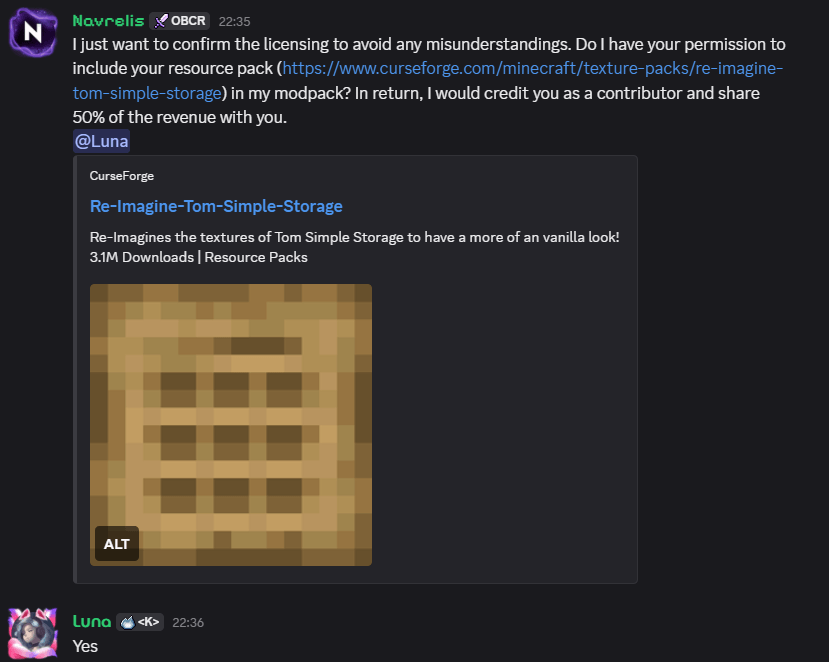
Textures: a special thank you to Luna for giving me explicit permission to use her vanilla-style textures in this mod. Please check out and support her original work: Luna's texture pack
Links
- Source code: github.com/navrelis/Obscuras-Simple-Storage
- Bug reports and help: Join my Discord
Obscura's Simple Storage Team

Owner