MusiMenu
A sleek Minecraft music HUD with multiple providers, synchronized lyrics, and environment-reactive volume.
2026-07-27_00.09.58.png
2026-07-27_00.13.03.png
2026-07-27_00.10.49.png
xsga | MusiMenu
Create a server, get 25% off your first month

Description
MusiCraft
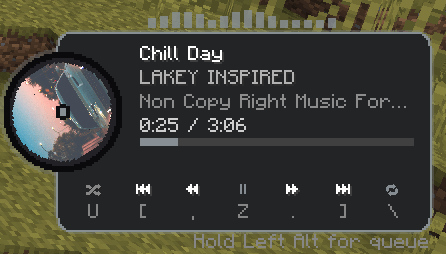
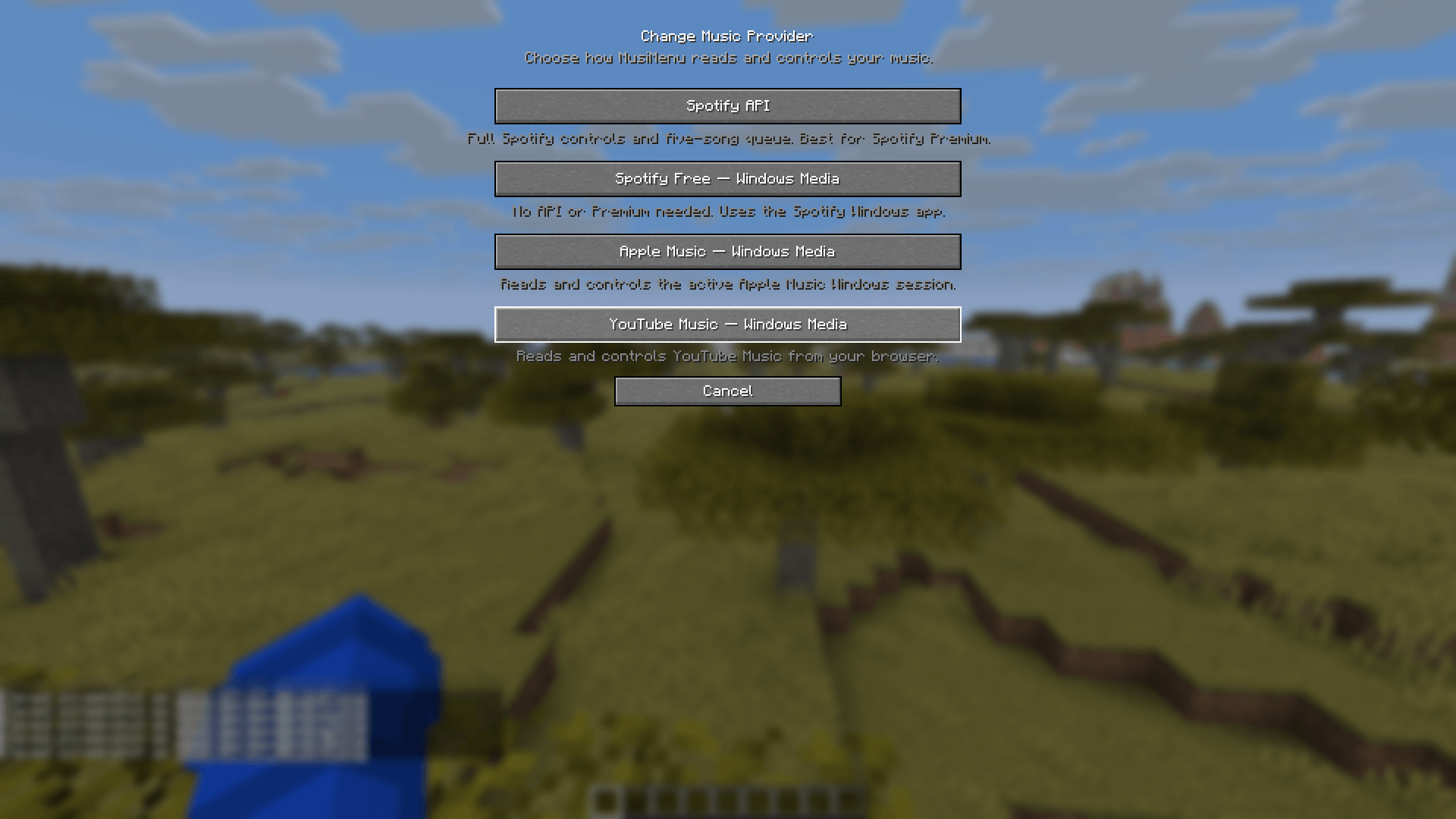
MusiCraft is a customizable Minecraft music HUD for Fabric that lets you view and control music without leaving the game. It supports Spotify through the Spotify Web API and Spotify Free, YouTube Music, Apple Music, SoundCloud, and other players through Windows Media Sessions.
Features
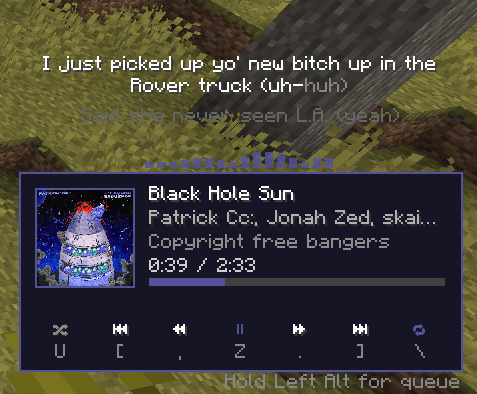
- Displays the current song, artist, artwork, album or playlist, timestamp, and progress bar.
- Play, pause, skip, rewind, fast-forward, shuffle, repeat, and volume controls.
- Spotify queue showing the next five songs and their artwork.
- Synchronized lyrics with timing adjustment, wrapping, and animated highlighting.
- Multiple player styles:
- Classic
- Rounded
- Spinning Disc
- Compact Disc
- Adjustable disc rotation speed.
- Drag-and-drop editor for positioning the media player and lyrics.
- Custom accent and background colors using hex codes.
- Platform-reactive colors for Spotify, Apple Music, YouTube Music, and SoundCloud.
- Dynamic colors extracted from album artwork.
- Animated RGB and biome-reactive themes.
- BPM-synchronized HUD pulse for supported Spotify tracks.
- Centered instrumental visualizer with
Off,No lyrics, andAlwaysmodes. - Environment-reactive volume for caves, underwater, rain, nighttime, dimensions, combat, sprinting, low health, bosses, special biomes, jukeboxes, and more.
- Smooth volume transitions when moving between environments.
- Custom reactive-audio presets and per-world profiles.
- Local listening statistics including listening time, songs played, unique tracks, favorite provider, and most-listened track.
- Optional multiplayer listening presence when MusiCraft is installed on the server and participating clients.
- Streamer/privacy mode that hides song information, artwork, lyrics, queues, statistics tracking, diagnostics details, and multiplayer presence.
- Optional keybind help displayed directly on the media player.
- Automatic first-launch music-provider setup.
Supported Music Providers
Spotify API
Provides the complete feature set, including:
- Full playback information
- Artwork
- Shuffle and repeat status
- Playback controls
- Spotify Connect devices
- Five-song queue
- BPM information when available
Spotify API playback control may require Spotify Premium. Users without Premium can select the Windows Media option instead.
Windows Media Sessions
Works with:
- Spotify Free
- YouTube Music
- Apple Music
- SoundCloud
- Other compatible desktop or browser media players
Windows Media mode supports song information, artwork when provided by the application, timestamps, playback controls, seeking, and basic reactive volume.
The five-song queue is only available through Spotify API because Windows Media Sessions do not expose upcoming tracks.
Requirements
- Minecraft Java Edition 1.21.11
- Fabric Loader 0.19.3 or newer
- Fabric API
- Mod Menu is recommended for easy access to settings
- Windows is required for Windows Media Session providers
Installation
- Install Fabric Loader for Minecraft 1.21.11.
- Install Fabric API.
- Optionally install Mod Menu.
- Place the MusiCraft
.jarfile in your Minecraft profile’smodsfolder. - Launch Minecraft.
- Select a music provider when MusiCraft opens its first-launch setup.
You can change providers later through:
Mod Menu → MusiCraft → Music Provider
Spotify API Setup
- Open the Spotify Developer Dashboard.
- Sign in and create a new application.
- Open the application’s settings.
- Add this exact Redirect URI:
http://127.0.0.1:8888/callback- Make sure the Spotify Web API is enabled.
- Save the application settings.
- Copy the application’s Client ID.
- Launch Minecraft and select
Spotify API. - Paste the Client ID into MusiCraft.
- Select
Link Spotify. - Complete authorization in the browser.
Do not share your Spotify client secret. MusiCraft only requires the Client ID for normal setup.
Spotify Free, YouTube Music, Apple Music, or SoundCloud Setup
- Launch Minecraft with MusiCraft installed.
- Open MusiCraft’s provider selection screen.
- Select the appropriate Windows Media option.
- Start playing music in the desktop application or browser.
- MusiCraft will connect to the active Windows Media Session automatically.
For browser playback, make sure the browser and website expose media information to Windows.
Default Keybinds
P— Play or pause]— Next track[— Previous track,— Rewind 10 seconds.— Forward 10 secondsU— Toggle shuffleR— Cycle repeat modeJ— Hold to open the queueM— Toggle the media playerO— Open Spotify connectionK— Open MusiCraft settings=— Increase volume-— Decrease volume
All keybinds can be changed through Minecraft’s Controls menu.
Configuration
MusiCraft settings include separate sections for:
- Appearance and reactive visuals
- Lyrics
- Player and lyrics positioning
- Reactive audio
- Playback and devices
- Automation and world profiles
- Features and privacy
- Listening statistics
- Diagnostics
- Music-provider selection
Settings are preserved when switching between providers. Configuration is stored in:
.minecraft/config/spotifycontrol.jsonListening statistics are stored locally and are never shared unless the user explicitly enables multiplayer presence.
**BETTER API SETUP/SUPPORT FURTHER DOWN THE ROAD**
The MusiMenu Team