More Custom Paintings
- By
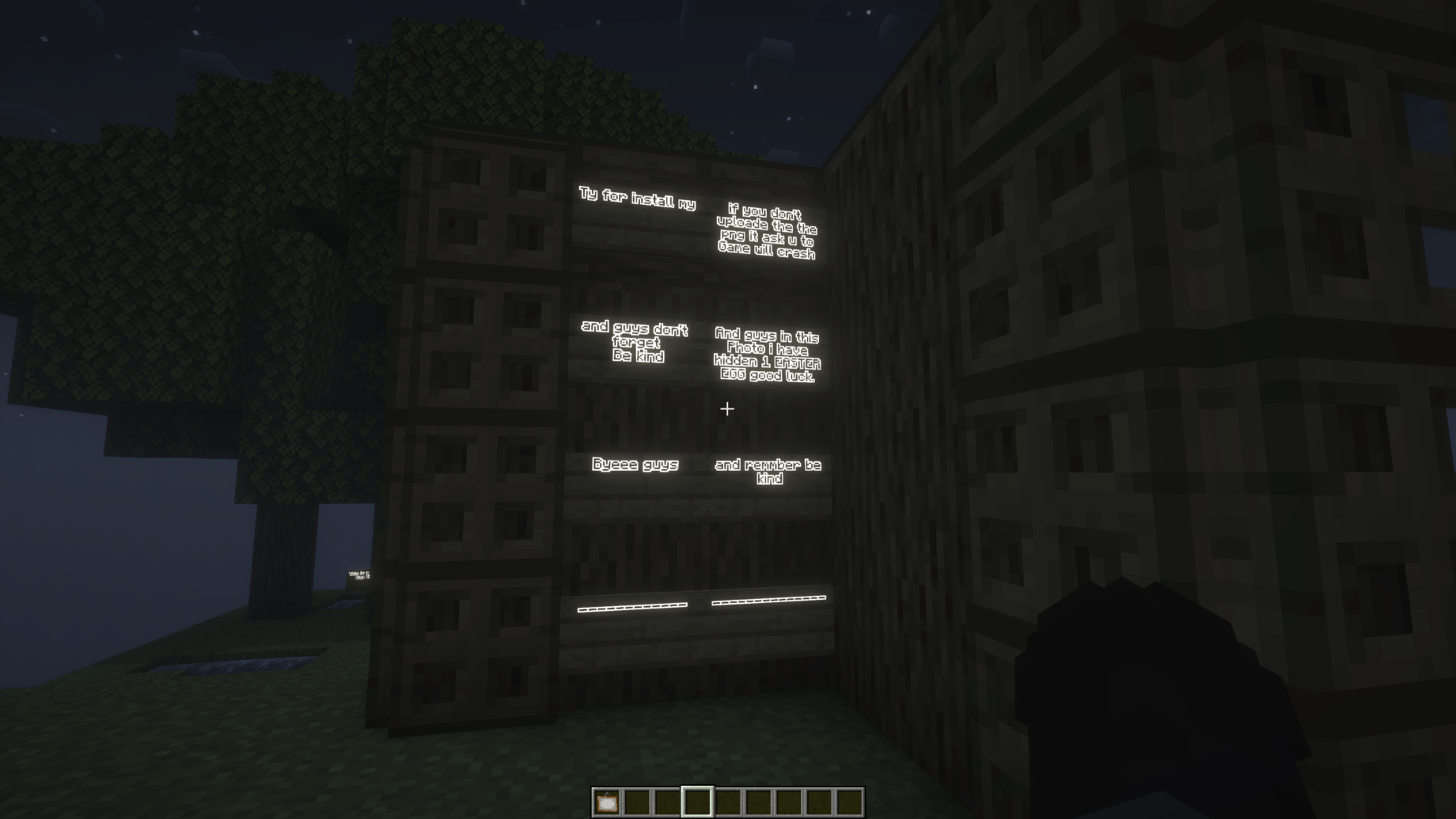
Look!
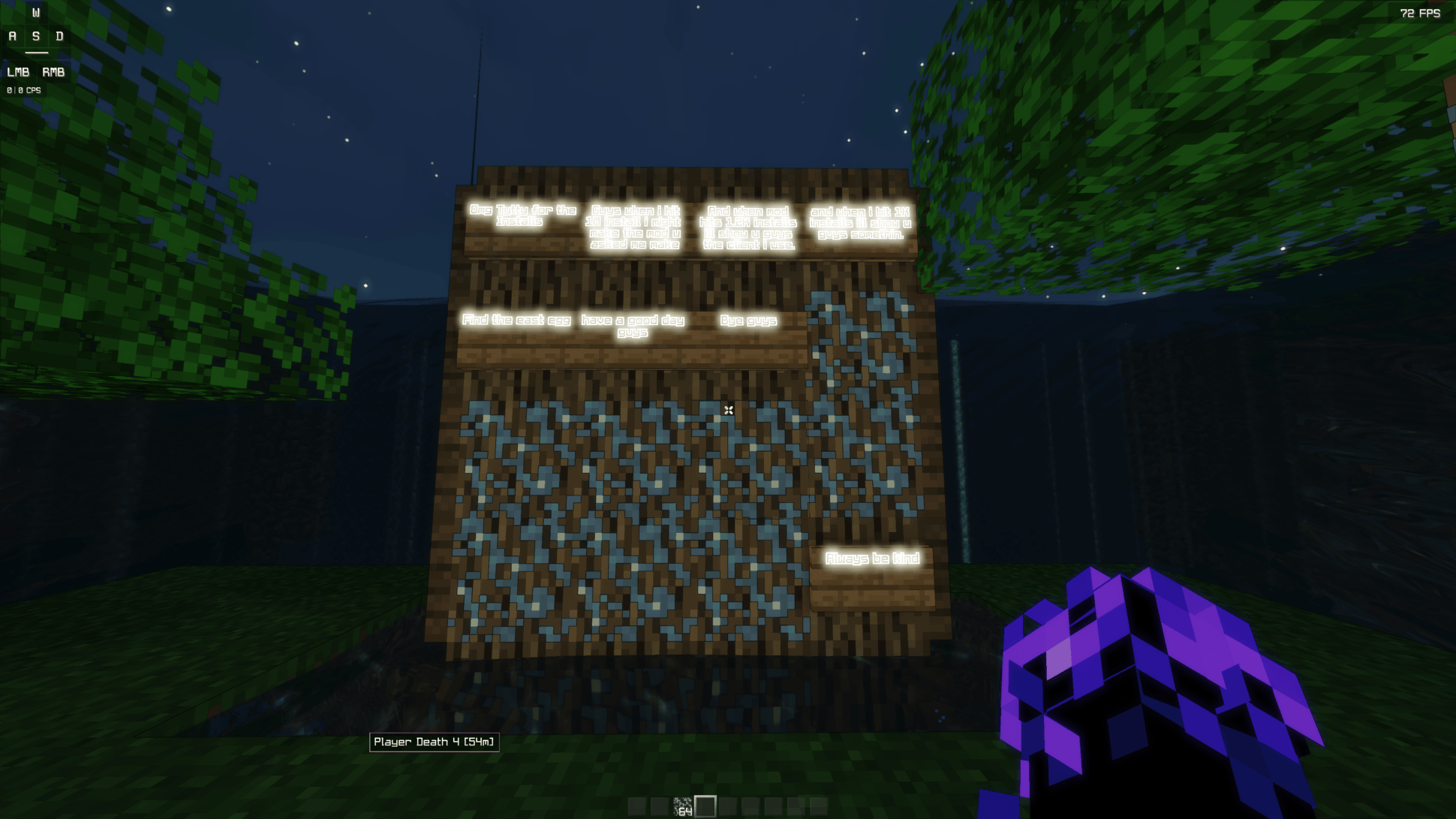
Minecraft Screenshot 2026.06.19 - 18.07.19.03.png
Description
More Paintings 🎨
A Forge mod for Minecraft 1.20.1 that lets players upload real PNG images and place them as custom wall paintings. MAKE SURE IF IT CRASHED MAKE SURE UR PNG IS 64x64 OK Video Z Author: Dandusnehith
Platform: Minecraft Forge 1.20.1
Video Url ([Video](https://www.tiktok.com/@ds_dex_dev/video/7674420245196459277?is_from_webapp=1&sender_device=pc))
Testers & Commenters & OGs - user_dycxjrq6f3y58i33,BrickEater,
Overview
More Paintings transforms the way players decorate their worlds.
Instead of cycling through the same vanilla paintings, this mod lets you upload any PNG image—art, screenshots, memes, logos, anything—and place it directly in‑game as a custom painting.
It’s simple, fast, and feels like a natural part of Minecraft Creative building.
Features
Dedicated Creative Tab
All custom painting tools are grouped in a new More Paintings tab.
Custom Painting Item
A special item that stores your uploaded PNG data.
In‑Game Upload GUI
Right‑click with the item to open a clean upload screen and pick a PNG from your computer.
Automatic Size Detection
The GUI shows your image’s width and height immediately.
Wall Placement
Right‑click a wall face to place your custom painting in the world.
Persistent Data
Painting data is stored via block entity NBT and saved with the world.
Built‑in Credit
The GUI includes: Mod made by Dandusnehith.
Requirements
- Minecraft: 1.20.1
- Forge: 47.2.0
- Java: 17 (recommended)
Installation (Players)
- Install Minecraft Forge 1.20.1.
- Place
MorePaintings-working.jarinto your.minecraft/modsfolder. - Launch Minecraft using the Forge profile.
- Open a world and find the More Paintings tab in the Creative inventory.
How to Use
- Enter Creative mode.
- Open the More Paintings creative tab.
- Take the Custom Painting item.
- Right‑click while holding it to open the upload screen.
- Click Upload PNG and choose your image file.
- Check the detected width/height and give your painting a name.
- Save/apply the upload.
- Right‑click a wall face to place the painting.
Placement Rules & Limits
- The image must be a
.pngfile. - Maximum PNG file size: 1 MB.
- Paintings must be placed on a wall side (horizontal face).
- If no PNG is uploaded yet, placement is blocked with a clear message.
Multiplayer & Sync
- ## Multiplayer & Sync is HERE GUYS - STILL NO SERVER SUPPORT THO IDK ill come out sooner or later.
Visual & UX Notes
- Focused on a clean, fast upload flow with clear status text.
- The uploader screen gives immediate feedback for file selection and detected size.
- Tooltips show whether a painting already has image data attached.
- WE added GIFTS NOW U CAN GIFT UR LOVED ONCES OR UR FRIENDS.
Troubleshooting
- If the mod does not load, confirm:
- Minecraft 1.20.1
- Forge 47.2.0
- Java 17
- If upload fails:
- Check that the file is PNG
- Keep the file under 1 MB
- If placement fails:
- Try a different wall surface with solid support.
Credits
- Mod Name: More Paintings
- Author: Dandusnehith
- Minecraft Version: 1.20.1
- Loader: Forge
The More Custom Paintings Team