Modern Information Floating Panels GUI
- By
Experience a VR-like feel: project any GUI into your Minecraft world, move around freely, and view it from any angle.
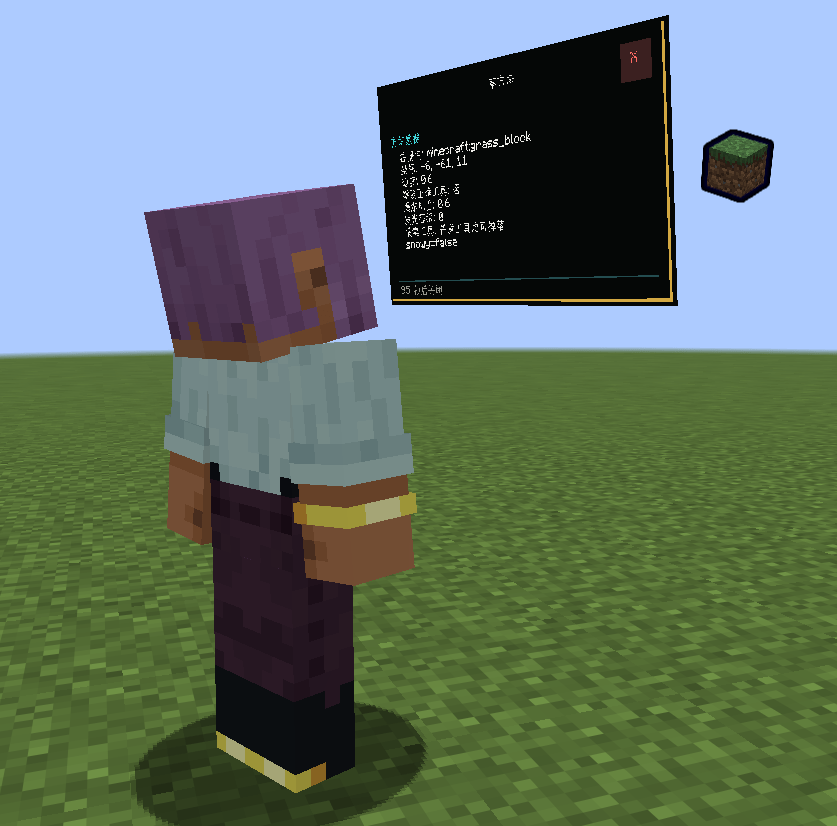
02-floating-panel.png
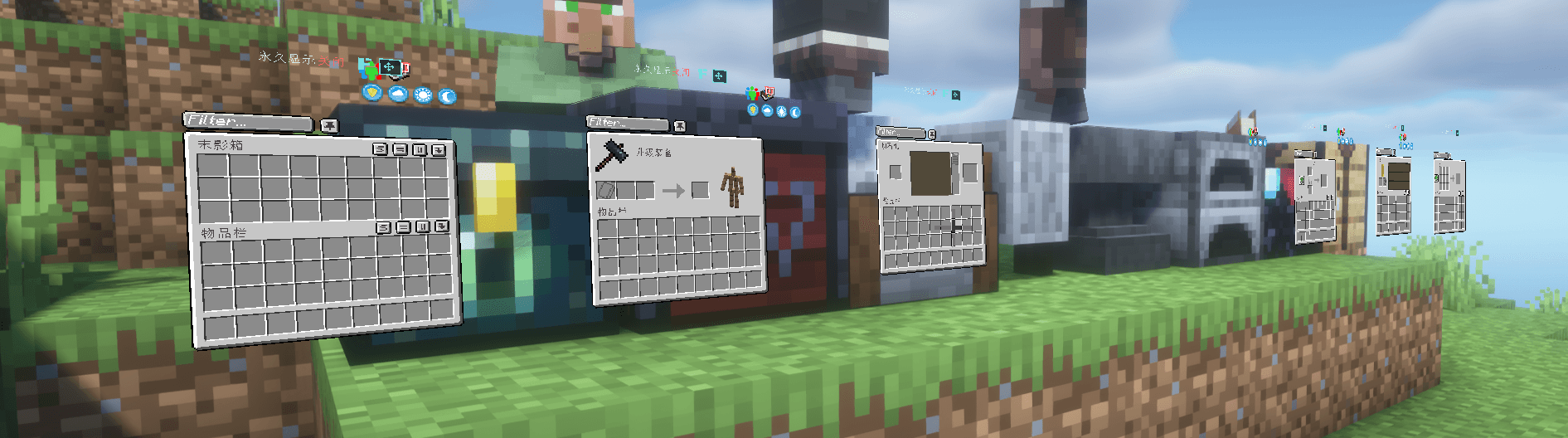
03-workstations.png
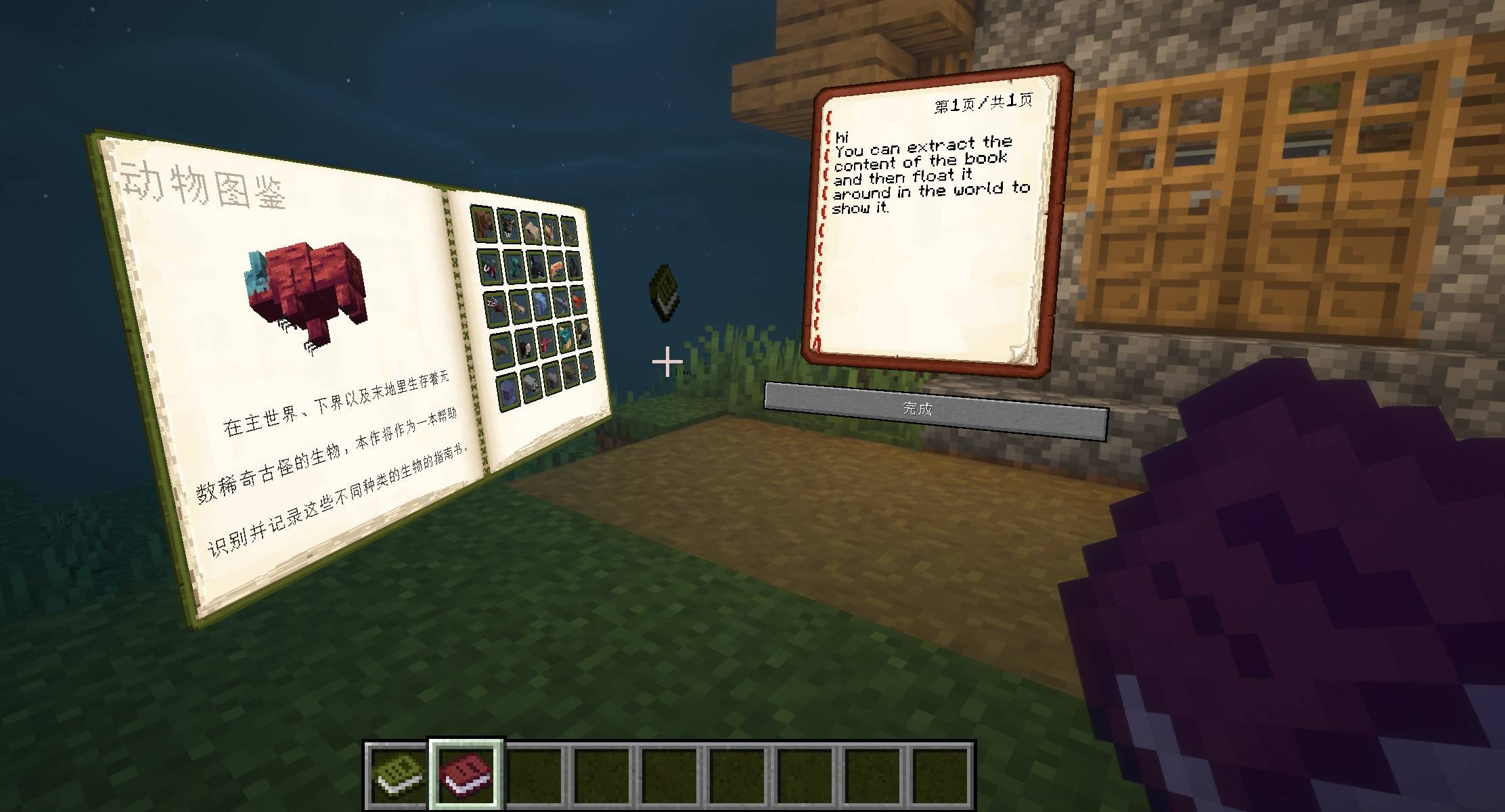
04-books.jpg
05-villager-trading.jpg
Description
Modern Information Floating Panels
Bring information and interfaces into your Minecraft world.
让信息与界面悬浮在你的 Minecraft 世界中。
English Description
Modern Information Floating Panels brings information and everyday interfaces into your 3D world. Inspect nearby blocks, entities and dropped items through floating panels, or place your inventory, containers, workstations and supported book interfaces beside you while exploring and building.
Features
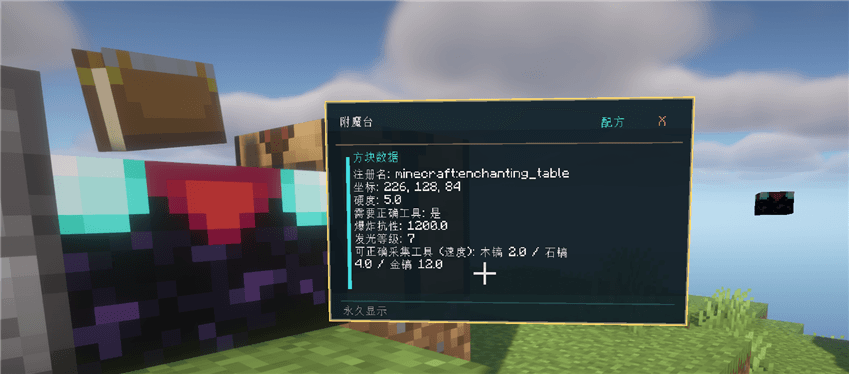
- Useful information at a glance: Inspect block registry IDs, coordinates, hardness, blast resistance, light levels and harvesting tools. Depending on the target and available data, panels can also show entity health, armor, equipment and status effects, or item counts and durability.
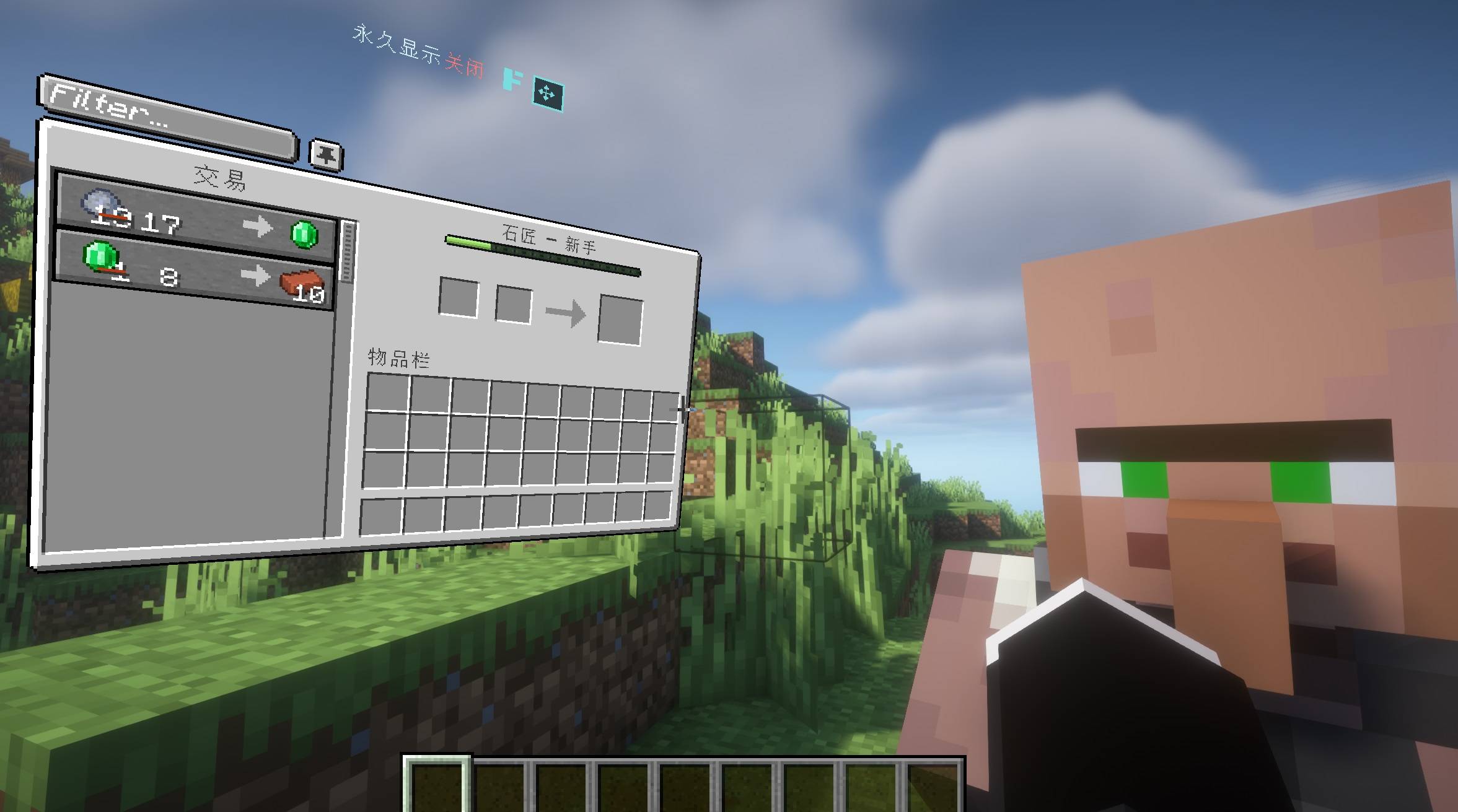
- Interactive floating interfaces: Organize inventories and storage, use workstations and trade with villagers through world-space panels. Interact with your crosshair and reposition panels to suit your surroundings.
- Multiple containers at once: Keep up to six container panels open, including one player inventory panel. Workstations at different locations can remain open separately. Opening another panel beyond the limit closes the oldest one.
- Recipe browsing: Explore recipes with the built-in viewer. Optional JEI integration expands recipe presentation, while adapters provide extension points for special recipes and workstations.
- Books in the world: For supported books, click the 3D book display beside an information panel to open the book’s own interface. Read and turn pages in world space, then click the display again to return to the information view.
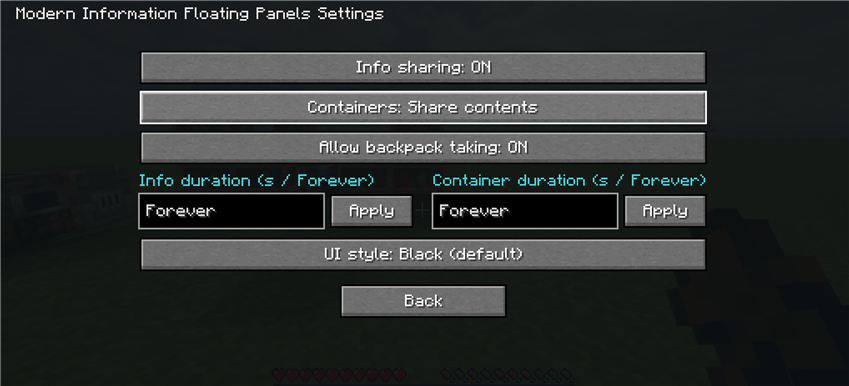
- Multiplayer sharing and privacy: Choose whether to share information panels. Container visibility options include private, fully shared, or shared with the player inventory hidden. A separate setting controls whether other players may take items from your shared backpack.
- Customizable panels: Set panel lifetimes or keep them visible indefinitely, change the information panel background style and add custom notes to entries.
Gameplay Tutorial
1. Install and check your controls
Use Minecraft 1.20.1, Forge 47+ and Java 17. Place the mod JAR in the mods folder; replace older copies rather than keeping two versions. For multiplayer, install the same version on the server and participating clients. JEI is optional. In Options → Controls, find Modern Information Floating Panels: Inspect target defaults to Left Ctrl; Floating container defaults to Ctrl + E. Resolve key conflicts here.
2. Inspect your surroundings
Aim at a block, creature or dropped item and hold Left Ctrl. An information panel appears for the target; look at another target while holding the key to inspect it too. Point at the panel and use the mouse wheel to read longer information. Available fields depend on the target: block properties and tools, creature health/equipment/effects, or item counts and durability. Right-drag an information panel to move it; right-click its X to close it.
3. Open and arrange floating containers
Point at a supported chest, workstation or entity interface, then press Ctrl + E. With no supported target selected, the shortcut opens your own inventory. Aim your crosshair at slots and buttons to interact; use ordinary left/right clicks and supported container shortcuts. Hold the panel's Move control, look toward the desired position, then release to place it. While moving a container panel, use the wheel to change its size. Use X to close it. Up to six container panels can coexist, including one player inventory; opening beyond the limit closes the oldest.
4. Optional E replacement and held items
To use replacement mode, change Floating container to plain E with no modifier in Controls. E can then toggle floating interfaces, and supported normally opened screens can be captured as panels. In this mode, use a held backpack or other supported GUI-opening item with right-click to open its panel; use the same item from the same hand and slot again to close it, and once more to reopen it. Identical items in different slots can have separate panels. Moving an item to another slot may change its identity; custom network-based interfaces may need an adapter. With the default Ctrl + E binding, do not expect every ordinary right-click interface to be automatically converted.
5. Recipes, books and text fields
Use the information panel's Recipes/Uses controls to explore available recipes. Optional JEI integration adds supported recipe views. For supported books, click the 3D book display beside the information panel to enter its native book interface, turn pages, and click again to return. In E replacement mode, supported held vanilla books can also open through their usual use action. Click a search/text field before typing; while it owns keyboard focus, movement keys are treated as text. Leave the field to resume movement. Third-party support depends on the specific screen.
6. Multiplayer privacy and customization
Open Mods → Modern Information Floating Panels → Config. Info sharing controls whether others see your information panels. Containers can be Only me, Share contents, or Hide backpack items. Allow backpack taking separately controls whether others may remove items from your fully shared backpack; turning it off still allows deposits. Check these settings before sharing valuable items. Remote/shared container views show synchronized contents and native controls, but omit the observer's local JEI search, item list and bookmarks. Your own panel and normal GUI keep JEI.
Set information and container lifetimes separately; enter seconds, or 0/Forever, then Apply. Choose a black or transparent information background and add custom notes through the registry browser. If a shortcut fails, check key conflicts, the selected target, text focus and whether that third-party interface is supported.
Version and Compatibility
Version 1.0.1 targets Minecraft 1.20.1 / Forge 47+ / Java 17. No additional third-party mod is required; JEI and other integrations are optional. For multiplayer features, install the mod on both the server and participating clients.
Support for third-party containers, recipes and books depends on their implementation. Some custom interfaces require dedicated adapters. Other mods and shaders shown in screenshots are for demonstration and are not included.
In-game Screenshots / 游戏内展示
Information and Recipes / 信息与配方
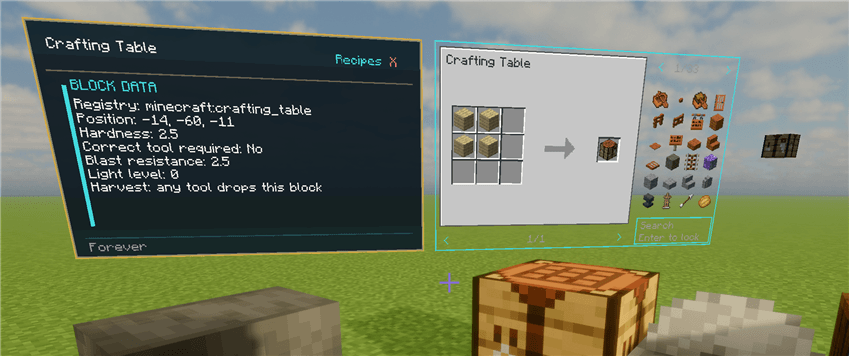
Floating Crafting / 悬浮合成
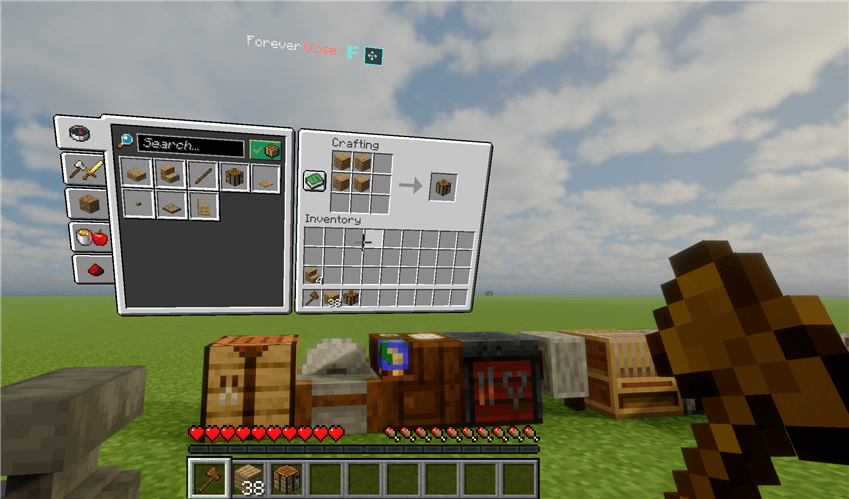
Sharing, Privacy and Settings / 共享、隐私与设置
中文简介
Modern Information Floating Panels(现代信息悬浮面板)将信息查看与常用界面带入三维世界。扫描身边的方块、生物或掉落物,在悬浮面板中查看详细数据;也可以把背包、容器、工作站和受支持的书本界面放在身旁,在探索与建造时随手使用。
主要功能
- 直观的信息查看:查看方块注册名、坐标、硬度、爆炸抗性、发光等级与采集工具信息;根据目标类型展示生物生命值、护甲、装备、状态效果,以及物品数量、耐久等数据。具体内容取决于目标和可获取的数据。
- 可交互的悬浮界面:在世界中整理背包与容器、使用工作站或与村民交易,通过十字准星操作面板,并按需要调整位置。
- 同时管理多个容器:最多保留 6 个容器面板,其中可包含 1 个玩家背包面板。不同位置的工作站可以分别打开;超出上限时关闭最早的面板。
- 配方浏览:内置配方查看功能,可选安装 JEI 扩展配方展示;特殊配方与工作站支持通过适配接口扩展。
- 悬浮书本阅读:对受支持的书本,点击信息面板旁的 3D 书本展示,即可切换到书本自身的界面,在世界中阅读和翻页,再次点击可返回信息视图。
- 多人共享与隐私:独立决定是否共享信息面板,并为容器面板选择仅自己可见、同步显示全部,或共享时隐藏玩家背包。另可设置是否允许他人从共享背包拿取物品。
- 按需自定义:设置面板保留时间或永久显示,切换信息面板背景样式,并为条目添加自定义说明。
玩法教程
1. 安装与按键准备
使用 Minecraft 1.20.1、Forge 47+ 和 Java 17,将本模组 JAR 放入 mods 文件夹;升级时替换旧文件,避免同时保留两个版本。多人游戏的服务端和参与玩家客户端需安装相同版本。JEI 为可选项。进入“选项 → 控制”,找到 Modern Information Floating Panels:检查目标默认为左 Ctrl,悬浮容器默认为 Ctrl + E;若与整合包其他按键冲突,请在这里修改。
2. 扫描方块、生物与掉落物
将准星对准目标,按住左 Ctrl,即可生成信息面板;持续按住并转向其他目标,可以继续查看其他对象。准星指向面板后滚动滚轮,可阅读较长的信息。方块可展示属性与采集工具,生物可展示生命、装备和效果,物品可展示数量与耐久,具体取决于目标数据。按住鼠标右键拖动信息面板可调整位置,右键点击 X 可关闭。
3. 打开、摆放和操作悬浮容器
对准支持的箱子、工作站或实体交互目标,按 Ctrl + E 打开悬浮界面;没有受支持的目标时,打开自己的悬浮背包。通过十字准星瞄准格子和按钮,使用普通左/右键及该容器支持的快捷操作整理物品。按住面板的“移动”控件,转动视角到合适位置,松开完成摆放;移动容器面板时滚动滚轮可调整大小。点击 X 关闭。最多同时保留 6 个容器面板,其中玩家背包最多 1 个,超过上限时关闭最早打开的面板。
4. 可选:E 替代模式与手持物品开关
在控制设置中,将“悬浮容器”改为不带修饰键的 E,即可使用 E 替代模式。此时 E 可切换悬浮界面,受支持的常规打开界面也可自动接管为面板。在这一模式下,手持支持打开界面的背包等物品,右键使用即可打开;保持同一只手、同一栏位和同一物品,再次使用可关闭,再使用可重新打开。不同栏位的同类物品可保留独立面板。跨栏位移动物品后不保证沿用原来的来源;走特殊网络流程的界面可能需要单独适配。默认 Ctrl + E 模式并不意味着所有普通右键界面都会自动转为悬浮界面。
5. 配方、书本与文字输入
使用信息面板中的“配方/用途”等控件浏览可用配方,可选安装 JEI 扩展受支持的配方视图。对于支持的书本,点击信息面板旁的 3D 书本展示,可进入书本原生界面阅读、翻页,再次点击返回信息视图。在 E 替代模式下,受支持的手持原版书本也可通过正常使用动作打开。需要搜索或输入文字时,先点击文本框;文本框获得焦点后,移动键会作为文字输入,离开输入框后再继续移动。第三方书本与界面是否可用取决于其具体实现。
6. 多人共享、隐私与个性设置
从“模组 → Modern Information Floating Panels → 配置”进入设置。“信息共享”决定其他玩家能否看到你的信息面板;容器可选择“仅自己”“共享内容”或“隐藏背包物品”。“允许他人从背包拿取”独立控制完全共享时他人能否取走物品,关闭后仍允许存入;共享贵重物品前请先检查。远程/共享容器展示同步物品与原生控件,不叠加观察者本地的 JEI 搜索框、物品列表和书签;自己的面板和普通界面仍可使用 JEI。
信息面板和容器面板的时长可分别设置:输入秒数,或输入 0/永久,再点击应用。还可切换信息背景为黑色或透明,并通过注册表浏览器添加自定义说明。快捷键无效时,依次检查按键冲突、准星目标、文本输入焦点,以及该第三方界面是否受支持。
版本与兼容
当前版本为 1.0.1,适用于 Minecraft 1.20.1 / Forge 47+ / Java 17。无需额外第三方前置模组,JEI 等集成为可选项。使用多人功能时,服务端和参与玩家的客户端均需安装本模组。
第三方容器、配方和书本的支持取决于其实现方式,部分自定义界面需要专门适配。截图中的其他模组内容与光影仅用于演示,不随本模组提供。