Lanternverse

download.png
Description
A sector is waiting for its next Green Lantern. Earn the ring, take flight, and answer its first distress call.
Lanternverse brings the Green Lantern Corps to Minecraft. Wield a Power Ring, shape solid light into your own constructs, and protect inhabited worlds across a galaxy of 3,600 sectors.
Installation and required downloads
Use Minecraft Java Edition 1.20.1 with Forge 47.4.28. Download Minecraft Forge
Lanternverse requires two additional mods.
For manual installation, put all three `.jar` files in your Forge profile's `mods` folder.
Earn your place in the Corps
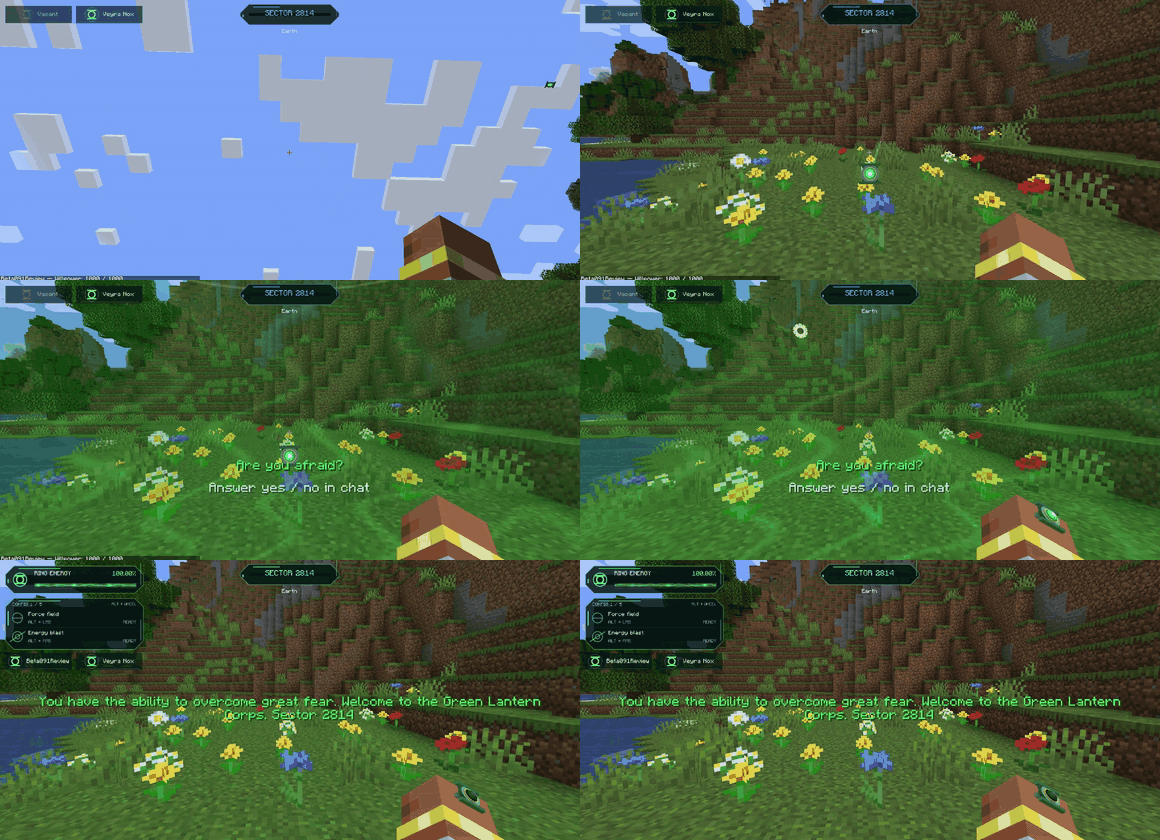
Build Willpower by discovering biomes and structures, fighting hostile mobs, and taking on Minecraft’s bosses. When a Lantern position opens, the Corps can choose an eligible player. Your story can begin right here on Earth, in Sector 2814.
Your first assignment takes you to Oa. Cross the citadel’s bridges, open the Book of Oa, and speak with the Guardians, including Ganthet and Sayd. You’ll find Hal Jordan, John Stewart, and Sinestro near the towering Green Central Power Battery.
Return to your assigned sector with a Quantum Link and a Personal Power Battery. Complete your first personal recharge and receive the Corps’ recognition to unlock the emblem on your uniform. Complete your first field assignment to earn Rank 1 — Poozer.
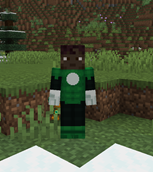
Not yet initiated (No Green Lantern Emblem)
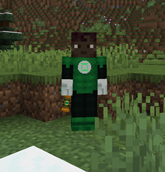
Initiated (Green Lantern Emblem)
Build the energy network that keeps you alive
Oa’s Central Power Battery → Local Power Battery → Personal Power Battery → Power Ring
Every patrol depends on this chain. At Oa, the Central Power Battery anchors the network and infuses Chromatic Metal with Willpower.
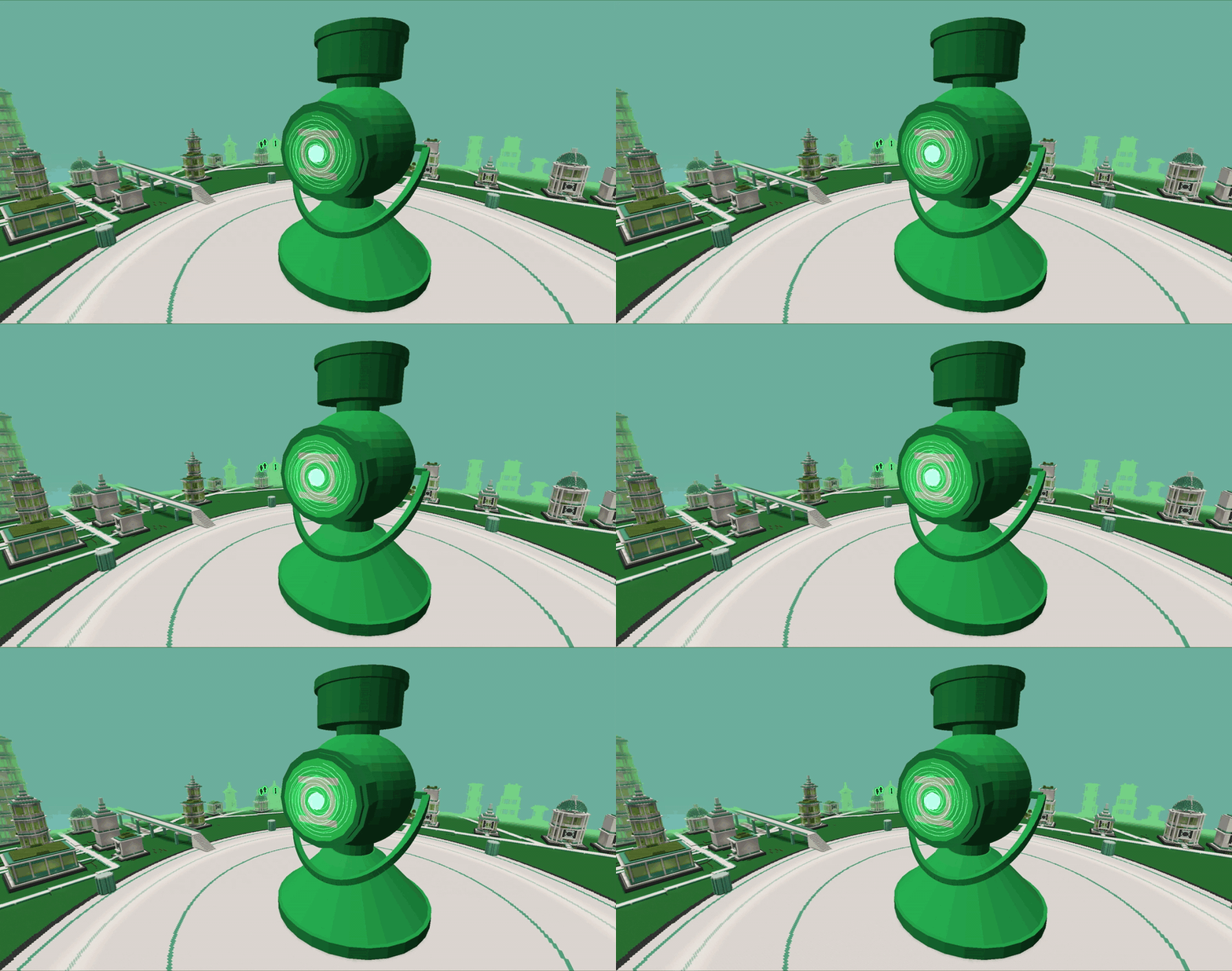
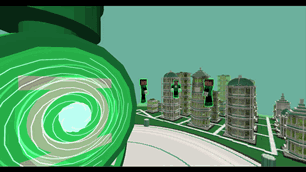
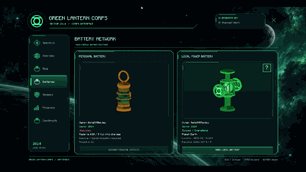
Use that metal to build a Local Power Battery around your Quantum Link on a planet in your assigned sector. Synchronize your Personal Power Battery with that installation and carry the equivalent of 5 full ring charges into the field. If you leave it behind, you can summon the original battery back when it’s recoverable.
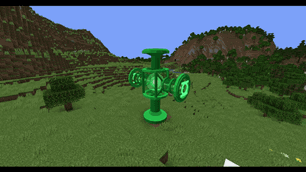
Synced Local Battery
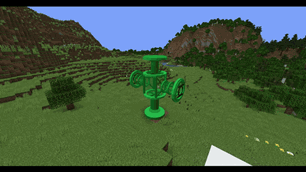
Unsynced Local Battery
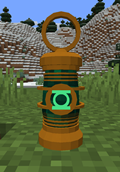
Synced Local Battery
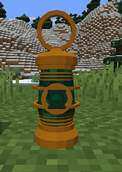
Unsynced Local Battery
Your local battery and its crystal stay linked to a real installation. If that connection breaks, you can lose access to recharging. A Local Battery Raid can pull you back from patrol to defend the source that keeps your ring running.
Answer your sector’s distress calls
Your sector is home to different alien species and civilizations. Land on inhabited planets, explore their settlements, and talk to the people who live there. A village coordinator might brief you on an incoming attack, while a resident could help you piece together what happened to someone who went missing. As your sector’s Green Lantern, it’s your duty to protect these worlds and answer when their people call for help.
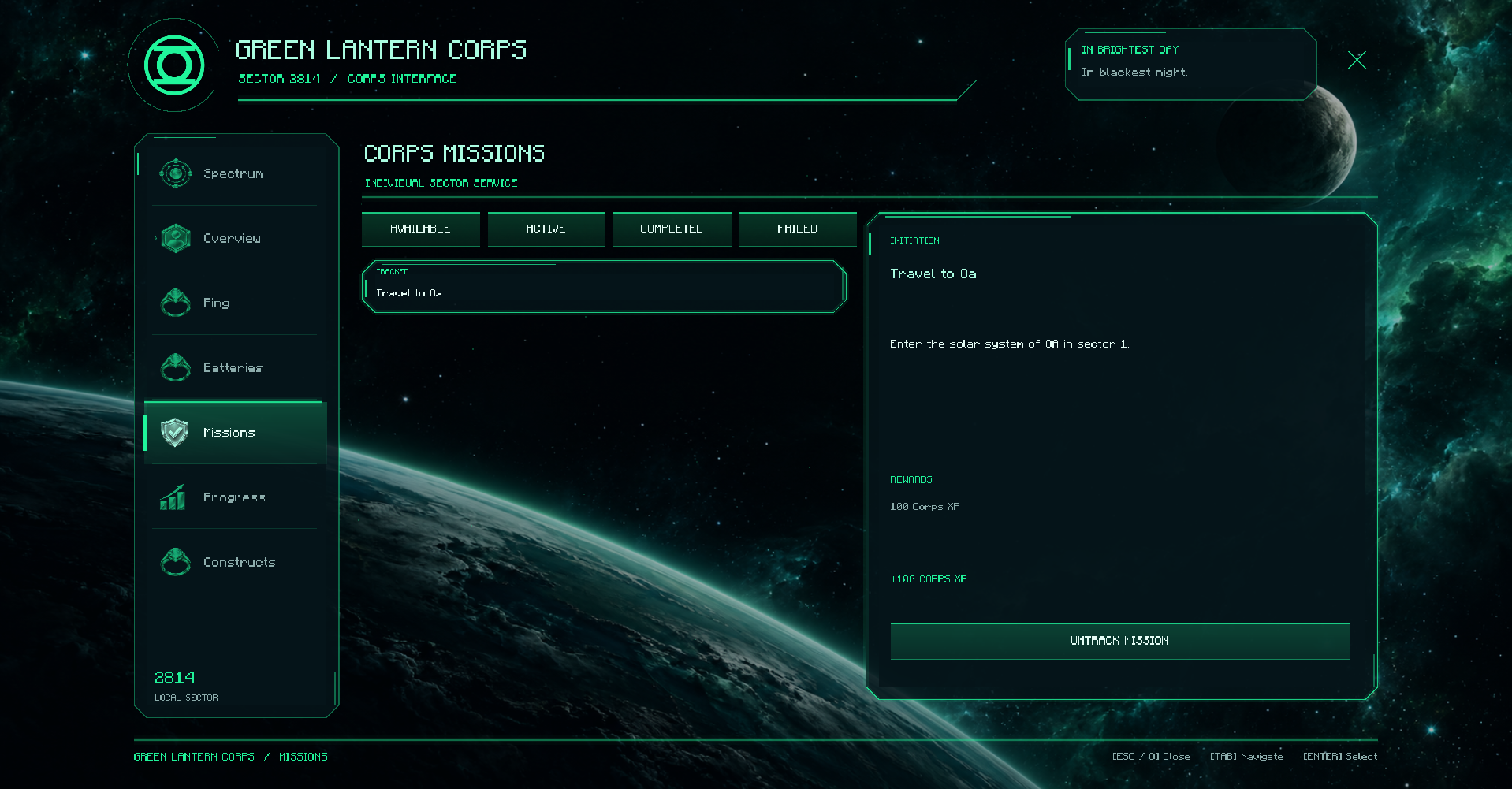
A village is under attack. A resident has gone missing. An evacuation is running out of time. Accept an assignment from the Corps mission journal and follow it from the galactic map to the ground.
Who makes it back matters.
Give your will a shape
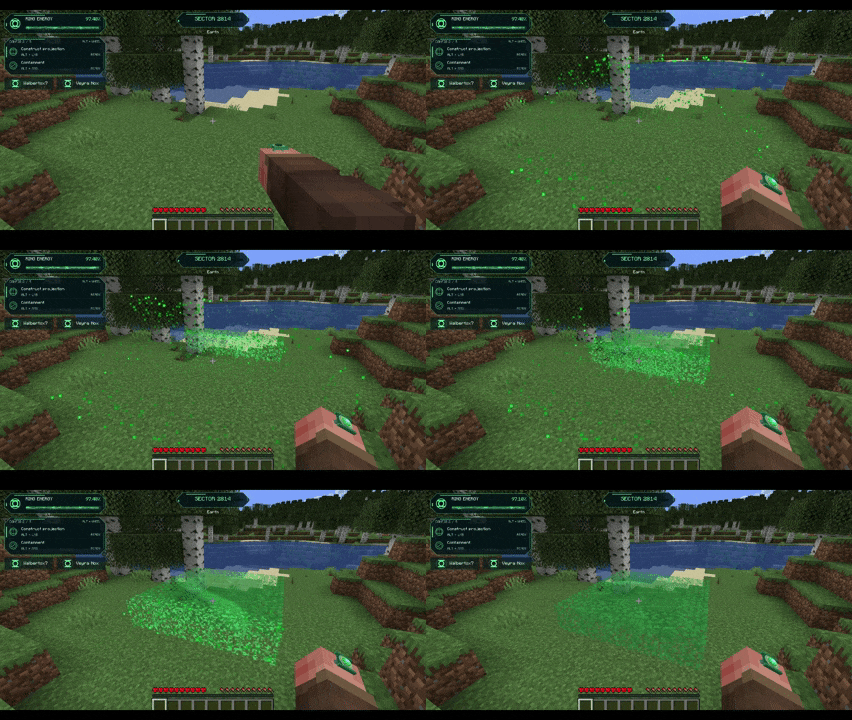
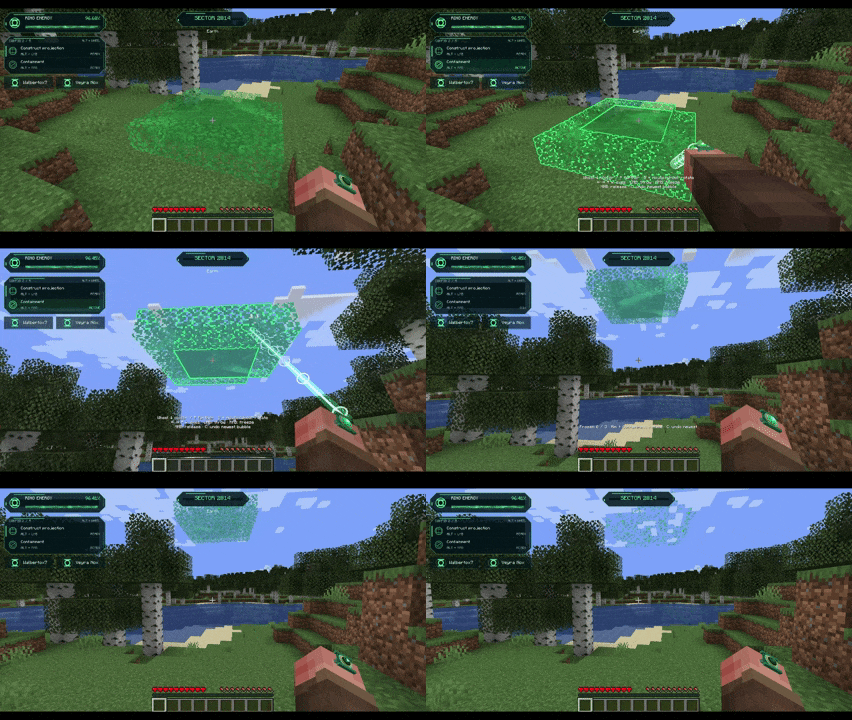
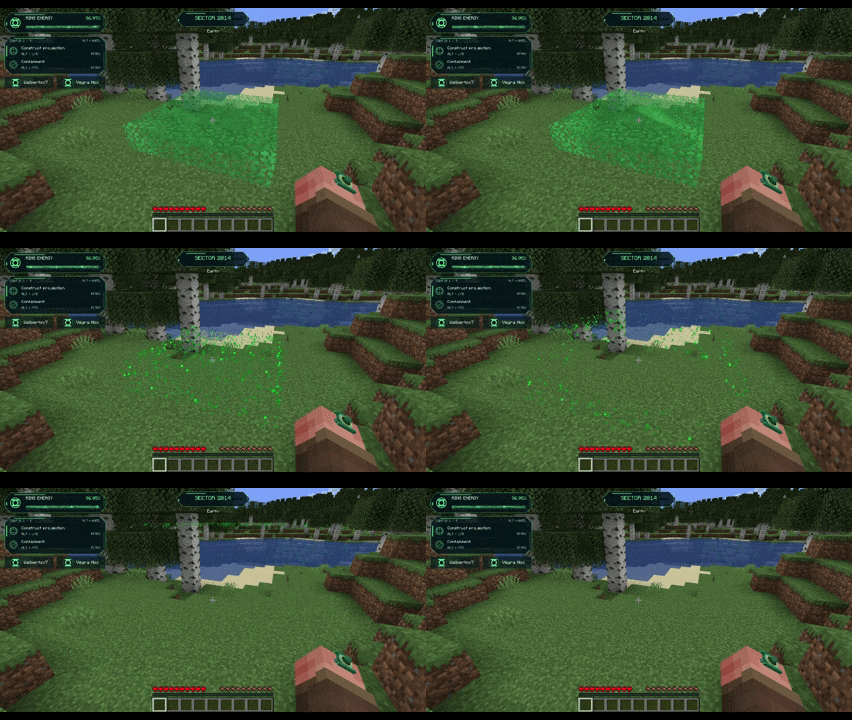
Raise a Force Field, channel a continuous Energy Blast, or strike a group with an Energy Pulse. Use the Ring Scanner to investigate your surroundings and Containment to move creatures in bubbles of solid light.
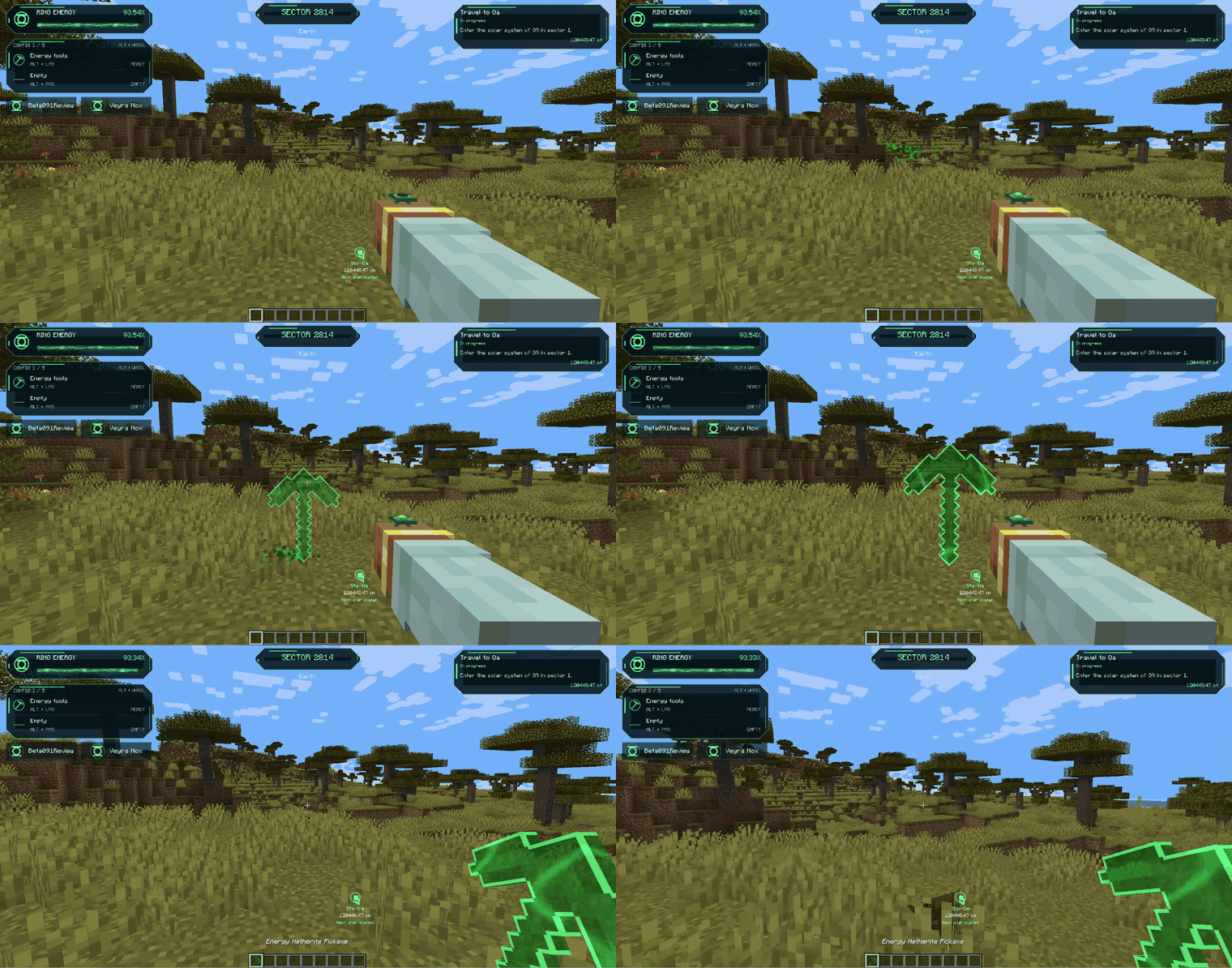
In the Construct Editor, design a structure block by block, save it as a blueprint, and project it into the world. Move it, stand on it, or dismiss it when the job is done. Higher ranks let you build larger constructs, and keeping them active draws energy from your ring. You can also conjure temporary tools and weapons, from a pickaxe to a bow.
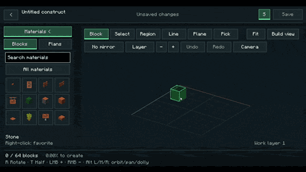
Constructs in action
Plot your route across the galaxy
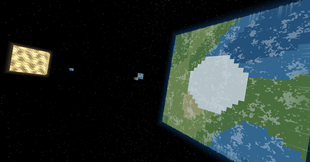
Open the interactive Galactic Map to search for sectors, star systems, and planets. Set a destination and follow its marker as you launch from the surface, roll through the atmosphere, and engage Supercruise at up to 750,000 m/s in deep space. Land on Earth’s Moon or seek out Mogo, a world that is itself a Green Lantern. In the vacuum, keeping your ring charged keeps you alive.
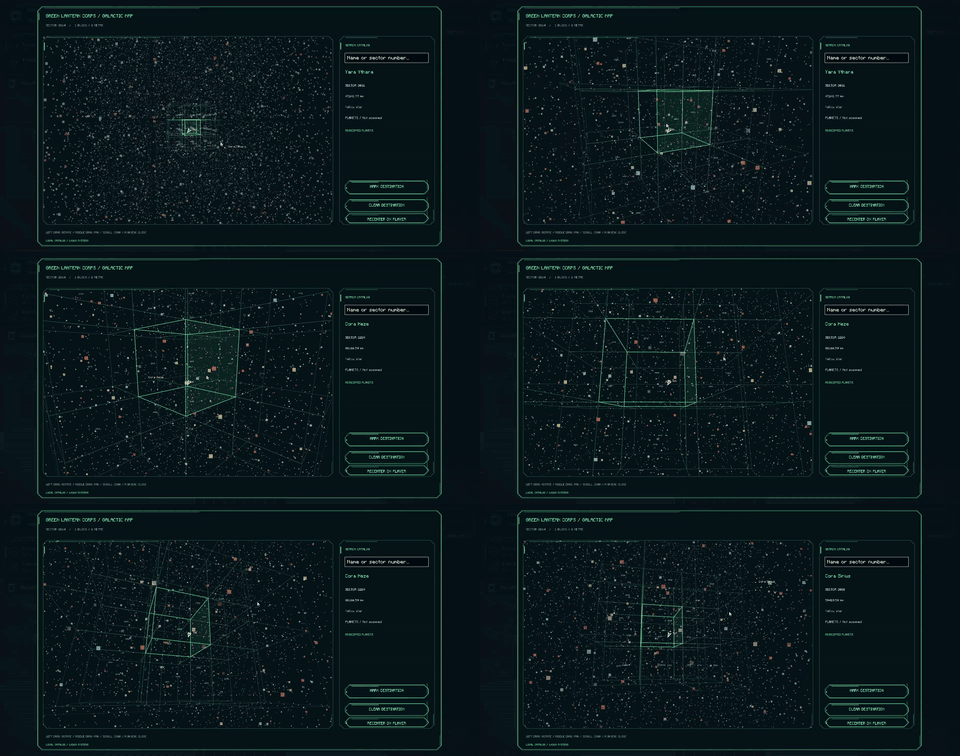
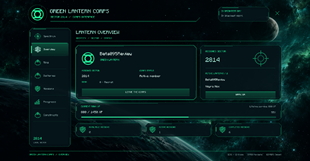
The Corps menus put your equipment and assignments in one place. Switch power loadouts in Ring, check your recharge network in Batteries, track a field assignment in Missions, review your rank and milestones in Progress, and open your blueprint library in Constructs.
Beyond Rise of Will
Rise of Will is the playable Green Lantern chapter. The roadmap expands what you can do both as a civilian and as a member of the Corps.
- Buildable spaceships and civilian missions. Build and fly your own ship, visit other worlds, and take on assignments before earning a Power Ring.
- A main quest and more side missions. Follow a story that takes you across sectors and pick up additional assignments along the way.
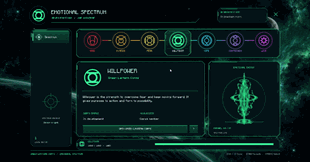
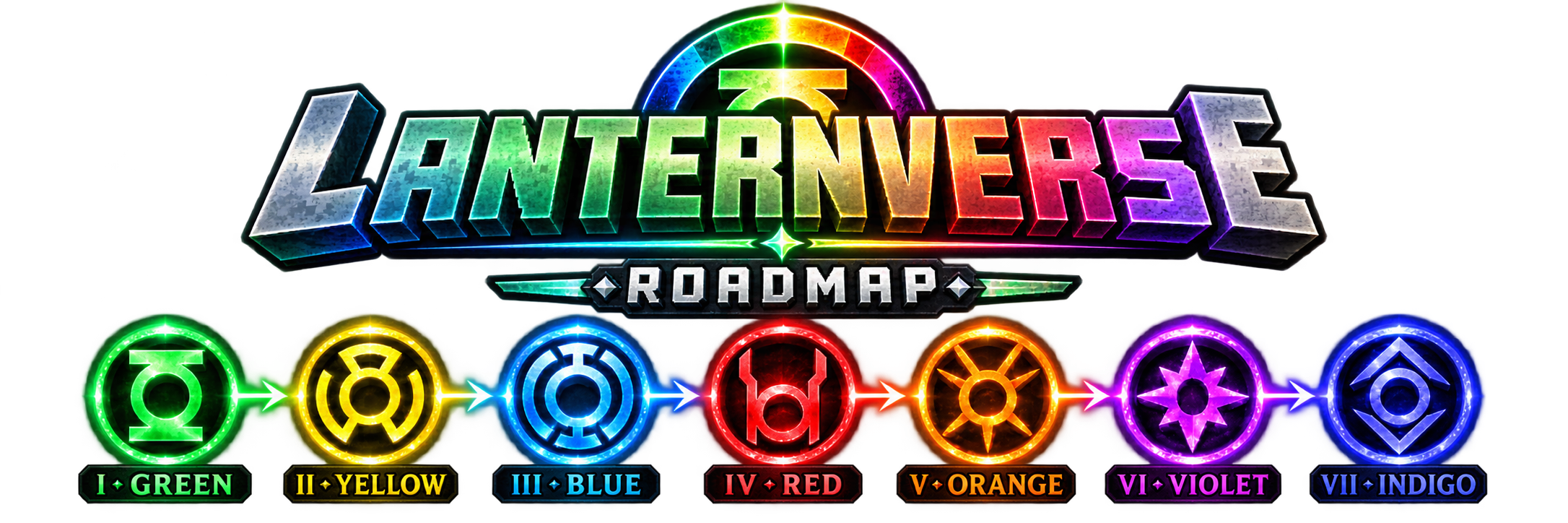
- New powers and Emotional Spectrum chapters. Expand your Power Ring abilities and explore other Corps as their chapters are developed.
- Custom enemies, bosses, and dungeons. Encounter new threats, explore places built around them, and face bosses that challenge how you use your abilities.
- More events across the galaxy. Expect more reasons to respond to calls from your sector, along with additional encounters and activities in future updates. undefined
CONTROLS — LANTERNVERSE 0.9.6 BETA
These are the default PC controls. You can change the mod’s keybinds in Options > Controls > Key Binds > Green Lantern Mod.
QUICK START
• O — Open the Corps menu. Access Ring, Batteries, Missions, Progress, and Constructs.
• M — Open the Galactic Map.
• E— Open your inventory and equip the Power Ring in its dedicated slot.
• Double-tap Space — Toggle ring flight in the atmosphere. In space, use it to brake automatically.
• Left Alt + left or right click — Use the power assigned to that mouse button.
• Left Alt + mouse wheel — Cycle through your ring loadouts.
• < / > — Materialize or dissolve your uniform. This is the ISO key next to Left
Shift. You can rebind it if your keyboard uses a different layout.
When the ring asks “Are you afraid?”, type “no” in chat to accept the offer or “yes” to decline it.
FLIGHT AND NAVIGATION
• W / A / S / D + mouse — Move and steer in normal flight. In Cruise, look in the direction you want to travel.
• Hold Left Ctrl — Boost forward or accelerate in space.
• Double-tap Left Ctrl in space — Start automatic Cruise. At cruise speed in Deep Space, double-tap again to enter Supercruise.
• Hold Left Shift — Brake. Tap once during Supercruise to return to normal Cruise.
• Double-tap Left Shift during Cruise or Supercruise — Brake automatically to a stop.
•Z / X — Roll left / right.
• Galactic Map — Left-click to select, left-drag to rotate, middle-drag to pan, and scroll to zoom. Choose Set Destination to place a navigation marker.
If you changed Minecraft’s Jump, Sprint, Sneak, or Use Item keys, use your own bindings for those actions.
RING POWERS
Open O> Ring to assign powers to the left and right slots. Hold Left Alt with the mouse button assigned to the power.
• Force Field — Hold to keep the shield active.
• Energy Blast— Hold to charge and sustain the blast. Release to stop.
• Energy Pulse — Tap to fire.
• Ring Scanner — Aim and hold to scan.
• Containment — Aim at a target and activate the power. Release the power controls to use the handling shortcuts below.
• Construct Projection — Select a saved design. Hold to preview its placement and release the mouse button to project it.
• Energy Tools — Tap to form and equip the selected tool. Hold for about 0.8 seconds to open the tool wheel. Point or scroll, then left-click to select. Press Q to dissolve the equipped tool.
CONSTRUCTS AND CONTAINMENT
• Hold R — Open the saved constructs wheel. Point at a design and release R to select it. Scroll to change pages.
• V — Dissolve the construct you’re controlling, or your oldest remaining construct.
• Ctrl + V — Dissolve all your constructs.
• Right-click a supported projected block — Interact with it outside Containment.
• Mouse wheel while holding a target — Scroll up to move it farther away or down to bring it closer.
• Hold G and move the mouse — Rotate the held construct’s yaw and pitch.
•Hold G and scroll — Roll the held construct.
• Arrow keys while holding a construct — Adjust its rotation precisely. Left and Right adjust yaw. Up and Down adjust pitch.
• Left-click / Right-click / Middle-click while holding a target — Throw it / freeze it in place / release it gently.
• C — Release your newest containment bubble.
CONSTRUCT EDITOR
Open the editor from O > Constructs.
• 1 / 2 / 3 / 4 / 5 / 6 — Switch to Block / Select / Region / Line / Plane / Pick.
• Left-click / Right-click in Block mode — Place / remove a block.
• Right-click a palette material — Toggle it as a favorite.
•Select mode — Click to select a block. Hold Shift while clicking to add to the selection.
• Region mode — Drag to select a region. Hold Shift while dragging to add to the selection.
• Line or Plane mode — Drag on the highlighted plane and release to build a line or fill a rectangle.
• Pick mode — Click a block to sample its material and block state.
• Alt + left / middle / right drag — Orbit / pan / dolly the camera.
• Mouse wheel / Shift + wheel — Zoom / change the active build layer. Scroll over the palette to browse materials.
• C / F / A — Cycle the camera view / frame the selection / frame the full design.
• R / T — Rotate the selection or current block orientation / switch the block’s half where supported.
• Ctrl + A — Select all.
• Ctrl + D — Start duplicating the selection.
• Enter / Esc — Confirm / cancel a pending transform. Esc also cancels a drag.
• Delete / Backspace — Remove the selection.
• Ctrl + Z — Undo.
• Ctrl + Y or Ctrl + Shift + Z — Redo.
• Ctrl + S — Save the blueprint.
BATTERIES, DIALOGUE, AND MENUS
• Personal Power Battery — Use right-click with a synced battery in your off-hand to start recharging your equipped ring. Right-click a placed battery to recharge or left-click it to pick it up.
• Summoned battery — Select Summon Personal Battery in O > Batteries. Right-click to collect it with an empty main hand.
• Local Power Battery — Right-click its service panel to recharge or resynchronize. Shift + right-click the crystal panel to open it.
• Central Power Battery on Oa — Right-click an emitter. The action depends on your equipped ring and off-hand item.
• Local Battery Assembly screen — Scroll or press Up / Down to change layers. Click a cell to inspect it, drag the preview to rotate it, use Tab / Enter for buttons, and press Esc to go back.
• Guardian and resident dialogue — Right-click to talk. Click a response or press A / B / C / D once the choices appear. Scroll to read, press Backspace to go back when available, or press Esc to close.
• Book of Oa — Left / Right or Page Up / Page Down turns pages. Esc closes the book.
Lanternverse is an unofficial fan-made project and is not affiliated with DC Comics, Warner Bros., or Mojang Studios.
undefined
Lanternverse Team