LagFixer
- By
Client-side Fabric performance tools for Minecraft 26.3, including FPS and tick-time monitoring, particle and render-distance limits, adaptive controls, and local profiling.
Lag Fixer — Fabric Performance Monitor for Minecraft 26.3
Lag Fixer is a client-side Fabric mod that helps you understand and manage selected sources of Minecraft performance pressure. It combines an in-game FPS and tick-time HUD, a multi-tab performance dashboard, configurable particle and render-distance limits, optional adaptive controls, local profiling reports, and experimental gameplay optimizations that remain off by default.
Searching for a Minecraft lag fix, a Minecraft FPS boost, or a useful FPS booster Minecraft mod? Lag Fixer takes a measurement-first approach. Instead of claiming that one mod can solve every kind of lag, it provides tools to see frame-time and integrated-server tick-time, then lets you adjust supported settings to suit your PC and play style. Performance varies from one computer, world, and mod list to another, so results are not guaranteed.
Screenshots
The screenshots below are presented one at a time, with a short explanation of what each interface is for. They show example UI; live metrics and detected mods vary by computer, world, and installation.
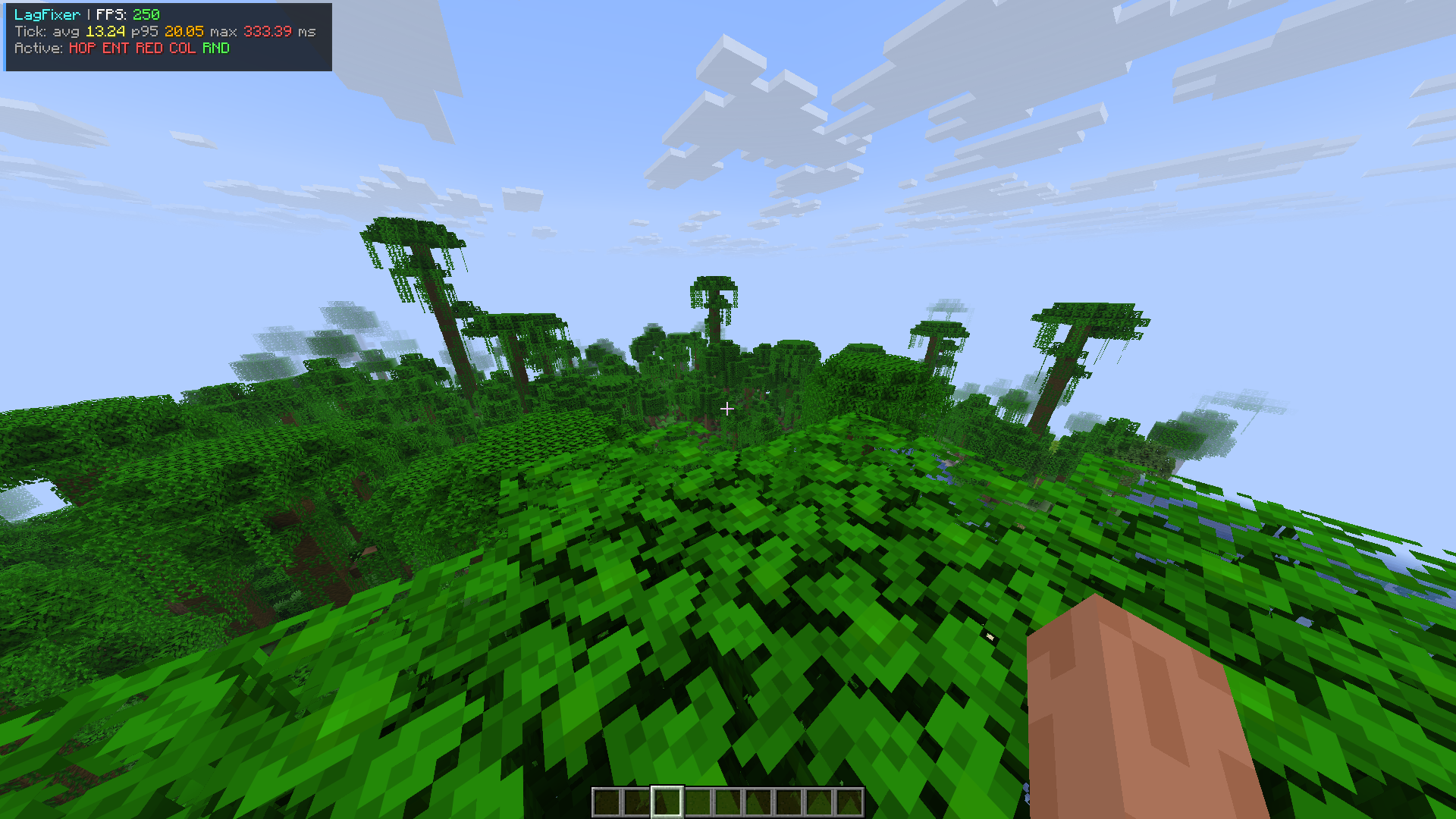
1. In-game performance HUD
The compact HUD lets you check performance while staying in your world. Use it for a quick in-game glance, then open the dashboard if you want to explore more detailed history.
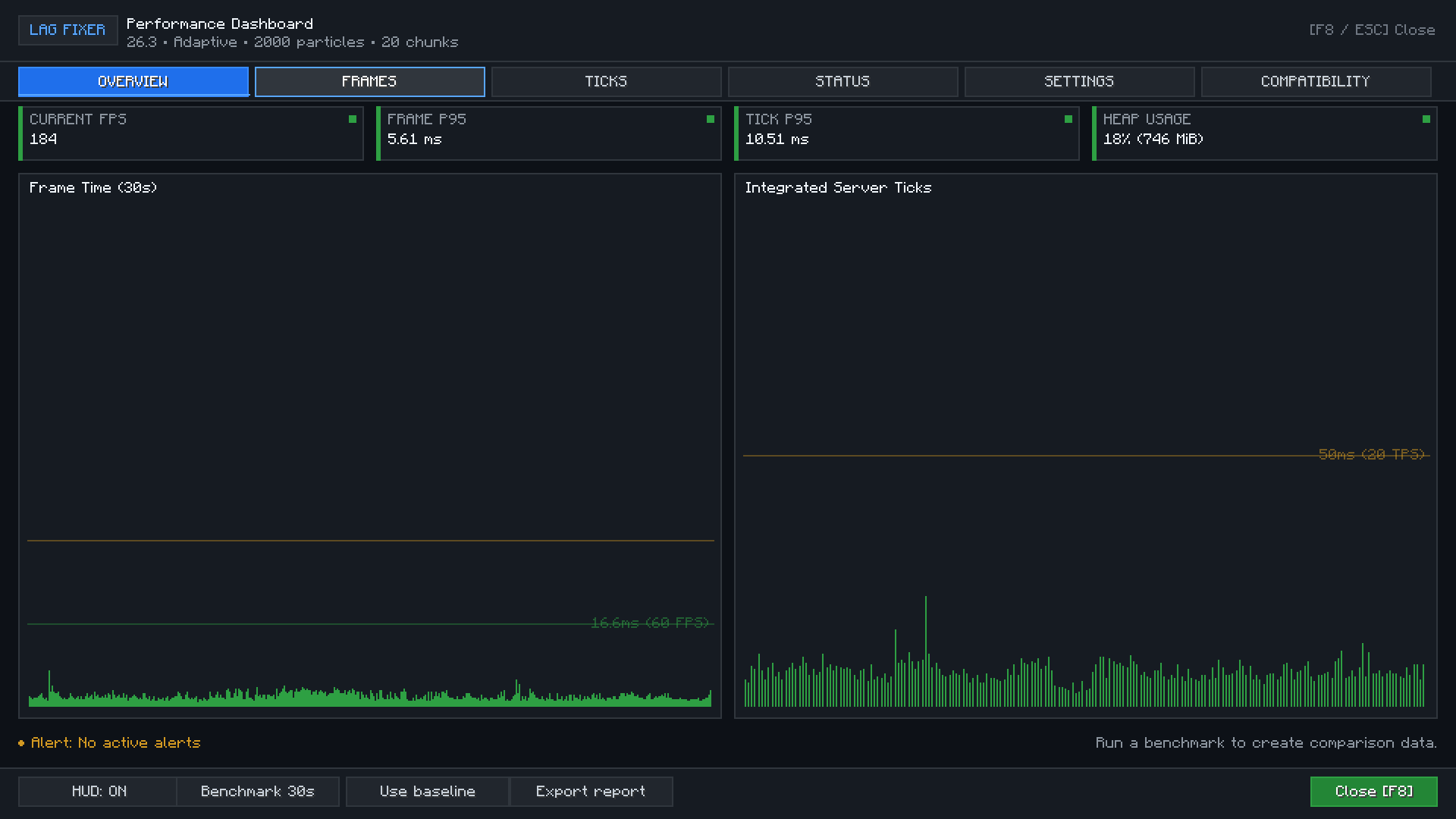
2. Dashboard overview cards
This view gathers key readings in the dashboard overview. It is a convenient starting point for checking frame and tick performance before making configuration changes.
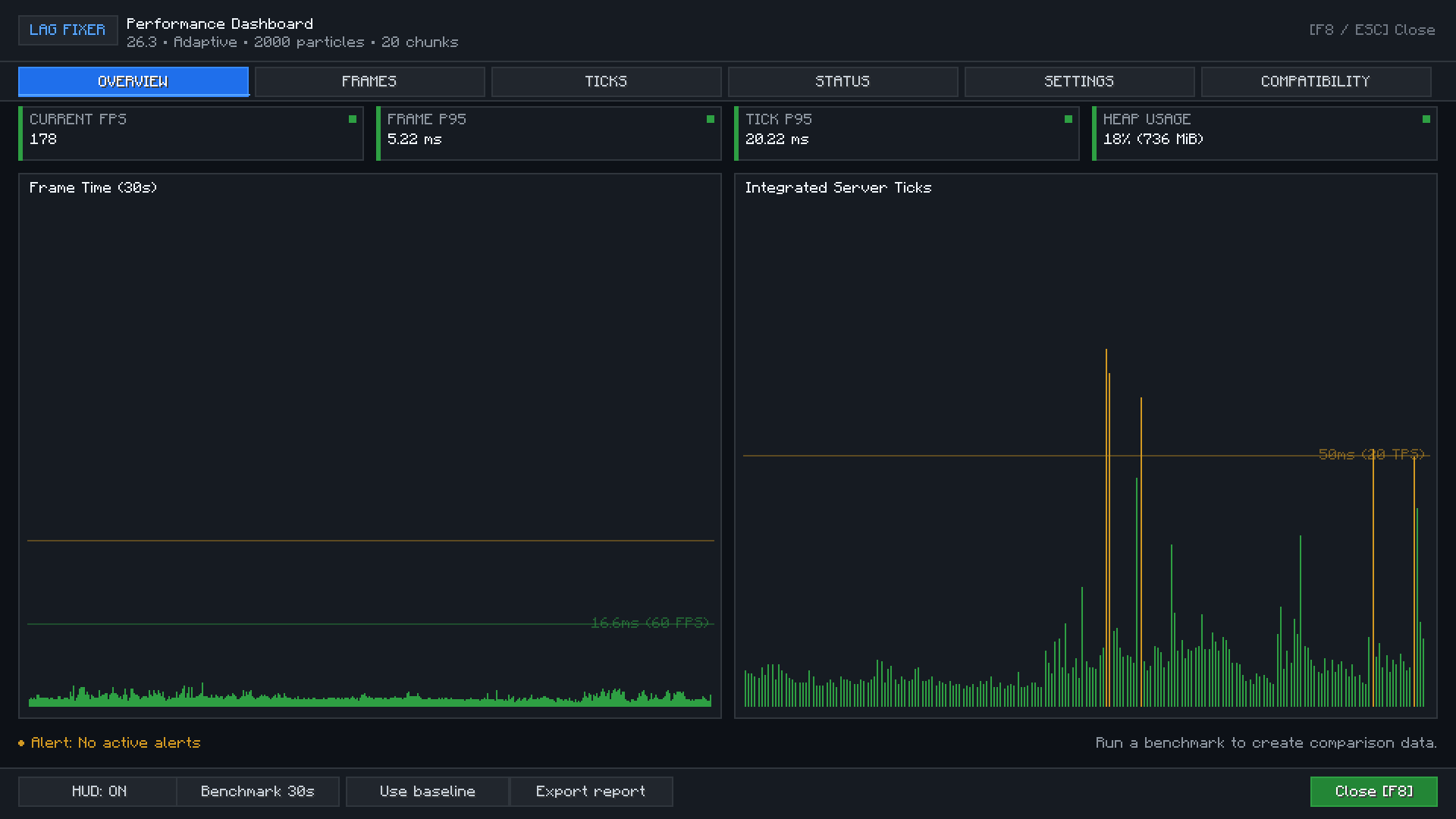
3. Dashboard graph and sample data
The graph displays performance data over time, helping you spot changes and spikes. For a useful comparison, observe the same scene before and after changing a single setting.
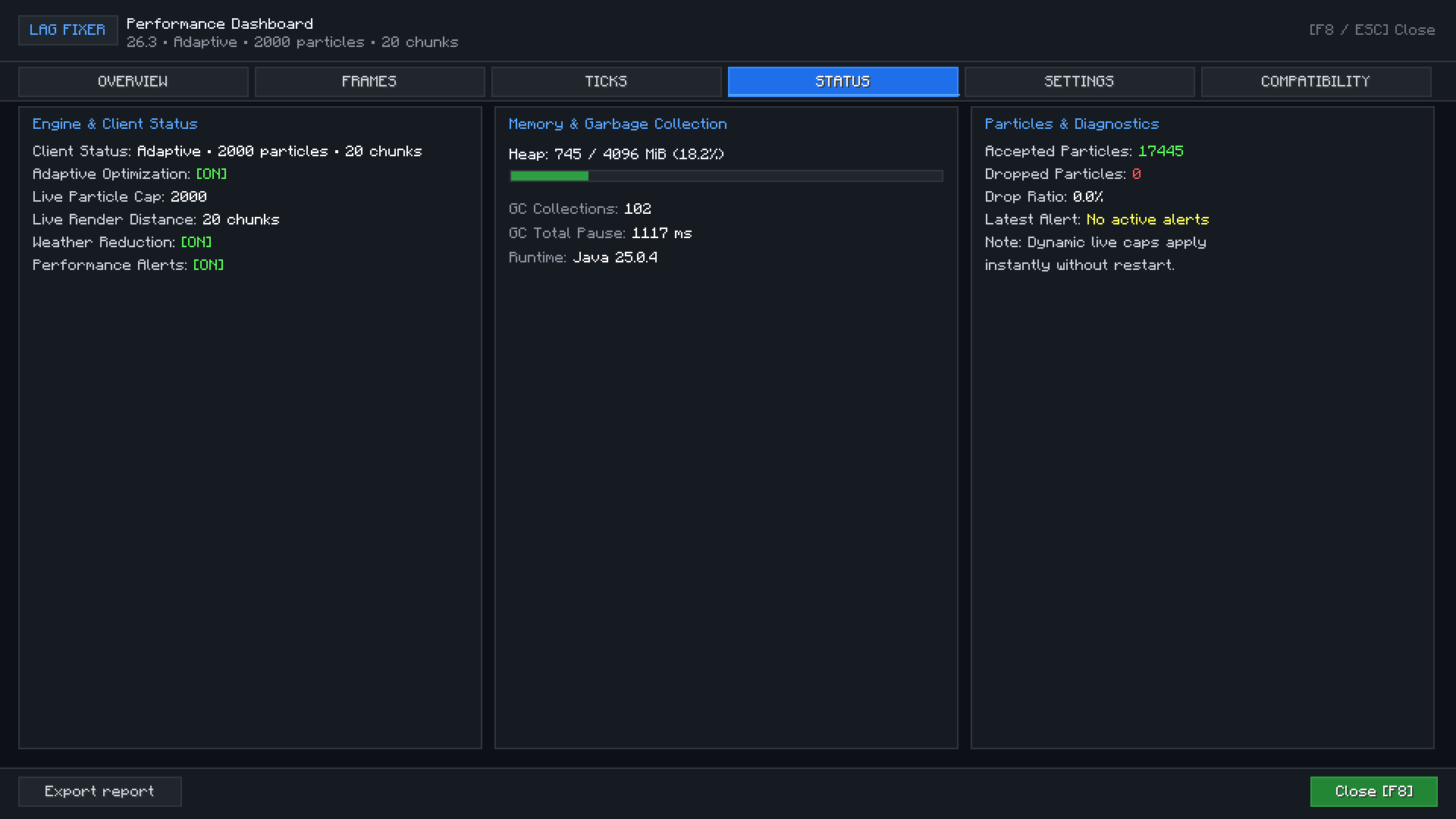
4. Runtime status panel
Use the status screen to review runtime details and active Lag Fixer features. This makes it easier to understand which options are currently in effect.
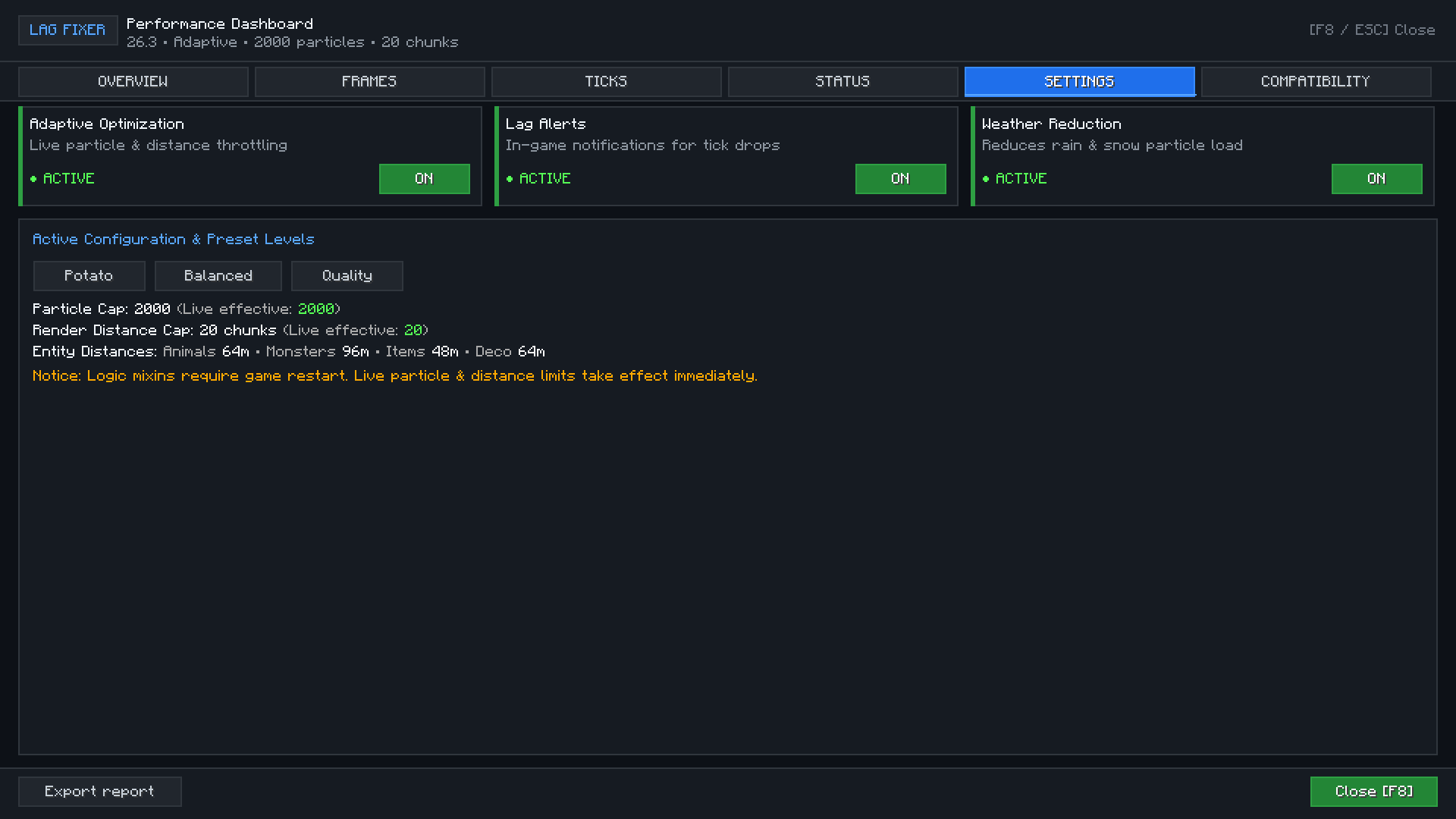
5. Settings panel
The settings view brings supported controls and presets together. It can help you choose a starting point and see when a restart is needed for a change.
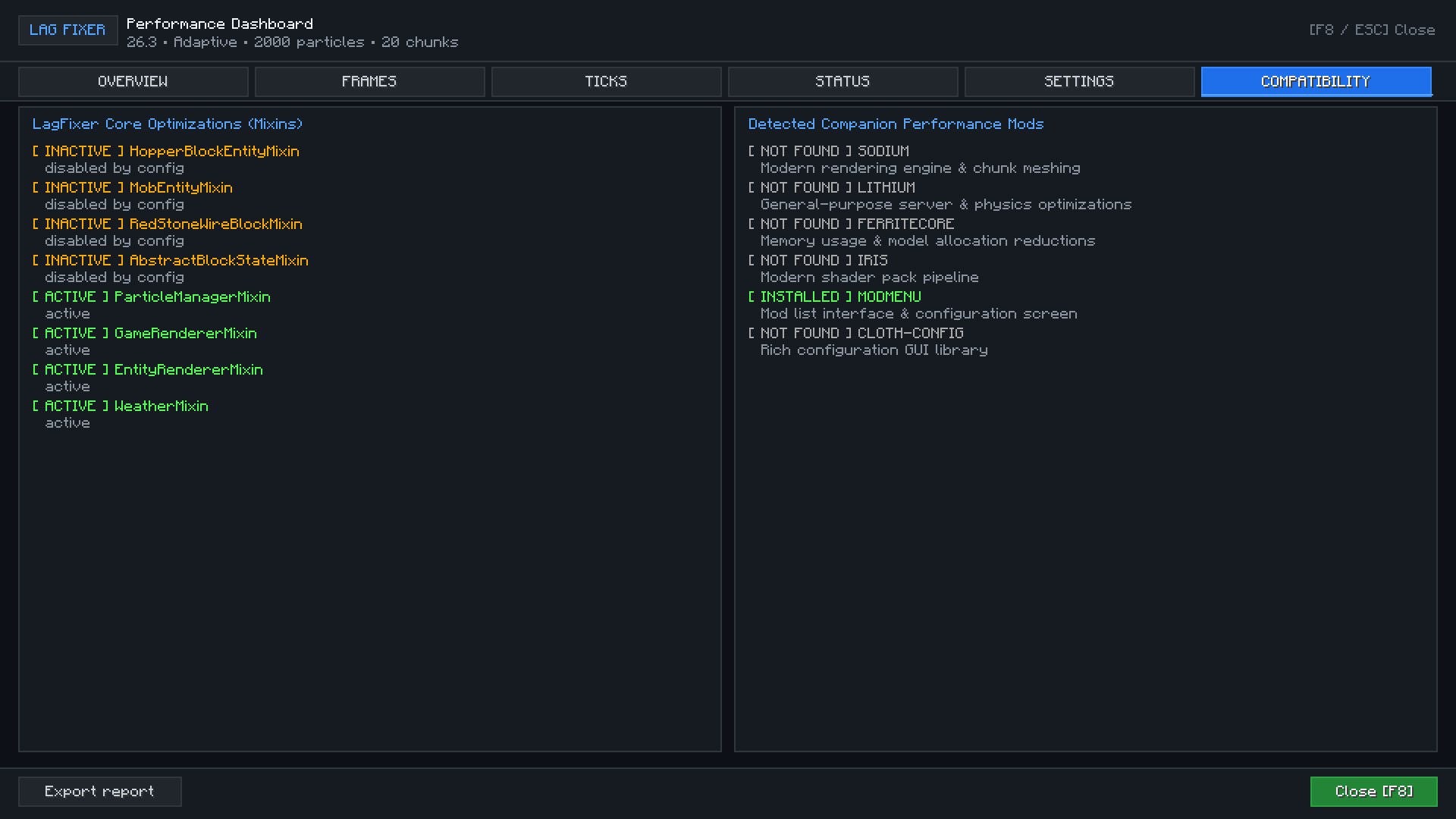
6. Compatibility panel
The compatibility view shows detected companion mods and optimization status. It can help when troubleshooting a modded setup, but it does not promise compatibility with every mod or version.
Features at a glance
In-game FPS HUD
Press F7 to toggle the HUD. The key can be rebound in Minecraft's controls. The compact overlay shows current FPS, recent tick timing, and active optimization flags. This helps you check performance without leaving the world. The overlay is intended as a quick status view; use the dashboard when you want more detailed historical information.
Complete performance dashboard
Press F8 or run /lagfixer dashboard to open the native dashboard. It does not require Cloth Config to open. Its views help separate several different symptoms that players often call “lag”:
- Overview: live frame and tick information, JVM heap usage, and rolling history.
- Frames: frame-time history at approximately 30-second, 2-minute, and 5-minute scales, with stutter and freeze counters.
- Ticks: integrated-server tick-time distributions and a 50 ms stall reference.
- Status: runtime optimization state, memory and garbage-collection information, and particle counters.
- Settings: supported client controls, adaptive options, alerts, and presets.
- Compatibility: visibility into detected companion mods and mixin states.
The dashboard helps you investigate whether a problem looks like slow client rendering, slow integrated-server work, or high memory pressure. It does not diagnose every cause automatically. For example, a high tick time could be related to a large world, entities, redstone, or another mod, while low FPS can be caused by graphics settings, shaders, drivers, resource packs, or hardware limits.
Particle and view-distance controls
The particle cap limits pending particle effects. It can reduce the amount of particle work during busy scenes, but dropped cosmetic effects may be less visible. Accepted and dropped particle counts give you context about when the cap is active.
The render-distance cap keeps the Minecraft client from selecting a value above the configured limit. A lower distance can reduce the amount of terrain visible and rendered, which may help on a system where visual load is contributing to frame-time problems. This is a visual trade-off, not a way to increase server simulation speed.
The mod provides Potato, Balanced, and Quality presets as starting points. Potato uses a lower particle limit and shorter view distance; Balanced is a moderate starting configuration; Quality raises those limits. Choose based on your system and preferences rather than assuming that a preset has the same effect on every PC. You can also adjust the individual settings and compare results.
Other render-side settings control selected animal, monster, item, and decoration distances. These are client rendering controls, not server entity deletion or gameplay-range changes. An option can reduce cosmetic weather effects during measured frame pressure, trading visual detail for less work during that period.
Adaptive performance and alerts
Adaptive mode is optional. It monitors recent frame-time measurements and responds conservatively when the 95th-percentile frame time remains high, reducing particle allowance first and only reducing render distance at lower particle levels. If measured frame times improve, it restores limits gradually, up to the configured caps. Cooldowns help avoid rapid setting changes. If you want consistent, manually chosen values, leave adaptive mode off.
Optional notifications distinguish client rendering pressure, integrated-server tick pressure, and high JVM heap use. Alerts are rate-limited to reduce repeated messages. Treat an alert as a reason to investigate, not as a definitive diagnosis. Lag Fixer observes garbage-collection counts and times without forcing garbage collection; forcing it would not be a reliable general-purpose lag fix.
Profiling, reports, and benchmark comparisons
Run /lagfixer profile to save a CSV containing recent integrated-server tick samples and summary values in config/lagfixer-profiles/. This is useful for comparing a singleplayer world before and after a configuration change. Use the dashboard's local export for diagnostic details such as runtime, memory, mods, configuration, and compatibility. Reports stay on your computer unless you choose to share them; review them first to ensure you are comfortable disclosing the included environment information.
The benchmark tool captures a timed sample and supports comparison with a reusable baseline. For a meaningful test, repeat the same route or scene, keep graphics settings and resource packs unchanged, and avoid changing multiple settings at once. Results are most useful for comparing your own setup over time. They are not a standardized hardware score and do not guarantee an FPS increase.
Experimental gameplay mixins
Separate opt-in mixins target hopper checks, distant mob AI evaluation, redstone wire updates, and collision-shape lookups. These optimizations are experimental because they can interact with timing-sensitive or context-sensitive gameplay. They are off by default. If you decide to test them, back up your world, enable one category at a time, and verify your contraptions and normal gameplay. Mixin changes require restarting Minecraft.
Lag Fixer checks for selected overlapping implementations. It disables its hopper, mob AI, and redstone categories when Lithium is present, and its collision category when FerriteCore is present. This reduces known overlap, but it does not guarantee compatibility with every mod, mod version, or modpack. Review the dashboard status and include your logs and mod list when reporting a conflict.
Installation
- Use Minecraft Java Edition 26.3.
- Install Fabric Loader 0.19.5 or newer for Minecraft 26.3.
- Install Fabric API matching Minecraft 26.3.
- Put the Lag Fixer
.jarin themodsfolder for the Fabric profile. - Launch Minecraft with that Fabric profile.
- Optionally install Mod Menu and Cloth Config for the menu button and detailed configuration screen.
Java 25 is required by this release. Mod Menu and Cloth Config are optional; Fabric Loader and Fabric API are required. Always download files for the exact game version and loader listed on the project page.
Getting started
After launch, open the dashboard with F8 and take a look at the current metrics before changing anything. Play in a representative area of your world for a few minutes. If frame-time spikes occur in busy particle scenes, try lowering the particle cap. If rendering the world is the likely source of low FPS, reduce render distance and compare the same location. If singleplayer tick-time is high, review the tick profile and investigate world or mod behavior; a lower particle cap may not address that issue.
Start with Balanced if you are unsure. Potato may be useful for constrained hardware but reduces visual range and effects. Quality is intended for systems that can handle higher limits; it can increase the rendering workload. Change one option at a time, use the same test scene, and keep notes so you can reverse changes that do not help.
Configuration is stored in config/lagfixer.properties. Most rendering controls take effect live. Experimental mixin options take effect after a restart. If a configuration file is missing or incomplete, Lag Fixer supplies safe defaults. Back up the file before manual edits.
Scope and compatibility expectations
Lag Fixer is a client-side Fabric mod for Minecraft Java Edition 26.3. Its rendering limits can affect your own client while you play singleplayer or join multiplayer. It does not install or run as a dedicated-server performance plugin. A client-side FPS improvement cannot make a remote server process ticks faster.
The project is not a Bedrock FPS booster, a Minecraft PE or mobile performance app, a Forge FPS booster, an OptiFine or shader replacement, or a release for Minecraft 1.8.9, 1.12.2, 1.16.5, 1.18, or 1.19. Check the published files for supported releases rather than downloading a jar for a different version or loader.
It also cannot directly improve ping, fix packet loss, change your internet connection, resolve Aternos or other host outages, or correct remote server TPS. If you search “how to get better ping in Minecraft” or “how to fix high ping in Minecraft,” investigate your network, Wi-Fi or Ethernet, server region, host, and route. Lag Fixer is for client performance monitoring and selected rendering controls, not network optimization.
Frequently asked questions
Is this a Minecraft FPS booster?
It includes controls that may reduce selected client rendering workload and tools for measuring frame-time. This can improve FPS or frame consistency in some situations, but no universal or guaranteed increase is promised.
How do I make Minecraft less laggy with this mod?
Open the dashboard, observe which metric looks problematic, and test a matching change. For rendering pressure, try particles or render distance. For integrated-server tick pressure in singleplayer, profile ticks and investigate the world or other mods. For ping or remote server problems, this mod is not the fix.
Does it fix Minecraft server lag?
It can display integrated-server timing when the singleplayer client hosts that world. It does not modify a remote server or dedicated server. Client-side settings only change your local rendering experience.
Does it work with Sodium, Lithium, or FerriteCore?
The project includes compatibility checks for selected overlapping Lithium and FerriteCore optimizations. Sodium is a common client setup, but exact compatibility depends on versions and other mods. Use the compatibility tab and report reproducible issues.
Do I need Mod Menu or Cloth Config?
No. They are optional. The HUD, dashboard, commands, and manual configuration are available without requiring those menu integrations.
Relevant performance topics
Lag Fixer is relevant to searches about Minecraft Java client lag, Minecraft FPS improvement, FPS boost in Minecraft, Minecraft lag reducer mods, Fabric performance tools, frame-time stutters, particle limits, render distance tuning, integrated-server tick profiling, and how to reduce rendering load in Minecraft. These phrases describe its supported features rather than promising a universal fix. Bedrock, PE, Forge, older game releases, high ping, and remote server lag are outside this project's scope.
LagFixer Team