In-Game Console & Logging
- By
An in-game JVM(Minecraft itself) log viewer and in-world command console.
Overview
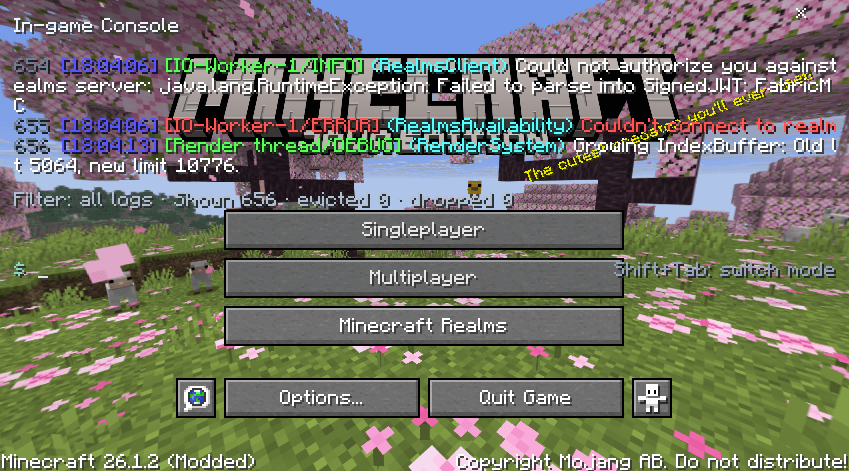
Inspired by the game Forts. This mod added an overlay for in-game log viewing and command inputting(directly acts on internal server) like Forts' style.
Default open/close controlling key is ~(`).
Use Shift+Tab to switch input mode(view-only, logging view, command view).
Like this:
Usage
Here's the usage:
Opening and Closing
Press the backtick key to open the console. It can be used in the main menu, world selection, chat box, inventory, and in-game. You can change the four keys for open/close, page up, page down, and return to bottom in “Options → Controls → Key Binds → In-Game Console”; both keyboard keys and mouse buttons are supported. While a new binding is being recorded, the key-binding settings take priority in receiving input. Shift+Tab is fixed for switching modes, and Esc is fixed for closing the console; neither occupies a key binding entry.
The first time it opens, it is displayed in view-only mode: the panel expands from the top of the screen, occupies about 65% of the height by default, does not show an input box or close button, and the game continues to receive keyboard and mouse input. In a world, the mouse remains grabbed; outside a save, mouse clicks pass through the overlay. After pressing Shift+Tab to enter log or command mode, mouse and keyboard input are received by the panel.
Press Esc, press the console hotkey again in view-only mode, or click the close button in the upper right corner in log/command mode to collapse the panel. In log and command modes, the tilde key is written into the input box as a normal character and does not collapse the panel; in view-only mode, the tilde key toggles the overlay. When entering a world, the panel remains expanded and does not automatically collapse. Expanding and collapsing slide at a constant speed from the top of the screen; the animation duration of the view-only overlay can be adjusted in the config, while log and command modes are fixed at 180 ms. The first time view-only mode opens, it plays a slide-in; when switching from that mode to log or command mode, the panel appears directly in the expanded state without replaying the animation. During collapse, the hotkey can be used to expand it in reverse. After collapse completes, the interface and its input state from before opening are restored; when opened directly from in-game, game input is restored. During the same client launch, reopening after closing restores the last mode and unsubmitted input; after a client restart, it returns to the default view-only mode. The overlay height and opacity can also be adjusted in the config.
Automatic log expansion is an independent read-only overlay. The master switch is enabled by default; when a visible log simultaneously meets the trigger level and trigger keyword, it expands from the top of the screen, occupies 25% of the height by default, and stays for 3 seconds; if it is hit again during that time, the timer restarts. It does not display a title, input box, status line, or bottom hint, and does not receive other overlay interactions; it does not auto-expand when the console, view-only panel, or config screen is manually opened. By default, pressing Esc can collapse it early; after collapsing, it enters a default 30-second silent period during which it will not auto-expand again; both Esc collapse and the silent period can be adjusted in the config, and a silent period of 0 disables it. After disabling Esc collapse, Esc acts directly on the game, and the overlay only collapses after the stay time ends. The trigger level defaults to WARN, and an empty keyword means no restriction; height, stay time, and keyword can be adjusted in the config, and the keyword can also be set by executing autosplash filter <text> in log mode.
Input Modes
| Mode | Prefix | Current Behavior |
|---|---|---|
| View-only | None | Default mode; displays real-time logs, and the game continues to receive keyboard and mouse input |
| Log mode | $ |
Displays real-time logs; accepts filter, autosplash filter, and grep commands |
| Command mode | # |
Executes commands in the built-in server and displays input and feedback timeline |
Press Shift+Tab to cycle among the three modes. In log and command modes, Shift+Tab is shown on the right side of the input line; in narrower windows only this hint is shown and space is reserved for it; view-only mode shows the same hint at the bottom of the overlay. Each press switches only once; holding it down does not switch continuously. The prefix is always displayed to the left of the input box and is not part of the input content. Log and command modes each retain their own draft, so you can continue editing when closing and reopening the panel; resizing the window does not clear the input. When the input line is focused, press ↑/↓ to recall submission history from the current client launch; pressing ↓ past the newest entry restores the current unsubmitted input; blank input and duplicate input identical to the previous entry are not written to history.
View-only mode does not display an input box; the tilde key toggles the overlay, Esc hides the overlay, the page keys and return-to-bottom key scroll the log, and Shift+Tab enters log mode. In a world, the mouse remains grabbed, and movement, view, and attack/use continue to affect the game; outside a save, the overlay does not intercept the mouse, and clicks act directly on the underlying interface.
Command mode always remains in the cycle of the three modes. Press Enter to hand the entered command to the current built-in server for execution; the execution source is the server console, so cheats do not need to be enabled for the save, and it is not restricted by the player's game mode. Input, command feedback, and errors enter the command timeline in order; PageUp/PageDown, End, and the mouse wheel scroll the timeline, and it is cleared when the panel is closed or you exit the world. Commands are not automatically prefixed with /; just enter time set day directly.
After a single-player save is opened to LAN, other clients cannot use command mode by default. The host can allow remote use in the “Singleplayer” category of the config and choose a whitelist or blacklist by player name or IP; the host themselves can always use it. Non-host clients need to install this mod and request execution through the host's mod channel; the host re-validates permissions before each execution, and output is returned only to the requester. Ordinary remote servers do not have this channel, and command mode shows as unavailable.
In log mode, press Enter to submit filter, autosplash filter, or grep commands; in command mode, press Enter to submit server commands.
Log View and Filtering
The log list is numbered in reception order, and each line is formatted as number [time] [thread/level] (logger) message. By default, it uses Loom console colors: time is blue; thread and level are colored by level (ERROR and FATAL red, WARN yellow, INFO and DEBUG green, TRACE blue); logger is cyan; ERROR and FATAL messages are red; the colors of time, level, logger, and message can all be modified in the config. Square brackets and parentheses are displayed as plain text.
When a message exceeds one line's width, it wraps automatically, and continuation lines do not repeat the number; a single record displays at most 8 lines, and messages and exceptions that are not fully displayed end with … on the last line. When the panel is open, it follows the latest records. After scrolling up in the log area (mouse wheel, PageUp), the view keeps its position; when new records arrive, “N new” is shown on the right side of the status line; click this hint or press End to return to the bottom. PageDown pages down.
The bottom status line displays the current filter conditions and the “shown / evicted / dropped” counts. Evictions come from the history capacity limit, and drops come from the receive queue being full.
Log mode supports the following commands, case-insensitive:
| Command | Effect |
|---|---|
filter level <level> |
Subsequently only displays records that exactly match this level |
filter keyword <text> |
Subsequently only displays records whose message or exception text contains this text, ignoring case |
filter reset |
Clears all display filters |
filter reset level |
Clears only the level filter |
filter reset keyword |
Clears only the keyword filter |
filter show |
Displays the current filter status |
autosplash filter <text> |
Sets the trigger keyword for automatic expansion; the text may contain spaces, and leaving it empty reports an error |
Filtering only affects records received after the command is submitted; content already displayed remains unchanged. Command errors are displayed as red hints and the input is retained; after success, the input is cleared. Log records still retain a bounded raw history, and filtering does not delete hidden records.
History Query
grep queries the current raw log history and is not affected by real-time display filters. The command format is grep -k <keyword> -l <level> [-t1 <start>] [-t2 <end>]; option order can be adjusted, and -k and -l are required. Keywords are matched as case-insensitive substrings in message and exception text; levels are matched exactly; time bounds are inclusive at both ends, and all conditions are combined by intersection.
Keywords or times containing spaces use double quotes, for example:
grep -k "failed to load" -l WARN
grep -k tick -l ERROR -t1 12:00:00 -t2 12:30:00
grep -k world -l INFO -t1 "2026-11-22 12:00:00"
Times can use HH:mm:ss or YYYY-MM-DD HH:mm:ss; short times are completed with the submission date using the local time zone. A start time later than the end time, an invalid level, an unclosed quote, duplicate or unknown options, or a missing value all display a red error and retain the input.
After submission, you enter a read-only result area. The result contains only the history records at the moment of submission; logs arriving afterward are not inserted into the result and do not trigger automatic expansion. The top displays the query conditions and the actual searchable time range, and the bottom displays the current position and total count. Keys:
| Key | Effect |
|---|---|
| ↑ / ↓, mouse wheel | Scroll one entry at a time |
| PageUp / PageDown | Page up/down |
| Home / End | Jump to first/last entry |
| ← / → | Scroll long lines horizontally |
| q or Esc | Close the result area and restore input |
While the result area is open, input is paused, and Esc closes the result area first rather than the console. History eviction does not make the result jump; records referenced by the result remain available while it is being read and are released after closing. If there are no matches, an empty-result hint is displayed.
In-Game Console & Logging Team