Image Block
- By
Adds persistent multiplayer image and video displays with a visual editor and spatial audio.
sc (1).jpg
sc (2).jpg
sc (3).jpg
sc (4).jpg
sc (5).jpg
MonkeyBo42 | Image Block
Create a server, get 25% off your first month

Description
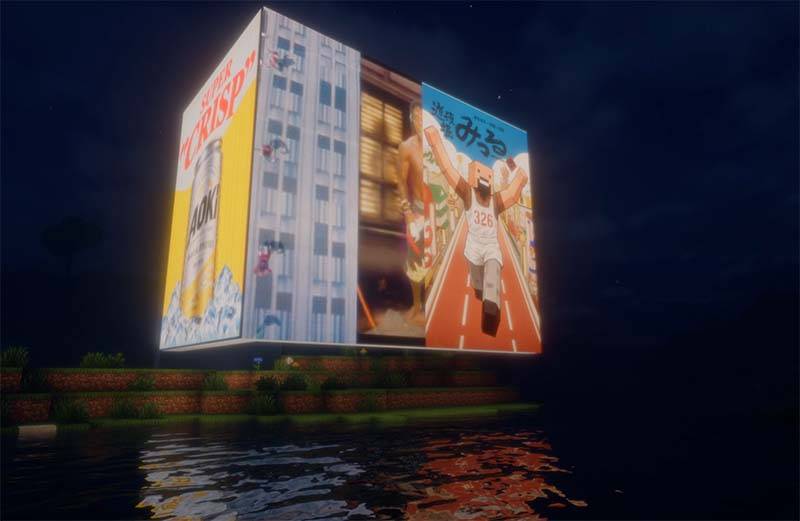
Image Block
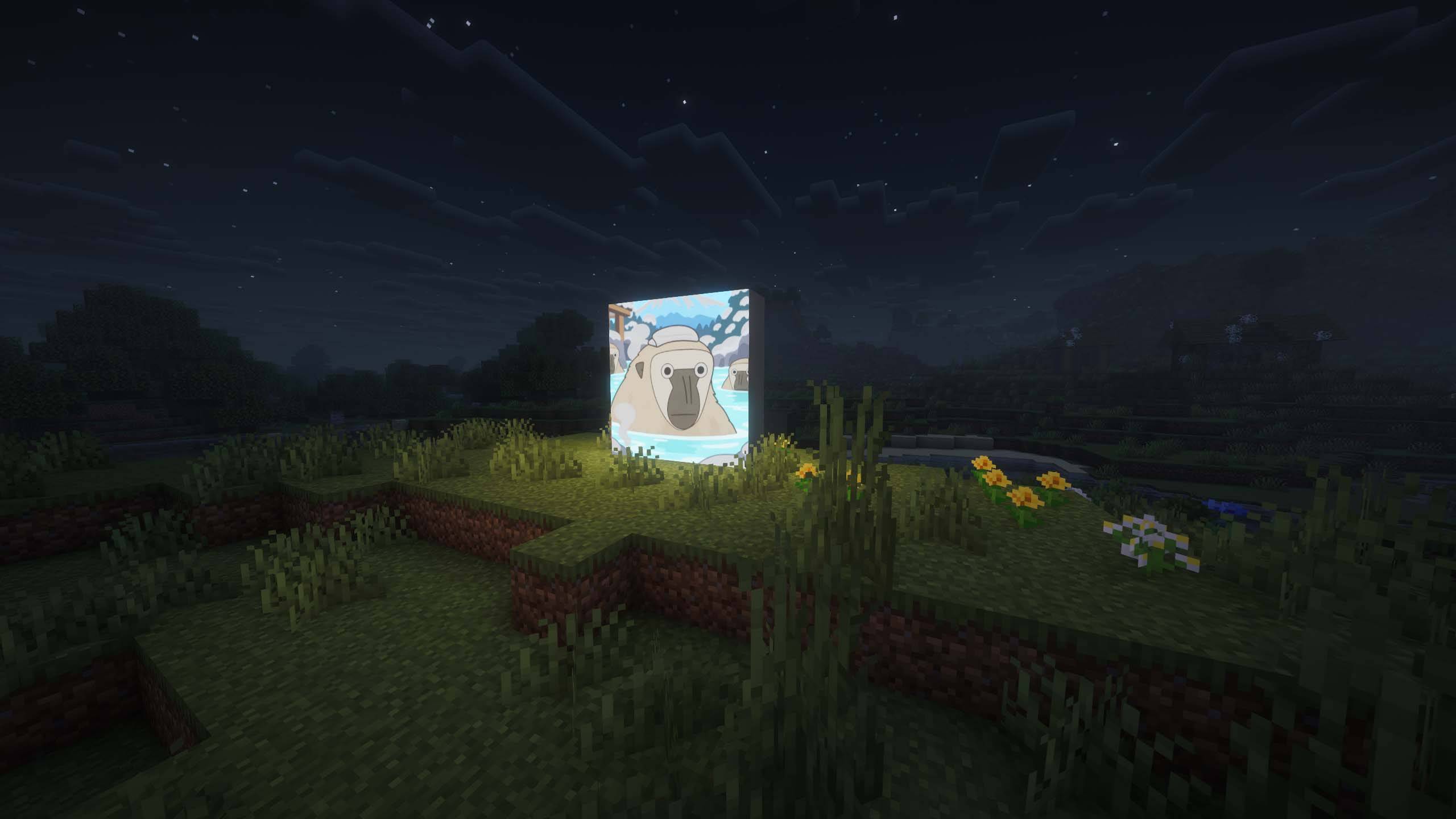
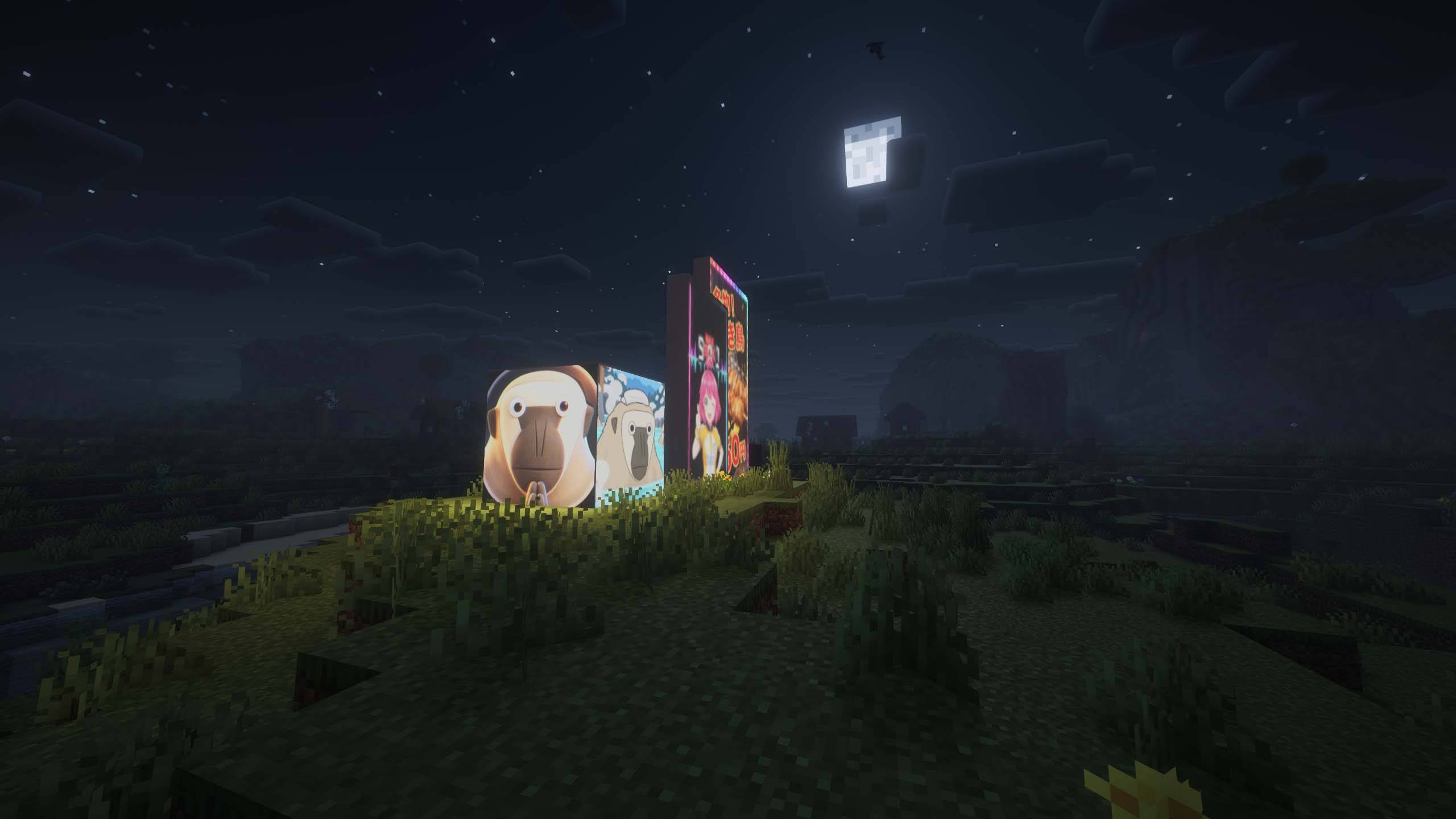
Image Block lets you build persistent image and video displays directly inside your Minecraft world.
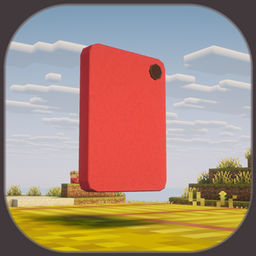
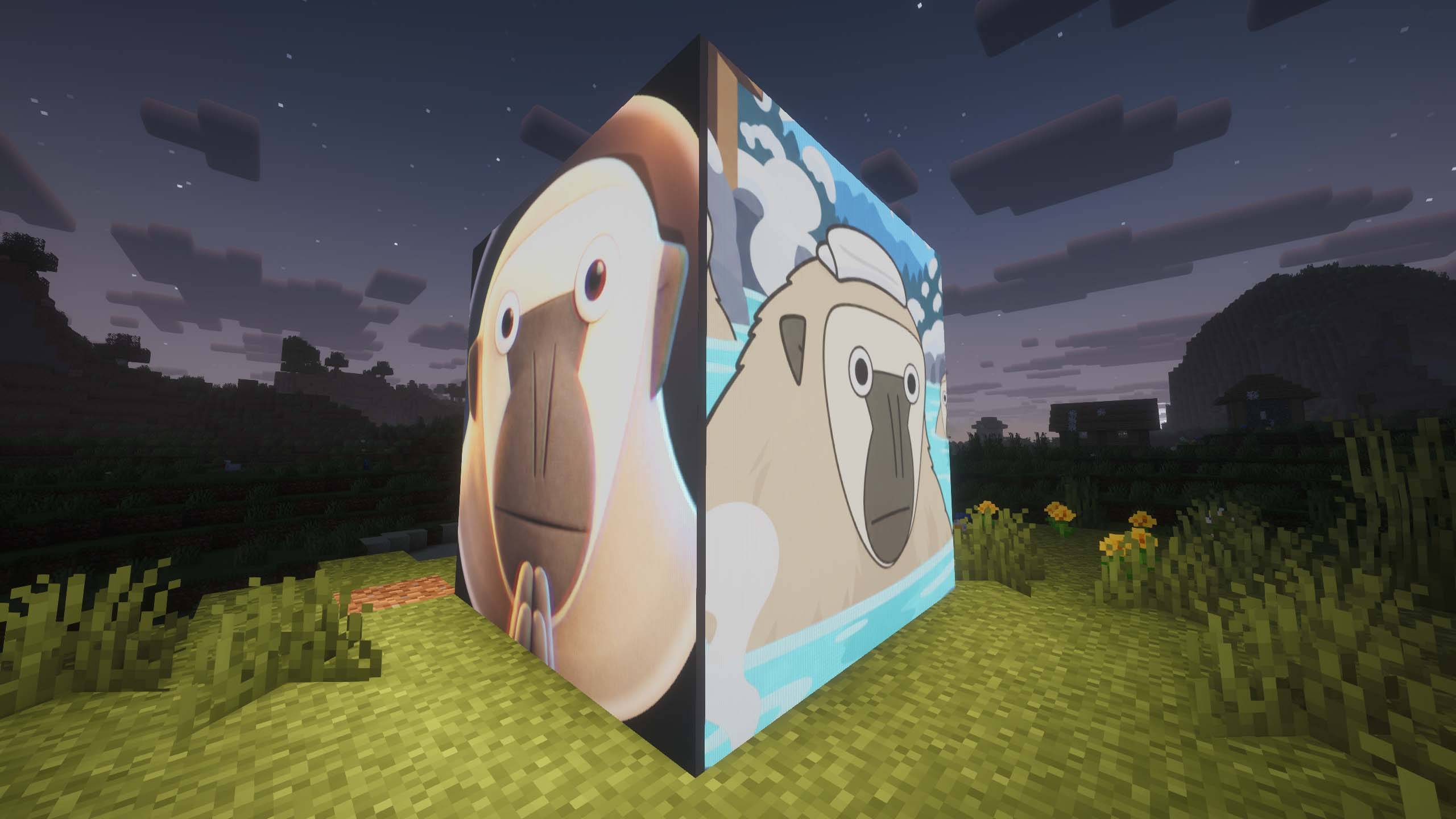
Create anything from a single-block picture to large multi-block screens using dedicated display blocks, then use the Image Wand to define exactly which blocks should act as one display. Displays can be placed on walls, floors, ceilings, and other supported orientations.
Creating a Display
Place Image Block display blocks where you want your screen.
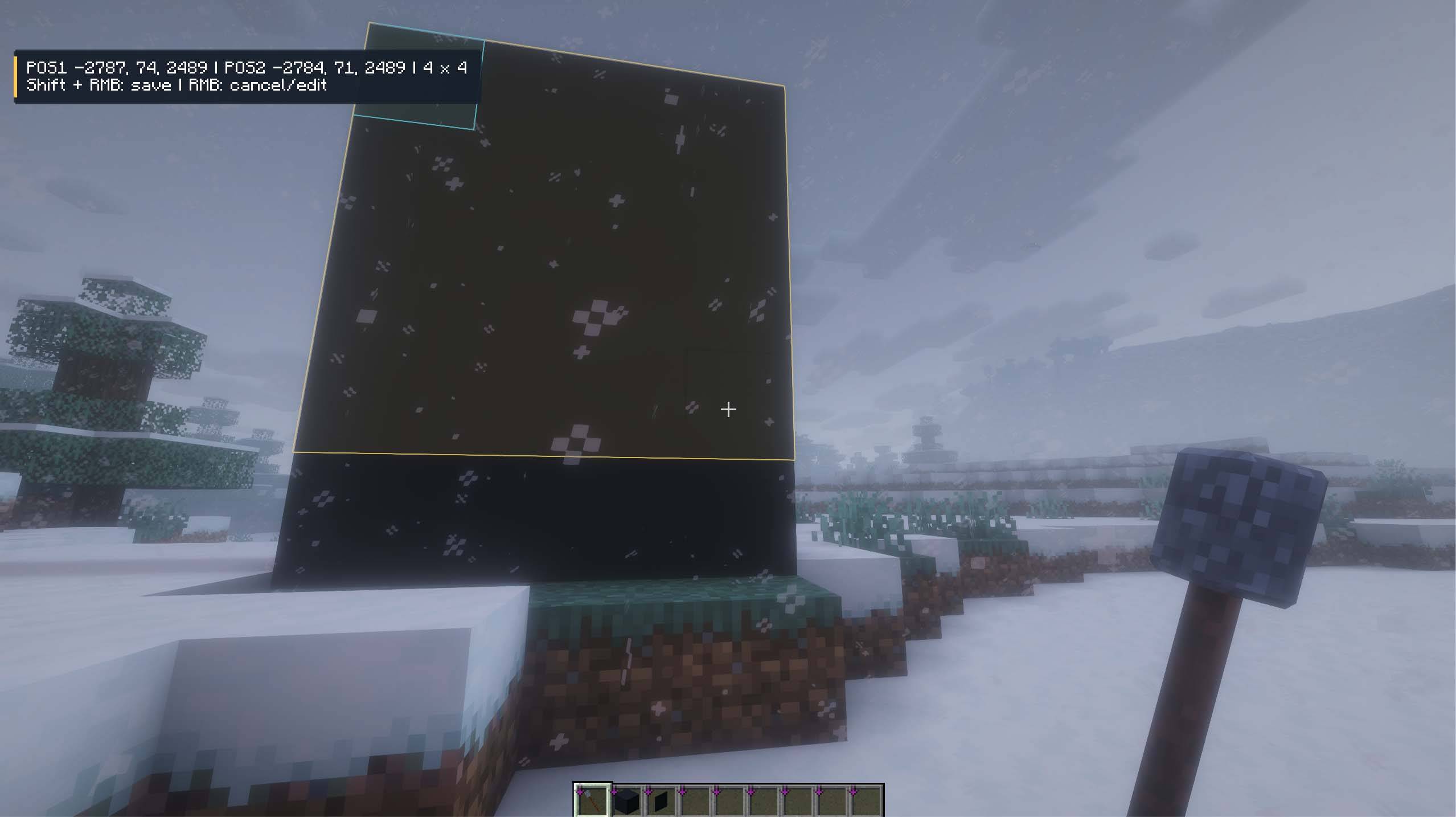
Hold the Image Wand and sneak-right-click two corners to define a rectangular display area. The selection is shown in-world so you can see the display boundary before saving it.
Right-click the display with the Image Wand to open the visual editor.
Images and Videos
Images can be imported directly into the editor by dragging and dropping a local file.
Image Block also supports importing media from web URLs.
Videos can be displayed and automatically loop on the screen. Video playback is synchronized with the display instead of behaving like a temporary client-side overlay, and imported media is stored with the world so displays continue working after restarting the server.
Visual Editor
The editor includes a live preview so you can configure the media before applying it to the display.
Images can be fitted using stretch, contain, or crop-style modes, with adjustable crop positioning and zoom.
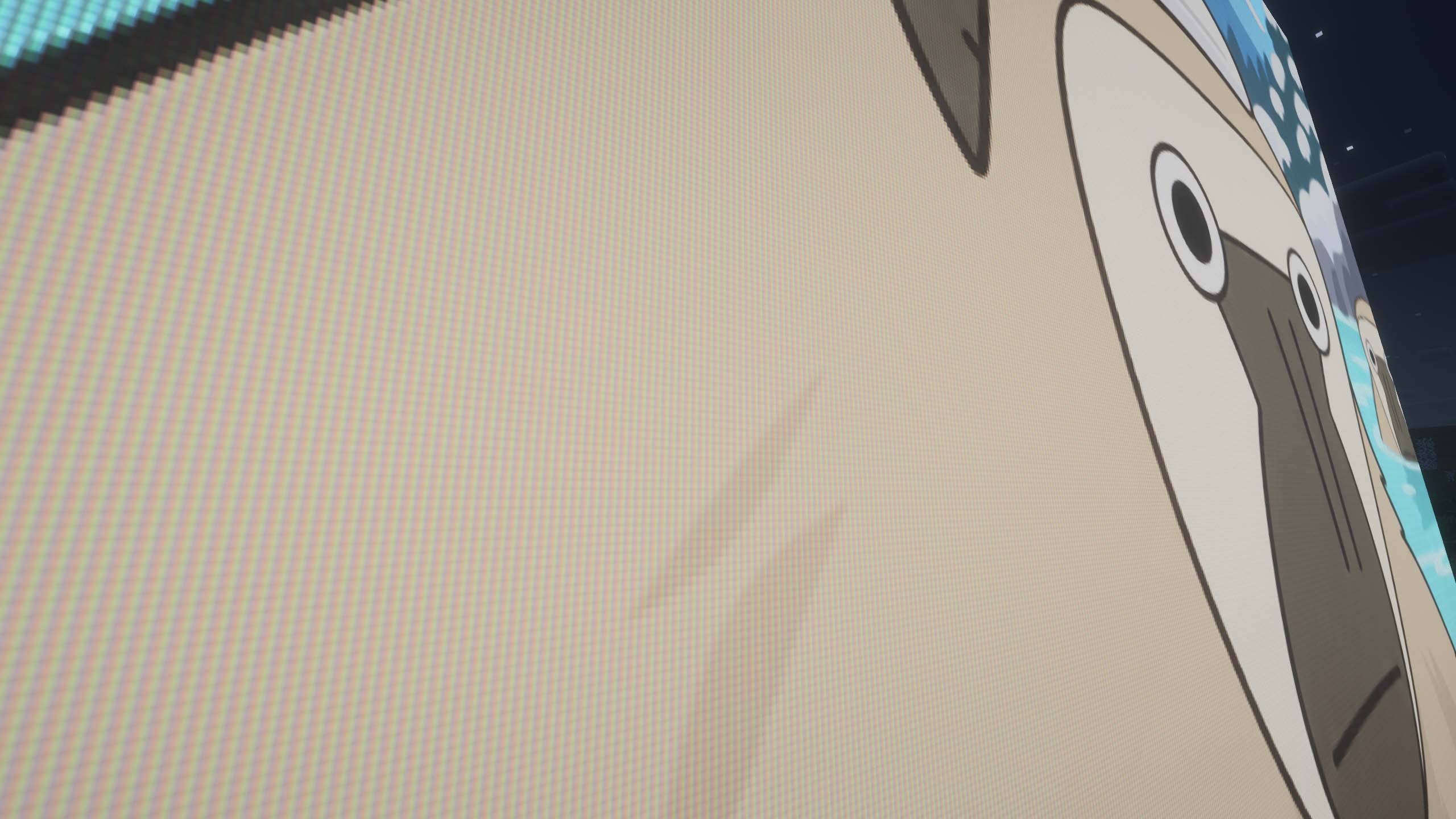
Displays can also use emissive rendering for bright screens and an optional RGB subpixel mode for a more physical display-like appearance.
A separate client setting controls emissive display brightness.
Video Audio
Videos with audio can play sound directly from their display.
Sound can be enabled or disabled per display, and audio settings allow you to adjust both volume and audible range.
Audio is spatial, so the sound comes from the position of the screen in the world and changes as you move around it.
Multiplayer and Persistence
Image Block is designed for multiplayer worlds. Display media, dimensions, visual settings, ownership data, video audio settings, and multi-block display boundaries are stored persistently.
Media is distributed to clients as needed, so players joining or reconnecting can see existing displays without manually importing the original file themselves.
Large adjacent screens can be separated into independent displays, and existing display areas can be reselected with the Image Wand when you want to change their boundaries.
Controls
Sneak + Right-click with the Image Wand selects the first and second corners of a display.
Right-click with the Image Wand opens the selected display in the visual editor.
Drag and drop a media file onto the editor to import it.
Image Block Team