Hudaris
- By
Screenshot 2026-11-08 201723.png
Screenshot 2026-11-08 201752.png
Screenshot 2026-11-08 201836.png
Screenshot 2026-11-08 201846.png

Screenshot 2026-11-08 201900.png
Description
Hudaris — Minecraft HUD Improvements
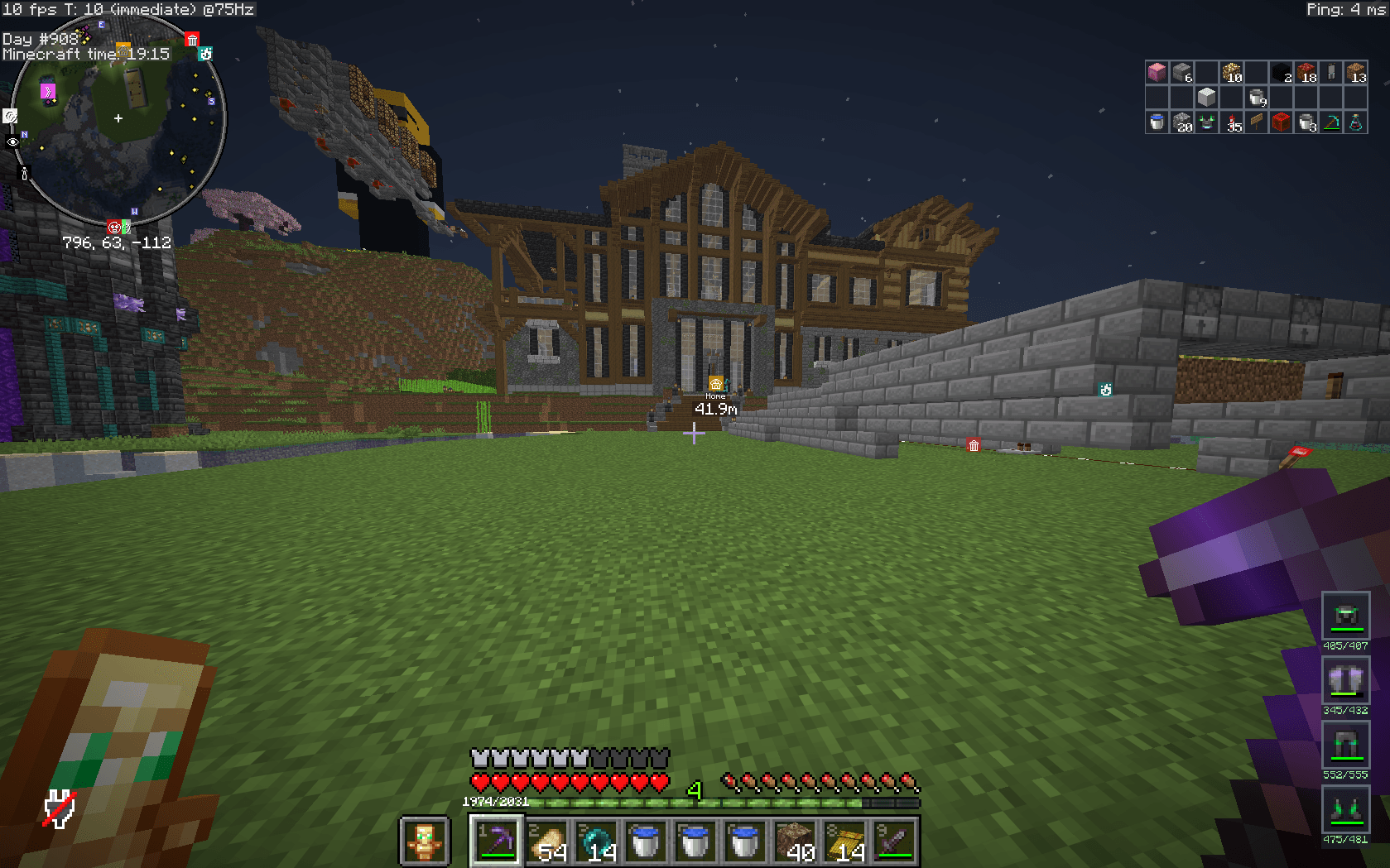
Hudaris is a client-side Fabric mod that puts useful inventory, equipment, and building information into a compact, customisable Minecraft HUD.
Key features
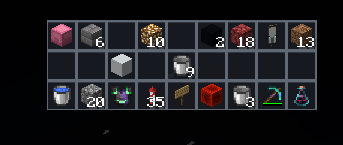
- Inventory HUD — see your main inventory without opening it.
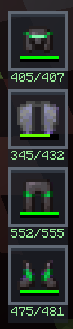
- Armour HUD — equipped armour, durability bars, tiny numbers, and adjustable warnings.
- Held-item durability — durability information for your selected item and offhand.
- Shulker previews — full contents grids for held and hovered shulker boxes.
- Arrow counter — separate arrow types, individual counts, and an optional combined total.
- Totem reminder — warns when neither hand holds a totem and shows your available count.
- Potion timers — remaining durations beneath status-effect icons.
- Compact F3 information — simplified FPS, in-game time, day count, and ping.
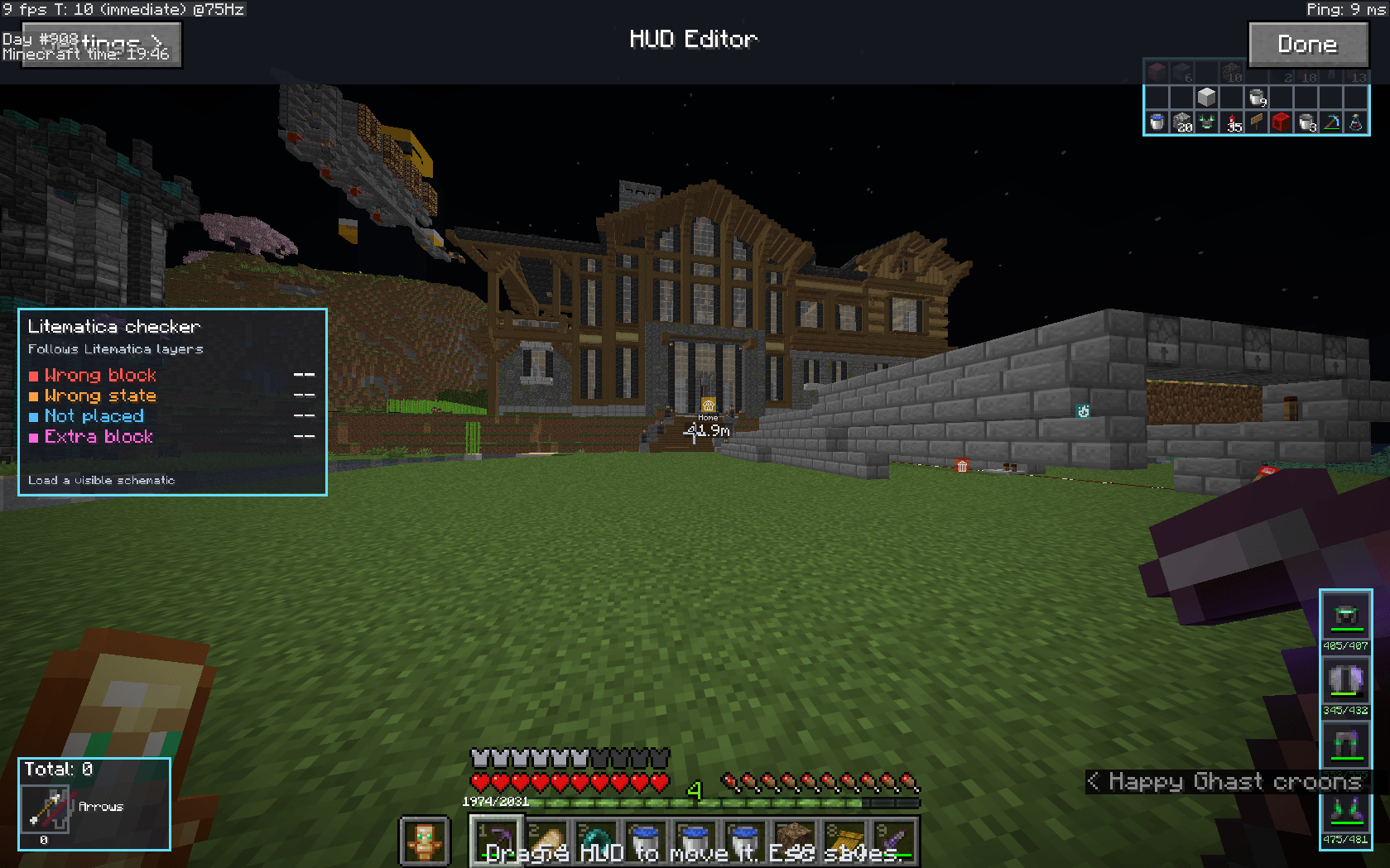
- Litematica checker — colour-coded schematic error counts that follow your displayed layers.
- Draggable HUD editor — visibility toggles, size sliders, saved positions, and grid snapping.
Inventory HUD
See all 27 main inventory slots in their normal 9×3 arrangement, including item counts and durability bars.
The display starts at half the size of hotbar slots, keeping it compact. Move and resize it through the HUD editor.
Armour HUD
Keep track of your equipped helmet, chestplate or elytra, leggings, and boots.
- Hotbar-sized item icons with Minecraft’s normal durability bars.
- Tiny remaining/maximum durability numbers beneath each slot.
- Adjustable durability warning threshold from 0–100%.
- Slots and numbers turn red at or below the selected threshold.
- Setting the threshold to 0% disables the warning.
The panel hides when no armour is equipped.
Held-item durability
Toggle small durability numbers above your selected hotbar item and offhand slot.
Each hand is checked separately whenever its item has durability, letting you monitor tools, weapons, and other damageable equipment.
Shulker box previews
Held shulkers
Selecting a shulker box in your hotbar or holding one in your offhand displays its contents beneath the inventory HUD.
The preview shows the full 27-slot layout, including empty positions, stack counts, and durability bars. If both hands hold shulkers, both previews appear with labels.
Held previews follow the inventory HUD’s position and scale. They move above it when there is insufficient space below.
Hovered shulkers
Hover over a shulker box in an open inventory or container to see a compact contents grid above its slot. Near the top of the screen, the preview can appear below the slot instead.
The grid replaces the abbreviated contents list while retaining the box’s name, lore, and other tooltip information.
Held and hovered previews have separate toggles. They are read-only and do not open or modify the box. Contents must be available in the item data sent by the server.
Arrow counter
Track normal, spectral, and tipped arrows with separate icons, labels, and counts.
Normal arrows appear first, followed by spectral arrows and tipped-arrow variants. Different potion variants remain separate, while matching stacks combine across your main inventory and offhand.
An optional combined total appears above the list. Choose when the counter appears:
- Holding bow — shown while holding a bow or crossbow in either hand.
- Always — continuously visible.
- Never — hidden.
The panel can be moved and resized. Counts exclude projectiles already loaded into crossbows and arrows stored inside containers.
Totem reminder
Enable a top-screen reminder when neither hand holds a Totem of Undying. It also shows how many totems you have in your main inventory and offhand.
Holding a totem in either hand hides the reminder. Totems inside containers are not included.
Potion-effect timers
Add small remaining-duration timers beneath Minecraft’s normal status-effect icons.
Infinite effects display an infinity symbol, and the effect rows receive extra spacing for the timers. The feature can be toggled independently.
Compact F3 information
Use Minecraft’s F3 + F6 options, or the editor’s F3 / Time page, to control these readouts:
- FPS — a compact
FPS: 120display without the extra frame-limit and monitor-refresh details. - Time — Minecraft’s in-game time, displayed as
Time: HH:MM. - Day count — Minecraft’s existing day-count entry.
- Ping — your server-reported player-list latency in milliseconds.
Choose Never, In F3, or Always. Always-visible entries remain on screen when the F3 overlay is closed.
Optional Litematica checker
With compatible versions of Litematica and MaLiLib installed, Hudaris can automatically compare visible schematic regions with your world.
The checker displays:
- Red — Wrong block: a different block type is present.
- Orange — Wrong state: the block has the wrong direction, activation, or another state.
- Blue — Not placed: a required block is missing.
- Magenta — Extra block: a block exists where the schematic expects air.
When Litematica’s different-material grouping is enabled, relevant yellow material differences are displayed separately.
The checker follows Litematica’s active render-layer settings, including single layers, ranges, above/below modes, and X, Y, or Z axes. It respects enabled, rendered subregions, avoids double-counting overlapping regions, and follows Litematica’s fluid, crop-age, and ignored-existing-block settings.
No manual verifier run is required. The panel hides when no visible schematic placement is available or Litematica rendering is disabled.
Counts cover loaded client chunks only. Scanning runs in batches, with progress shown during checks and refreshes. It checks block types and states, rather than entities, block-entity data, or container contents.
HUD editor
Press ' (apostrophe) to open the editor. Change the key under Options → Controls → Key Binds → Debug → Open HUD Editor.
- Drag the inventory, armour, arrow, and schematic-checker panels.
- Adjust panel sizes from 25–200%, with automatic fitting for smaller screens.
- Toggle features independently.
- Enable grid snapping with seven grid sizes: 2, 4, 8, 10, 16, 20, or 32 GUI pixels.
- Reset the layout or manually refresh the schematic checker.
- Save settings automatically between sessions.
Open the collapsible sidebar to access settings. Left-click its page button to advance, or right-click to go back. Both directions wrap around the page list.
Requirements
- Minecraft Java Edition 26.3
- Fabric Loader 0.19.3 or newer
- Fabric API for Minecraft 26.3
- Java 25
- Optional: compatible Litematica and MaLiLib versions for schematic checking
Hudaris runs on the client and does not require installation on the server. Install one Hudaris version at a time, removing the previous jar when updating.
Creator and testing
Created by Henry, known in Minecraft as Clytron100.
All features have been tested in-game.
Hudaris Team