GGG JEI Plugin
- By
Enable modpack creators to easily define custom recipe pages in JEI using just two JSON files.
This mod provides a lightweight method for loading new JEI tabs. It allows you to add new interfaces to JEI using just two JSON files located in the config folder.
For a step-by-step guide, please check the author's tutorial video on Bilibili .Author's Modding Tutorial Video
Upon the first launch, this mod will automatically generate page template configuration (
templates.json) and recipe configuration (template_recipes.json) files in the ./config/ggg_jei_plugin/ directory. If they aren't generated, you can create them manually.templates.json is the template configuration file. It can be edited via a web-based editor launched by the tools/open_jei_layout_editor.bat file (available at the download link provided by the author). Detailed instructions on how to use the web editor are included in the mod tutorial. The JSON structure is explained below.
Initialization & Files Upon first launch, this mod will automatically generate the JEI page template configuration (templates.json) and the recipe configuration (template_recipes.json) in the ./config/ggg_jei_plugin/ directory. If they are not generated, you can create them manually.
templates.json is the template configuration file. It can be edited via a web-based editor launched by the tools/open_jei_layout_editor.bat file (available at the download link provided by the author). Detailed instructions on how to use the web editor are included in the mod tutorial. The JSON structure is explained below.
📄 templates.json Structure
{
  "id": "vanilla_demo_smelting_info",
  // The recipe ID recognized by JEI. Use your own unique name to avoid conflicts.

  "title": "Vanilla Demo",
  // The name of the page in JEI (e.g., displays as "Crafting Table" above the table).

  "icon": "minecraft:furnace",
  // The icon for the JEI tab and the top-left machine icon. Uses the item ID.

  "width": 176,
  // Page width

  "height": 132,
  // Page height

  "elements": [ ... ] // List of elements
}
🧩 Elements List
This section lists element types. JEI uses these to identify inputs and outputs. Here is an introduction to common types:
Item Slot
{
  "type": "item",
  // Slot attribute. For item slots, this is defined by JEI as "item". Do not modify.

  "key": "machine",
  // The key name used for this slot in the recipe. Can be customized, but must match the recipe config.

  "role": "catalyst",
  // Slot role defined by JEI: "input" (reagent), "output" (product), or "catalyst". See details below.

  "value": "minecraft:furnace",
  // The default item rendered in this slot. Can be left empty and filled later by the recipe import.

  "x": 8,
  "y": 8,
  // Coordinates

  "w": 18,
  "h": 18
  // Size
}
Note on role: This defines the slot type for JEI. output slots will appear slightly larger. This also affects navigation: pressing R on an output item leads to this page, while pressing U on other items leads here. Theoretically, placing everything except output into input won't break the visual layout, as recipes and JEI display logic are separate.
Arrow Icon
{
  "type": "arrow",
  "key": "arrow",
  "role": "render_only",
  // Icons with type "arrow" default to "render_only". These are ignored by the recipe JSON.
  "value": "",
  "x": 76,
  "y": 39,
  "w": 24,
  "h": 12,
  "color": "#404040"
}
Text Box
{
  "type": "text",
  "key": "notes",
  "role": "render_only",
  "value": "This is a sample JEI page using only vanilla items.",
  // Default text displayed if no text is passed from the recipe JSON.
  "x": 12,
  "y": 96,
  "w": 152,
  "h": 24,
  "color": "#404040"
}
Note: The key cannot be random because the text value can be modified by the recipe configuration.
Box (Border)
{
  "type": "box",
  "key": "note_box",
  "role": "render_only",
  "value": "",
  "x": 6,
  "y": 90,
  "w": 164,
  "h": 34,
  "color": "#404040"
}
Simply draws a box/border.
📝 Recipe Configuration
That covers the basics of the Template JSON. Below is the Recipe JSON.
Important: The template ID used in the recipe must match the template ID exactly. The available keys inside are determined by the template definition.
{
  "id": "vanilla_demo_iron_ingot",
  // Recipe ID

  "templateId": "vanilla_demo_smelting_info",
  // The ID of the template used. Must exist.

  "values": {
    // The keys here are determined by what was defined in the template.

    "machine": "minecraft:furnace",
    // Makes the slot with key "machine" in the template display a Furnace.

    "input": "minecraft:iron_ore",
    // Makes the slot with key "input" display Iron Ore.

    "fuel": "minecraft:coal",
    // Makes the slot with key "fuel" display Coal.

    "output": "minecraft:iron_ingot",
    // Makes the slot with key "output" display Iron Ingot.

    "notes": "Example: Iron Ore + Coal in a Furnace yields Iron Ingot. This does not register a real recipe; it is for demonstrating JEI template data."
    // Makes the slot with key "notes" display this text! (Must be a 'text' type in the template)
  },

  "counts": {
    // Defines the stack size/quantity for each key.
    "input": 1,
    "fuel": 1,
    "output": 1
  },

  "notes": [
    "Example: Iron Ore + Coal in a Furnace yields Iron Ingot..."
  ]
  // Passed twice (redundant field)
}
The definitions above cover the internal structure of both JSON files. For the overall JSON structure, please refer to the author's Bilibili video tutorial or check the files in examples/vanilla_demo within the Quark Netdisk folder.
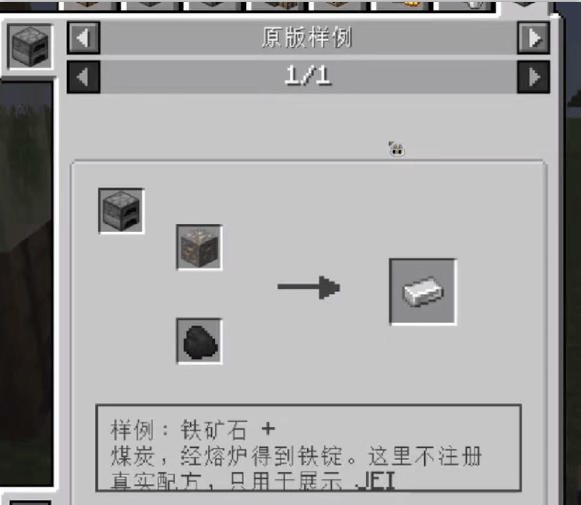
The result of the configuration above looks like this:
Feel free to share your finished templates.json so others can use your custom page layout instantly. Alternatively, you can always use the web editor.
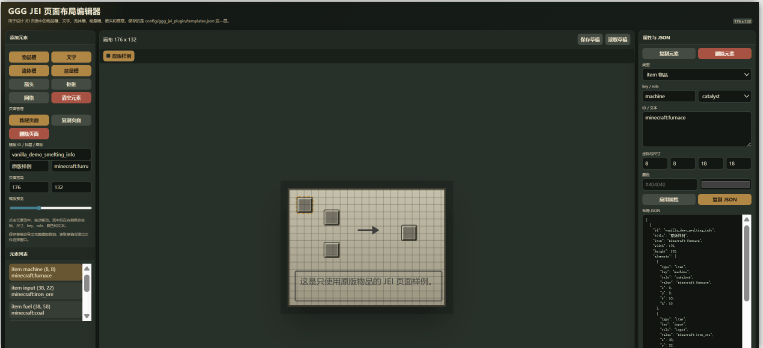
but, i do not know how to updata the web editor to curseforge XD.
so if you want use the web editor,you can find a Quark cloud storage link in BIlibili's video description......
it is a china cloud,maybe need a china's phone number? qwq
wow. I add the editor to github, you can find it in Source
ch_zn
本模组以轻量化的方式提供一种JEI新标签页的加载方法
使用两个config中的json为jei添加新的界面
使用教程可查看链接中的b站作者视频教程
本模组在第一次加载时会在./config/ggg_jei_plugin/目录中添加jei页面模板配置文件"templates.json"和jei配方配置文件"template_recipes.json"。如果模组没有生成可以自行添加。
templates.json为模板配置文件,该文件可由作者提供的网盘链接中的tools/open_jei_layout_editor.bat启动的web端中编辑,web端使用放在模组教程中详细说明。在此说明json结构。
"id": "vanilla_demo_smelting_info",
               //jei识别的配方id,如果有冲突会报错,魔改作者尽量使用自己的名字
"title": "原版样例",
              //jei中页面的名称,例如工作台上面显示为工作台
"icon": "minecraft:furnace",
              //jei标签页和左上角机器的图标,填写为机器id(其实写啥都可以)
"width": 176,
              //页面的宽度
"height": 132,
              //页面的高度
"elements": 元素列表
元素列表罗列元素的类型,jei识别输入输出。在此对常用类型进行介绍
物品格子
{
  "type": "item",
              //格子属性,物品格子为item此类由JEI定义,不可修改
  "key": "machine",
              //在这个配方中本格子使用的key名称,可随意修改,只要配方配置文件中与之匹配即可
  "role": "catalyst",
              //格子类型,物品格子类型为JEI定义,分为input反应物,output生成物,catalyst催化剂。在下方细说分别
  "value": "minecraft:furnace",
              //本格子默认渲染哪个物品,可以留空,后续由配方导入,
  "x": 8,
  "y": 8,
             //坐标
  "w": 18,
  "h": 18
            //大小
}
role为JEI定义的格子类型。output会自动变大一点。同时会影响如何跳转到这个页面。默认是output的物品被R一下能到这个页面,其他物品被U一下能到这个页面。理论上除了output之外其他的全都放在input也不会影响页面,因为配方是配方,JEI显示是JEI显示。
{
  "type": "arrow",
  "key": "arrow",
  "role": "render_only",
  "value": "",
  "x": 76,
  "y": 39,
  "w": 24,
  "h": 12,
  "color": "#404040"
}
一个箭头。tpye为arrow的图标默认role都是"render_only"只读的,配方json中不处理这部分
{
  "type": "text",
  "key": "notes",
  "role": "render_only",
  "value": "这是只使用原版物品的 JEI 页面样例。",
              //配置为默认显示文本,当配方json不传入文本时默认这段文本
  "x": 12,
  "y": 96,
  "w": 152,
  "h": 24,
  "color": "#404040"
}
一段文本,注意key不能是随意的,因为文本框的值是可以被配方修改的。
{
  "type": "box",
  "key": "note_box",
  "role": "render_only",
  "value": "",
  "x": 6,
  "y": 90,
  "w": 164,
  "h": 34,
  "color": "#404040"
}
一个框框,用于画一个框框,就是一个框框而已
模板json配置基础部分就是这样,以下是配方json
注意:配方使用的模板id必须与模板id相同,内部key有啥也是由模板决定的
{
  "id": "vanilla_demo_iron_ingot",
          //配方id
  "templateId": "vanilla_demo_smelting_info",
          //使用的模板的id,必须存在
  "values": {
          //这部分的key有什么由模板里面定义了什么决定
    "machine": "minecraft:furnace",
          //让模板中key为machine的格子显示熔炉
    "input": "minecraft:iron_ore",
          //让模板中key为input的格子显示铁矿
    "fuel": "minecraft:coal",
          //让模板中key为fuel的格子显示煤炭
    "output": "minecraft:iron_ingot",
          //让模板中key为output的格子显示铁锭
    "notes": "样例:铁矿石 + 煤炭,经熔炉得到铁锭。这里不注册真实配方,只用于展示 JEI 模板数据。"
          //让模板中key为notes的格子显示文本!这里模板里面必须是text类型
  },
  "counts": {
          //这个用于记录各个key对应的物品的数量
    "input": 1,
    "fuel": 1,
    "output": 1
  },
  "notes": [
    "样例:铁矿石 + 煤炭,经熔炉得到铁锭。这里不注册真实配方,只用于展示 JEI 模板数据。"
  ]
          //传两次
}
以上是两个json内部的定义,关于json整体结构的可以查看作者b站视频教程或者取用夸克网盘中的文件,在examples/vanilla_demo中找到本介绍页面的两个文件
按以上配置得到的效果为:
你也可以直接将编辑好的templates.json发给其他人,使其他人可以直接使用编辑好的页面配置文件。当然也可以使用web端的编辑器
GGG JEI Plugin Team