


FTB Quests UI Overhaul!
- By

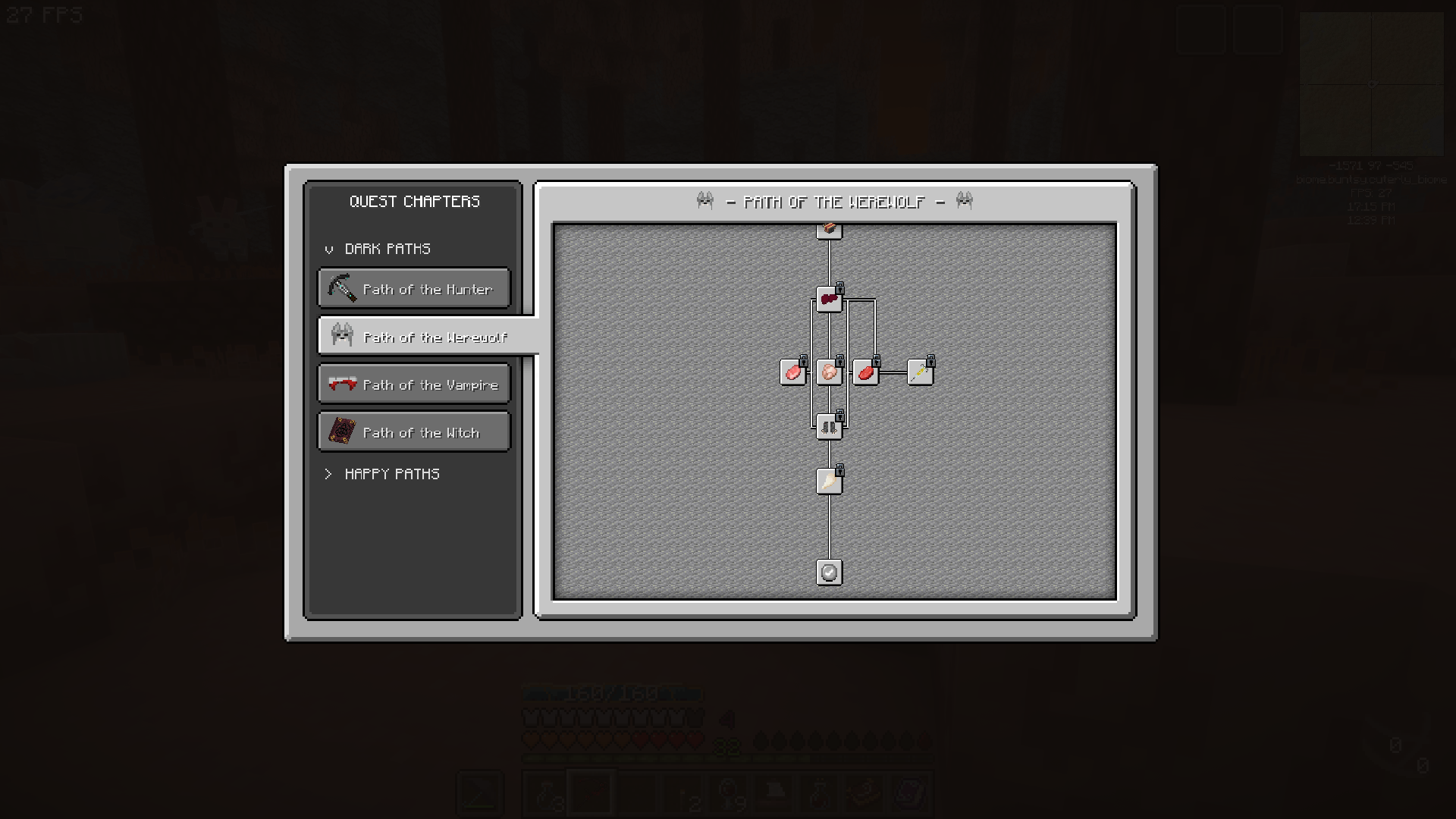
Welcome to the Overhauled UI of FTB Quests! Drag mouse to pan, scroll wheel to scroll.
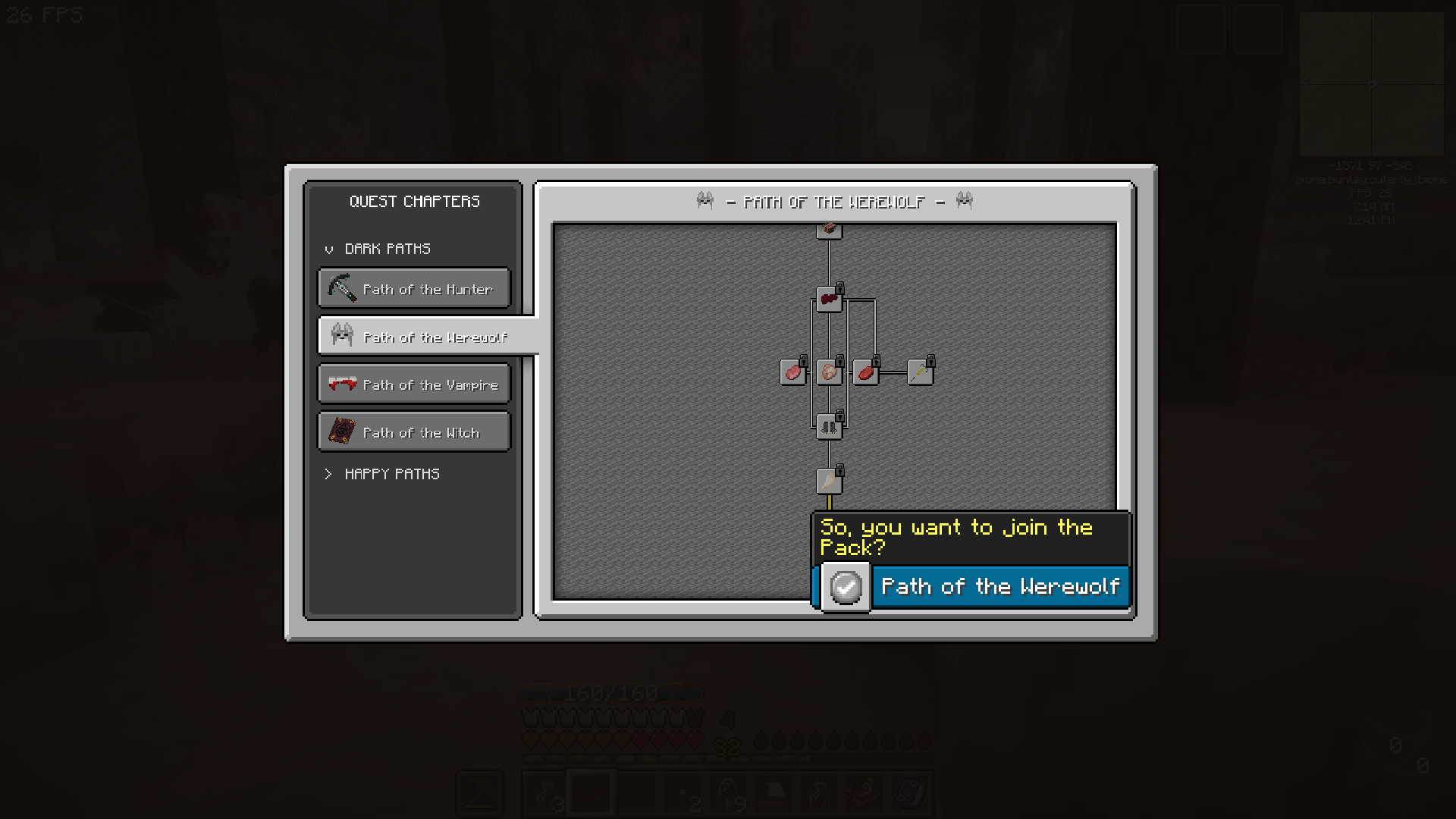
Quickly check the quest by hovering mouse over quest tree. Click to see more info.
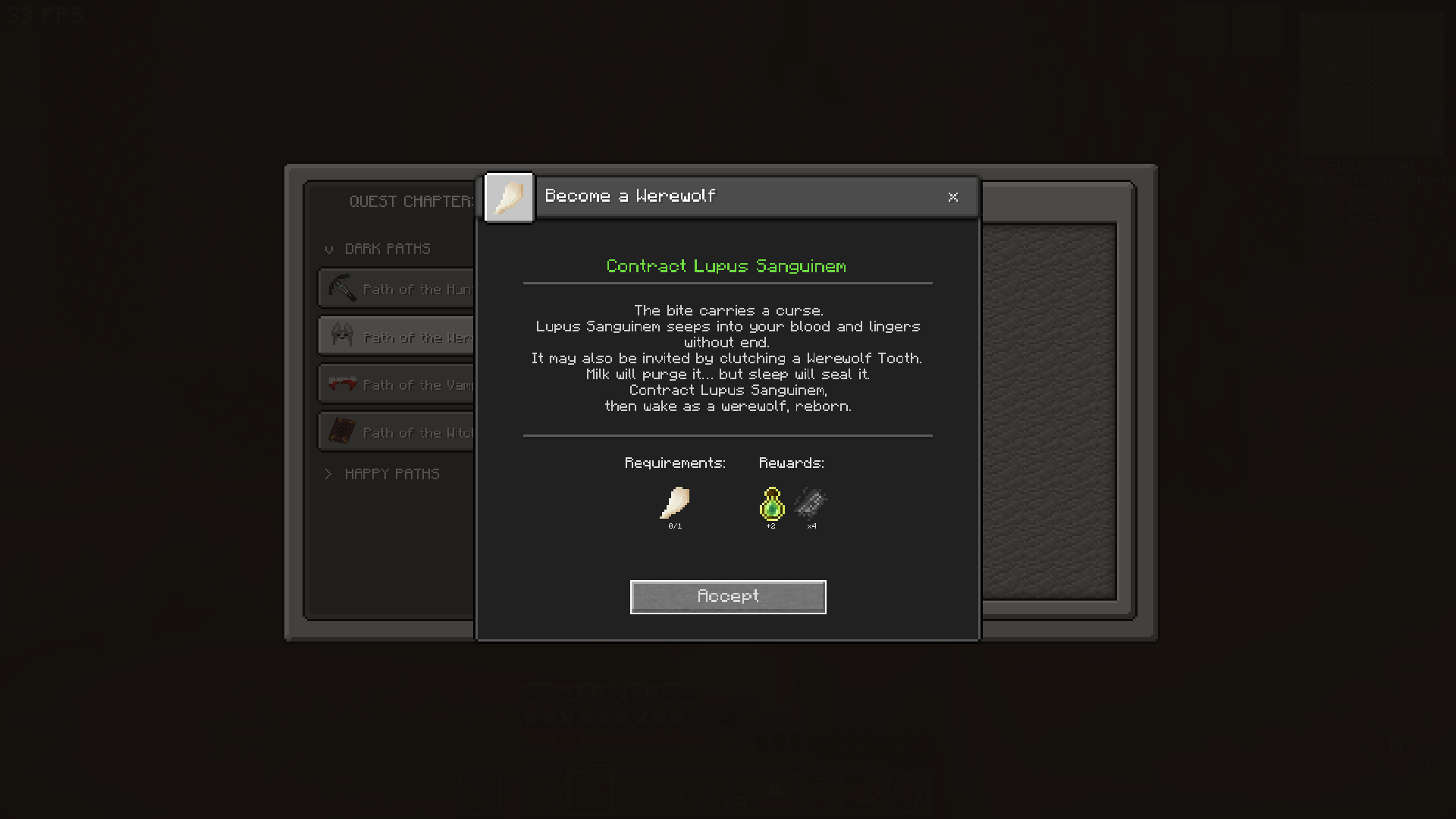
Quest Window has been simplfied - Press Accept to start tracking the quest.
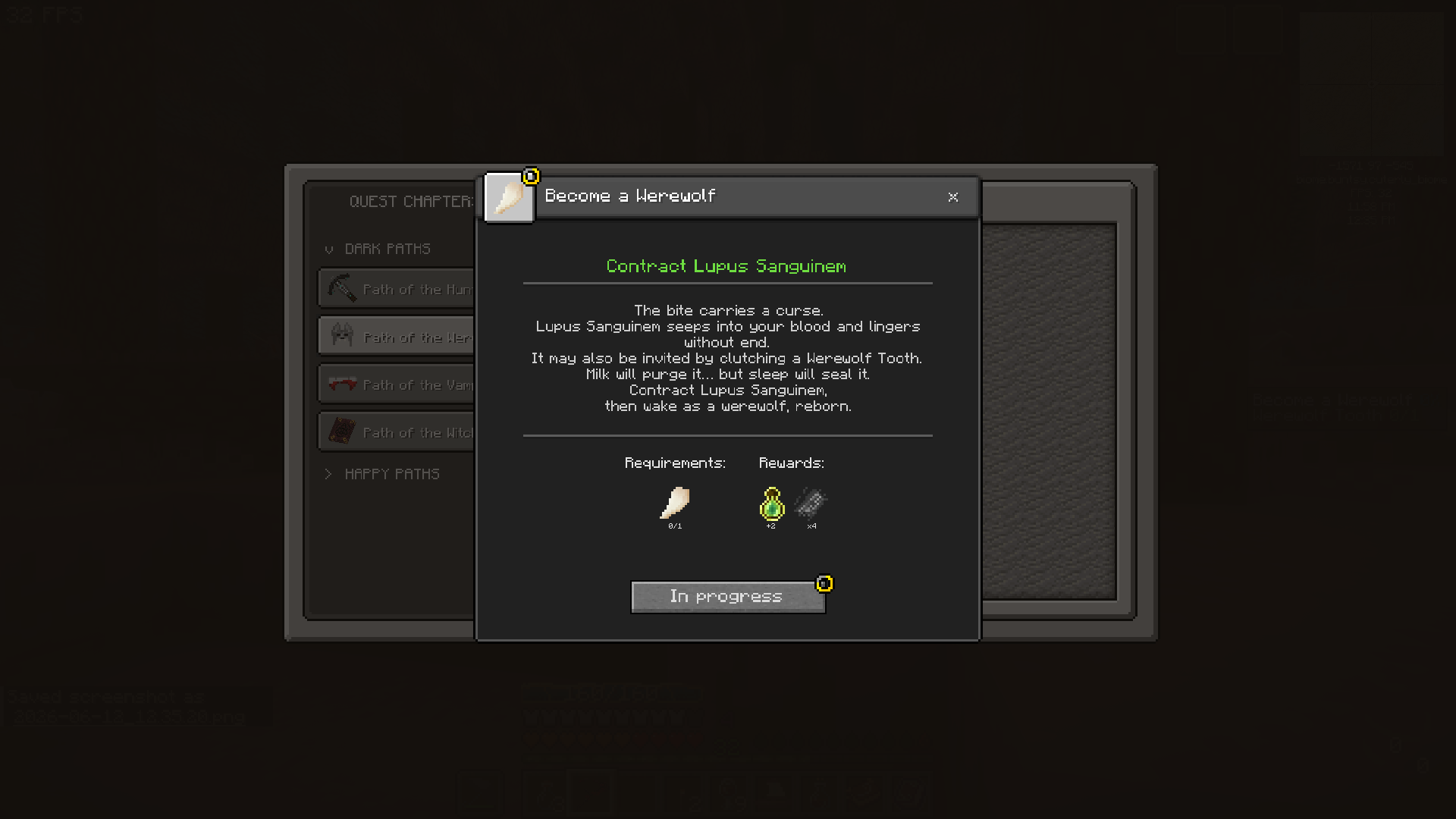
The quest is now in progress - requirements will be displayed on FPV screen. F8 to hide tracking info. Cancel with cancel button or F7.
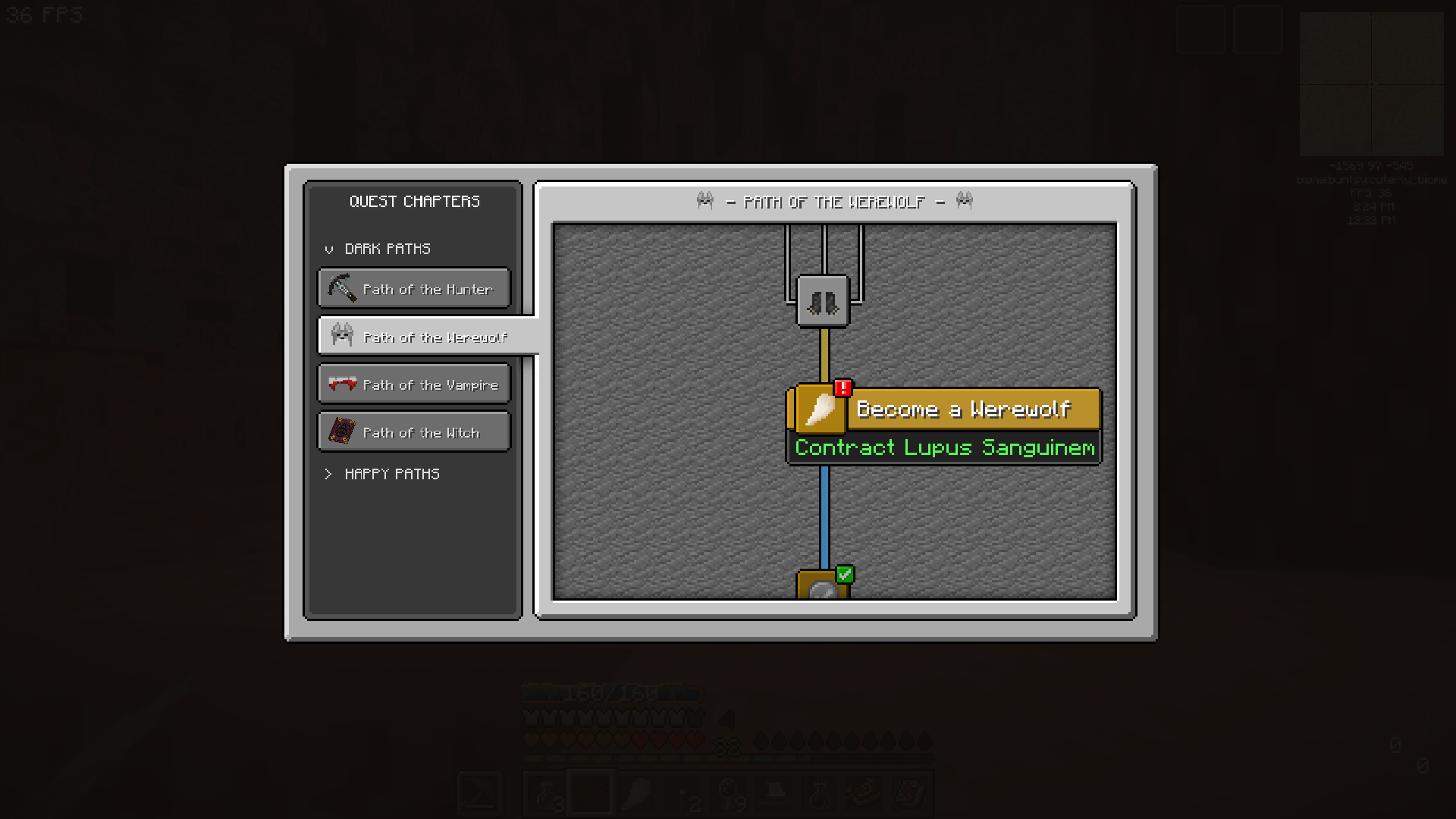
The red '!' will be displayed on various parts of the UI to alert you that a quest can be handed in.
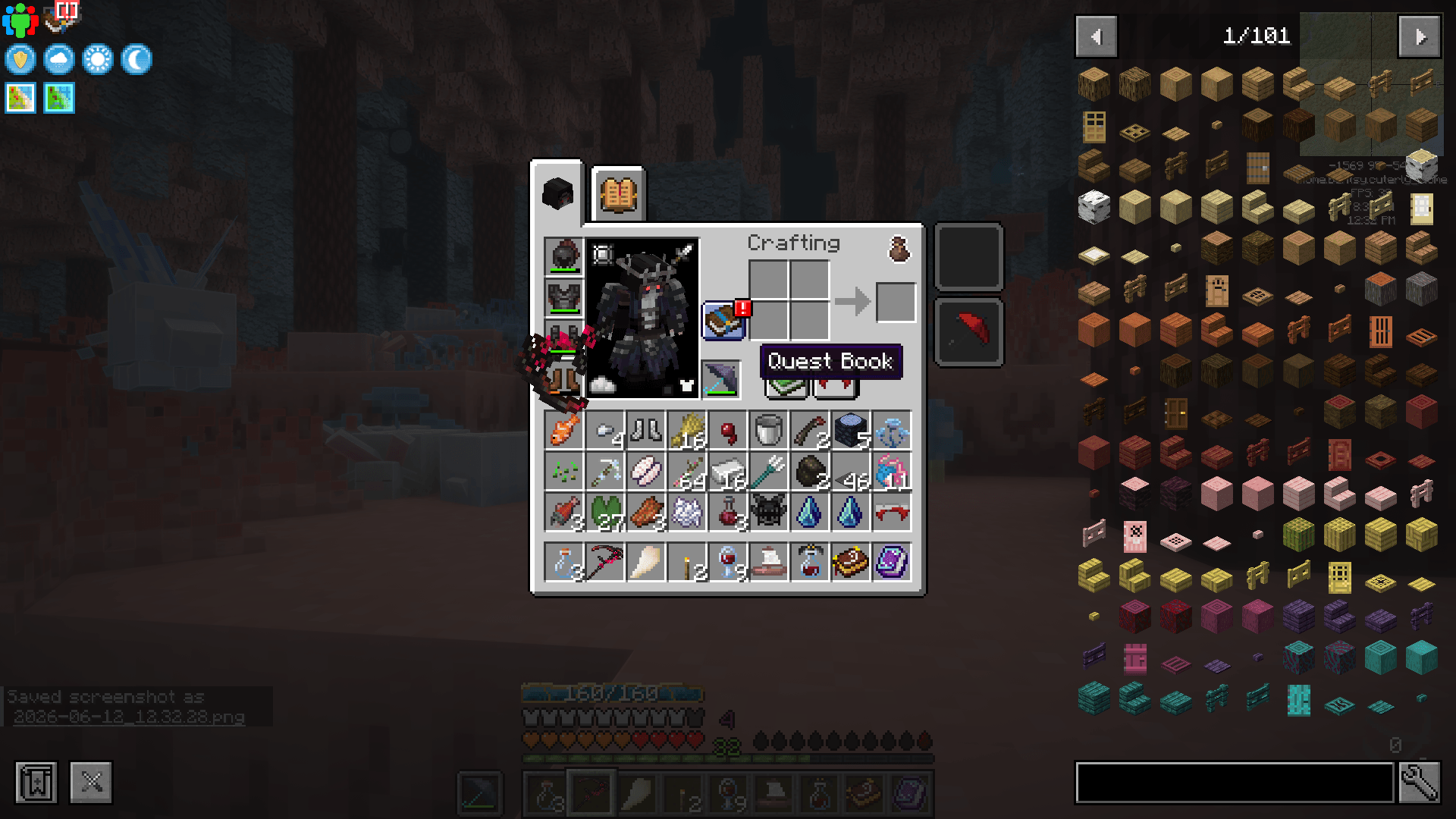
Useful shortcut button for the Quest Book
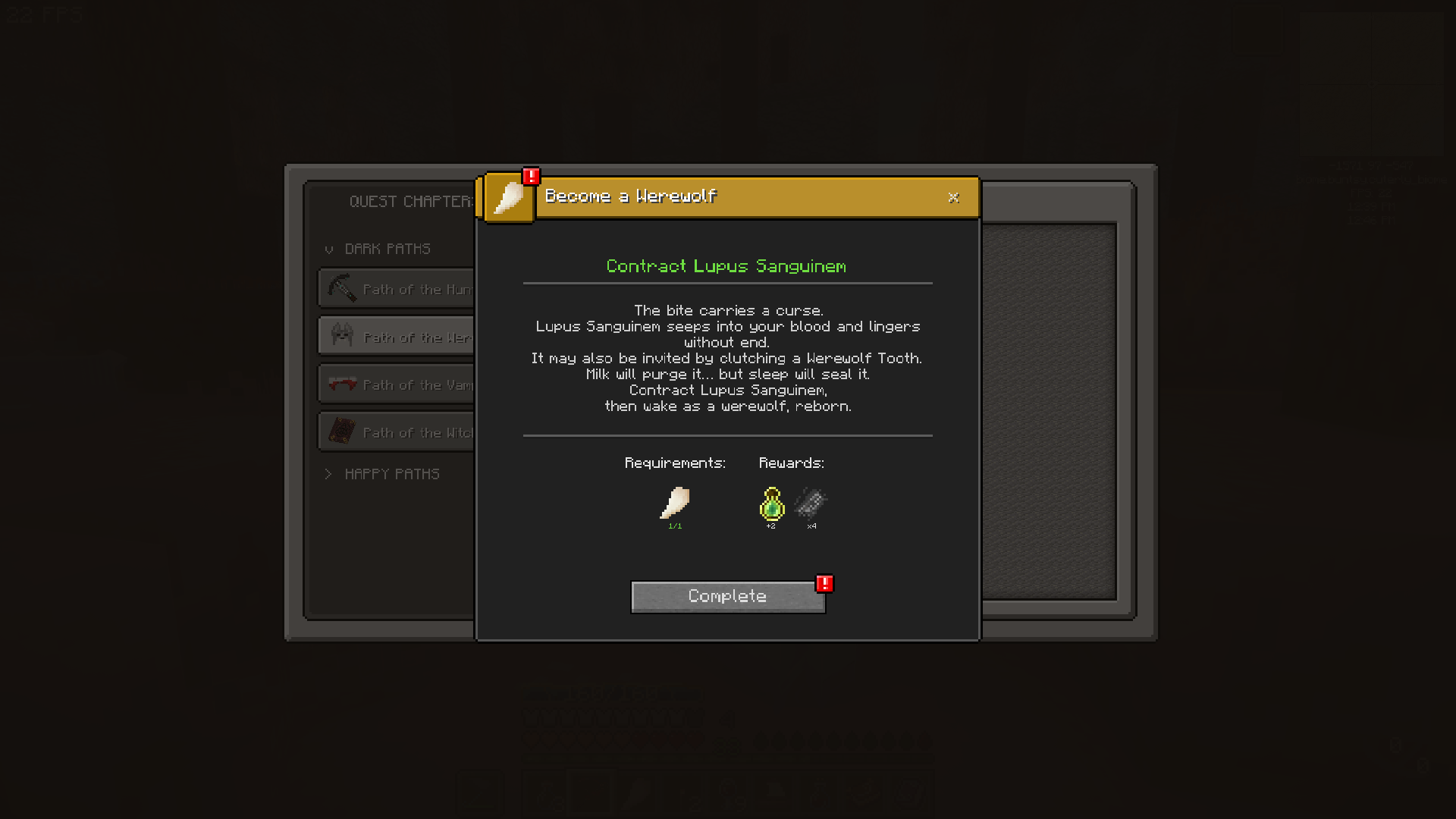
When you have completed the requirements, a quest can be handed in.
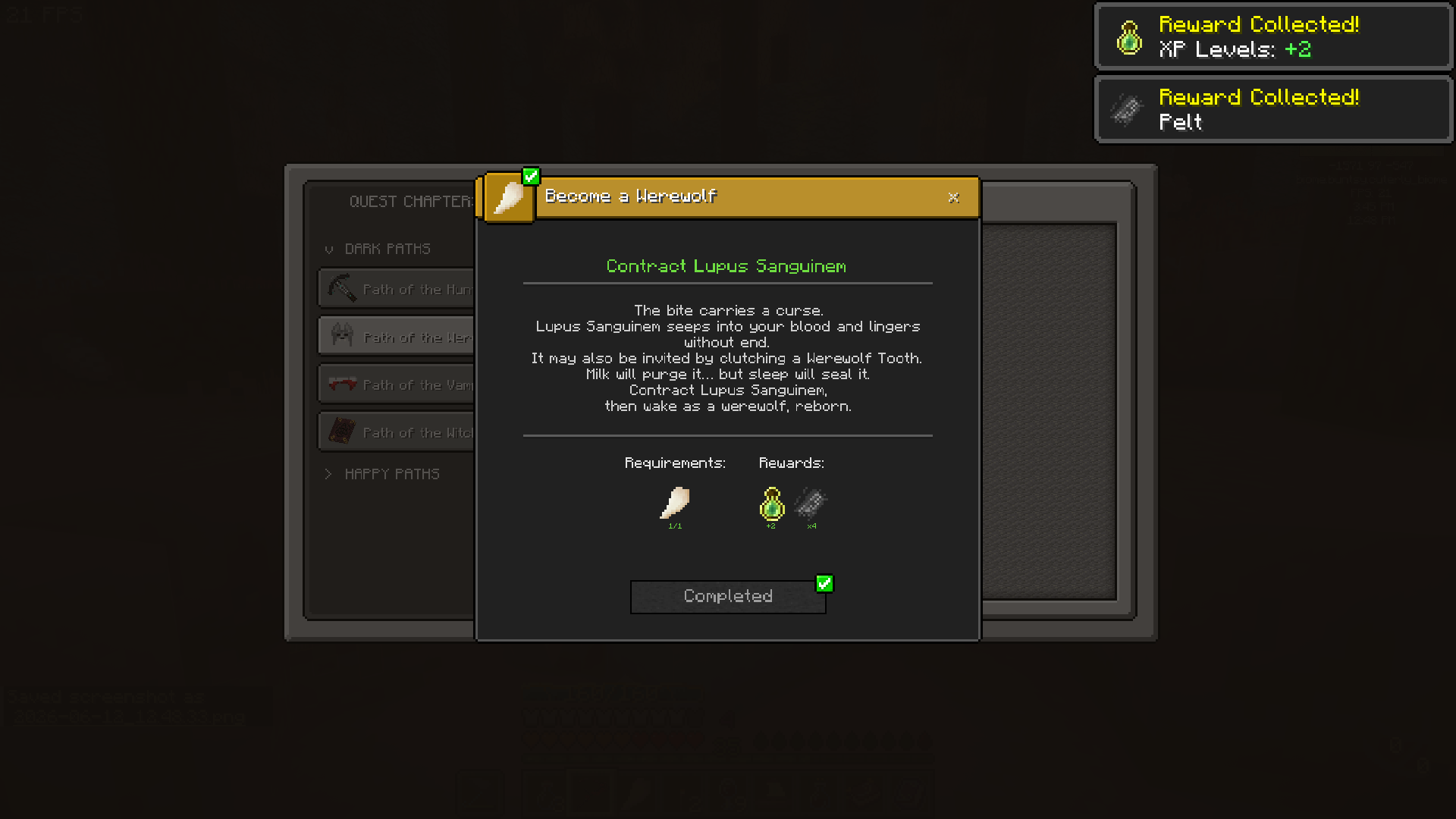
Click Complete to collect all your rewards! *Jingle Sound!*
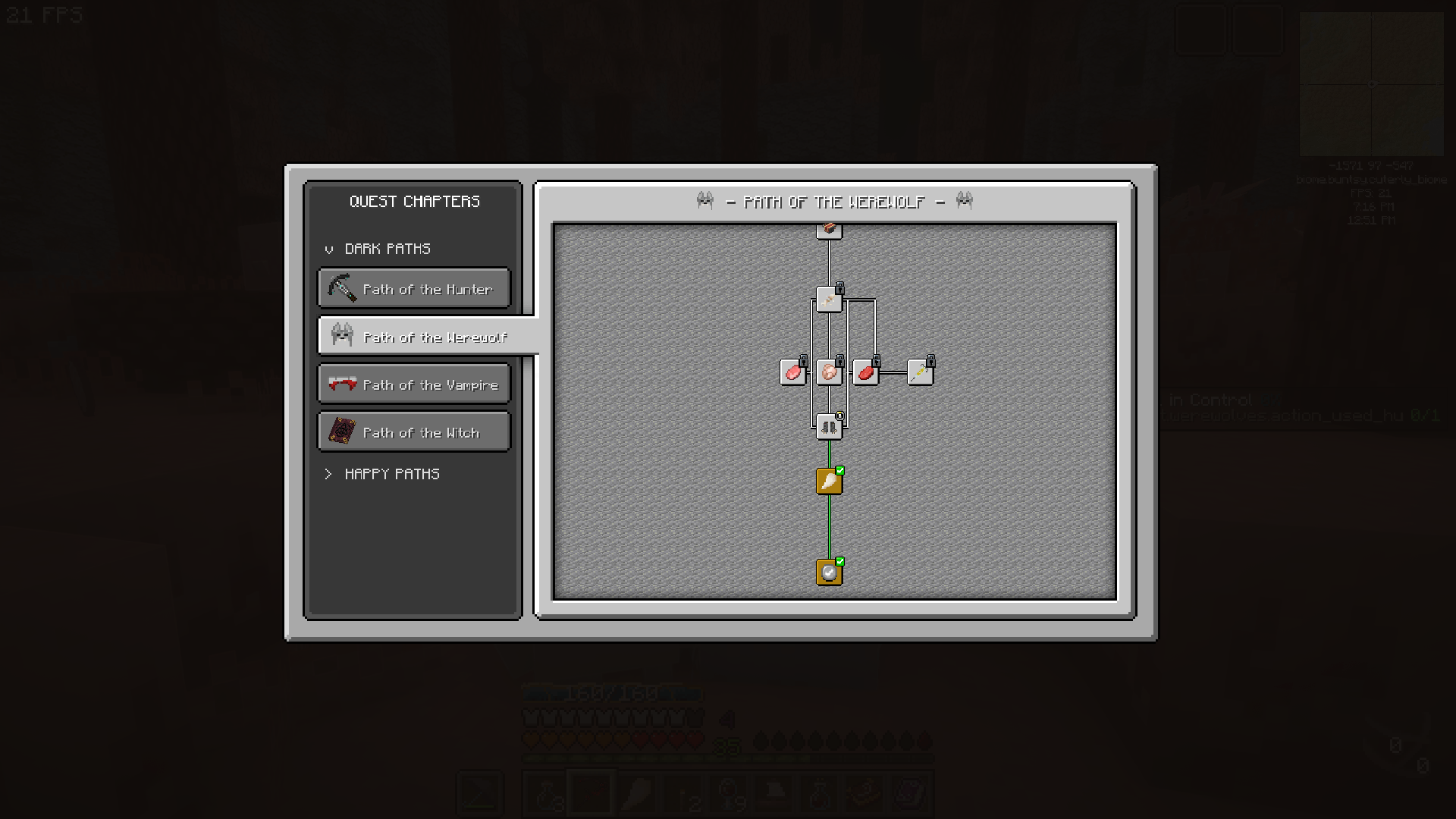
Easily see your completed and in progress quests on the quest tree.
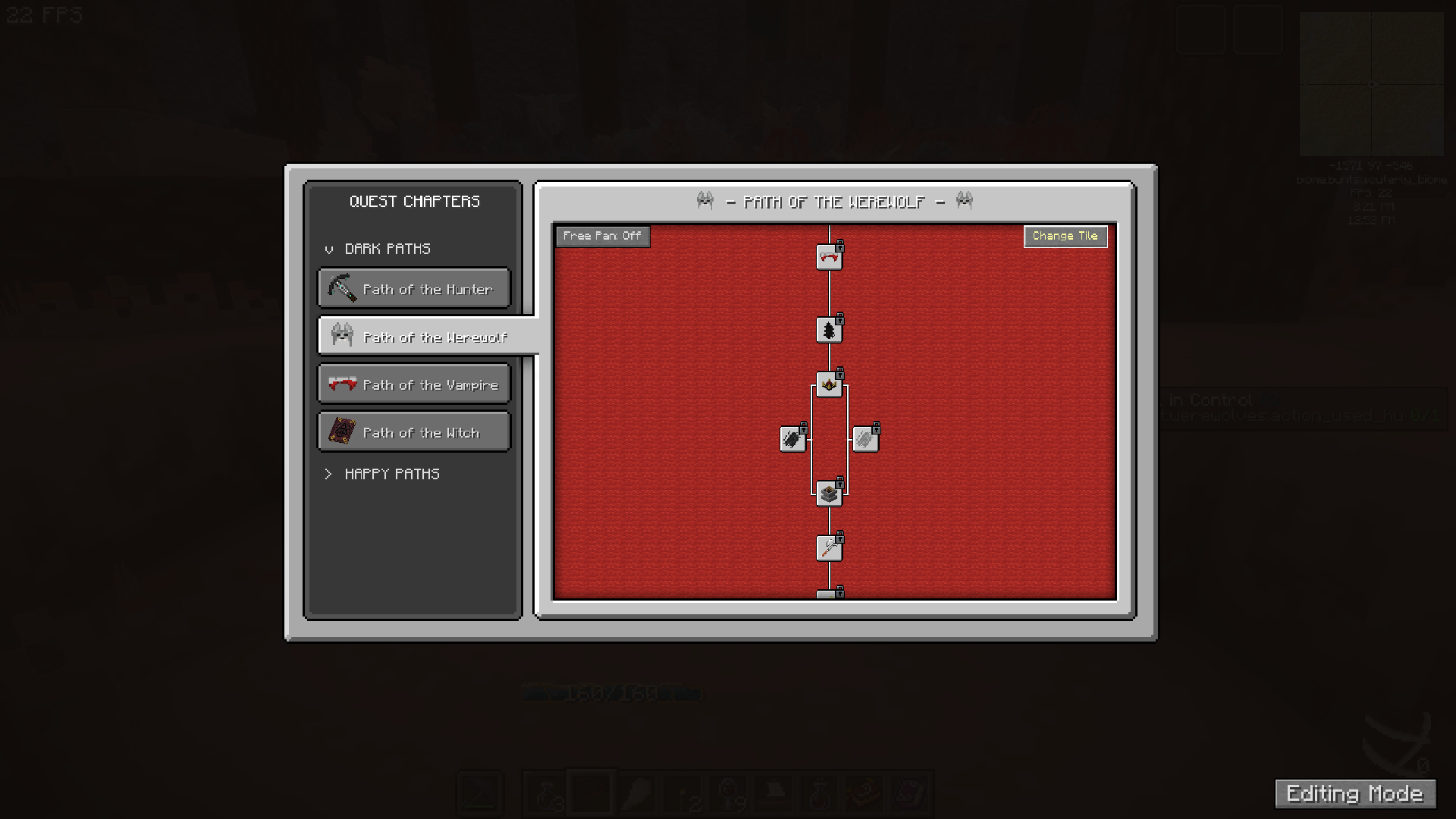
When in Creative mode - Customisation buttons appear. Click 'Change Tile' to change quest tree background. Or toggle the panning mode.
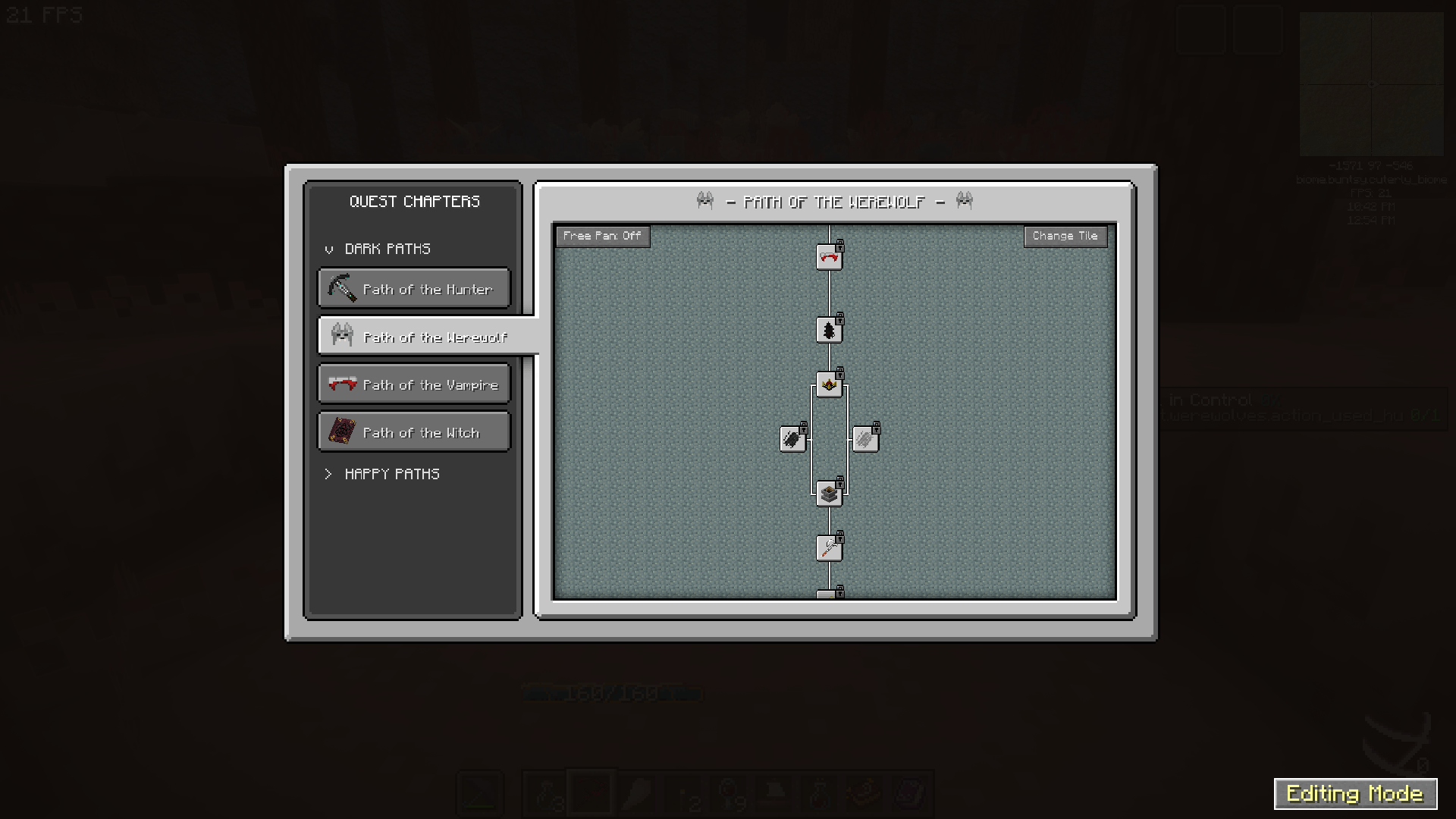
One option that appears is 'Editing Mode' , click it to switch to default FTB quests UI - then you can edit quests and chapters as usual.
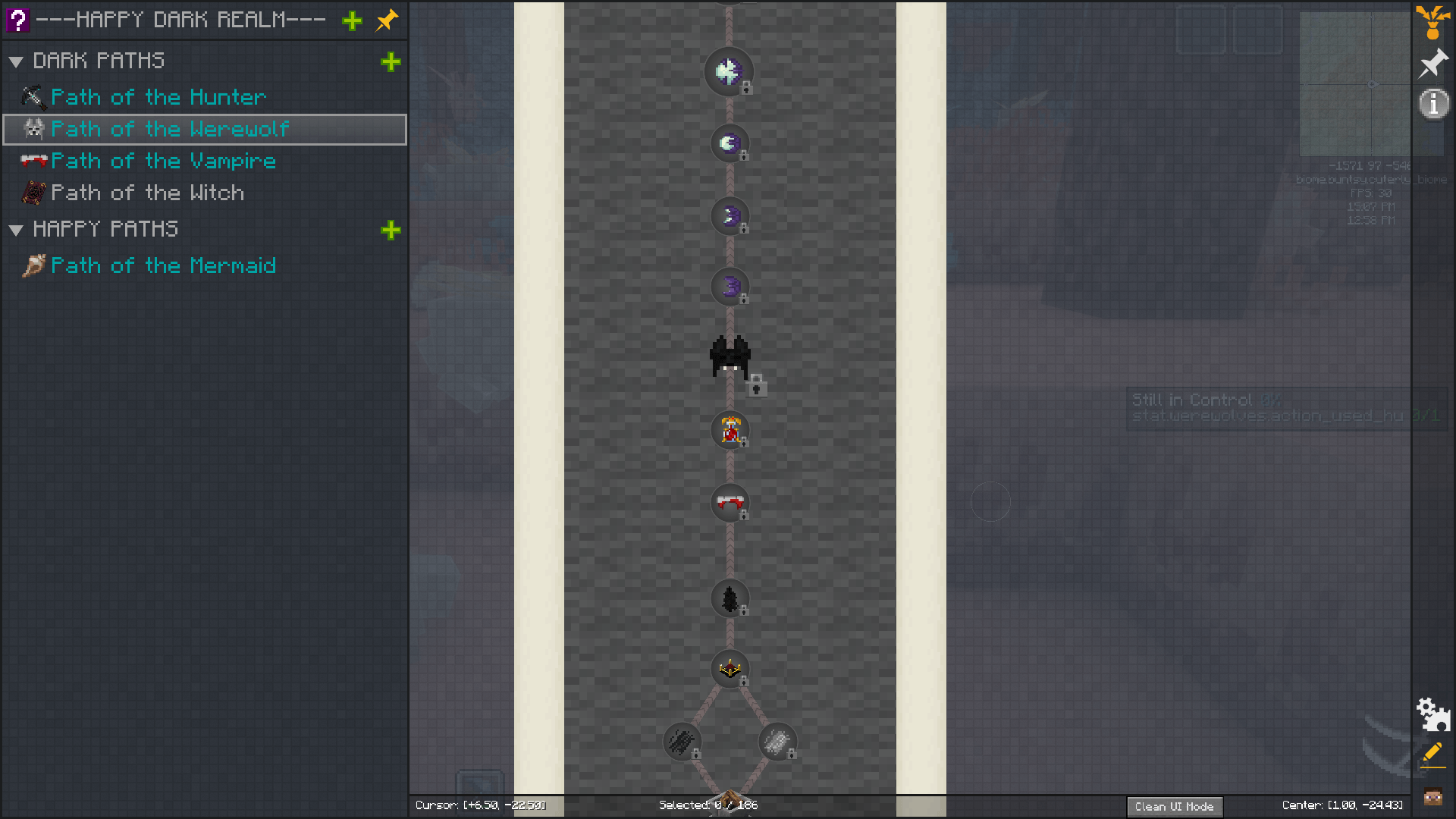
To switch back to Overhauled UI, click 'Clean UI Mode' at the bottom right. (Small button)
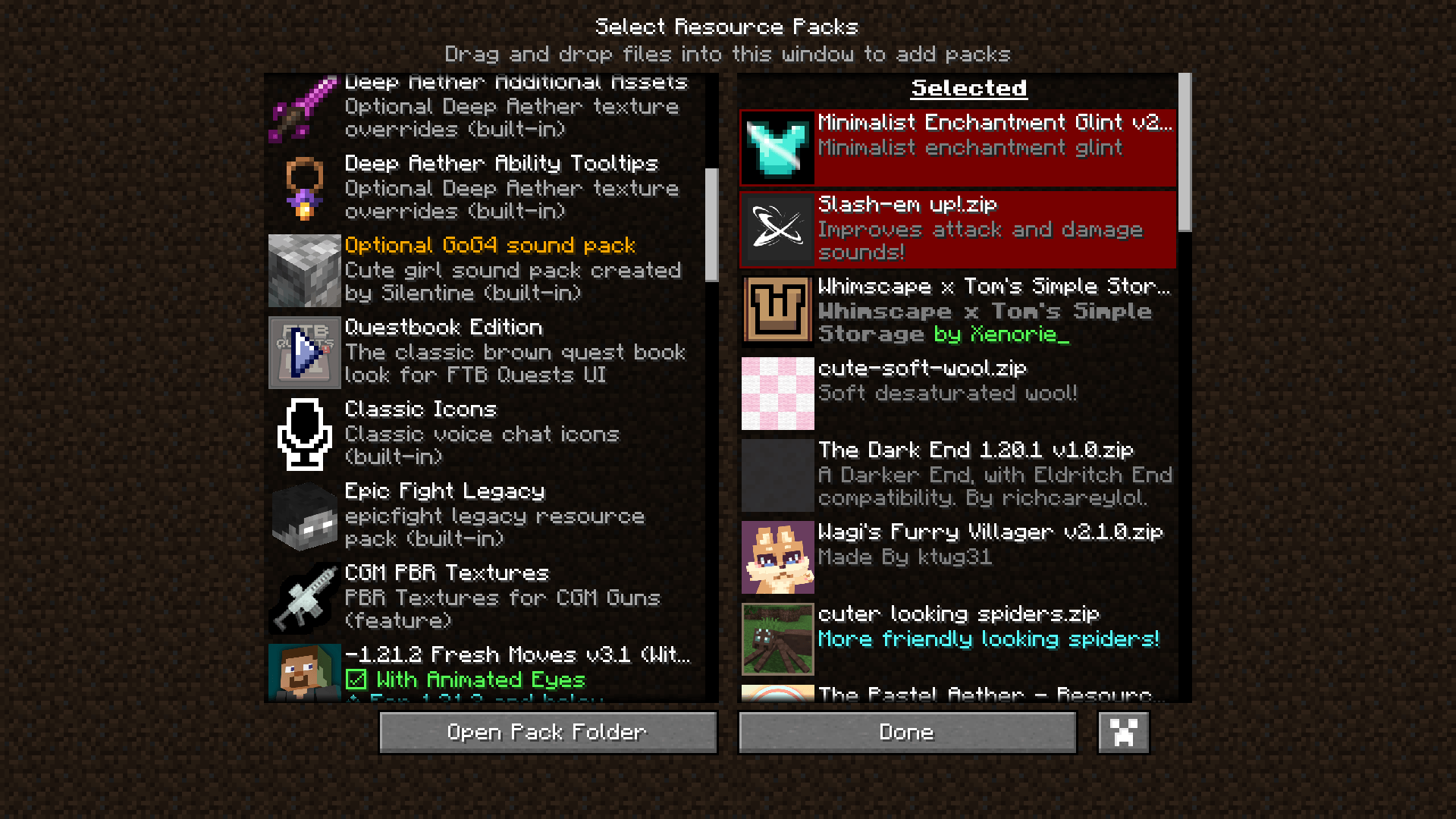
By default there is a brown Questbook Edition resource pack included, choose this for a more RPG fantasy questbook vibe!
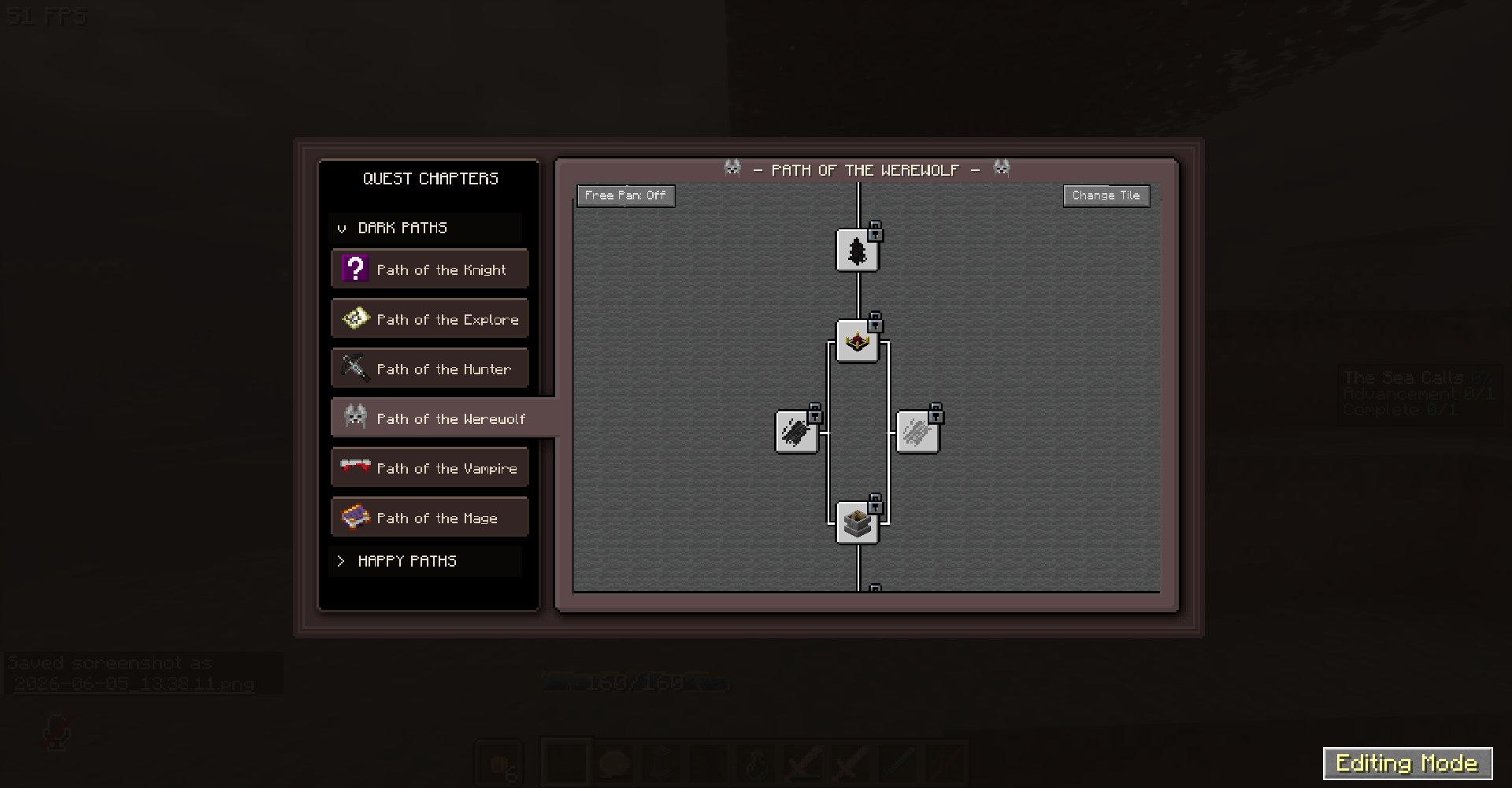
The UI is very simple - So you can get creative making resource packs to match your modpack!