Create: Clipboard Toolkit
- By
A Create addon that turns storage contents and selected areas into item checklists, with clipboard locking and stock order improvements.
2026-10-15_20.25.50.png
2026-10-15_20.25.59.png
2026-10-15_20.26.09.png
2026-10-15_20.27.05.png
2026-10-15_20.27.22.png
Description
Create: Clipboard Toolkit
Turn storage contents and building materials into clear, reusable checklists on Create’s clipboard.
Scan a container or select an area to record items with icons and quantities. Protect your lists from accidental changes, copy them between clipboards, and use them to place orders through Create’s stock system.
Features
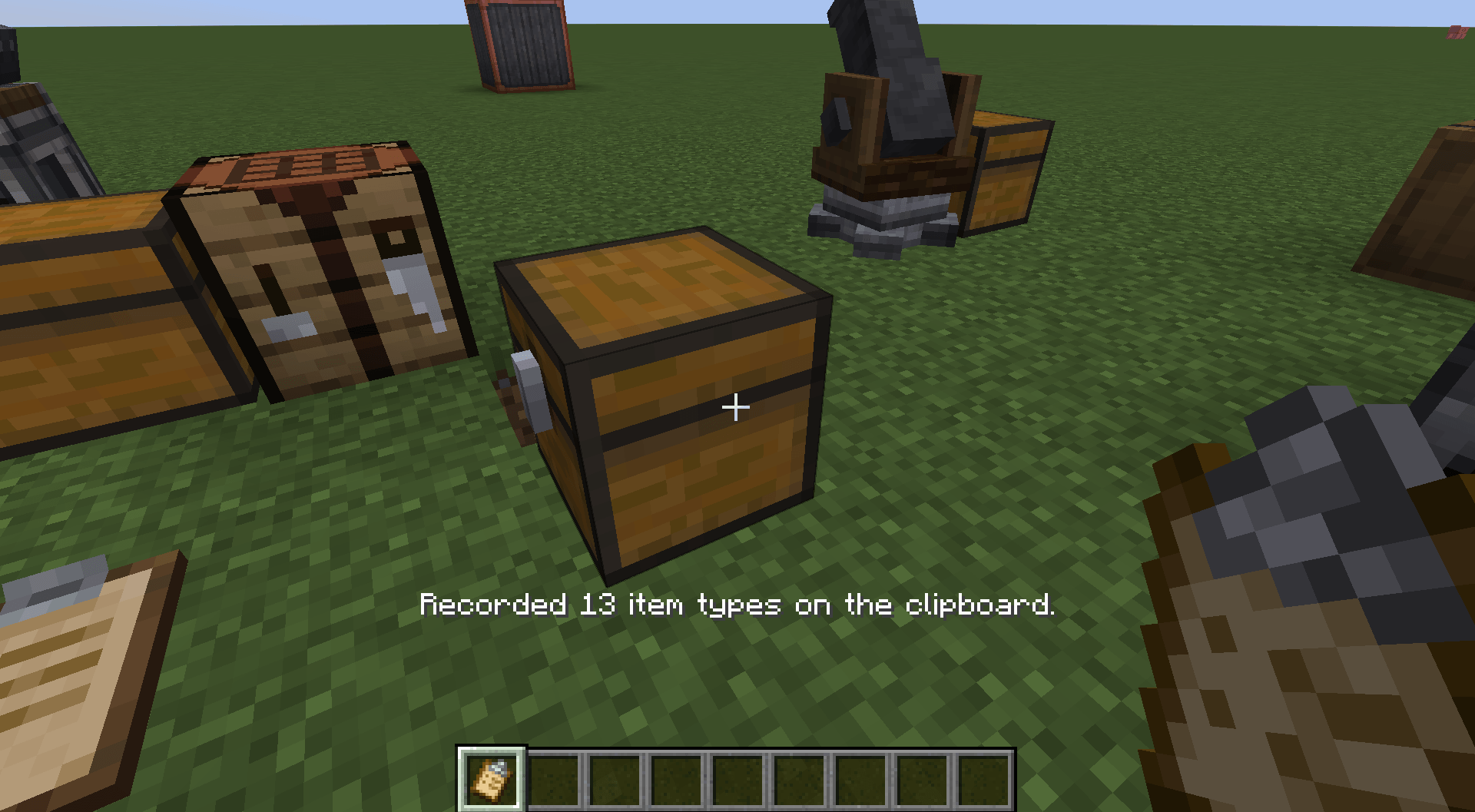
Storage scanning
Record the contents of chests, barrels, shulker boxes, Create Item Vaults, and other supported inventories.
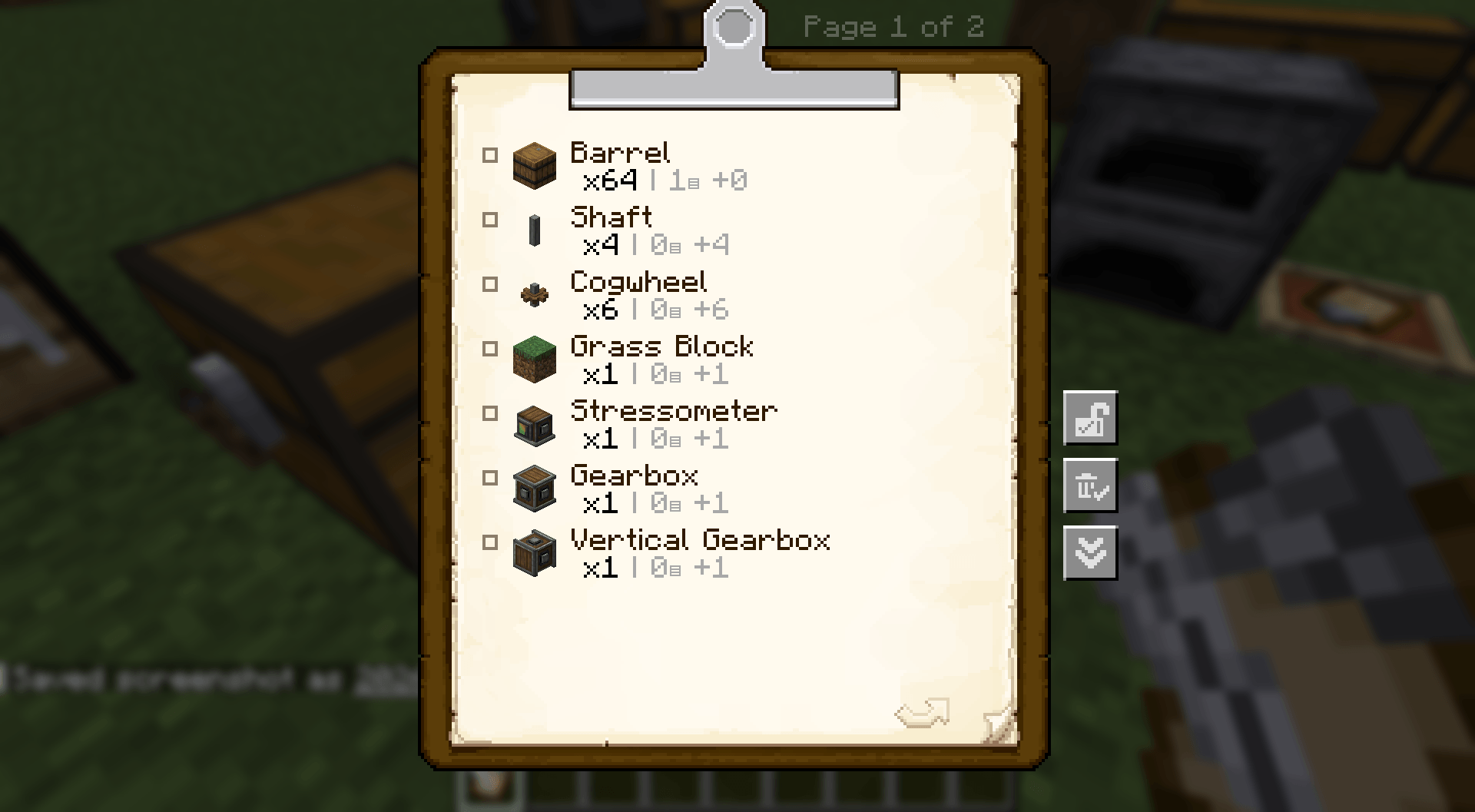
Matching items are combined into a single entry. Items with different names, durability, or other components remain separate. Scanning does not remove or consume items.
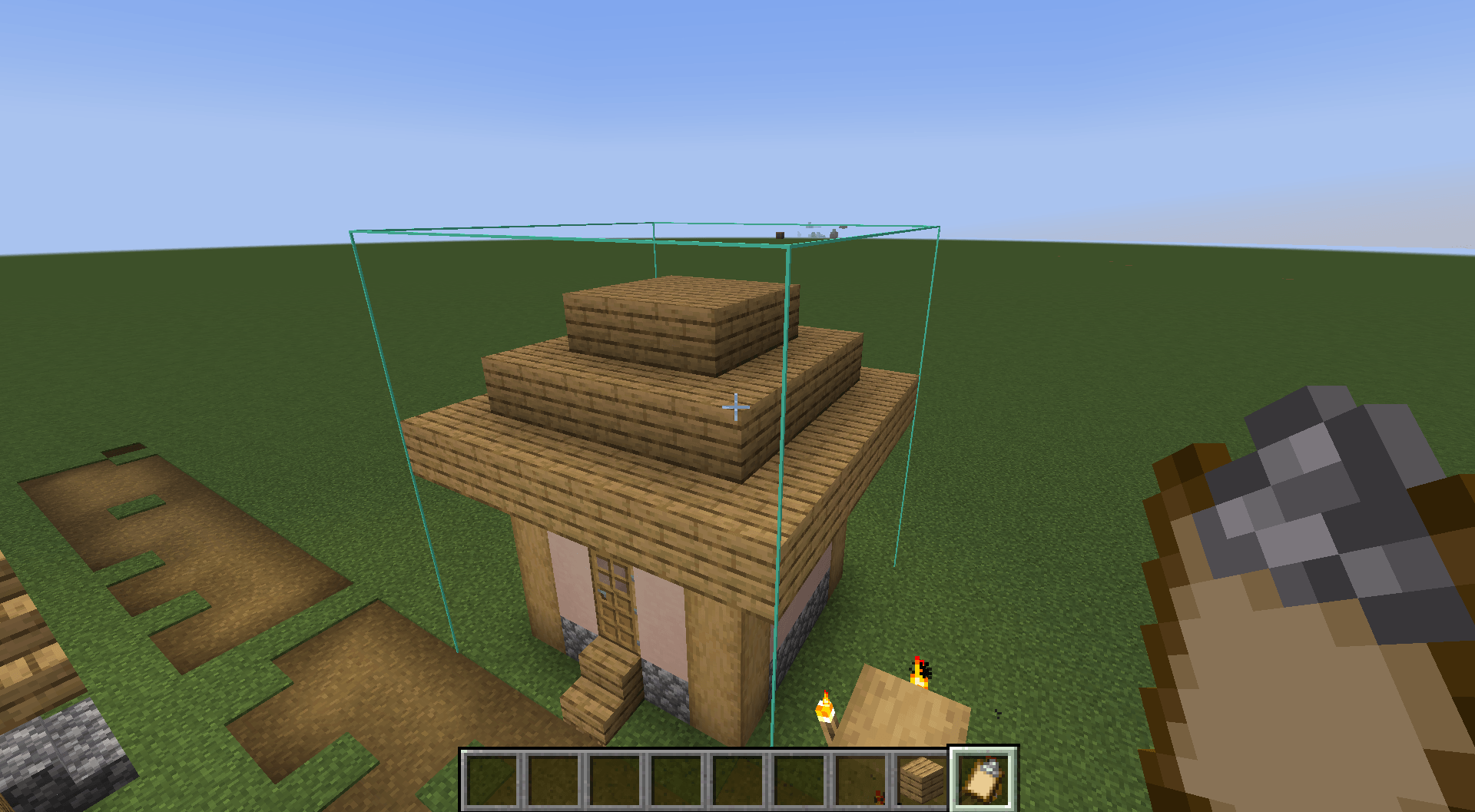
Area scanning
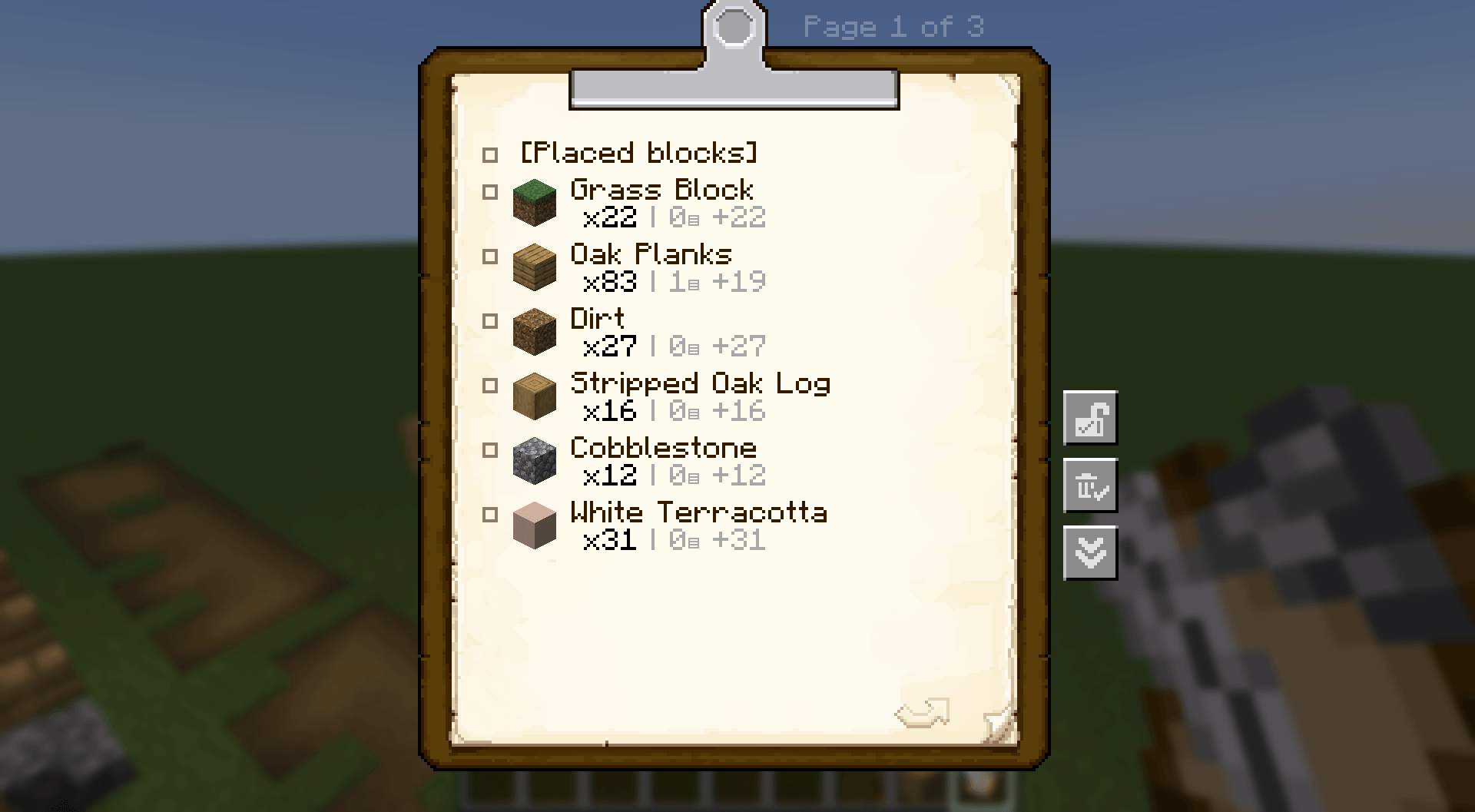
Select two corners to scan an area. Placed blocks and items inside storage are recorded on separate pages, keeping building materials and stored supplies distinct.
Clipboard locking
Use the padlock button on the right side of the clipboard screen to prevent accidental changes.
While locked, a clipboard blocks incoming copies, text editing, clearing checked entries, and scanning. You can still browse its pages, toggle checkboxes, and use it as a copy source.
Locks work on both held and placed clipboards and persist when placing or picking them up. This is protection against accidental edits, not an ownership or access-control system.
Copies that retain item data
Copying from a placed clipboard preserves item icons, quantities, and checkbox states. The copied list can also be used for stock orders.
For a complete copy, use an empty, unlocked clipboard as the destination.
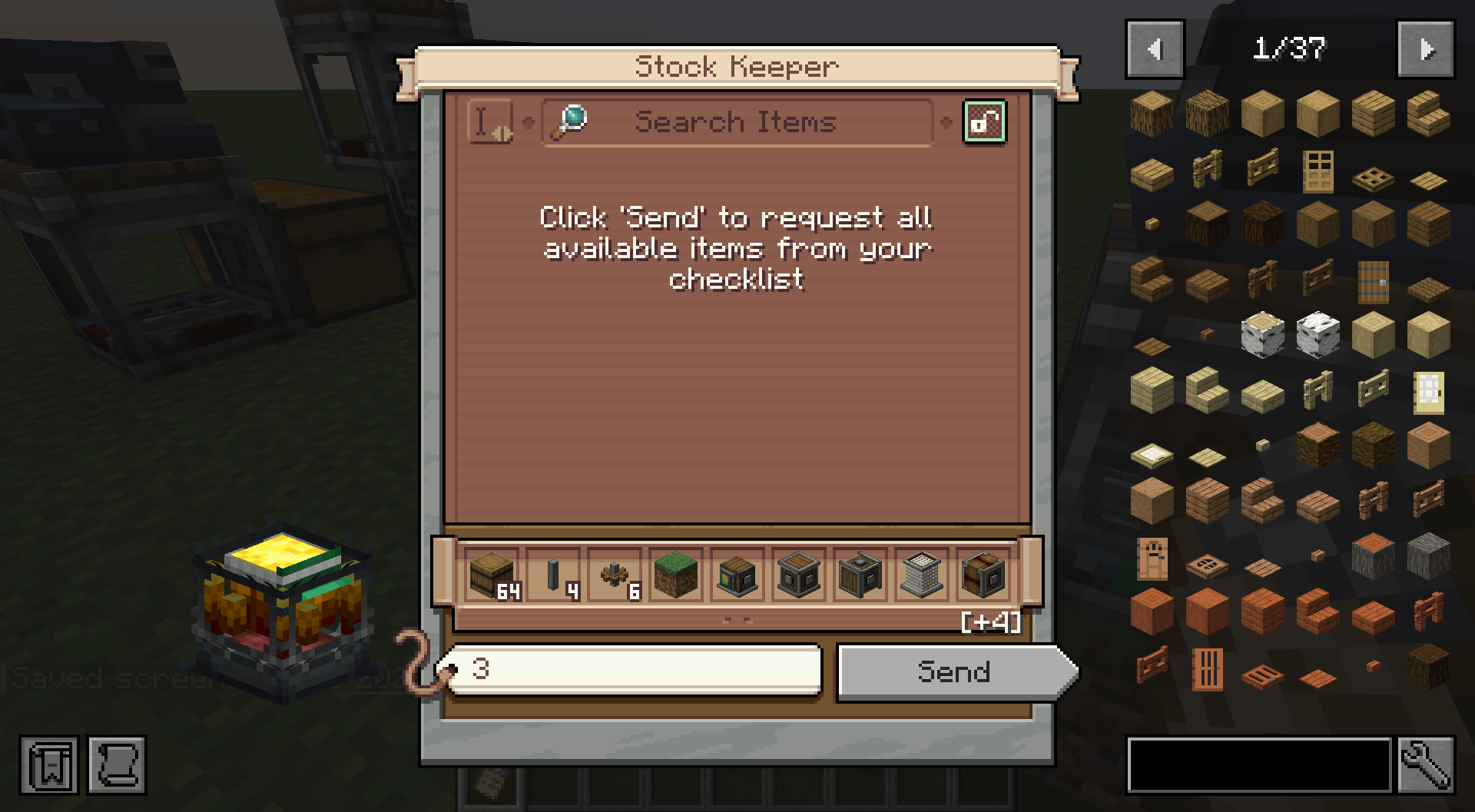
Skip checked items when ordering
Checked entries are excluded when importing a clipboard list into Create’s stock order screen.
Recorded quantities are preserved. Uncheck an entry and reopen the order screen to include it again.
Create-style quantity display
Scanned lists show total quantities alongside a stack breakdown:
-
208 items:
x208 | 3▤ +16 -
64 items:
x64 | 1▤ +0 -
32 items:
x32 | 0▤ +32
Like Create’s schematic checklist, the breakdown uses units of 64, regardless of the item’s actual maximum stack size.
Basic Controls
Hold an empty Create clipboard in your main hand.
-
Left Alt + Right-click a container: scan its contents.
-
G: start area selection.
-
Right-click twice: select the two corners.
-
G again: confirm and record the area.
-
Shift + G: cancel area selection.
Key bindings can be changed in Minecraft’s Controls settings.
To copy a list, place the source clipboard, then right-click it while holding the destination clipboard.
Supported Storage
-
Chests and double chests
-
Barrels and shulker boxes
-
Hoppers, furnaces, droppers, and similar inventories
-
Create Item Vaults
-
Other modded storage that exposes NeoForge’s item inventory capability
Combined chests and Item Vaults are counted once. Area scans must include the entire combined storage structure.
Single-container scans can read the player’s Ender Chest inventory. Area scans count the Ender Chest block but exclude its personal inventory.
Storage using custom inventory or permission systems may require additional compatibility support.
Limits and Notes
-
Existing clipboard contents are not overwritten by scanning.
-
Area scans support up to 4,096 blocks, with a maximum of 64 blocks per side.
-
Single-container scans support up to 350 distinct item entries.
-
Lists are limited to 50 pages.
-
Unloaded areas are not scanned.
-
Fluids, energy, and entity inventories are not supported.
-
Scanned list text is read-only; checkboxes remain usable.
Requirements
-
Minecraft 1.21.1
-
NeoForge 21.1.234 or newer
-
Create 6.0.10 or newer, below 6.1.0
Create is required. Install Clipboard Toolkit on both the client and the server for multiplayer.
JEI and EMI are not required.
License
MIT
Created using AI
Create: Clipboard Toolkit Team