Create Aeronautics: Goggles +
- By
Adds diagram goggles to Create Aeronautics, letting you view and manage any diagrams directly in-game.
Create Aeronautics: Diagram Goggles + adds wearable diagram goggles that let you view selected, assembled Sable structures directly on your HUD. Monitor multiple builds in separate diagram windows without leaving your gameplay view.
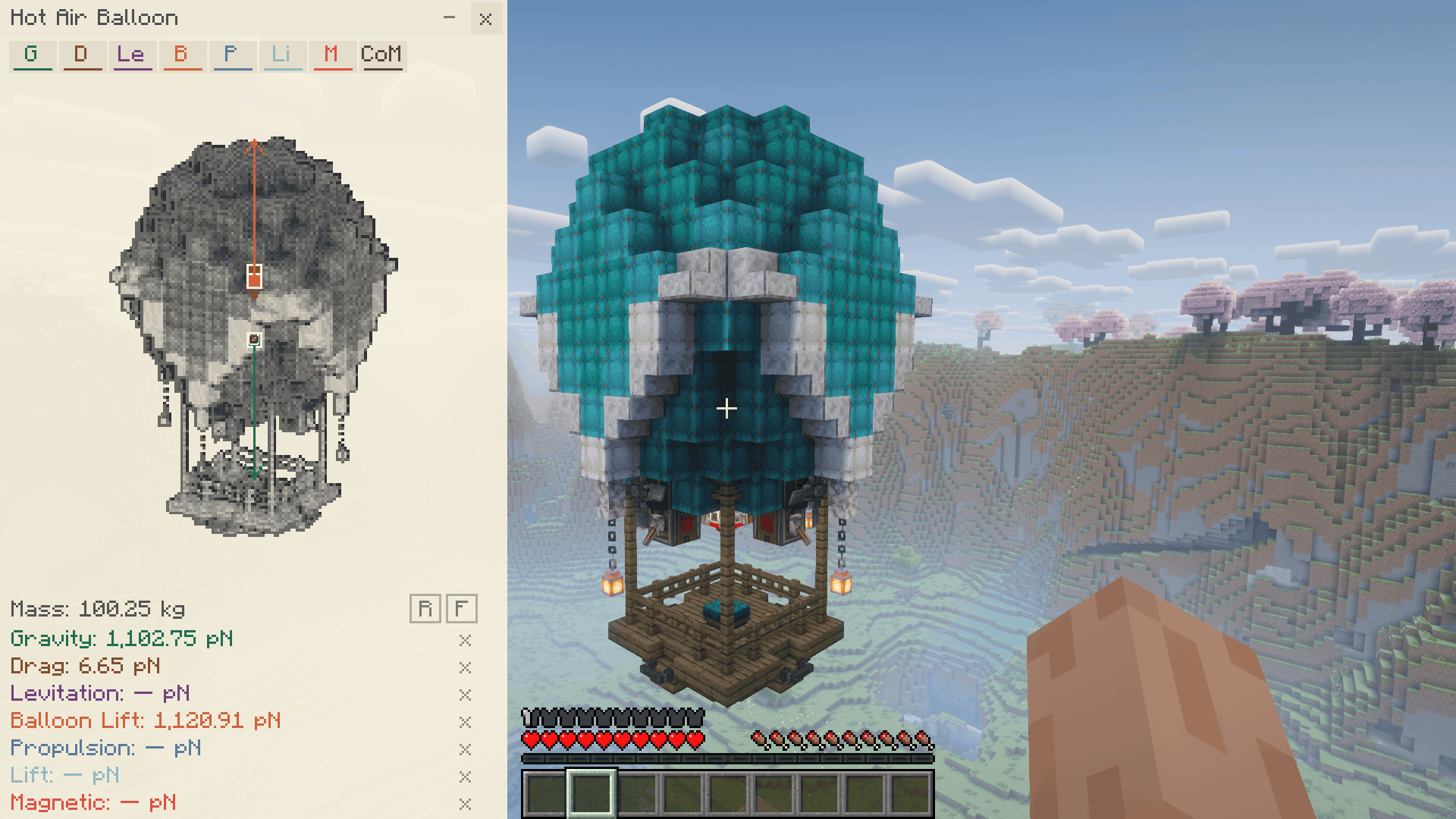
Craft the Diagram Goggles using a shapeless recipe. Place the required ingredients anywhere in the crafting grid, their arrangement does not matter.
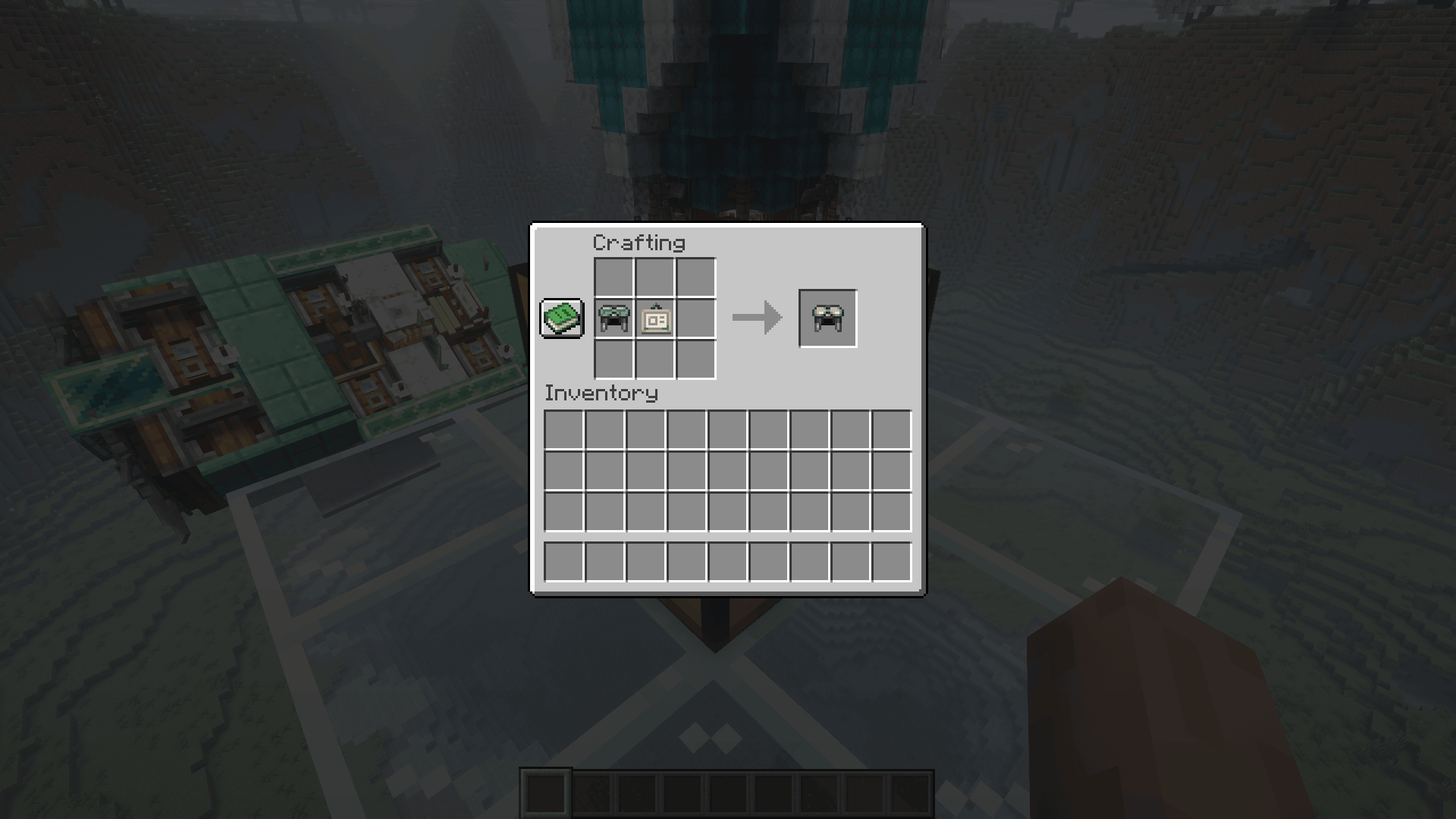
Select the structures you want to monitor and display each one in its own diagram window. Keep several structures in view at once, add more to your selection, or deselect individual structures when you no longer need them.
Toggle the entire diagram overlay whenever you want a clear view of the world.
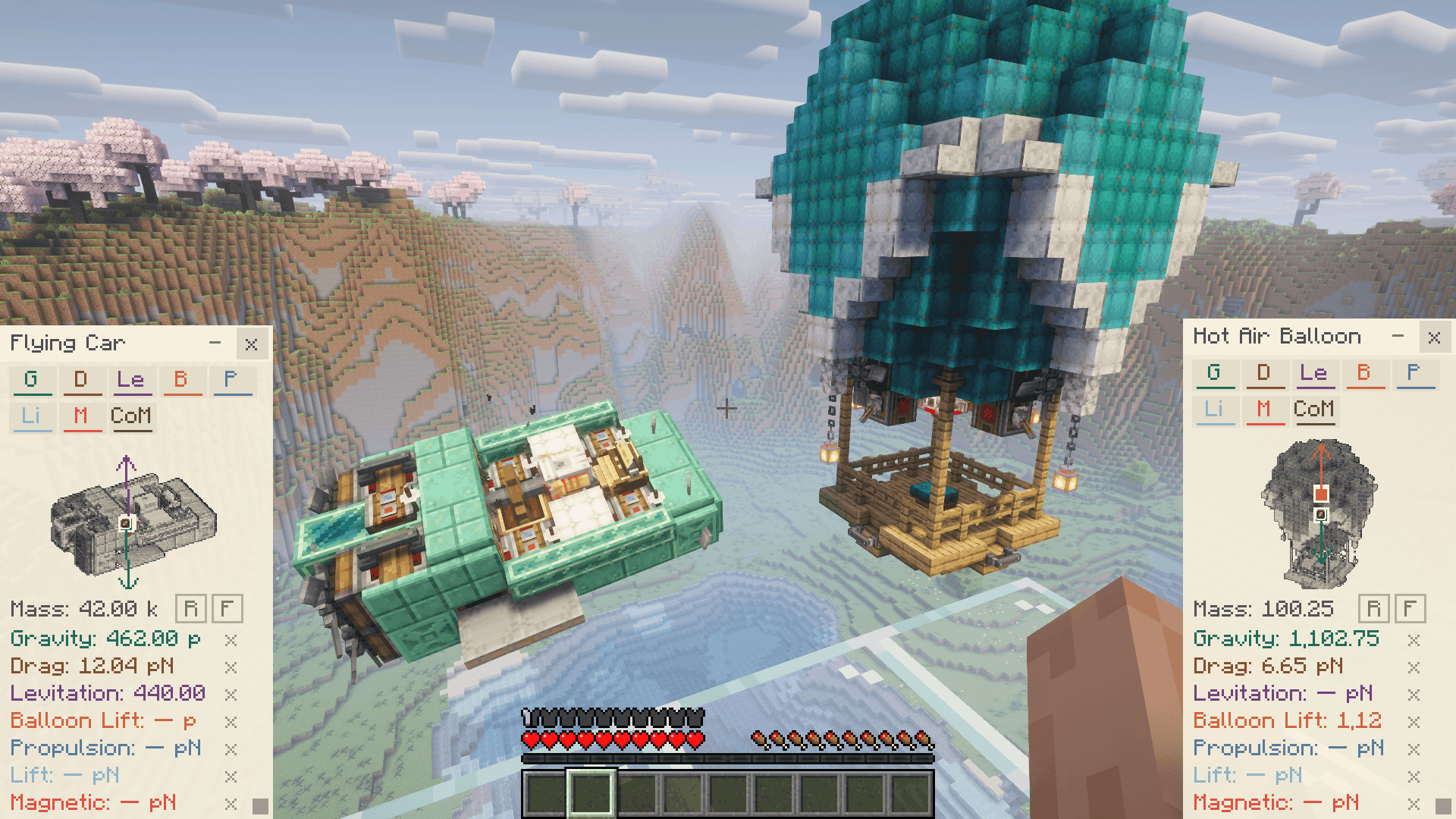
Customize your layout:
- Open the diagram desktop and arrange your windows to fit your screen:
- Move windows by dragging their title bars.
- Resize them using the bottom-right corner.
- Zoom in or out with the mouse wheel.
- Click a window to bring it to the front.
- Close individual windows to remove their structures from your selection.
- Keep a compact overview in the corner or make a diagram larger for closer inspection.
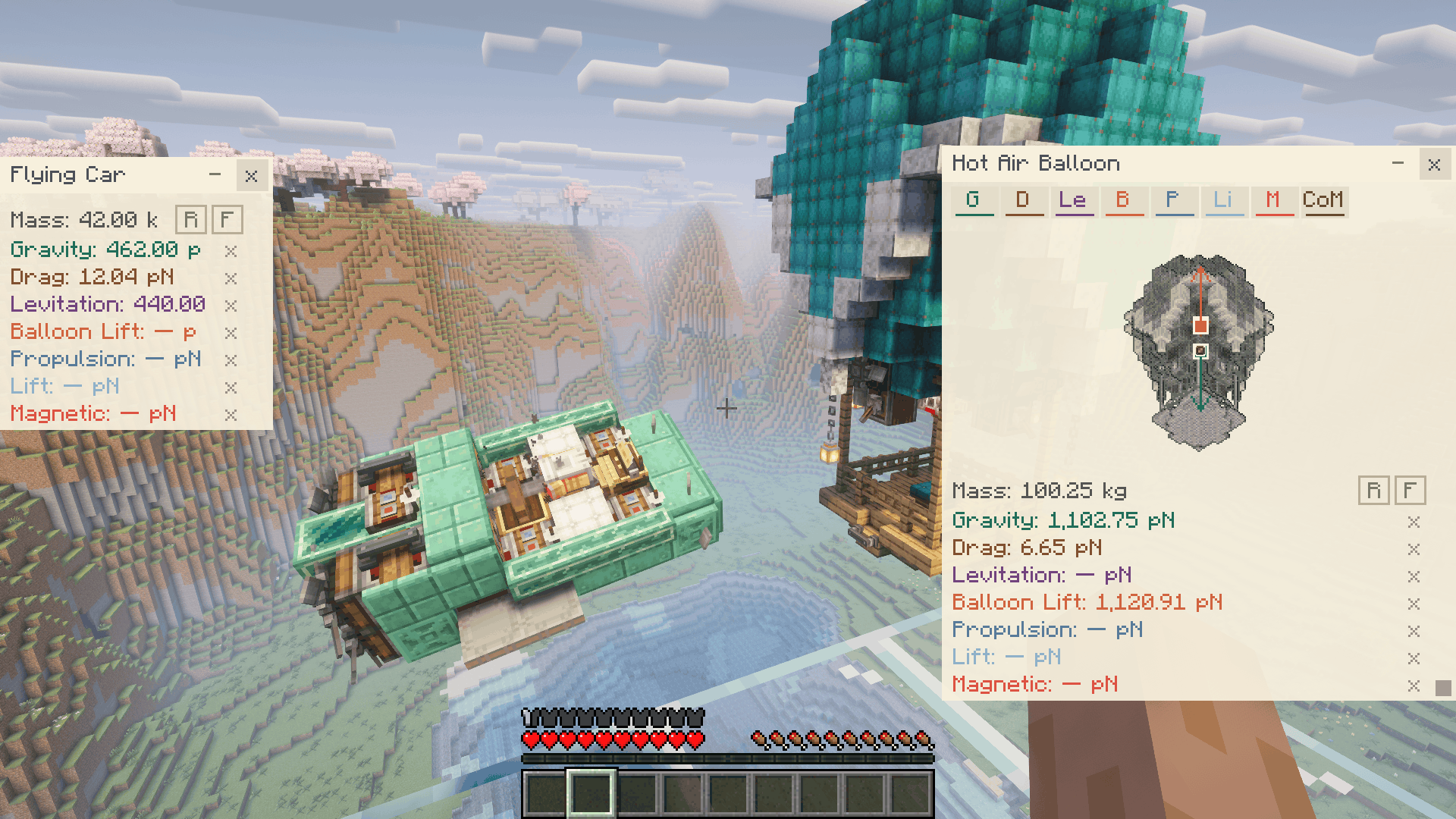
Use the arrow keys in the diagram desktop to rotate and tilt the active diagram. Inspect your structure from different angles and choose the perspective that works best for you.
Each window has its own viewing angle and zoom level, so you can adjust your diagrams individually.
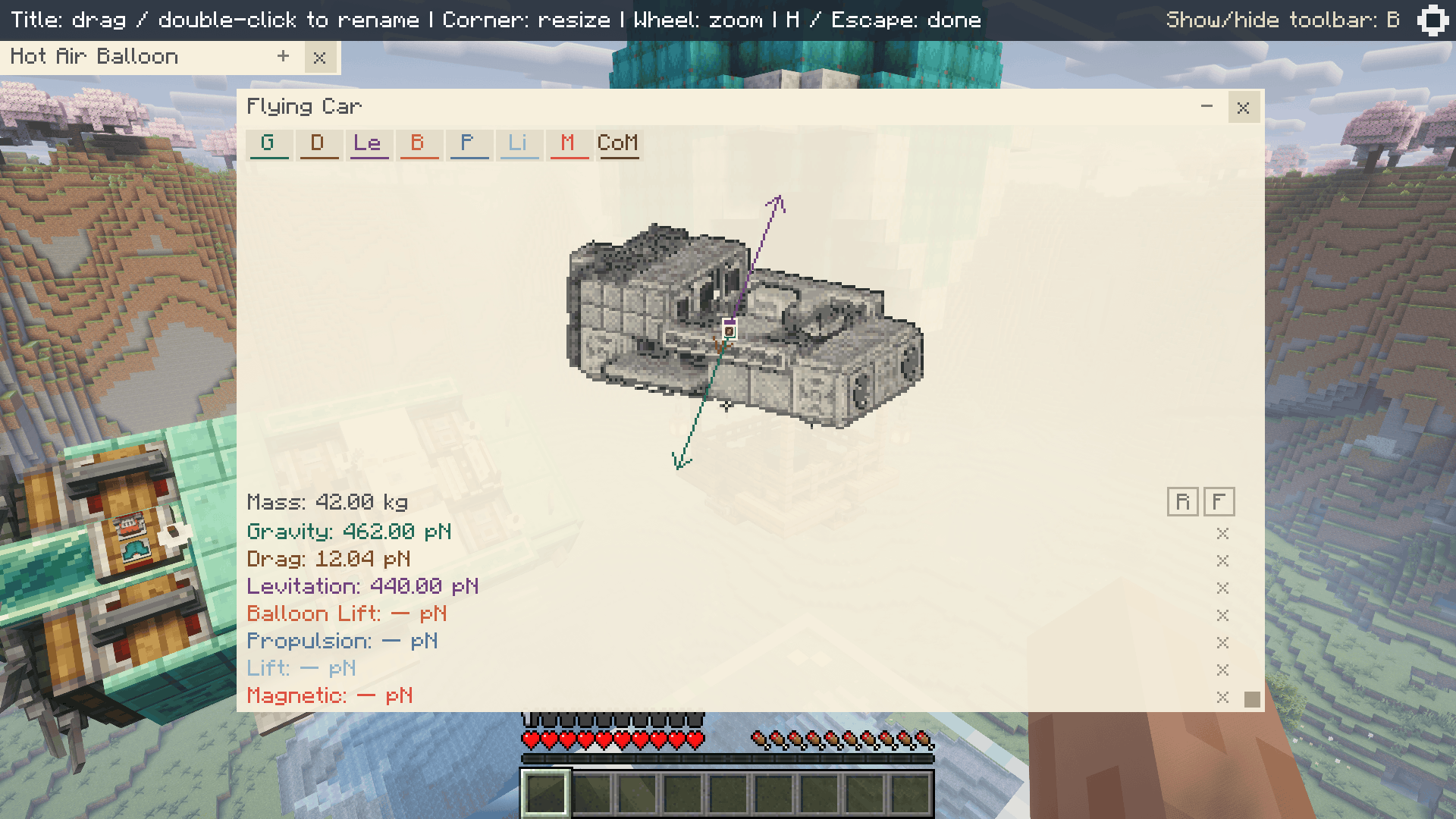
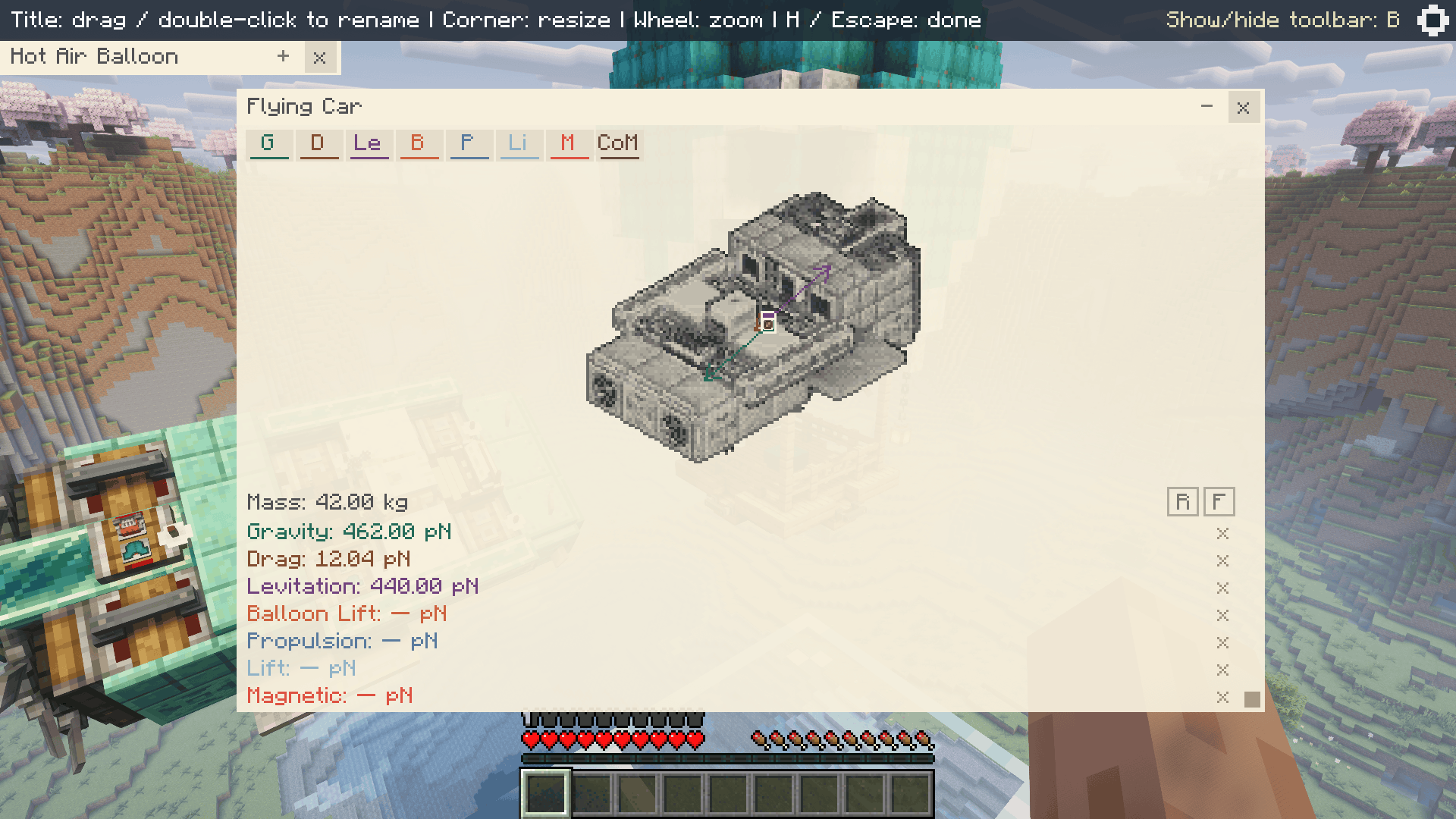
Toggle force visualization and the center indicator separately for each diagram. Use the window controls or the keyboard shortcuts in the diagram desktop to show the information you need.
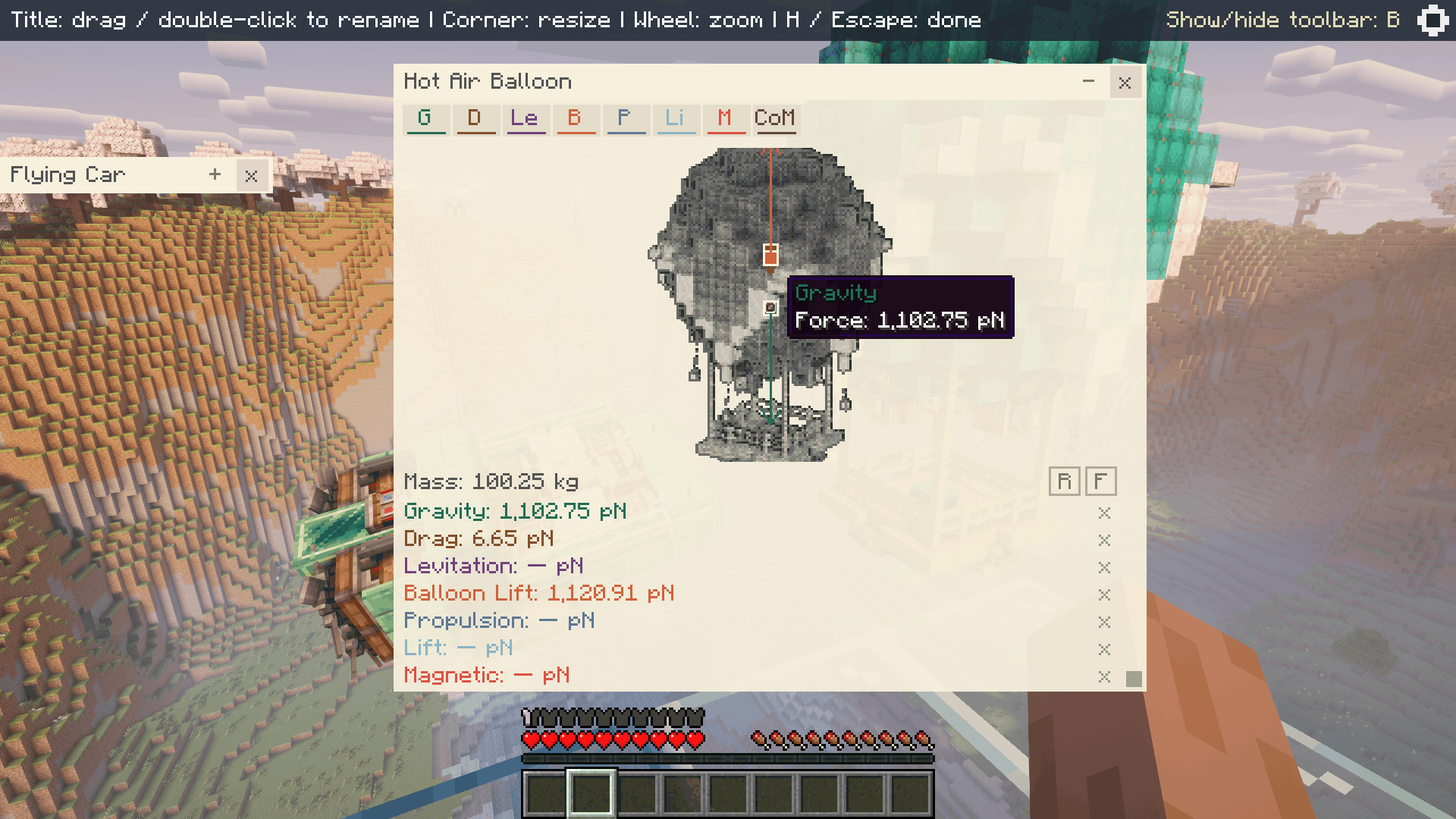
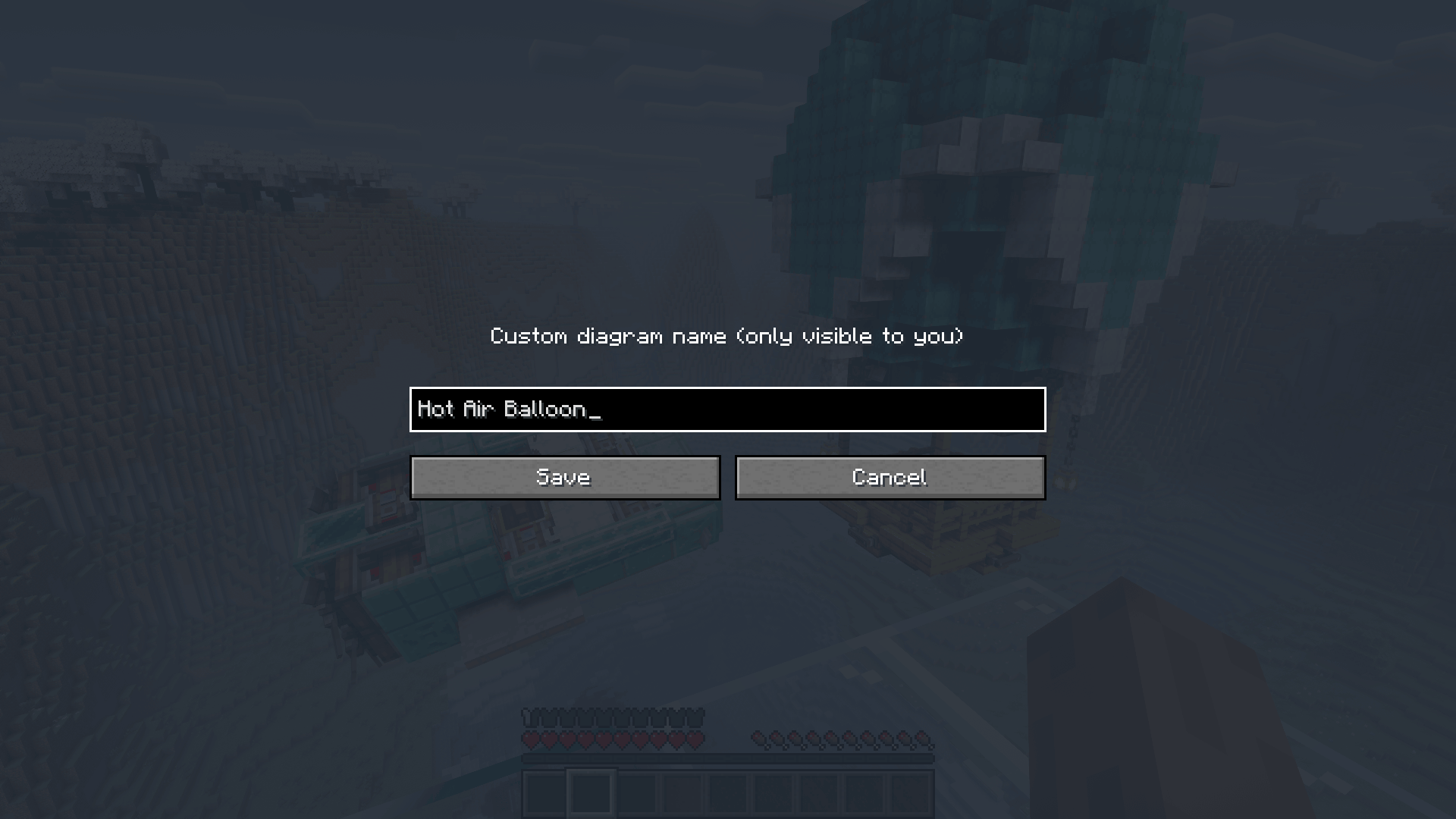
Double-click a window’s title bar to give its diagram a custom display name. Label your diagrams to make different ships, platforms, and test builds easier to identify.
Custom names are saved locally and kept separate by world or server and dimension. They change the diagram’s display name, not the name of the actual structure.
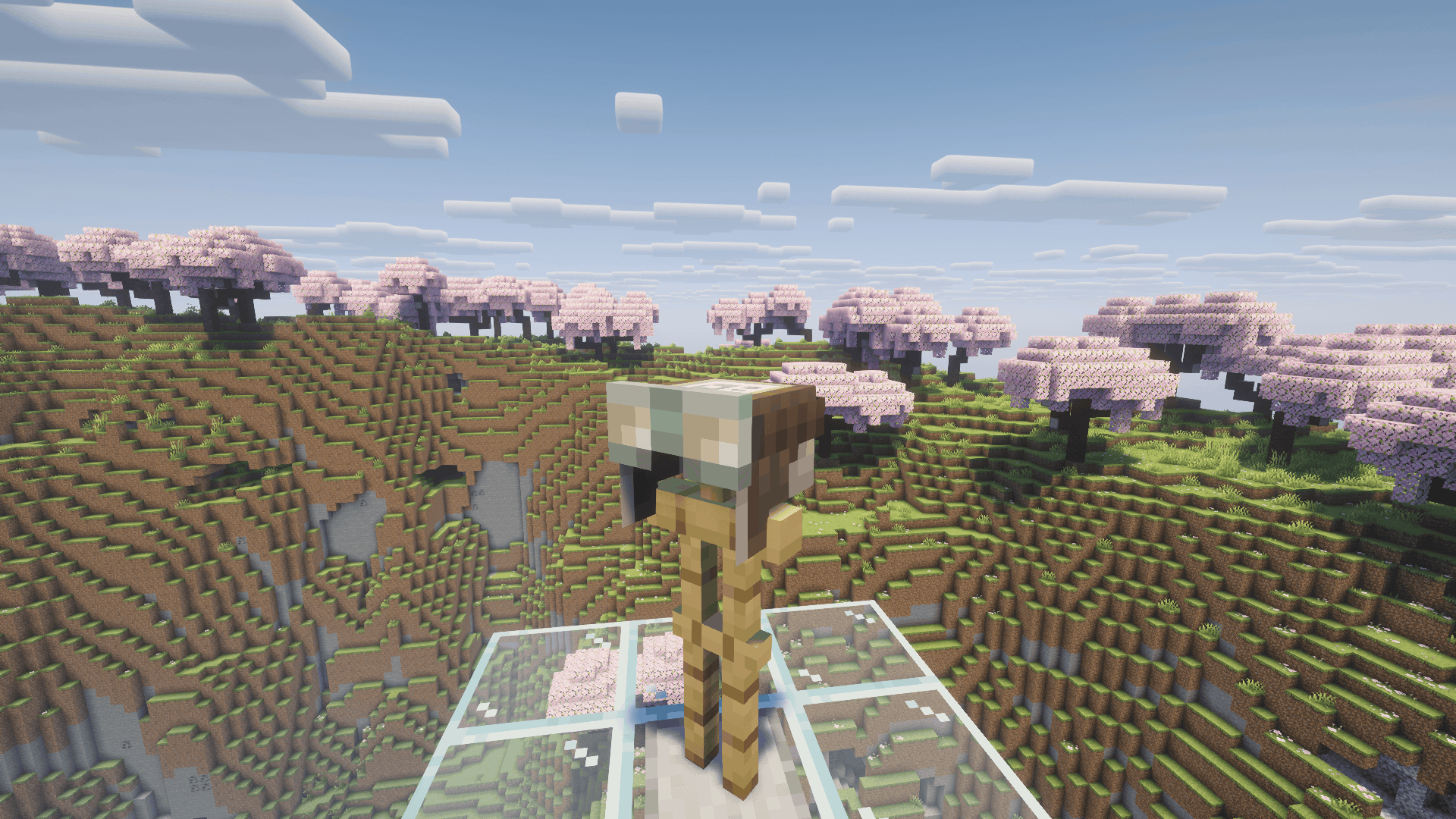
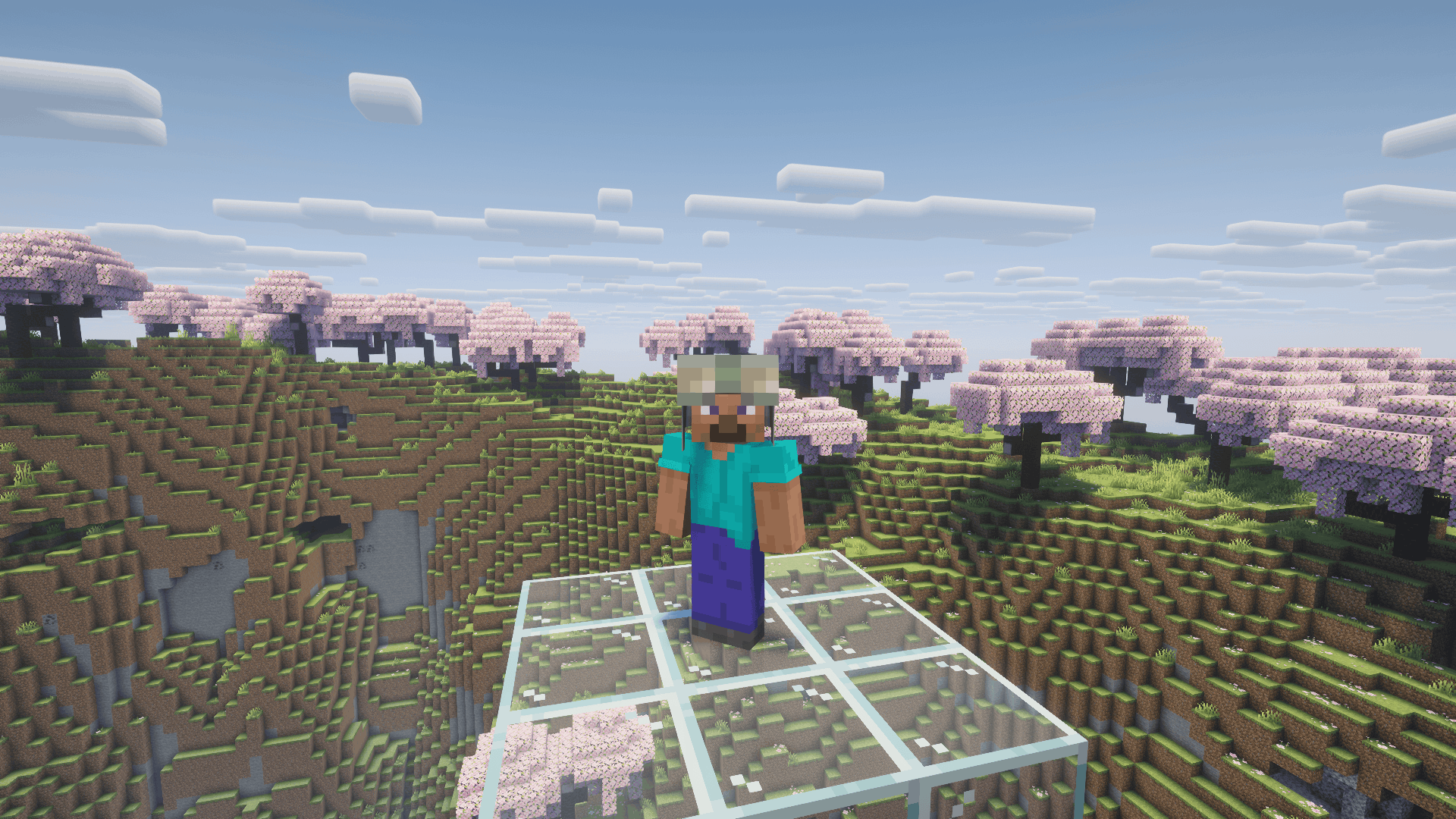
The Diagram Goggles feature an aviator-inspired design with warm amber lenses, bringing your diagram tools into your navigator gear.
Short Intoduction:
-
Equip the Diagram Goggles in your helmet slot.
-
Press
Zto activate structure selection. -
Right-click an assembled Sable structure (barehand) to select it.
-
Repeat to add more structures. Selecting an already selected structure removes it.
-
Press
Hto open the diagram desktop and customize your windows. -
Press
Rto show or hide the overlay.
Default Controls
| Action | Control |
|---|---|
| Activate or cancel structure selection | Z |
| Select or deselect a structure | Right-click while selection is active |
| Show or hide the diagram overlay | R |
| Open the diagram desktop | H |
| Move a window | Drag its title bar |
| Resize a window | Drag its bottom-right corner |
| Zoom a diagram | Mouse wheel over the window |
| Rename a diagram | Double-click its title bar |
| Rotate the active diagram | Left / Right arrow |
| Tilt the active diagram | Up / Down arrow |
| Toggle force visualization for the active diagram | F in the diagram desktop |
| Toggle the center indicator for the active diagram | C in the diagram desktop |
| Close the diagram desktop | H or Esc |
The Z, R, and H keybindings can be changed in Minecraft’s Controls settings.
You are free to include this mod in your modpacks.
Create Aeronautics: Goggles + Team

Owner