Coordinate's Manager
- By
A Fabric client mod to save locations with coordinates, dimension, screenshots & notes. Browse, search, sort, follow waypoints on HUD, and view photos — all in-game. No server install needed.
2.png
4.png
5.png
3.png
1.png
Description
Coords Manager is a lightweight Fabric client mod that lets you bookmark any in-game location with a name, comment, dimension tag, and an automatic screenshot. Browse all your saved spots in a clean in-game list, filter by name, sort by dimension, follow a waypoint on your HUD, and view attached photos — all without leaving Minecraft.
Features
-> Save locations
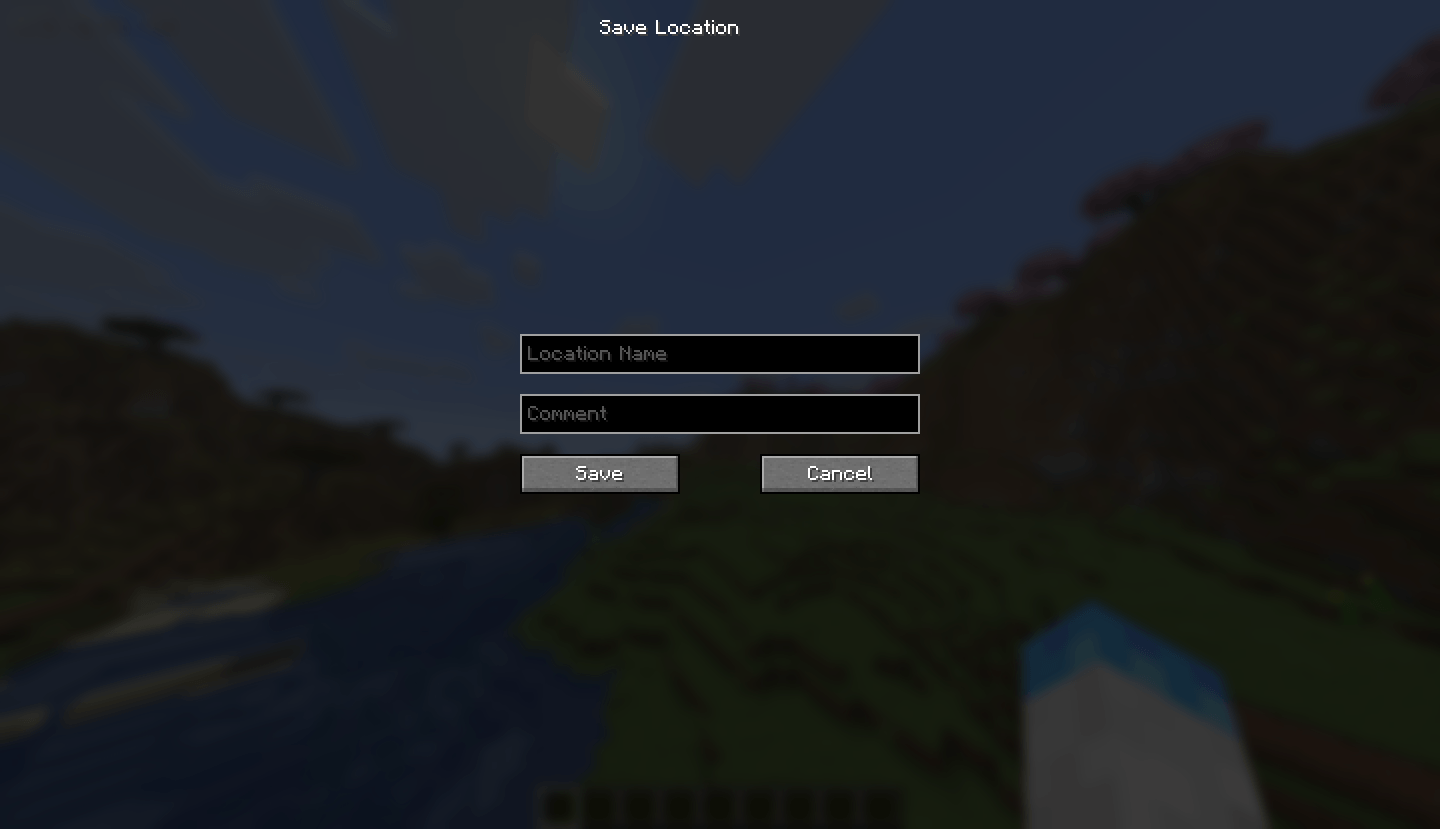
Bookmark any spot with a custom name and comment. Coordinates and dimension are captured automatically.
-> Auto screenshot
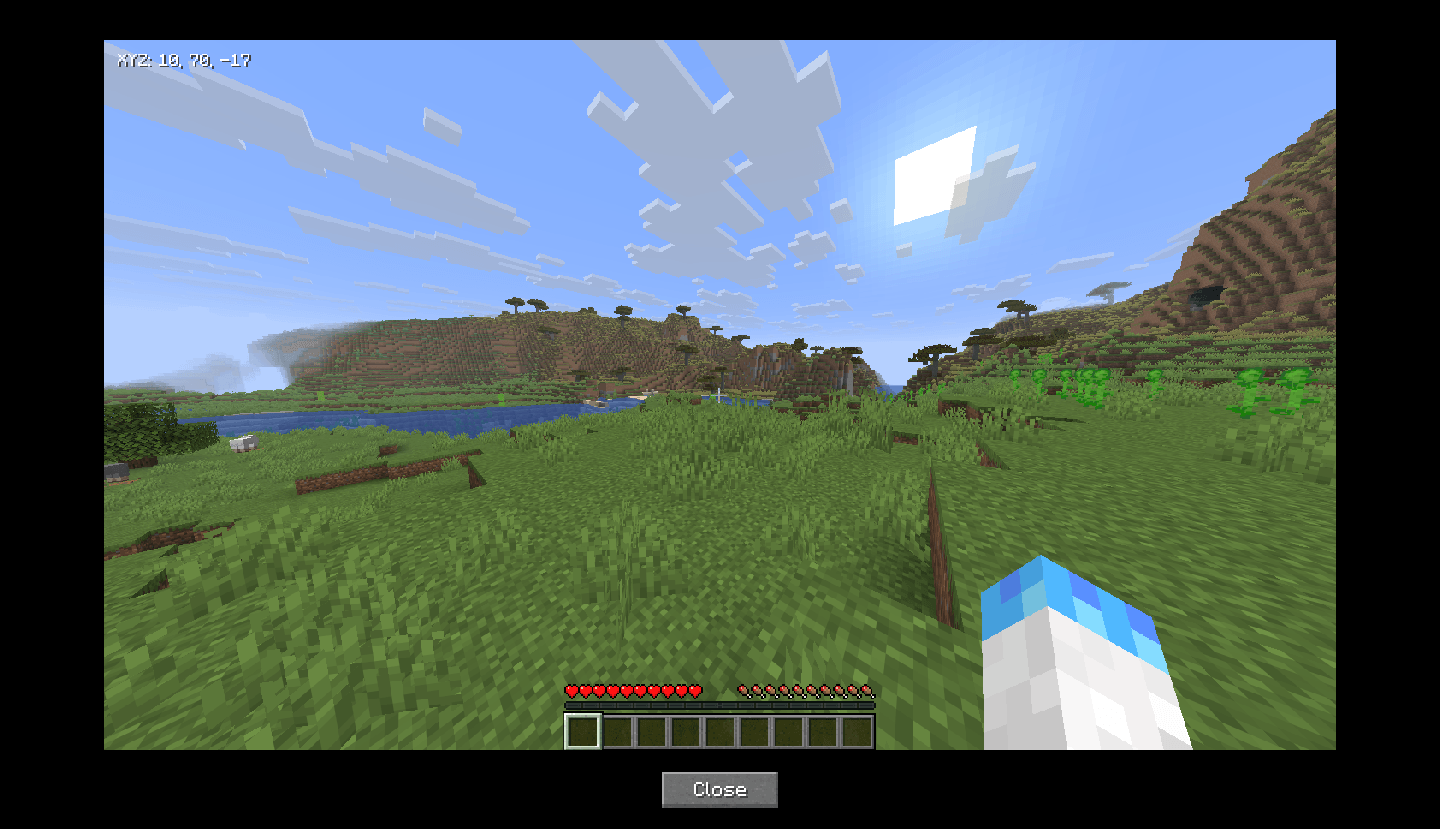
A screenshot is taken automatically when you press the save key and is attached to the location entry.
-> Location list UI
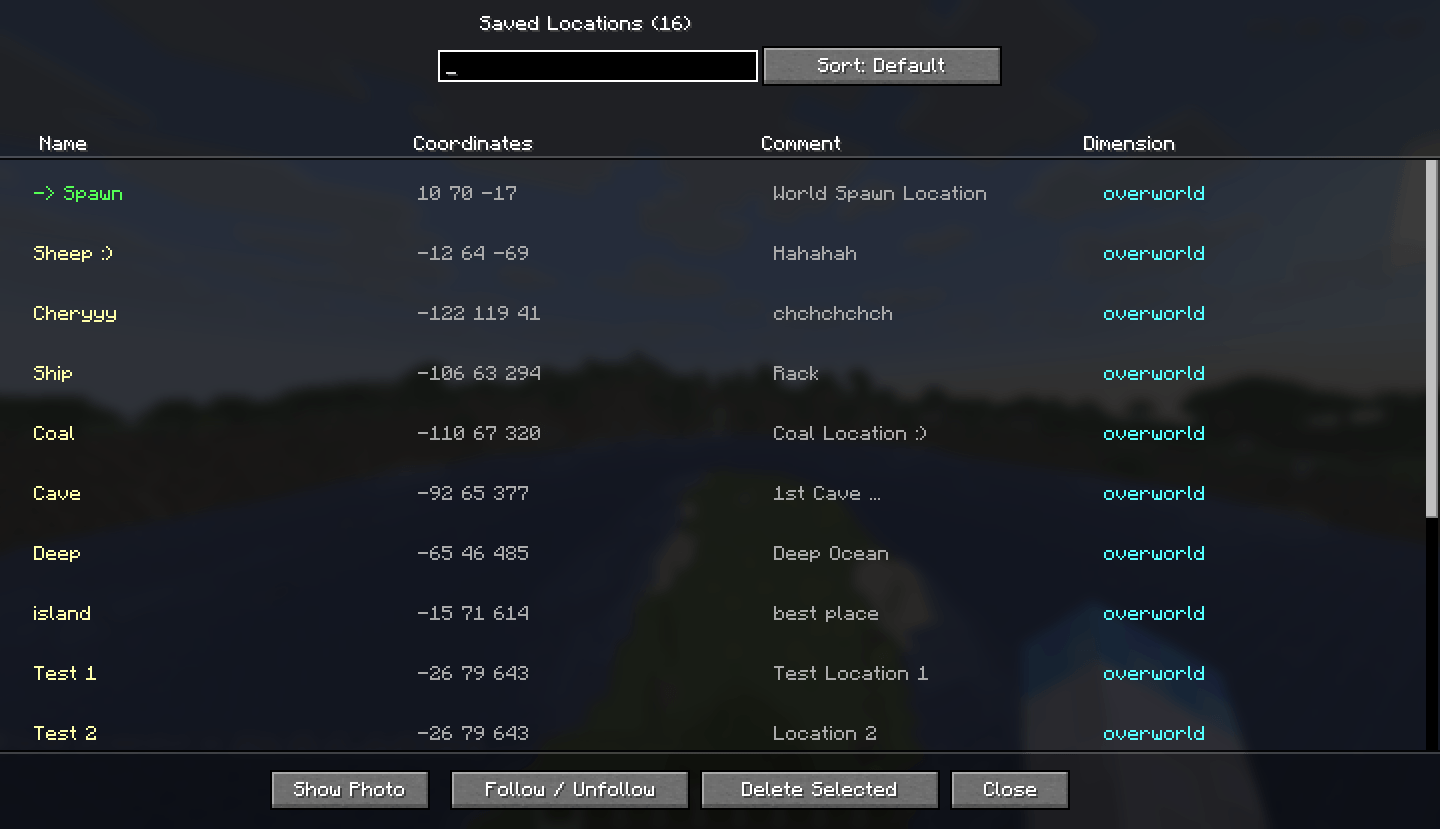
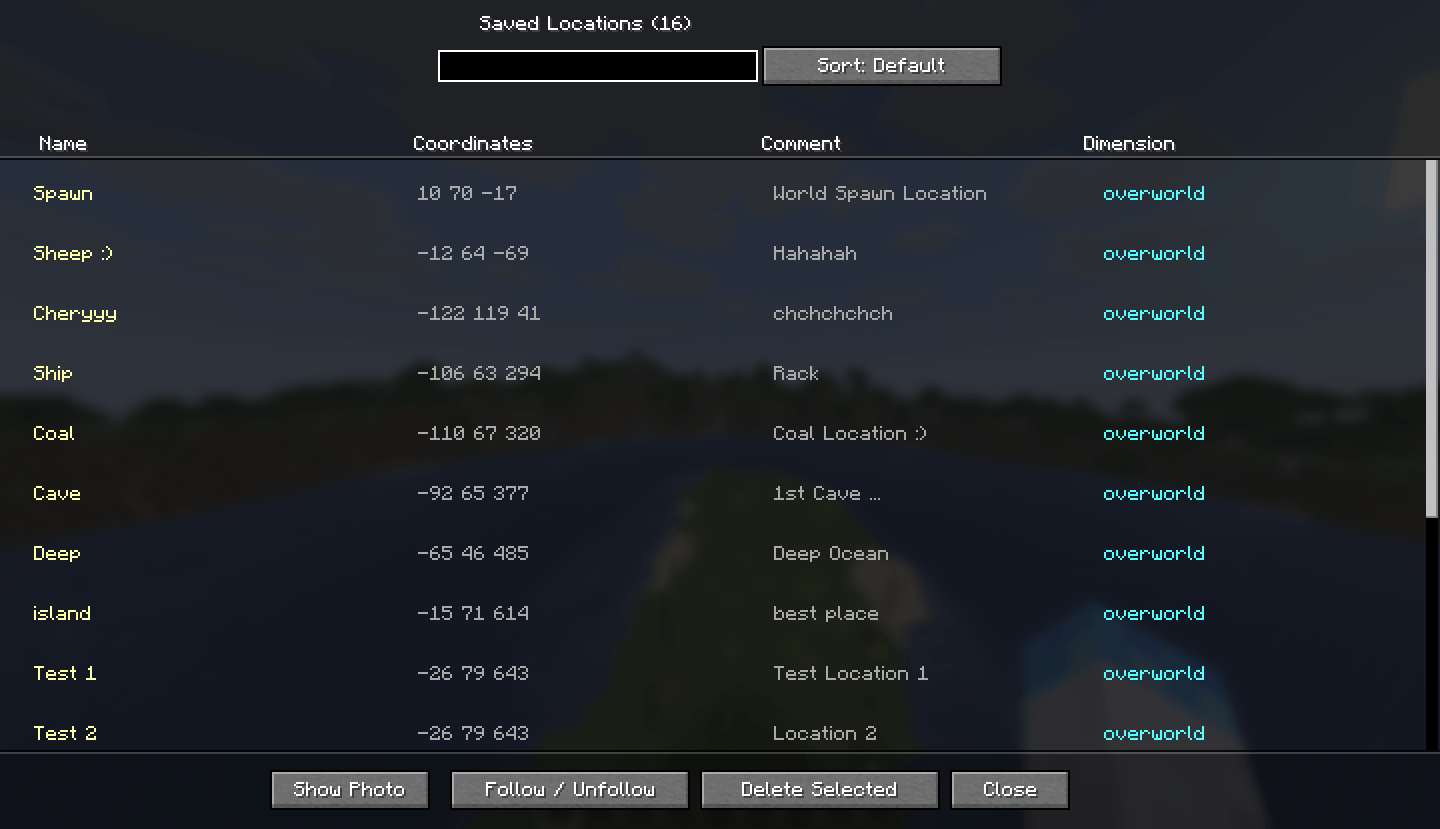
Browse all saved locations in a searchable, sortable in-game screen with name, coordinates, comment, and dimension columns.
-> Follow / HUD waypoint
Follow any location and its coordinates appear on your HUD in the top-right corner at all times.
-> Photo viewer
View the screenshot attached to any saved location directly in-game without opening File Explorer.
-> Per-world storage
Locations are saved separately for each singleplayer world and each multiplayer server automatically.
Keybinds
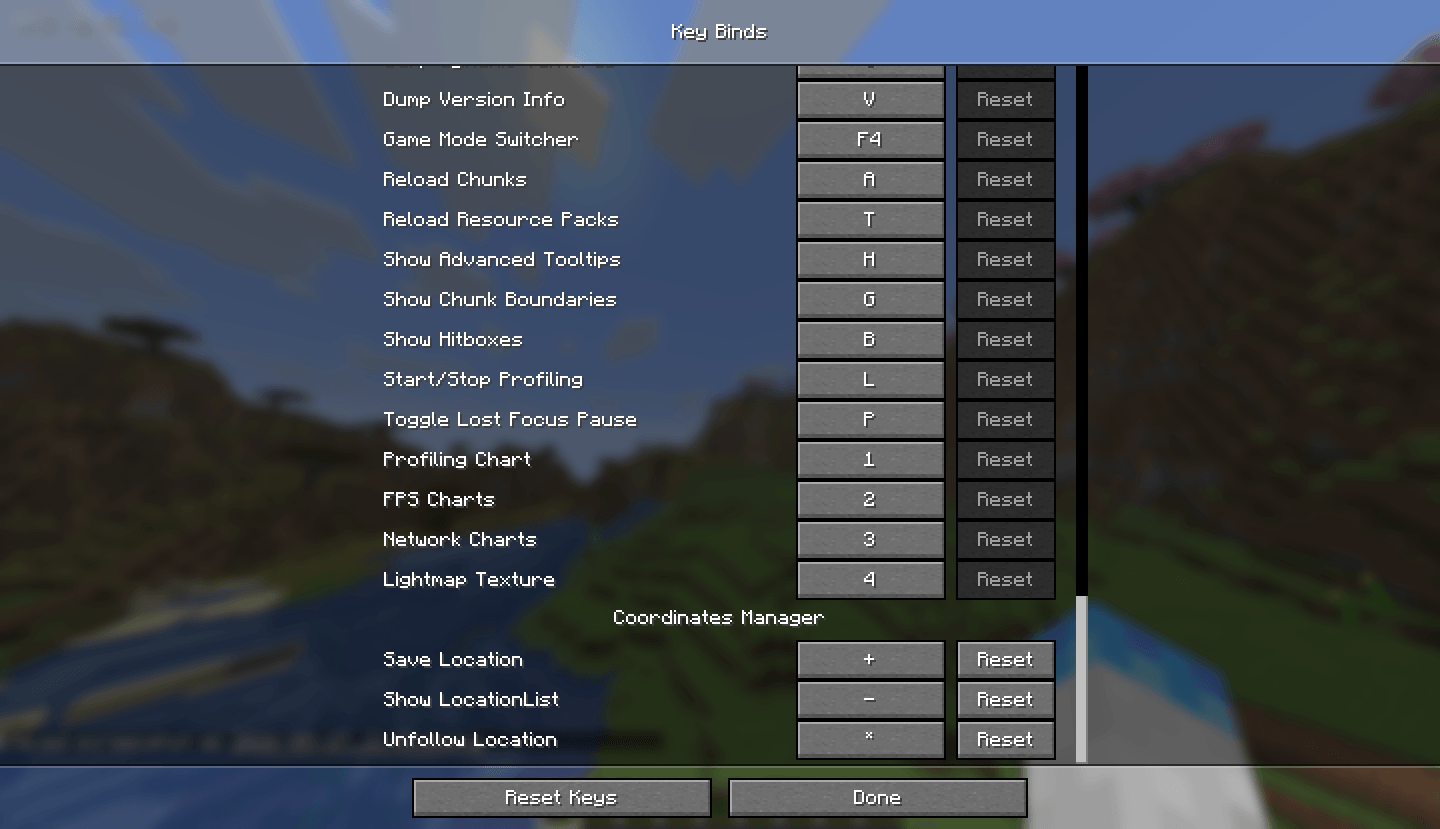
Save current location= (Equals)
Open location listL
Unfollow current waypointU
All keybinds can be rebound in Options → Controls → Key Binds → Coord Manager.
How to use
1
Stand at the location you want to save. Press
= (Equals key). The screen will close, a screenshot will be taken automatically, and the Save Location dialog will appear after a short delay.2
Type a name for the location (required) and an optional comment. Click Save. Your coordinates, dimension, and screenshot are saved automatically.
3
Press
L to open the Location List. You can search by name using the search box, and sort entries by dimension (Overworld, Nether, End) using the Sort button.4
Select any entry and click Follow / Unfollow to pin its coordinates to your HUD. The followed location is highlighted in green in the list. Press
U anytime to stop following.5
Select an entry and click Show Photo to view the screenshot taken when that location was saved. Click Delete Selected to permanently remove a location and its data.
Installation
1
Install Fabric Loader for your Minecraft version.
2
Download and install Fabric API — place the jar in your
.minecraft/mods folder.3
Drop the Coords Manager jar into your
.minecraft/mods folder.4
Launch Minecraft with the Fabric profile. No server-side installation needed — this is a client-only mod.
Data location: All saved locations and screenshots are stored in
.minecraft/config/coordsmanager/worlds/, organized by world or server name.Requirements
Mod loaderFabric
Required dependencyFabric API
SideClient only
EnvironmentSingleplayer & Multiplayer
Coordinate's Manager Team