
ConfigSwitch
- By
ConfigSwitch

Your Minecraft configs, portable.
Every modpack has its own config/ folder and options.txt. Switch packs, and all
your tuned settings are gone — keybinds, graphics, and the configs of dozens of mods.
ConfigSwitch keeps a global repository of your configs, outside any single pack,
and moves them in either direction:
- Push — save this pack's configs into the repository
- Fetch — load the repository's configs into this pack
Your configs follow you, not the pack.
How to use it
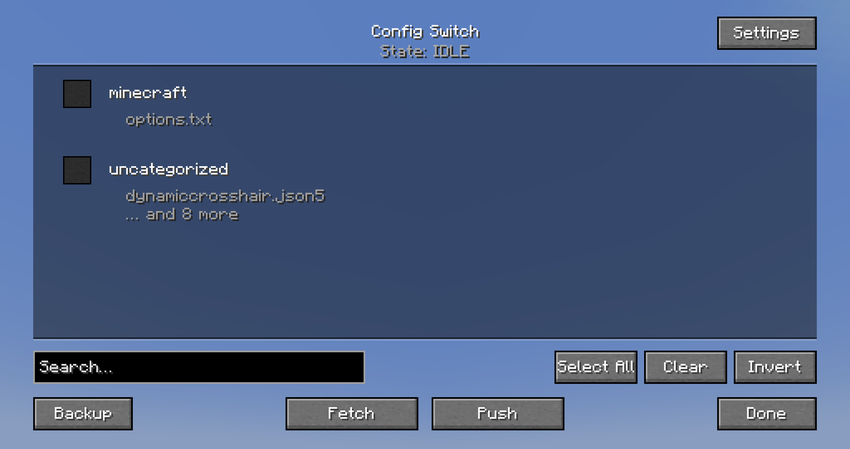
Open ConfigSwitch from the title screen — there's an icon button just above the language button. With Mod Menu installed you'll find it there too.
- Tick the mods you want to sync
- Hit Push to save them, or Fetch to load them
That's it — no config files to edit by hand.
The old in-game keybind is still there but no longer bound to anything — bind it yourself under Options → Controls if you want it.
Features
A ? in the corner explains the two buttons
Push and Fetch aren't words everyone knows. There's a small ? at the
top left of the config screen — hover it for what each button does, and for the
order that matters when you switch packs.
Sync by mod, not by file
The list groups configs by mod, so you tick sodium — not six separate .json
files. Select all / invert and a search box are there for when the list gets long.
Configs in subfolders are found too
Plenty of mods keep their configs in a folder of their own — config/jei/,
config/NoChatReports/. Those files show up in the list like any other config,
grouped by the folder they sit in.
Not everything in a subfolder is yours to sync, though. Per-world data, caches, and the settings a modpack author ships with their pack are left alone — those belong to the pack, not to your setup, and carrying them between packs would break the pack's balance.
Nothing is lost when it doesn't match
Configs that can't be matched to an installed mod go to Uncategorized, and can still be synced.
Leftovers from mods you no longer have installed are kept out of the way instead — hidden rather than deleted, with a count shown on the Uncategorized row. The files stay on disk, and they come back the moment you install that mod again.
You can teach it what things are
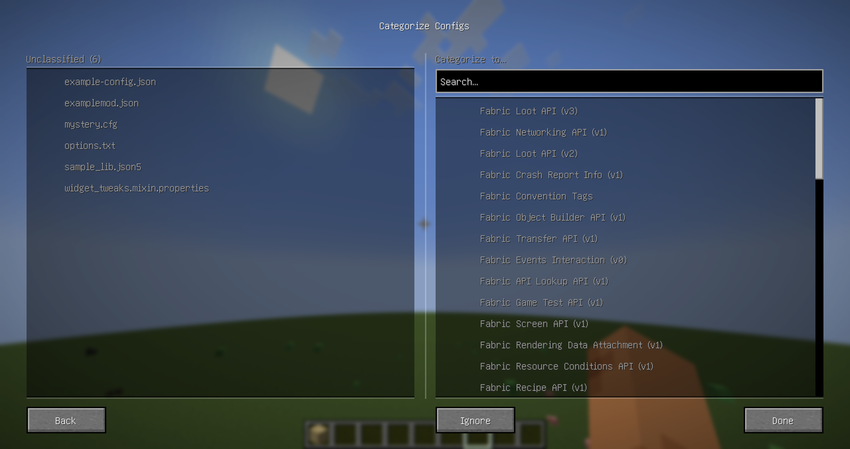
Some config files simply don't look like their mod — yacl.json5 belongs to
Yet Another Config Lib. Press Classify on the Uncategorized row: pick a
file on the left, pick the mod it belongs to on the right (the most likely ones
are sorted to the top, and you can search by mod id or name), or mark it as
Ignore.
- Nothing is written until you press Done — pick wrong and you can change your mind.
- Your choices are remembered across packs and across restarts, so you only
do it once. They live in
mappings.txtnext to your other ConfigSwitch settings — the built-in mappings are in there too, so you can see and edit them.
Everything is backed up before it's overwritten
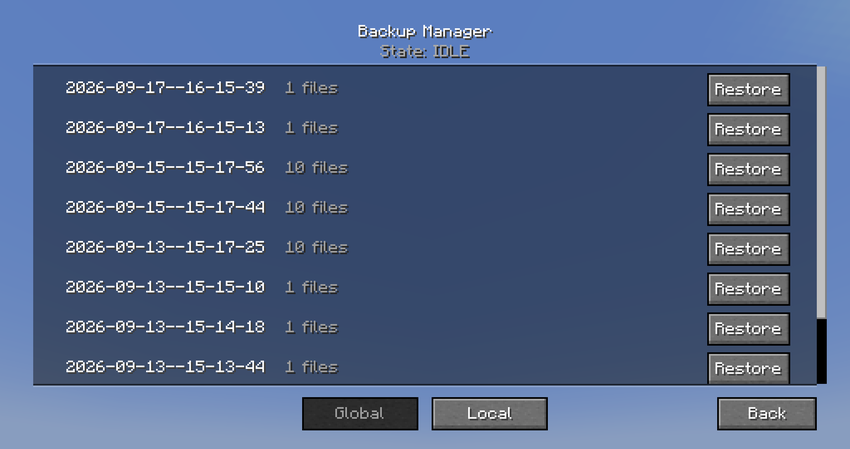
Every Push / Fetch copies the old files to a timestamped backup first, and older backups are pruned automatically — so a bad sync is never permanent.
Restore any snapshot
The Backup screen lists past snapshots from both sides. Restoring one is itself backed up first, so a restore can be undone.
Take the whole repository with you
Switch computers without copying %APPDATA% by hand.
- Export packs the repository into a zip in
configswitch/export/. When it's done you can open that folder straight away. - Import: press Import and drag a zip into the window. Your current repository is backed up first, and you get a button to open the backup folder.
- What travels is the configs themselves plus the decisions you made by hand. ConfigSwitch's own settings don't — there are only two, and setting them again is faster than importing them.
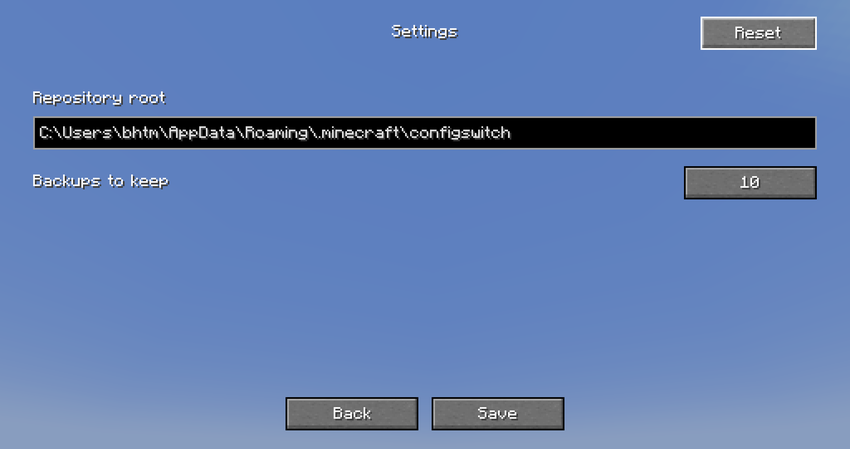
Configurable
Change where the repository lives, and how many backups to keep.
Requirements
- Minecraft 1.21.1
- Fabric Loader 0.15.10 or newer
- Fabric API
- Windows (for now)
Known limitations
- Mod configs take effect after a game restart —
options.txtapplies immediately, but mods read their configs at startup - Config files whose names don't resemble their mod id, and that aren't in the built-in mappings, still end up in Uncategorized
- Some mods store their configs under a name that doesn't match the mod at all —
WTHIT keeps its files as
waila_*. Those can't be matched automatically - Classify only offers mods you have installed — a config for a mod you haven't installed yet can't be aimed at it in advance
- Configs in a subfolder are picked up by their names too. A config whose name gives nothing away may be left out — and its folder may not show up at all
- A mod whose id carries a suffix isn't matched on its own — a file named
e4mc.tomlbelongs to a mod whose id ise4mc_minecraft. You can still pick that mod by hand in Classify - A subfolder is treated as one item. If it really holds configs for two different mods, there is no way to say so
- A flat file and a folder sharing a name are treated as the same thing —
jei.jsonandjei/end up pointing at the same mod - Caxton can leave the search box in the Classify screen blank. It still works — you just can't see what you typed
- Classified something wrongly? There is no undo in the UI yet. Edit
%APPDATA%\.minecraft\configswitch\mappings.txtand delete that line — the file goes back to Uncategorized on the next launch. The built-in entries come back if you delete them, so only remove the ones you added yourself - Windows only for now
Reporting issues
Please include your logs/latest.log — or just the lines containing
[ConfigSwitch]. That prefix is how our entries can be told apart from the other
mods', since latest.log has no per-mod names in it.
If the problem is "nothing happened" — a config didn't change, a button did
nothing, a sync had no effect — latest.log usually isn't enough. In that case,
add -Dconfigswitch.debug=true to the instance's JVM arguments (launcher →
advanced options), start the game, reproduce the problem once, quit, and
attach logs/configswitch-debug.log. It contains only ConfigSwitch's own
log, including detailed step-by-step entries. Then remove the argument again —
it's a one-off and does not persist.
License
MIT — see LICENSE.txt
ConfigSwitch Team
