config-en.png
Description
CompixelUI
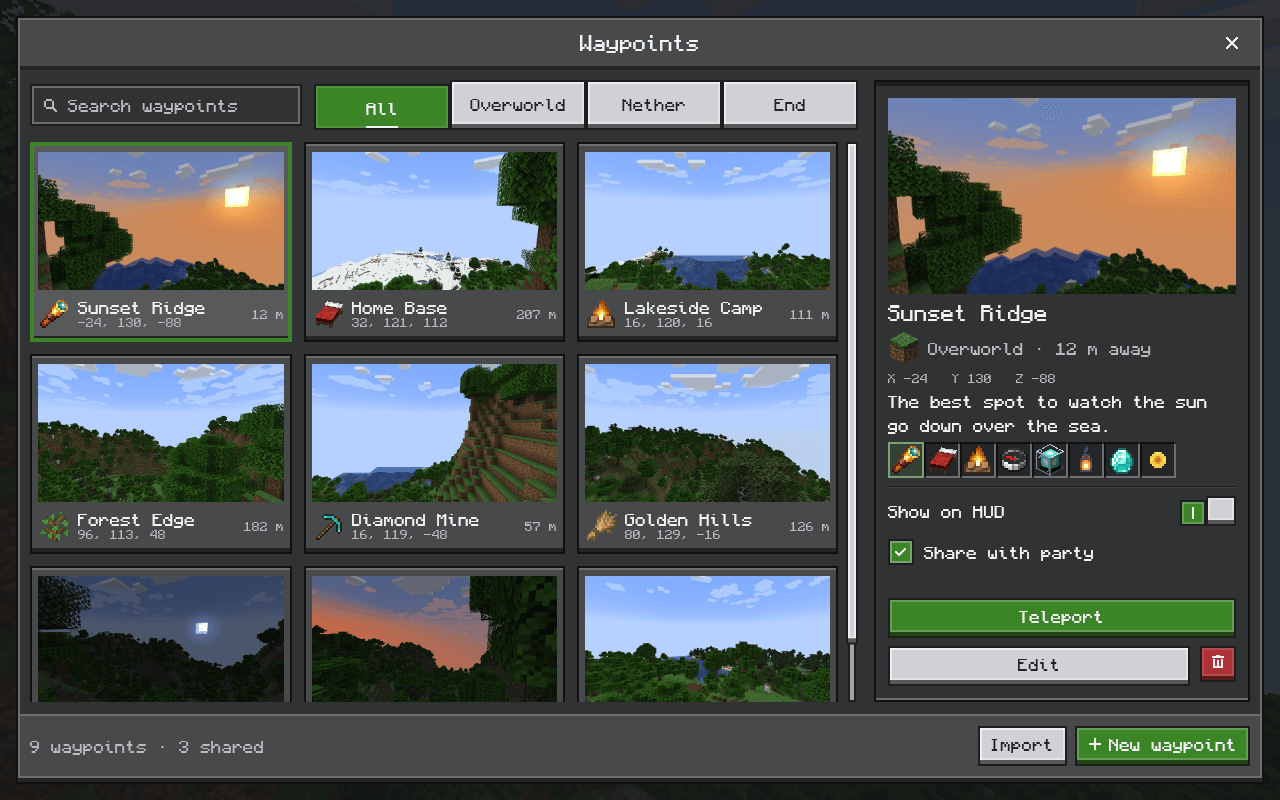
CompixelUI is a library that other mods use to build their screens. It adds nothing to the game on its own: install it when a mod you play requires it.
What you get
In mods built with CompixelUI:
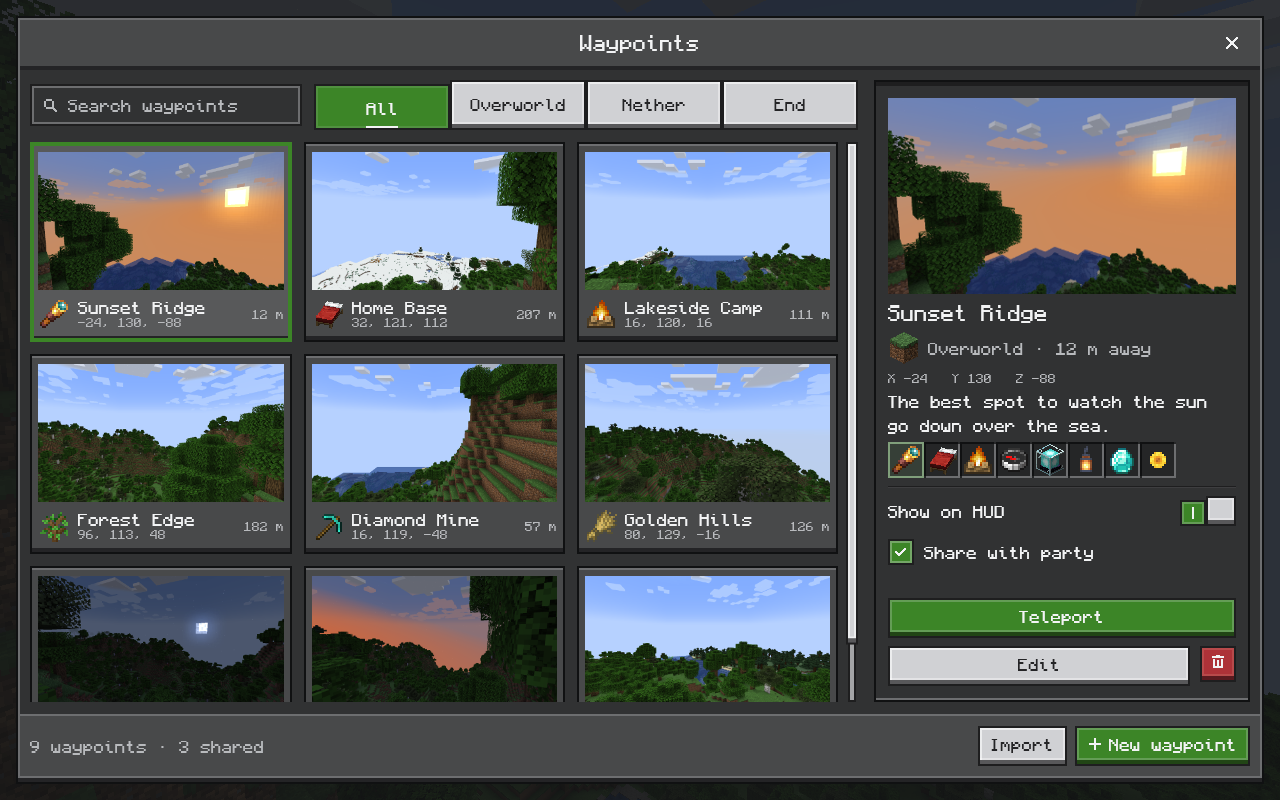
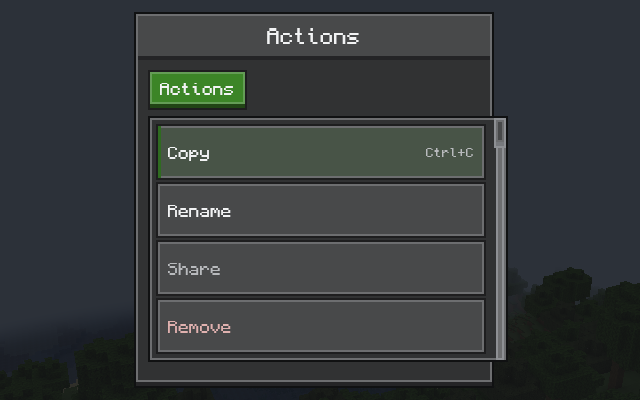
- Screens that fit Minecraft: buttons, sliders, tabs, menus, tooltips and windows in a crisp pixel style.
- Real items: icons with their animations and enchantment glint, and the same tooltips as in your inventory.
- Inventories that work as usual: clicking, dragging and shift-clicking behave like vanilla, and recipe viewers and other inventory mods keep working.
- Proper typing: text fields follow your keyboard layout and support selection, copy and paste, and input methods for languages such as Chinese and Japanese.
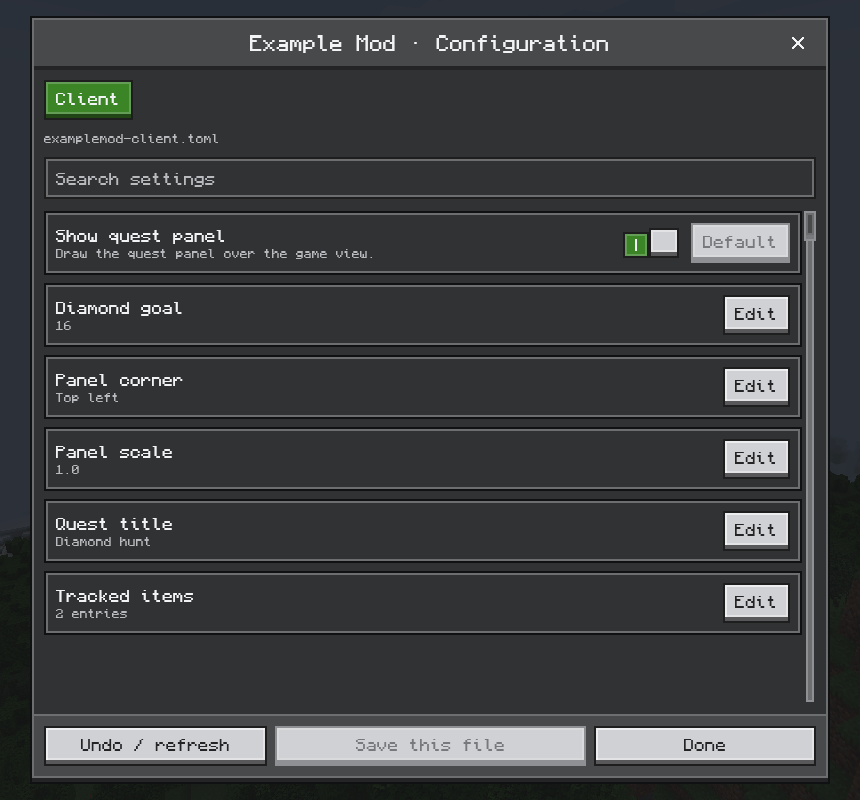
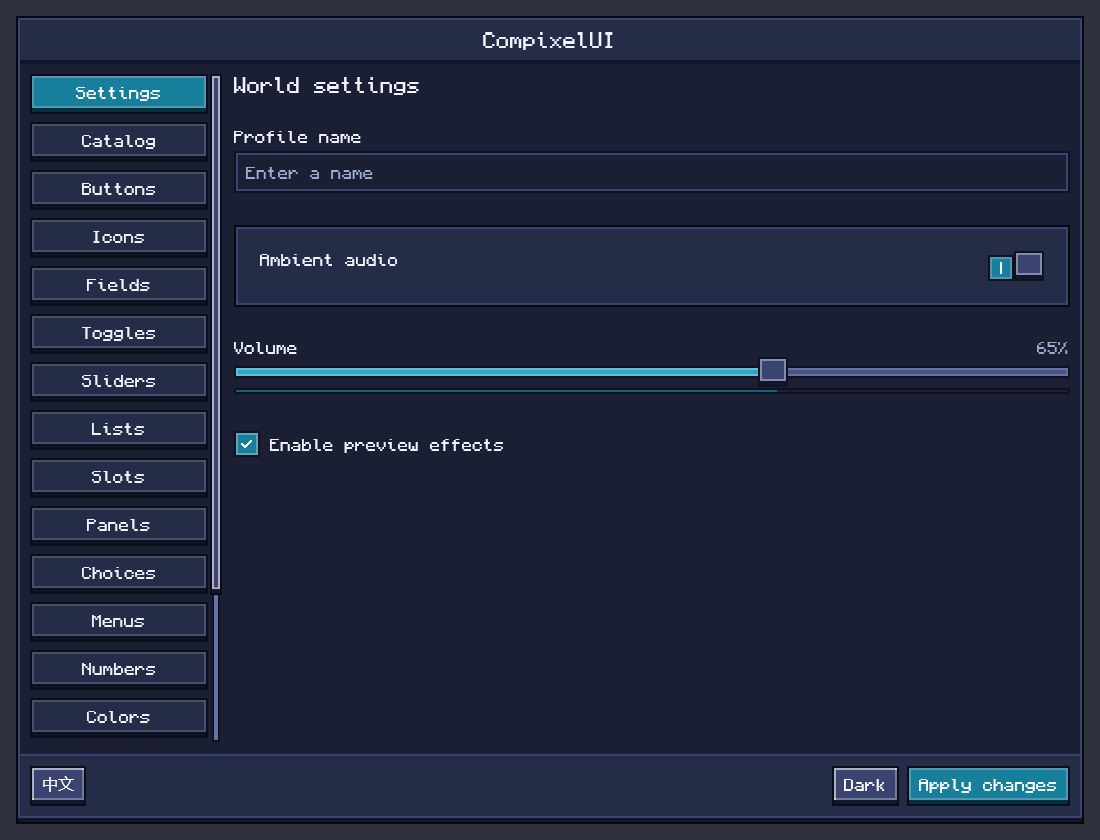
- Friendlier config screens: mods can use its settings editor, with a tab per file, search, value checks, defaults and undo.
- Colors you can change: resource packs can recolor any CompixelUI screen, and Light and Twilight themes are built in.
- Smooth rendering: screens are drawn on the GPU through the same graphics API as the game, including Vulkan on Minecraft 26.2 and 26.3.
| Controls | Items and tooltips |
|---|---|
 |
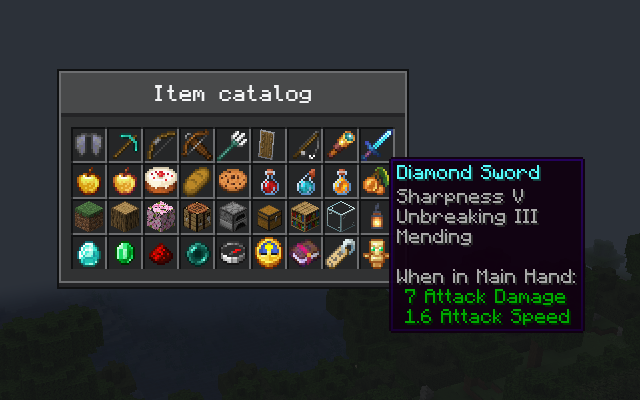 |
| Inventories | HUD overlays |
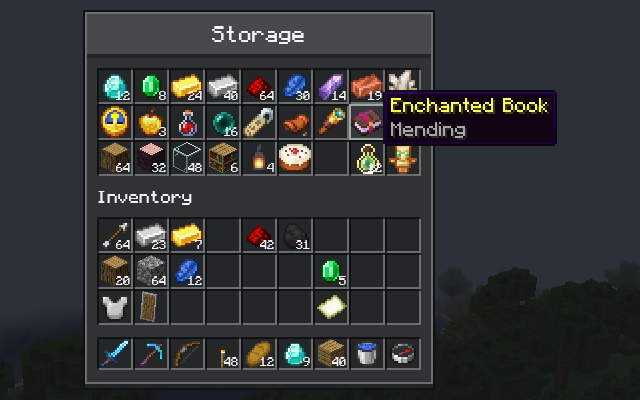 |
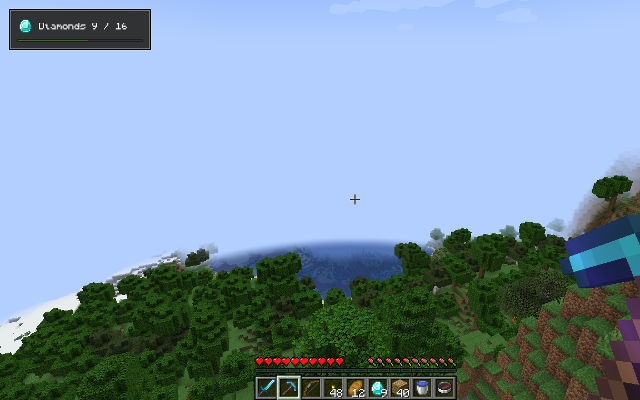 |
Installation
Download the file for your Minecraft version and put it in your mods folder, next to the mod that needs it. Each version comes as two files; install only one of them:
| File | Choose it if |
|---|---|
Ends in -with-kotlin.jar |
You don't use Kotlin for Forge. This is the right file for most players. |
The other .jar |
You already have Kotlin for Forge installed. |
Don't combine the -with-kotlin file with Kotlin for Forge: the two copies of Kotlin conflict.
Change the colors
Resource packs can recolor CompixelUI screens without any code. For example, a resource pack with this file at assets/compixel/compixel/ore_themes/default.json switches every CompixelUI screen to the built-in Twilight theme:
{
  "format": 1,
  "preset": "twilight"
}
Enable the pack, or press F3+T to reload if it's already on. Mods that choose their own theme or colors may keep them. The theme guide covers custom colors, per-mod themes and every color name.
Troubleshooting
"CompixelUI requires compatible Kotlin…" at startup. You have the plain file without a suitable Kotlin for Forge. Install Kotlin for Forge for your Minecraft version, or replace the file with the -with-kotlin one.
A mod asks for a different CompixelUI version. Download the version it names.
A screen looks wrong, or the game crashes when one opens. Add -Dcompixel.backend=cpu to the JVM arguments in your launcher and try again. CompixelUI then draws on the CPU instead of the graphics card: slow, but it shows whether the graphics driver is involved. Please report the problem either way.
Reporting problems
If only one mod's screens are affected, start with that mod's issue tracker. Otherwise, open an issue on GitHub with your Minecraft and loader versions, the CompixelUI file you installed, and logs/latest.log or the crash report.
For mod developers
CompixelUI lets you write your mod's screens, inventories and HUDs in Kotlin with Jetpack Compose:
Minecraft.getInstance().setScreen(ComposeScreen(Component.literal("Counter")) {
    var count by remember { mutableStateOf(0) }
    OreScreen("Counter") {
        OreText("Clicked $count times")
        OreButton("Click me", onClick = { count++ })
    }
})
It also covers container screens with real slots, menu synchronization between server and client, and ready-made config screens. Start with Getting started, or browse all guides and the source code.
License
CompixelUI is released under the MIT License. Bundled libraries keep their own licenses; see the third-party notices. Text uses the Monocraft font by Idrees Hassan, under the SIL Open Font License 1.1.
CompixelUI is not an official Minecraft product and is not associated with Mojang or Microsoft.
The CompixelUI Team

Owner