


Cinematic Interactions





🎬 Put your hands to work.
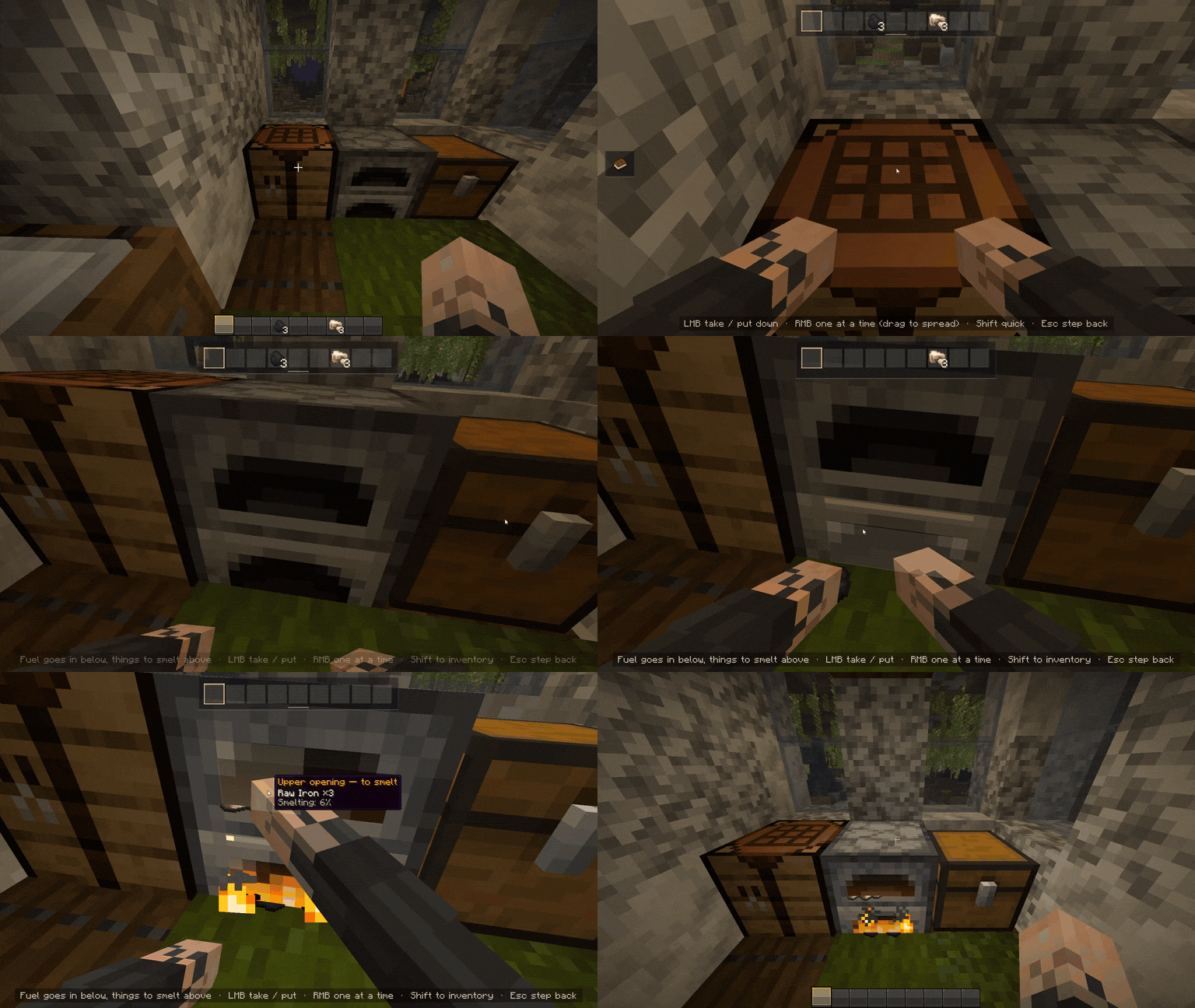
Cinematic Interactions turns supported Minecraft workstations into animated first-person scenes. Step up to a crafting table, place ingredients on its surface, load a furnace by hand, or forge an item at the anvil. Your character's arms use your own skin, while camera movements bring the work into view.
🛠️ Craft directly in the world.
The crafting table becomes a visible 3×3 workspace. Its recipe guide lets you search recipes, check which materials you have, and preview ingredients directly on the tabletop. Missing materials are highlighted, and Lay out makes your hands place available ingredients from your inventory.
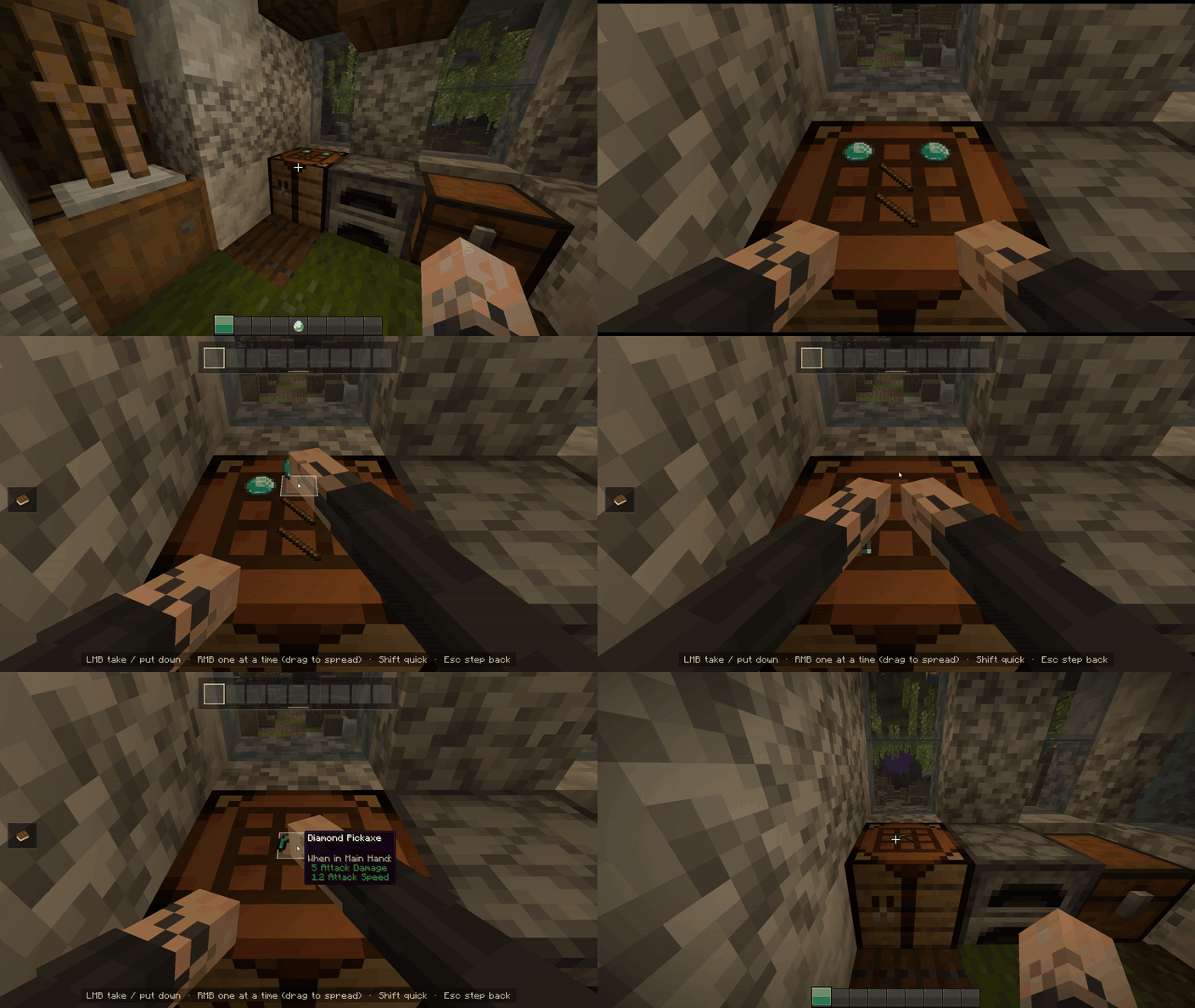
Placed ingredients stay on the crafting table when you leave and are visible to other players.

✨ Each station has its own scene
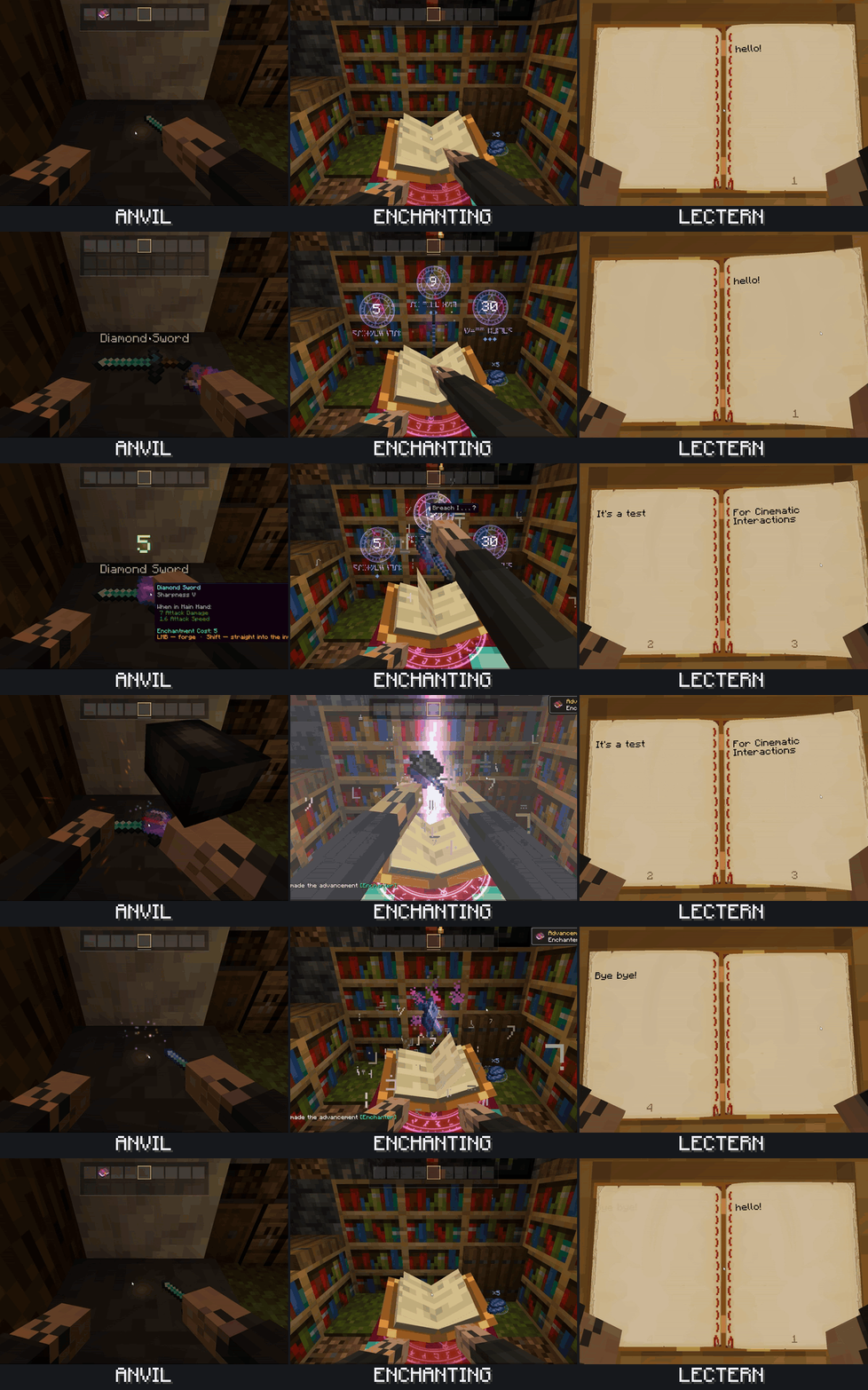
Forge with a hammer, grind a blade against the wheel, weave a banner, or watch ingredients dissolve into your potions. Read a book on a lectern with animated page turns, insert a music disc into a jukebox, or sit beside a campfire to cook.
| Activity | Supported blocks |
|---|---|
| Crafting and smelting | Crafting table, furnace, smoker, blast furnace, crafter |
| Tools and equipment | Anvil, grindstone, smithing table, stonecutter |
| Enchanting and brewing | Enchanting table, brewing stand |
| Banners and maps | Loom, cartography table |
| Reading and music | Lectern, chiseled bookshelf, jukebox |
| Campfires and beacons | Campfire, soul campfire, beacon |
🔄 Keep your workshop flowing
Move directly between nearby supported stations with a smooth camera and hand transition. Returning to the same station shortly after leaving gives you a quicker entrance.
An inventory panel keeps your items within reach. Hold Left Alt to view your character at the station from third person, then release it to return to work.
⚙️ Adjust the experience
Choose which blocks use scenes and adjust camera lean, zoom, entrance and exit speed, and quick return. Control hints, cinematic bars, camera motion, shake and screen flashes can be toggled individually.
On NeoForge, open Mods → Cinematic Interactions → Config. On Fabric, Mod Menu provides access to settings. Cloth Config provides an optional settings interface.
🎮 Getting started
- Right-click a supported block to begin.
- Left-click / right-click to interact with items and the station; the on-screen hints explain the available actions.
- H while looking at a campfire to sit beside it.
- Right-click a highlighted nearby station to move to it.
- Esc, E, movement keys or jump to leave.
- Sneak + right-click with an empty hand to use the usual interface where the block has one.
The campfire and third-person view keys can be rebound in Minecraft's controls.
📦 Installation
- Fabric: Minecraft 1.21–1.21.11. Install the build matching your exact Minecraft version. Fabric API is required. Mod Menu and Cloth Config are optional client-side settings integrations.
- NeoForge: Minecraft 1.21.1. Developed and tested with NeoForge 21.1.255. Cloth Config is optional.
- Install one matching JAR on both the client and server for multiplayer. In singleplayer, the integrated server is handled automatically.
Chests, barrels and shulker boxes keep their usual interfaces. If a station cannot be reached or its workspace is obstructed, the default settings fall back to its usual interface where available.
📜 Credits & license
Created and maintained by Southware. Original project code is licensed under MIT. The adapted Just a Hammer model by RDiamonds is licensed under CC BY 4.0. See credits and development disclosures.
Not an official Minecraft product. Not approved by or associated with Mojang or Microsoft.
Cinematic Interactions Team
