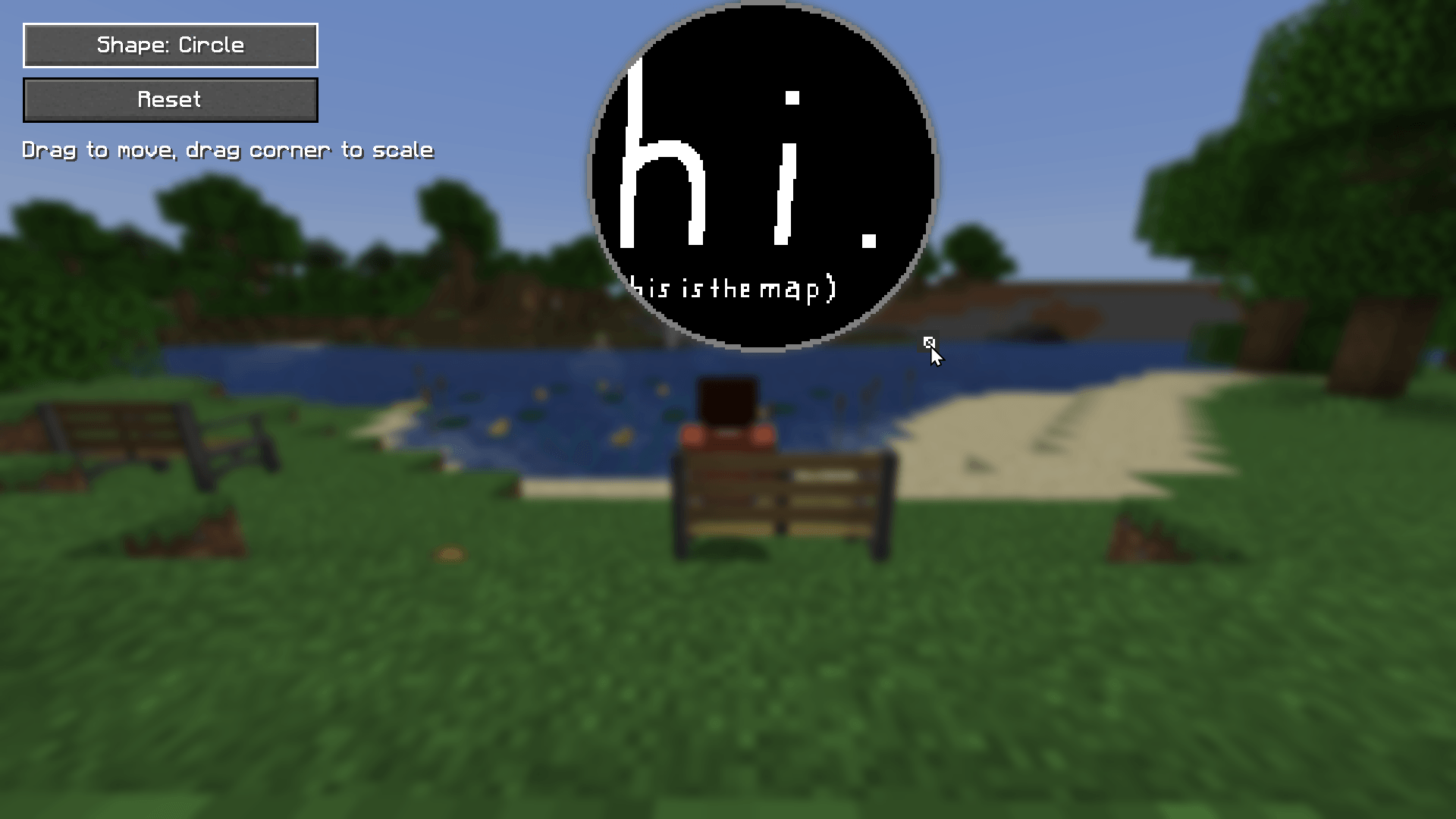
That one screen with the settings, am I right?
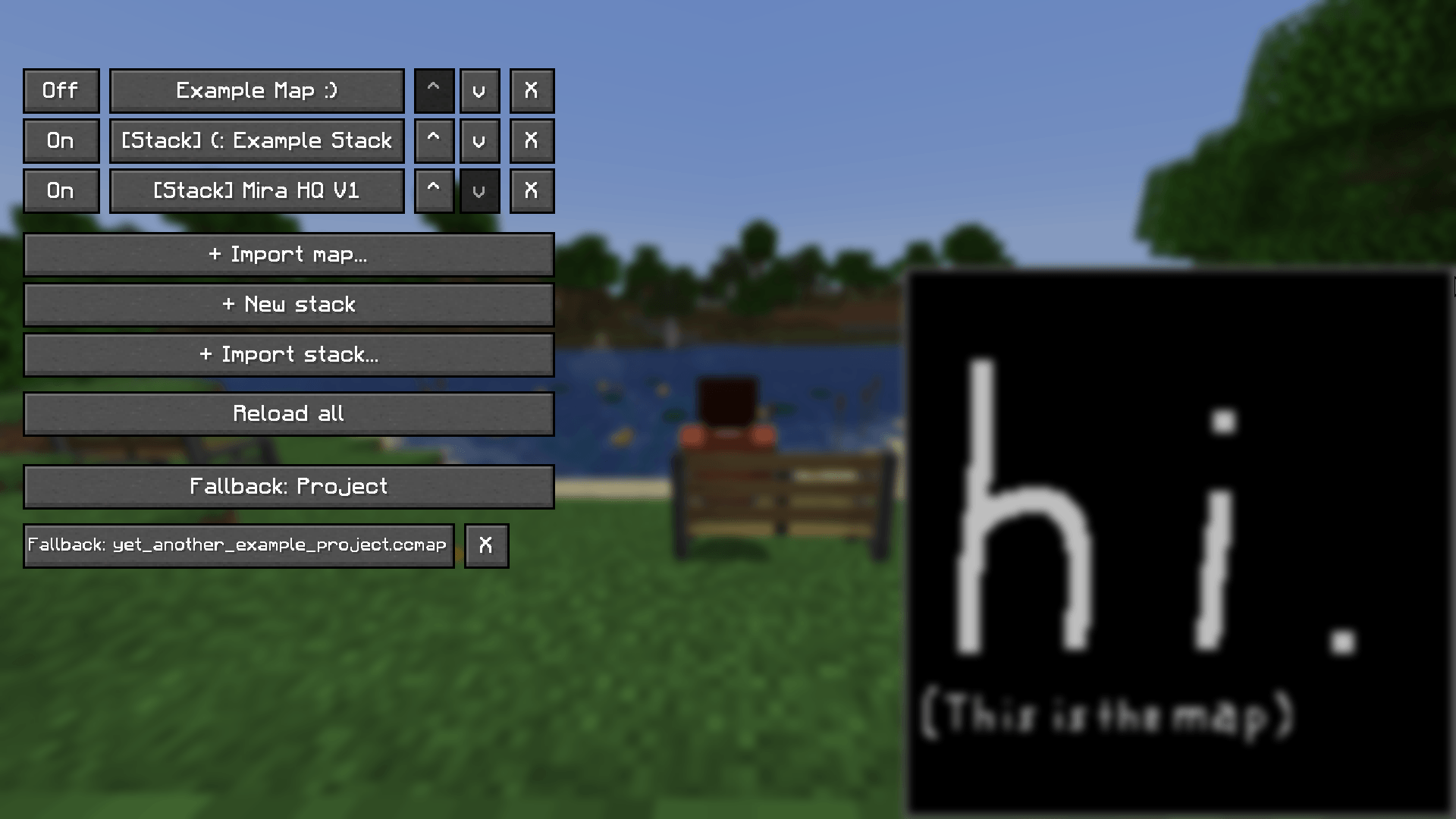
The library screen with a bunch of example projects.
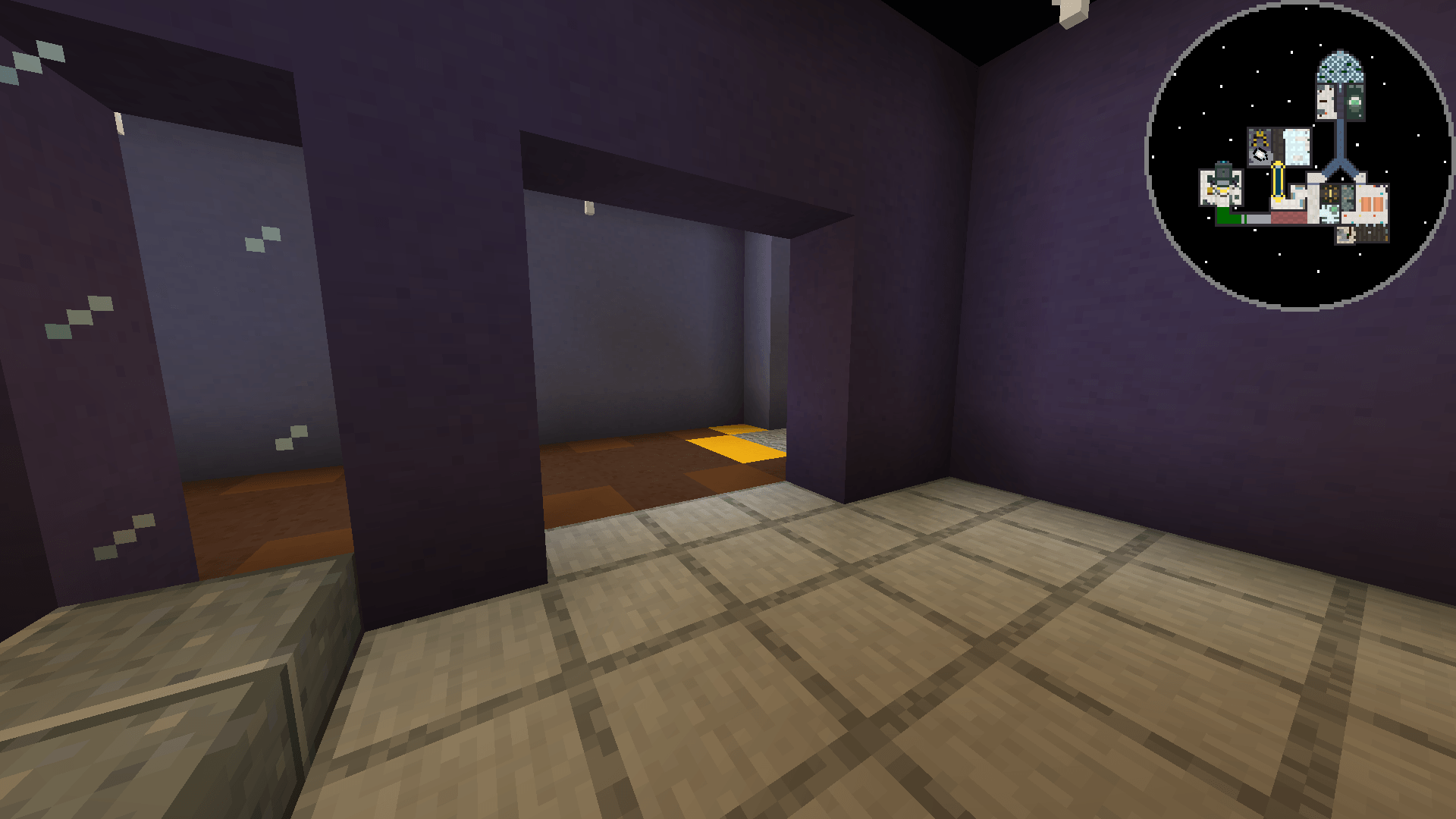
Recreation of the "Mira HQ" map from Among Us.
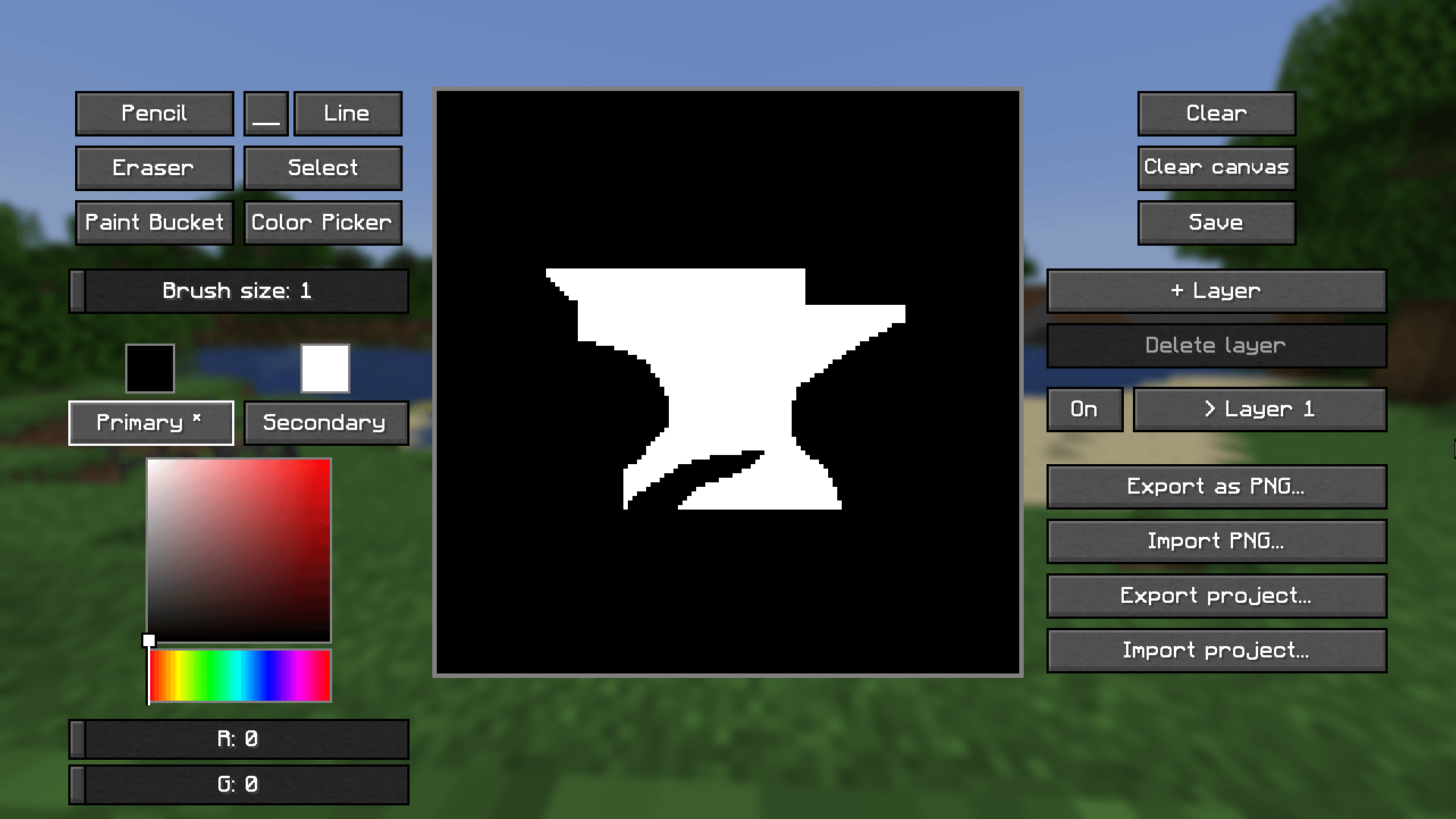
The editor!
Description
Cartographer's Canvas
Cartographer's Canvas is a client-side mod that lets you create a custom minimap and bind it directly to your world.
Getting Started
Open the main config screen through Mod Menu or the command /cartographerscanvas config. From there you can jump into any of the three screens below, and assign a keybind to each.
| Command | Opens |
|---|---|
/cartographerscanvas config |
Screens and keybinds |
/cartographerscanvas editor |
Map editor |
/cartographerscanvas library |
Map library |
/cartographerscanvas settings |
Minimap settings |
Editor
The editor gives you a 128×128 pixel canvas where you can create the image your minimap will display.
Tools:
- Pencil - draws pixels at your cursor.
- Eraser - clears pixels back to transparent/white.
- Paint bucket - fills a connected area of matching color.
- Shapes - Click and drag from a start point to a corner, edge, or endpoint of lines, rectangles and circles.
- Select - marks a rectangular area for copy/cut/paste (
Ctrl+C/Ctrl+X/Ctrl+V). Pasted selections appear translucent so you can drag them into place before confirming. - Color picker - samples the color at your cursor.
Color picking works through a saturation/value square with a hue slider, individual RGBA sliders, or a hex code field.
Layers: split your image into up to eight individually toggleable, reorderable, and deletable layers. Undo/redo is available via Ctrl+Z / Ctrl+Y.
Saving your work:
- Save stores your current project for next time.
- Clear Layer resets only the currently active layer.
- Reset Canvas deletes all layers and resets the canvas to fully white.
- Export as PNG flattens all visible layers into a single image, useful for sharing a preview or continuing later, but layer data is lost in the process.
- Import PNG adds an existing image (128×128) as a new layer.
- Export/Import as .ccmap ("Cartographer's Canvas Project") keeps every layer intact. This is also the format the library uses to reference your maps.
Library
The library is where your maps get bound to actual positions in the world. You can add projects to it in one of three ways:
- + Import map... - add any
.ccmapfile. - + Import stack... - add a
.ccstackfile (see below). - + New stack - create a stack from scratch.
Entries can be freely reordered, the top entry having the highest priority, winning whenever regions overlap.
Click any entry to configure it:
- Position - drag the two corner points defining its in-world rectangle.
- Rotation - rotate in 90° steps. This doesn't modify your map itself, it rotates how the world maps onto the canvas and which direction the player indicator points.
- Dimension - Overworld, Nether, or End.
- Export - for stacks, this saves a self-contained
.ccstackfile with the region, dimension, rotation, every layer's image, each layer's Y-range, and the stack's own fallback, useful for sharing a complete setup with others on the same world. Individual maps don't need a separate export here, since they're already just references to the.ccmapfile you made in the editor.
What's a stack? A stack groups several maps under the same X/Z position, switching between them based on the player's Y (height), useful for multi-floor builds with distinct levels. Each stack has its own fallback for when you're in the right spot but at a height none of its levels cover:
- Hide - show nothing.
- Highest priority - fall back to the stack's top entry.
- Other map - show a specific chosen map instead.
There's also a global fallback, which decides what to show when the player's position doesn't match any entry in the library, independent of each stack's own fallback.
Minimap Settings
This is where you modify the on-screen appearance:
- Drag the minimap anywhere on screen.
- Resize by dragging the arrow symbol in its bottom-right corner.
- Shape - either square or circle. Circles crop the corners, reducing the visible area by about 21.5%.
Dependencies
- Fabric API - required.
- Mod Menu - optional but recommended.
The Cartographer's Canvas Team