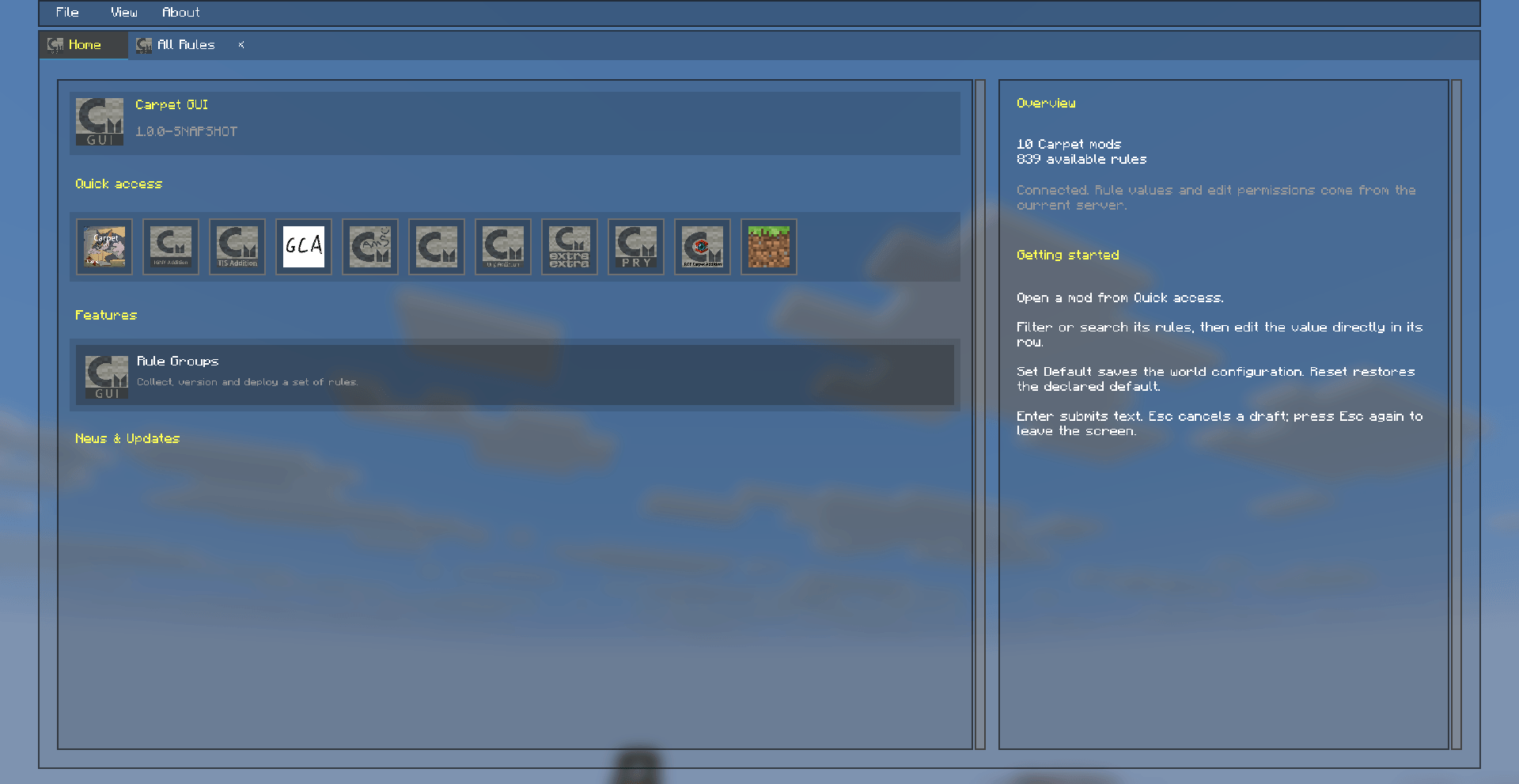
home_page.png
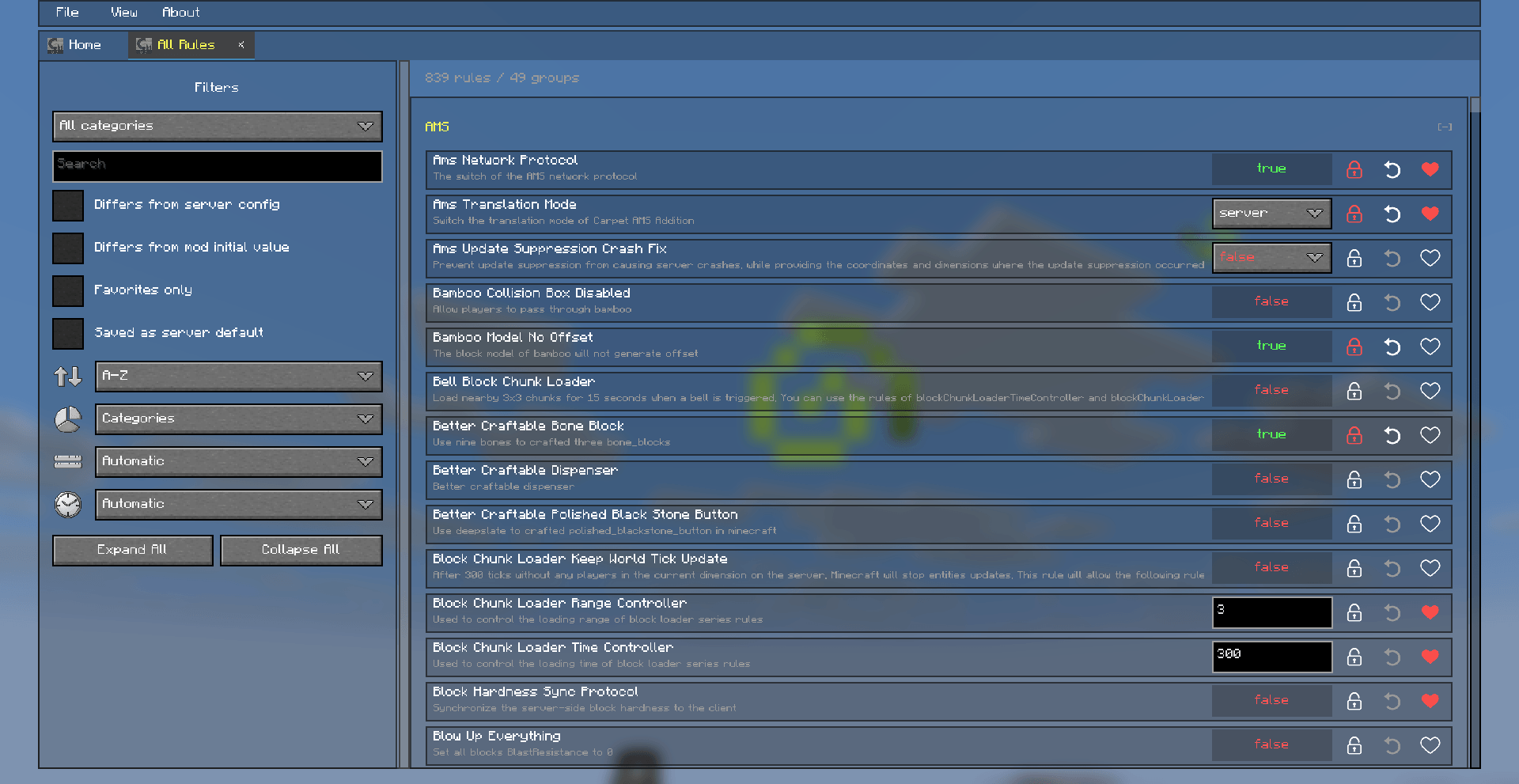
all_rules_preview.png
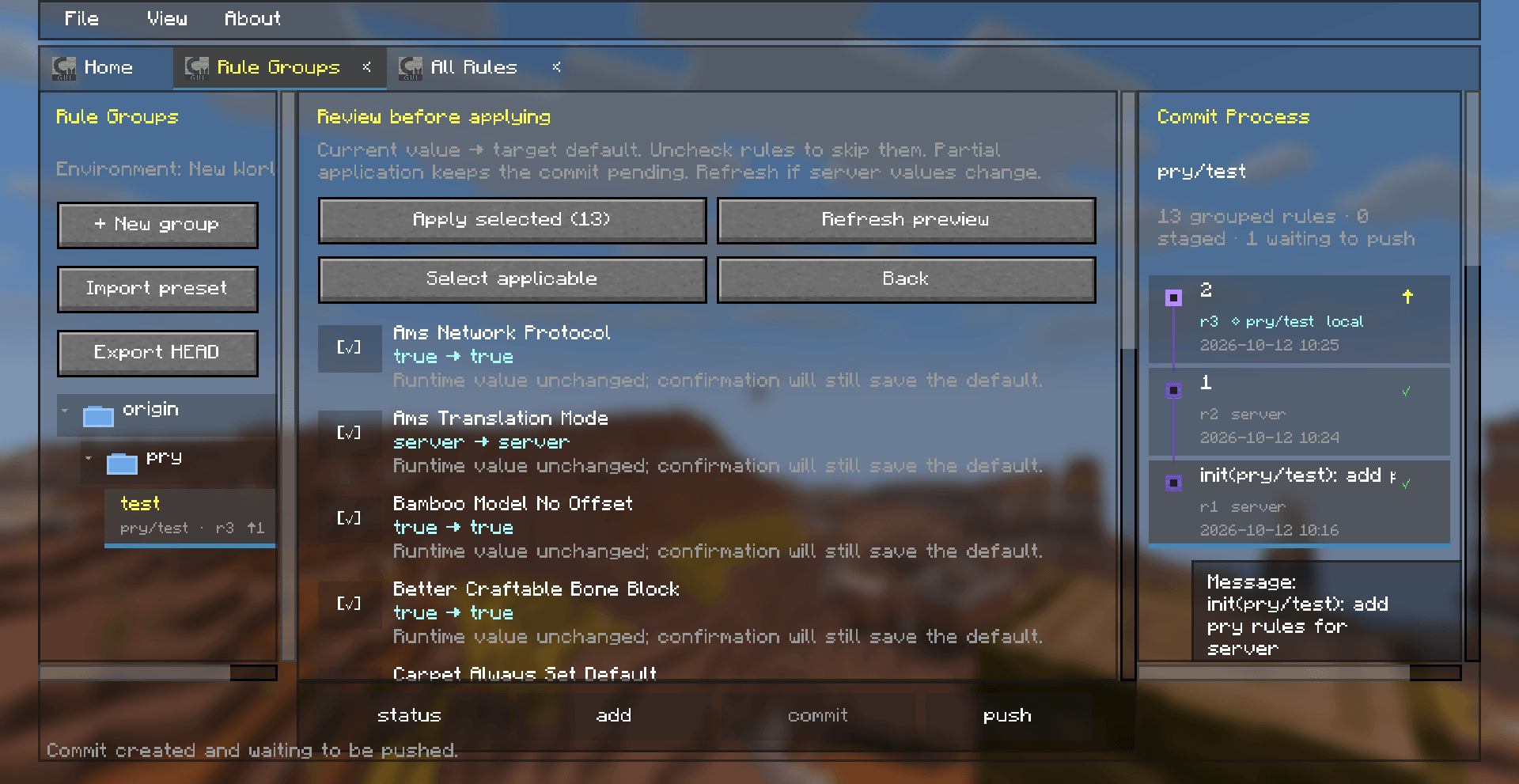
rule-groups-preview.png
Description
Carpet GUI
**English(Selected)**
Browse rules. Organize presets.
A graphical workspace for Carpet and supported Carpet addons.



[Installation](#installation) · [Quick Start](#quick-start) · [Rule Groups](#rule-groups-and-presets) · [FAQ](#faq) · [Rules API](#for-addon-developers-rules-api) · [Report an Issue](https://github.com/Piscescup/carpet-gui/issues)
Carpet GUI brings rule browsing, editing, and configuration management into one in-game workspace. Find a rule without remembering its command, collect related rules into reusable groups, and inspect committed values before saving them to a server.
Features
| What you can do | |
|---|---|
| 🔎 Find rules | Browse mod pages or All Rules; search IDs, names, and descriptions, including indexed English and Chinese translations. |
| 🗂️ Organize the workspace | Open multiple tabs, collapse categories, filter by category or favorites, and sort by name or value. |
| 🎛️ Edit visually | Use toggles, option lists, and value fields; reset a rule or save a persistent default when permitted. |
| ⭐ Keep favorites | Save frequently used rules across sessions. |
| 🌳 Build rule groups | Arrange related rules in folders, stage values, and create local commits with messages. |
| 🕘 Inspect history | Click a commit to see its author, time, and rule differences; hover over rules to view observed server changes when available. |
| 📦 Share presets | Export committed values to JSON and import them into another workspace. |
| ✅ Review application | Compare live values with committed targets, select rules to apply, and see why a rule cannot be applied. |
| 🌍 Separate environments | Keep groups and commit history separate for each world or multiplayer server. |
| ⚙️ Browse gamerules | View and edit vanilla gamerules on supported Minecraft 26.x builds, subject to server permissions. |
Requirements
Dependencies
| Dependency | Requirement | Required |
|---|---|---|
| Fabric Loader | 0.19.5 or newer |
Required |
| Fabric API | Build for your Minecraft version | Required |
| Carpet | Compatible build for your Minecraft version | Required |
| TCDCommons | Compatible Fabric build for your Minecraft version | Required |
| Mod Menu | Build for your Minecraft version | Recommanded |
Install the relevant Carpet mods on the client to make their rule definitions available. Server-side rule editing also requires those mods on the server.
Minecraft and Java versions
The current build configuration enables the following targets. Choose a Carpet GUI JAR for your Minecraft version.
| Minecraft build target | Minimum Java version |
|---|---|
1.21.1, 1.21.3, 1.21.4, 1.21.5, 1.21.8, 1.21.10, 1.21.11 |
Java 21 |
26.1.2, 26.2, 26.3 |
Java 25 |
The 1.21.1 build also declares Minecraft 1.21 compatibility.
See settings.json for enabled build targets
and versions/ for each target's dependency requirements.
Client and server installation
| Capability | Client only | Client and server |
|---|---|---|
| Rule browser, search, favorites, and local groups | Available | Available |
| Ordinary edits and Set Default | Uses Carpet commands where permitted | Uses server-confirmed requests when supported |
| Local commits and preset import/export | Available | Available |
| Synchronized saved-configuration state | Requires server support | Available |
| Observed player rule-change history | Requires server support | Available during the connection |
| Verified group push completion | Requires server support | Confirmed after all requested changes succeed |
[!NOTE] In singleplayer, Carpet GUI also runs on the integrated server, so a separate server installation is unnecessary.
Installation
- Install Fabric Loader for your Minecraft version.
- Choose the matching Carpet GUI, Fabric API, Carpet, and TCDCommons JARs. Add Mod Menu if you want its shortcut.
- Place the JARs in your game instance's
modsfolder. - For confirmed edits, synchronized configuration, and verified group pushes in multiplayer, install matching Carpet GUI and dependency builds on the server as well. Mod Menu is only needed on the client.
- Launch Minecraft and join a world or server.
Find published builds in Releases, or check GitHub Actions for available development-build artifacts.
Quick Start
- Press F9 in-game, or open Carpet GUI through Mod Menu. You can change the key binding under Options → Controls.
- Open a mod's page or All Rules.
- Search for a rule, expand its category, and hover over it to read its description and available history.
- Use the rule's toggle, option list, or value field to edit it. Use Set Default when you want to save a supported rule as a persistent server default.
- Open Rule Groups to collect rules into reusable configurations.
[!NOTE] Ordinary rule edits affect the current running world or server. A local commit records values in your workspace; it does not save them as server defaults. Use Set Default, or review and confirm a group push, to request persistent defaults.
Workspace Pages
| Page | Purpose |
|---|---|
| Home | Start navigating the workspace and open rule pages. |
| All Rules / Mod Pages | Browse and edit rules, adjust search and filters, and manage favorites. |
| Rule Groups | Manage group membership, stage and commit values, inspect history, and import or export presets. |
| Apply Preview | Review a group's committed targets against current server values before applying selected rules. |
Rule Groups and Presets
Organize a group
Create a group with + New group, then use Manage rules to choose its members. Membership and staged values are separate: adding a rule to a group does not automatically stage or commit it.
Use / in a group name to create folders, for example survival/mob-farms. Groups appear beneath the origin root, and long names can be reached with horizontal scrolling.
origin
├── survival
│   └── mob-farms
├── creative
│   └── testing
└── shared-settings
Record and apply values
Choose rules and values → status → add → commit → push → Review → Apply selected| Action | What it does |
|---|---|
| status | Shows changes relative to the group's latest committed snapshot, with staged and unstaged changes listed separately. |
| add | Stages the group's current values and membership removals for the next commit. |
| commit | Creates a local snapshot with a message, author, and timestamp. |
| push | Opens a preview of the latest committed values to save as server defaults. |
| Apply selected | Requests the selected persistent-default changes after review. Verified completion requires server support. |
Read the apply preview
The arrow means current running value → committed target default. It does not compare two commits.
| Preview | Meaning |
|---|---|
false → true |
The rule currently runs as false; applying requests true as its saved default. |
true → true |
The runtime value already matches; confirmation still requests saving true as the default. |
| Rule unavailable or not permitted | The preview explains why that rule cannot be applied. |
For example, editing a rule to true before committing it can produce true → true,
because the ordinary edit has already changed the live value.
To see what changed between commits,
click a commit in the right-hand history panel.
Uncheck rules to skip them. Refresh preview captures current server values again; use it after the group or server values change. Applying only part of a group keeps the full commit pending. A verified push is marked complete only after every target in the snapshot succeeds.
Share a JSON preset
- Stage and commit the values you want to share.
- Click Export HEAD. This exports the latest committed snapshot, leaving uncommitted edits out of the file.
- Copy the exported JSON file into the receiving game instance's
config/carpet-gui/presets/directory. - Open Rule Groups → Import preset, then select the file or enter its filename, including
.json. - Review the imported group's targets and confirm the applicable rules.
Presets contain a group name, tag, and rule values. They leave out server addresses, author identities, local commit history, and push status. Importing creates a local group and opens a preview before any server application.
Server Features and Permissions
With matching Carpet GUI builds on both sides, edits can receive server-confirmed success or rejection, saved configuration can be synchronized, and group application can be verified.
Hover over a rule to see observed player changes: the player's name,
old → new values, and a timestamp in [YYYY/MM/DD hh:mm:ss] format.
Newer changes appear first.
This history covers the current connection and is not a permanent audit log.
Carpet GUI respects Carpet's permissions, value validation, and locked rules. Installing it does not grant additional access. If an edit is unavailable, check the rule's tooltip and the server's permissions and configuration.
Batch application is not atomic: some rules may succeed before another fails. Successful changes are not automatically rolled back, and failed or incomplete pushes remain pending.
Data Locations
| Data | Location |
|---|---|
| Singleplayer groups and history | <save-root>/carpet-gui/rule-groups.json |
| Multiplayer groups and history | <game-instance-root>/carpet-gui/Multiplayergames_<address>_<hash>/rule-groups.json |
| Offline workspace | <game-instance-root>/config/carpet-gui/offline/rule-groups.json |
| Shared presets | <game-instance-root>/config/carpet-gui/presets/ |
| Shared favorites | <game-instance-root>/config/carpet-gui/favorites.txt |
Each world or server has its own groups, staging state, and commit history.
Presets and favorites are shared within the game instance.
Multiplayer workspace data lives in carpet-gui beside config;
singleplayer data travels with the save.
FAQ
<details> <summary>Do I need Carpet GUI on the server?</summary>
Browsing, favorites, local commits, and preset files work on the client. Ordinary edits can use Carpet commands when the server permits them. Install matching builds on both sides for server-confirmed edits, synchronized saved configuration, observed change history, and verified group pushes.
</details>
<details> <summary>Why does the preview show true → true?</summary>
It compares the current runtime value with the committed target.
If both are true, the runtime value needs no change,
but the selected rule is still submitted for saving as a default.
The right-hand commit details show historical differences instead.
</details>
<details> <summary>Why is an addon or rule missing?</summary>
Check that the relevant addon is installed on the client and that its rule definitions are available. Addons sharing another mod's settings manager may need an explicit Rules API integration to appear under their own identity. Also clear any search, category, or favorites filters.
</details>
<details> <summary>Why did my export leave out my latest edit?</summary>
Export HEAD exports committed values. Stage and commit your latest changes before exporting again.
</details>
<details> <summary>Why is a commit still waiting to push?</summary>
A commit remains pending if only some targets were selected, an operation failed, or the server could not confirm completion. Check the preview's reasons and the feedback message. Refresh the preview before trying again after changing the group, server values, or permissions.
</details>
<details> <summary>Why are my groups different on another world or server?</summary>
Groups belong to the active environment. Use a JSON preset to copy committed values between environments. If older global groups exist, the workspace can offer Copy legacy groups to migrate a copy into the current environment.
</details>
For addon developers: Rules API
Use CarpetModRulesApi to give your addon its own identity and associate its registered Carpet rules with its page. This is especially useful when your addon shares another mod's settings manager, such as /carpet.
Compile against the Carpet GUI build for your target Minecraft version. Your rules must still be registered with Carpet normally; this API exposes existing rules to the GUI rather than registering new ones.
1. Provide your mod information and rules
The following example is for an addon whose rules are registered in Carpet's shared settings manager. Replace the mod ID, display name, and rule names with your own.
package com.example.addon.compat;

import carpet.CarpetServer;
import carpet.api.settings.CarpetRule;
import carpet.api.settings.SettingsManager;
import io.github.piscescup.fabricmc.carpetgui.api.CarpetModRulesApi;

import java.util.ArrayList;
import java.util.Collection;
import java.util.List;
import java.util.Set;

public final class ExampleRulesProvider implements CarpetModRulesApi {
    private static final Set<String> RULE_NAMES = Set.of("exampleRule", "anotherExampleRule");

    @Override
    public String carpetModId() {
        return "example_addon";
    }

    @Override
    public String carpetFancyName() {
        return "Example Addon";
    }

    @Override
    public Collection<CarpetRule<?>> asCarpetRules() {
        SettingsManager manager = CarpetServer.settingsManager;
        if (manager == null) return List.of();

        Collection<CarpetRule<?>> rules = new ArrayList<>();
        for (String name : RULE_NAMES) {
            CarpetRule<?> rule = manager.getCarpetRule(name);
            if (rule != null) rules.add(rule);
        }
        return rules;
    }
}carpetModId()must return your actual, installed Fabric mod ID, not the settings manager's command name.carpetFancyName()supplies the human-readable page name.asCarpetRules()must return the live, registeredCarpetRule<?>instances owned by your addon. Do not return rule-name strings, copied rules, or another addon's rules.- Return an empty collection when your manager is not ready; never return
null. The provider may be queried before a world has loaded.
2. Register the provider
Merge this fragment into your addon's fabric.mod.json, preserving its existing entrypoints and dependencies:
{
  "entrypoints": {
    "carpet-gui-mods": [
      "com.example.addon.compat.ExampleRulesProvider"
    ]
  },
  "depends": {
    "carpet-gui": "*"
  }
}
This example makes Carpet GUI a required dependency. If you want optional integration, ensure the provider is not loaded when Carpet GUI is absent.
Alternatively, an already registered CarpetExtension can implement CarpetModRulesApi directly.
It does not also need a carpet-gui-mods entrypoint. Register only one provider for each mod ID.
Dedicated settings managers
If you have your own settings manager,
return its registered rules instead of reading CarpetServer.settingsManager.
If your addon owns an entire manager,
you can implement CarpetModInfoApi and override getSettingsManagerIds():
@Override
public Set<String> getSettingsManagerIds() {
    return Set.of("exampleManager");
}
The value must match SettingsManager.identifier().
Do not claim a whole shared manager: leave this method at its empty default and use asCarpetRules() to identify only your own rules.
Translations
By default, translations are read from your mod's assets/<namespace>/lang/<language>.json resources.
Use Carpet's original keys, with the actual settings manager identifier as the prefix.
For rules in /carpet, for example:
{
  "carpet.rule.exampleRule.desc": "Controls the example behavior.",
  "carpet.rule.exampleRule.extra.0": "Additional details about this rule.",
  "carpet.category.example": "Example"
}
Override getTranslations(String language)
if your addon uses a different resource layout or already supplies translations through CarpetExtension.canHasTranslations.
Return a map of Carpet translation keys to text without changing Carpet's global language state.
Opening your addon's page
From client-only code, use CarpetGuiScreens to create a screen focused on your addon,
for example from a Mod Menu config screen factory:
return parent -> CarpetGuiScreens.create(parent, "example_addon");Import io.github.piscescup.fabricmc.carpetgui.modmenu.CarpetGuiScreens and pass your Fabric mod ID.
Building from Source
Use JDK 25 and the included Gradle wrapper. The main source node is selected by versions/mainProject; settings.json selects the active Minecraft targets. The preprocessor supplies version-specific sources from the shared source tree.
Build one target:
./gradlew :26.2:buildBuild all enabled targets and collect their mod JARs in build/release/:
./gradlew buildAndGatherRun checks for every enabled target:
./gradlew checkAllVersionsOn Windows PowerShell, use .\gradlew.bat in place of ./gradlew. Individual target outputs are in versions/<version>/build/libs/. Local builds use a -SNAPSHOT suffix by default; pass -Prelease=true for release naming.
Acknowledgments
Special thanks to TheCSDev for Better Statistics Screen, which inspired Carpet GUI's UI design, and for TCDCommons, the GUI framework that powers this workspace.
Thanks also to the developers and maintainers of Fabric, Carpet, and Mod Menu for the platform, rule system, and integration tools used by this project. ReplayMod Preprocessor and Fallen-Breath's fork make the shared multi-version source tree possible.
Thank you to everyone who tests the mod, reports bugs, suggests improvements, or contributes code and translations.
Feedback and Contributions
Bug reports and contributions are welcome through Issues and Pull Requests. For a bug report, include your Minecraft and Carpet GUI versions, relevant dependency and addon versions, whether Carpet GUI is installed on the server, and steps to reproduce. Screenshots or relevant log excerpts help with interface and compatibility issues.
Credits and License
Carpet GUI is built on Fabric, Carpet, and TCDCommons, with optional Mod Menu integration. Multi-version builds use ReplayMod Preprocessor and Fallen-Breath's fork.
This project's license is GNU Lesser General Public License v3.0.
Carpet GUI Team