BuildingBook
- By
2026-10-27_20-58.png
Materials GUI
Layers GUI
2026-10-27_20-55_1.png
Scem Building Choose
Description
About BuildingBook
BuildingBook is a client Fabric mod for loading, positioning, tracking, and building Minecraft schematics from your local game folder. It draws a ghost preview of your structure in the world, checks placed blocks against the exact block states required by the schematic, tracks remaining materials as you build, and lets you work through tall builds one vertical layer at a time.
Everything runs on the client. Manual blueprint building works in singleplayer and on multiplayer servers without requiring WorldEdit or any server plugin.
Supported Schematic Formats
Put your schematic files inside .minecraft/schematics/ (the mod creates this folder automatically on startup). Files are parsed on a background thread so the game stays responsive while loading large structures.
- Litematica (
.litematic): Format versions 1 through 7, including files with multiple regions. - Sponge Schematic (
.schem): Format versions 1 through 3. - Legacy Schematic (
.schematic): Classic MCEdit and Schematica files, with built in conversion from legacy numeric block IDs and metadata to modern block states.
During loading, two block doors are normalized automatically so upper and lower halves keep matching facing, hinge, open, and powered properties. Preview geometry uses cached section meshes, allowing the mod to handle large structures exceeding 5 million cells.
Build Modes and Placement Workflow
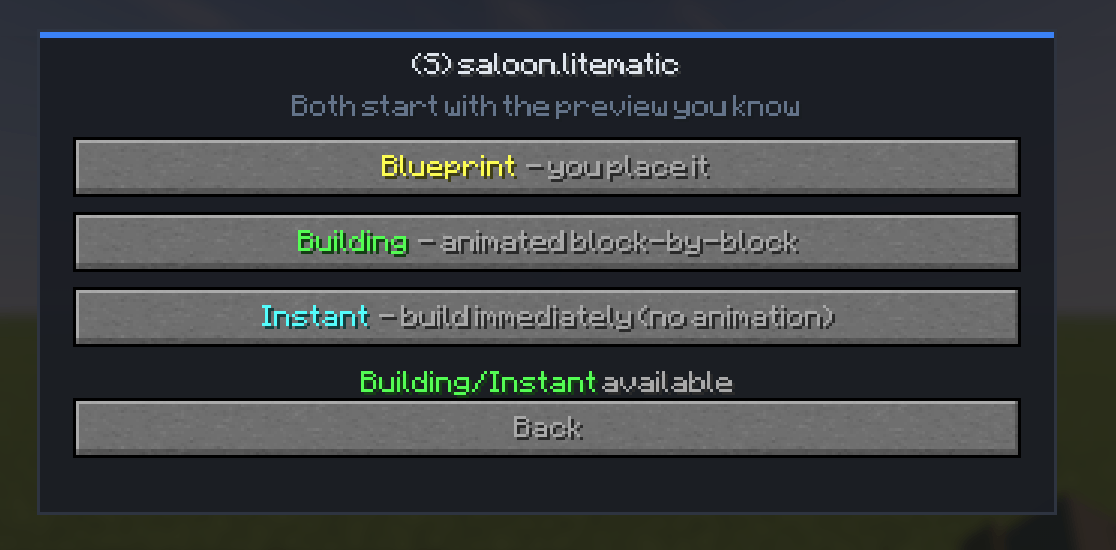
When you select a file from the Schematic Browser, you choose how BuildingBook should handle it:
- Blueprint Mode: Guides manual block placement in Survival or Creative on any server or singleplayer world, and prevents placing the wrong block inside active blueprint positions.
- Building Mode: Places blocks automatically at a configurable rate (1 to 20 blocks per tick) and reach distance. You can pause and resume at any time. Available in Singleplayer and in Creative mode with operator permissions on servers.
- Instant Mode: Places the full structure immediately without animation. Available in Singleplayer and in Creative mode with operator permissions on servers.
Once a schematic is loaded, the preview snaps to ground height in front of you and follows your view. You can rotate it in 90 degree steps, pin it in place so you can walk around and check alignment from different angles, or hold the Nudge key to shift the structure one block at a time horizontally with your movement keys and vertically with the mouse scroll wheel. Right clicking locks the preview and checks for solid blocks in the way, and Sneak + Right Click confirms the build position.
To prevent losing alignment by mistake during a long build, cancelling an active blueprint requires confirming the cancel input a second time within 4 seconds.
Block Verification and Floating Detection
While a blueprint is active, BuildingBook scans loaded chunks in small per tick batches and compares world blocks against the required block states:
- Missing blocks remain visible in the ghost preview.
- Obstructed blocks (where an unrelated solid block occupies a schematic cell) are highlighted in red.
- Floating blocks are detected through a six face connectivity check starting from solid ground. If you place the right block in mid air without attaching it to the ground or an anchored neighbor, it is highlighted in orange and counted separately until connected.
- Unloaded chunks are flagged on the action bar so a build is never marked complete until every chunk in the schematic area has been verified.
In Game Screens and Interface
BuildingBook Settings (B or /bb)
The main control panel is divided into three groups:
- Schematic: Opens the Schematic Browser, opens
.minecraft/schematics/directly in your system file manager, or clears the active schematic. - Blueprint Tools: Opens the Layers, Materials, and Share screens, cycles Auto Build pace (
paused,1,2,4,8,12, or20blocks per tick) and reach (4,6,8, or12blocks), toggles Hide Building (which hides ghost blocks while keeping the outer boundary box so you can inspect your work clearly), and cancels the current preview. - Visual and Feedback: Toggles the glass shell, block outlines, cached mesh rendering, sidebar HUD, action bar hints, and automatic layer progression. If Cloth Config is installed, an Advanced Settings button opens additional color pickers (highlight, obstruction, and HUD accent colors), distant ghost culling, render distance (16 to 256 blocks), HUD left or right alignment, and maximum HUD rows (1 to 20).
Schematic Browser (N)
Displays a paginated list of supported files in your schematics/ directory with an Open Folder shortcut and a live search bar. The search bar supports both English and Arabic filenames (ignoring Arabic diacritics and normalizing letter variations, underscores, and spaces). If your search narrows the list down to a single file, pressing Enter opens it directly.
Interactive Layer Screen (V)
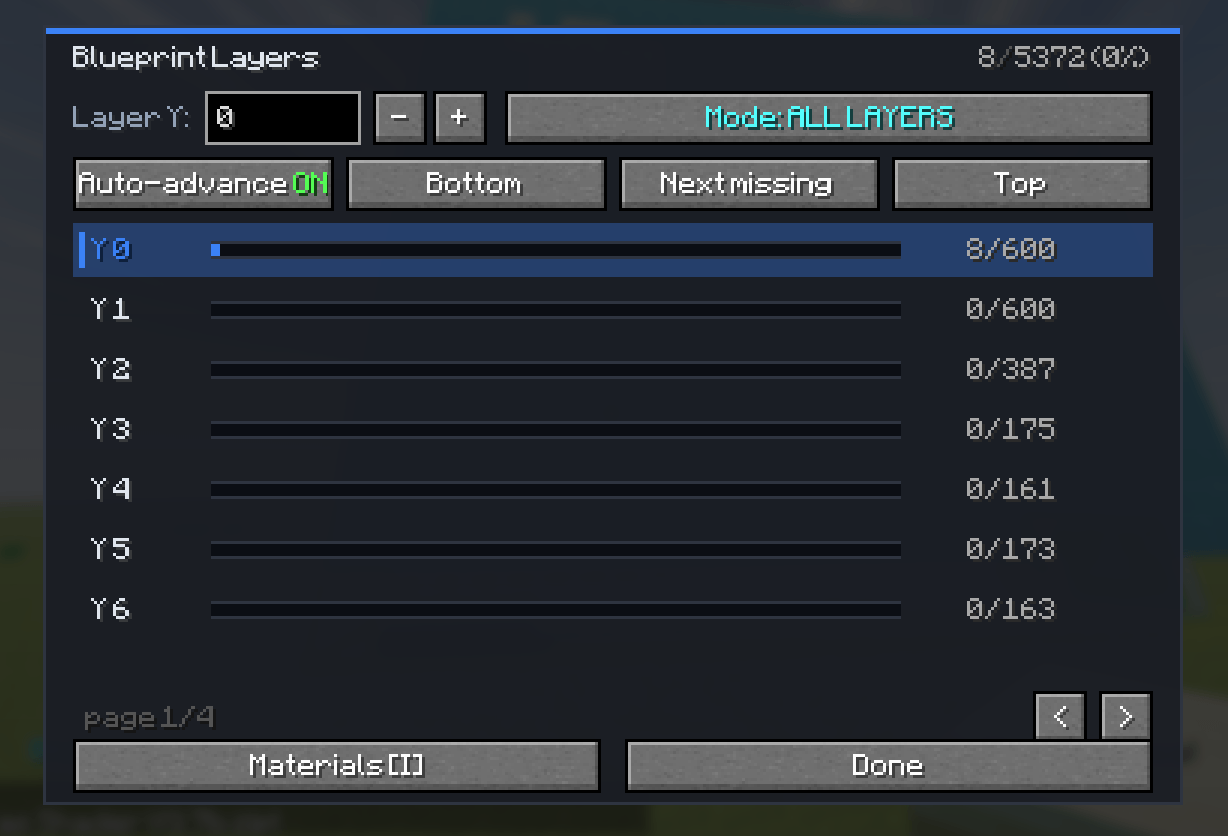
Shows every vertical Y level of the active blueprint along with placed and total block counts per layer. You can type a specific Y level, step up or down by one layer, switch between ALL LAYERS and UP TO Y modes, jump straight to Bottom, Next missing, or Top, or click any row in the list. Enabling Auto advance moves the visible slice up to the next incomplete layer automatically as soon as you finish the current one.
Blueprint Materials Screen (I or /bb list)
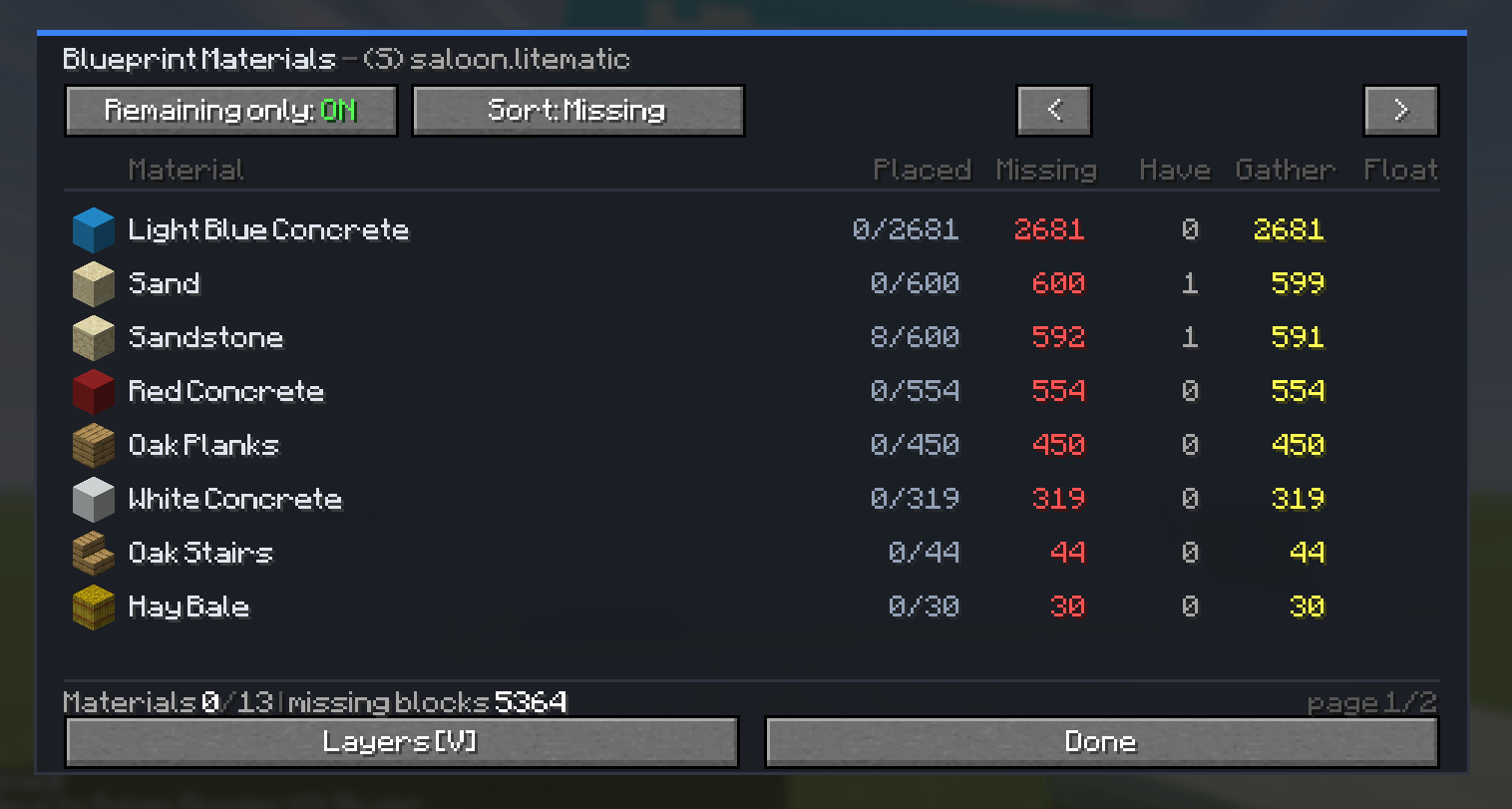
Provides a full paginated table of every block type in the blueprint, showing item icons, block names, Placed, Missing, Have (items currently in your inventory), Gather (how many more you still need to collect), and Float (unattached placements). You can filter the table to remaining materials only and sort by missing count, block name, or completion progress.
Share Blueprint Screen (/bb share)
On LAN worlds hosted by a player running BuildingBook, this screen lists nearby players within 64 blocks sorted by distance so you can send your positioned and rotated blueprint directly to one player or broadcast it to every BuildingBook client in the same world (supports blueprints up to 80,000 blocks).
On Screen Material HUD and Action Bar
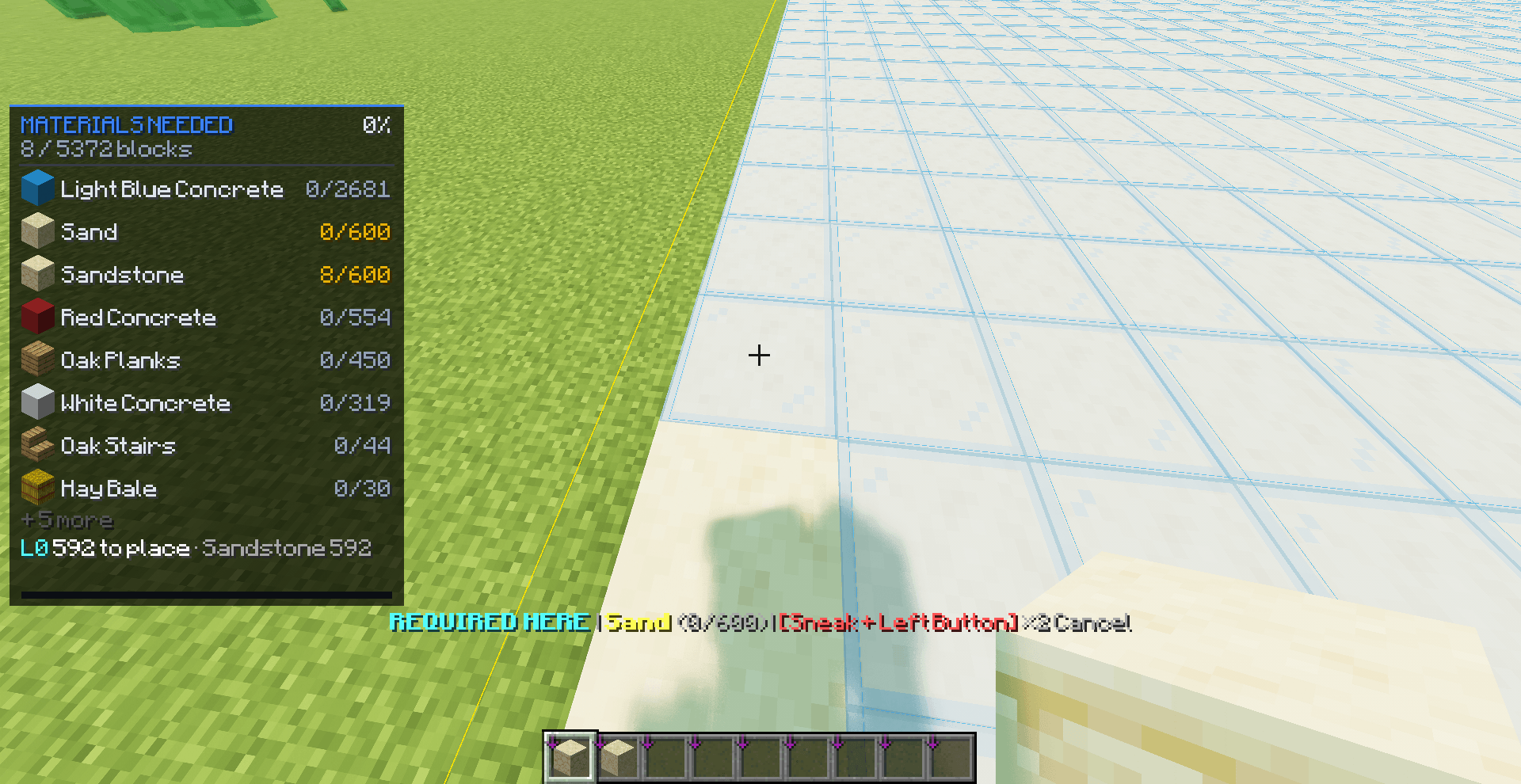
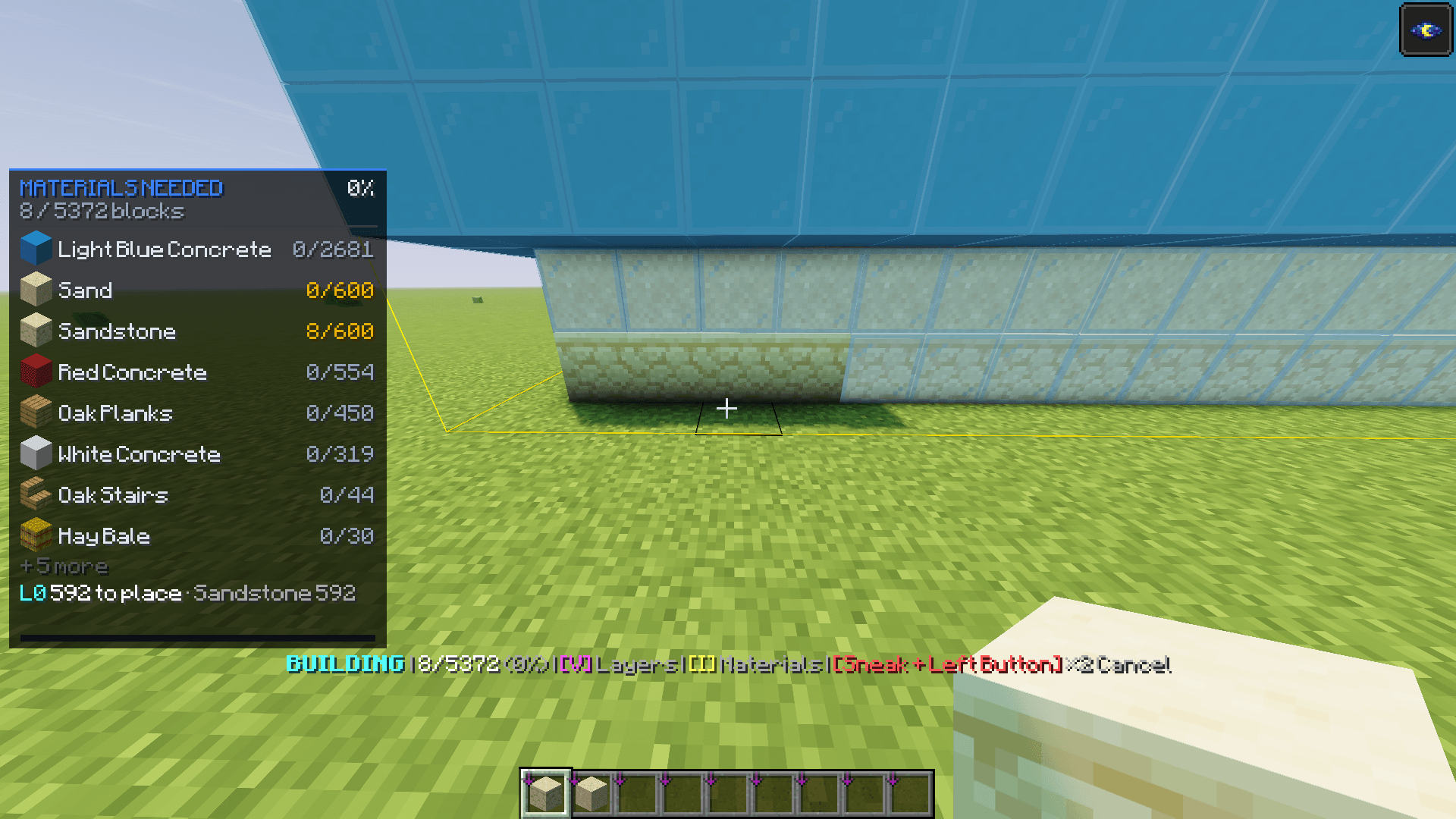
A compact sidebar on the left or right edge of the screen displays overall completion percentage, placed/total counts, floating block count, active layer status, and top needed materials. Above the hotbar, dynamic action bar hints show available controls using your actual key bindings, and display the exact block name and count needed whenever you look at an unplaced cell in the blueprint.
Commands
/bb: Opens the BuildingBook Settings screen./bb claim <schematic>: Loads a file fromschematics/directly in manual Blueprint mode (with filename tab completion)./bb list: Opens the Blueprint Materials screen./bb share [player]: Opens the Share Blueprint screen, or sends the active blueprint directly to the named player./bb cancel: Cancels the active preview or blueprint./bb perf: Prints preview mesh and renderer diagnostic stats in chat.
Controls and Default Keybinds
All shortcuts appear under BuildingBook in Options > Controls > Key Binds. Rebinding any key updates the action bar and screen labels automatically.
B: Open BuildingBook SettingsN: Open Schematic BrowserV: Open Layer System GUII: Open Materials ListJ: Toggle All Layers or Single Layer viewPage Up: Next LayerPage Down: Previous LayerR(or your Swap Hands key while previewing) : Rotate Preview 90 degreesL: Pin or Unpin Preview positionLeft Alt(hold) : Freeze player movement and nudge preview withWASD(horizontal) or Mouse Scroll (vertical)U: Pause or Resume Auto Build (Shift + Ufinishes the remaining blocks instantly)Cancel Preview / Blueprint: Unbound by default (falls back toSneak + Left Clickuntil assigned in Controls)
Requirements and Mod Compatibility
- Loader: Fabric
- Supported Game Versions:
- Minecraft
1.21.11(Java 21 or newer, Fabric Loader0.18.0+, and Fabric API) - Minecraft
26.3(Java 25 or newer, Fabric Loader0.19.5+, and Fabric API)
- Minecraft
- Optional Mods: Mod Menu and Cloth Config (neither is required at runtime).
- Renderer Compatibility: When Iris, Axiom, or Effortless Building is installed, BuildingBook detects them automatically and switches to a compatible draw path so preview blocks render whole instead of breaking into visual fragments.
BuildingBook Team