BuildEdit
- By
BuildEdit enhances WorldEdit with hologram previews, layer-by-layer placement, and support for Litematica, NBT builds.
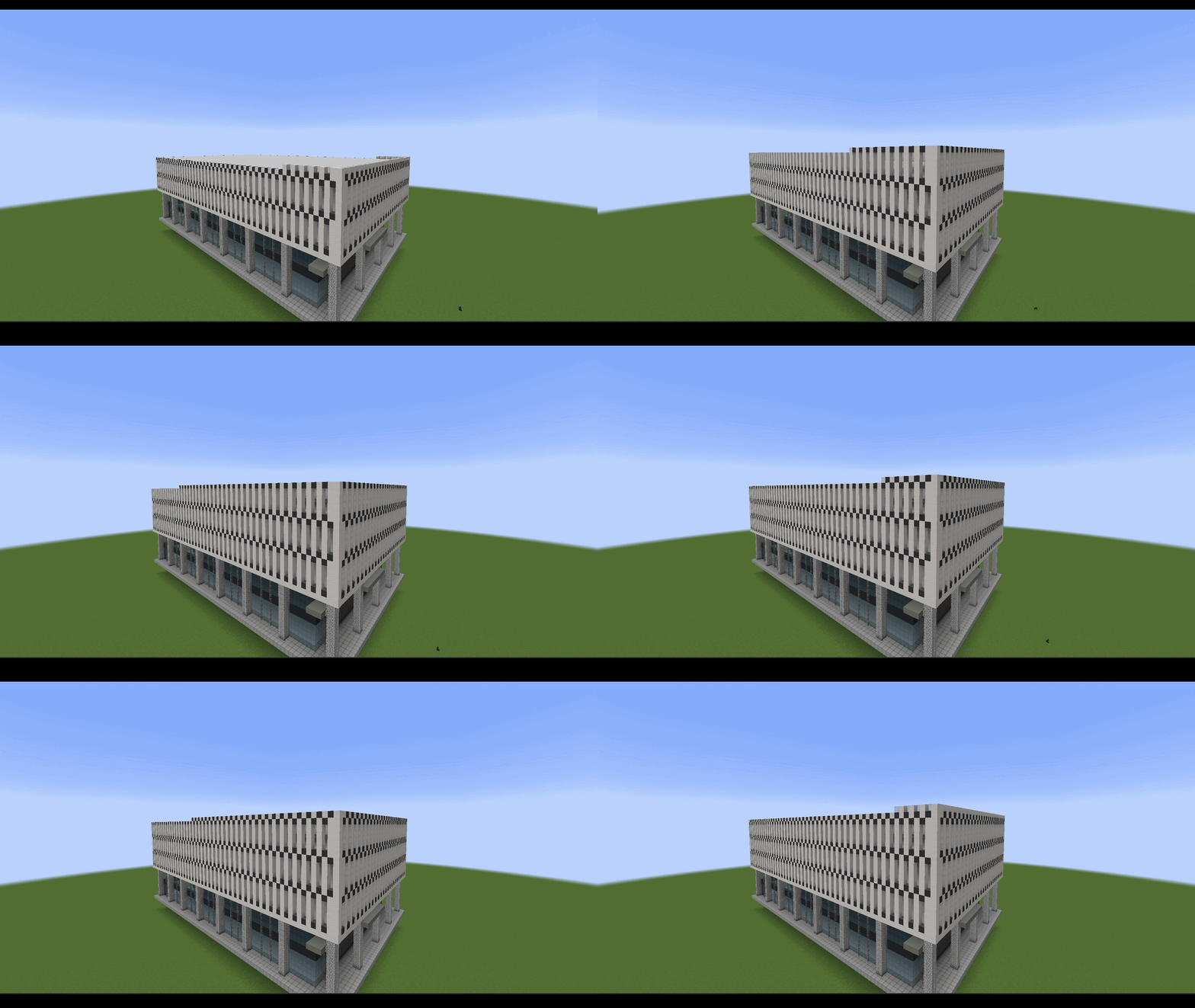
Build layer for layer with performance mode
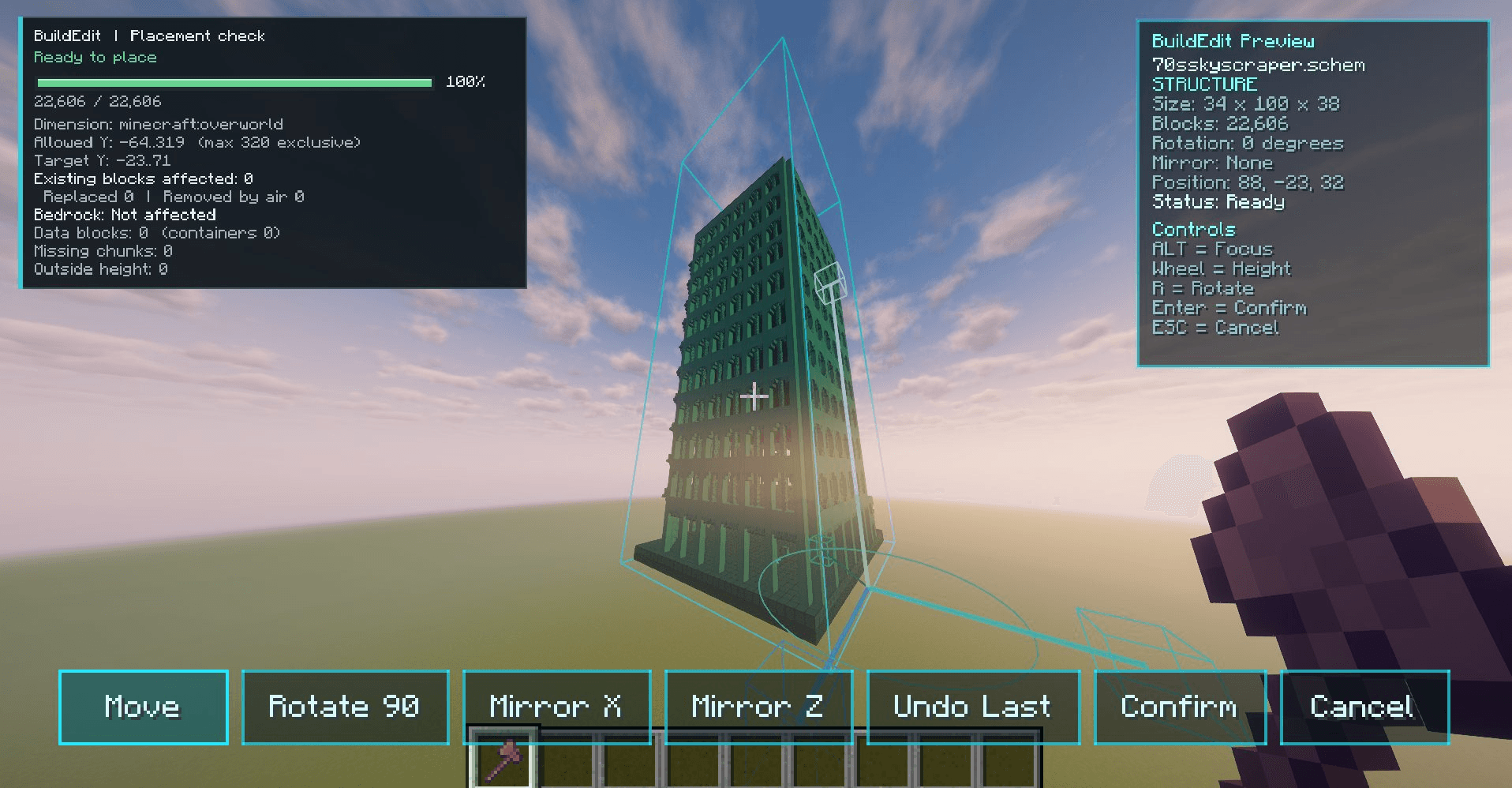
buildedit preview
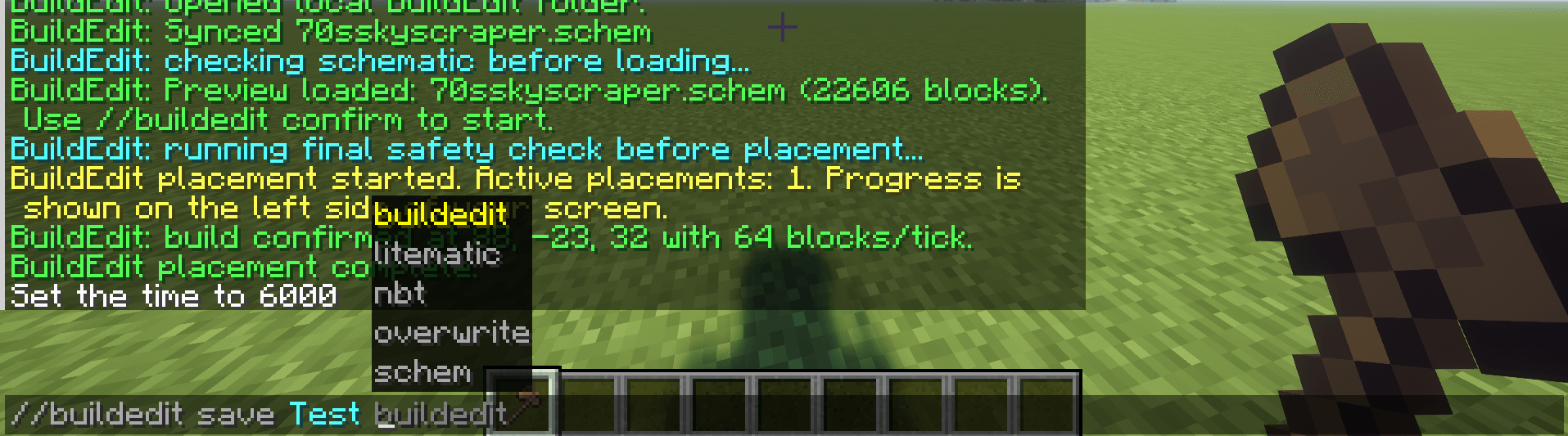
Save each building as a schematic, nbt, litematic file
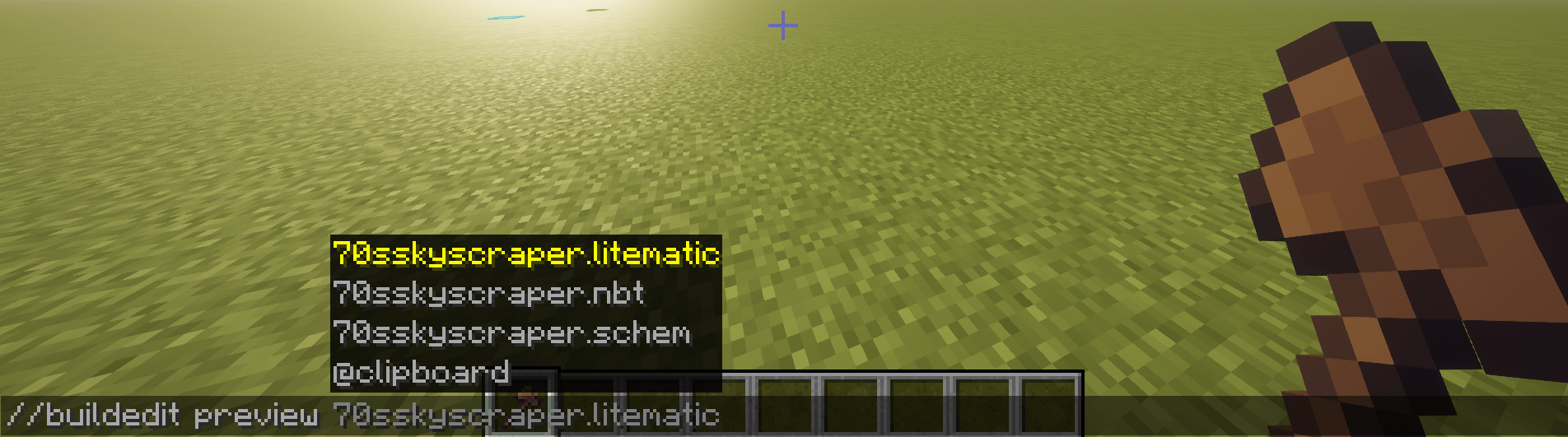
Preview any file type
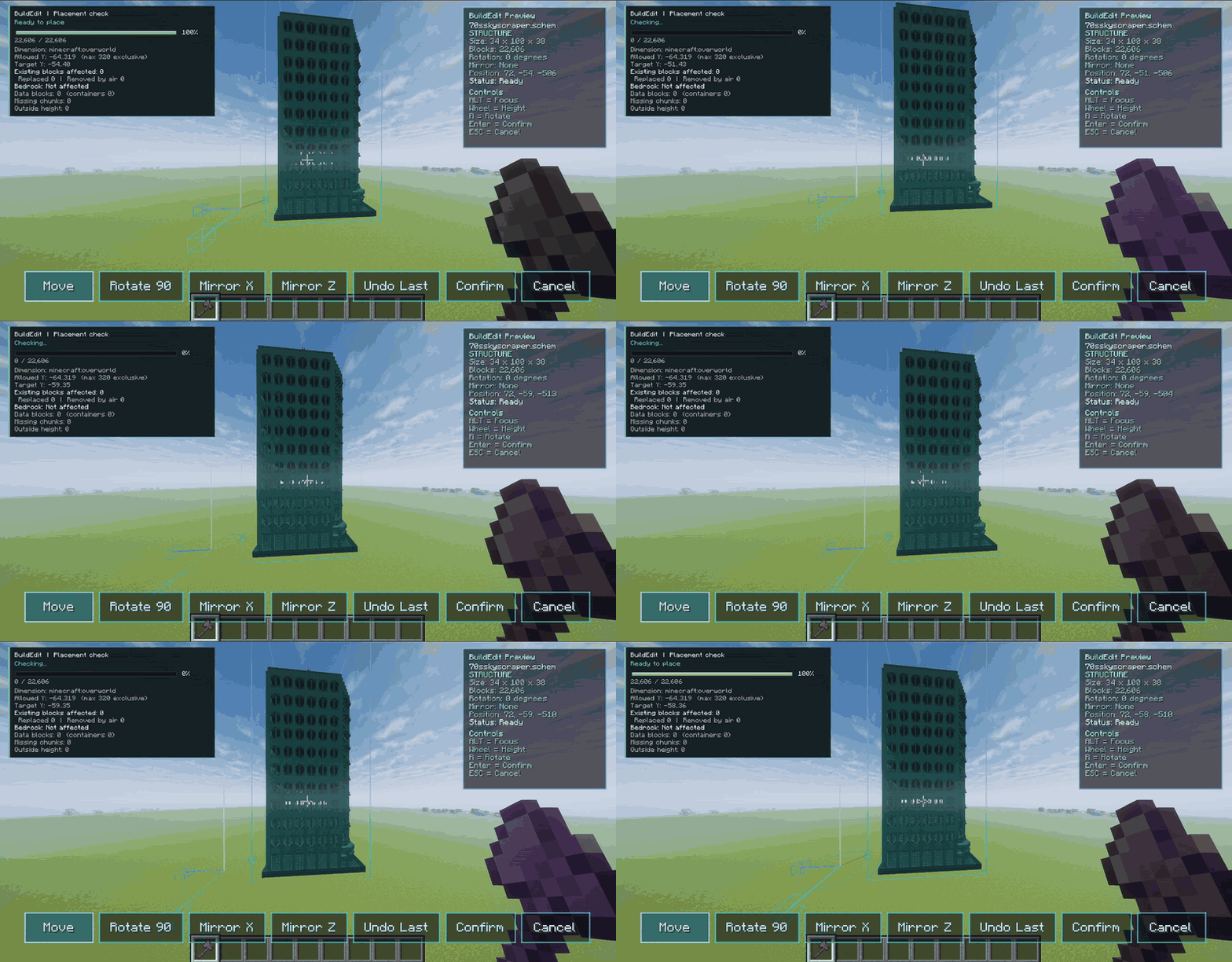
Move preview
Support Team SmartStreamLabs
Create a server, get 25% off your first month

Description

BuildEdit — Schematic Tools & World Building
Your next build starts with a preview.
BuildEdit expands WorldEdit with interactive hologram previews, multi-format schematic tools, controlled construction, and customizable world-building generators. Position a structure before placing it, give a building a new material palette, design streets, shape landscapes, or turn an abandoned project into an overgrown ruin.
🔮 Preview & transform • 📦 Import & save • 🏗️ Build with control • 🌍 Shape your world
Requires WorldEdit. Check the Files tab for available Minecraft versions and modloaders.
❤️Do you know ? we have over 120 mods!

💡 Suggestions & Bug Reports
Found a bug or have an idea ? Join the discord!
Feedback and suggestions are always welcome! 💬


🔮 See it before you build it
Load your structure as a cyan hologram directly in your world. Check its dimensions and placement, then transform it before confirming construction.
• Move: position the preview interactively, adjust height with the mouse wheel, or use exact coordinates.
• Transform: rotate in 90-degree steps, mirror across X or Z, and scale from 25% to 400%.
• Inspect: view the name, type, dimensions, block count, coordinates, rotation, mirroring, status, and bounding box.
• Keep the detail: preview visible features including windows, floors, leaves, and transparent blocks.
• Stay flexible: undo the last preview transformation, confirm placement, or cancel without building.
Large previews use rendering caches and visibility culling to reduce unnecessary work. Oversized previews can be simplified automatically.
🏗️ Build at your own pace
• Instant: attempts immediate placement within the configured limits.
• Performance: builds gradually with adaptive placement speed.
• Floor by Floor: constructs one floor at a time, with adjustable floor height.
Set construction speed from 1 to 100,000 blocks per tick, subject to configured budgets and limits. Pause, resume, stop, or check your task while a progress HUD tracks completion and placed blocks. Configurable sounds, particles, and progress cards provide feedback.
Air blocks are ignored by default. Bedrock is protected, chunks are checked and loaded during large tasks, and blocks outside the actual dimension height are skipped. Custom datapack heights are respected, allowing the valid part of a structure to be built.
🎨 Change the palette with Style Swap
Select a block used in your schematic and replace it with another material. Compatible block properties are checked, replacements can be undone, and the result can be saved under a new name.
🧱 Explore your materials
Open a searchable, scrollable material browser with block icons, names, registry IDs, and quantities. See exactly which blocks your structure contains.
↩️ Undo & administrative control
Configurable undo snapshots can revert supported BuildEdit operations. Set history length, stored-block limits, expiration, and permission to undo other players' operations.
Control operator-only access, command permissions, file-size and schematic-volume limits, concurrent tasks, and global block budgets. Conflicting WorldEdit commands can be blocked during active placement. Destructive modes require explicit confirmation.
Undo availability depends on your configured history and limits. Back up your world before major edits.
⚙️ Configure your building experience
Browse Build, Placement, Feedback, Safety & Undo, Preview, Terrain, Forest, and Permissions settings. Search, reset a category or everything, and apply or cancel changes. Server-controlled settings let administrators manage shared limits.
English is the default interface language; Dutch translations are used when Minecraft is set to Dutch.

📦 One library. Multiple formats.
Import and save structures in all four supported formats:
• .schem — WorldEdit / Sponge schematics.
• .schematic — legacy WorldEdit schematics.
• .litematic — Litematica schematic files.
• .nbt — Minecraft structure files.
Search your personal schematic library by name, import local files, and choose your format when saving. Block states and block-entity data are supported, while existing filenames and your own custom names are preserved.
Validation checks for invalid or corrupted schematic data. Configure file-size and volume limits, and prevent accidental replacement: overwriting a schematic requires the explicit overwrite option.
Use //buildedit folder to open the local folder, //buildedit import [filename] to import, and //buildedit save <name> to save.
Format support does not automatically convert blocks between Minecraft versions. Structures using modded blocks need the corresponding content available to reproduce those blocks correctly. The .nbt support listed here refers to structure files.

🛣️ Roads, streets & routes = BETA
Design roads between Pos1 and Pos2 with adjustable width, materials, route shape, terrain following, smoothing, and maximum slope. Add sidewalks, foundations, terrain cutting, and lighting with configurable spacing.
The City Road Designer includes Residential, City Main Road, Boulevard, Downtown, Industrial, Dutch Urban, and Custom presets. Customize lanes, curves, sidewalks, cycle paths, parking, central reservations, streetlights, trees, intersections, roundabouts, and materials for each street component.
🏔️ Shape the landscape
Generate mountains, caves, craters, volcanoes, islands, canyons, cliffs, and rivers, or smooth terrain. Depending on the tool, adjust dimensions, seed, roughness, palettes, vegetation, snow lines, and water or lava.
Explore presets including alpine and snowy mountains, lush and giant caves, water-filled craters, active and dormant volcanoes, and varied islands and canyons.
The cliff generator offers Natural Rock, Mountain, Canyon, Coastal, Mossy, and Badlands styles. Adjust height, depth, side, roughness, vegetation, debris, and natural or route-based shapes.
Path and river tools use your selected start and end positions to create routes across terrain. Rivers can include a watercourse, banks, and connections to the surrounding landscape.
🌲 Forests & biome editing
Generate matching trees and vegetation using the current biome or one you choose. Set density, regenerate with another seed, and configure area and block limits. Biome editing can apply a biome and adapt natural surfaces and vegetation, with a preview and a reset option for the active edit.
🌿 Let nature reclaim your builds
Choose Light Growth, Reclaiming, Abandoned, Heavy Decay, Post-Apocalyptic, Ancient Ruin, or Custom. Customize age, vegetation, moss, vines, trees, damage, debris, interior growth, functional-block protection, and seed.
🧩 Blend in — or carve out
Blend Mode can fill missing ground or foundations beneath a build and adjust surrounding terrain. Carve Mode allows schematic air blocks to remove existing blocks, opening space for interiors, tunnels, and passages. Both require explicit confirmation.
Warning: Blend mode may cause lag when moving a large preview.
Warning: The Carve mod can destroy parts around your build if it hasn't been saved correctly.
💥 Bring a structure down
The Collapse System supports radial collapse, upward or downward movement, cardinal directions, and directional toppling. Choose a starting point, selection or radius, and collapse speed.
Fracture waves, falling debris, dust, sounds, and optional camera shake bring the effect to life. Preview, confirmation, cancellation, block-entity protection, and configurable effect and block-change budgets help you control the operation.
Warning: This command is Dangerous and can completely ruin your build
Review generated changes in a preview before confirming them.

📥 Before you start
1. Choose a BuildEdit file matching your Minecraft version and modloader.
2. Install the required compatible version of WorldEdit.
3. Install any additional dependencies listed for your selected release.
4. Launch Minecraft and use BuildEdit with the required command permissions.
Available versions and modloaders are listed in the Files tab. Check the selected release's notes for installation-side requirements.

🚀 Your first BuildEdit project
- Run //buildedit wand to get the BuildEdit Selection Axe.
2. Left-click for Pos1 and right-click for Pos2, or use the matching position commands.
3. Import a structure and load it with //buildedit preview <name>, or open a generator.
4. Position the hologram. Use the mouse wheel for height, R to rotate, and the controls to mirror, scale, or undo a transformation.
5. Confirm through the interface or use //buildedit confirm.
6. Follow construction progress, pause or resume as needed, and use undo while the operation's history remains available.
Cancel a preview through the interface, with Escape, or using //buildedit cancel.
View the wiki page: here

⌨️ Essential commands
• //buildedit wand — get the selection tool.
• //buildedit pos1 / //buildedit pos2 — set selection corners.
• //buildedit preview <name> — load a schematic preview.
• //buildedit save <name> — choose a format and save a selection.
• //buildedit confirm / //buildedit cancel — confirm or close a preview.
• //buildedit pause / //buildedit resume / //buildedit stop — control construction.
• //buildedit status — check the active task.
• //buildedit speed <amount> — adjust building speed.
• //buildedit undo — undo the last supported operation.
• //buildedit materials / //buildedit styleswap — inspect or change the palette.
🌍 Open the world-building tools
//buildedit road • //buildedit cityroad • //buildedit nature • //buildedit forest • //buildedit biome <biome> • //buildedit cliff • //buildedit tomb • //buildedit collapse
🧰 More tools
• //buildedit carve on confirm — allow air blocks to remove existing blocks.
• //buildedit blend on confirm / //buildedit blend off — enable or disable terrain blending.
• //buildedit clearblocks — preview clearing the selected area.
• //buildedit countnear <radius> <block> — count a block within a radius.
• //buildedit previewmode simple / //buildedit previewstyle simple — select simplified preview options.

🐛 Help improve BuildEdit
Found an issue? Include your Minecraft version, modloader, BuildEdit version, and WorldEdit version, together with reproduction steps and relevant logs or a crash report.
For schematic or preview problems, add a screenshot and the structure's format, dimensions, and approximate block count. Attach an example schematic when possible.
📥 Officially available exclusively on CurseForge. Files downloaded from other websites may be outdated or modified. Always download from this page to get the latest official release.
An independent Minecraft mod, unaffiliated with and not endorsed by Mojang or Microsoft.
BuildEdit Team

Owner