


Build Capture
- By
Description
Turn a build into a datapack structure
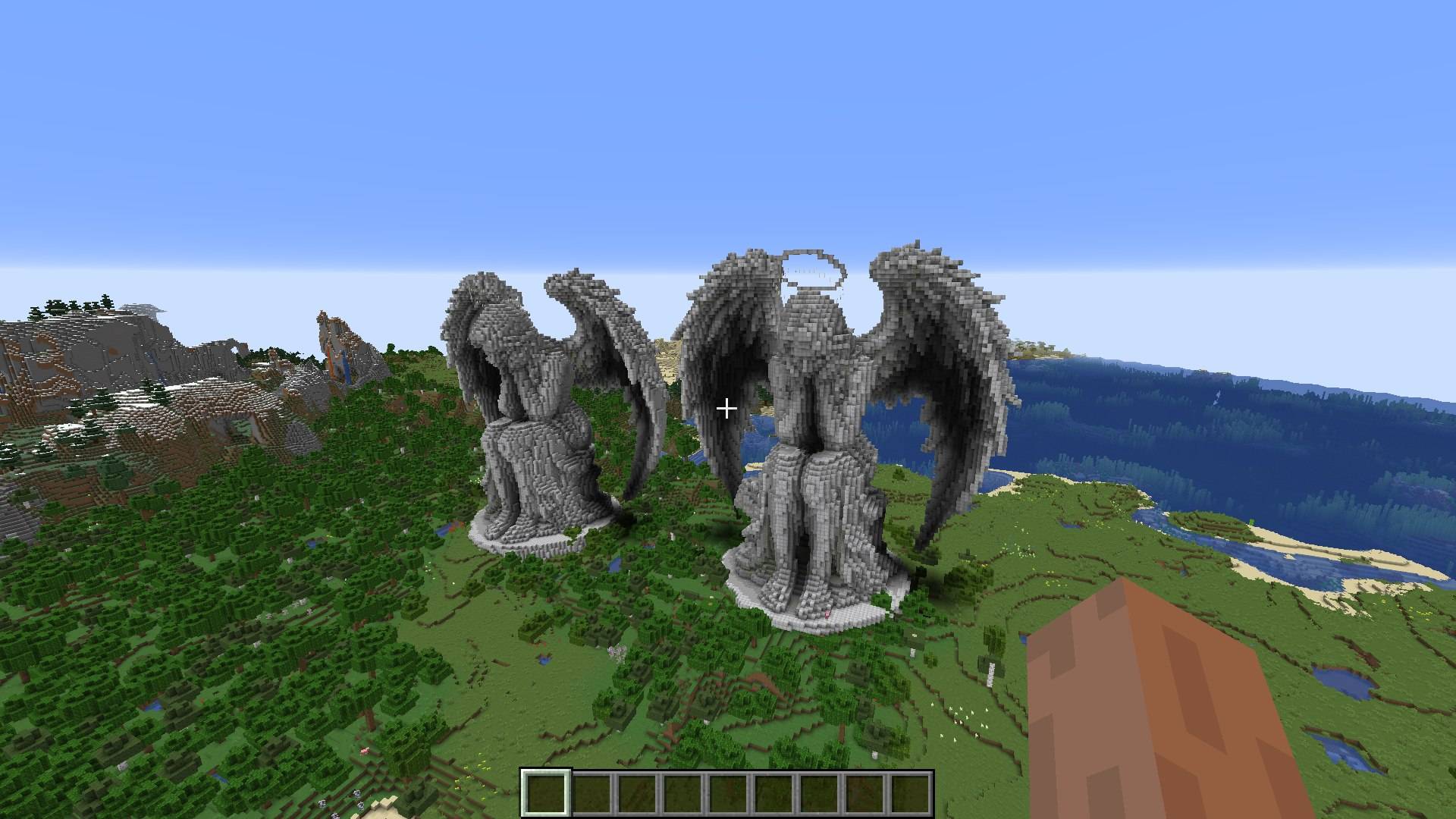
Build Capture saves any part of your world as a normal Minecraft structure template. Select two corners, run /capture save castle/tower, and the build is written to your world datapack. Use it immediately with /capture place, or run /capture reload to make it available to structure blocks and vanilla commands. The output is vanilla NBT with entities and jigsaw blocks preserved, so the mod is not needed to use a capture.
No schematic format, no external editor, no WorldEdit.
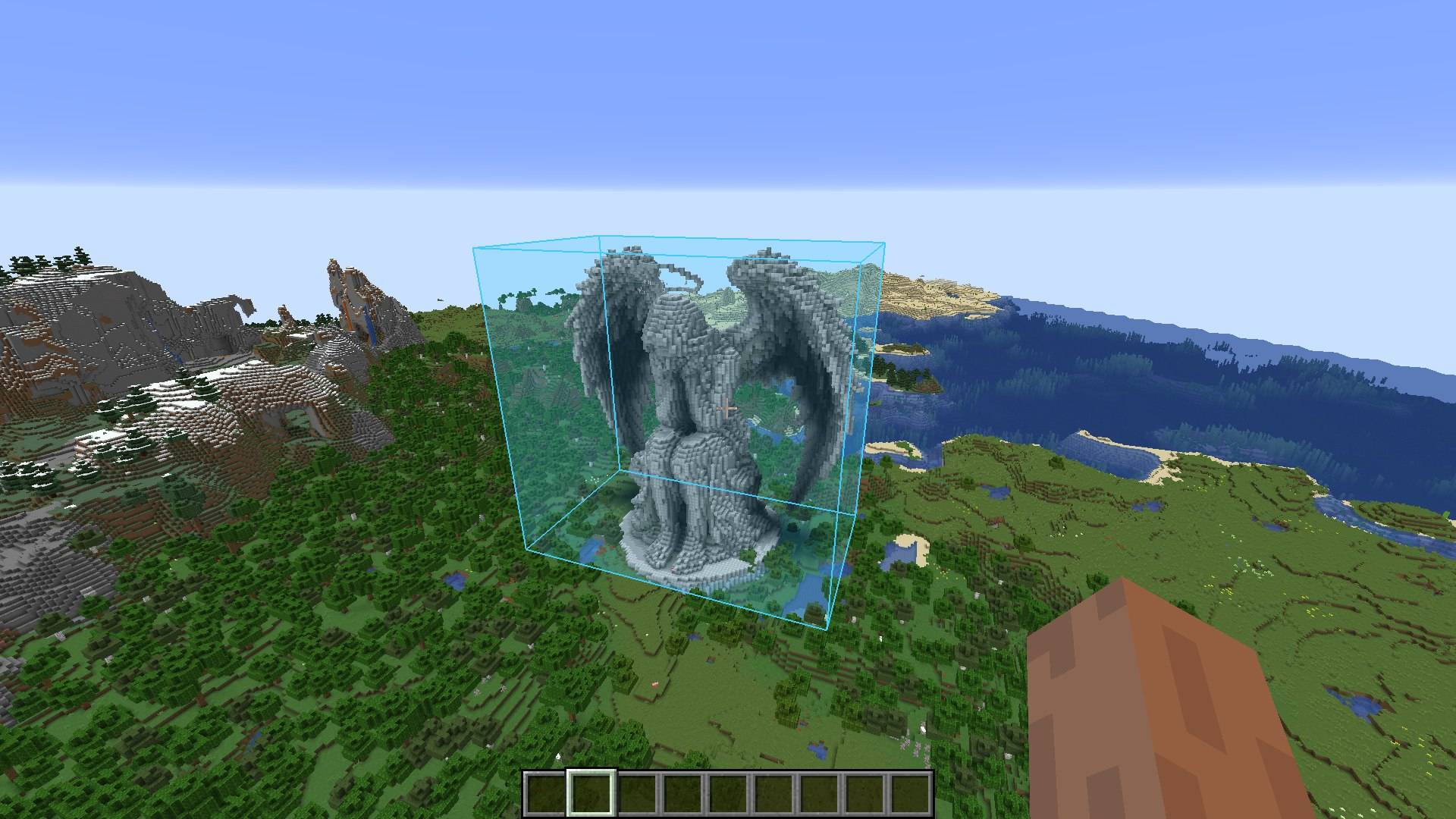
Selection box around a build
Installation
- Minecraft 1.16.5, Forge 36.2.42 or newer.
- Put the jar in the
modsfolder on the server, and on the client too if you want the visible box, mouse editing, the browser and the placement preview. /capturerequires permission level 2 (operator).
Quick start
- Aim at a block and run
/capture pos1. - Aim at the opposite corner and run
/capture pos2. - Run
/capture save mybase/tower. The name is free-form: a namespace is added automatically, andcastle/towerkeeps its folder. - Press
C(rebindable) or run/capture guito open the browser, pick the capture and press Place to preview it; right-click confirms.
Editing the box
Commands resize the selection without reselecting the corners: /capture expand <direction> [blocks], /capture shrink <direction> [blocks] and /capture move <direction> [blocks]. Directions are north, south, east, west, up and down; the step defaults to one block.
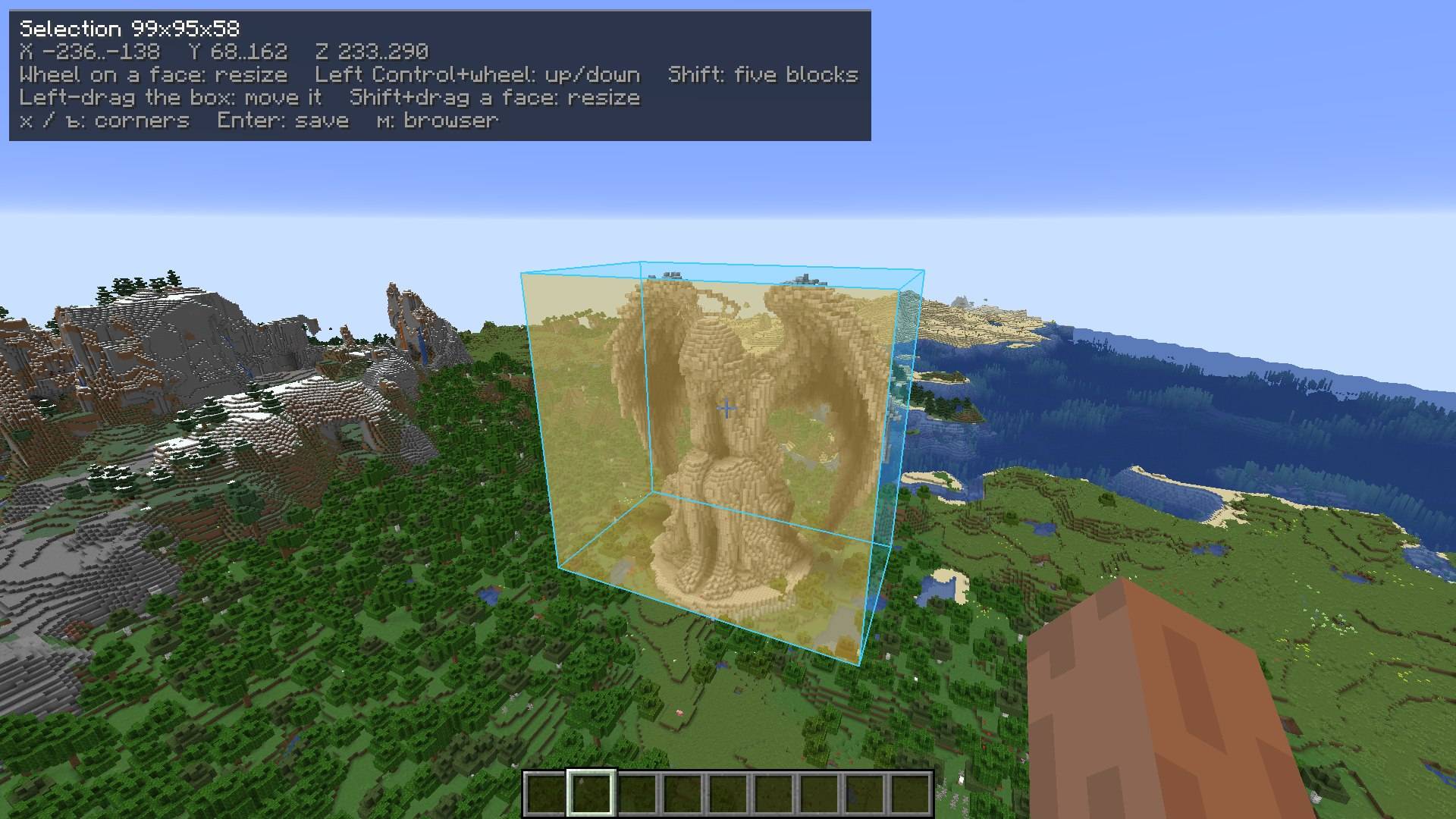
With the client mod you can also grab the box with the mouse. Hold the face-edit key (left Alt by default) and a small panel shows the size, coordinates, gestures and the last step. Drag the box to slide it on the ground plane, use Ctrl+wheel for height, the arrow keys to nudge and Shift for five-block steps. Scroll over a face to push that side in or out, or Shift+drag a face for a freehand resize. The face under the crosshair is highlighted through terrain, and every step is clamped by the server, so the selection cannot end up outside the world.
Face editing with the corner panel
In-game browser
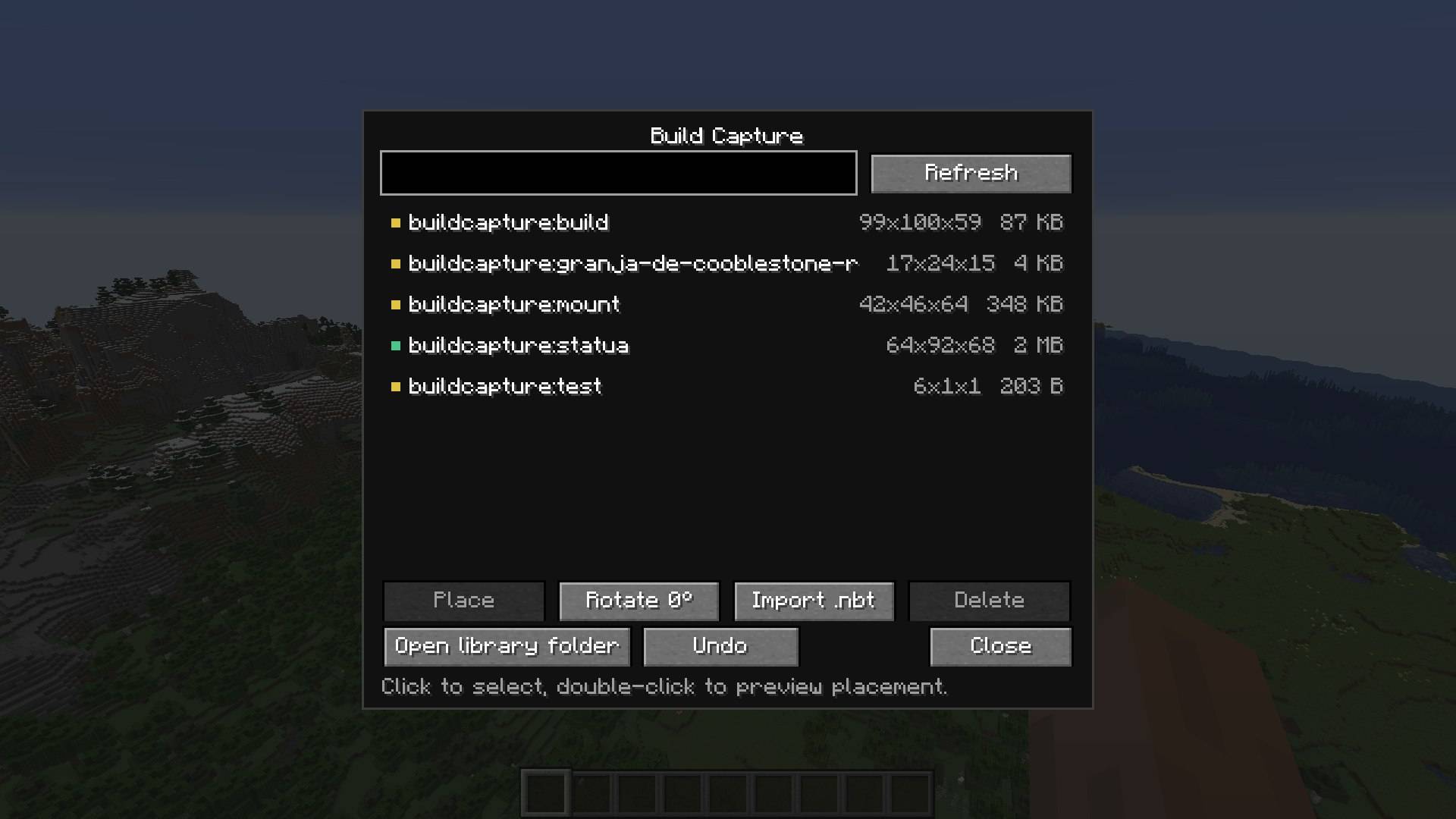
Press C or run /capture gui. The screen lists every capture from the world datapack and the shared library with its dimensions and file size, has a search box, and marks world-only, library-only and mirrored entries.
Import .nbt opens the system file dialog, or you can drop files onto the game window. The client uploads them to the server in chunks, the server validates the structure and writes it to both the world datapack and the library under a free id. Delete keeps a backup and asks for a second click. Undo reverts your last save, import or delete.
Structure browser with the capture library
Placement preview
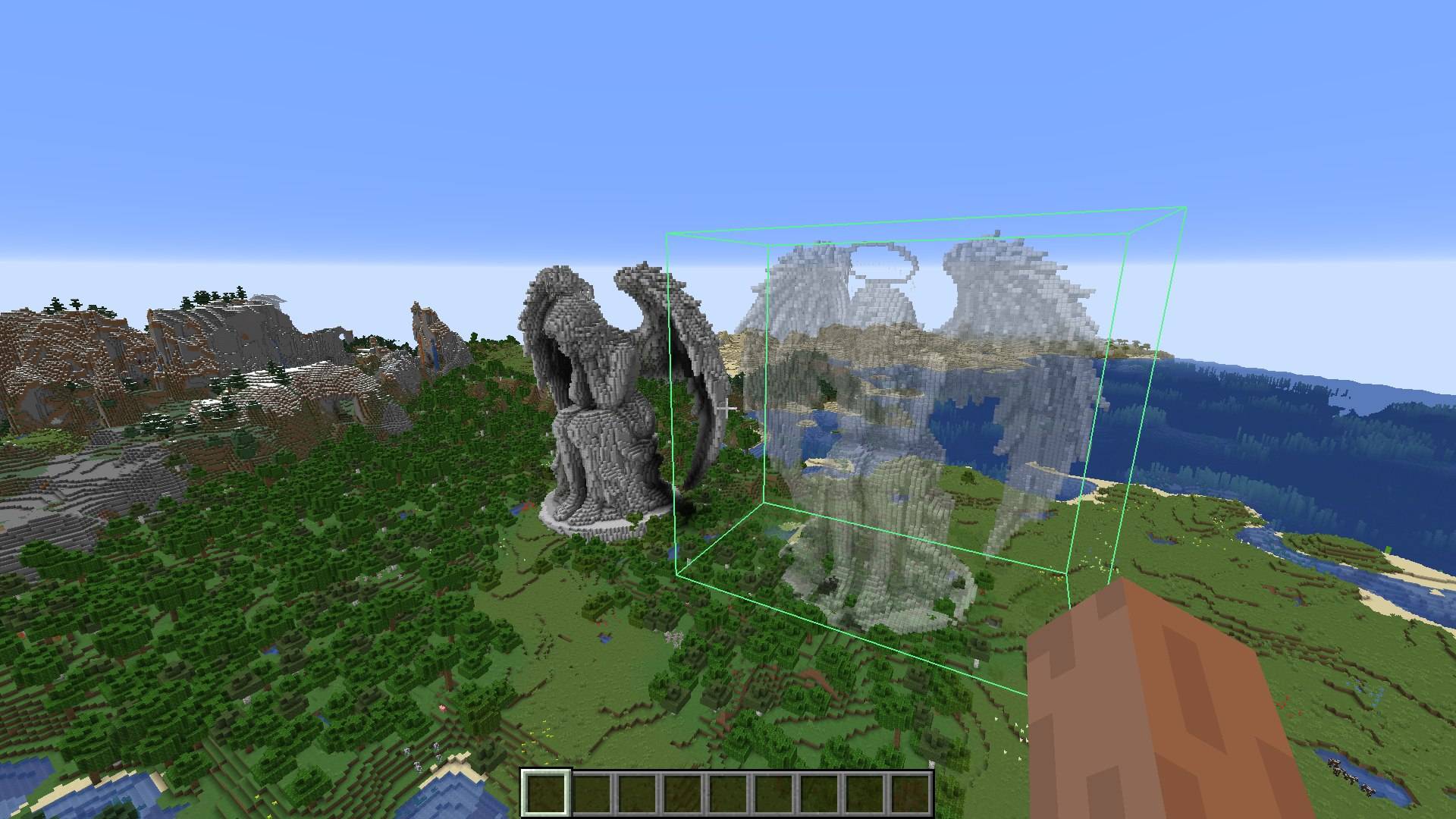
Place does not drop the build immediately: the structure is shown as translucent block models inside a green footprint box (red when it does not fit the build height), and only the nearest surface is drawn so the world behind stays visible. A plain scroll moves it five blocks, Alt+scroll turns it, Ctrl+scroll changes the height and the arrow keys move one block. Right-click (or Enter) places it; middle-click or Escape cancels. Nothing is written until you confirm.
Placement preview with the translucent ghost
Library, backups and undo
Every capture is written twice: into the world datapack and into a shared library in the game directory (buildcapture_structures/ by default, config capture.libraryDir). The library is a valid datapack visible from every world. Overwriting a structure keeps up to 20 previous versions under world/buildcapture_backups/, and /capture undo reverts the last file operation.
A placed copy next to the original
Commands
| Command | Description |
|---|---|
/capture pos1 / pos2 | Set a corner to the targeted block (up to 16 blocks away). |
/capture expand <dir> [n] | Grow the box on one side. |
/capture shrink <dir> [n] | Shrink it from one side. |
/capture move <dir> [n] | Move the whole box without changing its size. |
/capture save <name> | Save the box as a datapack structure. |
/capture place <name> [90|180|270] | Place a capture in front of you. |
/capture gui | Open the structure browser (same as the C key). |
/capture list | List captures from the world and the library. |
/capture undo | Revert your last save, import or delete. |
/capture status | Show both corners, the box size and the library folder. |
/capture clear | Drop the selection. |
/capture reload | Rescan and enable the capture datapack. |
Keys
Everything is rebindable under Controls, category "Build Capture".
| Key | Action |
|---|---|
[ / ] | Set corner 1 / 2 at the targeted block. |
Enter | Save the selection; the name dialog is pre-filled with a timestamp. |
C | Open the structure browser. |
Left Alt (hold) | Edit the selection: move with the wheel, resize by dragging a face. |
R | Turn the placement preview. |
Arrows / Page Up / Page Down | Move the preview one block. |
Left Ctrl (hold) + wheel | Change the preview height. |
Configuration
| Option | Default | Meaning |
|---|---|---|
capture.libraryDir | buildcapture_structures | Shared library folder; empty string disables it. |
capture.clearAfterSave | true | Drop the selection after a successful save. |
capture.importMaxMb | 16 | Largest .nbt file the browser accepts (1-64 MB). |
capture.previewMaxBlocks | 150000 | Largest preview drawn block by block (1000-150000). |
capture.previewTranslucent | true | Draw the ghost as translucent models; off is solid. |
Multiplayer
The selection lives on the server, per player, and survives relogging. The commands work with only the server mod installed; the client mod adds the box, the face highlight, mouse editing, the browser and the preview. Players without the mod can join and play normally - they simply do not see the box.
Compatibility and limits
- Minecraft 1.16.5, Forge 36.2.42+.
- The box is limited only by the build height; there is no per-side cap. Very large captures can be heavy on server memory.
- Imported files are limited to 512 blocks per side and
capture.importMaxMb. - A capture containing a structure block is refused, to avoid recursive placement.
Made with AI
This mod was built with the help of an AI assistant: the code, documentation and text were produced in an AI-assisted workflow, then reviewed and play-tested by the author.
License
MIT. Minecraft is not affiliated with and does not endorse this mod.
Build Capture Team
