Bkups
- By
A backup mod with GUI, three different types of backups and a trash system, all customizable. V3 available with Whopper System, Detailed Screen and Settings Menu.

Why Bkups?
- Comes with a GUI that will help you through out the mod
- Four different types of backups
- Whopper System (switch between worlds in-game)
- Many ways to protect your world or server
- Lots of option to have your own personal customization
- Settings Menu
- No cheats on needed
- Install and Play!
Backup Manager (GUI)


Types of Backups

- Manual: this backup is made by the player manually
- Auto: this backup is made automatically according to the settings you've set
- Exit: this backup is made whenever you leave the world you're in
- Legacy: this type of backups are the ones that are created with the minecraft settings
Whopper System
This system lets you switch worlds without having to go back to the main menu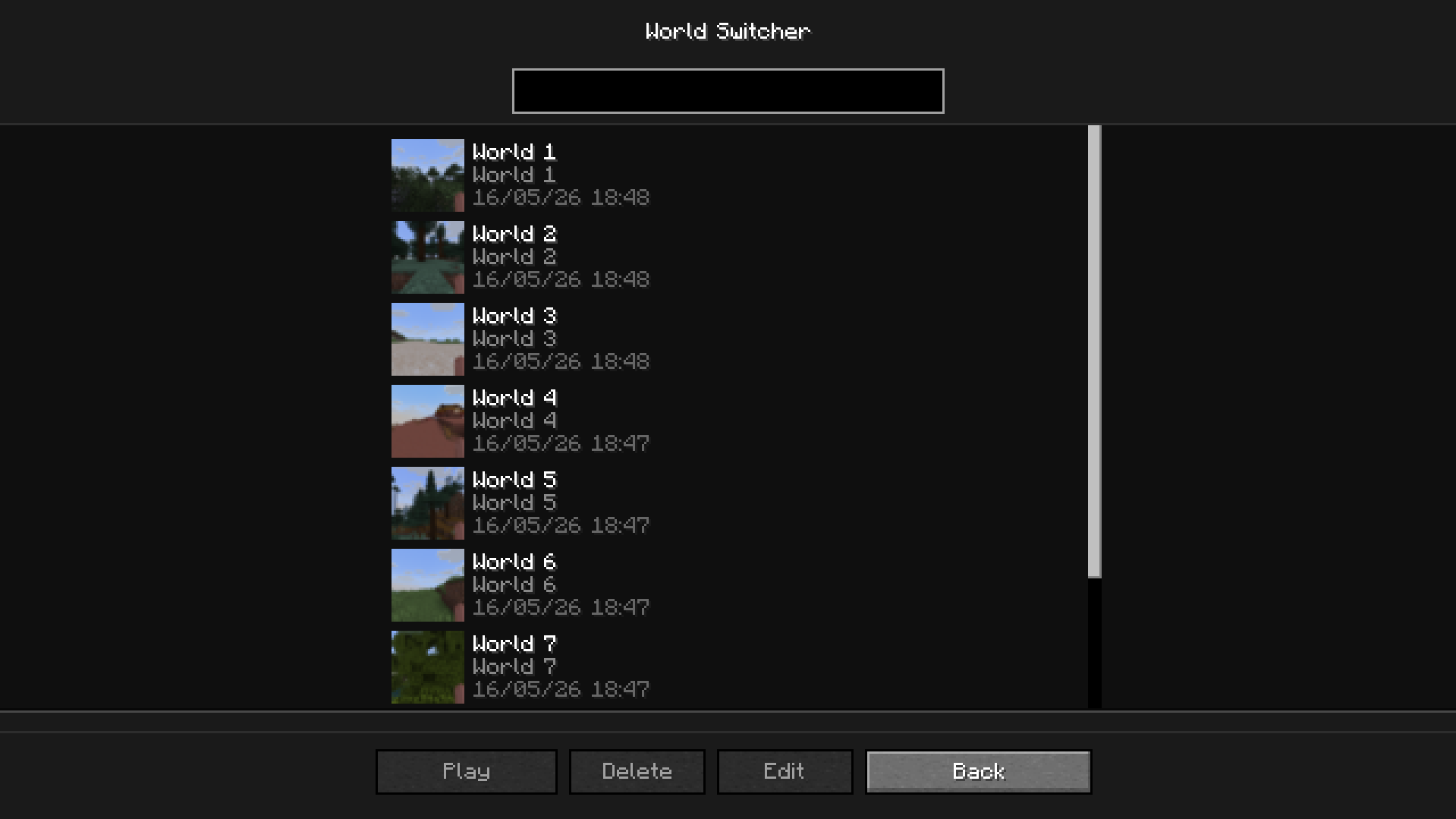
The Trash
To access the trash, click on the trash button in Backup Manager. All your deleted backups will appear here if you have the trash enabled (/bkup trash on)  With the trash, you can permanently delete the backup or recover it
Settings Menu
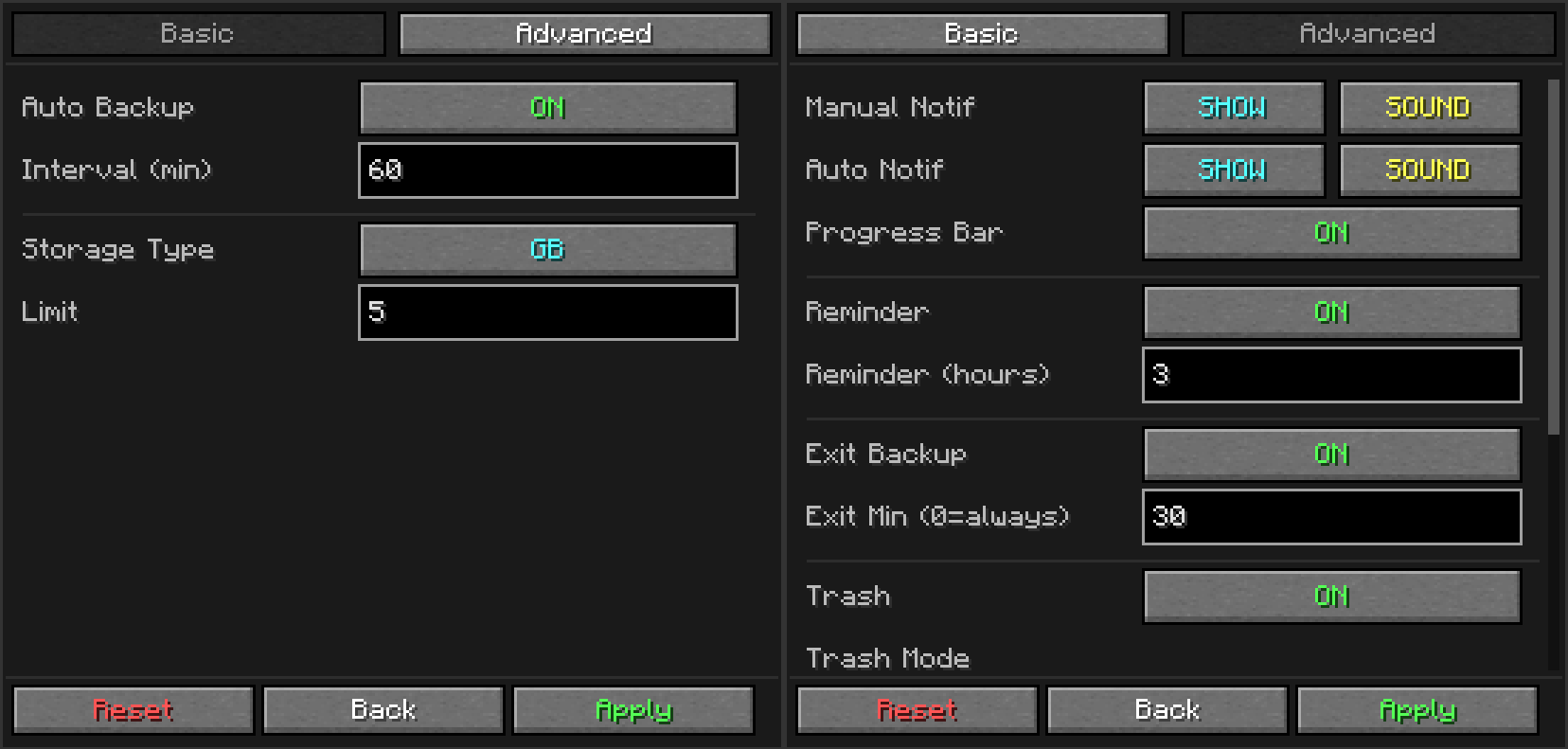 A settings menu so you don't have to use commands
Detailed Backup
To access this screen, double-click on a backup in the backup manager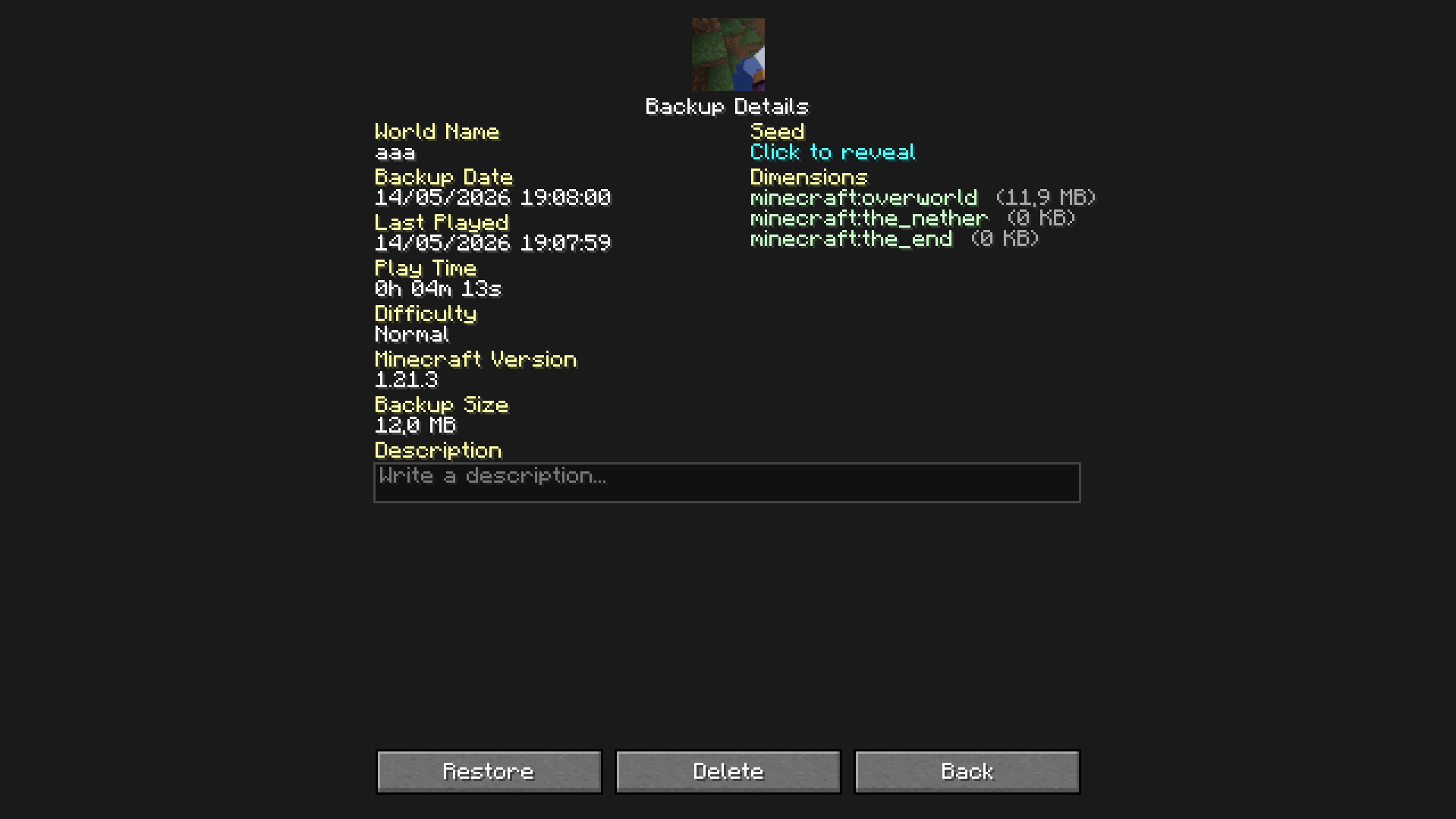
Favorites
You can add your backups to your favorites. The advantages are:- Your backup will not be deleted by auto-cleanup
- Better visibility of your backups
Tree Structure
The tree structure works to view backups easilyCommands
/bk [custom_name]If you want to make a manual backup ([custom_name]it's used to name the backup)/bkup <subcommand>To do a lot of option to customization, more about it bellow
| Command | Description |
|---|---|
/bkup auto <on/off> |
Toggles automatic backups |
/bkup storage <lim> <type> |
Sets retention limit by gb or backups |
/bkup delete <file> |
Deletes a backup (or moves to trash if enabled) |
/bkup status |
Shows current settings and disk usage |
/bkup help [command] |
Displays the command list in-game |
/bkup advanced exit <on/off> |
Toggles backup when stopping the server or leaving the world |
/bkup advanced trash <options> |
Manages trash system (on, off, clear, recover) |
/bkup advanced compression <mode> |
Sets compression to fast (larger) or heavy (smaller) |
/bkup advanced path <path> |
Changes the backup folder location |
/bkup advanced config <options> |
Toggles chat notifications, sounds, and progress bar |
/bkup advanced admin <player> |
Grants backup permissions to non-OP players |
/bkup advanced unadmin <player> |
Removes backup permissions from non-OP players |
| Command | Description |
|---|---|
| Manual Backups | |
/bk |
Creates an instant backup with the world folder name. |
/bk [custom_name] |
Creates a backup with a specific name (e.g. /bk BossFight). |
| Help | |
/bkup help |
Shows the main help menu. |
/bkup help <command> |
Shows detailed help for a topic: bk, auto, storage, status, delete, advanced. |
| Storage Limits | |
/bkup storage <num> gb |
Sets limit by size (e.g. 5 gb). Deletes oldest files when full. |
/bkup storage <num> backups |
Sets limit by quantity (e.g. 20 backups). |
| Delete | |
/bkup delete <file> |
Deletes a backup. Moves it to Trash if enabled. |
| Info | |
/bkup status |
Prints current config, disk usage, and stats to chat. |
| Automation | |
/bkup auto on |
Enables auto-backups every 60 minutes. |
/bkup auto on <min> |
Enables auto-backups with a custom interval (e.g. 30). |
/bkup auto off |
Disables automatic backups completely. |
/bkup advanced exit on |
Enables backup when stopping the server (always). |
/bkup advanced exit on <min> |
Enables exit backup only if session > <min> minutes. |
/bkup advanced exit off |
Disables backups on server stop. |
| Trash System | |
/bkup advanced trash on |
Enables Trash. Deleted files stay for 24 hours. |
/bkup advanced trash on <num> hours |
Custom Trash: files expire after <num> hours. |
/bkup advanced trash on <num> backups |
Custom Trash: keeps a batch of <num> deleted files. |
/bkup advanced trash on <num> backups accumulated |
Custom Trash: rolling buffer of <num> deleted files. |
/bkup advanced trash off |
Disables Trash. Files are deleted permanently. |
/bkup advanced trash clear |
Instantly empties the trash folder. |
/bkup advanced trash recover <file> |
Restores a deleted file from Trash to its original folder. |
| Technical Settings | |
/bkup advanced compression fast |
Level 1: fastest backup speed, larger file size. |
/bkup advanced compression heavy |
Level 9: best compression, smaller file size (slower). |
/bkup advanced path <path> |
Changes backup folder location (e.g. D:/Backups). |
/bkup advanced path reset |
Resets storage folder to default (/bkups). |
| Notifications & UI | |
/bkup advanced config noti on |
Reminds you to backup if you haven't in 3 hours. |
/bkup advanced config noti on <hours> |
Sets custom reminder interval. |
/bkup advanced config noti off |
Disables "long session" warnings. |
/bkup advanced config progress show |
Shows the boss-bar progress on top of screen. |
/bkup advanced config progress hide |
Hides the progress bar. |
/bkup advanced config <all|manual|auto> <hide|show> <sound|mute> |
Sets chat visibility and sound for a backup category. all applies to both manual and auto. |
| Admin | |
/bkup advanced admin <player> |
Allows a player to use backup commands without OP. |
/bkup advanced unadmin <player> |
Revokes backup privileges. |
How does Bkups work?
How are folders created
Bkups creates a folder in.minecraft\bkups if any bkup is created (excluding legacy ones, they are stored in .minecraft\backups, wich is the vanilla minecraft folder)
Following this logic, if only one backup has been created in .minecraft\bkups\manual it will only be create in that specific folder
This means that it is a local backup system, which means that all related files are on your PC
How does it work online?
When two or more people are connected to your server with Bkups installed: If a player is not an admin:- When a backup is done, the message will appear in the chat, but the path will not
- They will also not be able to use the commands or buttons that appear in the pause menu
/bkup admin <player>):
- They will be able to see the path
- Use all commands and buttons
- If they make a backup, it will be stored in the local folder of the server owner
Backups to World
When a backup is created, bkup compress the world in a .zip, this .zip is later decompress after restaured These .zip files are complete compressed copies of your world, so no data is lost The command/bkup compression <mode> changes the way in wich the folders .zip are stored
Road Map
- Continue updating the mod with unique and useful ideas
- Provide the ability to create incremental and differential backups (currently, only full backups are available, with two different types of compression).
- Fix known bugs
Credits
- Blanq_Ky: Mod and versions development, project lead
- TrasTick: Responsible for descriptions on CurseForge and Modrinth pages
Bkups Team