BabelCraft
- By
**Mod Translator** (Forge 1.20.1, client-side) — Translates all on-screen text from other mods in real time, without touching Minecraft itself. Multiple languages, free (no API key), with caching. Hold Left Alt to see the original.
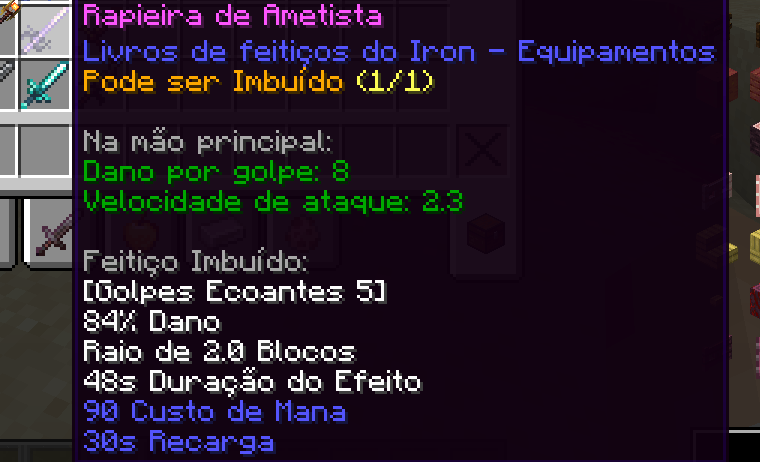
image_4.png
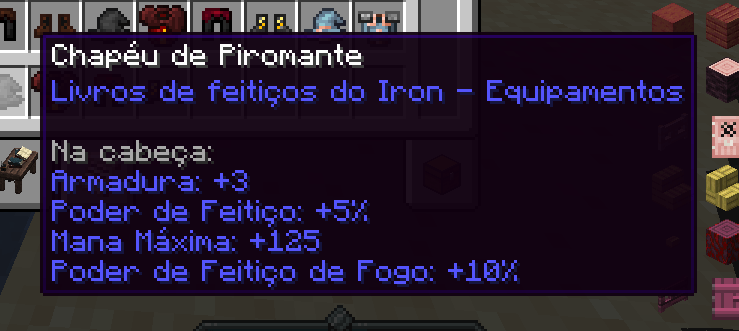
image_3.png
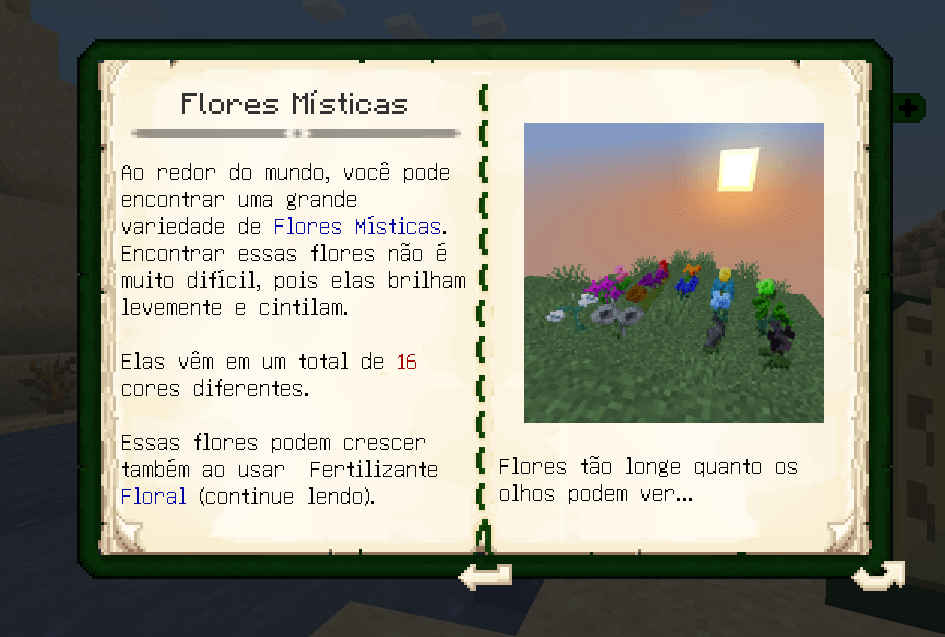
image_2.png
Description
BabelCraft
Version 1.2.5.3 · Minecraft 1.20.1 · Forge 47+ · Client-side only · License: MIT
BabelCraft (formerly Mod Translator) automatically translates, in real time, all on-screen text drawn by other mods — screens, buttons, screen titles, item tooltips, button tooltips, guidebooks (Patchouli / Lexica Botania), and even HUD overlays — without ever translating Minecraft itself. You decide which mods are allowed to be translated, or enable translation for all mods at once.
How it works
- Translation uses the free Google Translate endpoint (no API key required).
- Every translated string is cached to disk, so each piece of text is translated only once — even across game sessions. Internet is only needed the first time a given text appears.
- Pending lines are sent in batches (up to 20 lines / 1600 characters per request, with a 150 ms window to group lines from the same page), so a full guidebook page costs 1–2 requests instead of one per line. On-screen text always jumps ahead of background pre-translation traffic (see below), so a big modpack's warm-up never delays what you're actually looking at.
- At the title screen, BabelCraft quietly pre-translates every allowed mod's own language file in the background, so screens that appear early in a new world (origin-selection screens, quest books, etc.) are more likely to already be translated by the time you reach them.
- Patchouli books draw text word-by-word; the mod regroups the words into full lines (and, optionally, whole paragraphs — see "Wrap long text" below) before translating, so the result reads like a proper sentence instead of word-for-word. The original line shows until the translation arrives, without flicker.
- Because translations (e.g. Portuguese) are often longer than English, each translated line is fit to the original space: overflow up to ~8% passes unchanged, small overflows condense the width (imperceptible), and larger ones proportionally shrink the font to stay readable (minimum 0.4x).
- Player-typed text (search boxes, etc.) is never translated. The chat is never translated either (it's player conversation and command feedback, including the mod's own).
- If the translation service fails or rate-limits (no internet, endpoint overloaded), the original text is shown and the mod retries with an increasing backoff (up to 2 minutes) instead of hammering the endpoint.
Installation
- Copy
babelcraft-1.2.5.3.jarinto themodsfolder of your Forge 1.20.1 instance. - Launch the game normally.
Getting started
By default, "Translate all mods" is ON — every mod is translated without having to allow them one by one. If you prefer per-mod control, turn that option off in the Mods tab and check the mods you want there (turning it off for the first time keeps translating everything already loaded until you uncheck something specific, so nothing suddenly goes silent).
Configuration screen (tabbed)
Open it with /babelcraft gui in chat, bind the "Open BabelCraft settings" key in Options → Controls, or click the small square "T" button next to "Language..." in the vanilla Options screen. It has four tabs:
- General — enable/disable translation; translation magnifier (see below); show original (tooltips show the original with the translation in gray below); translate HUD; item tooltips; wrap long text (translates multi-line paragraphs as a whole and rewraps them, whole words only — off by default, steadier for mods whose layout shifts between frames); clear translation cache (forces everything to be re-translated, useful if something got stuck showing the wrong or no translation).
- Mods — list of all loaded mods with
[x]/[ ]per mod, a search field (filters by name or modid as you type), Enable all / Disable all buttons, and page navigation. With an active search, the "all" buttons act only on the filtered mods. The "Translate all mods" checkbox lives here now. - Languages — list of available languages to click and select (Português, English, Español, 日本語…), plus a field to type a custom language code.
- Progress bar (new) — choose between three ways to show translation progress: a panel (the original small text box with mod name + ETA), a boss bar (a wide bar styled exactly like a boss health bar, filling up as it goes), or a spinner (a small rotating circle with just a percentage). Also configurable: size, opacity, and position.
Translation magnifier
Enable it in General → "Translation magnifier" (or /babelcraft iconmode). A small "T" icon appears over any screen and works alongside global translation, like a magnifying glass:
- Drag the icon with the mouse and drop it onto a piece of text.
- A floating panel opens next to the icon with the entire paragraph translated at once (the mod automatically joins all neighboring lines of the block) — great for comfortably reading lines that came out small after in-place translation.
- Works even on text from mods outside the allow list (the screen itself isn't altered, but the magnifier shows the translation in the panel).
- While the translation is still loading, the panel shows "Translating…".
- The icon's position is saved between sessions.
See the original text anytime
Hold Left Alt (configurable in Controls: "Hold to see original text") and all translated text reverts to the original while the key is held. Release it and the translation returns. Together with the "Show original" tooltip option, that's how you view both languages at once.
Commands
| Command | Effect |
|---|---|
/babelcraft gui |
Open the configuration screen |
/babelcraft toggle |
Turn everything on/off |
/babelcraft language <code> |
Set the target language (e.g. pt, en, es) |
/babelcraft allow <modid> |
Allow translating that mod |
/babelcraft disallow <modid> |
Remove that mod's permission |
/babelcraft allowall |
Allow all loaded mods |
/babelcraft disallowall |
Clear all individual permissions |
/babelcraft allmods |
Toggle "translate all mods" |
/babelcraft iconmode |
Toggle the translation magnifier |
/babelcraft itemtooltips |
Toggle item description translation |
/babelcraft wrap |
Toggle whole-paragraph wrapping |
/babelcraft clearcache |
Wipe the translation cache for the current language |
/babelcraft list |
List loaded mods with ON/OFF status |
/babelcraft showoriginal |
Toggle original + translation in tooltips |
/babelcraft hud |
Toggle HUD overlay translation |
Botania book (Lexica Botania)
With "Translate all mods" ON (default), the book is already translated. If you turned that option off, remember the book is rendered by the Patchouli mod, so allow both:
/babelcraft allow patchouli
/babelcraft allow botania
patchouli translates the book pages; botania translates the item names/tooltips.
Files
- Settings:
config/babelcraft.json - Cache:
config/babelcraft/cache_<language>.json(delete it, or use "Clear translation cache", to force re-translation)
Compatibility
- Minecraft 1.20.1
- Forge 47+
- Client-side only — not required on the server.
BabelCraft Team