


Auto Window Size
- By
en-accessibility-entry.png
en-borderless-mode.png
en-commands-chat.png
en-custom-resolution.png
Description
Auto Window Size
A Minecraft 1.20.1 / Forge client-side mod — auto window sizing, centering, minimum-size lock, fixed window size, borderless mode, always-on-top, and auto-fullscreen on launch.
⚠ Platform notice: this mod only supports desktop Minecraft (Windows / macOS / Linux). It does not work on mobile / Bedrock.
📮 About the source: the author is new to GitHub / Git and once caused some messy repository state during an update. If the source you downloaded does not match the released jar, email 3270728922@qq.com for the correct source.
What it does
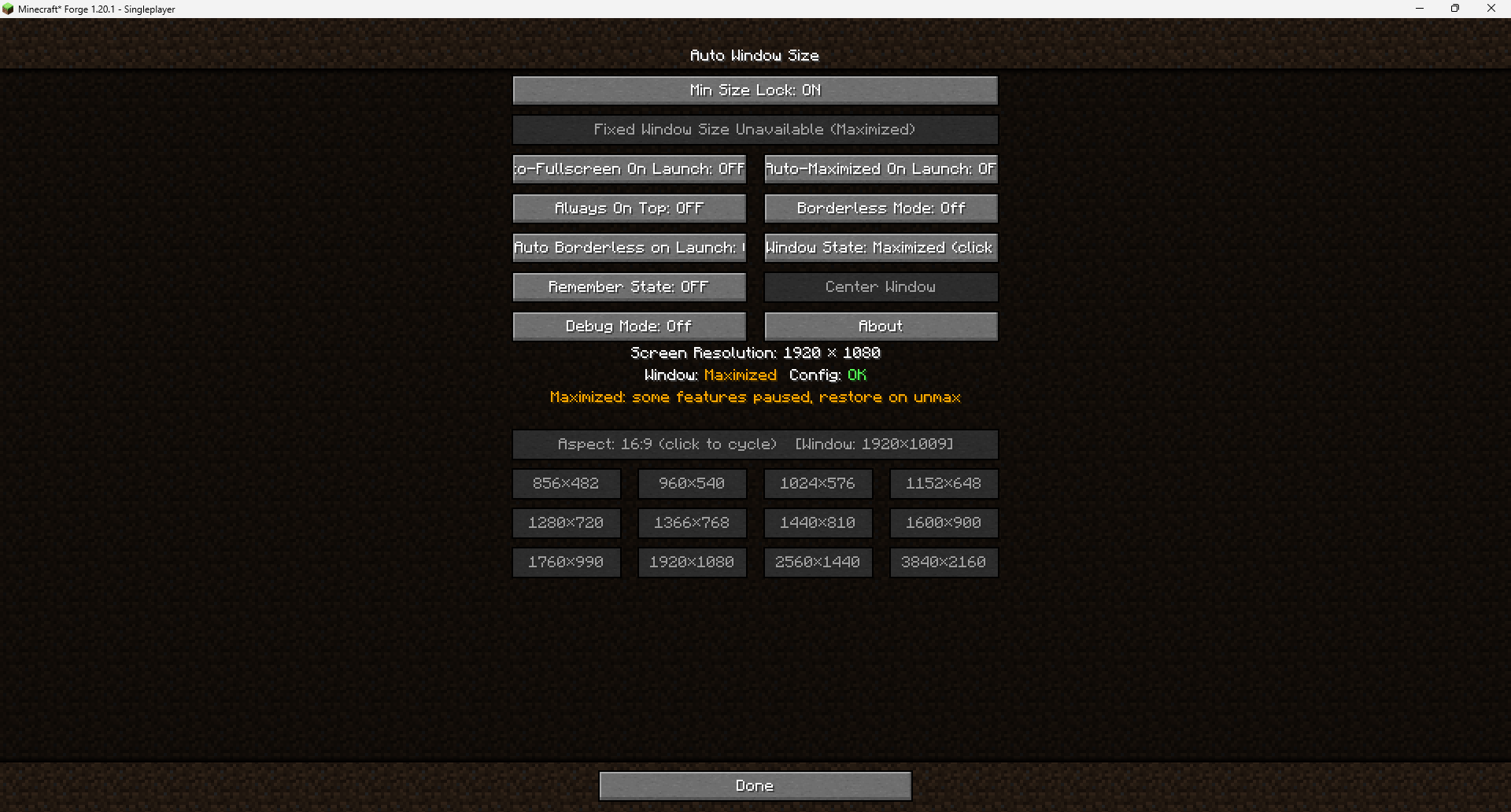
When building a modpack you spend ages arranging mod GUIs exactly right — then a player launches on a different resolution, the window resizes, and every layout breaks. Auto Window Size turns "game window size" from a lucky accident into a deliberate choice: on launch it sizes the window to your resolution and centers it, can lock a minimum size, fully freeze the window size, center it in one click, and even start fullscreen. It only touches the OS-level window and almost never conflicts with other mods.
- Auto window sizing on launch: after a configurable delay (default 1.5s) it sets the window to your configured resolution (default 1280×720) and centers it, without stretching the loading screen.
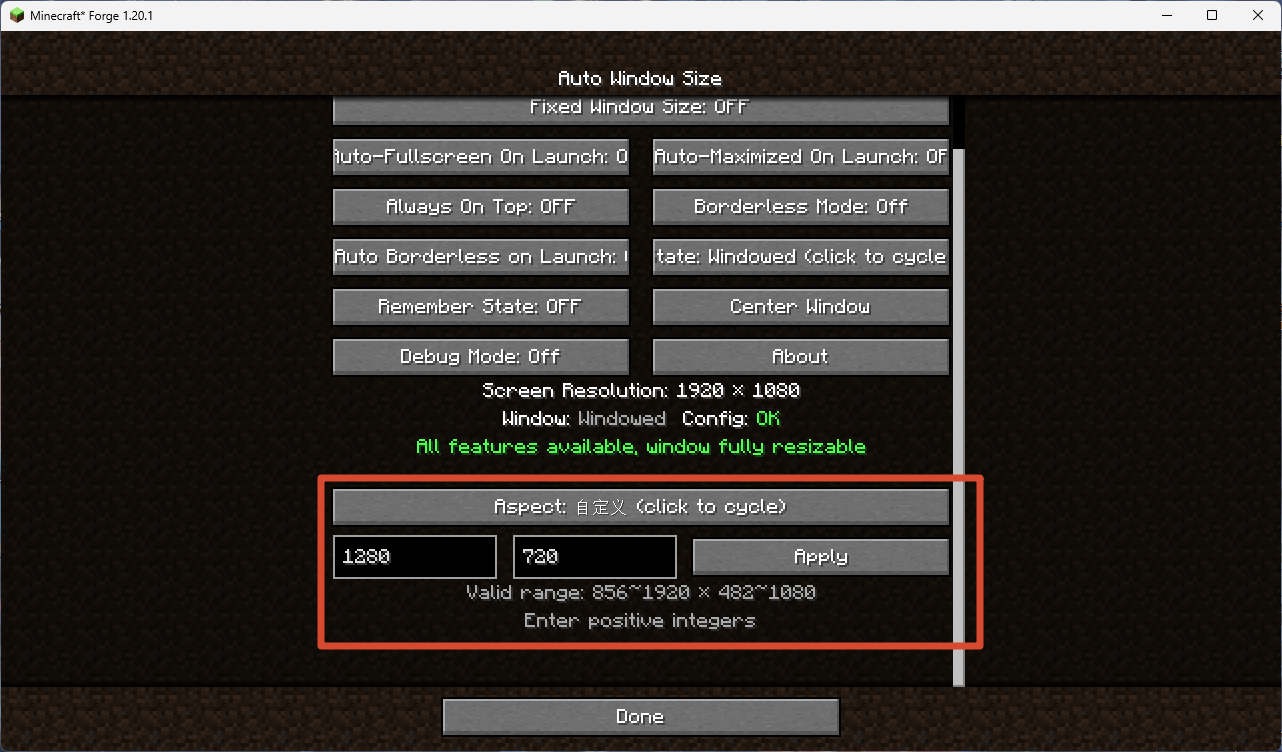
- Resolution presets: grouped by aspect ratio (16:9 / 16:10 / 4:3 / 5:4 / 21:9) with 12 one-click presets per ratio, plus a custom resolution input; presets larger than your screen, smaller than the configured minimum, or matching the current size are auto-disabled.
- Minimum size lock: the window can grow freely but cannot shrink below the configured size, keeping tuned UI layouts intact.
- Fixed window size: freezes the window at its current size; the maximize button is disabled at the OS level, so a "fake maximized" state is impossible.
- Center window: one-click centering on whichever monitor the window is on.
- Borderless mode: removes the window title bar and borders; works in windowed, maximized, and fullscreen (pseudo-fullscreen) states.
- Always-on-top: three modes — off, normal (GLFW floating), and force (re-claims focus every frame, can override other always-on-top windows like classroom monitoring software).
- Auto-fullscreen / auto-maximize / auto-borderless on launch: players can persistently toggle "start fullscreen", "start maximized", or "start borderless" on next launch; modpack authors can set a one-time onboarding flag.
- Window position memory: optionally save and restore the window position and size across launches instead of forcing center; compatible with auto-fullscreen / auto-maximize.
- Cycle window state: one button / keybind to cycle through windowed → maximized → fullscreen.
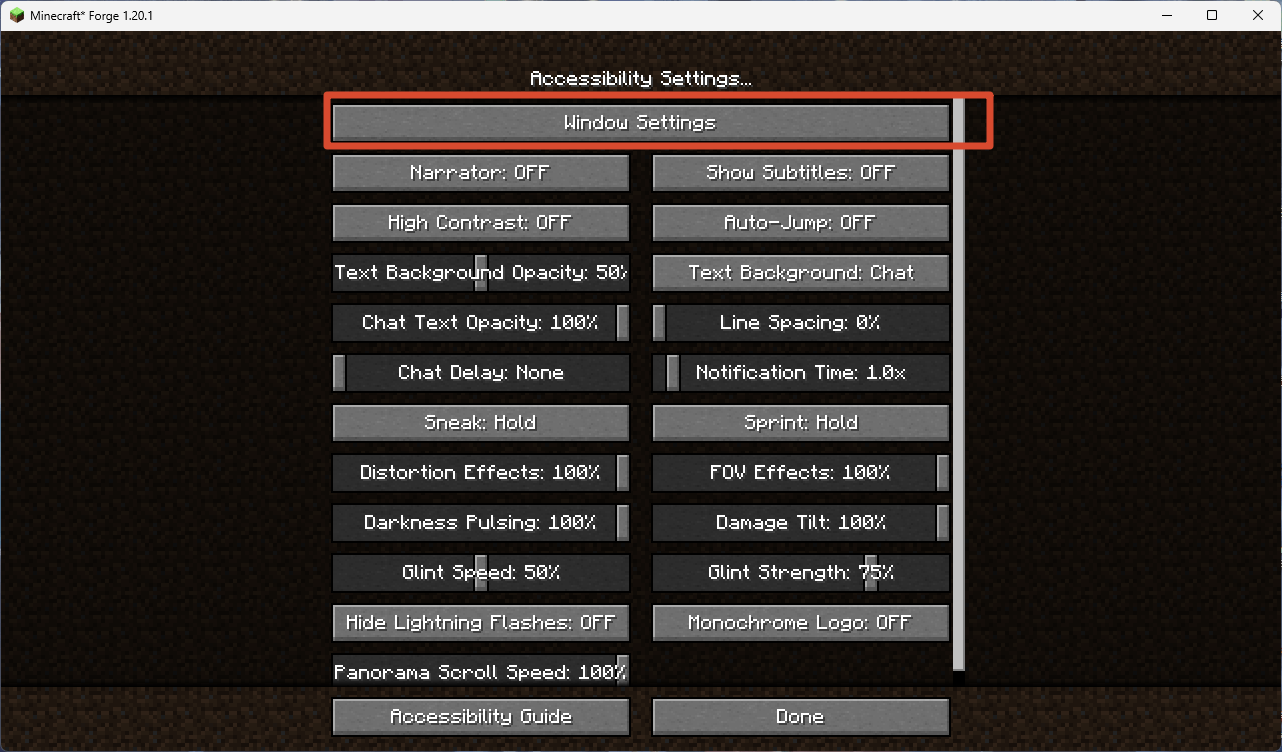
- Native entry point: a "Window Settings" button in Options → Accessibility Settings (moved from Video Settings to stay compatible with mods like Embeddium that replace the video settings screen).
- Client-side only, no server install; works out of the box at 1280×720.
Quick Start
- Install Minecraft 1.20.1 with Forge (47.x or newer).
- Drop
autowindowsize-1.1.0.jarinto your.minecraft/mods/folder. - Launch the game. The window will automatically resize to 1280×720 and center after 1.5 seconds.
- Open Options → Accessibility Settings → Window Settings to configure everything.
Usage
Opening the settings screen
Go to Options → Accessibility Settings, then click the Window Settings button at the top of the list.
Core features at a glance
| Feature | What it does |
|---|---|
| Auto window size | On launch, sets the window to your configured resolution and centers it |
| Minimum size lock | Prevents the window from being resized below the configured minimum |
| Fixed window size | Completely locks the window size (maximize button disabled at OS level) |
| Center window | One-click centering on the current monitor |
| Borderless mode | Removes window decorations (title bar + borders) |
| Always-on-top | Keeps the window above other windows (3 modes) |
| Remember position | Saves/restores window position and size across launches |
| Resolution presets | 60 presets across 5 aspect ratios, plus custom input |
| Cycle state | Cycles windowed → maximized → fullscreen |
💡 Tip: Hover over any button in the settings screen for a detailed tooltip explaining what it does.
Commands
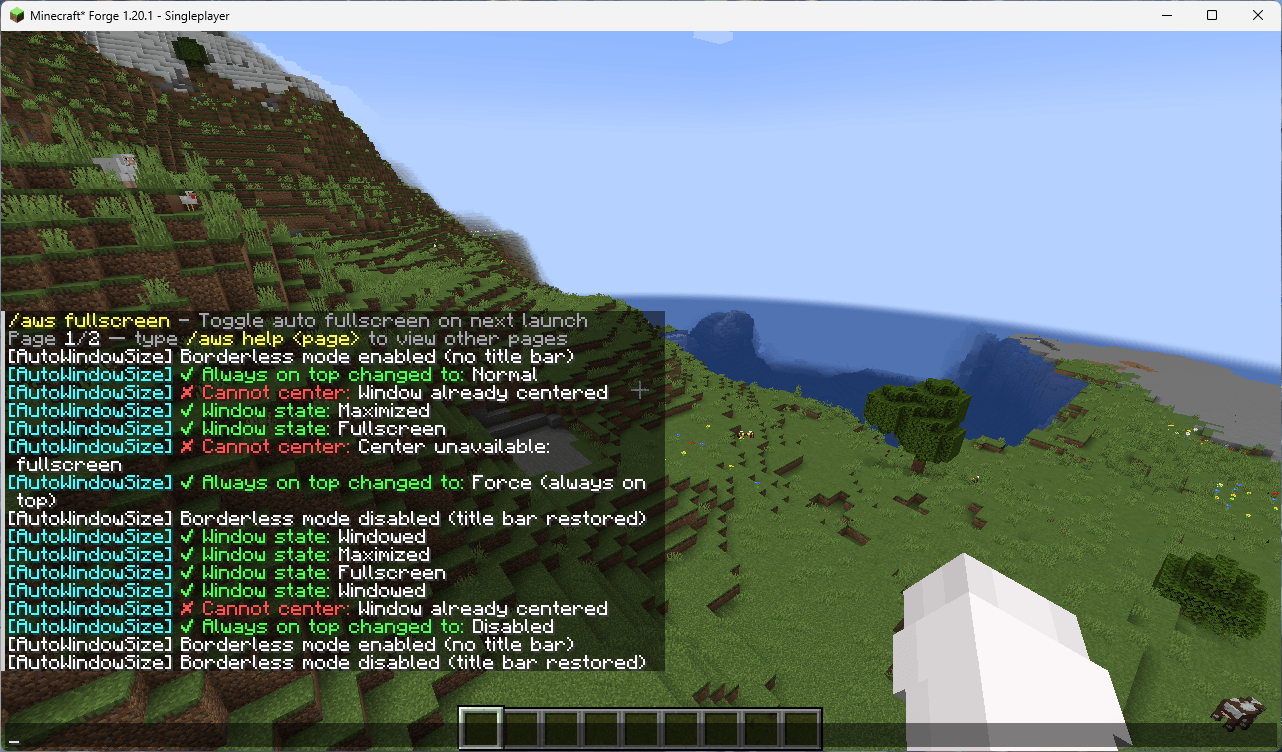
All commands use the /aws prefix. Type /aws help in-game for the full list with pagination.
| Command | Description |
|---|---|
/aws help [page] |
Show the command list (2 pages, 8 commands per page) |
/aws gui |
Open the Window Settings screen |
/aws status |
Show current window state, config status, and resolution |
/aws toggle |
Toggle minimum size lock on/off |
/aws lock |
Enable minimum size lock |
/aws unlock |
Disable minimum size lock |
/aws fixed |
Toggle fixed window size on/off |
/aws center |
Center the window on the current monitor |
/aws fullscreen |
Toggle fullscreen on/off |
/aws maximize |
Toggle maximized on/off |
/aws remember |
Toggle window position memory on/off |
/aws top |
Cycle always-on-top mode (off → normal → force) |
/aws debug |
Toggle debug logging on/off |
/aws borderless [auto] |
Toggle borderless mode; auto subcommand toggles auto-borderless on launch |
/aws resolution [ratio] <width> <height> |
Set window resolution; supports ratio+preset (e.g. 16:9 1920x1080) or custom width/height |
💡 Tip:
/aws resolutionsupports tab-completion. Type a ratio (e.g.16:9) and press Tab to see available presets.
Key Bindings
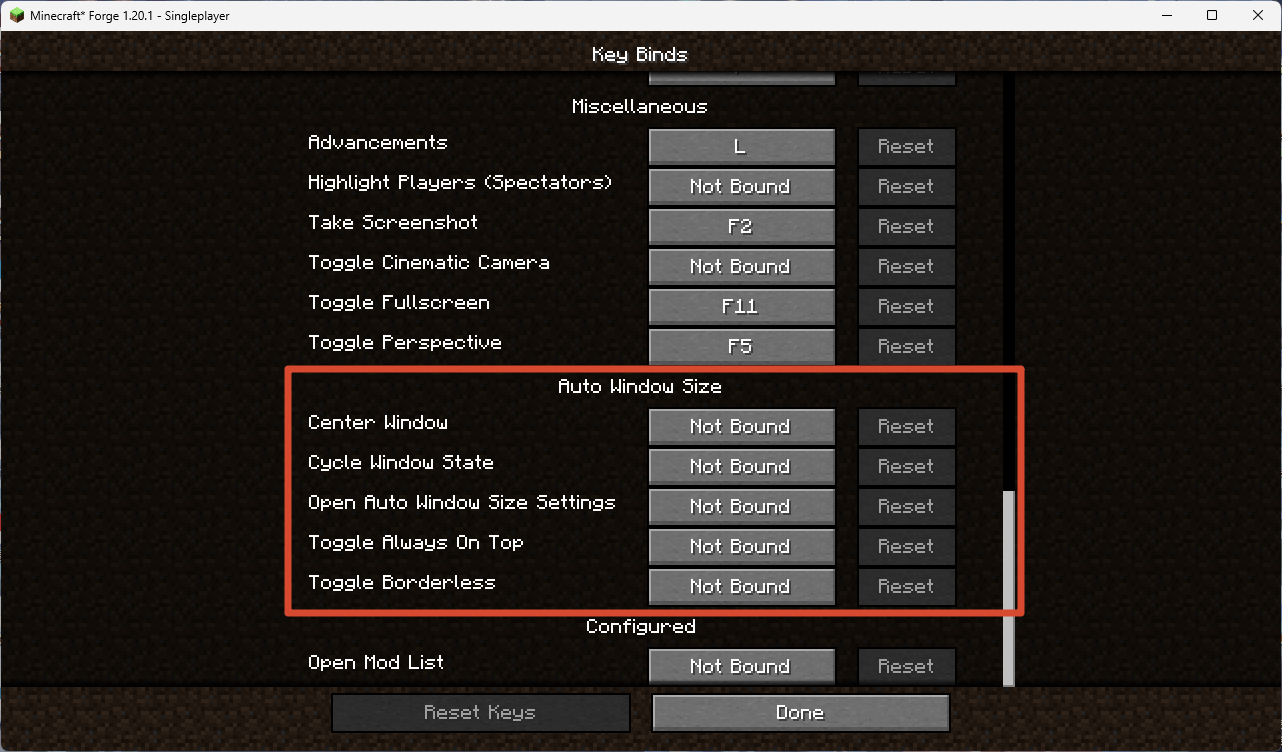
All keybinds are unbound by default. Set them in Options → Controls → Auto Window Size.
| Keybind | Default | Description |
|---|---|---|
| Open Window Settings | None | Open the Window Settings screen |
| Center Window | None | Center the window on the current monitor |
| Toggle Borderless | None | Toggle borderless mode on/off |
| Cycle Window State | None | Cycle windowed → maximized → fullscreen |
| Toggle Always-on-Top | None | Cycle always-on-top mode (off → normal → force) |
💡 All keybinds give chat feedback when pressed (e.g. "Window centered", "Borderless mode enabled").
Config Files
All config files live in .minecraft/config/AutoWindowSize/:
| File | Purpose |
|---|---|
config.toml |
Main configuration (window size, lock, auto-fullscreen, etc.) |
window.json |
Saved window position/size (only used when "Remember position" is enabled) |
Main config options (config.toml)
| Option | Default | Range | Description |
|---|---|---|---|
windowWidth |
1280 | 856–7680 | Default window width on launch |
windowHeight |
720 | 482–4320 | Default window height on launch |
startupDelay |
1.5 | 0.5–10.0 | Seconds to wait before applying window size on launch |
autoFullscreen |
false | — | Start in fullscreen on next launch |
autoMaximize |
false | — | Start maximized on next launch |
autoBorderless |
false | — | Start in borderless mode on next launch |
lockEnabled |
false | — | Enable minimum size lock |
fixedEnabled |
false | — | Enable fixed window size |
rememberPosition |
false | — | Save/restore window position and size |
alwaysOnTopMode |
0 | 0–2 | Always-on-top mode (0=off, 1=normal, 2=force) |
borderless |
false | — | Enable borderless mode |
debug |
false | — | Enable debug logging |
💡 You can also edit these in-game via a config-screen mod (e.g. Configured, Cloth Config). Config option names and tooltips follow the game language.
Downloads
Prefer GitHub Releases. Other platforms (CurseForge / Modrinth / MC Baike / MCBBS / BBSMC / KLBBS / HIMCBBS) may lag behind by a few days due to review or sync delays.
- GitHub Releases (always latest, recommended): https://github.com/3270728922/AutoWindowSize/releases
- CurseForge: https://www.curseforge.com/minecraft/mc-mods/auto-window-size
- Modrinth: https://modrinth.com/mod/autowindowsize
- MC Baike: https://www.mcmod.cn/class/30769.html
- MCBBS: https://www.mcbbs.co/thread-6322-1-1.html
- BBSMC: https://bbsmc.net/mod/autowindowsize
- KLBBS: https://klpbbs.com/thread-173769-1-1.html
- HIMCBBS: https://www.himcbbs.com/resources/1499/
Notes
- When upgrading this mod, manually delete the old config folder:
.minecraft/config/AutoWindowSize/(and the old.minecraft/config/autowindowsize-client.tomlif upgrading from pre-1.0.9). Due to changes in config entries and file layout, Forge won't rewrite an existing file; deleting it and launching generates a fresh one. Client-side only; desktop Minecraft (Windows/macOS/Linux), not mobile.
Wiki
Detailed feature explanations, design decisions, and troubleshooting live in the Wiki:
- English Wiki: WIKI.md
- 中文 Wiki: WIKI_ZH-CN.md
Feedback
- Issues / Bug reports: https://github.com/3270728922/AutoWindowSize/issues
- Discussions: https://github.com/3270728922/AutoWindowSize/discussions
- Author email: 3270728922@qq.com
Latest: v1.1.0
- Borderless mode: removes window title bar and borders; supports windowed, maximized, and fullscreen (pseudo-fullscreen) states; auto-borderless on launch option.
- Always-on-top: three modes — off, normal (GLFW floating), and force (re-claims focus every frame, can override other always-on-top windows).
- Window state cycle button: one click to cycle windowed → maximized → fullscreen.
- 5 keybinds: Open Settings, Center, Toggle Borderless, Cycle State, Toggle Always-on-Top (all unbound by default, with chat feedback).
- About page: in-game info screen with mod purpose, usage, downloads, feedback, and author info (20 languages).
- Settings entry moved to Accessibility Settings (compatible with Embeddium and other mods that replace the video settings screen).
- 15 commands total: added
/aws borderless,/aws top,/aws debug,/aws gui,/aws status,/aws toggle;/aws helpnow has pagination (2 pages, 8 commands per page). - Resolution presets: presets smaller than the configured minimum are now auto-disabled (in addition to larger-than-screen and matching-current).
- Custom resolution input: live validation with hover tooltip showing valid range; apply button disabled when input is invalid.
- Config files unified in
config/AutoWindowSize/(config.toml + window.json); config screen supports 20 languages. - 20 languages supported.
- Various bug fixes: scroll position preservation, button highlight overflow, aspect ratio sync, preset disabling logic, window state detection in borderless mode, and more.
Full changelog: CHANGELOG.md · CHANGELOG_ZH-CN.md
Auto Window Size Team
