Artmap Assistant
- By
Screenshot_4.png
Screenshot_3.png
Screenshot_2.png
Screenshot_5.png
Screenshot_6.png
Description
ArtMap Assistant
A client-side Minecraft assistant that makes creating pixel art with ArtMap easier. Import artwork, follow an in-game pixel overlay, track required materials and monitor your painting progress.
Features
- Image Import: Import PNG/JPG images and split larger artwork into 32×32 canvas tiles.
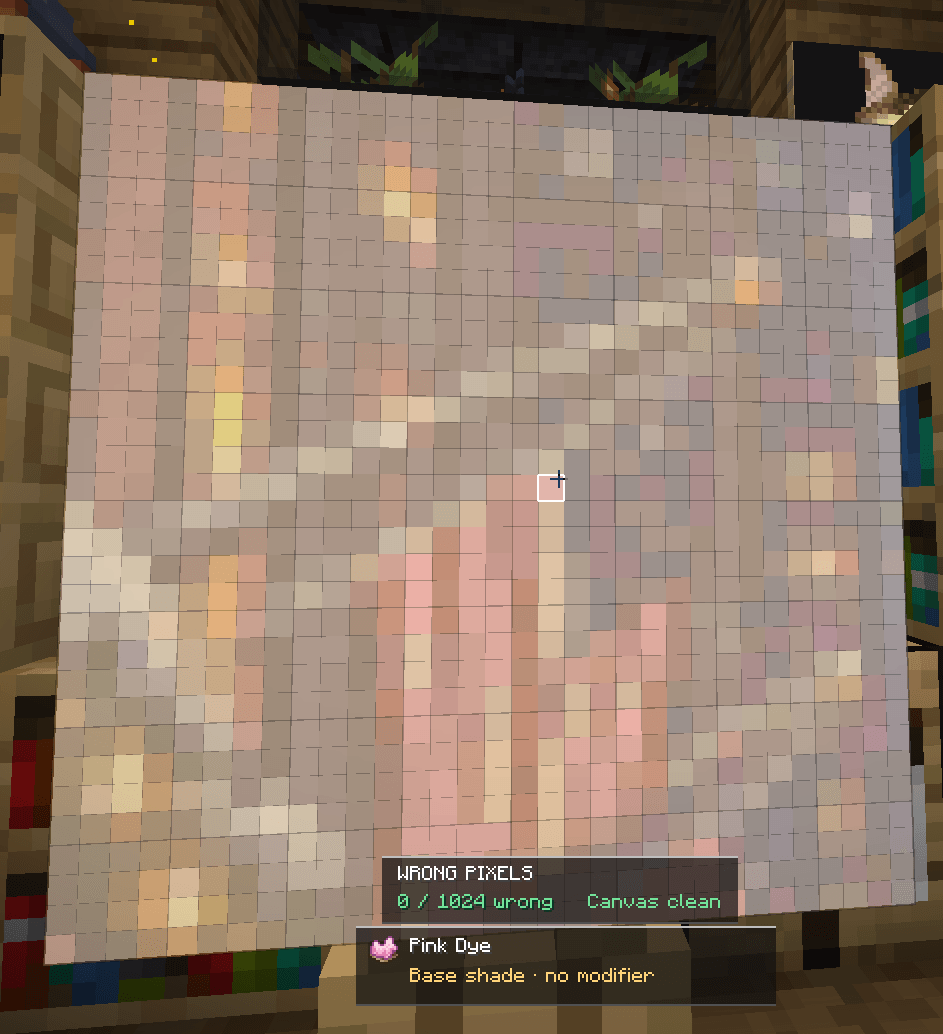
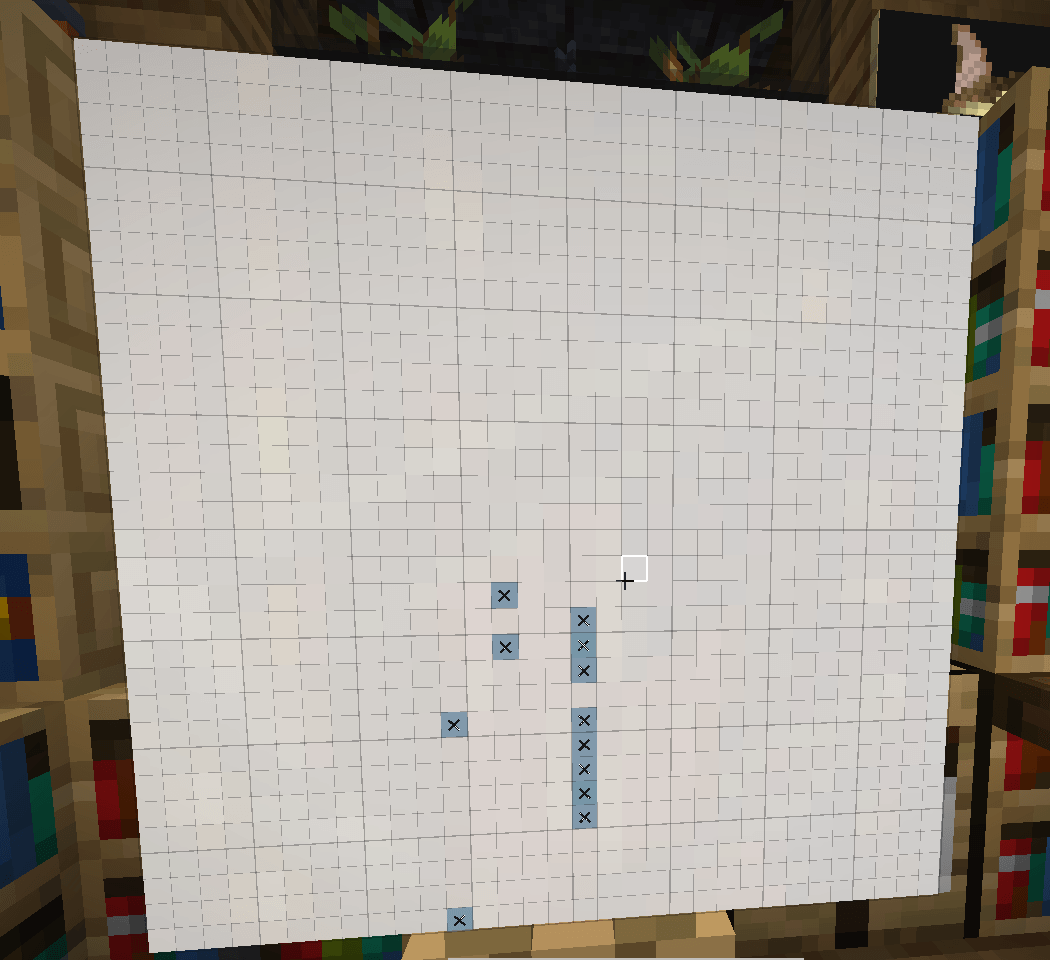
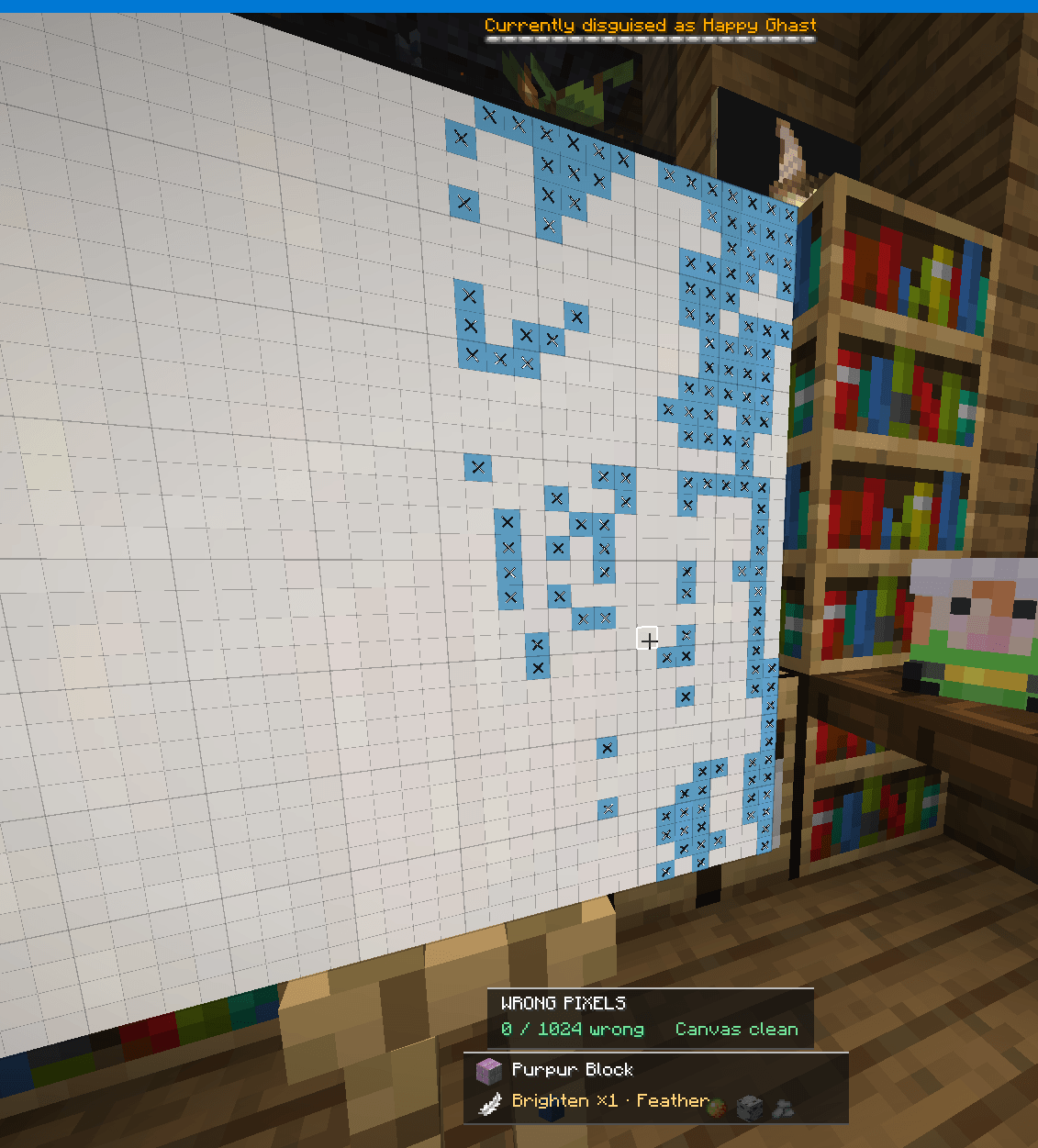
- Pixel Overlay: See exactly which pixels need attention and what materials they require.
- Colour Highlights: Cyan + X for base placement, Amber + X for shading, Red + X for incorrect colours or shading.
- Draggable HUDs: Independently position and toggle the Target, Tile Materials and Wrong Pixels HUDs.
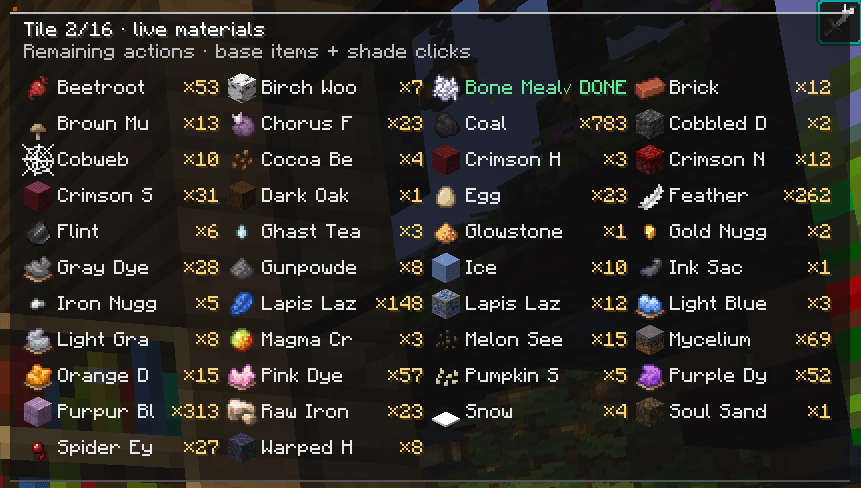
- Live Material Tracking: Automatically update material counts based on the actual canvas state, sorting list alphabetical / Low/high. Completed materials turn green with a DONE indicator.
- Progress Tracking: Manually mark completed pixels and monitor remaining work.
- Project Saving: Save, reopen and automatically save
.artmapprojects.
How to use
-
Join a Minecraft server running the ArtMap plugin.
-
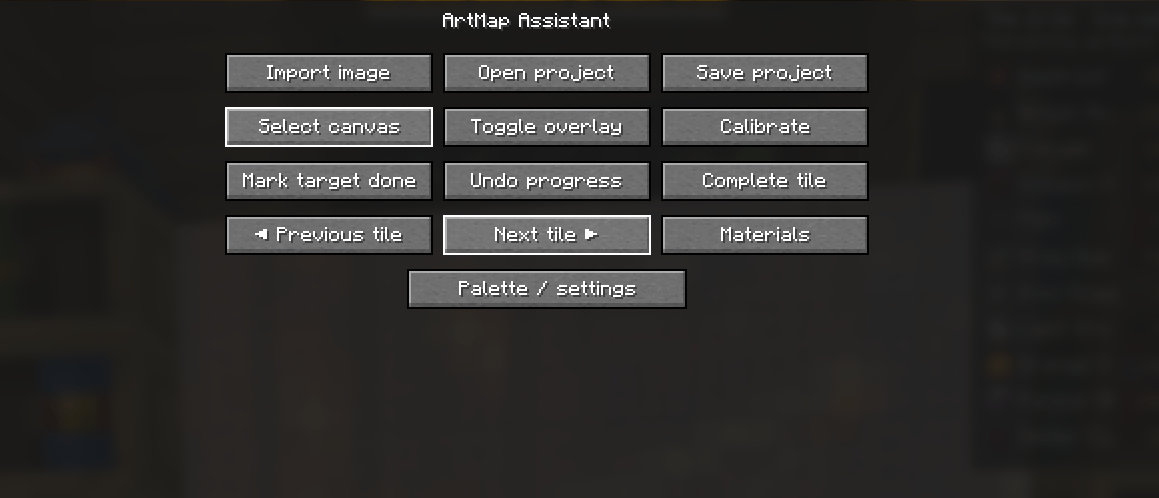
Press Right Shift to open ArtMap Assistant.
-
Import your artwork and select the tile you want to paint.
-
Aim at the filled-map canvas → Press Right Shift → Select Canvas.
-
Enable the overlay and start following the pixel instructions.
-
Follow the material and shading requirements, painting each pixel manually.
Image conversion: The built-in converter is still experimental. For now, I recommend using ArtMapify to convert your artwork into ArtMap-compatible colours. Download the converted image and import it into the mod.
HUD Customization
Open Right Shift → Settings → Overlay / HUD → Edit HUD Layout.
Drag the three HUD panels independently and toggle their visibility. Additional visibility keybinds are available under Options → Controls → ArtMap Assistant.
Requirements
- Minecraft Java Edition (matching the downloaded mod build).
- Fabric Loader (compatible version).
- Fabric API (compatible version).
- Java 25.
- An ArtMap server plugin.
- Mod Menu is optional and recommended for configuration.
Good to know
- The mod is entirely client-side; the server does not need ArtMap Assistant installed.
- Calibrate your canvas before painting: Right Shift → Calibrate → Depth Offset. Recommended starting value:
-0.021. Adjust if necessary and save calibration. - The manual progress Undo functionality is not yet fully reliable.
- Different servers may use different ArtMap palettes and shading conventions.
- This is an early release, so additional undiscovered bugs may exist.
Automation & Gameplay
ArtMap Assistant is a manual painting assistant, not an automated drawing bot.
It does not automatically place blocks, simulate mouse clicks, send custom painting packets or bypass server restrictions. All painting is performed manually by the player.
⚠️ Please consult your server administrators before using the mod and make sure client-side assistance tools are permitted by your server's rules.
Feedback and bug reports are appreciated!
Credits
@PsdDude - Logo background texture.
Bundled ArtMap palette data is derived from the MIT-licensed ArtMapify project by Melishy.
Website: https://artmapify.vercel.app/
Artmap Assistant Team