Airwaves
- By
A shared server radio for Simple Voice Chat. Play your own music, internet radio or a live DJ set to every player at once, with an in-game menu, song uploads, requests and playlists.
01-now-playing.png
02-music-playlists.png
04-radio.png
05-add-station.png
03-upload.png
07-hud-editor.png
09-settings.png
xavitjs | Airwaves
Create your game server with 

Description
Airwaves
A shared server radio for Simple Voice Chat. Everyone on your server hears the same music at the same time: your own songs, internet radio, or a live DJ set. It all plays through Simple Voice Chat, so there are no resource packs to download and nothing goes out of sync.
Features
🎵 Three music sources
- Your own music folder. Drop MP3, FLAC, OGG, WAV, M4A, AAC or Opus files into the server's
musicfolder. Subfolders work too. - Internet radio. Add any direct radio stream (MP3/AAC/OGG, or an
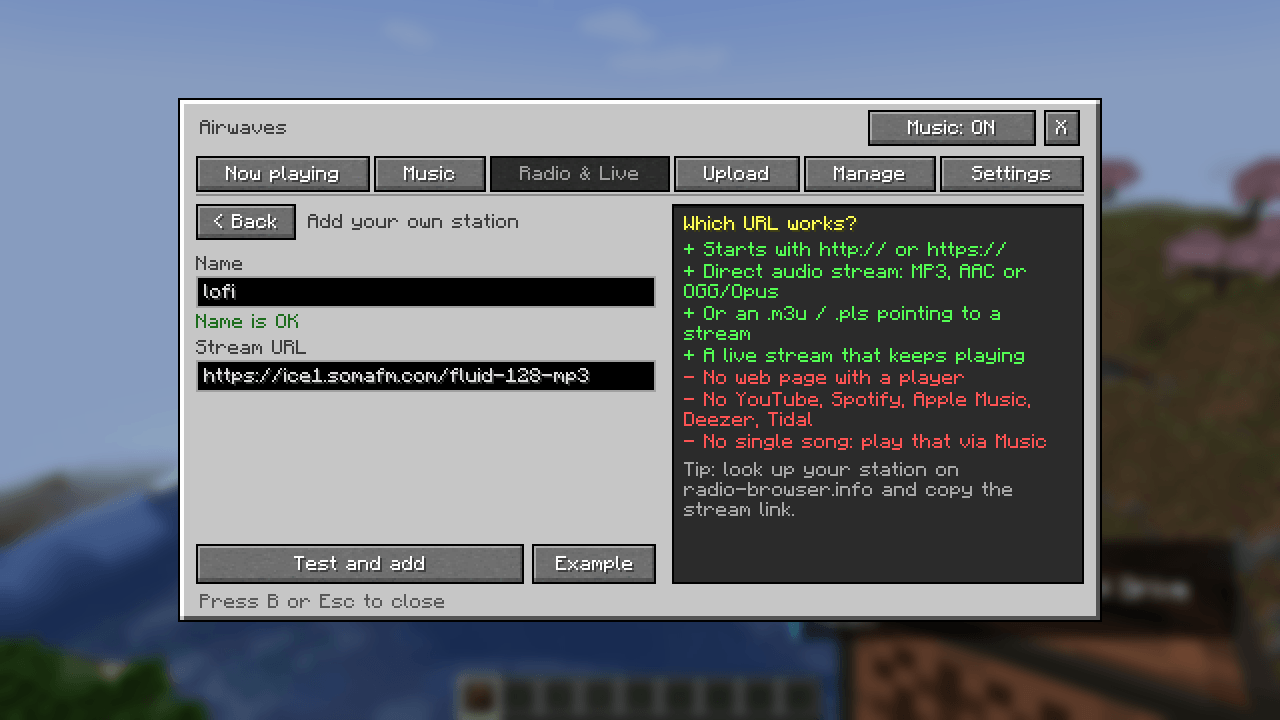
.m3u/.plsplaylist). Airwaves tests the link before saving it and shows the current song title from the stream. - Live DJ sets. Stream from your DJ software through Icecast and Airwaves switches to your set automatically when you go live, then back to the music when you stop.
🖥️ In-game menu (press B)
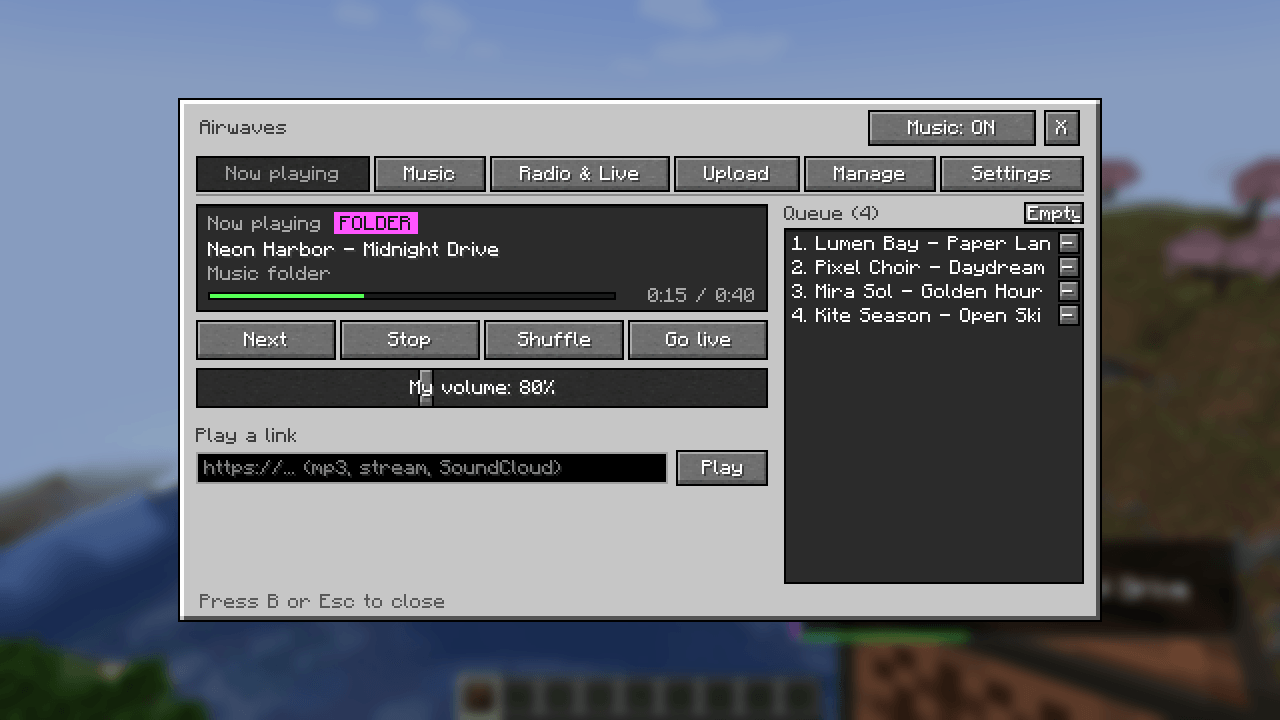
- Now playing: what's on, a progress bar, the queue, skip/stop/shuffle and your own volume.
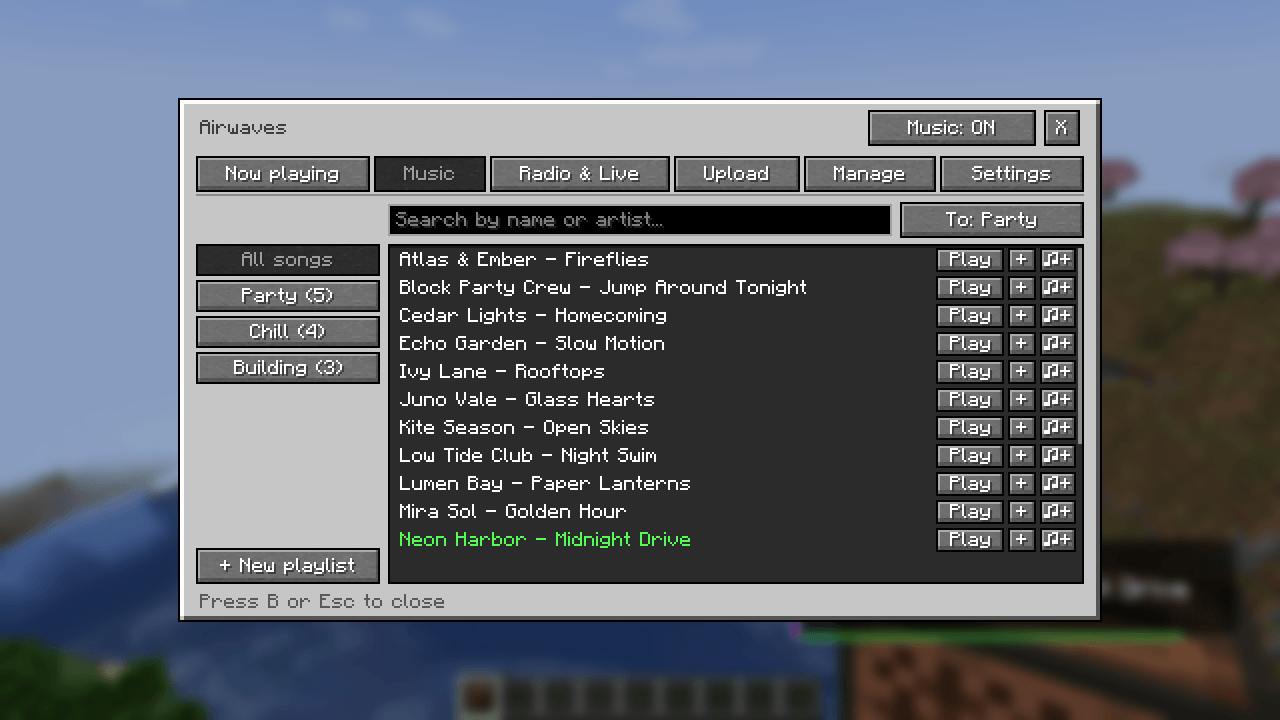
- Music: search the whole library, play songs, add them to the queue or request them.
- Playlists: make playlists in-game and play them on shuffle.
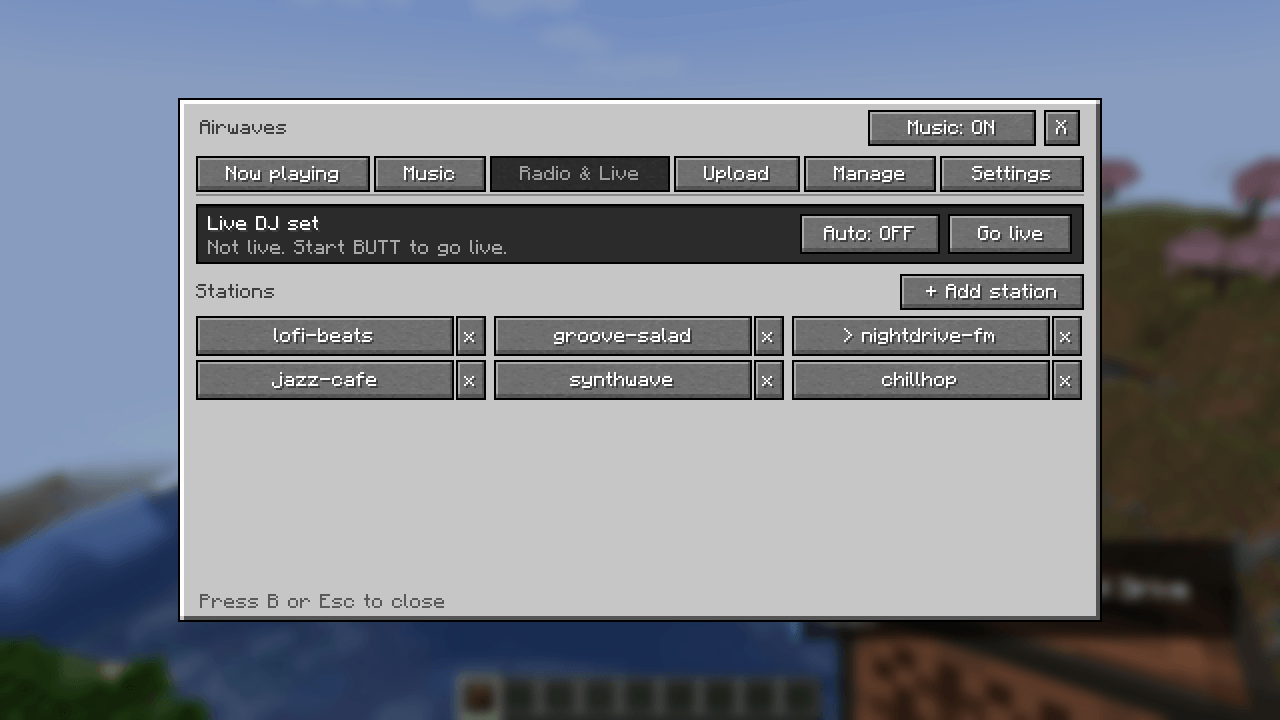
- Radio & Live: one-click stations, add your own with built-in rules on which URLs work, and go live.
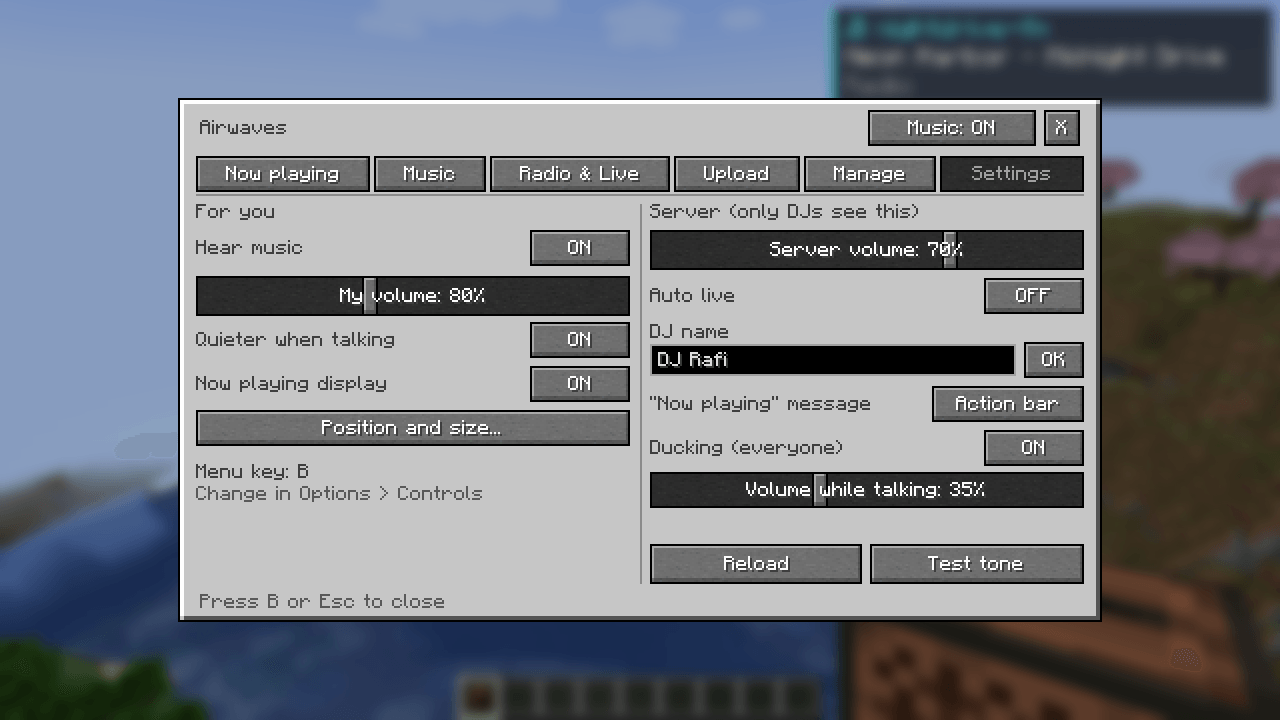
- Settings: personal options for every player, plus server options for DJs.
DJ-only controls are hidden from regular players. Every action is also checked on the server.
📤 Song uploads
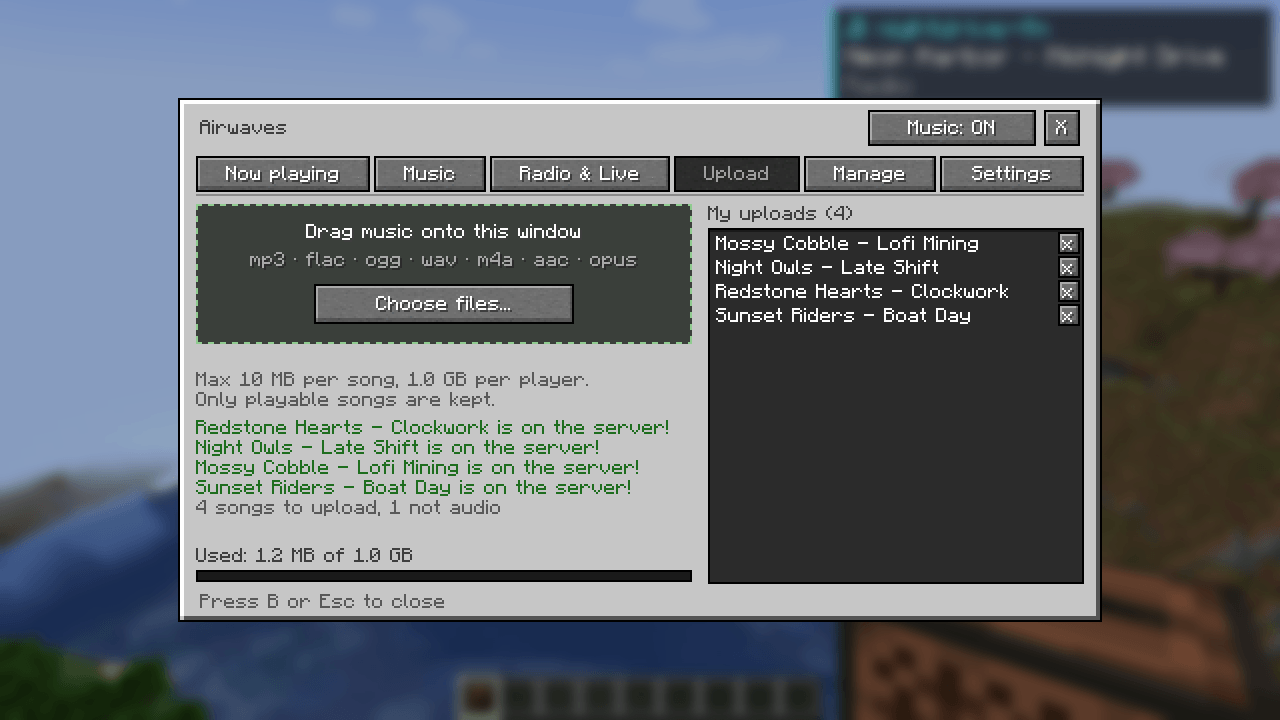
Players can drag music files straight onto the Minecraft window (or use a file picker) to upload them to the server.
- Limits per song and per player (default 10 MB per song, 1 GB per player)
- Only files that actually play are kept; everything else is skipped
- The server keeps a configurable amount of disk space free
- Players can delete their own uploads; DJs can rename or delete any song from the Manage tab
🙋 Song requests
Players request songs from the menu or with /music request. DJs get Approve / Deny buttons in chat and in the menu. Requests can also go straight into the queue automatically when no DJ is online.
🔉 Ducking
The music quietly gets softer while someone near you is talking in voice chat, then comes back up. Players can turn it off for themselves, and DJs can set how quiet it goes.
📺 Now-playing display
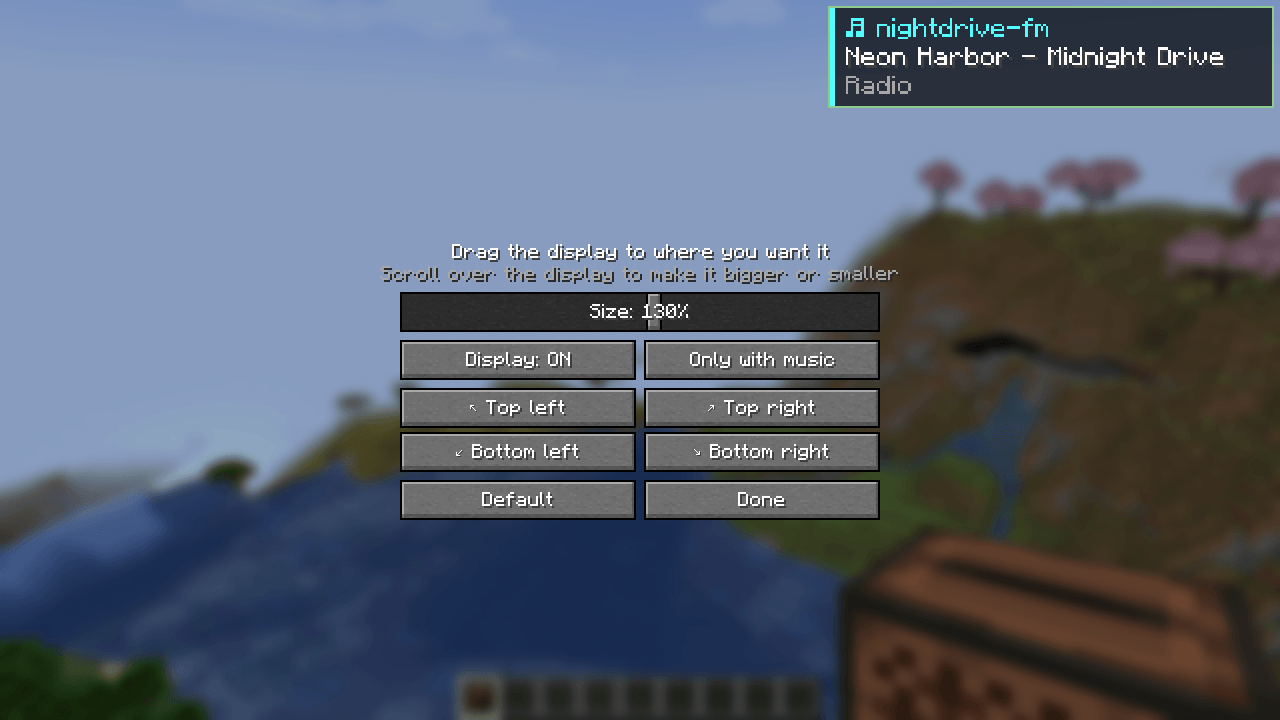
A small overlay shows the current song or stream title. Drag it anywhere on your screen, resize it, or turn it off.
📜 History
/music history shows the last songs that played, with times and where they came from.
🌍 Languages
English and Dutch. Each player automatically gets their own Minecraft language, including chat messages from the server.
Requirements
| Server | Client | |
|---|---|---|
| Airwaves | ✅ Required | ⭐ Optional (recommended) |
| Fabric API | ✅ Required | ✅ With Airwaves |
| Simple Voice Chat | ✅ Required | ✅ Required to hear music |
- Players without Airwaves can still hear the music and use every
/musiccommand. They just don't get the menu, the overlay or uploads. - Players with Airwaves get the full menu (key B), the now-playing overlay and drag-and-drop uploads.
- Airwaves runs on dedicated servers. In singleplayer it stays off.
Getting started
- Put Airwaves, Fabric API and Simple Voice Chat in your server's
modsfolder and start the server. - Add music to the
musicfolder next to your server jar (or upload it from in-game). - Join and press B, or type
/music on. - Each player sets their own volume with the slider in the menu, or in the Voice Chat menu (V) under Airwaves.
Ops (permission level 2 by default) are DJs and can control the music.
Commands
Everyone
| Command | What it does |
|---|---|
/music on / off |
Music on or off for yourself |
/music now |
What's playing |
/music queue |
Show the queue |
/music history [count] |
Recently played songs |
/music request <song> |
Request a song |
/music ducking on|off |
Quieter while someone talks |
/music test |
Test beep to check your sound |
DJs
| Command | What it does |
|---|---|
/music play <song or link> |
Play right away |
/music add <song or link> |
Add to the queue |
/music skip · stop · clear · autoplay |
Control playback |
/music radio [station] |
Play a station |
/music radio add <name> <url> · remove <name> · rules |
Manage stations |
/music playlist <name> |
Play a playlist on shuffle |
/music requests [accept|deny <id>] |
Handle requests |
/music live [stop | auto on|off] |
Live DJ set |
/music volume <0-100> · reload · status |
Server settings |
/muziek works as an alias.
Live DJ sets
Airwaves plays any Icecast stream as a live set. A typical setup:
- Install Icecast on your server (or any machine the server can reach).
- Route your DJ software's output into a streaming app such as BUTT (for example with a virtual audio cable).
- Point BUTT at your Icecast mount, for example
http://your-server:8000/live. - Set the same URL in
config/airwaves/config.jsonunderlive.url.
When the stream comes online, Airwaves announces it and switches over. When it stops, the regular music continues. You can also switch by hand with /music live and /music live stop.
Configuration
Everything is in config/airwaves/config.json. Most settings can also be changed in-game from the Settings tab.
djPermissionLevel: who counts as a DJ (default2)volume,announce(actionbar,chatoroff),autoplayOnStart,listenByDefaultupload:enabled,permissionLevel,maxFileMB,maxPerPlayerMB,keepFreeMBrequests:enabled,mode(approveorauto),autoWhenNoDj,maxPerPlayerducking:enabled,duckPercent,holdMs,onByDefaultlive:url,djName,autoSwitch,checkIntervalSecondsstations: your saved radio stationstimeZone: the time zone for/music history(empty = server time zone)
FAQ
Can it play Spotify, YouTube or Apple Music? No. Those services don't offer streams that can be played this way. Use your own files, internet radio, SoundCloud/Bandcamp links or a live DJ set instead.
I don't hear anything.
Check that Simple Voice Chat is connected (press V), that your music is on (/music on), and that the Airwaves volume slider in the Voice Chat menu isn't at zero. /music test plays a short beep.
Which radio links work? Direct audio streams only, not web pages with a player. Look up your station on radio-browser.info and copy the stream link. If the link plays straight away in your browser without a website around it, it will work.
Is this legal? Airwaves just plays audio. You are responsible for having the rights to whatever you play to your players.
Airwaves Team