Hi there😃
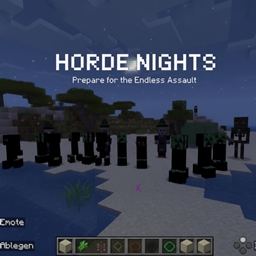
Im at developing a big addon Horde Night.
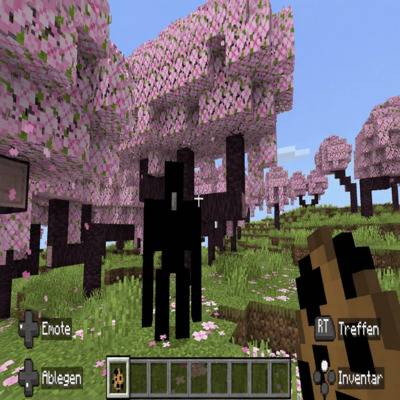
And this IS one Mob for you to Test and have fun with.
Cymatrix Technologies
All rights reserved.
🛠️ Installation Guide for a .mcaddon File (Minecraft Bedrock Edition)
The .mcaddon file format is the easiest way to install Add-ons for Minecraft Bedrock Edition (Windows 10/11, Mobile, Consoles via Realms/file transfer).
1. Download the Add-on
* Go to the CurseForge website or use the CurseForge App.
* Find the desired Add-on and navigate to its files page.
* Download the file. It must have the .mcaddon extension (or sometimes .mcpack).
2. The Simplest Installation: Double-Click Import
This method works for Windows 10/11 and most mobile devices that have Minecraft Bedrock Edition installed.
* Close Minecraft Bedrock Edition completely before you start.
* Locate the downloaded .mcaddon file on your computer or device.
* Double-click the .mcaddon file.
* Minecraft will automatically launch and begin importing the Add-on. You will see a notification pop up at the top of the screen: "Import started..." followed by "[Pack Name] successfully imported."
3. Activating the Add-on in Your World
After importing, the Add-on is available in your game, but it is not active in any world yet. You must enable it in your chosen world(s):
* From the Minecraft main menu, select "Play".
* Find the world you want to use the Add-on in and click the "Edit" (Pencil) icon next to it.
* Scroll down the world settings menu to the "Add-Ons" section on the left.
* Activate the Resource Pack:
* Click on "Resource Packs".
* Go to the "MY PACKS" tab.
* Find your imported Add-on, click on it, and select "Activate".
* Activate the Behavior Pack:
* Click on "Behavior Packs".
* Go to the "MY PACKS" tab.
* Find your imported Add-on, click on it, and select "Activate".
* Note: An .mcaddon file contains both Resource and Behavior parts, so you often need to activate both tabs.
* Play the World!
* When you start the world, the Add-on will now be active.
⚠️ Important Note: Experimental Settings
Many advanced Add-ons require Experimental Gameplay settings to be enabled in your world.
* When editing your world settings (Step 2), scroll up to the "Game" section and look for "Experiments".
* Activate the necessary experimental toggles (e.g.,
Black Irongolem Team