

![Not Enough Armor Stand Arms [NEASA] logo](https://media.forgecdn.net/avatars/thumbnails/2045/19/64/64/639249054924891422.png)
Description
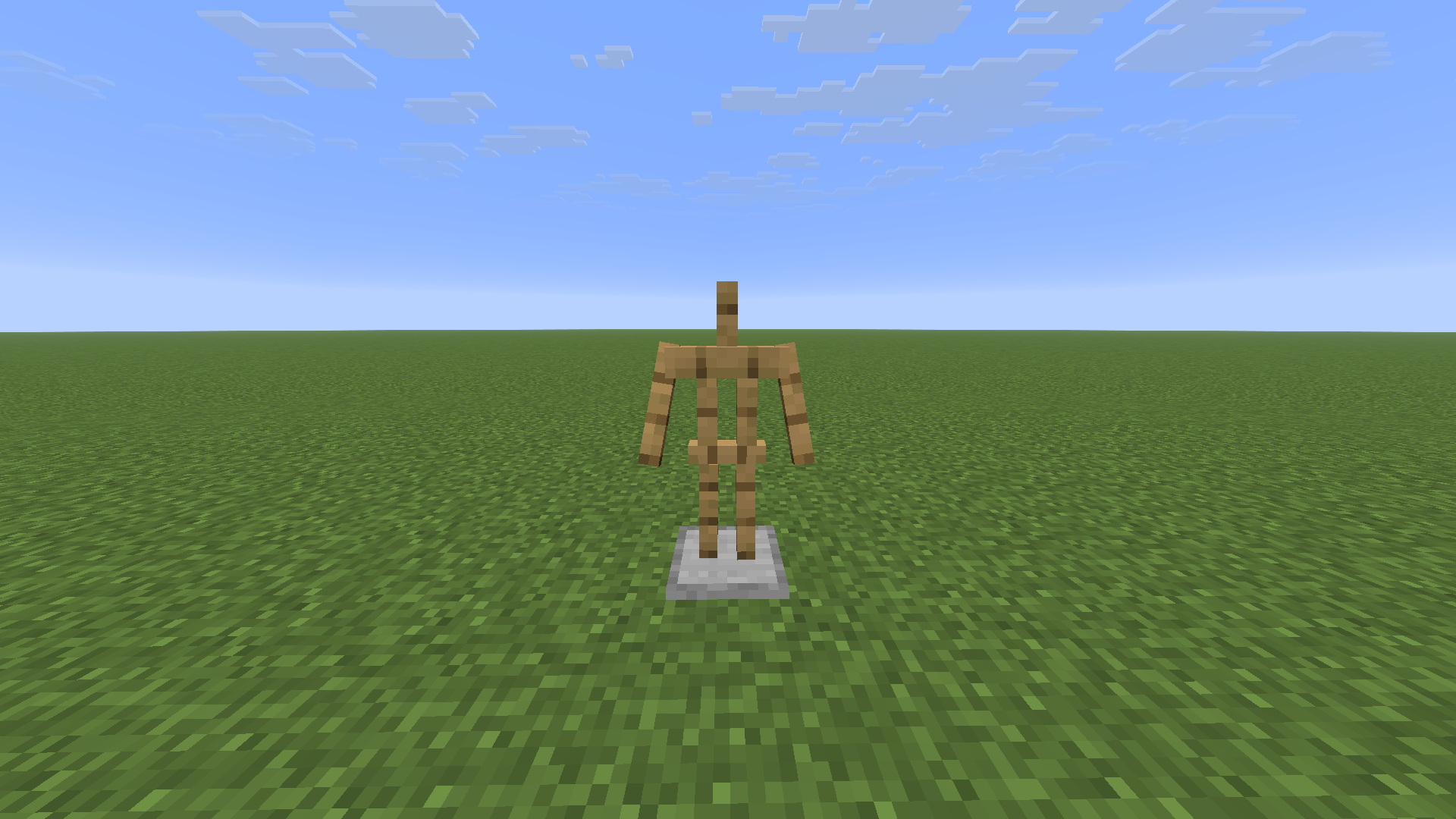
This project is making the Armor Stand has arms, so now after downloading and installing the data pack, you will be able to put your sword on the Armor Stand.
✨ Features
- Resemblance between Editions: The data pack makes Armor Stand has arms like Minecraft: Bedrock Edition.
- Low file size: The data pack size is less than 100 KiB making it easy and fast to download for very weak internets.
- Open Source: You can see the source code of the project to know how the project works.
- Wide Compatibility: Supports Minecraft Java Edition from version 1.13.x up to the latest releases.
🗒️ News & Updates
See the latest News about my Projects:
Note: To recive the latest versions of the Project, go to the NEASA Modrinth Project page.
📂 Source Code & Issues
GitLab (Source Code)
GitLab (Issues)
Installation 🗂️
Linux:
World that already exists:
1. Go to this location "~/.minecraft/saves/" (Make sure you are showing the Hidden Folders and Files by pressing Left Ctrl + H).
2. Choose the world folder you want to put the Data Pack in it.
3. Open datapacks folder, then put the data pack.zip in the datapacks folder.
4. Reload the world by /reload command or by Quit the world and rejoin it.
New World:
1. Open Minecraft, then click on "Singleplayer".
2. Click on "Create New World", then click "More World Options...".
3. Click on "Data Packs" button, then drag the data pack file into Minecraft.
4. Click "Done" and "Create New World".
MacOS:
World that already exists:
1. Go to this location "~/Library/Application Support/minecraft".
2. Choose the world folder you want to put the Data Pack in it.
3. Open datapacks folder, then put the data pack.zip in the datapacks folder.
4. Reload the world by /reload command or by Quit the world and rejoin it.
New World:
1. Open Minecraft, then click on "Singleplayer".
2. Click on "Create New World", then click "More World Options...".
3. Click on "Data Packs" button, then drag the data pack file into Minecraft.
4. Click "Done" and "Create New World".
Windows:
World that already exists:
1. Press Win + R, then type %appdata%, then press Enter.
2. Open "Roaming" folder, then ".minecraft" folder, then open "saves" (Make sure you are showing the Hidden Folders and Files by pressing Left Ctrl + Left Shift + . (period)).
4. Choose the world folder you want to put the Data Pack in it.
5. Open datapacks folder, then put the data pack.zip in the datapacks folder.
6. Reload the world by /reload command or by Quit the world and rejoin it.
New World:
1. Open Minecraft, then click on "Singleplayer".
2. Click on "Create New World", then click "More World Options...".
3. Click on "Data Packs" button, then drag the data pack file into Minecraft.
4. Click "Done" and "Create New World".
🛑 Deletion
Linux:
1. Go to this location "~/.minecraft/saves/" (Make sure you are showing the hidden folders and files by pressing Left Ctrl + H).
2. Find the world folder that you put the Data Pack into it.
3. Open datapacks folder, then remove the data pack.zip in the datapacks folder.
4. Reload the world by /reload command or by quit the world and rejoin it.
MacOS:
1. Go to this location "~/Library/Application Support/minecraft/saves/".
2. Find the world folder that you put the Data Pack into it.
3. Open datapacks folder, then remove the data pack.zip in the datapacks folder.
4. Reload the world by /reload command or by quit the world and rejoin it.
Windows:
1. Press Win + R, then type %appdata%, then press Enter.
2. Open "Roaming" folder, then ".minecraft" folder, then open "saves" (Make sure you are showing the hidden folders and files by pressing Left Ctrl + Left Shift + period).
4. Find the world folder that you put the Data Pack into it.
5. Open datapacks folder, then remove the data pack.zip in the datapacks folder.
6. Reload the world by /reload command or by Quit the world and rejoin it.
Enjoy!
Not Enough Armor Stand Arms [NEASA] Team
![Craftable Uncraftable Objects [CUO] project image](https://media.forgecdn.net/avatars/thumbnails/1568/85/256/256/639016655507490576.png)