Stracciatella Shaders
- By
A very lightweight vanilla style shader with colored lights, focusing on adding nice features that go hand in hand with vanilla
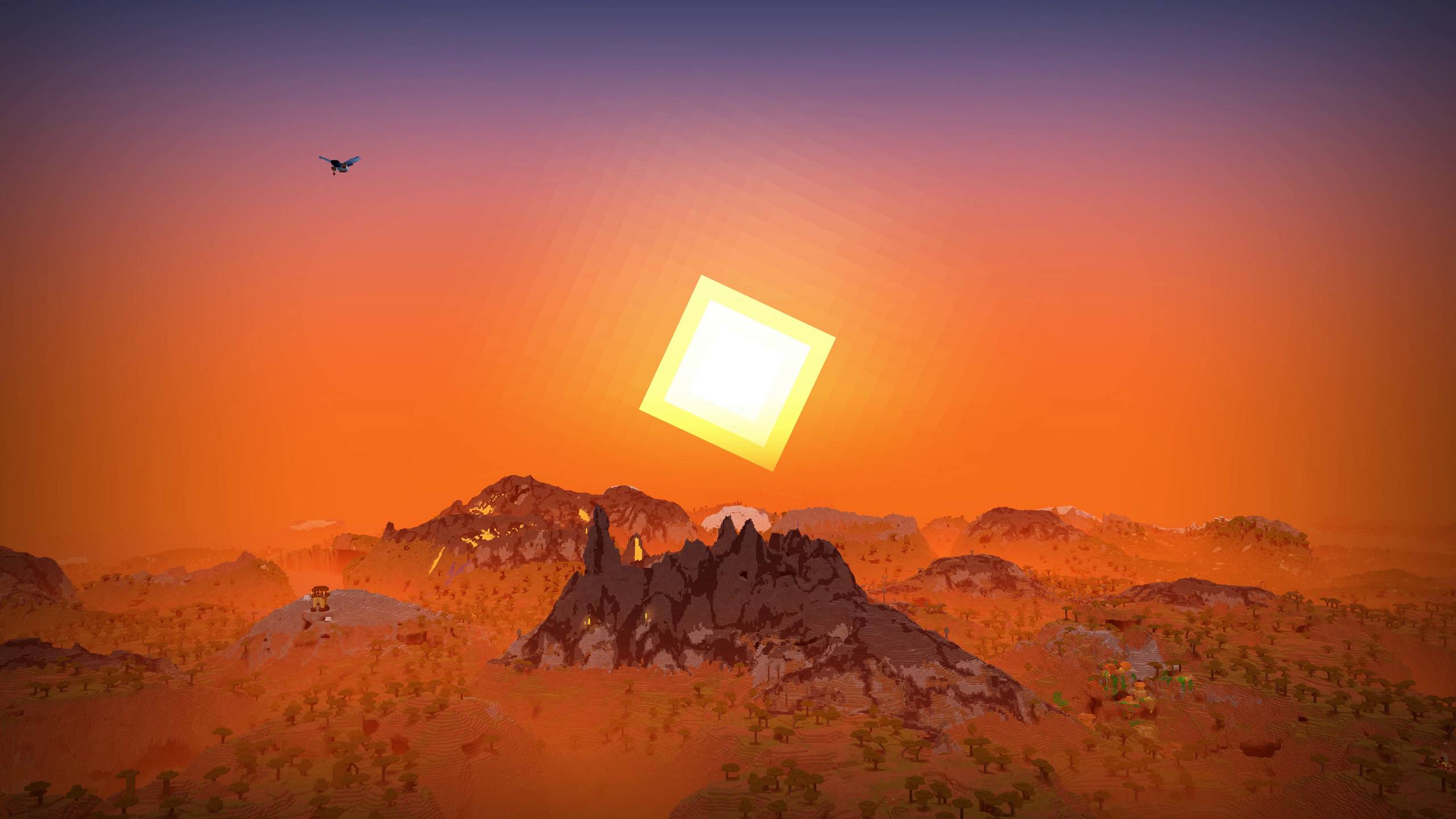
Distant Horizons Sunrise
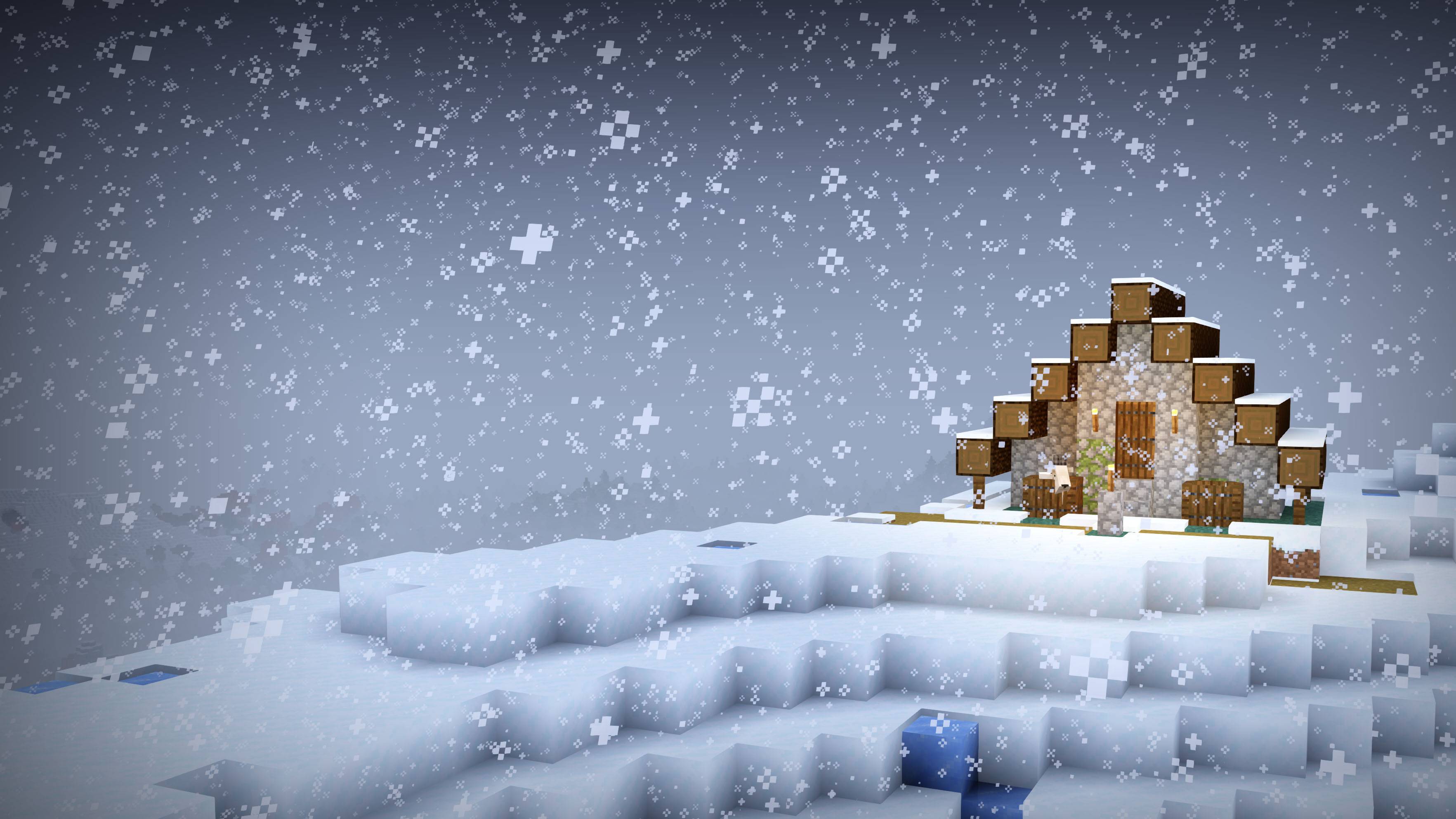
Snowy House
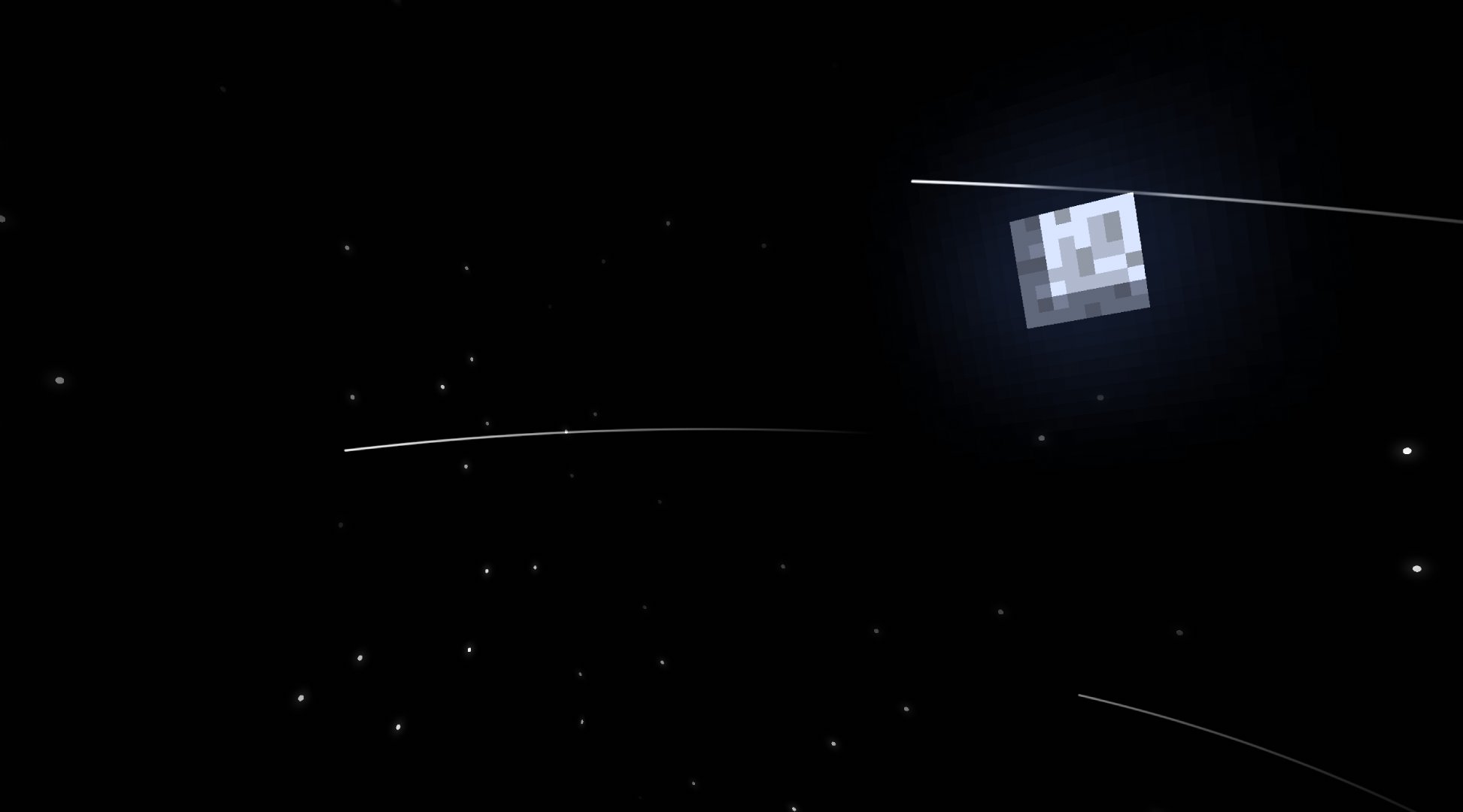
Custom stars and shooting stars are enabled
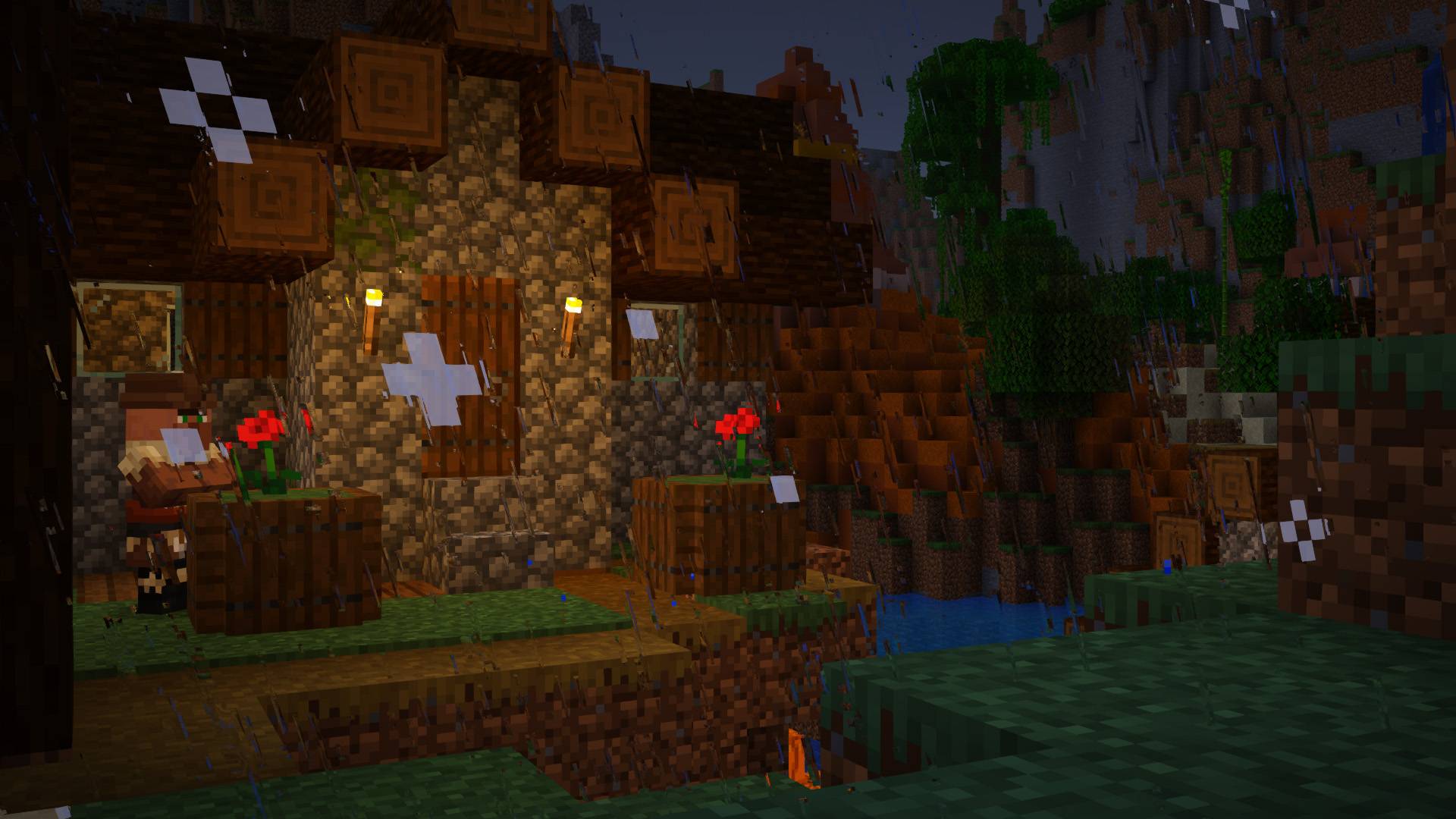
Rain Refraction
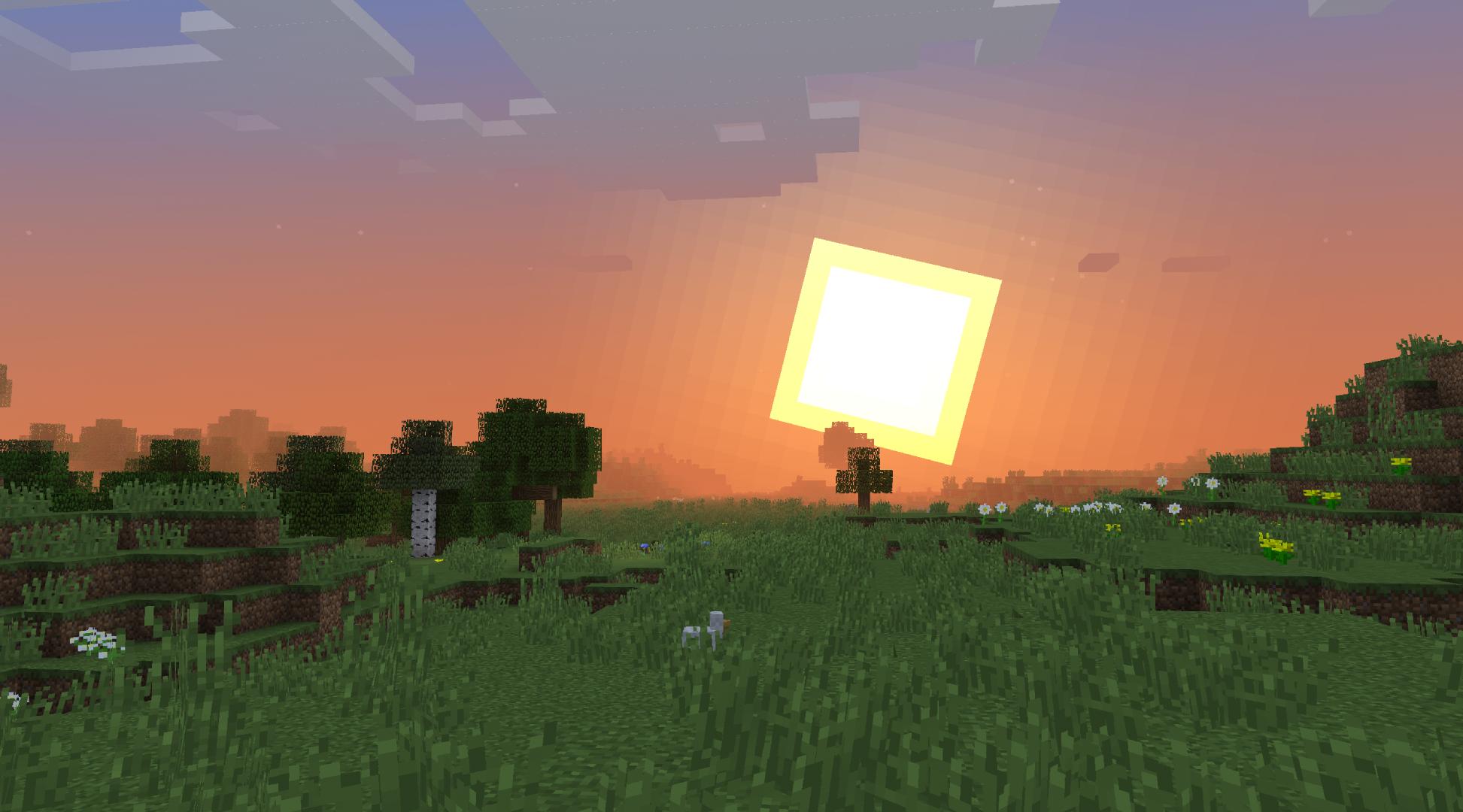
A nice sunset in a plains biome
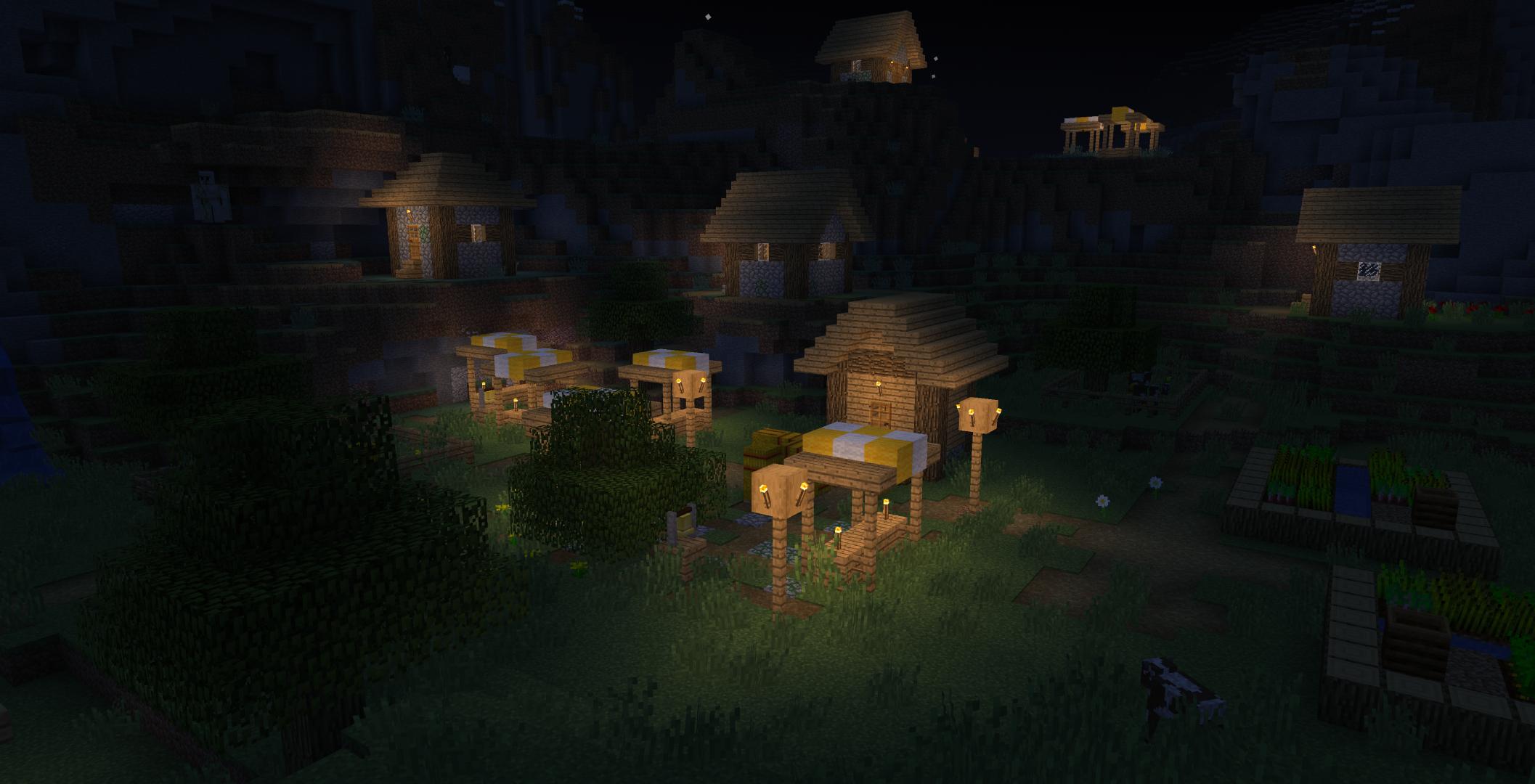
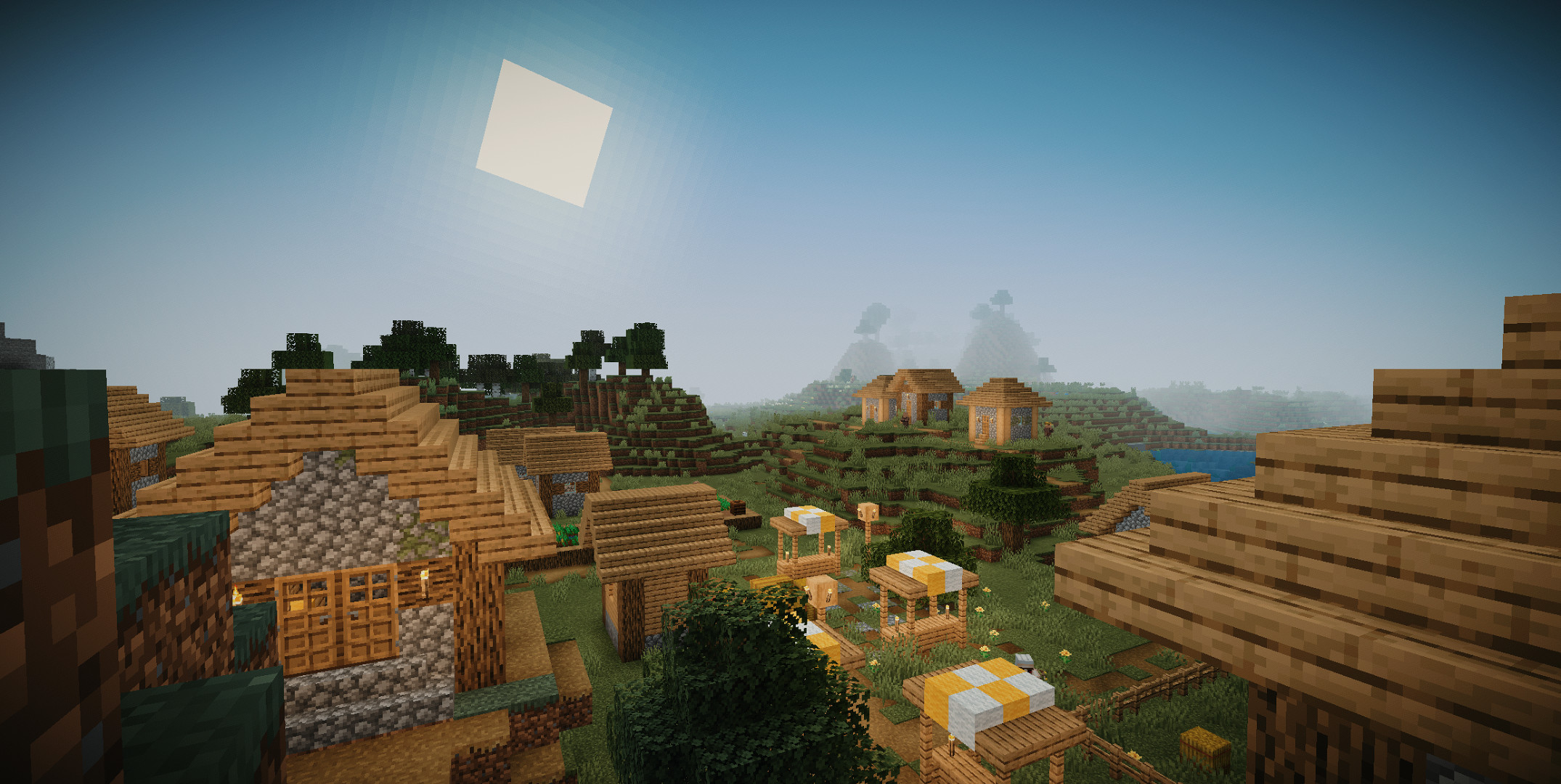
Custom LUT
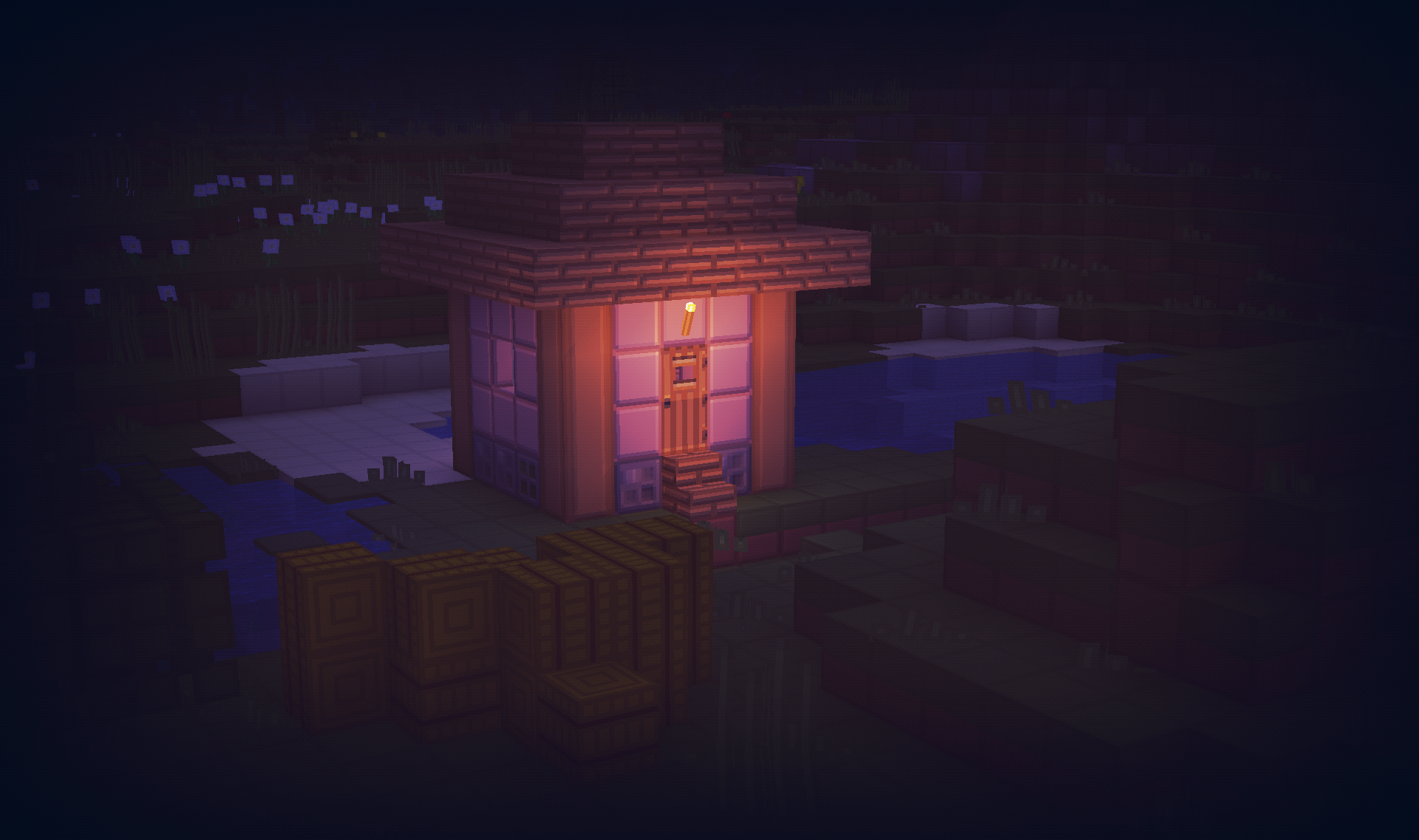
Directional Lightmaps
Description
Stracciatella
A very lightweight vanilla style shader with colored lights. Focuses on adding some nice features that go hand in hand with vanilla. It is highly configurable and lets you craft your own personal vanilla experience.
Feature Highlights
Colored Lighting
Stracciatella adds multi-lightsource colored lighting to Minecraft with excellent performance. Light emitting blocks glow bright and tint and shade the environment.
Beautiful Distance Fog
The Overworld and the Nether have highly optimized volumetric-like fog effects that look especially beautiful with Distant Horizons, such as dynamic fog based on height aswell as patches of dense fog that sweep the landscape.
Many Bells and Whistles
Stracciatella is packed with many subtle but important visual improvements and quality of life features that improve Minecraft's look, such as rain refraction, puddles, shooting stars and much, much more!
Configurable
Make it yours! Stracciatella puts you in the driver's seat. All of Stracciatellas effects are highly customisable, so you can dial in the look exactly as you like it.
Full Feature List
Fog and Sky
- Fog - OFF, Border, Auto, Advanced
Border:
Simple, comparable to vanilla
Auto:
Enables "Advanced" fog when Distant Horizons is present
Advanced:
Border fog aswell as configurable exponential distance and height based fog - Advanced Fog
- Global Fog Density
Constant fog density applied to exponential fog
Overworld, Nether and End densities are relative to this value - Overworld Fog Density
Density of constant Overworld fog
Relative to "Global Density" - Overworld Noise Fog
- Overworld
- Height Scale Multiplier
Multiplier applied to the scale factor used to calculate height fog
Higher values correspond to a harsher density falloff - Height Density Multiplier
Multiplier applied to the density calculated from world height - Dynamic Density Start Height
Fog density starts to increase with player height after the selected world height
Set to the default value, this acts as a correctional factor to keep the fog density (visually) constant - Dynamic Density Multiplier
Controls how much player height influences fog density - Anisotropic Sunset Fog
Fog density at sunset and sunrise increases more in direction of the sun - Sunset Fog Anisotropy
Amount of Anisotropy - Sunset Fog Multiplier
Controls how much the fog changes during sunset and sunrise - Wind Speed
- Noise Fog Scale
- Noise Fog Fade
- Noise Fog Density Multiplier
- Height Scale Multiplier
- Nether Fog Density
Density of constant Nether fog
Relative to "Global Density" - Nether Noise Fog
- Nether
- Wind Speed
- Noise Fog Scale
- Noise Fog Fade
- Near Fog Density Multiplier
- End Fog Density
Density of constant End fog
Relative to "Global Density" - End
- Global Fog Density
- Fog Start
Sets where the fog starts appearing
Relative to render distance - Fog End
Sets where the fog reaches its maximum
Relative to render distance - Cave Fog and Sky
- Cave Fog
Fog changes to a different color when you are underground - Cave Sky
Sky changes to a different color when you are underground - Cave Sky Height Threshold
Controls which world height is necessary for the sky color to change - Cave Fog (RGB Color Picker)
Color of fog inside of caves
- Cave Fog
- Sun and Moon
- Change Sun and Moon Size
- Sun and Moon Size
Changes the size of sun and moon - Sun Angle
Tilts the rotation axis of sun and moon
Vanilla is 0 - Hide under Horizon
Sun and moon start disappearing under the horizon - Transition Height
Lower: sun and moon appear lower
Higher: sun and moon appear higher - Transition
Lower: Longer transition
Higher: Shorter transition
- Stars
- Vanilla Star Brightness
- Custom Stars
- Size
- Density
- Coverage
- Glow Radius
- Glow Amount
- Shooting Stars
Only works with "Custom Stars" enabled - Direction
- Density
- Speed
- Trail Length
- Trail Thickness
- Custom Sky Color
- Sky Color Configuration
- Custom Sunset
- Sky Sunset (RGB Color Picker)
- Sky Day (RGB Color Picker)
- Sky Day Rain (RGB Color Picker)
- Night Sky Brightness
- Sky Night (RGB Color Picker)
- Sky Night Rain (RGB Color Picker)
- Custom Fog Color
- Fog Color Configuration
- Fog Day (RGB Color Picker)
- Fog Day Rain (RGB Color Picker)
- Night Fog Brightness
- Fog Night (RGB Color Picker)
- Fog Night Rain (RGB Color Picker)
- End Sky
- End Sky Upper (RGB Color Picker)
- End Sky Lower (RGB Color Picker)
Lighting
- Lightmap - Simple, Default
Default:
All Features
Simple:
Reduced features (only "Adaptive Blocklight Reduction" and "Minimum Light") - Lightmap Settings
- Skylight AO
Specifies the amount of ambient occlusion on skylight - Blocklight AO
Specifies the amount of ambient occlusion on blocklight - Skylight Gamma
Higher = Darker
Lower = Brighter - Blocklight Gamma
Higher = Darker
Lower = Brighter - Minimum Light
Restricts blocklight to never go below this value
Prevents caves from being pitch black (unless you set it to zero that is)
- Skylight AO
- Lightmap Colors
- Adaptive Blocklight Reduction
Reduces blocklight when the sky is bright to avoid clipping
If the blocklight is too bright during daytime, increase this slider - Nether Ambient Brightness
- End Ambient Light
- End Ambient Brightness
- End Ambient Saturation
- Skylight Day (RGB Color Picker)
- Skylight Night (RGB Color Picker)
- Blocklight (RGB Color Picker)
Select blocklight color (torches, glowstone, etc.)
If "Complex Blocklight" is enabled, this color will NOT be used - Complex Blocklight
Allows you to select two colors for blocklight
One for dark parts, one for bright parts - Blend Curve
Higher: Emphasize "Bright" color
Lower: Emphasize "Dark" color
50 = linear transition - Complex Blocklight Dark (RGB Color Picker)
- Complex Blocklight Bright (RGB Color Picker)
- Adaptive Blocklight Reduction
- Colored Lights
Enabled colored lighting on blocks - Colored Light Settings
- Vibrance
- Accumulation Rejection - Low, Default, High
Sets how temporal history information is discarded
Higher corresponds to history being discarded more easily - Acc. Blend Factor
Sets how temporal history information is merged with new information
A lower value places less emphasis on history and will cause colors to update faster at the cost of more flicker - Flicker Reduction
Increase this slider if you experience frequent spots of color blinking into existence
Higher values will decrease the speed at which new color spreads and appears - Acc. Regeneration Speed
Sets how fast empty regions (with no color information) are filled up
A high value will cause colors to appear faster initially, but may introduce flicker in disoccluded regions - Sample LOD Bias
Controls the detail level at which colors are sampled
A higher value will make colors smoother but may cause small lights to be skipped
A lower value will sample at higher detail but will decrease smoothness and introduce flicker
The shader does its best to calculate the appropriate LOD itself
- Directional Lightmaps
- Directional Lightmap Strength
- Normals - Generated, Texture
- Normals Resolution Multiplier
Auto-Generated Normals may have a different resolution than your resource pack
This slider allows you to select a higher resolution for the normals
No performance impact - HDR Emissives
- HDR Emissive Brightness
Weather
- Rain Detection - Temperature, Color
How the shader detects if rain is present
"Color" is generally the better option
Select "Temperature" if:
Rain does not receive rain effects
Things that are not rain receive rain effects - Rain Opacity
- Rain Refraction - OFF, Fast, Fancy
- Rain Refraction Strength
- Angled Downfall
- Angled Downfall Amount
- Angled Downfall Rotation Speed
- Rain Puddles
- Rain Puddle Color
- Rain Puddle (RGB Color Picker)
- Rain Puddle Coverage
- Rain Puddle Size
- Rain Puddle Opacity
- Rain Puddle Parallax
- Parallax Refraction
- Parallax Depth
Waving Blocks
- Waving Blocks
- Waving Blocks Amount
- Waving Blocks Speed
- Waving Leaves
- Waving Lilypads
Controlled by "Waving Liquids Amount" and "Waving Liquids Speed" - Waving Lanterns
- Waving Fire
- Waving Liquids
Water and Lava - Waving Liquids Amount
- Waving Liquids Speed
Camera and Color
- FXAA
Enables Anti-Aliasing
Improves quality of edges - High Quality Upscaling
Switches to bicubic sampling
Internally enables FXAA
Can be useful with lower render quality settings - Contrast
- Vibrance
- Saturation
- Brightness
- Vignette - OFF, Round, Square
Darkens screen borders - Vignette Strength
- LUT
Applies a custom color LUT to the image
Only works for Optifine G8 and higher!
How to add your luts:
Extract the .zip
Go to: shaders/lut
Put your LUT in this folder and name it "lut[number].png"
You can then select the file using the slider
Up to 6 luts can be loaded this way - Selected LUT
Default LUTs shipped with the shader are:
lut0.png: Neutral
lut1.png: Skyfall
lut2.png: A Summer Night's Adventure
lut3.png: Chrome
lut4.png: Admiral's Anime LUT
lut5.png: Green->Red Color swap (Infrared) - Use LOG Color
- LUT Cell Size
Amount of cells on one side
Count the squares on the lut image along one side to figure this out
Water
- Underwater Fog Density
- Depth Influence
Higher: Depth will have a strong influence on fog density
Lower: Depth will have a weak influence on fog density
Zero: Depth will have no influence on fog density - Fog Brightness Influence
Higher: Underwater fog will be darker at night - Fog Brightness Influence
Higher: Underwater fog will get darker faster when you dive deeper
Utilities and Effects
- Blinking Ores
- Blinking Ores Settings
- Blink Brightness
- Diamond
- Ancient Debris
- Iron
- Gold
- Copper
- Redstone
- Lapis Lazuli
- Emerald
- Coal
- Nether Quartz
- Nether Gold
- Damage Effect
- Damage Effect Redness
- Damage Effect Displacement
- Damage Effect Cell Size
- Speed Effect
Adds streaks when moving fast - Speed Effect Strength
- Speed Effect Streak Length
Other
- Distant Horizons
- Fade Terrain
Smoothly fades out Minecraft terrain, reducing the transition between Distant Horizons' terrain and Minecraft's terrain - Discard DH Terrain
- Terrain Discard Tolerance
- Chunk Discard DH Transparents
- Transparents Discard Tolerance
- Fade Terrain
- Dithering - None, Smart, Full
Removes Banding
Smart: Enables dithering in select programs
Full: Enables dithering in all programs - Time Mode - Realtime, Worldtime, Framecount
Sets which method the shader uses to determine the time
Time is used for driving animations, for example waving leaves and water
Realtime:
Uses the actual time
Worldtime:
Uses the ingame time
This can be useful for animation tools like replaymod
Framecount:
Uses the frame count based on a fixed framerate
This can be useful for animation tools like replaymod - Time Mode Framerate
Framerate used for calculating the time when "Time Mode: Framecount" is selected - Solid Block Outline
- Line Thickness
Applies to all lines, for example block outline and hit boxes
Only works from versions 1.17 and onwards
Doesn't work on Iris - Block Outline Style - Black, White, Rainbow, Custom Color
- Custom Color Configuration
- Block Outline (RGB Color Picker)
- Aggressive Optimization - OFF, On, Unsafe
Activates Optimizations that can break some visuals or might break in future versions of Minecraft
Agreement
You are allowed to
- Use my shaderpack in your videos / screenshots
You are not allowed to
- Redistribute my shaderpack: If you want to provide a download link you must link to my Modrinth / Curseforge page
- Use monetized URL shorteners linking to downloads of my shaderpack
- Publish edits of my shaderpack without my permission
Stracciatella Shaders Team

Owner