ItemStayPut
- 3.8K
- Bukkit Plugins
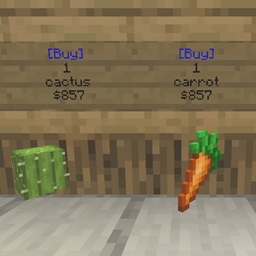
Floating items that stay put and can't be picked up. Awesome for shops.
- 3.8K
- March 1, 2023
ItemStayPut
- 3.8K
- Bukkit Plugins
Floating items that stay put and can't be picked up. Awesome for shops.
- 3.8K
- March 1, 2023



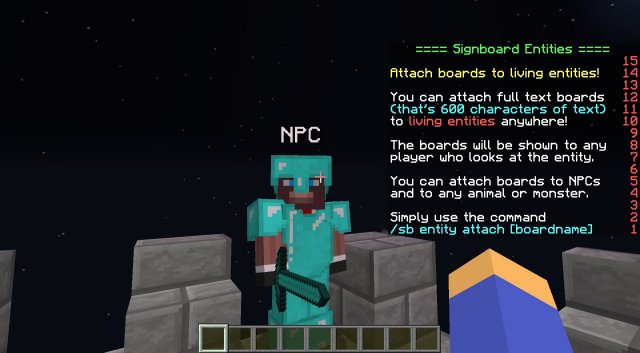
Attach text boards to living entities!
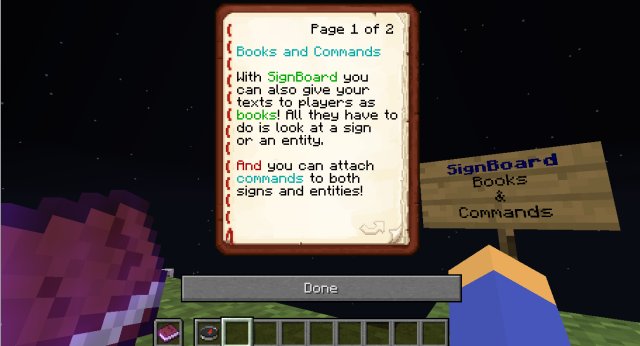
SignBoard Books
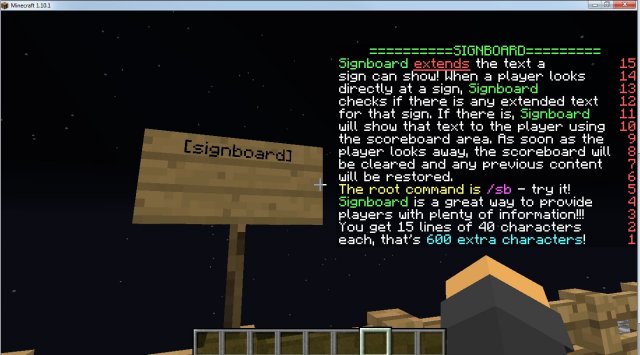
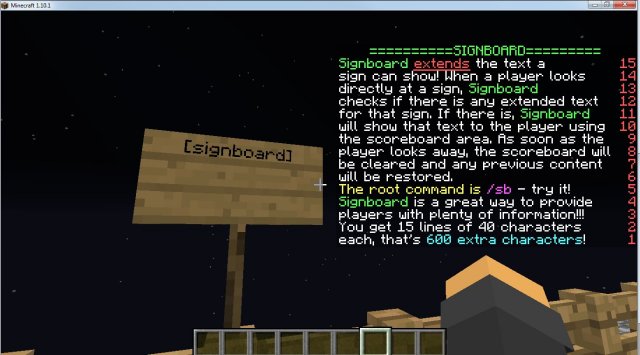
SignBoard extends the amount of text shown by signs!

SignBoard is great in all sorts of situations
(For Spigot/Paper/Bukkit 1.8.7 to 1.19.3 - For details, see version support, below)
Write on signs to your heart's content
Now with multi-language support
- Attach unlimited text to signs or living entities (including armor stands, villagers, mobs and Citizens2 NPCs!).
- Give text out as a book when players look at the sign/entity.
- Run commands when the player:
With SignBoard, you create "boards" of text and attach these boards to signs or living entities. Each board can hold up to 15 lines (a total of 600 characters per board). You can also group several boards into a "set" and use the set as a single body of text.
When players look at a sign or entity, the scoreboard area is used to show them the text on the boards. It's great for communicating... er, well, anything, really, in a game. Admins can provide players with instructions, players can show visitors detailed info about their builds, RPG games can provide detailed lore when a party enters a room... There's no limit.
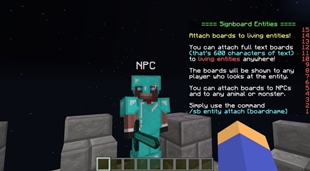
In much the same way as you attach boards to signs, Signboard lets you attach boards or sets to living entities! You can attach a board or a set to a villager or an NPC, for example, and whenever a player looks at the NPC, the text will be shown. (Armor stands also work as living entities).
When players are shown a set of boards, only one board is shown at a time. Players can cycle back and forth between the boards by right- or left-clicking the sign/entity. That way, a set works like pages in a book.
You can also attach commands to both signs and entities, and control when these commands will run. Commands can be run when the player looks at a sign/entity, looks away from a sign/entity, clicks a sign, attacks or kills an entity.
As an added perk, SignBoard also lets you edit sign lines without having to break the sign and write everything from scratch - just look at a sign you've created and use the command /sb sign lineX [text] (see below).
(In English)
(In Spanish, courtesy of Ajneb97.)
SignBoard v1.6.3 and above support all Bukkit/Spigot/Paper versions from 1.13.3 to 1.19.3. SignBoard v1.6.2 supports all Bukkit/Spigot/Paper versions from 1.8.7 to 1.16.1.
(Signboard has its own set variables and supports Placeholder API)
As of version 1.6.6, SignBoard supports different languages for its interface (menus and messages). This allows users to choose their own language preference and use the plugin in that language. Right now it has options for English (US), Portuguese (BR), and Spanish (CO), but you can translate the locale file into other languages – just make sure to share them with us, and we'll include them in future releases of SignBoard!
Check out the /sb locale commands.
The default text for new boards has also been moved into the locale files. So now when a new board is created, each player will see its default text in their (chosen) preferred language.
In fact. every line on every board gets processed for translations. So, if you were to add a line to the locale files that said , "This is a board line": "Esta é uma linha de placa" then every board containing "This is a board line" would show the translated version from the respective locale file, according to each player's preferred locale.
SignBoard works by letting you create "boards" and then attach those "boards" to one or more signs or to living creatures - animals, villagers, monsters, armor stands, NPCs and even real live players (only OPs can attach boards to players).
You can group boards into sets by using the /sb set command. A set then behaves like a single body of text, and the various boards it contains will be shown in sequence as the player right or left-clicks.
You can also use the /sb sign attach and /sb sign detach commands to attach or remove a board or set from a sign.
Attach and detach a board or set from a living entity with the commands /sb entity attach and /sb entity detach.
The content of the board is shown in the scorecard area, so each board can have up to 15 lines of 40 characters each.
You can use all of the text color and formatting tags normally used in Minecraft (&0 = black; &1 = dark blue;| &2 = dark green; &3 = dark acqua; &4 = dark red; &5 = dark purple; &6 = gold; &7 = grey; &8 = dark grey; &9 = blue; &a = green; &b = acqua; &c = red; &d = light purple; &e = yellow; &f = white; &k = magic; &l = bold; &m = strikethrough; &n = underline; &o = italic; &r = reset).
Starting on version 1.3.2, SignBoard lets you show multiple boards to your players whenever they look at a sign or living entity. This is accomplished by grouping a number of boards into a set.
Use the /sb set commands to create, delete and list existing sets. Attach and detach sets from signs and entities the same way you attach/detach boards: with the /sb sign and /sb entity attach and detach commands.
Once a set is attached, the first board on the set will be shown when the player looks at the sign/entity. Then the player can cycle through the different boards by left- and right-clicking. Sets can contain as many boards as you want.
A couple of notes about entities with sets attached to them:
When a player looks at a sign or at an entity, you can choose to show the board text on screen or to give the text as a book to the player - or both, or neither. The commands /sb sign show_board and /sb entity show_board toggle the showing of the board's text on the screen. If you would rather give the player a book with the text, the commands /sb sign give_book and /sb entity give_book toggle that function. You can also use these commands to both show the board on the screen and give the book, or to neither show the board nor give the book.
Use the /sb sign status and /sb entity status to check the status of all options defined.
As of version 1.6.12, the command /sb board give_as_book [boardname] [playername] can be used to immediately give a certain board's content to a player as a book. This command can be used, for example, in a sign's or entity's "run" commands to give out the corresponding book only when the sign or entity is clicked on, instead of when the player looks at it.
SignBoard will automatically convert your board texts to place them in books (when show_book is enabled). Since the size of the lines in a book and on the scorecard are so different, and a book has page breaks, SignBoard will attempt to break the lines and the pages neatly, but some fine-tuning may be necessary.
Here are some tips to help you with that:
Just as you attach boards to signs and entities, you can also attach commands that will be run at specific times. These can be any command that an admin can issue in-game. The commands will be run as if they were issued by the player and as if the player had admin authority. The commands accept variable substitution just like any SignBoard command.
Commands are specified as a sequence, separated by a vertical bar, like | | ... | .
As of version 1.3.3, you can also insert delays in the sequence, with the syntax [Tu], where T is an integer > 0 and u is a time unit: 's', 'm' or 'h'. For example, a sequence of [5s] | | [2m] | , when executed, will wait 5 seconds before running and then 2 additional minutes before running . Use the delays with care; delayed commands will be executed even if the player is no longer looking at the sign/entity, or even gone from the server.
Certain commands can only be run from the server console. As of version 1.6.13, you can prefix your command with _rfc_ to tell SignBoard to run the command from the server console. Like this: /sb sign before _rfc_ tell Ebaldino hi.
The following SignBoard commands control what happens and when:
/sb sign onrightclick - Lets you specify a list of commands to be run when the player right-clicks on the sign.
/sb sign onshiftclick and /sb sign onrightshiftclick - Let you specify a list of commands to be run when the player shift-clicks or shift-right-clicks the sign, respectively.
Use the /sb sign status and /sb entity status to check the status of all options defined.
Use any of these variables anywhere in your boards. Make sure to include the "{" and "}".
When the board is shown to a player, the variables will be replaced with their real-time values.
Placeholder API support started with Signboard version 1.1.8. This allows you to use variables ("placeholders") from many other plugins, in addition to an extensive list of "native" Placeholder API variables.
To use Placeholder API, download the plugin, drop it into your plugins folder and restart the server. In the game, issue the command /papi ecloud list all and look for the placeholder group you want. Then click on it and accept the command to download it. Then all you have to do is use the placeholders like variables on your boards, surrounded by '%' (%placeholder%).
Placeholder API native variables and their groups are listed here.
The standard root command for SignBoard is /sb. Since other plugins may also use /sb, SignBoard supports four command aliases. But simply having an alias doesn't keep SignBoard from responding every time you try to use those other plugins. So SignBoard lets you choose which root command aliases it will respond to.
SignBoard can respond to any of these five root commands: /sb /signboard /sbd /sbrd /signbd.
The active_aliases parameter in config.yml controls which ones are actually used. For example, the following configuration line would make SignBoard accept all 5 root commands:
active_aliases: sb signboard sbd sbrd signbd
By default, only three options are active (sb sbd signboard), but you can mix and match as needed to ensure compatibility with other plugins in your server. The first option on the list will be the one featured on all of SignBoard's help texts (usually "/sb").
Information commands
Board commands
Set commands
Sign commands
Entity commands
Category commands (OP only):
By default, SignBoard will automatically download and install new updates when you restart or reload the server.
You can control this feature by changing the updates: option in config.yml.
Valid values for updates: are:
An update check message will always be shown on the console.
After an update, OPs receive a one-time message telling them about the new version. They can check version history with the command /sb version .
No need to update your preferred settings in config.yml !!
When a new version is downloaded and installed, SignBoard will update the config.yml file preserving your custom settings automatically.
The following are the default settings in config.yml:
#-----:-------------------------------------------------------------------------------------------------------------------------
# SignBoard config.yml
# If auto update is active for SignBoard, the config.yml file will be automatically updated as well
# When config.yml is updated, all changes you made to the VALUES of the settings will be PRESERVED and copied over to the new config.yml
# ... however, any changes you made to the COMMENTS in this file will be overwritten by the default comment.
#-----:-------------------------------------------------------------------------------------------------------------------------
# Auto updates:
# Possible values for updates:
# auto (downloads and installs new versions automatically);
# check (only checks if a new version is available);
# off (turns off updates completely).
updates: auto
# Config.yml version - if this is lower than the actual SignBoard version (use /sb version), it means you probably should do a manual merge of config.new and config.yml. Also, you should manually get the new locale files from the jar and manually merge those as well. Really, it's A LOT EASIER to use auto updates.
# If updates=auto and this version is lower than the actual SignBoard version, it will trigger an automatic config.yml and locale files update on the next server restart.
version: 1.6.15
# default language locale - specifies the default locale file to use for all in-game texts. Locale files are in the Locales folder, and must follow the same name pattern (e.g. sblocale_enUS.yml)
# the use of additional locale files can be turned on and off - see players_use_locales, below.
default_locale: enUS
# players_use_locales - allows every player to choose their own locale by activating the commands /sb locales list, /sb locales set, /sb locales clear
# Even if players_use_locales is false, SignBoard will always use the default locale file. Locale files are in the Locales folder, and must follow the same name pattern (e.g. sblocale_enUS.yml)
players_use_locales: true
# Category separator - in board names, anything that appears after this character will be considered a category name
# If you change the category separator after having boards that use it, you will have to either delete those boards or manually edit their names in boards.yml so they use the new separator.
# If you choose to edit boards.yml, DO IT WITH EXTREME CARE and don't change ANYTHING other than the separator character, or your boards may stop working.
category_separator: ^
# Toggle the use of color on SignBoard console messages:
msg_color_onconsole: true
# Toggle the one-time message shown to OPs in-game when an update is installed.
msg_ingame_update_OP: true
# Detect the presence of FeatherBoard and work around it by issuing /fb off and /fb on before boards are shown/hidden.
# If this is set to false, SignBoard will have problems with FeatherBoard and you must manage any conflicts yourself (maybe by using permissions).
# If this is set to true, SignBoard will work alongside FeatherBoard, but the transitions (showing/hiding boards) will be slower.
featherboard_aware: true
# Commands Before - these commands will be run right before showing a board to a player (every time).
# This feature was created to allow you to temporarily disable other plugins that interfere with SignBoard showing its boards.
# But it can be used to run any commands you like. All commands will be run as the player and as if the player were Op.
# Separate multiple commands with a |. Anything after a # will be ignored. Commands accept SignBoard variables.
# FEATHERBOARD users - see the featherboard_aware option in this config.yml
cmd_before: # tell {PName} about to say hey | tell {PName} hey
# Commands After - these commands will be run right after showing a board to a player (every time).
# This feature was created to allow you to re-enable other plugins that interfere with SignBoard showing its boards.
# But it can be used to run any commands you like. All commands will be run as the player and as if the player were Op.
# Separate multiple commands with a |. Anything after a # will be ignored. Commands accept SignBoard variables.
# FEATHERBOARD users - see the featherboard_aware option in this config.yml
cmd_after: # tell {PName} about to say bye | tell {PName} bye
# View distance:
# How close (in blocks) you have to be to a sign to activate its board
# (remember that wall signs are actually located on the block they're facing).
view_distance: 5
# Entity view distance:
# How close (in blocks) you have to be to a living entity to activate its board
# Remember: works best if you look the living entity in the face
entity_view_distance: 8
# Entity view radius:
# Signboard determines if you're "looking" at a living entity by analyzing how closely you're looking at the entity's left eye.
# So there's a radius around the entity's left eye that's the threshold for saying that you're looking at it.
# This process is never very precise, but we can achieve a more "natural" hit/miss by using a slightly larger radius for small entities and a slightly smaller radius for larger entities
# The radius parameter can vary from 0.01 to 0.15
# Radius for small creatures: bat, chicken, endermite, magmacube, ocelot, pig, rabbit, silverfish, wolf
entity_small_viewradius: 0.10
# Radius for medium creatures: blaze, cavespider, creeper, guardian, NPCs, pigman, sheep, shulker, skeleton, slime, spider, villager, witch, zombie
entity_medium_viewradius: 0.06
# Radius for large creatures: cow, enderdragon, enderman, ghast, giant, horse, irongolem, mooshroom, polarbear, snowman, squid, wither
entity_large_viewradius: 0.02
# Reserved words:
# SignBoard will not allow the following words to be used for board names
# ...instead, it will tell the user the name is already taken.
# This is not meant to be a bad word filter; please try to keep the list short.
# DO NOT change the format of these lines or use punctuation or special characters among the words.
# The words are not case sensitive.
reserved_names:
- boards board board1 board2 board3 board01 board02 board03 signs sign sign1 sign2 sign3 sign01 sign02 sign03
- one two three four five six seven eight nine ten
- 1 2 3 4 5 6 7 8 9 10
- server admin all
# Command aliases:
# SignBoard can respond to any of these five root commands: /sb /signboard /sbd /sbrd /signbd
# The active_aliases parameter controls which ones are actually used.
# For example, the following configuration would make SignBoard accept all 5 root commands: active_aliases: sb signboard sbd sbrd signbd
# By default, only three options are active, but you can mix and match as needed to ensure compatibility with other plugins in your server.
# The first option on the list will be the one featured on all of SignBoard's help texts (usually "/sb").
# Don't try to add other alias options; SignBoard only accepts these five.
active_aliases: sb sbd signboard
# Logging:
# Set to true to enable logging of SignBoard's startup process (only during server start).
# The major steps that take place during startup are timed and written to log.yml. The log is cleared at each server restart.
log_on: false
# Keeping backups:
# By default, SignBoard keeps a copy of all its configuration files every time a new SignBoard version is installed.
# It also keeps an updated copy of the "last OK" configuration files, so that if you manually damage any of the files, you'll have a fallback and be able to copy the "last OK" file back.
# To disable this feature, set "keep_backups" to false.
keep_backups: true
By default, SignBoard allows every user to use the howto, variables, sign, entity, and board commands, and also allows every OP to use the reload and version commands. Additionally, all commands attached to a sign or an entity will run when they are triggered.
To change permissions, use a permissions manager (like PermissionsEX). Even if given the signboard.admin permission, a user must be OP to use the reload and version commands.
The default permissions are as follows (signcmds and entitycmds are false by default, all of the other are true by default for all players):
Here's an example of how to explicitly GIVE these permissions in PermissionsEX; all players in the group called "playersallowed" will explicitly receive all SignBoard player permissions:
groups:
  playersallowed:
    - signboard.sign
    - signboard.signcmds
    - signboard.entity
    - signboard.entitycmds
    - signboard.board
    - signboard.set
    - signboard.book
    - signboard.howto
    - signboard.variables
    - signboard.locale
And here's an example of how to explicity DENY some permissions in PermissionsEX; all players in the group called "playersdenied" will be prevented from specifying any commands to be run when signs or entities are looked at, looked away from, clicked or killed. Notice the extra "-" that negates the permission.
groups:
  playersdenied:
    - -signboard.signcmds
    - -signboard.entitycmds
No pressure ... :-)

This plugin utilizes a plugin metrics system, which means that the following information is collected and sent to bstats.org:
Go into /plugins/bStats/config.yml to disable stat collecting if you wish.


Floating items that stay put and can't be picked up. Awesome for shops.
Floating items that stay put and can't be picked up. Awesome for shops.