The new version has been migrated to CubeVisage UI, and Cube UI is no longer maintained.
I appreciate that you clicked into this resource, now allow me to introduce Cube UI in a few seconds
First, make sure your Minecraft version is above V1.18
So, what are the features of Cube UI?
- smooth animation
- small memory footprint
- convenience features
- full coverage of the interface
Supported languages
English / Chinese(简体中文、繁体中文) / Japanese / Korean / French / German / Russian ···
screenshot preview
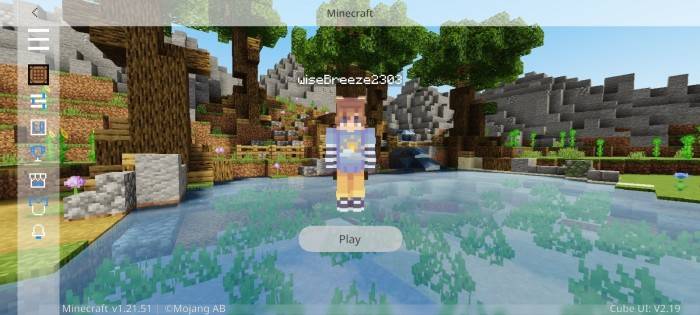
start screen
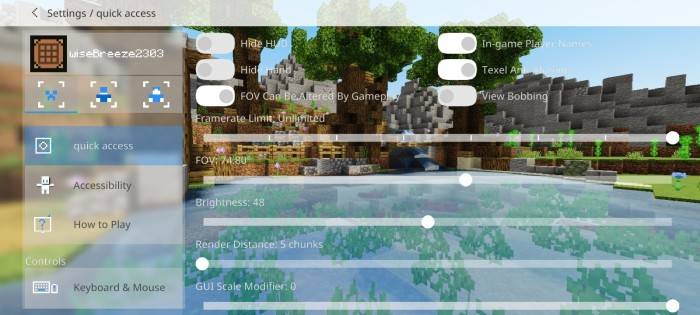
settings screen
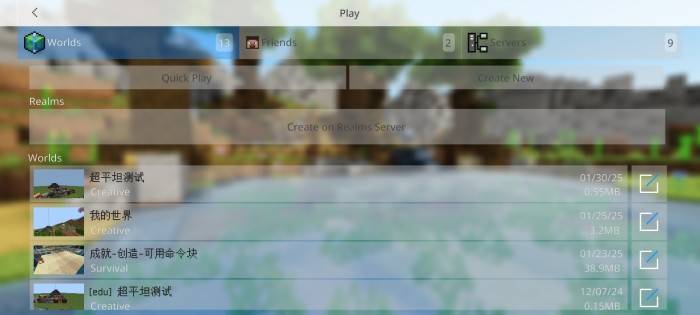
play screen
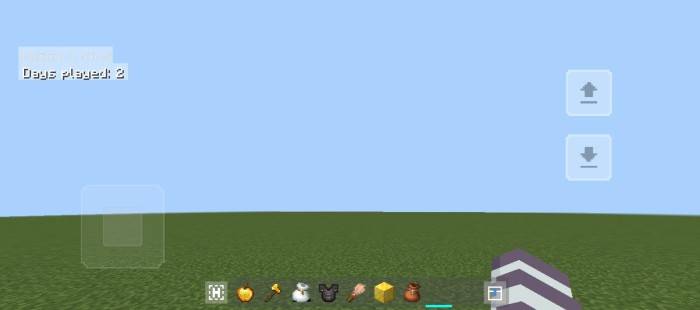
hud screen
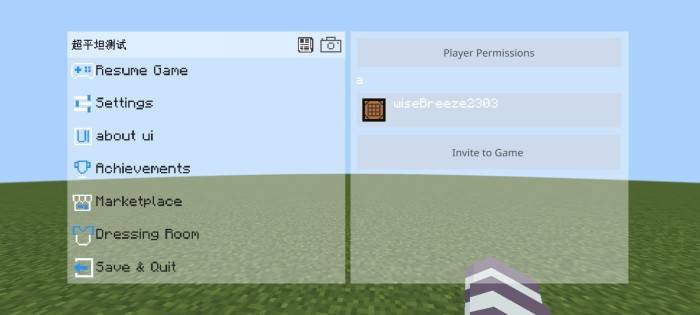
pause screen
How to setting Cube UI
Modify the ui/_global_variables.json file
Remember to make changes according to the prompts in the file
Dawn theme
Think the background is too bright? Want to use Cube UI at night?
Maybe the Dawn theme is for you!
Note, however, that themes are sorted higher than Cube UI!
Preview:
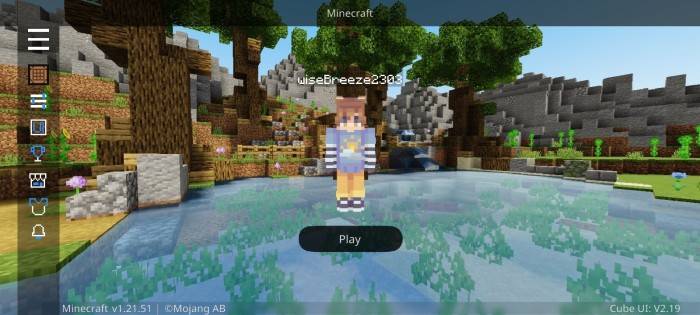
start screen
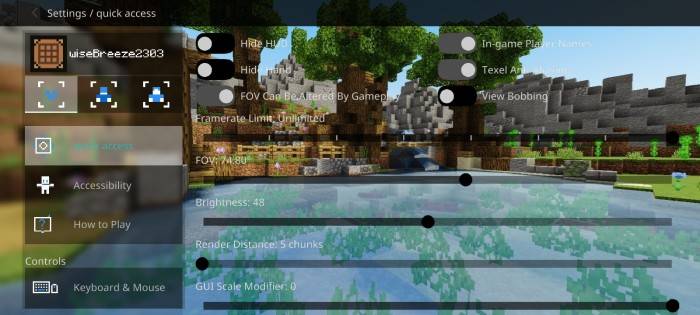
settings screen
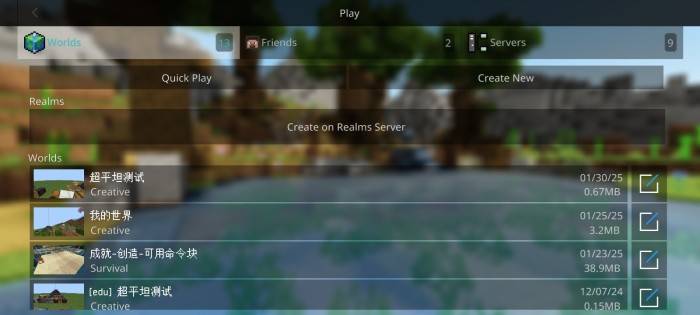
play screen
User Agreement
1. It is prohibited for any commercial use and may not be transferred, sold or otherwise used for commercial purposes
2. You cannot declare this resource package as your resource package
3. The user has the right to use, subject to the agreement, the audio and video media files of the resource
The above provisions are the main provisions, please refer to the User Use Agreement for more details.
Installation description
Download
Choose a link below to download
Jump to another page and click the link button below
Go to mediafire.com
Select the Cube UI.mcpack file
Click the download button
Click Download when your browser prompts you to download
Waiting to download
Import resource
Open the download path and find the file
Select the Cube UI.mcpack file and open it with Minecraft
Wait for the prompt to succeed
Activation resource
Minecraft -> setting -> global resources -> Cube UI -> activationtip: Theme package steps are the same