




oSkullo's Armor Durability Hud V2 Fixed
- 37.9K
- Texture Packs
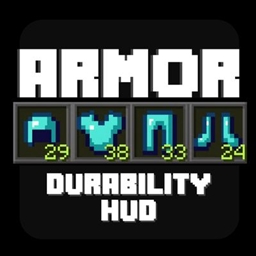
A first-person HUD that shows your equipped armor as hotbar-style icons with live durability bars and percentages, fully repositionable through pack settings
- 37.9K
- October 19, 2026

OS CLIENT
- 11.1K
- Texture Packs
OS CLIENT by oSkullo turns Minecraft Bedrock into a full PvP client, It adds cosmetics and a fully custom start, hud, pause and loading UI. Everything is toggled from the pack settings.
- 11.1K
- October 9, 2026

oSkullo's Better Hitbox V1
- 4.8K
- Texture Packs
oSkullo's Hitbox — accurate, data-driven wireframe hitboxes for the player, 90+ mobs, and the Ender Dragon (with tracked head/wing/tail zones), plus an aim-ray, an eat/drink/charge timer, and a mace blast-radius ring. Fully configurable in-game.
- 4.8K
- September 26, 2026
oSkullo's Cps Counter
- 5.5K
- Texture Packs
A fully customizable, on-screen CPS (Clicks/Swings Per Second) counter for Minecraft Bedrock. Track your PvP attack speed in real-time with in-game positioning, scaling, and background settings. Note: Calculates based on hand-swings, not mouse clicks
- 5.5K
- September 24, 2026
oSkullo's Armor Durability Hud V2 Fixed
- 37.9K
- Texture Packs
A first-person HUD that shows your equipped armor as hotbar-style icons with live durability bars and percentages, fully repositionable through pack settings
- 37.9K
- October 19, 2026
OS CLIENT
- 11.1K
- Texture Packs
OS CLIENT by oSkullo turns Minecraft Bedrock into a full PvP client, It adds cosmetics and a fully custom start, hud, pause and loading UI. Everything is toggled from the pack settings.
- 11.1K
- October 9, 2026
oSkullo's Better Hitbox V1
- 4.8K
- Texture Packs
oSkullo's Hitbox — accurate, data-driven wireframe hitboxes for the player, 90+ mobs, and the Ender Dragon (with tracked head/wing/tail zones), plus an aim-ray, an eat/drink/charge timer, and a mace blast-radius ring. Fully configurable in-game.
- 4.8K
- September 26, 2026
oSkullo's Cps Counter
- 5.5K
- Texture Packs
A fully customizable, on-screen CPS (Clicks/Swings Per Second) counter for Minecraft Bedrock. Track your PvP attack speed in real-time with in-game positioning, scaling, and background settings. Note: Calculates based on hand-swings, not mouse clicks
- 5.5K
- September 24, 2026