Chat Command Creator
- By
Would you like to execute commands by chatting specific text? This addon allows you to create custom chat command.
Would you like to execute commands by chatting specific text? Chat Command Creator addon is here for you. It enables the activation of commands when players chat specific text. Simply define the trigger chat and the corresponding commands to execute.
Chat commands are customizable, with the option to set cooldown times to impose intervals for their usage. A custom message can be displayed when a player attempts to use a chat command that is on cooldown, permissions can be assigned for their usage, and much more.
Creating Chat Command
To create a chat command, simply type "cmd: create" in the chat and close the chat UI to open the Chat Command Creator. In the Chat Command Creator, you will find numerous features, each of which will be discussed below regarding their usage.
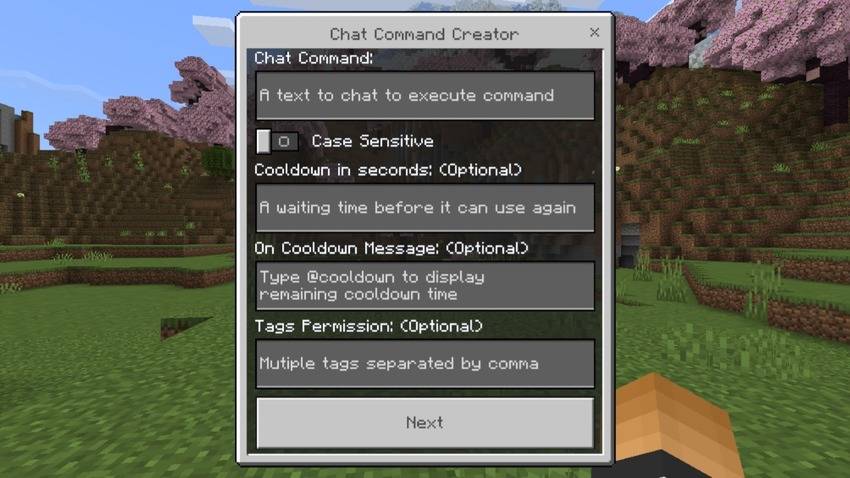
- Chat Command (required): The text you type here serves as the chat command. When a player enters this text in the chat, it triggers the execution of the commands you provide.
- Case Sensitive: If enabled, the chat command must be entered with case sensitivity; otherwise, it won't execute any actions.
- Cooldown (optional): Set a cooldown time to impose intervals for the usage of this chat command.
- On Cooldown Message (optional): This message will be displayed to a player when they attempt to use the chat command again while it is currently on cooldown.
- You can include "@cooldown" in this message to replace it with the remaining cooldown time.
- Default Message: Chat Command is on cooldown. Please try again in @cooldown.
- Tags Permission (optional): This field specifies the tags required for a player to use the chat command. You can list multiple tags separated by commas. Players must have any of the given tags to use the chat command. Leaving it blank allows everyone to use the chat command.
After completing the desired fields, click the "Next" button to proceed to the next page. On this page, the list of commands will be displayed. Initially, this list is empty, and you will only see an "Add Command" button. Click it to add a new command.

Command Settings
When you click "Add Command," you will see more options. Their usage is discussed below.
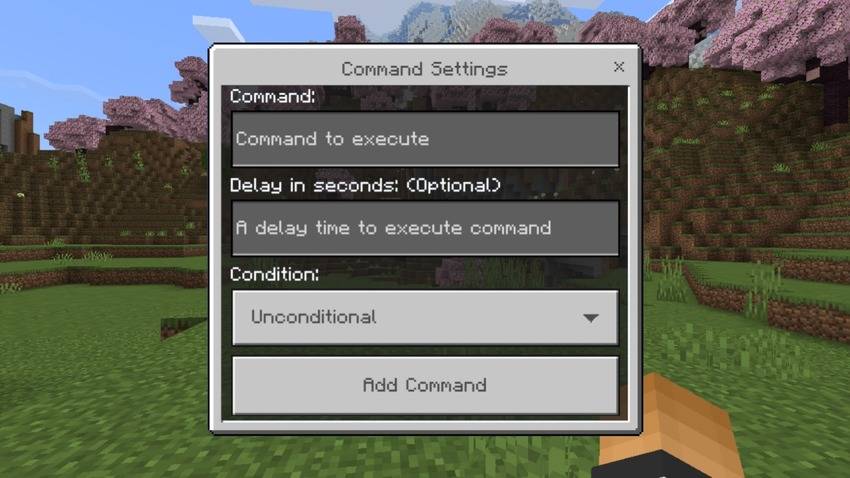
- Command (required): This is where you fill in the command you want to execute. The command you write here doesn't require the slash (/) symbol at first, but you may also include it if you prefer.
- Delay in seconds (optional): This field specifies the delay time before this command will execute. Leaving it blank will default to 0, resulting in no delay.
- Condition (dropdown): This dropdown has two options you can select:
- Unconditional (default): This causes the command to run whether its previous command has been successfully executed or not.
- Conditional: This command will only execute if the previous command executed successfully.
Note: The condition option doesn't exist at first command line.
After completing the desired options, click the "Add Command" button, and you will return to the "Commands to Execute" page. You will now see your newly added command on the list. You can add up to a maximum of 30 commands. A command you created is labeled as "Command Line." You can select any of the command lines to view them. Then, you will see two options: edit or delete. Just select the action you wish to perform.

On this page, if you have at least one command line, you will see a new button labeled "Create Chat Command." Select this button to save your chat command, and your chat command is now ready to be used.
Editing Chat Command
To edit an existing chat command, simply type "cmd: edit" to open the Chat Command Editor. All existing chat commands will appear here. Select the one you want to edit.

Deleting Chat Command
To delete an existing chat command, simply type "cmd: delete" and all existing chat commands will appear. Select the one you want to delete..

Other cmd commands
There are more cmd commands built into this addon. "cmd: resetcd" is used to reset the cooldown of all Chat Commands that are currently on cooldown, allowing you to use chat commands again without waiting for their cooldown. Use "cmd: list" to view all available cmd commands.
Permission Usage:
All cmd commands can only be used by players with operator permission. However, operator permission of a player cannot be detected in servers/realms. Therefore, a player can assign themselves an "operator" tag to be able to use these commands.
Player with operator permissions, can use all chat commands, even if they don't have the required tags permission.
Execute Chat Command via /scriptevent
You can also execute a chat command using the /scriptevent command. To do this, use the format: /scriptevent cmd:run_chat_command <chat command name>
Executing Chat Commands via /scriptevent works differently:
- When executed from a command block, relative coordinates (
~) will not be relative to the command block's coordinates and will always return '0'instead. - It ignores cooldown and tags permission.
Watch Showcase:
Installation:
To make it work, enable Beta APIs Experiments in the world settings.
The Chat Command Creator Team


Owner