


Trading Post
- By
icon_400x400.png
0.jpeg
Description
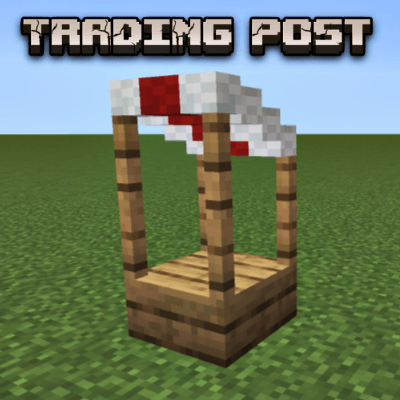
Trading Post Add-On for Minecraft Bedrock
Set up a player-run market booth that lets others trade with you — even when you're offline. When visitors accept your offer, their payment is held securely until you log back in and collect it. Use anything as currency: diamonds, emeralds, rare loot, or even items from other add-ons.
<video style="width: 591px; height: 294px;" poster="" controls="controls" width="804" height="400"> <source src="" rel="noopener nofollow" target="_blank">https://dustin3dprint.com/wp-content/uploads/2026/02/Video-Project-1.mp4" type="video/mp4"></video>
Requires Minecraft Bedrock 1.26+
What's New in v1.5
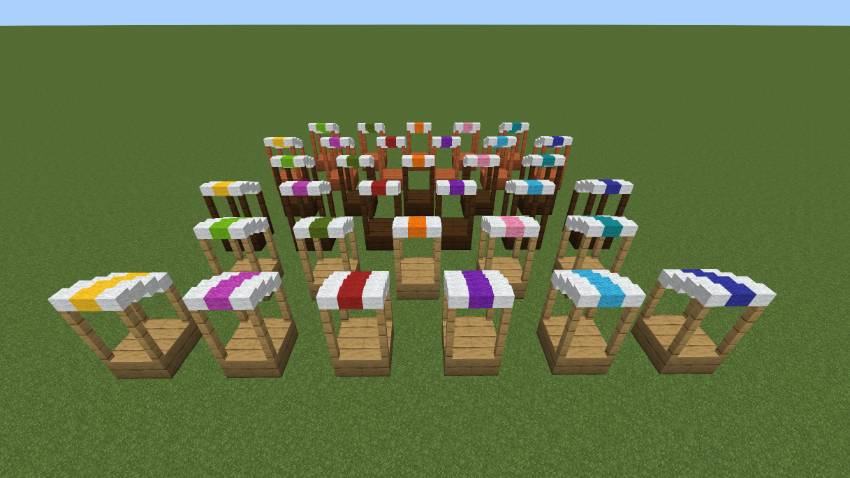
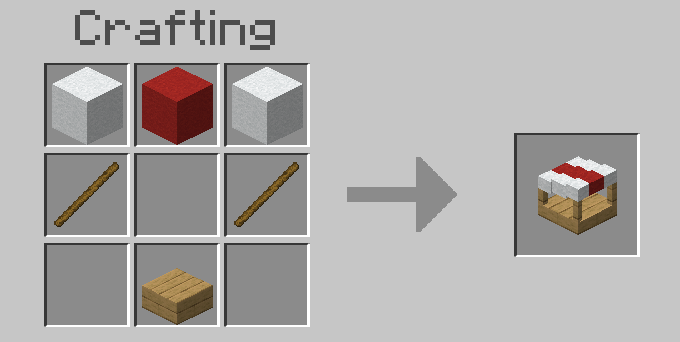
The Trading Post has been completely rebuilt. The old iron pole is gone — it's now a wooden market booth with a striped wool awning. There are 33 craftable variants (3 wood types × 11 wool colors). A floating display item bobs gently inside the booth showing what's being offered. Item storage is secured in hidden vaults so enchantments and potion types are never lost. A 5-page in-game guidebook covers every feature.
Crafting
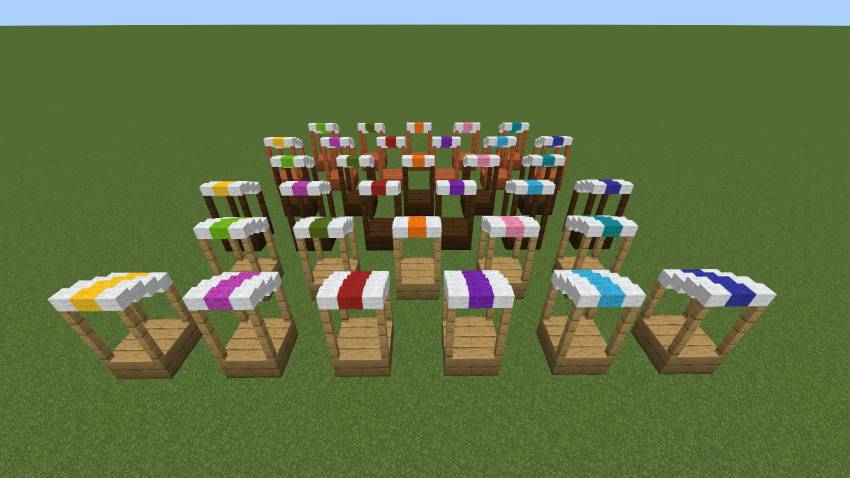
Trading Posts are crafted at a crafting table using wool, sticks, and a wood slab:
W C W
T   T
S | Slot | Item |
|---|---|
| W | White Wool |
| C | Colored Wool — sets the awning stripe color |
| T | Stick |
| S | Wood Slab — Oak, Dark Oak, or Acacia sets the wood type |
There are 33 variants in total. Once placed, the booth stands 2 blocks tall and faces toward the player who placed it.
Creating a Trade
- Place the Trading Post — it faces toward you automatically
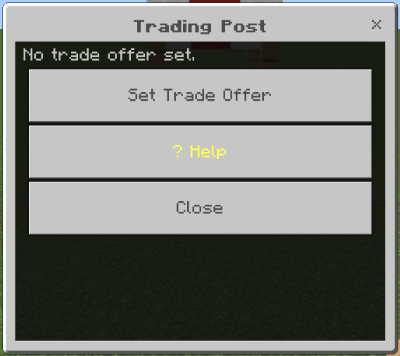
- Interact with it (right-click / tap) to open the Owner Menu
- Click "Set Trade Offer"
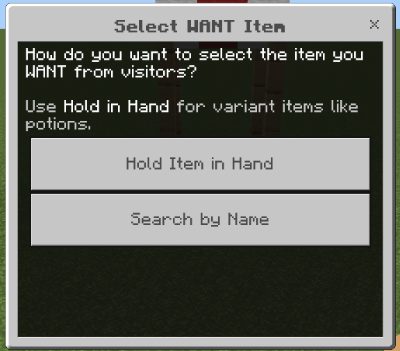
- Choose the item you WANT visitors to pay:
- "Hold Item in Hand" — hold the item and click the Trading Post. Use this for potions, enchanted items, and tipped arrows to capture the exact variant.
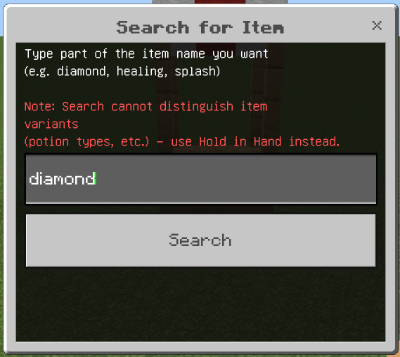
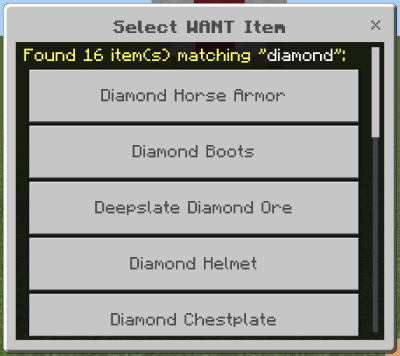
- "Search by Name" — type a name and pick from search results. Best for plain items.
- Hold the item you will GIVE and click the Trading Post
- Set the quantities — how many you want per trade, how many you give per trade, and how many to deposit into the post
- The deposited items leave your inventory and are stored securely. A floating sign appears above the booth showing your offer, and a display of the item bobs inside.
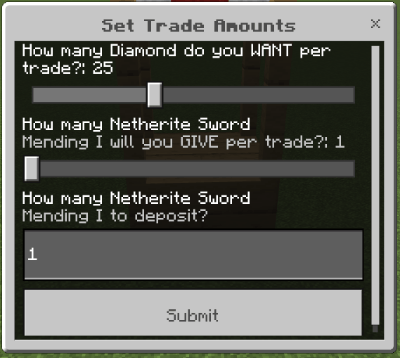
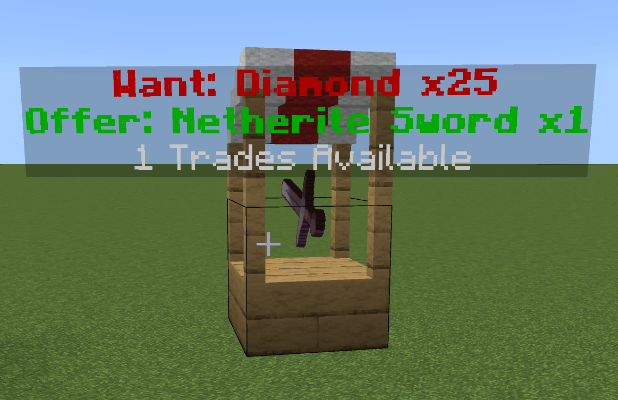
Tip: If you don't have enough items to deposit, the trade setup cancels and nothing is taken.
Accepting a Trade
- Walk up to any Trading Post and interact with it
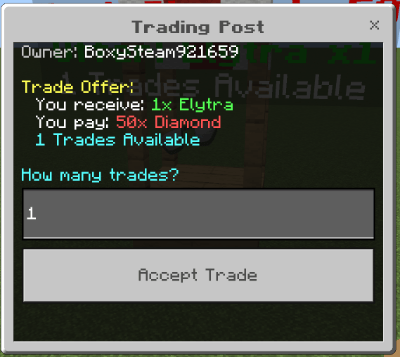
- The visitor menu shows the offer, the required payment, and how many trades are available
- Enter how many trades you want and click "Accept Trade"
- If you have the required items they are taken from your inventory and you receive the offered items immediately
Owner Menu
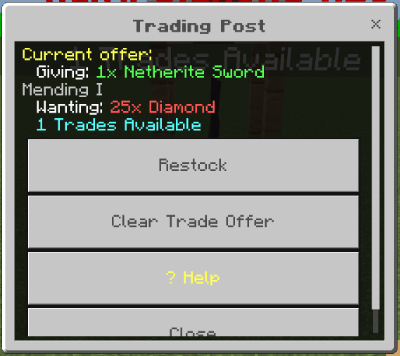
Interacting with your own Trading Post opens the Owner Menu:
- Set Trade Offer — only available when there is no active offer and no uncollected payments
- Restock — deposit more items to increase available trade count
- Clear Trade Offer — cancel the offer and return all deposited items to your inventory
- Collect Payments — retrieve items paid by visitors
- Help — open the in-game guidebook
Note: You must collect any uncollected payments before you can set a new offer.
Restocking
- Interact with your Trading Post while it has an active offer
- Click "Restock"
- Enter the number of items to add and confirm
- Those items are taken from your inventory and added to the post's stock
Cancelling a Trade Offer
Two ways to cancel:
- Break the Trading Post — all deposited offer items and any uncollected payments drop at the post's location
- Click "Clear Trade Offer" in the Owner Menu — items are returned directly to your inventory
Collecting Payments
- Interact with your Trading Post
- Click "Collect Payments"
- All pending payments are moved to your inventory (or dropped at your feet if your inventory is full)
Potion & Enchantment Support
Trading Posts fully support complex items:
- Potions, Splash Potions, and Lingering Potions (e.g. "Splash Potion of Fire Resistance")
- Tipped Arrows — all variants with correct names
- Long/Strong variants shown as "Extended" or "Level II"
- Enchanted items — enchantments are displayed and matched exactly
- Custom-named items (anvil names) are matched by name
Use "Hold Item in Hand" when setting up trades with these items.
Display Item
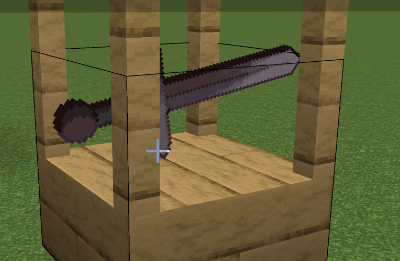
A floating display of the offered item appears inside the booth. It bobs gently up and down, faces the same direction as the Trading Post, and updates automatically when the offer changes. It cannot be picked up.
Security
- Owner-only breaking — only the owner can break their Trading Post
- Explosion proof — creepers, TNT, and other explosions cannot destroy it
- Secure vault storage — deposited items and payments are stored in hidden barrels deep underground, inaccessible through normal gameplay
- Placement protection — Trading Posts cannot be placed within 1 block of another post
- When broken — all stored items drop at the post's location
In-Game Guidebook
- Click "Help" in any Trading Post menu to open the 5-page guide
- Click "Get Guidebook Item" to receive a physical book
- Right-click / use the book at any time to reopen the guide
Admin Features
Players with the trading_admin tag can manage any Trading Post on the server:
- Break any post regardless of who owns it
- Transfer ownership to another online player
- View any post as a visitor for testing
To grant admin access: /tag <player> add trading_admin
The Trading Post Team
