Structure Builder.
- By
Manage and build in a survival world with .mcstructure files without disabling game achievements.
1000268618.jpg
1000268617.jpg
1000268619.jpg
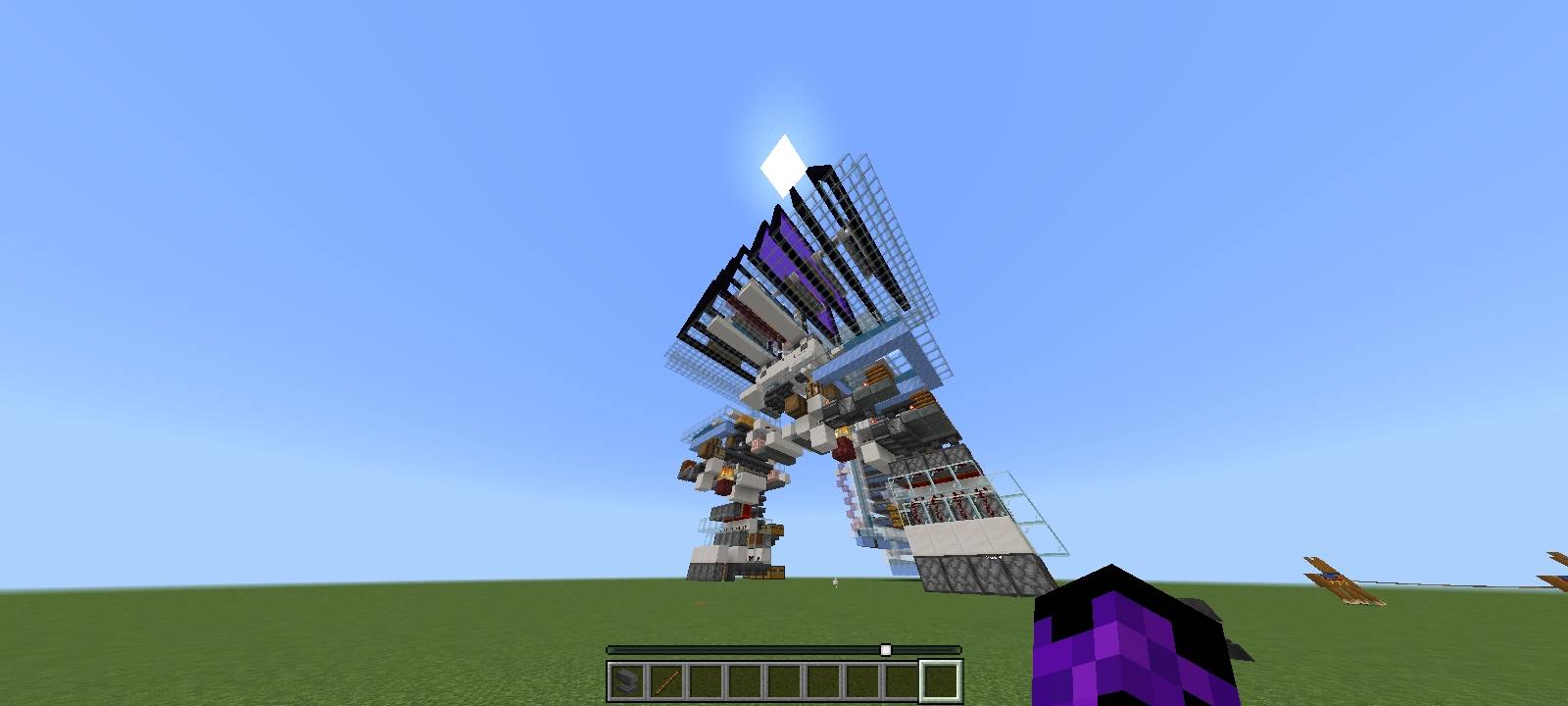
1000268620.jpg
Description
Structure Builder:
English:
Structure Builder is a sophisticated tool designed for Minecraft Bedrock (version 1.21 and above) that enables players to import, place, and manage custom structures (.mcstructure files) directly within Survival mode. This tool eliminates the need for complex commands by utilizing an intuitive visual interface and immersive tools to facilitate world construction.
Key Features
* Full Survival Compatibility: Designed to function entirely without the need for Creative mode.
* High Capacity: Includes pre-loaded support for up to 1000 distinct structures.
* Comprehensive Management: In addition to construction capabilities, it includes tools for area demolition.
Installation and Configuration Guidelines
To ensure the addon correctly identifies custom structures, the following steps must be strictly adhered to prior to installation or when editing the .mcaddon file:
1. File Preparation
The system reads structures via numerical indexing. Files with the .mcstructure extension must be renamed using a sequential numeric format; for example:
* my_house.mcstructure ➔ 1.mcstructure
* castle.mcstructure ➔ 2.mcstructure
* farm.mcstructure ➔ 3.mcstructure
2. File Placement
Access the addon directory and place the numbered files within the following path:
* Directory: Structure Builder BP > structures
Operational Instructions
This addon does not introduce unnecessary new items; rather, it modifies a standard tool.
The Master Tool
Obtain a standard Stick. Place it in an anvil and rename it exactly as follows:
build
(Ensure all letters are lowercase).
Controls
With the build stick in hand:
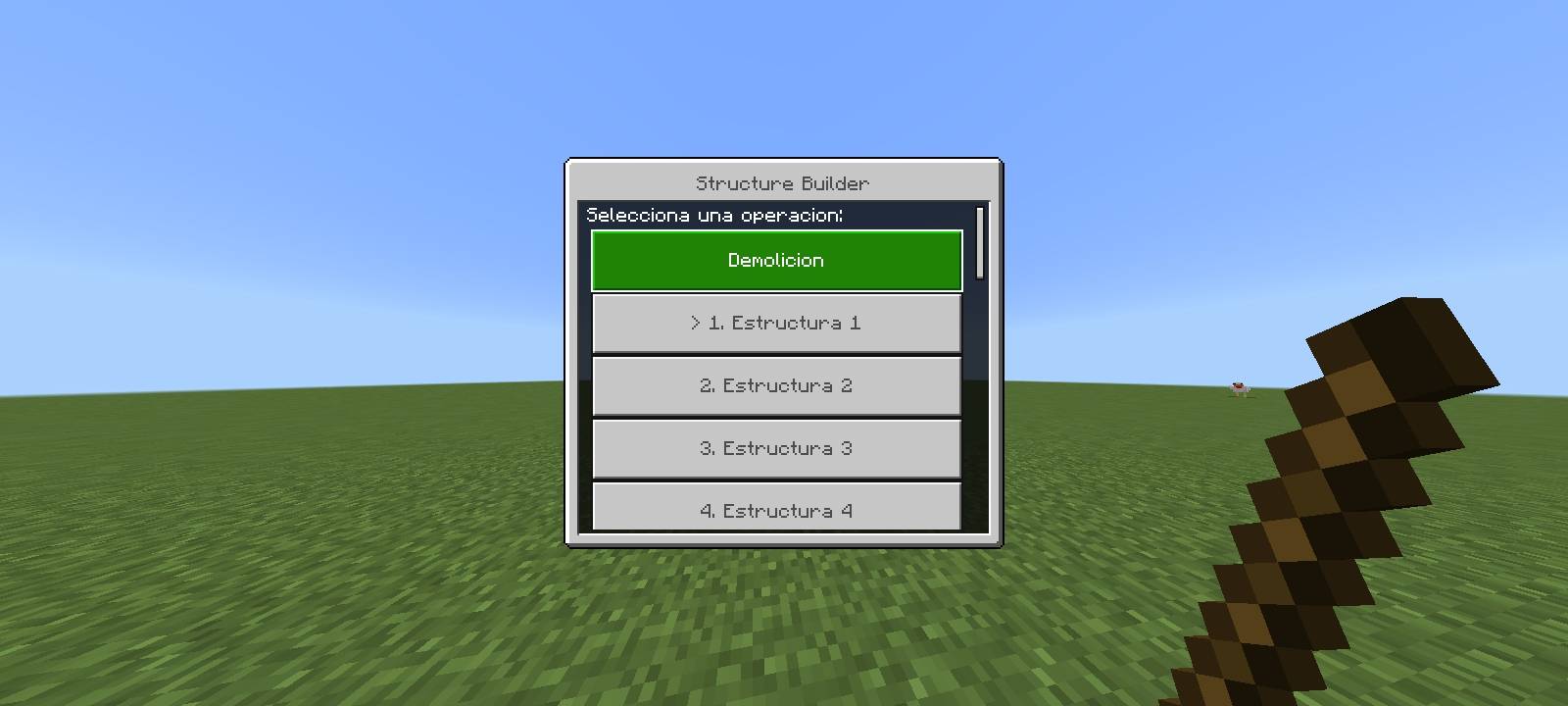
* Right-Click (or Long Press): Opens the Main Menu (Structure Catalog).
* Left-Click (Strike a block): If a standard block is struck, the selected structure will be constructed.
Step-by-Step Guide
A. Structure Selection
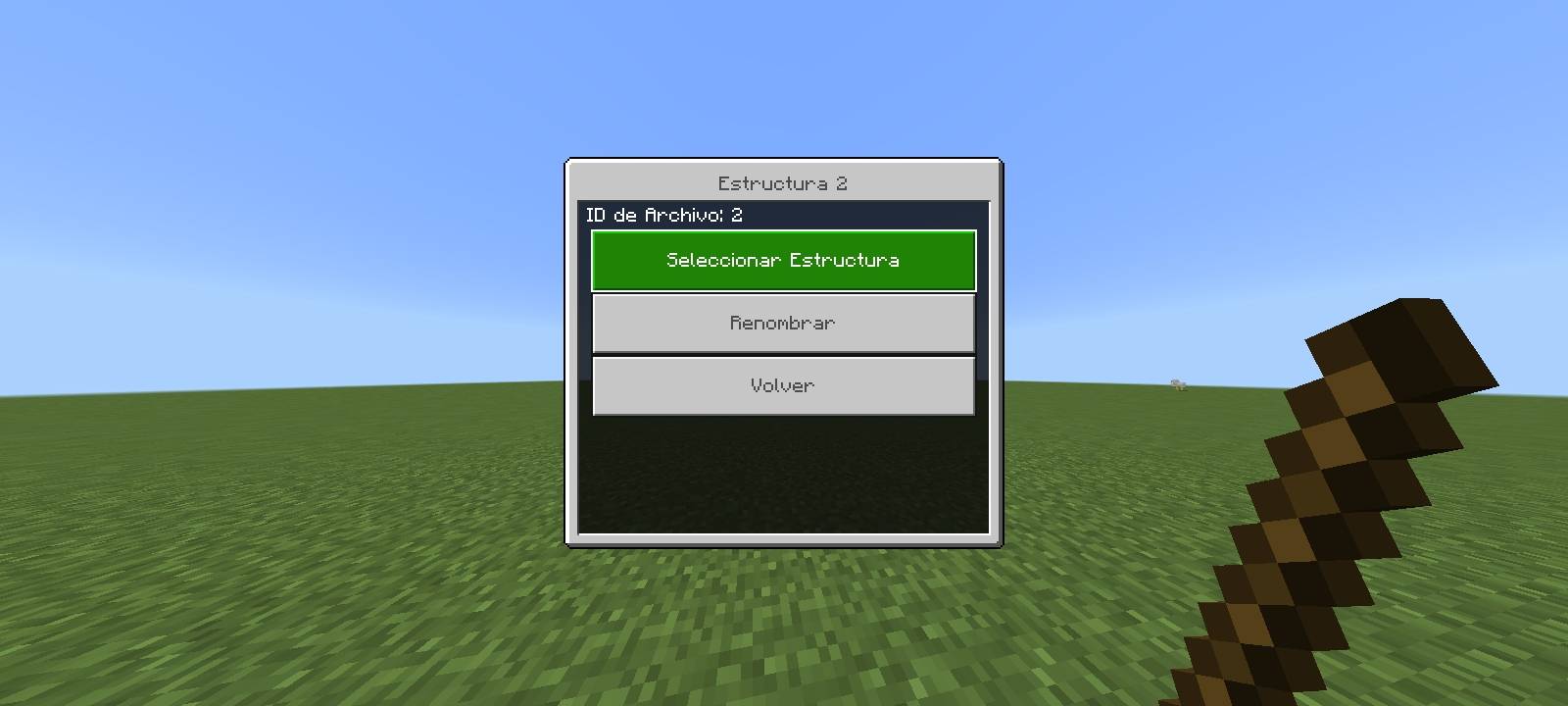
Use the build stick (Right-Click). A list will appear designated as "Structure 1", "Structure 2", etc. Select the number corresponding to the desired file.
* Optional: The "Rename" function within the menu may be used to assign a custom name, such as "Watchtower".
Press "SELECT STRUCTURE".
B. Construction
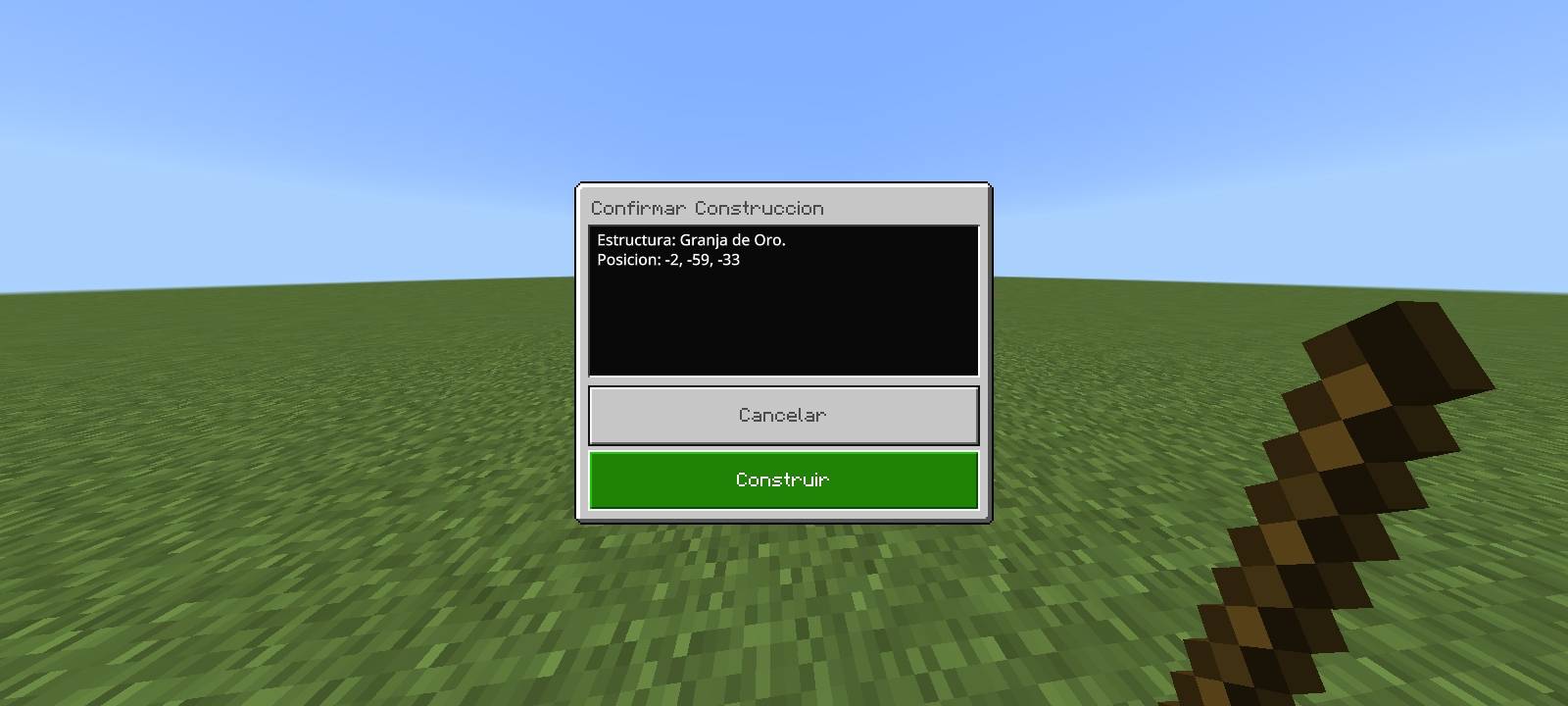
Approach the desired construction site. Strike the block that will serve as the center of the base. A confirmation menu will appear displaying the coordinates.
* Note: The structure will automatically rotate to face the user.
Press BUILD.
C. Demolition
The system will request the definition of the area to be cleared by striking three distinct points:
* Strike 1: A corner of the base.
* Strike 2: The opposite diagonal corner of the base.
* Strike 3: Any block at the roof height to define the vertical limit.
Confirm the action, and the area will be cleared automatically.
Frequently Asked Questions (FAQ)
Does this addon disable achievements?
The addon employs a hybrid architecture designed to minimize interference with the base game, thereby allowing for achievement progression without issues.
I am receiving the error: "Error: Could not load..."
This error occurs when attempting to construct a number (e.g., Slot 50) for which no corresponding file (50.mcstructure) has been placed within the addon folder. Please verify that files are correctly named and located in the proper directory.
Is there a size limit for demolition?
There is no strict code-based limit; however, attempting to clear a massive area (exceeding 32x32x32 blocks) may result in incomplete operations if the game fails to load all chunks simultaneously. For massive structures, demolition by sections is recommended.
Español:
Structure Builder es una herramienta sofisticada diseñada para Minecraft Bedrock (versión 1.21 y superiores) que permite a los jugadores importar, colocar y gestionar estructuras personalizadas (archivos .mcstructure) directamente en el modo Supervivencia. Esta herramienta elimina la necesidad de comandos complejos mediante el uso de una interfaz visual intuitiva y herramientas inmersivas para facilitar la construcción de mundos.
Características Principales
* Compatibilidad Total con Supervivencia: Diseñado para funcionar completamente sin necesidad del modo Creativo.
* Alta Capacidad: Incluye soporte precargado para hasta 1000 estructuras diferentes.
* Gestión Integral: Además de las capacidades de construcción, incluye herramientas para la demolición de áreas.
Guía de Instalación y Configuración
Para asegurar que el complemento identifique correctamente las estructuras personalizadas, se deben seguir estrictamente los siguientes pasos antes de la instalación o al editar el archivo .mcaddon:
1. Preparación de Archivos
El sistema lee las estructuras mediante indexación numérica. Los archivos con extensión .mcstructure deben renombrarse utilizando un formato numérico secuencial; por ejemplo:
* mi_casa.mcstructure ➔ 1.mcstructure
* castillo.mcstructure ➔ 2.mcstructure
* granja.mcstructure ➔ 3.mcstructure
2. Ubicación de Archivos
Acceda al directorio del complemento y coloque los archivos numerados dentro de la siguiente ruta:
* Carpeta: Structure Builder BP > structures
Instrucciones de Operación
Este complemento no introduce ítems nuevos innecesarios; en su lugar, modifica una herramienta estándar.
La Herramienta Maestra
Obtenga un Palo (Stick) estándar. Colóquelo en un yunque y renómbrelo exactamente como:
build
(Asegúrese de escribir todo en minúsculas).
Controles
Con el palo build en la mano:
* Clic Derecho (o Mantener presionado): Abre el Menú Principal (Catálogo de estructuras).
* Clic Izquierdo (Golpear un bloque): Si se golpea un bloque estándar, se construirá la estructura seleccionada.
Guía Paso a Paso
A. Selección de Estructura
Utilice el palo build (Clic Derecho). Aparecerá una lista designada como "Structure 1", "Structure 2", etc. Seleccione el número correspondiente al archivo deseado.
* Opcional: Puede utilizar la función "Rename" dentro del menú para asignar un nombre personalizado, como "Torre de Vigilancia".
Presione "SELECT STRUCTURE".
B. Construcción
Acérquese al lugar de construcción deseado. Golpee el bloque que servirá como centro de la base. Aparecerá un menú de confirmación mostrando las coordenadas.
* Nota: La estructura rotará automáticamente para mirar hacia el usuario.
Presione BUILD.
C. Demolición
El sistema solicitará definir el área a borrar golpeando tres puntos distintos:
* Golpe 1: Una esquina de la base.
* Golpe 2: La esquina diagonal opuesta de la base.
* Golpe 3: Cualquier bloque a la altura del techo para definir el límite vertical.
Confirme la acción y el área se limpiará automáticamente.
Preguntas Frecuentes (FAQ)
¿Este complemento desactiva los logros?
El complemento emplea una arquitectura híbrida diseñada para minimizar la interferencia con el juego base, permitiendo así la progresión de logros sin inconvenientes.
Me aparece el error: "Error: Could not load..."
Este error ocurre cuando se intenta construir un número (por ejemplo, Slot 50) para el cual no se ha colocado el archivo correspondiente (50.mcstructure) dentro de la carpeta del complemento. Verifique que sus archivos estén correctamente nombrados y ubicados en la carpeta correcta.
¿Existe un límite de tamaño para la demolición?
No existe un límite estricto en el código; sin embargo, intentar borrar un área masiva (superior a 32x32x32 bloques) podría resultar en una operación incompleta si el juego no logra cargar todos lo
s fragmentos simultáneamente. Para estructuras masivas, se recomienda la demolición por secciones.
Structure Builder. Team