
Secure to Secure
- By
01_container_protection.png
02_personal_storage.png
03_smart_organization.png
04_multiplayer_security.png
05_balanced_limit.png
Description
Secure to Secure
Secure to Secure is a container protection and personal storage add-on for Minecraft Bedrock Edition.
It allows players to protect their chests, trapped chests, and barrels from unauthorized access while providing a private virtual storage system with categories, subcategories, custom colors, and multiple interface fonts.
Designed for survival worlds, multiplayer communities, Realms, and Bedrock Dedicated Servers, Secure to Secure provides straightforward security without requiring special crafting recipes or complicated configuration.
Container Protection
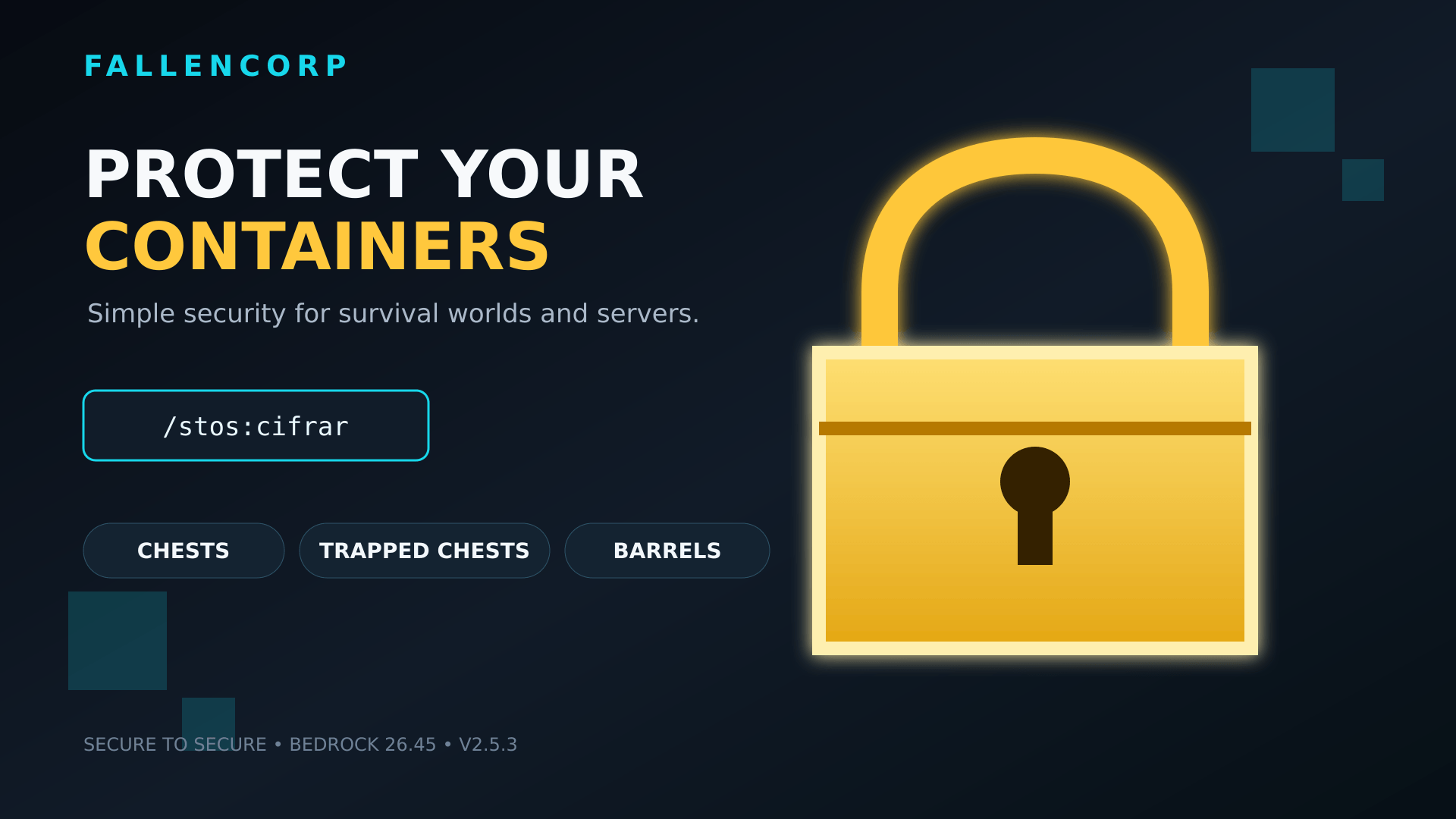
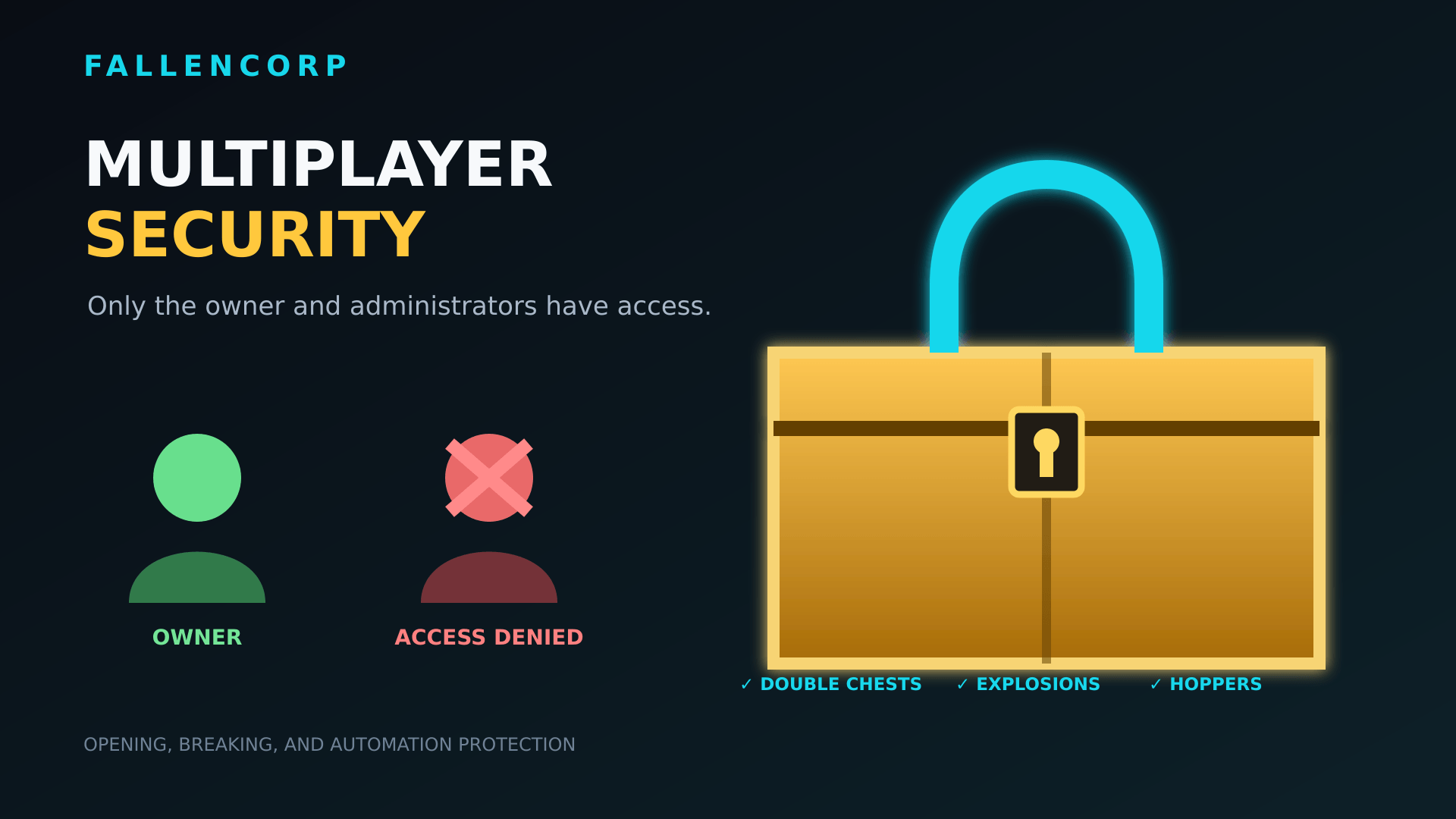
Players can protect the container they are looking at using a simple command. Once protected, only the owner or a world administrator can open, break, or remove the protection from that container.
Supported containers include:
-
Chests
-
Trapped chests
-
Barrels
-
Double chests
Double chests are automatically detected and protected as one complete container. Both halves share the same owner and consume only one protection slot.
Protected containers are defended against:
-
Unauthorized player access
-
Unauthorized block breaking
-
Explosions, including TNT and Creepers
-
Hoppers placed directly underneath them
Balanced Protection Limit
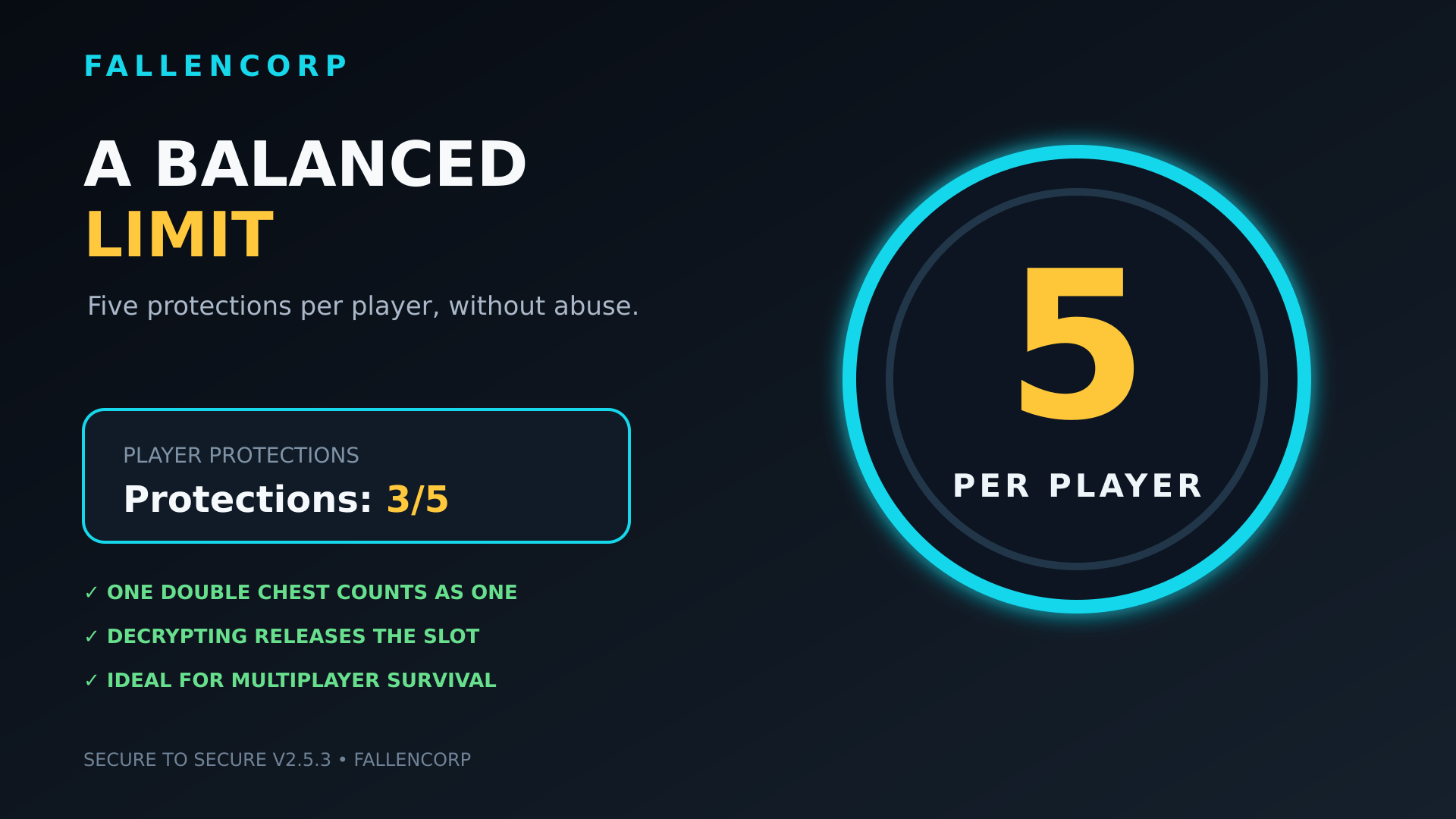
Each player can maintain up to five active container protections.
This limit helps keep multiplayer worlds organized, prevents excessive protection claims, and maintains good server performance. Since every player also has access to a personal virtual storage system, protecting large numbers of physical chests should not be necessary.
A double chest consumes only one protection slot.
Whenever a container is successfully protected, the player receives a message showing their current protection usage:
Protections: 3/5
Breaking or decrypting a protected container immediately releases its protection slot.
If a player reaches the limit, they must decrypt or remove one of their existing protected containers before creating another protection.
Personal Storage
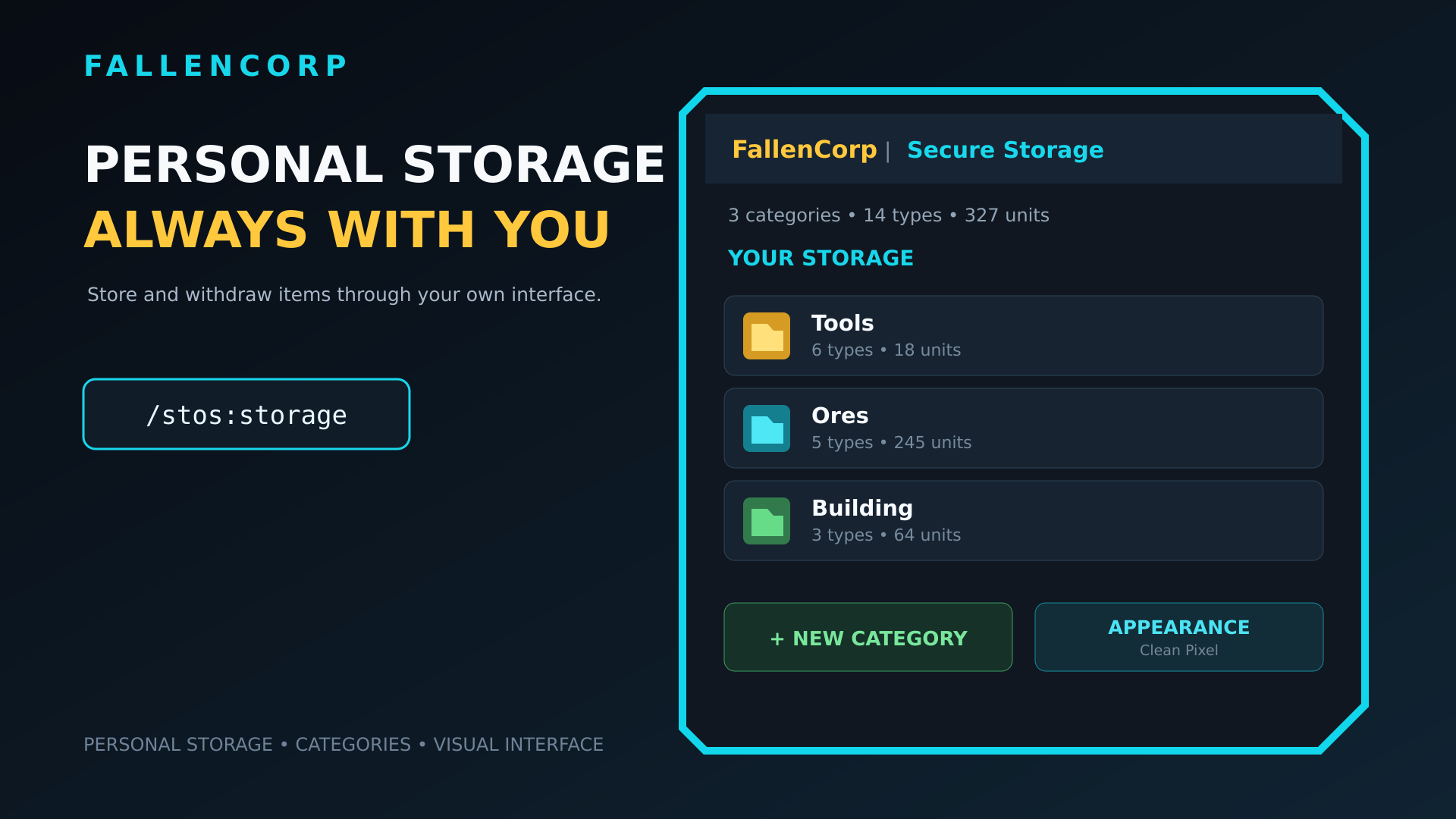
The /stos:storage command opens a private virtual storage interface for each player.
Players can:
-
Create custom categories
-
Select a color for each category
-
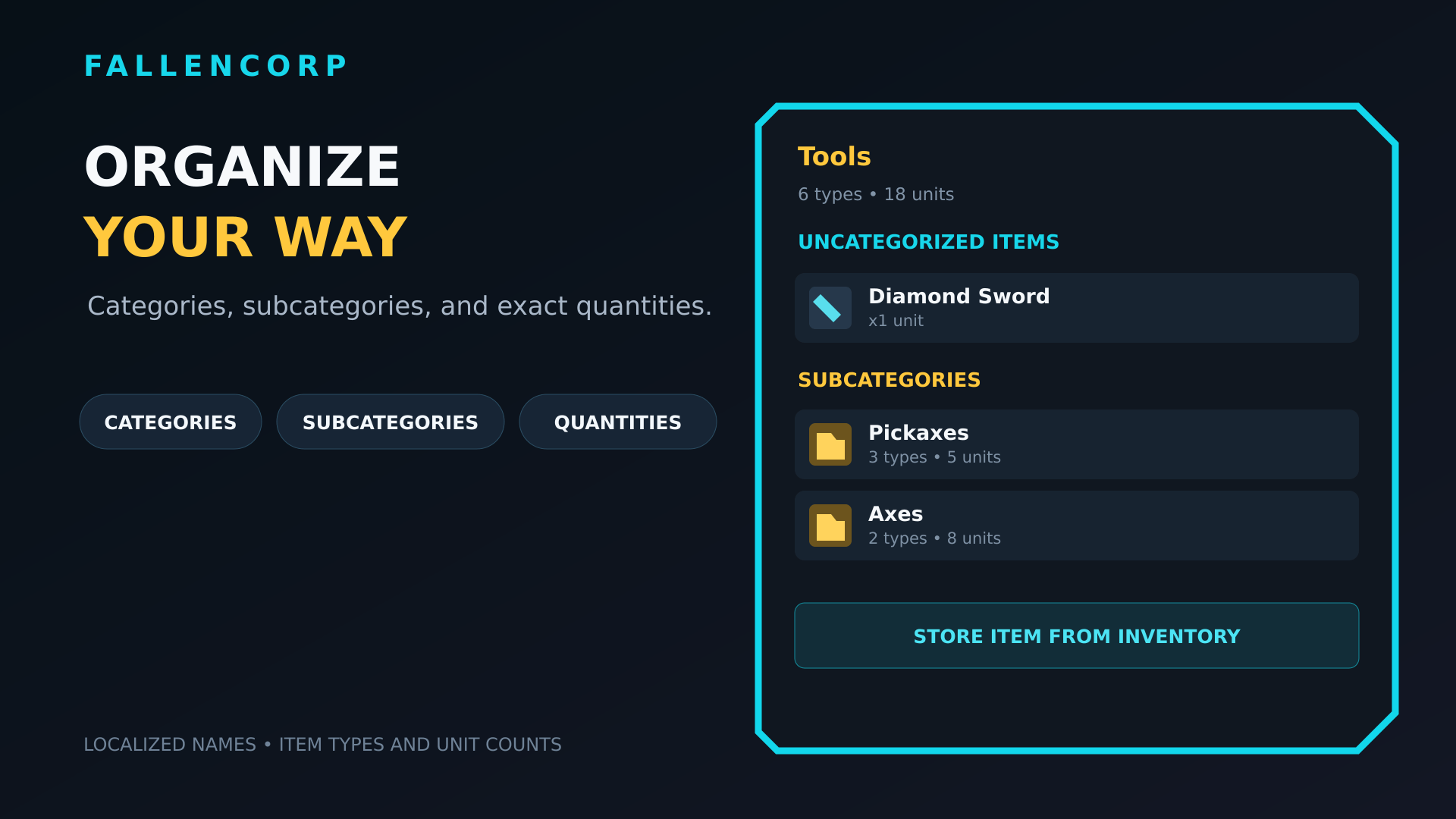
Create subcategories
-
Deposit items from their inventory
-
Select the exact quantity to deposit
-
Withdraw complete stored stacks
-
Withdraw a specific quantity
-
Delete stored items
-
View the number of stored item types
-
View the total number of stored units
-
Customize the interface typography
Storage information is separated by player. Every player receives their own private organization system, and other players cannot access it.
Possible category examples include:
-
Tools
-
Minerals
-
Building Blocks
-
Farming
-
Food
-
Weapons
-
Armor
-
Rare Items
Subcategories provide additional organization. For example, a “Tools” category could contain individual sections for pickaxes, axes, shovels, and enchanted equipment.
Custom Visual Interface
Secure to Secure includes a custom FallenCorp visual style built around dark backgrounds, cyan borders, golden highlights, and redesigned action icons.
The interface provides:
-
Clear visual sections
-
Larger touch-friendly buttons
-
Category and item statistics
-
Localized vanilla item names when available
-
Dedicated warning areas for destructive actions
-
Custom storage action icons
-
Multiple selectable typography styles
-
Improved readability on Windows and mobile devices
Available font styles include:
-
Default Minecraft
-
Arcade 8-bit
-
Terminal Retro
-
Futuristic
-
Clean Pixel
-
Dripping Horror
-
Comic
Players can change their preferred font from the appearance menu inside the personal storage interface.
Commands
Protect a container
/stos:cifrar
Protects the chest, trapped chest, barrel, or double chest currently targeted by the player.
The player must look directly at the container from within the supported interaction distance.
Remove a protection
/stos:descifrar
Removes the protection from the targeted container.
This command can only be used by the container owner or a world administrator.
Open personal storage
/stos:storage
Opens the player’s private storage interface.
The commands are registered without requiring cheats for regular players.
Administrator Access
World operators and administrators can bypass container ownership restrictions when necessary.
Administrator access can be used to:
-
Open protected containers
-
Break protected containers
-
Remove abandoned protections
-
Resolve incorrectly connected double chests
-
Moderate protected areas
-
Recover containers when their original owner is unavailable
Administrator access is intended for world management and recovery purposes.
Multiplayer and Server Use
Secure to Secure was designed with multiplayer survival worlds in mind.
The five-protection limit makes it suitable for:
-
Private survival worlds
-
Small and medium multiplayer communities
-
Realms
-
Bedrock Dedicated Servers
-
Economy-based survival servers
-
Communities with shared bases and public areas
With 25 players, the normal maximum is approximately 125 active protections, keeping the protection system at a manageable scale.
Protection and storage information is saved using world dynamic properties. The data is divided into multiple pages and uses generational saving to reduce the risk of incomplete writes.
Protection data from previous Secure to Secure versions is preserved whenever possible.
Stored Item Data
The personal storage system preserves several important ItemStack properties, including:
-
Item identifier
-
Quantity
-
Custom name
-
Lore
-
Durability damage
-
Enchantments
-
Adventure-mode placement restrictions
-
Adventure-mode destruction restrictions
-
Keep-on-death state
-
Item lock mode
-
Supported dynamic properties
Custom items from other add-ons may contain specialized components that cannot always be reconstructed by a general-purpose storage system.
Always create a world backup and test important custom items before storing them extensively.
Compatibility
-
Add-on version: 2.5.3
-
Minimum engine version: Bedrock 26.40
-
Primary test version: Bedrock 26.45
-
Behavior Pack: Required
-
Resource Pack: Required
-
Script API: Required
Both included packs must be enabled in the world.
Because the Resource Pack customizes the appearance of Script API forms, forms created by other active add-ons may also inherit parts of the FallenCorp visual style.
Installation
-
Download the
.mcaddonfile. -
Open the file with Minecraft Bedrock Edition.
-
Wait for the Behavior Pack and Resource Pack to import successfully.
-
Edit an existing world or create a new one.
-
Activate the Secure to Secure Behavior Pack.
-
Activate the Secure to Secure Resource Pack.
-
Enter the world.
-
Use
/stos:storageto open your personal storage. -
Look directly at a supported container and use
/stos:cifrarto protect it.
Creating a backup before installing or updating any add-on is always recommended.
Updating
Secure to Secure keeps consistent pack identifiers so Minecraft can recognize newer releases as updates.
When updating:
-
Back up your world.
-
Import the newest
.mcaddonfile. -
Confirm that both packs display the latest version.
-
Make sure the updated packs are active in the world.
-
Enter the world.
-
Test an existing protected container.
-
Open your personal storage and confirm that your categories are available.
Do not remove world data or clear dynamic properties during the update process.
Known Considerations
-
The interface currently uses Spanish commands and messages.
-
Specialized items from other add-ons should be tested before long-term storage.
-
The custom Resource Pack interface may visually affect forms from other Script API add-ons.
-
Server owners should test compatibility when combining Secure to Secure with other security or storage systems.
-
Performance depends on the number of active players, protected containers, stored items, and other installed add-ons.
Reporting Issues
When reporting a problem, please include as much of the following information as possible:
-
Minecraft Bedrock version
-
Secure to Secure version
-
Device or server platform
-
Other active add-ons
-
Steps needed to reproduce the issue
-
Screenshots of the problem
-
Relevant Content Log errors
Detailed reports make problems much easier to reproduce and correct.
Credits
Secure to Secure is created and maintained by FallenDass and published under FallenCorp.
Important Notice
NOT AN OFFICIAL MINECRAFT PRODUCT. NOT APPROVED BY OR ASSOCIATED WITH MOJANG OR MICROSOFT.
The Secure to Secure Team
