Note
This addon is in beta, there will be unexpected issues and bugs, so please be aware of that.
- The addon doesn't work on realms just yet, only local and servers
The addon allows you to hear players near you who can also speak.
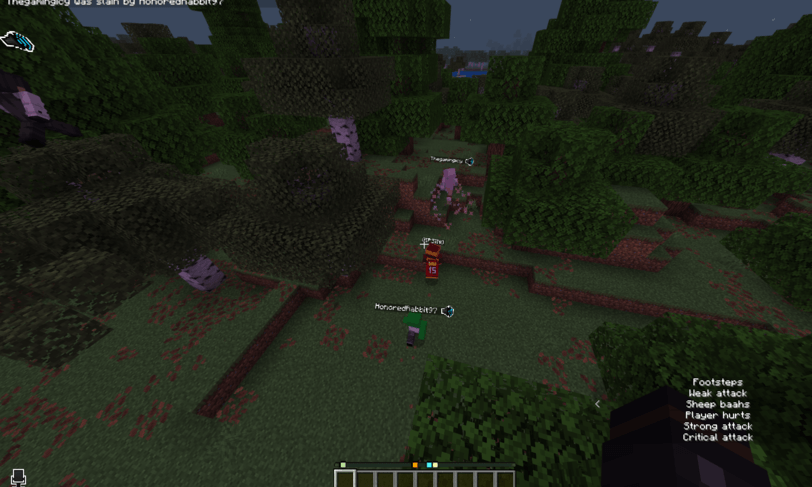
To activate the menu screen, type /proxichat:vc_ui
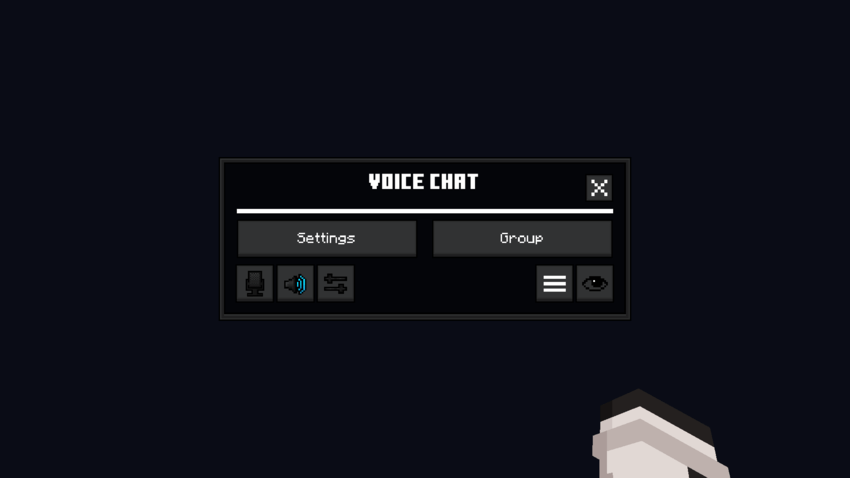
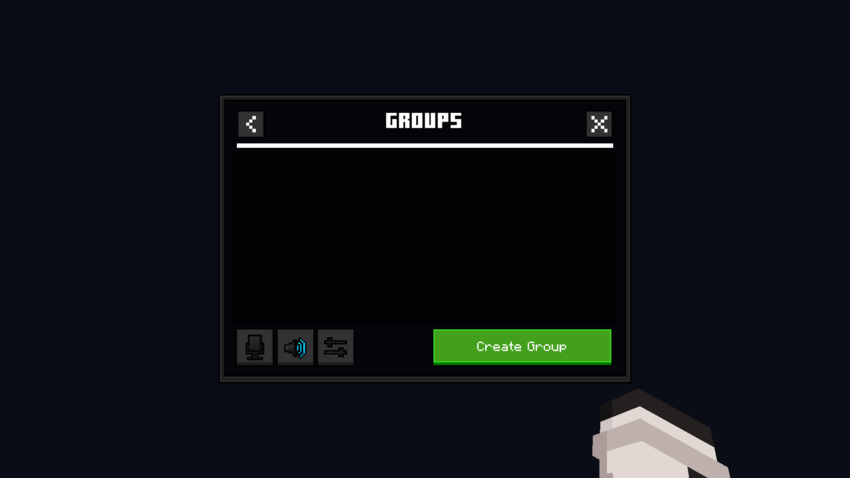
Microphone: to mute yourself
Speaker: to deafen yourself
Volume: to adjust a player's volume
Eye: to hid whats on hud screen
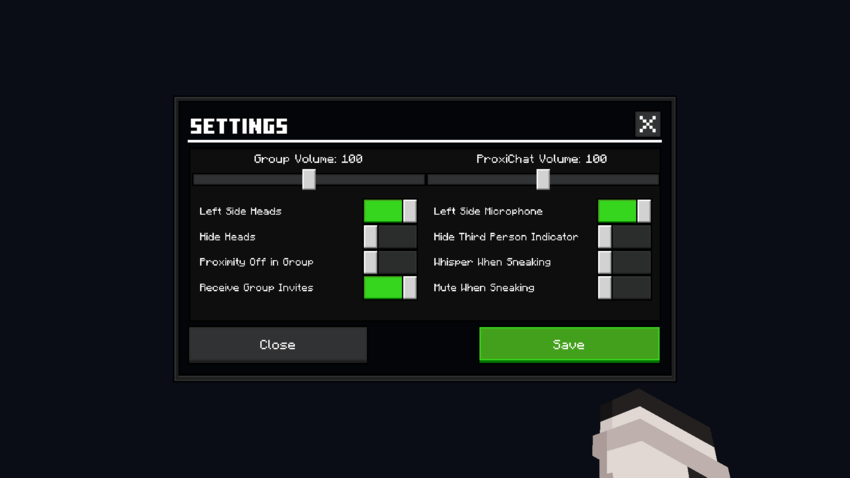
Settings allows you to change the proximity and group controls from your perspective.
Hide Heads - Only hides the player head who isn't speaking
Proximity Off in Group - Turns off your microphone in proximity but not when in a group
Hide Third Person Indicator - Hides your indicator, not others
You can create a group or join a group. Inviting a player to your group bypasses the password required for them.
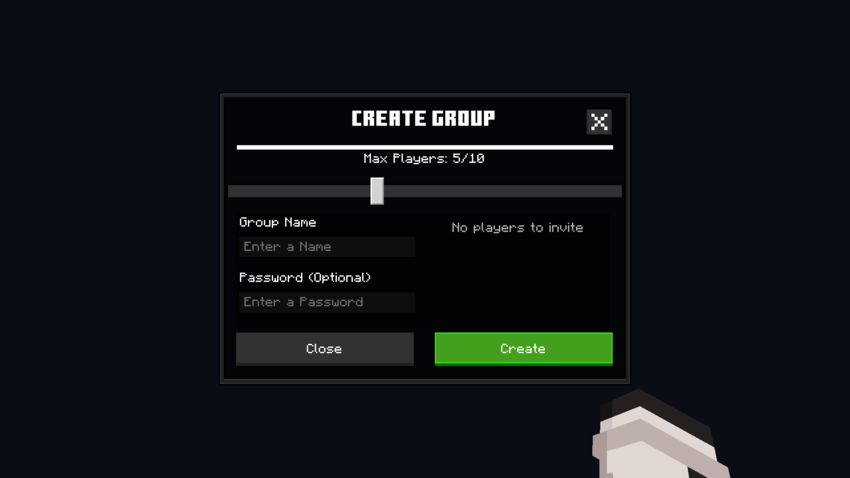
While in a group, /proxichat:groupmember can invite, kick, or ban a player.
/proxichat:group allows can join, create, or leave a group.
The addon detects if you're muted or deafened on Discord. If the action haapened on Discord, it will show a purple outline instead of a white outline

Setup
Join the discord server or join one where you can add the bots to your server for hosting
The QR Codes take you directly to the Discord Server, CurseForge and Patreon page. Only trust if the addon is the original and not a modified version.

Once in the Discord Server, head to channels set-up and hosting-vc
The set up channel gives you information to be able to use the addon. The hosting VC is for you to join the voice chats so test sessions and for console players to speak in game while joining.
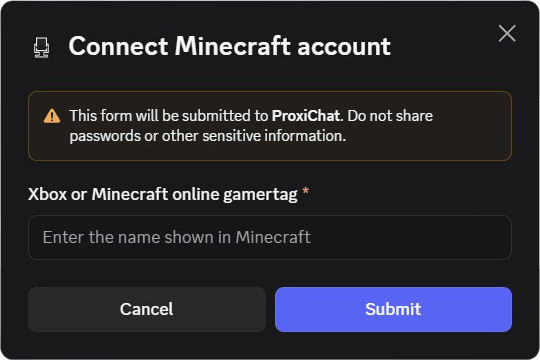
1. Once you type /connect (on Discord) you'll get this screen where you have to type your minecraft gamertag and clcik the Submit button.
2. Once the bot finds the gamertag, you will click the Confim link button. This will hook you up to the bots where you can talk ingame and be used to show your player head.
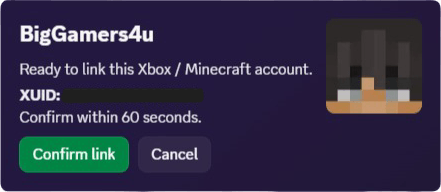
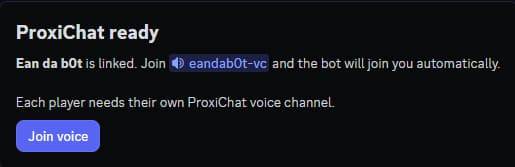
3. After those two steps are complete, you will click Join voice button. That will create a private voice chat only you and the discord server owner can see.
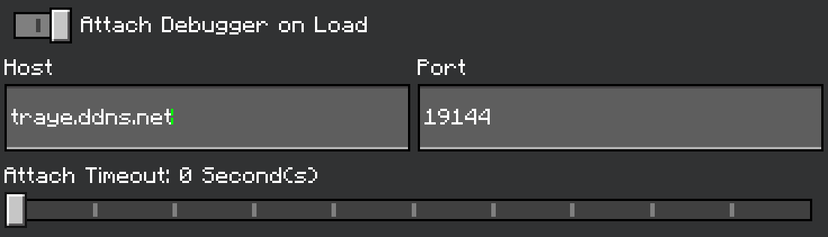
4. After than, before joining a world, go to Settings > Creator > Attach Debugger on Load. Activate it, leave it on connect, not listen, then put this in for host and port
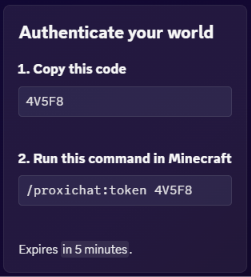
5. (Version 1.0.35.1 needs to run /reload first.) After that, you or someone else needs to type /token on Discord which will give you/them a code. Input that code into the minecraft chat and hit enter/send. This will register the world and allow you to speak and hear others from the world.
That will link the world to the bot so that way you can speak and hear others in the world. Once linked, you don't have to do it again for the same world.