Screenshot 2026-07-29 064812.png
Screenshot 2026-07-29 113759.png
Screenshot 2026-07-29 143731.png
Screenshot 2026-07-29 231204.png
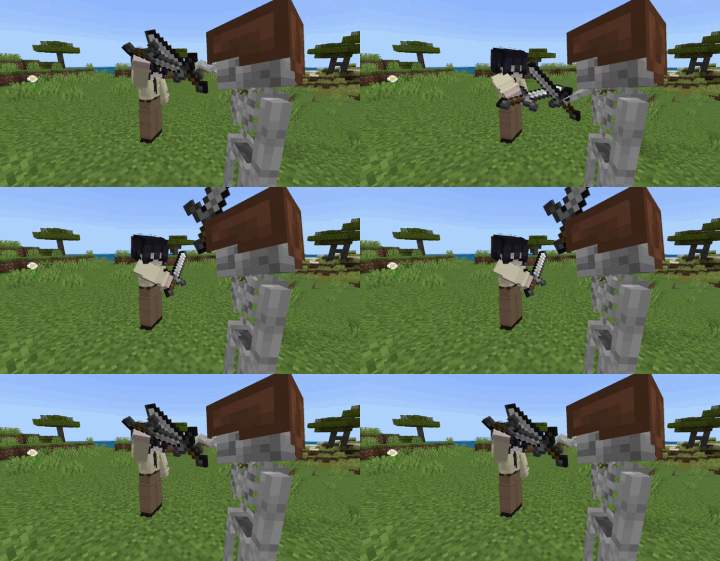
ezgif.com-resize.gif
Description
PoseMe is an addon that i have worked on for a year,
and it's main goal is to let you pose your Armorstand to whatever your imaginations can imagine! 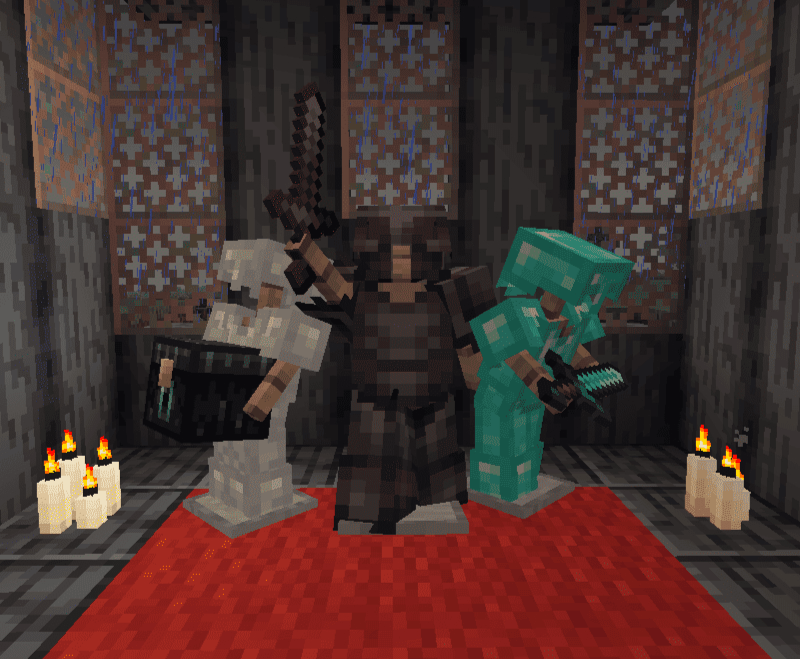
and is made to be survival friendly.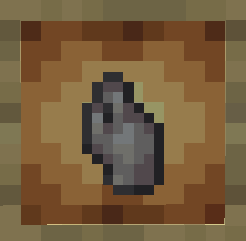
Armor stand poser.
To craft the Armor stand poser tool.
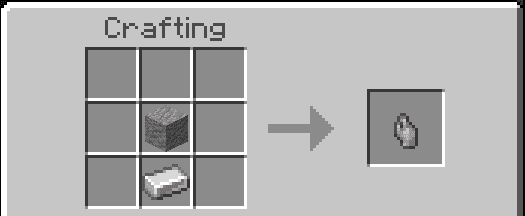
"1 andesite and 1 iron ingot" you need to craft one.
to use the Armor stand poser LongPress/RightClick to open the main menu of the Armor stand poser tool, this is what you'll see.
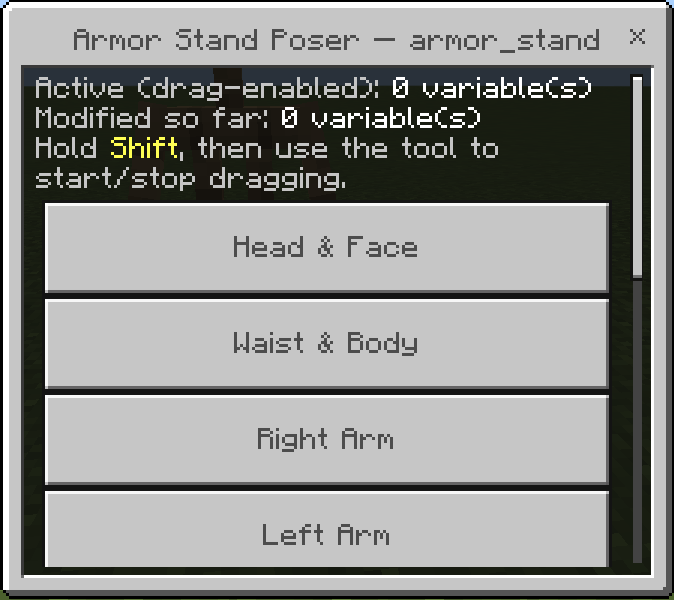
as you can see it already has a tutorial on how to use it, but before you do Shift and use the tool,
you must select a variable/part of the armor stand to be able to pose the armor stand.
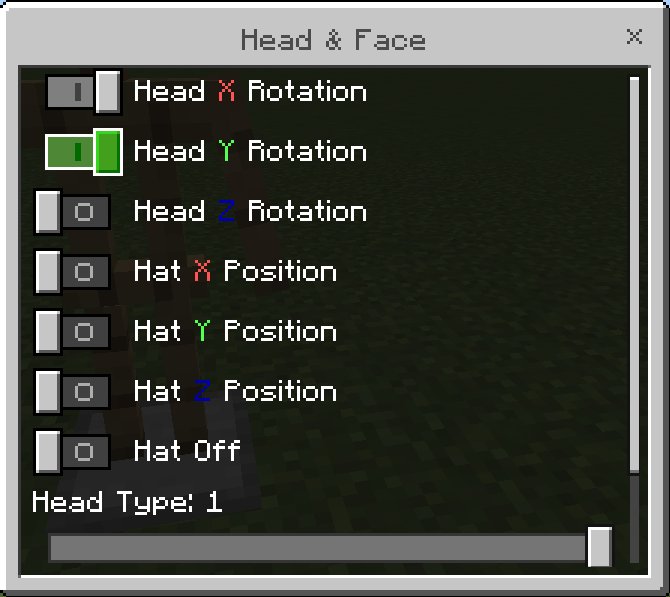
don't forget to submit the toggled parts,
pressing the exit will just put you back to the main menu without any selected parts.
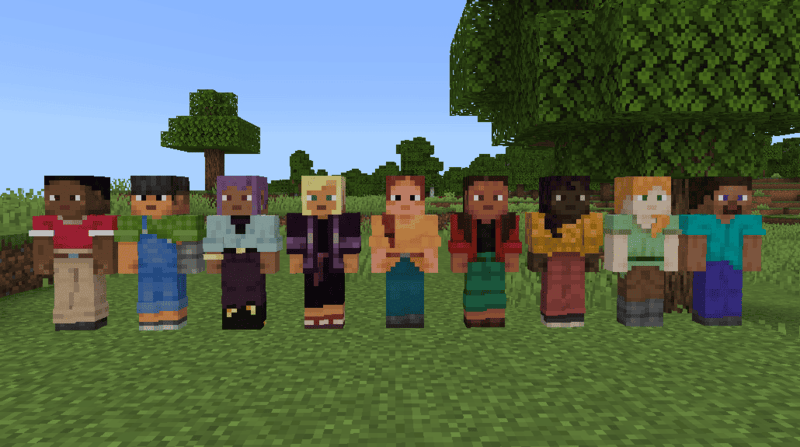
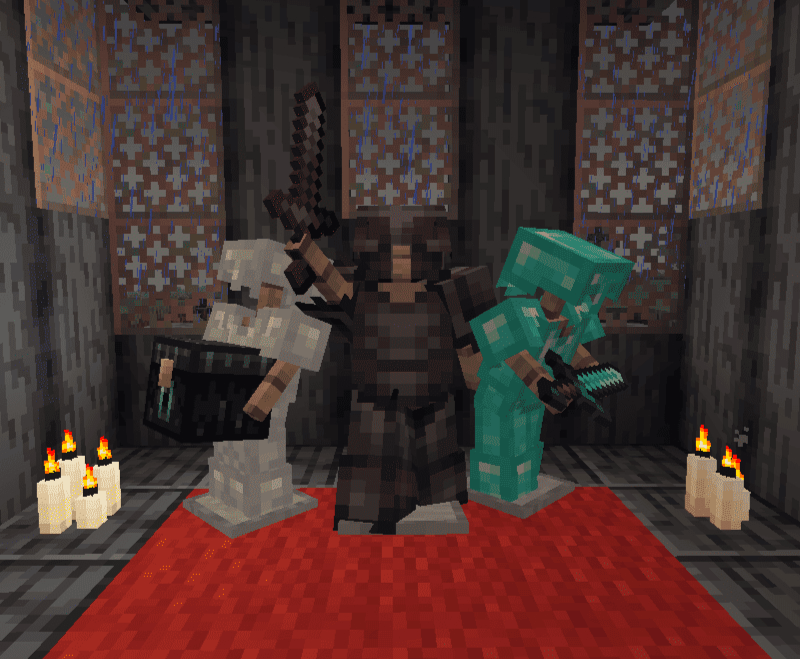
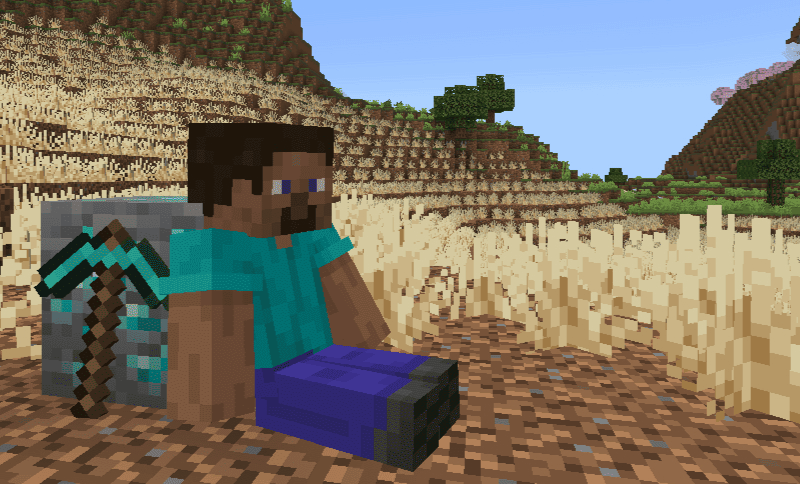
player model Armorstands!
rename the armorstands to:
steve, steve slim
alex, alex slim
zuri, zuri slim
efe, efe slim
ari, ari slim
noor, noor slim
sunny, sunny slim
kai, kai slim
makena, makena slim
to change their appearance into player models.
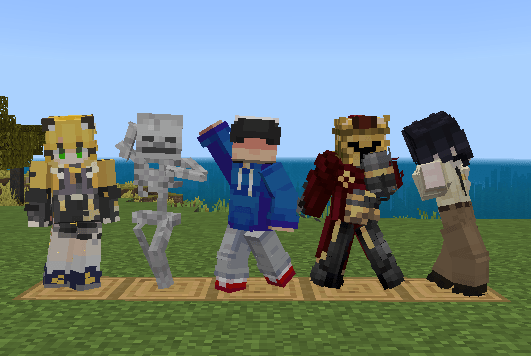
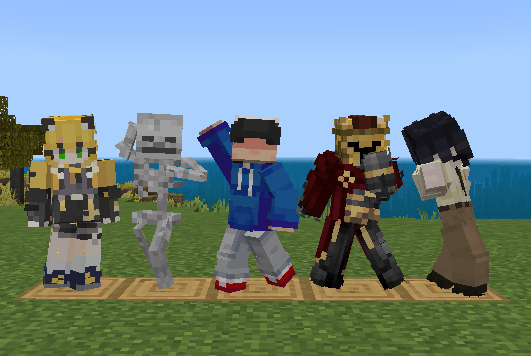
Custom skins!
you can get the armor stand's to change their appearance to your custom skins
by name tagging the armor stand:
one, one slim,
two, two slim,
three, three slim,
four, four slim,
five, five slim,
six, six slim,
seven, seven slim,
eight, eight slim,
nine, nine slim,
ten, ten slim.
to have your custom skins in the pack,
you need to rename the mcaddon to zip.
and then open the Zip file to go to the folder named PM-[Skin+].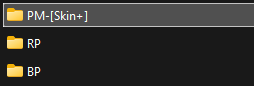
inside the folder there will be a folder named textures,
and inside of the textures folder are two folders,
slim and classic.

paste your custom skins inside the folder classic or slim,
and rename them into one of the available names,
one, two, three, four, five,
six, seven, eight, nine, and ten.
afterwards leave from the zip file and
rename the zip back to mcaddon.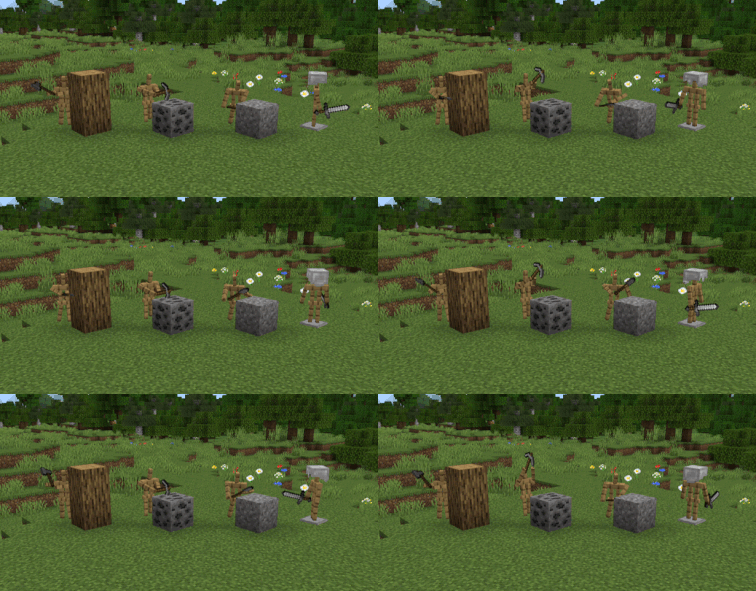
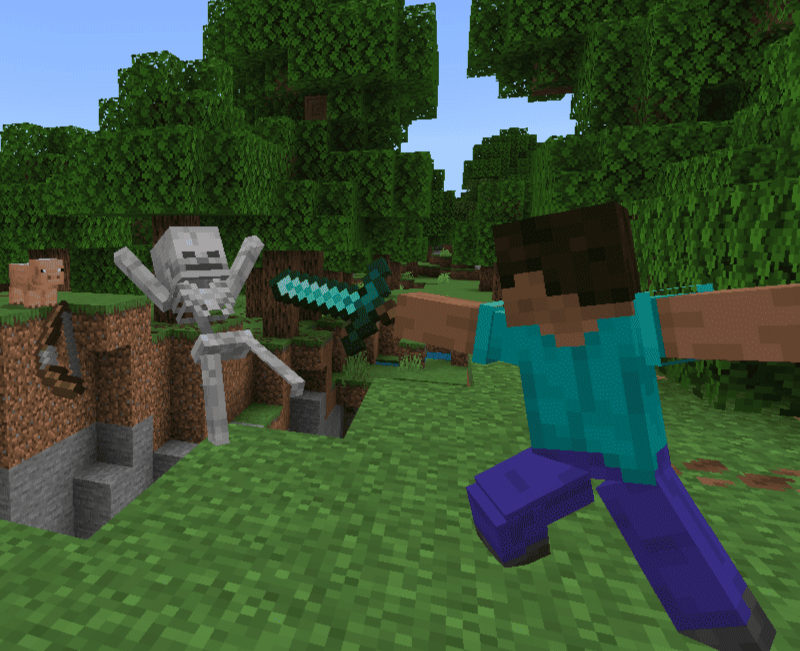
Animations!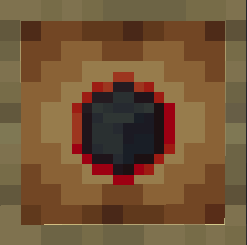
Animatronifier.
the animatronifier tool let's you turn your
inanimatearmorstand into an animatronics!
First, craft the animatronifier.
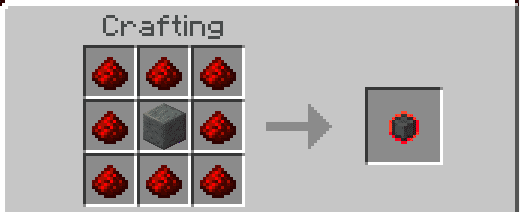
"8 redstone dusts and 1 polished tuff" to craft the tool.
there are two ways to animate.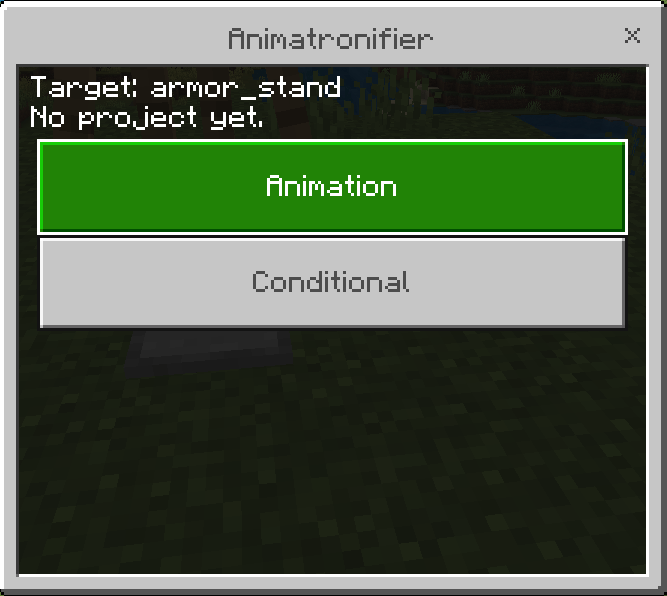
animation.
to animate first you must have your armorstand ready for its frame.
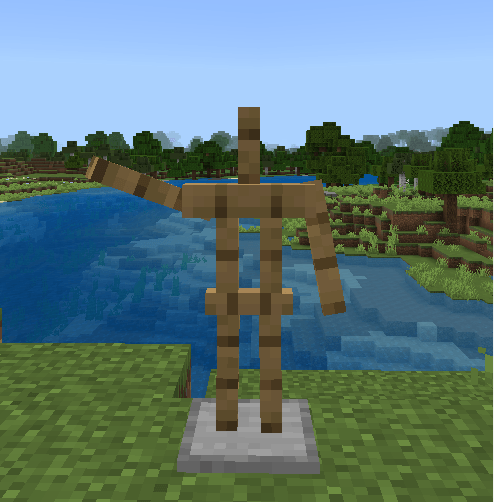
In the animation tab, press add frame.
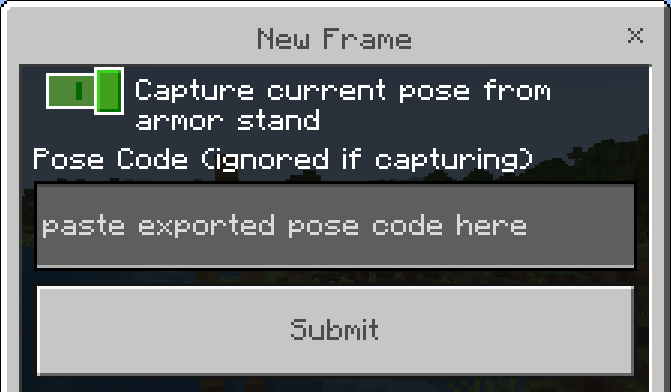
before submitting make sure to toggle on the "capture current pose from armor stand", to capture the armorstand's pose as it's frame.
and then repeat the procedure for the next frame, then press play, and your armor stand should come to life!
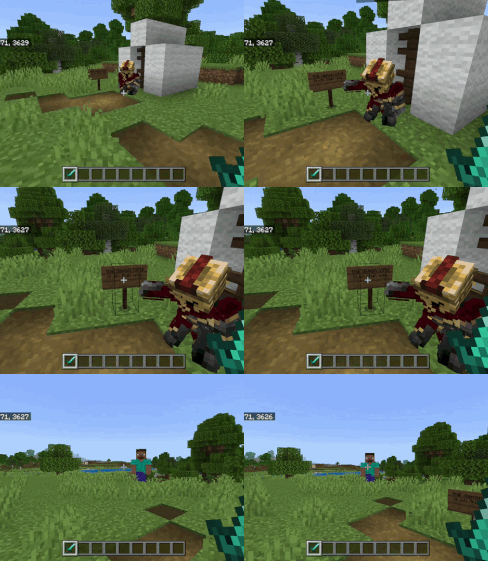
Conditional
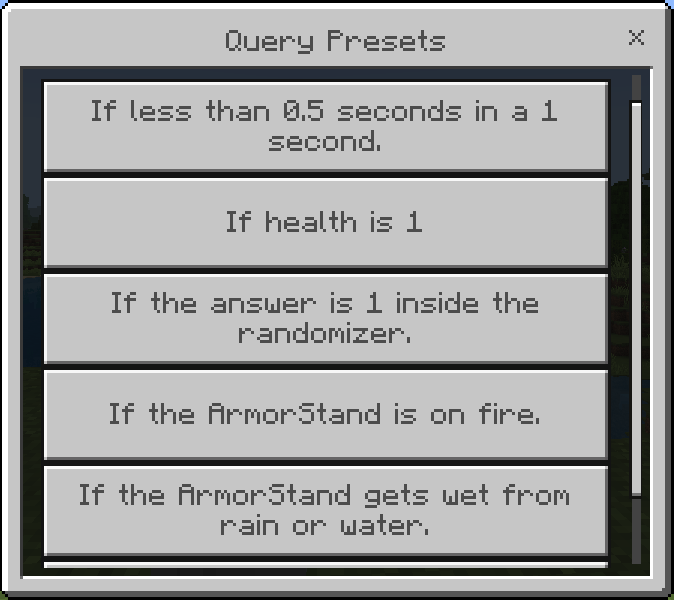
Conditional mode is abit similar to animation, only that every frame besides default reacts to queries/query.
if you dont't know how it works, you can use the query preset.
V1.1 introduces better control on how you can pose the armor stands.
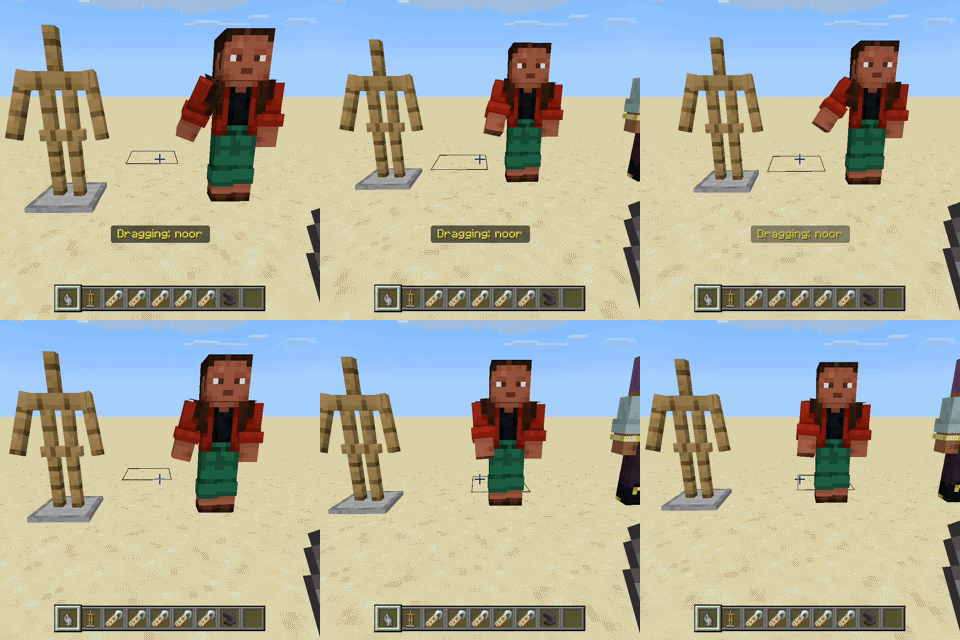
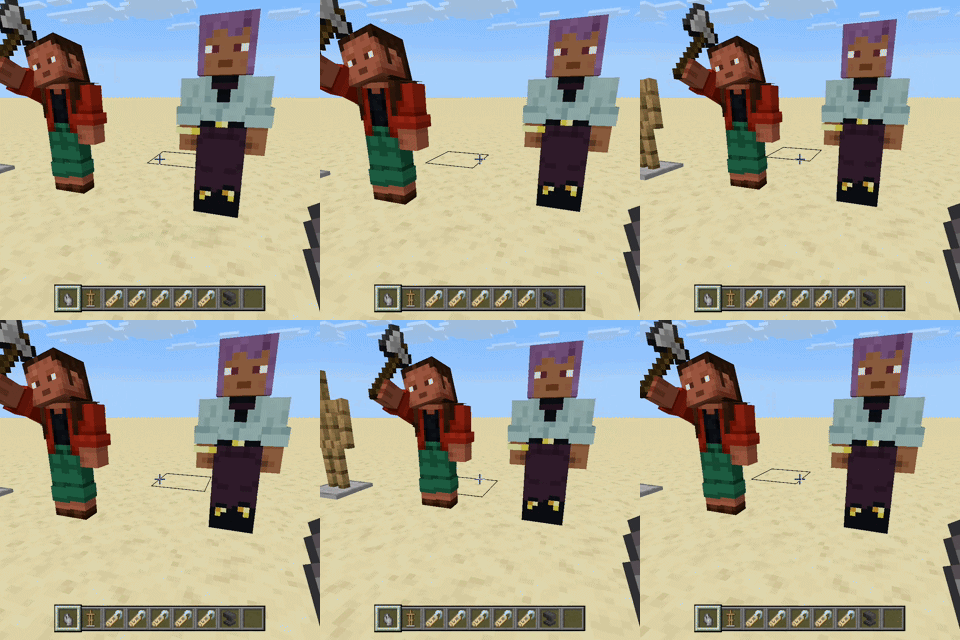
be able to pose the same armor stand from a far and selectable next target.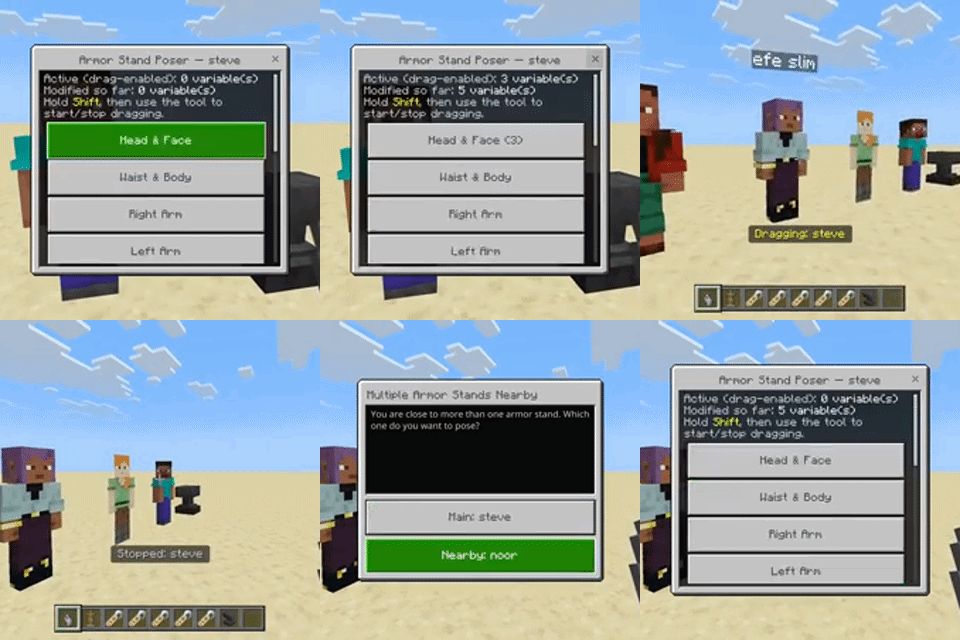
fixed issue on mobile, tools would break blocks on creative upon use.
The PoseMe Team