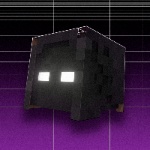
DimGuard by RG42X «Achievements Friendly»
- By
Lock the Nether and the End on your server or Realm. Portals won't light, sneaky players get sent back, and you write the message they see. No cheats.

DimGuard - Lock the Nether and the End on your server · by RG42X
Ever opened a new server and watched someone rush to the Nether in the first ten minutes? Or had the End beaten before the big event you were planning?
DimGuard lets you decide when players can travel. Lock a dimension from the admin panel and it stays closed until you open it again. No commands to remember, no cheats, nothing complicated.


✅ Achievements stay enabled · ✅ No cheats · ✅ No experimental toggles · ✅ Worlds, Realms & Servers
✨ What it does
- 🔥 Nether portals won't light — flint and steel and fire charges simply don't work on the obsidian frame. Players see your message instead.
- 👁️ The End stays sealed — Eyes of Ender can't be placed in the End portal frame.
- ↩️ No sneaking in — an old portal, the lava trick, a dispenser… if someone still makes it through, they're sent right back to where they were standing, safe and next to the portal.
- 🏠 Already inside? — anyone who was in a dimension when you locked it goes back to their spawn point.
- ⚙️ Nether and End are separate — lock one, both, or none.
- 👑 Operators can always pass — the lock is for players, not for you.
💬 Your message, your style

Forget the boring "not available" text. Players see exactly what you write, right above their hotbar, with a soft sound.
| Message | When it shows up |
|---|---|
| Nether | Someone tries to light a Nether portal |
| End | Someone tries to place an Eye of Ender in the frame |
| Return | Someone got through and was sent back. Write {dim} and it turns into "Nether" or "End". |
The message editor is made to be easy:
- 🎨 Color buttons — 17 colors, each one shown in its own color so you know what you're picking.
- 🅱️ Bold and italic with one tap.
- ⌨️ Mix colors as you write — type
&plus a letter (like&cfor red). Works on phone and console, where the § symbol is hard to type. - 👀 Preview — after every change you see the message with its real colors before saving.
- 📺 Test it on screen — see it in your own action bar exactly like players will.
- ↺ Reset — went too far? Go back to the original text with one button.
👑 How to open the panel

- DimGuard Admin item — in the creative inventory (Items tab), with an enchantment glint. Only operators can use it; anyone else just gets a polite "operators only".
- Command
/rg42x:dimguard— no cheats needed, operators only.
🧪 Test mode
Here's the funny part: you're the operator, so DimGuard lets you through. 😄
Turn on Test mode in the panel and the lock applies to you like any other player, so you can check everything on your own. It turns off by itself when you leave the world.
📦 Installation
- Download the
.mcaddonfile and open it. Minecraft imports it automatically. - Create or edit a world → Behavior Packs → activate DimGuard (the resource pack is added with it).
- Grab the DimGuard Admin item from the creative inventory, or type
/rg42x:dimguard, and lock what you want.
📋 Requirements
- Minecraft Bedrock 1.21.100 or newer.
- Works on Windows, mobile, consoles, Realms and dedicated servers.
- No experimental toggles needed.
❓ FAQ
Does it disable achievements?
No. It uses no cheats and no experimental features.
Is anything locked when I install it?
No. Both dimensions start open. Nothing changes until an operator locks one.
Does it delete portals?
No. Portals stay where they are. While a dimension is locked they just won't let players through.
Can regular players use the admin item?
No. Even if someone in creative grabs it, only operators can open the panel.
What language is it in?
The admin panel is in Spanish. The messages players see are yours, so write them in any language you want.
🌐 More content at rg42x.com · Version 1.0.0

DimGuard - Bloquea el Nether y el End en tu servidor · por RG42X
¿Te ha pasado que abres un servidor nuevo y a los diez minutos alguien ya está en el Nether? ¿O que matan al dragón antes del evento que tenías preparado?
Con DimGuard tú decides cuándo se puede viajar. Bloqueas una dimensión desde el panel y se queda cerrada hasta que tú la vuelvas a abrir. Sin comandos raros, sin trucos, sin complicarte.
✅ Los logros siguen activos · ✅ Sin trucos · ✅ Sin experimentales · ✅ Mundos, Realms y servidores
✨ Qué hace
- 🔥 El portal del Nether no prende: el mechero y la carga ígnea no funcionan en el marco de obsidiana. En lugar de eso, el jugador ve tu mensaje.
- 👁️ El End queda sellado: no se pueden poner ojos de ender en el marco del portal.
- ↩️ Nada de colarse: un portal viejo, el truco de la lava, un dispensador… si alguien logra cruzar, regresa al instante a donde estaba, a salvo y junto al portal.
- 🏠 ¿Ya estaba adentro? Quien estaba en una dimensión cuando la bloqueaste vuelve a su punto de reaparición.
- ⚙️ Nether y End por separado: bloquea uno, los dos o ninguno.
- 👑 Los operadores siempre pasan: el bloqueo es para los jugadores, no para ti.
💬 Tu mensaje, a tu estilo
Olvídate del aburrido "no disponible". Los jugadores ven justo lo que tú escribas, arriba de la barra de objetos y con un sonido suave.
| Mensaje | Cuándo aparece |
|---|---|
| Nether | Alguien intenta prender un portal del Nether |
| End | Alguien intenta poner un ojo de ender en el marco |
| Regreso | Alguien logró cruzar y lo regresamos. Escribe {dim} y se convierte en "Nether" o "End". |
El editor de mensajes está hecho para que sea fácil:
- 🎨 Botones de colores: 17 colores, cada uno escrito en su propio color para que sepas cuál eliges.
- 🅱️ Negrita y cursiva con un toque.
- ⌨️ Mezcla colores mientras escribes: pon
&y una letra (por ejemplo&cpara rojo). Funciona en celular y consola, donde el símbolo § cuesta escribirlo. - 👀 Vista previa: después de cada cambio ves el mensaje con sus colores reales antes de guardar.
- 📺 Pruébalo en pantalla: míralo en tu propia barra de acción, tal como lo verán los jugadores.
- ↺ Restablecer: ¿te pasaste? Vuelve al texto original con un botón.
👑 Cómo abrir el panel
- Ítem DimGuard Admin: está en el inventario creativo (pestaña de objetos) y tiene destello de encantamiento. Solo los operadores pueden usarlo; a los demás les sale un amable "solo operadores".
- Comando
/rg42x:dimguard: no necesita trucos y es solo para operadores.
🧪 Modo prueba
Lo curioso es esto: como tú eres el operador, DimGuard te deja pasar. 😄
Activa el Modo prueba en el panel y el bloqueo te aplica como a cualquier jugador, así puedes revisar todo tú solo. Se apaga solo cuando sales del mundo.
📦 Instalación
- Descarga el archivo
.mcaddony ábrelo. Minecraft lo importa solo. - Crea o edita un mundo → Paquetes de comportamiento → activa DimGuard (el paquete de recursos se agrega con él).
- Saca el ítem DimGuard Admin del inventario creativo, o escribe
/rg42x:dimguard, y bloquea lo que quieras.
📋 Requisitos
- Minecraft Bedrock 1.21.100 o más reciente.
- Funciona en Windows, celular, consolas, Realms y servidores dedicados.
- No necesita experimentales.
❓ Preguntas frecuentes
¿Desactiva los logros?
No. No usa trucos ni funciones experimentales.
¿Bloquea algo al instalarlo?
No. Las dos dimensiones empiezan abiertas. Nada cambia hasta que un operador bloquea una.
¿Borra los portales?
No. Los portales se quedan donde están; mientras la dimensión esté bloqueada, simplemente no dejan pasar a los jugadores.
¿Los jugadores normales pueden usar el ítem de admin?
No. Aunque alguien en creativo lo agarre, solo los operadores pueden abrir el panel.
¿En qué idioma está?
El panel de admin está en español. Los mensajes que ven los jugadores los escribes tú, en el idioma que quieras.
🌐 Más contenido en rg42x.com · Versión 1.0.0
DimGuard by RG42X «Achievements Friendly» Team