Command Coding Essentials
- By
This addon adds many missing features to minecraft bedrock that have been missing and greatly expands what people can do with regular commands. This adds things like the glow effect, auto ignite TNT, the ability to apply knockback with commands, and more!
Welcome to OcoPaco's coding essentials! This is an addon that greatly expands the capabiltiy of commands. Here is a list of everything this addon offers and how to use it all!
========================================================================
Glow Effect
-------------
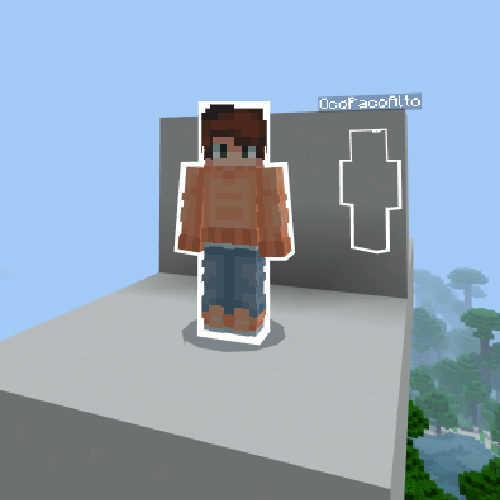
This has been removed for now because of viberant visuals.
Detect Actions
----------------
To use Detection Actions, simply give the player the tag 'Detect:Actions'. They will then get one of the following tags when doing one of the following actions.
`Detect:Sneaking` is given when the player crouches.
`Detect:Jumping` is given when the player jumps.
`Detect:Sprinting` is given when the player sprints.
`Detect:OnGround`§r is given when the player is on the ground.
`Detect:Falling` is given when the player is falling.
`Detect:Gliding` is given when the player is using an elytra.
`Detect:IsSwimming` is given when the player is swimming (and sprinting).
`Detect:InWater` is given when the player is in water.
`Detect:Sleeping` is given when the player is sleeping.
`Detect:IsEmoting` is given when the player is emoting.
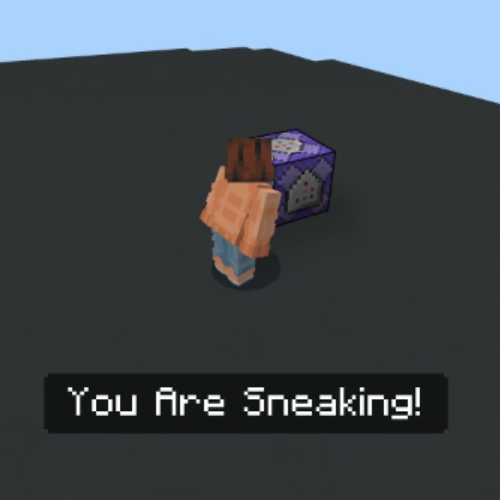
example: title @a[tag=Detect:Sneaking] actionbar You Are Sneaking!
Detect Coords
----------------
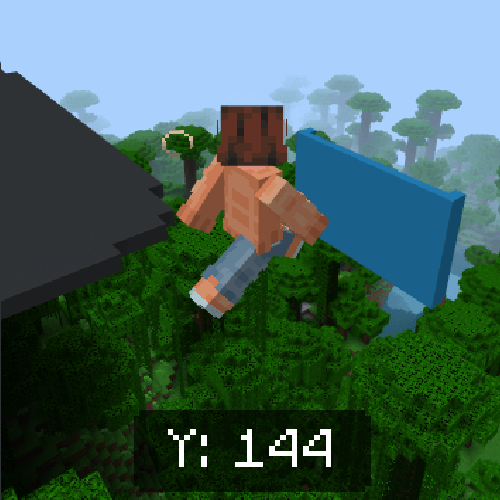
After giving a player the tag `Detect:Coords` and then add the scoreboards `DetectXCoord` , `DetectYCoord` , and `DetectZCoord`. Each players coords will be put on these scoreboards. The example below will give you slow falling if your Y level is above 100.
example: effect @a[scores={DetectYCoord=100..}] slow_falling 1 1
Detect Rotation
----------------
After giving a player the scoreboard Detect:Rotation, their rotation will be put on the scoreboard DetectX and DetectY
Detect Momentum
----------------
After giving a player the scoreboard Detect:Momentum, their momentum will be put on the scoreboard DetectMomentum.
Kill Detection
---------------
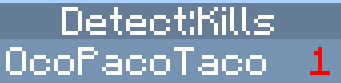
Start by making a scoreboard named "Detect:Kills". Whenever someone gets a kill, they will get one on this scoreboard. Below is an example of how to detect it in a command.
example: title @a[scores={Detect:Kills=1..}] actionbar You got a kill
Teams
--------
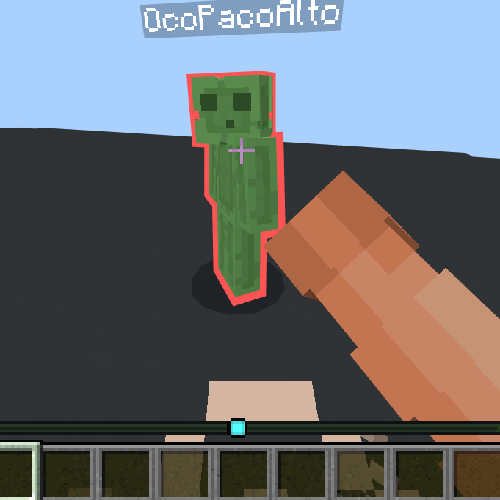
If you want teammates to not be able to hit each other, give them the tag "team1". Any player with the "team1" tag cannot hit another with the "team1" tag. This goes up to "team24". Even things like arrows bounce off!
example: /tag @a add team2
Custom Nametags
--------------------
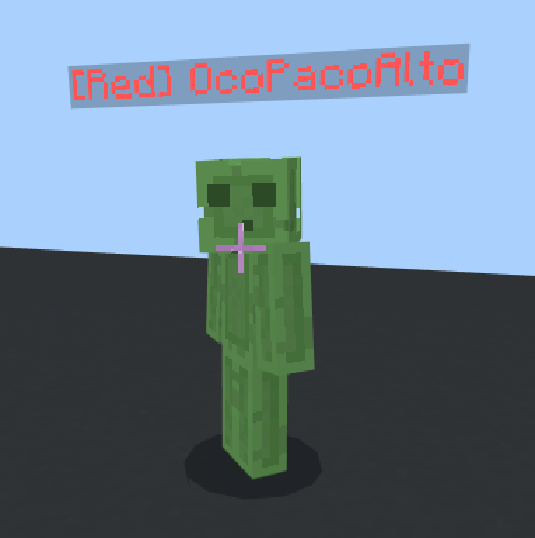
Giving someone a tag starting with "nametag:" will give them a new nametag. Typing "@s" will say the players nametag. The example below will give everyone a red nametag.
example: /tag @a add "§c[Red] @s"
NametagOverride
--------------------
Works the exact same as custom nametags, BUT overrides the username when a player sends a message in chat.
example: the tag "nametagOverride:Sercret Player" will make the players username in chat appear as "Secret Player"
example: the tag "nametagOverride:Sercret Player" will make the players username in chat appear as "Secret Player"
Item Use Detection
----------------------
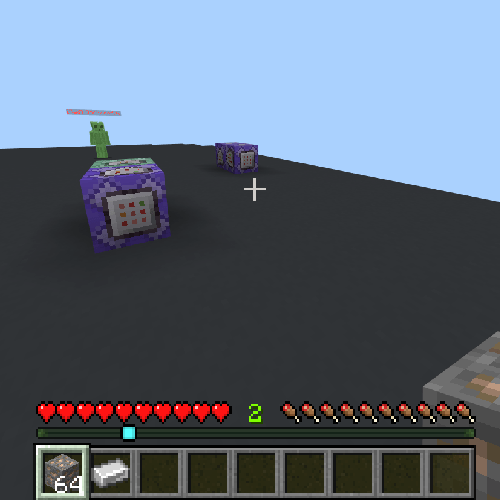
After giving someone the tag `Detect:ItemUse`, they will get the tag `UsedItem:` followed by the item they used every time they use said item. (UsedItem:''minecraft:diamond_sword'') The example below will give an iron ingot when using iron_ore.
example: /give @a[tag=UsedItem:minecraft:iron_ore] iron_ingot
(removes tag after 20 ticks)
Hit Detection
----------------
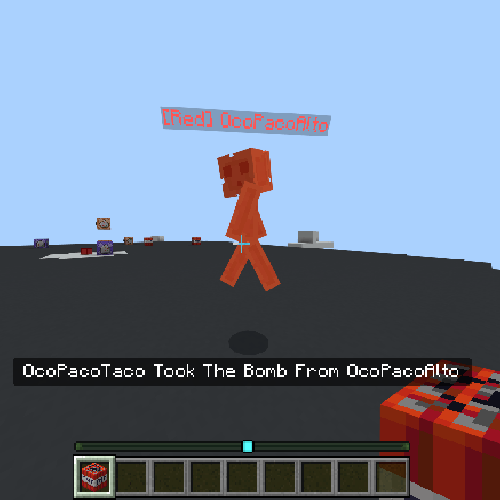
After giving someone the tag `Detect:Hits`, they will get the tag `Detect:HitPlayer` every time they hit a player. The example below will say a player who hit another player.
example: /title @a actionbar @a[tag=Detect:HitPlayer] hit a player!
Was Hit Detection
--------------------
After giving someone the tag `Detect:WhenHit`, they will get the tag `Detect:WasHit` every time they take damage. The example below will say a player who was hit.
example: /title @a actionbar @a[tag=Detect:WasHit] lost health!
Projectile Hit Detection
--------------------------
After giving someone the tag `Detect:WhenHit`, they will get the tag `Detect:WasHitBy<entity>` every time they get hit by the selected entity. The example below will create one shot arrows.
example: kill @a[tag=Detect:WasHitByminecraft:arrow]
Mob Kill Detection
---------------------
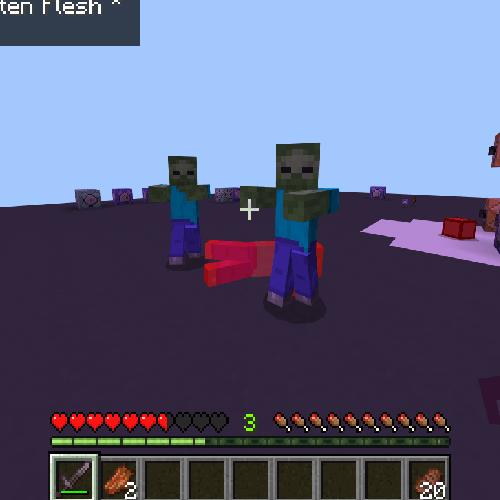
After giving someone the tag `Detect:MobKills`, they will get the tag `DetectKilled:<mob>` every time they kill a mob. The example below will give rotten flesh every time a zombie is killed
example: give @a[tag=DetectKilled:minecraft:zombie] rotten_flesh.
Trigger Give
--------------
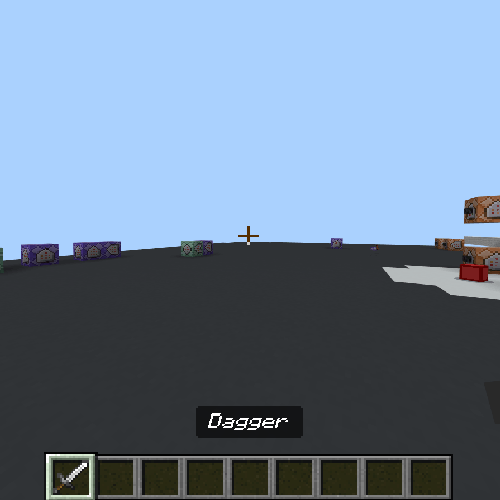
Trigger Give can be used to give players named items. To use Trigger Give, give a player the tag "`TriggerGive<Item>:<Amount>:<Slot>:<Name>" The example below will give the player an iron sword named Dagger
example: tag @s add TriggerGive:iron_sword:1:0:Dagger
Trigger Boost
----------------
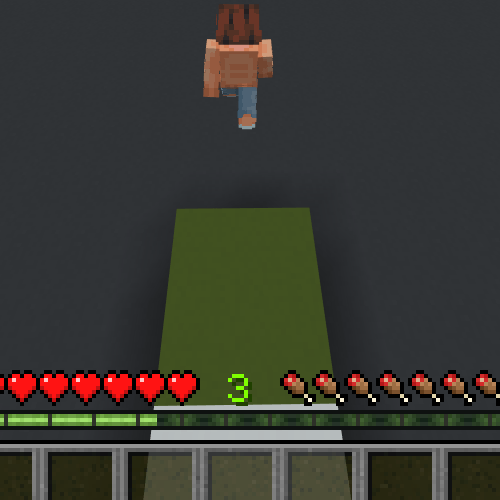
To use Trigger Boost, give a player the tag `TriggerGive:<X value>:<Y value>`. The X value will send the player horizontal, and the Y value will send the player vertical. The example below will give the player a boost when on green concrete.
You can optionally put a third number which represents left and right (TriggerBoost:0:5:5 will send you to the right)
example: execute as @a at @s if block ~~-1~ green_concrete run tag @s add TriggerBoost:10:1
Trigger Menu / Player Menu
-------------------------------
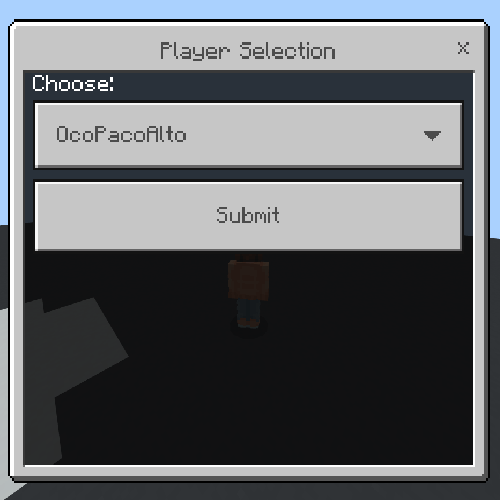
Trigger Menu will list players for the player to select. To use Trigger Menu, give a player the tag "TriggerMenu<Tag Of Players To List>:<Command To Be Applied>". In the command you write, @initiator will be the player in the menu, and @selected will be the player selected. The example below will list every player with the `team1` tag and tp the person in the menu to the selected player.
example: /tag @s add "TriggerMenu:team1:tp @initiator @selected"
You can use `All` instead of a tag to list every player.
example: tag @s add "TriggerMenu:All:tp @initiator @selected"
Border
--------
After spawning the border mob and right clicking it, you will be greeted with a menu. Here is everything in that menu:
- Scoreboard: The scoreboard the border uses.
- Particle: The particle ID the border uses. (example: minecraft:redstone_ore_dust_particle)
- Layer Amount: The amount of vertical layers in the border.
- Border Offset: The Y level offset from the entity (example: 5 will start the border 5 blocks above the entity)
- Layer Distance: The amount of blocks between each layer.
- Particle Speed: Speed at which the particals move in a circle.
To activate the border, use the command below.
"execute as @e[type=essentials:border] run scriptevent Essentials:Border"
if the border is lagging, try upping the tick delay.
To change the size of the border, change the entities score on the selected scoreboard
example: scoreboard players set @e[type=essentials:border] Border 20
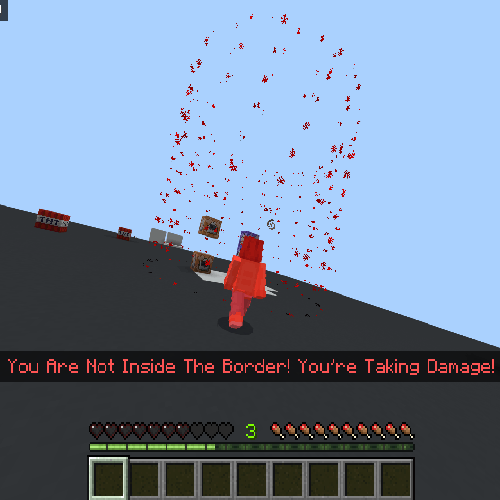
Lastly, every player inside the border will be given 1 on the same scoreboard. And player outside will be given 0. The command below will give wither to everyone outside the border. (For this example, the scoreboard will be named Border)
example: effect @a[scores={Border=0}] wither 1 1
Trigger Damage
------------------
Works similar to the /damage commands, although it isnt affected byhit delay and resistance. To use, give the player the tag TriggerDamge:<damage amount>. The example below will deal 5 damage to the player.
example: tag @s add "TriggerDamage:5"
Trigger Throw
---------------
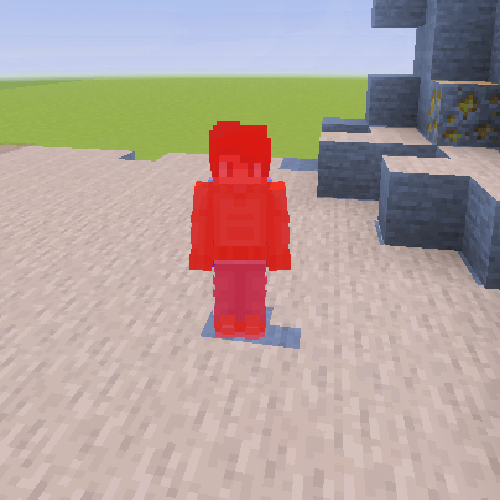
Let's the player throw any item. To use Trigger Throw, give the player the tag TriggerThrow:<entity>:<knockback strength>. The example below lets the player throw a pig.
example: tag @s add "TriggerThrow:pig:5"
When Projectile Hits Block
-----------------------------
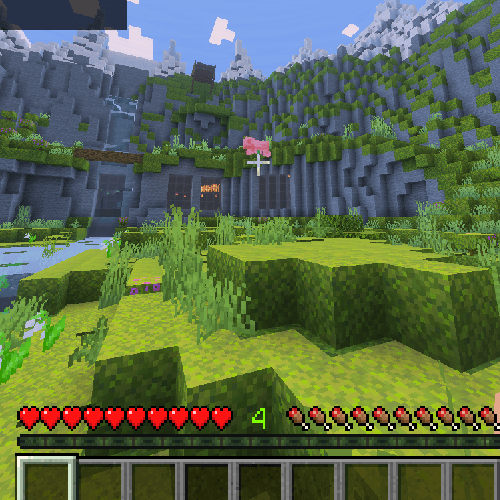
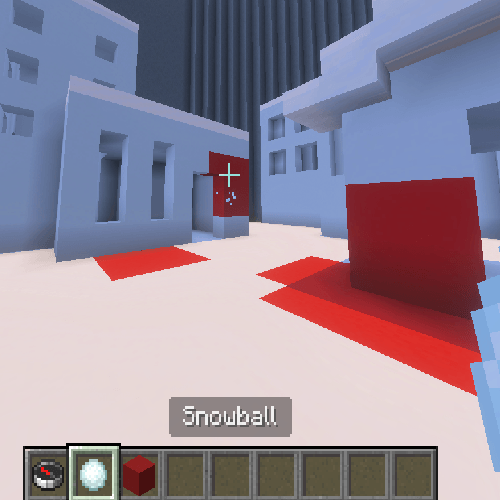
To use, give the player the tag WhenProjectileHitBlock:<projectile>:<command>. Every time the player's projectile hits any block from here out, a command will be ran at that blocks location. The example below will turn the area a snowball gets hit into red concrete.
example: tag @s add "WhenProjectileHitBlock:snowball:fill ~-1~-1~-1~1~1~1 red_concrete replace concrete"
When Mine
-------------
To use when mind, give the player the tag WhenMine:<block id>:<command>. From then on whenever you mind that block, the command will be run at that location. The example below turns white concrete into red concrete when mined.
example: tag @s add "WhenMine:white_concrete:setblock ~~~ red_concrete"

Disable Mining
-----------------
The player can no longer mine any blocks when given the tag DisableMining.
example: tag @s add DisableMining
Disable Placing
-----------------
The player can no longer place any blocks when given the tag DisablePlaceing.
example: tag @s add DisablePlacing
Multi Tag Removal
---------------------
The command below removes every tag from every player.
example: execute as @a run scriptevent Essentials:RemoveAllTags
The command below removes every tag that isnt a team tag from every player.
example: execute as @a run scriptevent Essentials:RemoveNonTeamTags
Auto Ignite TNT
------------------
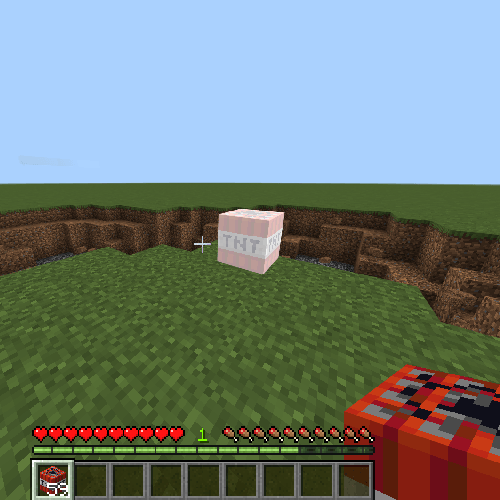
Added a seperate item called auto ignite TNT. This is only found in creative and is just tnt that auto lights! Very useful for pvp and similar minigames
Sky Block
-----------
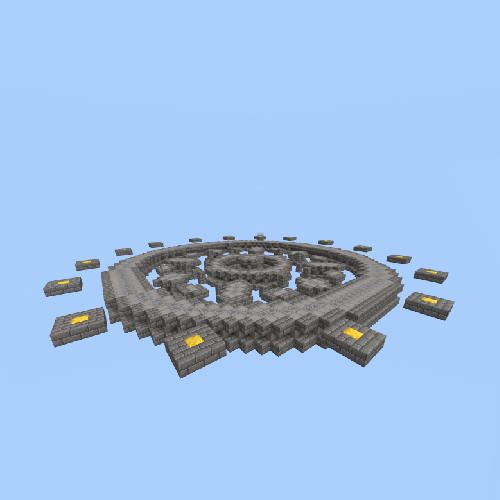
Added a new block that looks like the sky! Very useful for games that need void such as sky wars.
Command Coding Essentials Team